Page 194 of 256
04
192
RADIO
Display "DAB" waveband.Display the name and Radiotext for
the current station.
Short-cut: access to the choice of
audio source, telephone functions and
SmartphoneLink
® mode.
Select the radio station.
If the "DAB" radio station being
listened to is not available, the
"FM" waveband appears in the
screen.
Preset stations.
Short press: select the
preset radio station.
Long press: preset a radio
station.
"Next multiplex".
Next radio station.
Display the name and number of the
"Multiplex" service being used.
"Previous multiplex". "DAB radio configuration".
Previous radio station.
Page 195 of 256
04
193
RADIO
If "Alternative DAB frequency " tracking is activated, there is a
difference of a few seconds when the system switches to the "FM"
analogue radio station with sometimes a variation in volume.
When the digital signal is restored, the system automatically
changes back to "DAB".
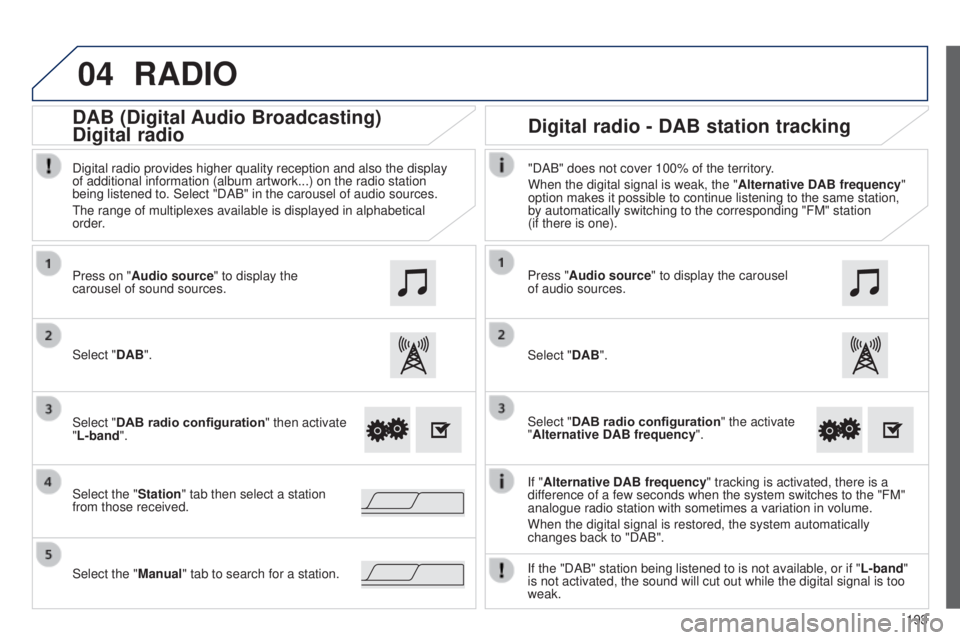
Select "DAB". Press on "Audio source" to display the
carousel of sound sources.
Select the "Station" tab then select a station
from those received. Select "DAB radio configuration" then activate
"L-band".
Select the "Manual" tab to search for a station. Digital radio provides higher quality reception and also the display
of additional information (album artwork...) on the radio station
being listened to. Select "DAB" in the carousel of audio sources.
t
he range of multiplexes available is displayed in alphabetical
order.
Press "Audio source" to display the carousel
of audio sources.
Select "DAB".
Select "DAB radio configuration" the activate
"Alternative DAB frequency ".
"DAB" does not cover 100% of the territory.
When the digital signal is weak, the "
Alternative DAB frequency"
option makes it possible to continue listening to the same station,
by automatically switching to the corresponding "FM" station
(if there is one).
If the "DAB" station being listened to is not available, or if " L-band"
is not activated, the sound will cut out while the digital signal is too\
weak.
Digital radio - DAB station tracking
DAB (Digital Audio
Broadcasting)
Digital radio
B3_en_Chap12a_Autoradio-t oyota-tactile-1_ed01-2014
Page 196 of 256
04
194
USB player
MUSIC
Using the auxiliary input (A/V)
(audio cable not supplied)
Insert the uSB memory stick in the uSB player or connect the uSB
peripheral device to the u SB port using a suitable cable
(not supplied).
t
he system builds playlists (in temporary memory), an operation
which can take from a few seconds to several minutes at the first
connection.
Reduce the number of non-music files and the number of folders to
reduce the waiting time.
t
he playlists are updated every time the ignition is switched off or
connection of a
u SB memory stick. However, the audio system
memorises these lists and if they are not modified, the loading time
will be shorter. Connect the portable device (MP3 player…) to the auxiliary JACK
socket using an audio cable.
Page 197 of 256
04
195
MUSIC
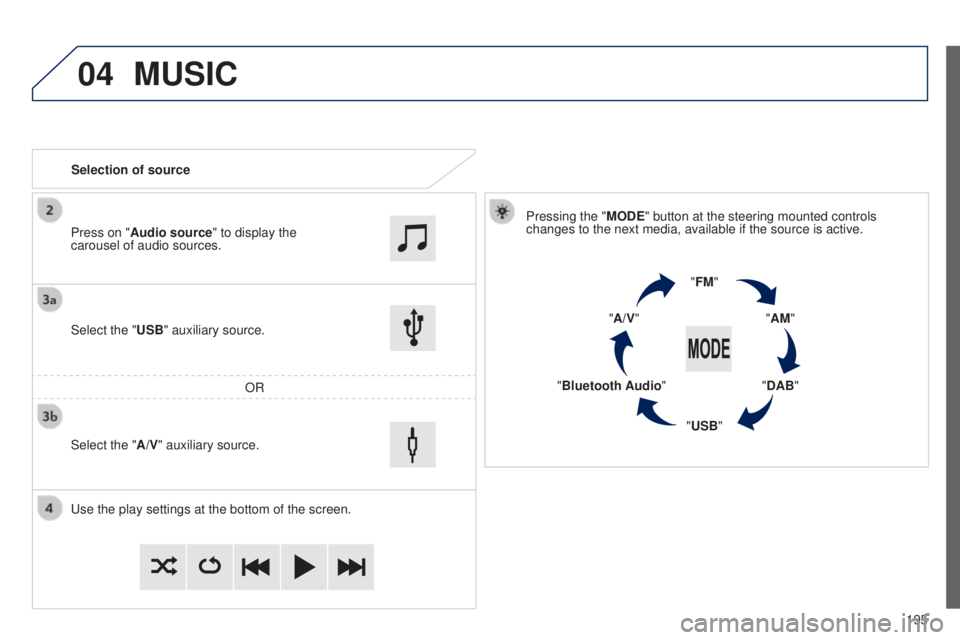
Selection of sourcePressing the "MODE" button at the steering mounted controls
changes to the next media, available if the source is active.
"FM""AM"
"DAB"
"USB"
"Bluetooth Audio" "A/V"
u
se the play settings at the bottom of the screen.
Select the "USB" auxiliary source.
OR
Select the "A/V" auxiliary source. Press on "Audio source" to display the
carousel of audio sources.
B3_en_Chap12a_Autoradio-t oyota-tactile-1_ed01-2014
Page 198 of 256

04MUSIC
196
MP3 / USB player
Information and advice
t
he system supports u SB mass storage devices or Apple
® players
via
u
SB ports. t
he adaptor cable not supplied.
Control of the peripheral device is with the audio system controls.
Other peripherals, not recognised on connection, must be connected
to the auxiliary socket using a Jack cable (not supplied).
In order to be read, a
u
SB memory stick must be formatted FA
t 16
or 32. The system can alternatively read files via the Bluetooth
® system
and the
u
SB port.
It is recommended that official Apple
® uSB cables are used to
ensure correct operation.
The audio system plays files with the extension:
".wma", type V
er7 and Ver8 with bit rate between 48 and 192 Kbps
and type Ver9 with bit rate between 48 and 320 Kbps.
".aac", with bit rate between 16 and 320 Kbps.
".mp3 - MP
eg
1" with bit rate between 32 and 320 Kbps and ".mp3 -
MP
eg
2" with bit rate between 8 and 160 Kbps.
t
he sampling rates supported are 11, 22, 44 and 48 KHz.
It is advisable to restrict file names to 20 characters, without using of
special characters (e.g.: " " ? ; ù) to avoid any playing and displ\
aying
problems.
Page 199 of 256

04
197
Audio streaming
Streaming allows audio files on your telephone to be played via the
vehicle's speakers.
Connect the telephone : see the "Telephone" section, then
Bluetooth.
Choose either " Connect all" or "Connect as audio player" profile.
If play does not start automatically, it may be necessary to start
audio play from the telephone.
Control is from the peripheral device or by using the audio system
controls.
Once connected for streaming, the telephone is considered as a
media source.
It is recommended that "Repeat" mode be activated in the Bluetooth
device.
Connecting Apple® players
Connect the Apple® player to the uSB port
using a suitable cable (not supplied).
Play starts automatically
.
Control is via the audio system.
The classifications available are those of the portable device
connected (artists / albums / genres / tracks / playlists / audio
books
/ podcasts).
The default classification used is by artist. To modify the
classification used, return to the first level of the menu then select
the desired classification (playlists for example) and confirm to go
down through the menu to the desired track.
MUSIC
the version of software in the audio system may not be compatible
with the generation of your Apple® player.
B3_en_Chap12a_Autoradio-t oyota-tactile-1_ed01-2014
Page 201 of 256
199
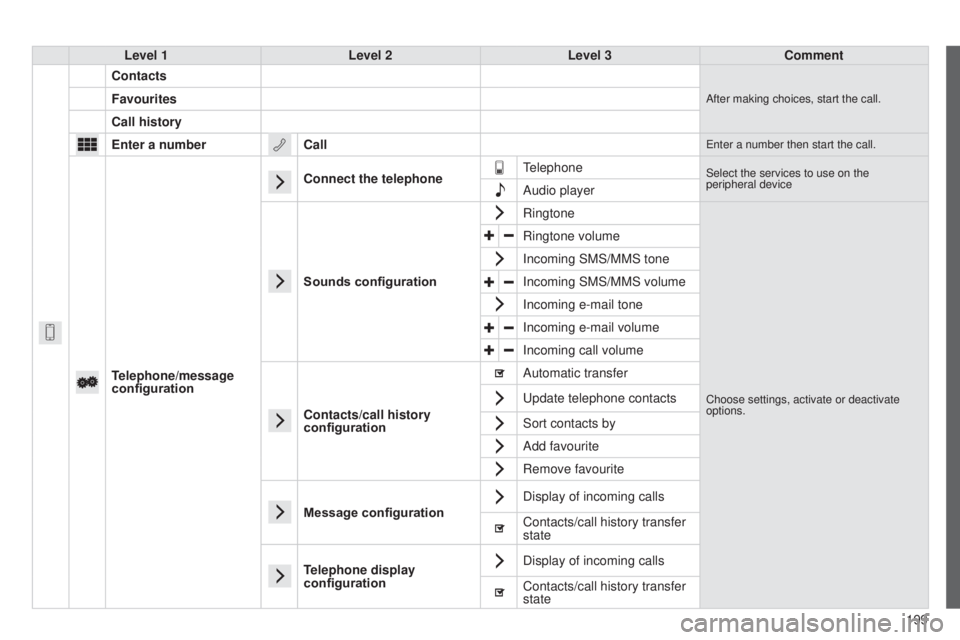
Level 1
Level 2Level 3Comment
Contacts
After making choices, start the call.Favourites
Call history
Enter a number Call
enter a number then start the call.
Telephone/message
configurationConnect the telephone
telephoneSelect the services to use on the
peripheral device
Audio player
Sounds configuration Ringtone
Choose settings, activate or deactivate
options.
Ringtone volume
Incoming SMS/MMS tone
Incoming SMS/MMS volume
Incoming e-mail tone
Incoming e-mail volume
Incoming call volume
Contacts/call history
configuration Automatic transfer
u
pdate telephone contacts
Sort contacts by
Add favourite
Remove favourite
Message configuration Display of incoming calls
Contacts/call history transfer
state
Telephone display
configuration Display of incoming calls
Contacts/call history transfer
state
B3_en_Chap12a_Autoradio-t
oyota-tactile-1_ed01-2014
Page 202 of 256
05
200
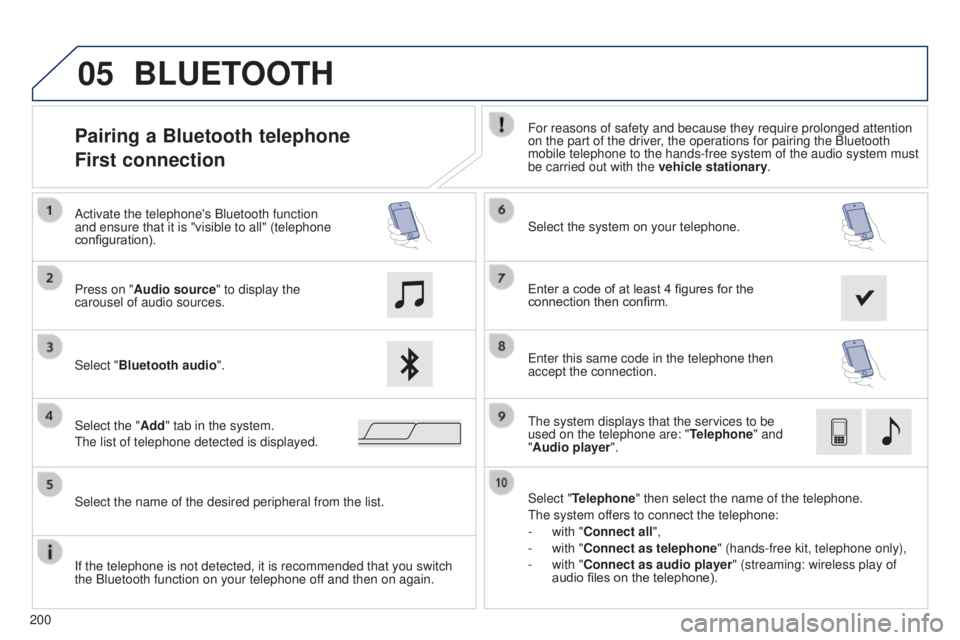
Pairing a Bluetooth telephone
First connectionFor reasons of safety and because they require prolonged attention
on the part of the driver, the operations for pairing the Bluetooth
mobile telephone to the hands-free system of the audio system must
be carried out with the vehicle stationary.
Select "Bluetooth audio ". Select the system on your telephone.
Select the "Add" tab in the system.
t
he list of telephone detected is displayed.
Press on "Audio source" to display the
carousel of audio sources. Activate the telephone's Bluetooth function
and ensure that it is "visible to all" (telephone
configuration).
Select "Telephone" then select the name of the telephone.
t
he system offers to connect the telephone:
-
with "
Connect all",
-
with "
Connect as telephone" (hands-free kit, telephone only),
-
with "
Connect as audio player" (streaming: wireless play of
audio files on the telephone).
Select the name of the desired peripheral from the list.
BLUETOOTH
If the telephone is not detected, it is recommended that you switch
the Bluetooth function on your telephone off and then on again. Enter a code of at least 4 figures for the
connection then confirm.
e
nter this same code in the telephone then
accept the connection.
t
he system displays that the services to be
used on the telephone are: " Telephone" and
"Audio player".