2014 NISSAN QUEST ignition
[x] Cancel search: ignitionPage 201 of 482
4-18Monitor, heater, air conditioner, audio, phone and voice recognition systems
JVH0157M
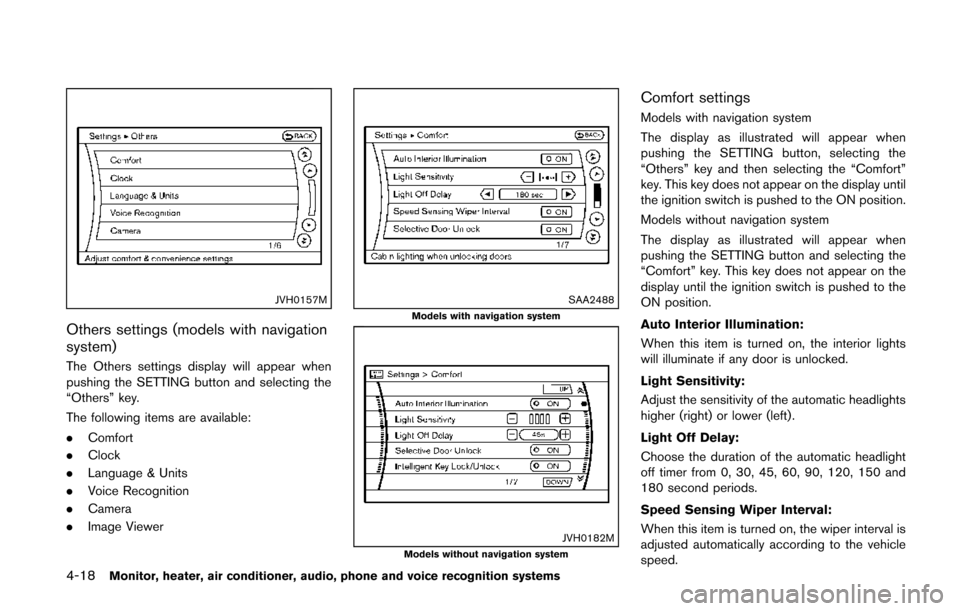
Others settings (models with navigation
system)
The Others settings display will appear when
pushing the SETTING button and selecting the
“Others” key.
The following items are available:
.Comfort
. Clock
. Language & Units
. Voice Recognition
. Camera
. Image Viewer
SAA2488Models with navigation system
JVH0182MModels without navigation system
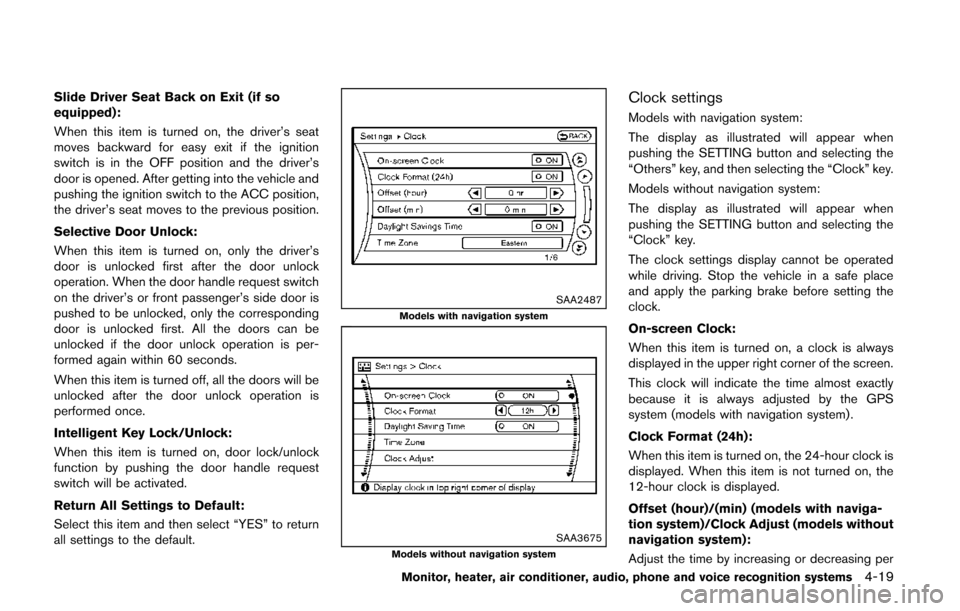
Comfort settings
Models with navigation system
The display as illustrated will appear when
pushing the SETTING button, selecting the
“Others” key and then selecting the “Comfort”
key. This key does not appear on the display until
the ignition switch is pushed to the ON position.
Models without navigation system
The display as illustrated will appear when
pushing the SETTING button and selecting the
“Comfort” key. This key does not appear on the
display until the ignition switch is pushed to the
ON position.
Auto Interior Illumination:
When this item is turned on, the interior lights
will illuminate if any door is unlocked.
Light Sensitivity:
Adjust the sensitivity of the automatic headlights
higher (right) or lower (left).
Light Off Delay:
Choose the duration of the automatic headlight
off timer from 0, 30, 45, 60, 90, 120, 150 and
180 second periods.
Speed Sensing Wiper Interval:
When this item is turned on, the wiper interval is
adjusted automatically according to the vehicle
speed.
Page 202 of 482
Slide Driver Seat Back on Exit (if so
equipped):
When this item is turned on, the driver’s seat
moves backward for easy exit if the ignition
switch is in the OFF position and the driver’s
door is opened. After getting into the vehicle and
pushing the ignition switch to the ACC position,
the driver’s seat moves to the previous position.
Selective Door Unlock:
When this item is turned on, only the driver’s
door is unlocked first after the door unlock
operation. When the door handle request switch
on the driver’s or front passenger’s side door is
pushed to be unlocked, only the corresponding
door is unlocked first. All the doors can be
unlocked if the door unlock operation is per-
formed again within 60 seconds.
When this item is turned off, all the doors will be
unlocked after the door unlock operation is
performed once.
Intelligent Key Lock/Unlock:
When this item is turned on, door lock/unlock
function by pushing the door handle request
switch will be activated.
Return All Settings to Default:
Select this item and then select “YES” to return
all settings to the default.
SAA2487Models with navigation system
SAA3675Models without navigation system
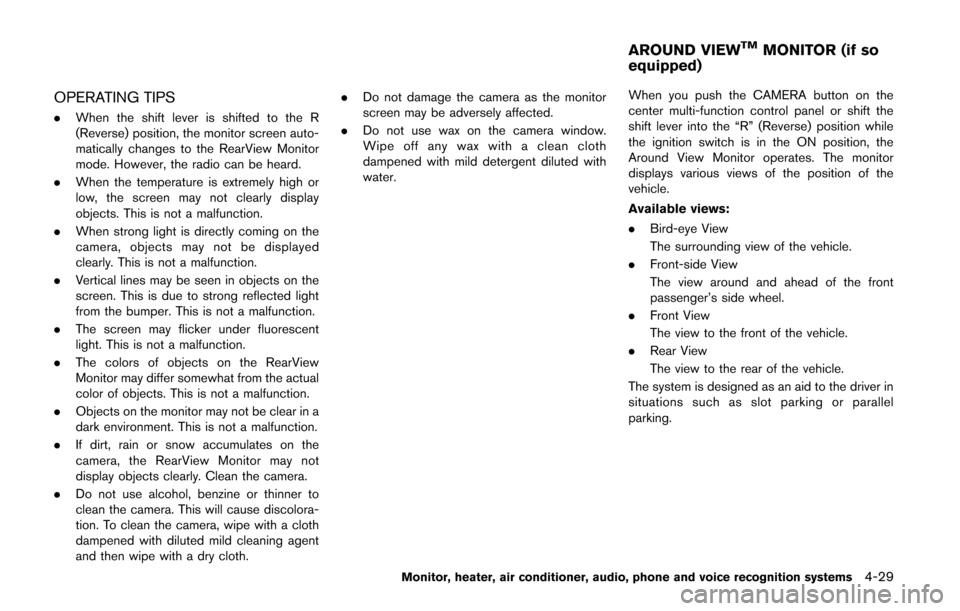
Clock settings
Models with navigation system:
The display as illustrated will appear when
pushing the SETTING button and selecting the
“Others” key, and then selecting the “Clock” key.
Models without navigation system:
The display as illustrated will appear when
pushing the SETTING button and selecting the
“Clock” key.
The clock settings display cannot be operated
while driving. Stop the vehicle in a safe place
and apply the parking brake before setting the
clock.
On-screen Clock:
When this item is turned on, a clock is always
displayed in the upper right corner of the screen.
This clock will indicate the time almost exactly
because it is always adjusted by the GPS
system (models with navigation system) .
Clock Format (24h):
When this item is turned on, the 24-hour clock is
displayed. When this item is not turned on, the
12-hour clock is displayed.
Offset (hour)/(min) (models with naviga-
tion system)/Clock Adjust (models without
navigation system):
Adjust the time by increasing or decreasing per
Monitor, heater, air conditioner, audio, phone and voice recognition systems4-19
Page 212 of 482
OPERATING TIPS
.When the shift lever is shifted to the R
(Reverse) position, the monitor screen auto-
matically changes to the RearView Monitor
mode. However, the radio can be heard.
. When the temperature is extremely high or
low, the screen may not clearly display
objects. This is not a malfunction.
. When strong light is directly coming on the
camera, objects may not be displayed
clearly. This is not a malfunction.
. Vertical lines may be seen in objects on the
screen. This is due to strong reflected light
from the bumper. This is not a malfunction.
. The screen may flicker under fluorescent
light. This is not a malfunction.
. The colors of objects on the RearView
Monitor may differ somewhat from the actual
color of objects. This is not a malfunction.
. Objects on the monitor may not be clear in a
dark environment. This is not a malfunction.
. If dirt, rain or snow accumulates on the
camera, the RearView Monitor may not
display objects clearly. Clean the camera.
. Do not use alcohol, benzine or thinner to
clean the camera. This will cause discolora-
tion. To clean the camera, wipe with a cloth
dampened with diluted mild cleaning agent
and then wipe with a dry cloth. .
Do not damage the camera as the monitor
screen may be adversely affected.
. Do not use wax on the camera window.
Wipe off any wax with a clean cloth
dampened with mild detergent diluted with
water. When you push the CAMERA button on the
center multi-function control panel or shift the
shift lever into the “R” (Reverse) position while
the ignition switch is in the ON position, the
Around View Monitor operates. The monitor
displays various views of the position of the
vehicle.
Available views:
.
Bird-eye View
The surrounding view of the vehicle.
. Front-side View
The view around and ahead of the front
passenger’s side wheel.
. Front View
The view to the front of the vehicle.
. Rear View
The view to the rear of the vehicle.
The system is designed as an aid to the driver in
situations such as slot parking or parallel
parking.
Monitor, heater, air conditioner, audio, phone and voice recognition systems4-29
AROUND VIEWTMMONITOR (if so
equipped)
Page 217 of 482
4-34Monitor, heater, air conditioner, audio, phone and voice recognition systems
line is displayed only on the opposite
side of the turn.
JVH0337X
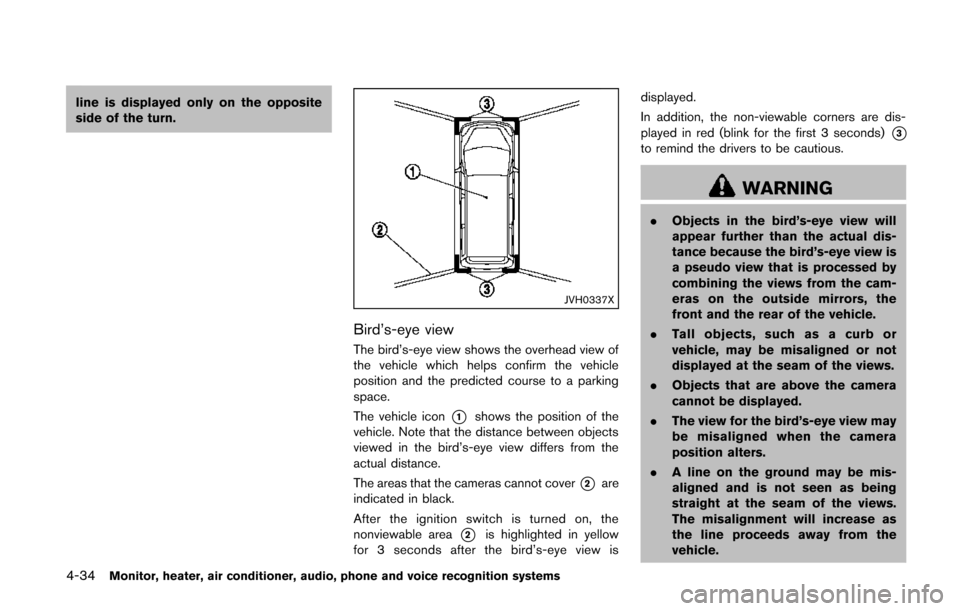
Bird’s-eye view
The bird’s-eye view shows the overhead view of
the vehicle which helps confirm the vehicle
position and the predicted course to a parking
space.
The vehicle icon
*1shows the position of the
vehicle. Note that the distance between objects
viewed in the bird’s-eye view differs from the
actual distance.
The areas that the cameras cannot cover
*2are
indicated in black.
After the ignition switch is turned on, the
nonviewable area
*2is highlighted in yellow
for 3 seconds after the bird’s-eye view is displayed.
In addition, the non-viewable corners are dis-
played in red (blink for the first 3 seconds)
*3to remind the drivers to be cautious.
WARNING
.
Objects in the bird’s-eye view will
appear further than the actual dis-
tance because the bird’s-eye view is
a pseudo view that is processed by
combining the views from the cam-
eras on the outside mirrors, the
front and the rear of the vehicle.
. Tall objects, such as a curb or
vehicle, may be misaligned or not
displayed at the seam of the views.
. Objects that are above the camera
cannot be displayed.
. The view for the bird’s-eye view may
be misaligned when the camera
position alters.
. A line on the ground may be mis-
aligned and is not seen as being
straight at the seam of the views.
The misalignment will increase as
the line proceeds away from the
vehicle.
Page 223 of 482
4-40Monitor, heater, air conditioner, audio, phone and voice recognition systems
even if the engine is turned off and the ignition
switch is in the “ON” position.
NOTE:
.Odors from inside and outside the
vehicle can build up in the air condi-
tioner unit. Odor can enter the passen-
ger compartment through the vents.
. When parking, set the heater and air
conditioner controls to turn off air
recirculation to allow fresh air into the
passenger compartment. This should
help reduce odors inside the vehicle.
SAA3594
SAA3514
OPERATING TIPS (for automatic air
conditioner)
When the engine coolant temperature and
outside air temperature are low, the air flow
from the foot outlets may not operate. However,
this is not a malfunction. After the coolant
temperature warms up, the air flow from the
foot outlets will operate normally.
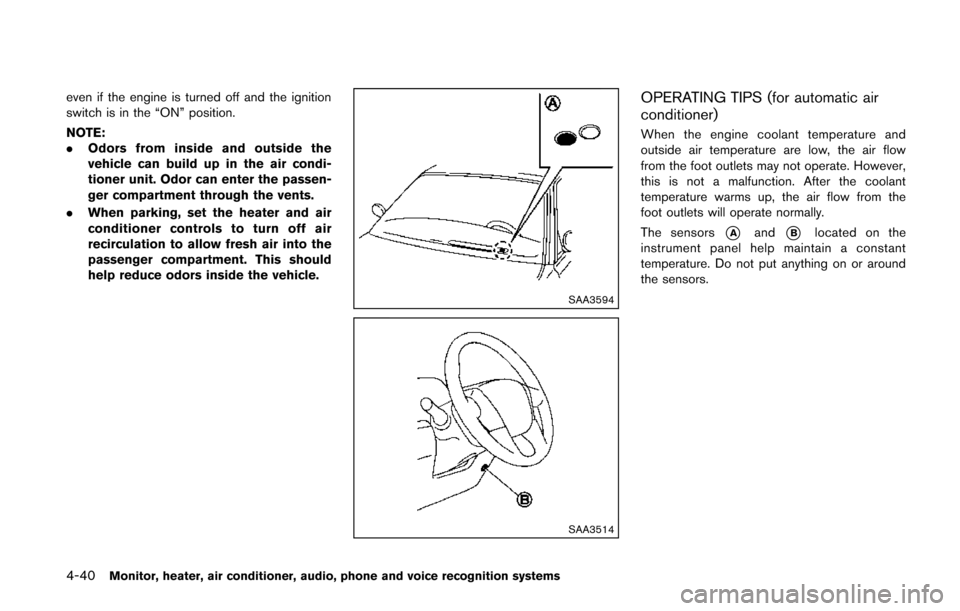
The sensors
*Aand*Blocated on the
instrument panel help maintain a constant
temperature. Do not put anything on or around
the sensors.
Page 236 of 482
IN-CABIN MICROFILTER
The climate control system is equipped with an
in-cabin microfilter which collects dirt, pollen,
dust, etc. To make sure the air conditioner heats,
defogs, and ventilates efficiently, replace the
filter in accordance with the maintenance
schedule in the NISSAN Service and Mainte-
nance Guide. To replace the filter, contact a
NISSAN dealer. A natural grape seed polyphe-
nol filter (if so equipped) collects and neutralizes
dirt, pollen, dust, etc.
The filter should be replaced if air flow is
extremely decreased or when windows fog
up easily when operating heater or air
conditioning system.
AUDIO OPERATION PRECAUTIONS
Radio
Push the ignition switch to the ACC or ON
position and push the radio band select button
to turn on the radio. If you listen to the radio with
the engine not running, the ignition switch
should be pushed to the ACC position.
Radio reception is affected by station signal
strength, distance from radio transmitter, build-
ings, bridges, mountains and other external
influences. Intermittent changes in reception
quality normally are caused by these external
influences.
Using a cellular phone in or near the
vehicle may influence radio reception
quality.
Radio reception:
Your NISSAN radio system is equipped with
state-of-the-art electronic circuits to enhance
radio reception. These circuits are designed to
extend reception range, and to enhance the
quality of that reception.
However there are some general characteristics
of both FM and AM radio signals that can affect
radio reception quality in a moving vehicle, even
when the finest equipment is used. These
characteristics are completely normal in a given
reception area, and do not indicate any mal-function in your NISSAN radio system.
Reception conditions will constantly change
because of vehicle movement. Buildings, terrain,
signal distance and interference from other
vehicles can work against ideal reception.
Described below are some of the factors that
can affect your radio reception.
Some cellular phones or other devices may
cause interference or a buzzing noise to come
from the audio system speakers. Storing the
device in a different location may reduce or
eliminate the noise.
Monitor, heater, air conditioner, audio, phone and voice recognition systems4-53
AUDIO SYSTEM
Page 251 of 482
4-68Monitor, heater, air conditioner, audio, phone and voice recognition systems
Audio main operation
The audio system operates when the ignition
switch is in the “ACC” or “ON” position.
ON·OFF/Volume contorol:
To turn on the audio system, push the Power
button.
.The system will turn on in the mode (radio or
CD) which was used immediately before the
system was turned off.
. If no CD is loaded, the radio will be turned
on.
To turn on and off the audio system, push the
Power button.
To control the volume, turn the VOL control
knob.
Adjusting sound preference:
1. To adjust the sound settings, push the MENU button until the item (Bass, Treble,
Balance, Fade or AUX IN Volume) to be
adjusted is displayed.
2. Turn the TUNE knob to adjust the settings.
When no action is taken for 5 seconds, the
display will automatically return to the original
mode. Clock setting:
Turning the clock ON/OFF:
1. Push the MENU button until “Clock: ON” or “Clock: OFF” is displayed.
2. Turn the TUNE·FOLDER knob to toggle between “Clock: ON” and “Clock: OFF”.
Adjusting the clock:
1. Turn on the clock.
2. Push the MENU button until “Adjust Clock” is displayed, and then select the “Yes”.
3. Push the MENU button. Turn the TUNE knob to adjust the hour.
4. Push the MENU button. Turn the TUNE knob to adjust the minutes.
5. Push the MENU button to exit the clock mode.
When no action is taken for 5 seconds, the
display will automatically return to the original
mode.
AUX button:
The AUX IN jack is located on the audio unit.
The AUX IN audio input jack accepts any
standard analog audio input such as from a
portable cassette tape player, CD player, digital
audio player or laptop computer.
Push the AUX button to play a compatible device when it is plugged into the AUX IN jack.
NISSAN strongly recommends using a stereo
mini plug cable when connecting your music
device to the audio system. Music may not play
properly when a monaural cable is used.
FM-AM radio operation
/radio (FM/AM) band select:
When the FM/AM button is pushed while the
audio system is off, the audio system will turn on
and the radio will turn on.
When the FM/AM button is pushed while
another audio source is playing, the other audio
source will turn off and the radio will turn on.
To change the radio bands (FM1, FM2, or AM) ,
push the FM/AM buttons.
TUNE (Tuning):
When adjusting the broadcasting station fre-
quency manually, turn the TUNE·FOLDER knob
until the preferred frequency is achieved.
/SEEK tuning:
To adjust the broadcasting station frequency
automatically, push and release the SEEK or
TRACK button. When the system detects a
broadcasting station, it will stop at the station.
Detected stations are skipped while SEEK or
Page 252 of 482
TRACK button is pushed and held.
SCAN tuning:
When the SCAN button is pushed, the system
will seek and stop at the detected broadcasting
station for 5 seconds, and then it will start to
seek for the next broadcasting station.
Push the SCAN button in this 5-second period
to stop seeking.
*1to*6Radio memory operations:
The audio system can store up to 12 FM station
frequencies (for FM1 and FM2) and 6 AM
station frequencies.
During radio reception, pushing the radio
memory button for less than 1.5 seconds will
play the stored radio station.
To store the station frequency manually:
1. Tune to the desired broadcasting station frequency using the SEEK /TRACK buttons.
2. Push and hold one of the radio memory buttons
*1-*6until a beep sounds.
3. The frequency of the selected channel will appear on the display when the memory is
stored properly.
4. Perform steps 1 - 3 for all other memory buttons.
Compact Disc (CD) player operation
Place the ignition switch in the ACC or ON
position, and insert the CD into the slot with the
label side facing up. The CD will be guided
automatically into the slot and start playing. After
loading the disc, the number of tracks on the
disc will appear on the display.
If the radio is already operating, it will auto-
matically turn off and the CD will play.
If the system has been turned off while the CD
was playing, pushing the Power button will start
the CD.
CD PLAY:
When the CD button is pushed while a CD is
loaded, the CD will start playing.
CD DISPLAY information:
When the DISP is pushed while a CD with title
information is playing, the information text on the
display will change as follows:
CD:
Track time ?Album Title ?Artist Name ?
Song Title ?Track time
CD with MP3/WMA:
Track time ?Folder Title ?Album Title ?Artist
Name ?Song Title ?Track time
/Next/Previous Track and Fast
Forward/Rewind:
Fast forward/Rewind:
Push and hold the FF or REW button for more
than 1.5 seconds to fast forward or rewind
through the track. Release the button to play the
CD at normal speed.
Track up/down:
To play the next track, push the FF button for
less than 1.5 seconds while a CD is playing.
To play the previous track, push the REW button
for less than 1.5 seconds within 2 seconds after
the current track started playing. To return to the
beginning of the current track, push the REW
button for less than 1.5 seconds after 2 seconds
from when the current track started playing.
Folder Selector Knob (CD with MP3/
WMA):
To skip to the next folder, turn the
TUNE·FOLDER knob.
To skip to the next or previous track within the
folder, push SEEK/TRACK button
Monitor, heater, air conditioner, audio, phone and voice recognition systems4-69