2014 NISSAN JUKE CD player
[x] Cancel search: CD playerPage 190 of 402
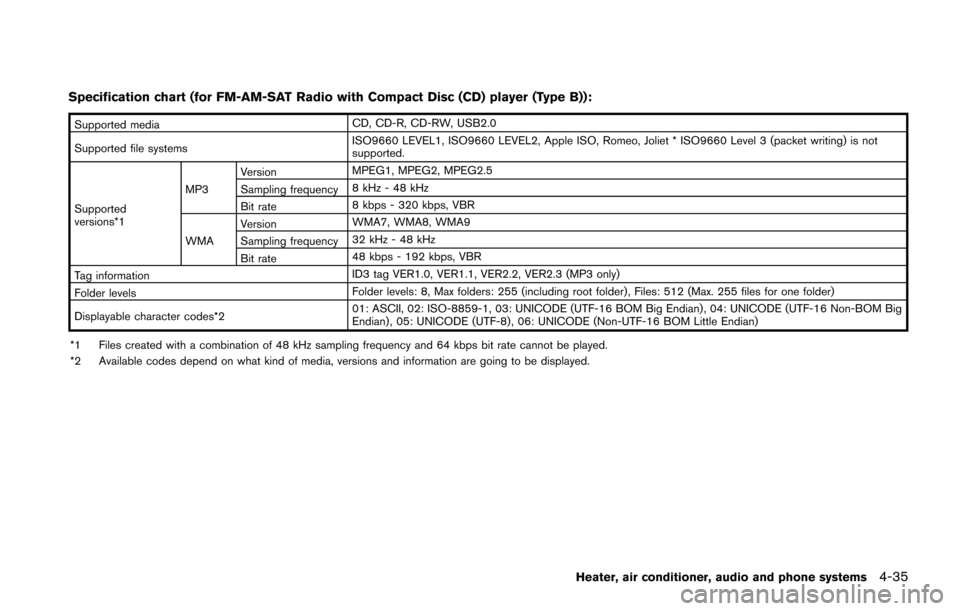
Specification chart (for FM-AM-SAT Radio with Compact Disc (CD) player (Type B)):
Supported mediaCD, CD-R, CD-RW, USB2.0
Supported file systems ISO9660 LEVEL1, ISO9660 LEVEL2, Apple ISO, Romeo, Joliet * ISO9660 Level 3 (packet writing) is not
supported.
Supported
versions*1 MP3
Version
MPEG1, MPEG2, MPEG2.5
Sampling frequency 8 kHz - 48 kHz
Bit rate 8 kbps - 320 kbps, VBR
WMA Version
WMA7, WMA8, WMA9
Sampling frequency 32 kHz - 48 kHz
Bit rate 48 kbps - 192 kbps, VBR
Tag information ID3 tag VER1.0, VER1.1, VER2.2, VER2.3 (MP3 only)
Folder levels Folder levels: 8, Max folders: 255 (including root folder) , Files: 512 (Max. 255 files for one folder)
Displayable character codes*2 01: ASCII, 02: ISO-8859-1, 03: UNICODE (UTF-16 BOM Big Endian) , 04: UNICODE (UTF-16 Non-BOM Big
Endian) , 05: UNICODE (UTF-8), 06: UNICODE (Non-UTF-16 BOM Little Endian)
*1 Files created with a combination of 48 kHz sampling frequency and 64 kbps bit rate cannot be played.
*2 Available codes depend on what kind of media, versions and information are going to be displayed.
Heater, air conditioner, audio and phone systems4-35
Page 191 of 402
4-36Heater, air conditioner, audio and phone systems
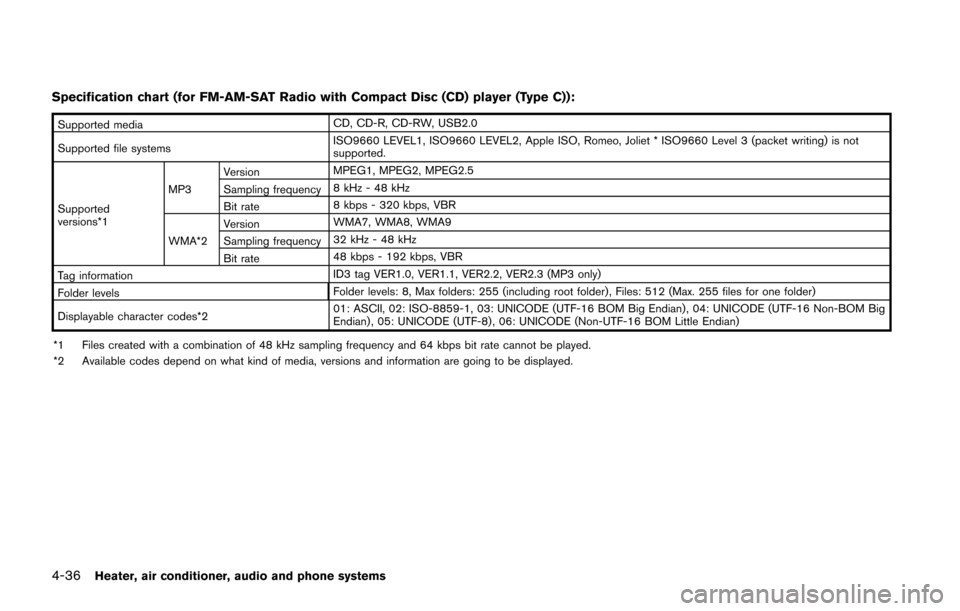
Specification chart (for FM-AM-SAT Radio with Compact Disc (CD) player (Type C)):
Supported mediaCD, CD-R, CD-RW, USB2.0
Supported file systems ISO9660 LEVEL1, ISO9660 LEVEL2, Apple ISO, Romeo, Joliet * ISO9660 Level 3 (packet writing) is not
supported.
Supported
versions*1 MP3
Version
MPEG1, MPEG2, MPEG2.5
Sampling frequency 8 kHz - 48 kHz
Bit rate 8 kbps - 320 kbps, VBR
WMA*2 Version
WMA7, WMA8, WMA9
Sampling frequency 32 kHz - 48 kHz
Bit rate 48 kbps - 192 kbps, VBR
Tag information ID3 tag VER1.0, VER1.1, VER2.2, VER2.3 (MP3 only)
Folder levels Folder levels: 8, Max folders: 255 (including root folder) , Files: 512 (Max. 255 files for one folder)
Displayable character codes*2 01: ASCII, 02: ISO-8859-1, 03: UNICODE (UTF-16 BOM Big Endian) , 04: UNICODE (UTF-16 Non-BOM Big
Endian) , 05: UNICODE (UTF-8) , 06: UNICODE (Non-UTF-16 BOM Little Endian)
*1 Files created with a combination of 48 kHz sampling frequency and 64 kbps bit rate cannot be played.
*2 Available codes depend on what kind of media, versions and information are going to be displayed.
Page 192 of 402
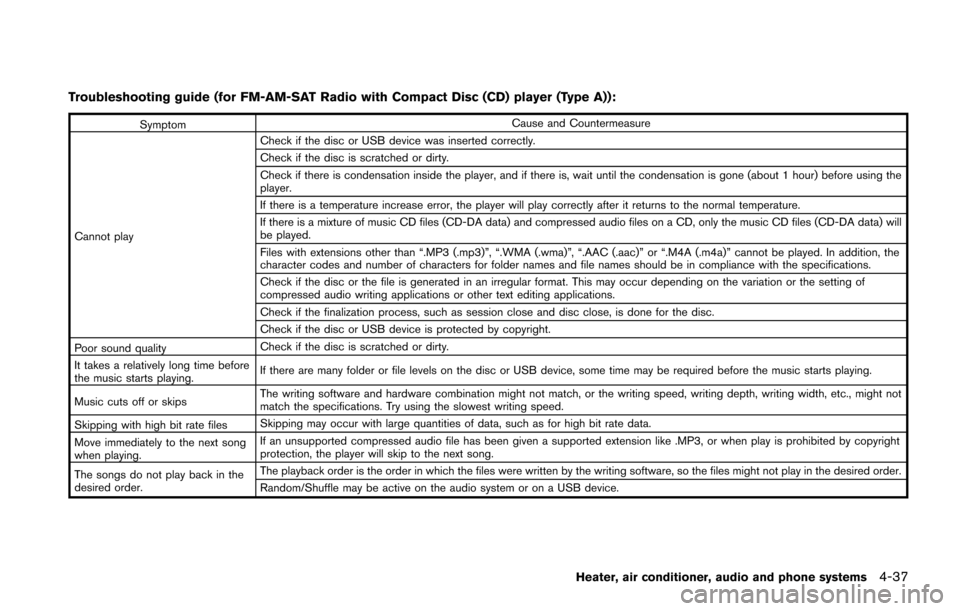
Troubleshooting guide (for FM-AM-SAT Radio with Compact Disc (CD) player (Type A)):
SymptomCause and Countermeasure
Cannot play Check if the disc or USB device was inserted correctly.
Check if the disc is scratched or dirty.
Check if there is condensation inside the player, and if there is, wait until the condensation is gone (about 1 hour) before using the
player.
If there is a temperature increase error, the player will play correctly after it returns to the normal temperature.
If there is a mixture of music CD files (CD-DA data) and compressed audio files on a CD, only the music CD files (CD-DA data) will
be played.
Files with extensions other than “.MP3 (.mp3)”, “.WMA (.wma)”, “.AAC (.aac)” or “.M4A (.m4a)” cannot be played. In addition, the
character codes and number of characters for folder names and file names should be in compliance with the specifications.
Check if the disc or the file is generated in an irregular format. This may occur depending on the variation or the setting of
compressed audio writing applications or other text editing applications.
Check if the finalization process, such as session close and disc close, is done for the disc.
Check if the disc or USB device is protected by copyright.
Poor sound quality Check if the disc is scratched or dirty.
It takes a relatively long time before
the music starts playing. If there are many folder or file levels on the disc or USB device, some time may be required before the music starts playing.
Music cuts off or skips The writing software and hardware combination might not match, or the writing speed, writing depth, writing width, etc., might not
match the specifications. Try using the slowest writing speed.
Skipping with high bit rate files Skipping may occur with large quantities of data, such as for high bit rate data.
Move immediately to the next song
when playing. If an unsupported compressed audio file has been given a supported extension like .MP3, or when play is prohibited by copyright
protection, the player will skip to the next song.
The songs do not play back in the
desired order. The playback order is the order in which the files were written by the writing software, so the files might not play in the desired order.
Random/Shuffle may be active on the audio system or on a USB device.
Heater, air conditioner, audio and phone systems4-37
Page 193 of 402
4-38Heater, air conditioner, audio and phone systems
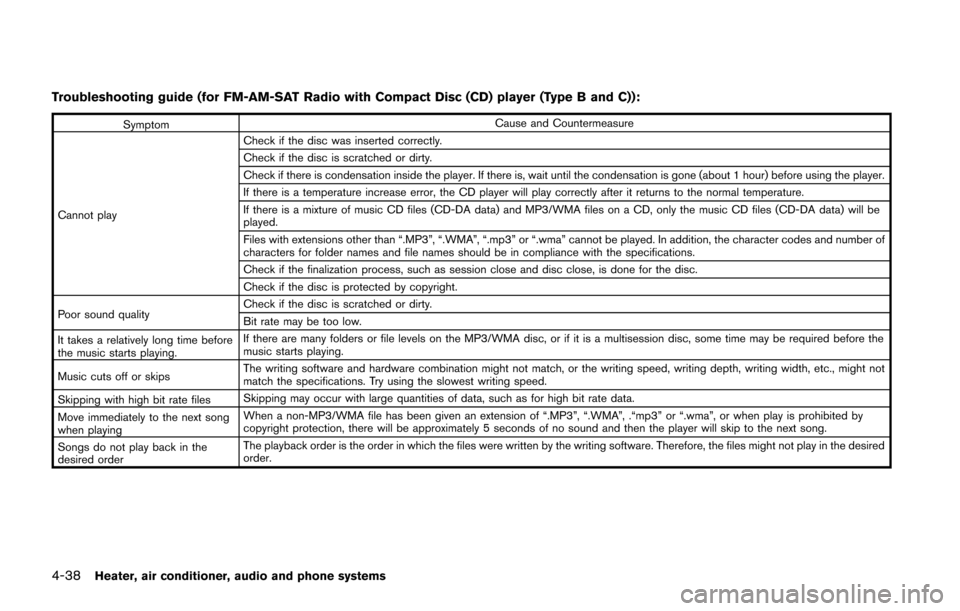
Troubleshooting guide (for FM-AM-SAT Radio with Compact Disc (CD) player (Type B and C)):
SymptomCause and Countermeasure
Cannot play Check if the disc was inserted correctly.
Check if the disc is scratched or dirty.
Check if there is condensation inside the player. If there is, wait until the condensation is gone (about 1 hour) before using the player.
If there is a temperature increase error, the CD player will play correctly after it returns to the normal temperature.
If there is a mixture of music CD files (CD-DA data) and MP3/WMA files on a CD, only the music CD files (CD-DA data) will be
played.
Files with extensions other than “.MP3”, “.WMA”, “.mp3” or “.wma” cannot be played. In addition, the character codes and number of
characters for folder names and file names should be in compliance with the specifications.
Check if the finalization process, such as session close and disc close, is done for the disc.
Check if the disc is protected by copyright.
Poor sound quality Check if the disc is scratched or dirty.
Bit rate may be too low.
It takes a relatively long time before
the music starts playing. If there are many folders or file levels on the MP3/WMA disc, or if it is a multisession disc, some time may be required before the
music starts playing.
Music cuts off or skips The writing software and hardware combination might not match, or the writing speed, writing depth, writing width, etc., might not
match the specifications. Try using the slowest writing speed.
Skipping with high bit rate files Skipping may occur with large quantities of data, such as for high bit rate data.
Move immediately to the next song
when playing When a non-MP3/WMA file has been given an extension of “.MP3”, “.WMA”, .“mp3” or “.wma”, or when play is prohibited by
copyright protection, there will be approximately 5 seconds of no sound and then the player will skip to the next song.
Songs do not play back in the
desired order The playback order is the order in which the files were written by the writing software. Therefore, the files might not play in the desired
order.
Page 194 of 402
Bluetooth®Audio player (if so equipped)
Bluetooth®is a trademark owned
by Bluetooth SIG, Inc. and li-
censed to Bosch.
. Some Bluetooth®audio devices may not be
recognized by the in-vehicle audio system.
. It is necessary to set up the wireless
connection between a compatible Blue-
tooth
®audio device and the in-vehicle
Bluetooth®module before using the Blue-
tooth®audio player.
. Operating procedure of the Bluetooth®
audio player will vary depending on the
device. Make sure it is understood how to
operate an audio device before using it with
this system.
. The Bluetooth
®audio player may be
stopped under the following conditions:
— Receiving a hands-free call.
— Checking the connection to the hands- free phone.
. Do not place a Bluetooth
®audio device in
an area surrounded by metal or far away
from the in-vehicle Bluetooth
®module to
prevent tone quality degradation and wire-
less connection disruption.
. While an audio device is connected through
a Bluetooth
®wireless connection, the bat-
tery power of the device may discharge quicker than usual.
. This system supports the Bluetooth
®Audio
Distribution Profile (A2DP, AVRCP).
. Wireless LAN (Wi-Fi) and the Bluetooth
®
functions share the same frequency band
(2.4 GHz) . Using the Bluetooth®and the
wireless LAN functions at the same time may
slow down or disconnect the communica-
tion and cause undesired noise. It is
recommended that you turn off the wireless
LAN (Wi-Fi) when using the Bluetooth
®
functions.
Heater, air conditioner, audio and phone systems4-39
Page 196 of 402
FM-AM-SAT* RADIO WITH COMPACT
DISC (CD) PLAYER (Type A)
Audio main operation
Head unit:
The auto loudness circuit enhances the low and
high frequency ranges automatically in both
radio reception and CD playback.
ON·OFF/Volume control:
Place the ignition switch in the ACC or ON
position, and then push the PWR button while
the system is off to call up the normal mode
(radio, CD, AUX and iPod
®) which was playing
immediately before the system was turned off.
While the system is on, pushing the PWR button
turns the system off.
Turn the VOL control knob to adjust the volume.
MUTE button:
Push the
button to mute the audio sound.
Push the
button again to release the mute
setting.
AUDIO button:
Push the AUDIO button to change the selecting
mode as follows.
Push the TUNE (,) or SEEK (,)
button to adjust Bass and Treble to the desired
level. Use the TUNE or SEEK button also to
adjust Fade or Balance modes. Fade adjusts the
sound level between the front and rear speakers
and Balance adjusts the sound between the
right and left speakers.
To turn the beep sound off or on, push the TUNE
or SEEK button until the desired mode is
displayed. This turns on or off the beep sound
when audio buttons are pushed.
To change the Speed Sensitive Volume (Spd
Sen Vol) mode to OFF, LOW, MID or HIGH,
push the TUNE or SEEK button until the desired
mode is displayed.
Once you have adjusted the sound quality to the
desired level, push the AUDIO button repeatedly
until the normal mode display reappears. Other-
wise, the normal mode display will automatically
reappear after approximately 5 seconds.
CLOCK button:
Push the CLOCK button to turn on or off the
CLOCK display.
See “Clock” (P.2-41) for the detailed clock
adjustment operation.
Heater, air conditioner, audio and phone systems4-41
Page 199 of 402
4-44Heater, air conditioner, audio and phone systems
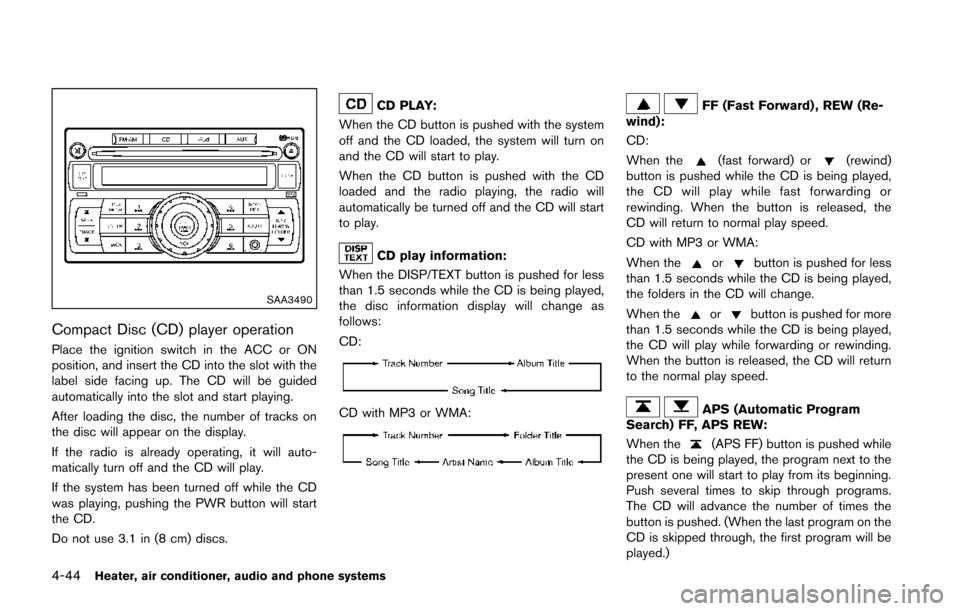
SAA3490
Compact Disc (CD) player operation
Place the ignition switch in the ACC or ON
position, and insert the CD into the slot with the
label side facing up. The CD will be guided
automatically into the slot and start playing.
After loading the disc, the number of tracks on
the disc will appear on the display.
If the radio is already operating, it will auto-
matically turn off and the CD will play.
If the system has been turned off while the CD
was playing, pushing the PWR button will start
the CD.
Do not use 3.1 in (8 cm) discs.
CD PLAY:
When the CD button is pushed with the system
off and the CD loaded, the system will turn on
and the CD will start to play.
When the CD button is pushed with the CD
loaded and the radio playing, the radio will
automatically be turned off and the CD will start
to play.
CD play information:
When the DISP/TEXT button is pushed for less
than 1.5 seconds while the CD is being played,
the disc information display will change as
follows:
CD:
CD with MP3 or WMA:
FF (Fast Forward) , REW (Re-
wind):
CD:
When the
(fast forward) or(rewind)
button is pushed while the CD is being played,
the CD will play while fast forwarding or
rewinding. When the button is released, the
CD will return to normal play speed.
CD with MP3 or WMA:
When the
orbutton is pushed for less
than 1.5 seconds while the CD is being played,
the folders in the CD will change.
When the
orbutton is pushed for more
than 1.5 seconds while the CD is being played,
the CD will play while forwarding or rewinding.
When the button is released, the CD will return
to the normal play speed.
APS (Automatic Program
Search) FF, APS REW:
When the
(APS FF) button is pushed while
the CD is being played, the program next to the
present one will start to play from its beginning.
Push several times to skip through programs.
The CD will advance the number of times the
button is pushed. (When the last program on the
CD is skipped through, the first program will be
played.)
Page 202 of 402
than 1.5 seconds while the iPod®is playing, the
next track or the beginning of the current track
on the iPod
®will be played.
APS (Automatic Program
Search) FF, APS REW button:
When the
orbutton is pushed for more
than 1.5 seconds while the iPod®is playing,
numbers of tracks can be skipped through.
When the
orbutton is pushed for less
than 1.5 seconds while iPod®is playing, the next
track or the beginning of the current track on the
iPod
®will be played.
REPEAT (RPT) , RANDOM (RDM):
When the RPT button is pushed while a track is
being played, the play pattern can be changed
as follows:
Except Podcast and Audiobook:
Podcast:
ALL REPEAT ↔TRACK REPEAT
Audiobook:
AUX (Auxiliary) input
AUX IN jack:
The AUX IN jack is located on the audio unit.
The AUX IN audio input jack accepts any
standard analog audio input such as from a
portable cassette tape/CD player, MP3 player or
laptop computer.
NISSAN strongly recommends using a stereo
mini plug cable when connecting your music
device to the audio system. Music may not play
properly when a monaural cable is used.
AUX (Auxiliary) button:
With an AUX device plugged in, push the AUX
button repeatedly until the display changes to
the AUX mode.
When the AUX button is pushed with no device
plugged into the jack, the audio system does not
change to the AUX mode.
Heater, air conditioner, audio and phone systems4-47