2014 NISSAN JUKE CD player
[x] Cancel search: CD playerPage 203 of 402
4-48Heater, air conditioner, audio and phone systems
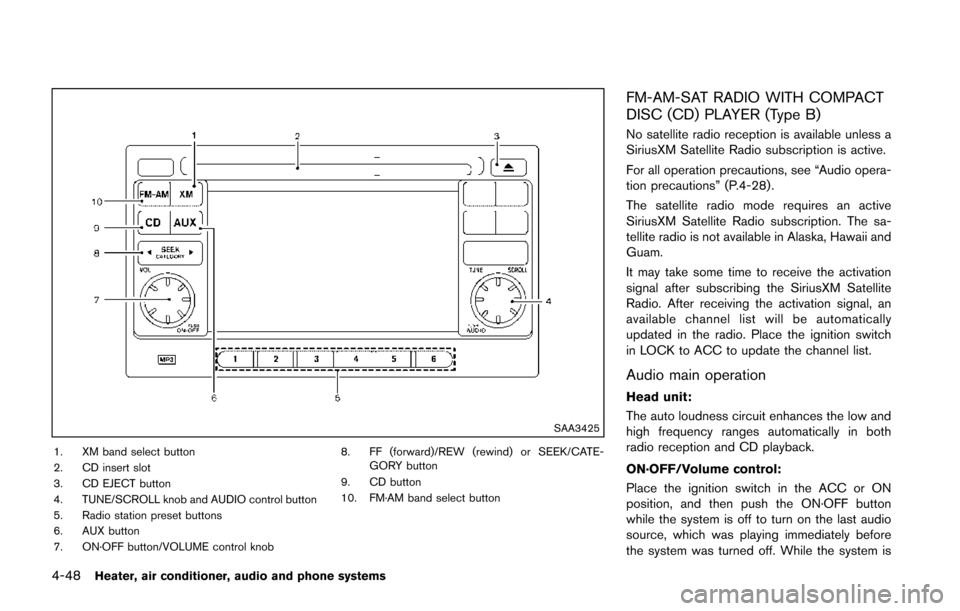
SAA3425
1. XM band select button
2. CD insert slot
3. CD EJECT button
4. TUNE/SCROLL knob and AUDIO control button
5. Radio station preset buttons
6. AUX button
7. ON·OFF button/VOLUME control knob8. FF (forward)/REW (rewind) or SEEK/CATE-
GORY button
9. CD button
10. FM·AM band select button
FM-AM-SAT RADIO WITH COMPACT
DISC (CD) PLAYER (Type B)
No satellite radio reception is available unless a
SiriusXM Satellite Radio subscription is active.
For all operation precautions, see “Audio opera-
tion precautions” (P.4-28) .
The satellite radio mode requires an active
SiriusXM Satellite Radio subscription. The sa-
tellite radio is not available in Alaska, Hawaii and
Guam.
It may take some time to receive the activation
signal after subscribing the SiriusXM Satellite
Radio. After receiving the activation signal, an
available channel list will be automatically
updated in the radio. Place the ignition switch
in LOCK to ACC to update the channel list.
Audio main operation
Head unit:
The auto loudness circuit enhances the low and
high frequency ranges automatically in both
radio reception and CD playback.
ON·OFF/Volume control:
Place the ignition switch in the ACC or ON
position, and then push the ON·OFF button
while the system is off to turn on the last audio
source, which was playing immediately before
the system was turned off. While the system is
Page 205 of 402
4-50Heater, air conditioner, audio and phone systems
frequency. To return to the regular radio display
screen, touch the “OK” key.
toStation memory operations:
12 stations/channels can be set for the FM band
(6 each for FM1 and FM2) , 18 for SiriusXM
Satellite Radio (6 each for XM1, XM2 and XM3)
and 6 stations can be set for the AM band.
1. Choose the radio band using the radio band select button.
2. Tune to the desired station/channel using the SEEK/CATEGORY button or the TUNE
knob.
3. Push and hold the desired station preset button
tountil the beep sound is
heard.
4. The station indicator will then come on and the sound will resume. Memorizing is now
complete.
5. Other buttons can be set in the same manner.
If the battery cable is disconnected, or if the fuse
opens, the radio memory will be erased. In that
case, reset the desired stations/channels.
Channels (SiriusXM Satellite Radio):
When the SiriusXM Satellite Radio is being
played, select “Channels” key to display a list of
channels. Select a preferred channel from the list to change to that channel.
Categories (SiriusXM Satellite Radio):
When the SiriusXM Satellite Radio is being
played, select “Categories” key to display a list
of channels. Select a preferred channel from the
list to display options within that category.
Compact Disc (CD) player operation
Place the ignition switch in the ACC or ON
position and insert the Compact Disc (CD) into
the slot with the label side facing up. The CD will
be guided automatically into the slot and start
playing.
If the radio is already operating, it will auto-
matically turn off and the CD will play.
If the system has been turned off while the CD
was playing, pushing the ON·OFF button will
start the CD.
Do not use 3.1 in (8 cm) discs.
PLAY:
When the CD button is pushed with the system
off and the CD loaded, the system will turn on
and the CD will start to play.
When the CD button is pushed with the CD
loaded and the radio playing, the radio will
automatically be turned off and the CD will start
to play. While listening to a CD or an MP3/WMA CD,
certain text may be displayed (when a CD
encoded with text is being used). Depending on
how the CD or MP3/WMA CD is encoded, the
text is displayed listing the artist, album and
song title.
Next/Previous Track and Fast
Forward/Rewind:
When the
orbutton is pushed for more
than 1.5 seconds while the CD is being played,
the CD will play while fast forwarding or
rewinding. When the button is released, the
CD will return to normal play speed.
When the
orbutton is pushed for less
than 1.5 seconds while the CD is being played,
the next track or the beginning of the current
track on the CD will be played.
When the rewind button is pushed for less than
1.5 seconds within 3 seconds after the current
track starts playing, the previous track will be
played.
Page 207 of 402
4-52Heater, air conditioner, audio and phone systems
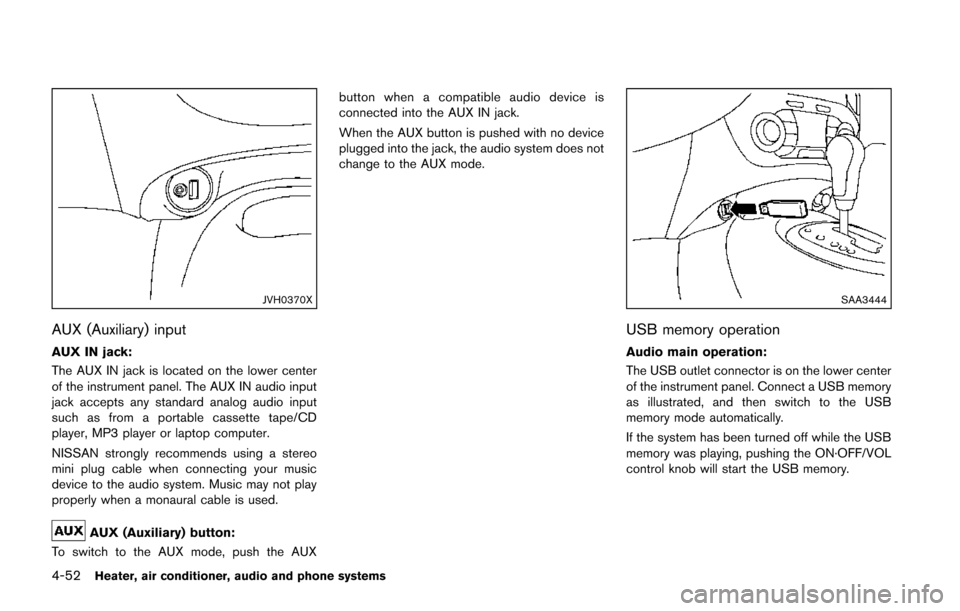
JVH0370X
AUX (Auxiliary) input
AUX IN jack:
The AUX IN jack is located on the lower center
of the instrument panel. The AUX IN audio input
jack accepts any standard analog audio input
such as from a portable cassette tape/CD
player, MP3 player or laptop computer.
NISSAN strongly recommends using a stereo
mini plug cable when connecting your music
device to the audio system. Music may not play
properly when a monaural cable is used.
AUX (Auxiliary) button:
To switch to the AUX mode, push the AUX button when a compatible audio device is
connected into the AUX IN jack.
When the AUX button is pushed with no device
plugged into the jack, the audio system does not
change to the AUX mode.
SAA3444
USB memory operation
Audio main operation:
The USB outlet connector is on the lower center
of the instrument panel. Connect a USB memory
as illustrated, and then switch to the USB
memory mode automatically.
If the system has been turned off while the USB
memory was playing, pushing the ON·OFF/VOL
control knob will start the USB memory.
Page 209 of 402
4-54Heater, air conditioner, audio and phone systems
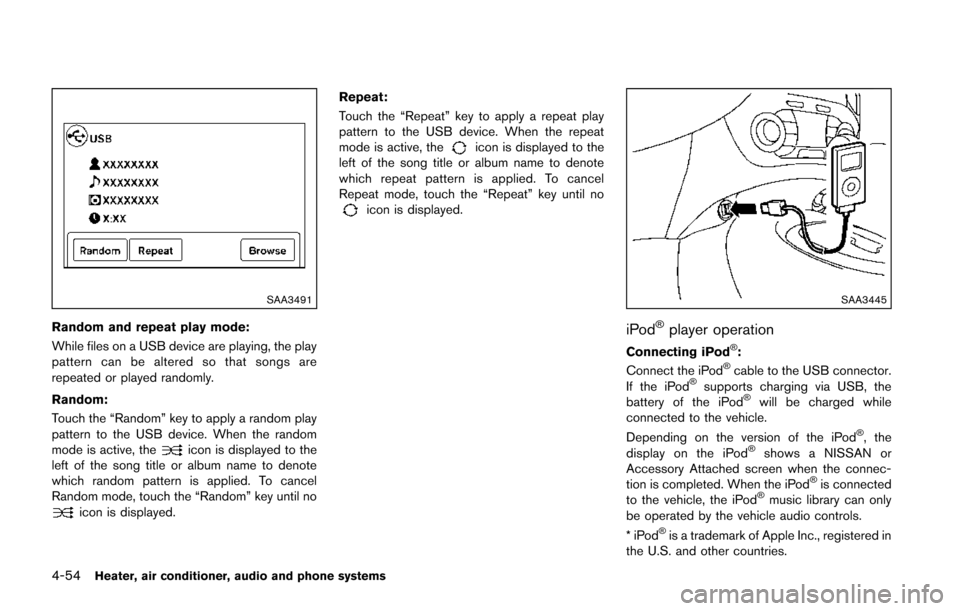
SAA3491
Random and repeat play mode:
While files on a USB device are playing, the play
pattern can be altered so that songs are
repeated or played randomly.
Random:
Touch the “Random” key to apply a random play
pattern to the USB device. When the random
mode is active, the
icon is displayed to the
left of the song title or album name to denote
which random pattern is applied. To cancel
Random mode, touch the “Random” key until no
icon is displayed. Repeat:
Touch the “Repeat” key to apply a repeat play
pattern to the USB device. When the repeat
mode is active, the
icon is displayed to the
left of the song title or album name to denote
which repeat pattern is applied. To cancel
Repeat mode, touch the “Repeat” key until no
icon is displayed.
SAA3445
iPod®player operation
Connecting iPod®:
Connect the iPod®cable to the USB connector.
If the iPod®supports charging via USB, the
battery of the iPod®will be charged while
connected to the vehicle.
Depending on the version of the iPod
®, the
display on the iPod®shows a NISSAN or
Accessory Attached screen when the connec-
tion is completed. When the iPod
®is connected
to the vehicle, the iPod®music library can only
be operated by the vehicle audio controls.
*iPod
®is a trademark of Apple Inc., registered in
the U.S. and other countries.
Page 212 of 402
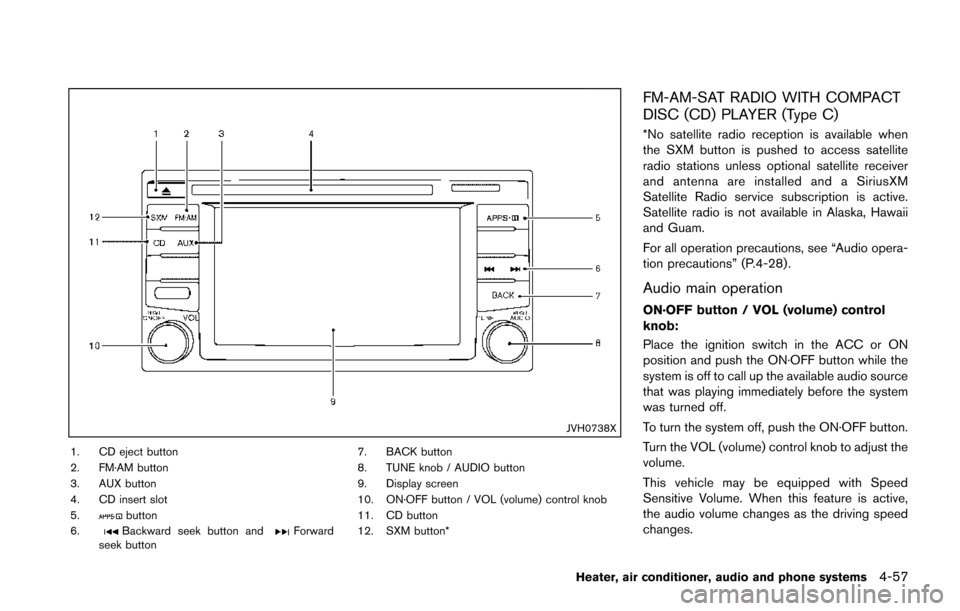
JVH0738X
1. CD eject button
2. FM·AM button
3. AUX button
4. CD insert slot
5.
button
6.Backward seek button andForward
seek button 7. BACK button
8. TUNE knob / AUDIO button
9. Display screen
10. ON·OFF button / VOL (volume) control knob
11. CD button
12. SXM button*
FM-AM-SAT RADIO WITH COMPACT
DISC (CD) PLAYER (Type C)
*No satellite radio reception is available when
the SXM button is pushed to access satellite
radio stations unless optional satellite receiver
and antenna are installed and a SiriusXM
Satellite Radio service subscription is active.
Satellite radio is not available in Alaska, Hawaii
and Guam.
For all operation precautions, see “Audio opera-
tion precautions” (P.4-28) .
Audio main operation
ON·OFF button / VOL (volume) control
knob:
Place the ignition switch in the ACC or ON
position and push the ON·OFF button while the
system is off to call up the available audio source
that was playing immediately before the system
was turned off.
To turn the system off, push the ON·OFF button.
Turn the VOL (volume) control knob to adjust the
volume.
This vehicle may be equipped with Speed
Sensitive Volume. When this feature is active,
the audio volume changes as the driving speed
changes.
Heater, air conditioner, audio and phone systems4-57
Page 215 of 402
4-60Heater, air conditioner, audio and phone systems
3. The channel indicator will then come on andthe sound will resume. Programming is now
complete.
4. Other keys can be set in the same manner.
If the battery cable is disconnected or if the fuse
opens, the radio memory will be canceled. In
that case, reset the desired stations.
Presets can also be selected by touching the
desired preset number on the screen.
Compact Disc (CD) player operation
If the radio is already operating, it automatically
turns off and the compact disc begins to play.
CD button:
When the CD button is pushed with the system
off and the compact disc loaded, the system will
turn on and the compact disc will start to play.
When the CD button is pushed with a compact
disc loaded and the radio playing, the radio will
automatically be turned off and the compact
disc will start to play. CD/MP3/WMA display mode:
Menu item
CD/MP3 display mode While listening to a CD or an MP3/WMA CD, certain text may be displayed (when a
CD encoded with text is being used) . Depending on how the CD or MP3/WMA CD
is encoded, the text is displayed listing the artist, album and song title. There are
other keys displayed on the screen when a CD is playing:
Random Touch the “Random” key to apply a random play pattern to the CD. If an MP3 CD is
playing, touching “Random” or alternates between Random Folder, and Random All.
This text will appear on the display. To cancel Random mode, touch the “Random”
key until the key is no longer highlighted.
Repeat Touch the “Repeat” key to apply a repeat play pattern to the CD. If an MP3 CD is
playing, touching “Repeat” alternates between repeating the current song and
repeating the current folder. This text will appear on the display. To cancel Repeat
mode, touch the “Repeat” key until the key is no longer highlighted.
Browse Touch the “Browse” key to display the titles on the CD in list format. Touch the title of
a song in the list to begin playing that song. If an MP3 CD is playing, touching the
“Browse” key will also list the folders on the disc. Follow the procedure for selecting a
song with the touch-screen to choose a folder.
Page 216 of 402
SEEK (Fast Forward/Rewind)
buttons:
Push and hold the seek buttons
orfor
1.5 seconds while the compact disc is playing to
reverse or fast forward the track being played.
The compact disc plays at an increased speed
while reversing or fast forwarding. When the
button is released, the compact disc returns to
normal play speed.
SEEK (Previous/Next Track)
buttons:
Push the seek button
while a CD or MP3/
WMA CD is playing to return to the beginning of
the current track. Push the seek button
several times to skip backward several tracks.
Push the seek button
while a CD or MP3/
WMA CD is playing to advance one track. Push
the seek button
several times to skip
forward several tracks. If the last track on a
CD is skipped, the first track on the disc is
played. If the last track in a folder of an MP3/
WMA CD is skipped, the first track of the next
folder is played.
CD eject button:
When the button is pushed with a compact disc
loaded, the compact disc will eject and the last
source will be played. If the disc is not removed within 10 seconds, the
disc will reload.
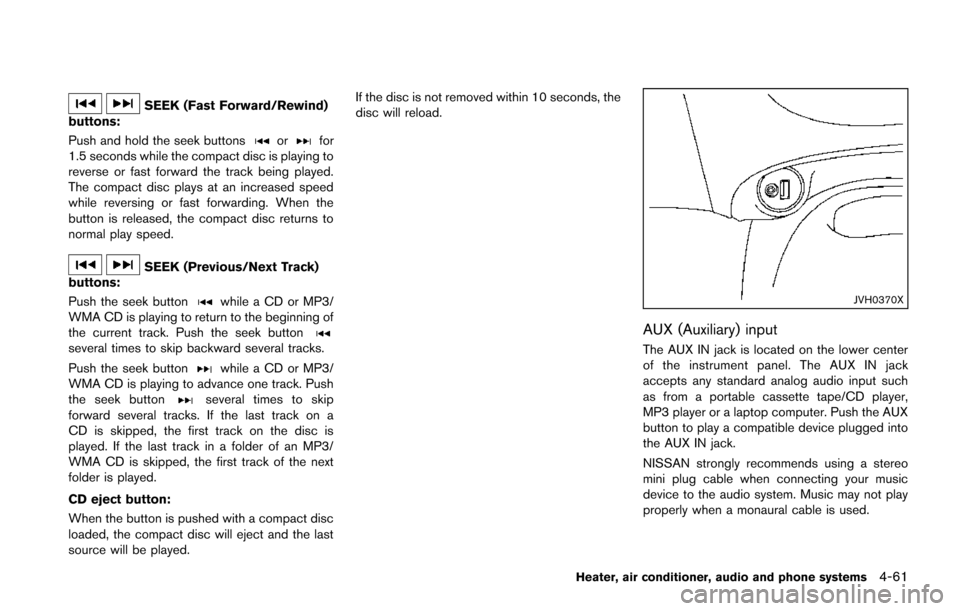
JVH0370X
AUX (Auxiliary) input
The AUX IN jack is located on the lower center
of the instrument panel. The AUX IN jack
accepts any standard analog audio input such
as from a portable cassette tape/CD player,
MP3 player or a laptop computer. Push the AUX
button to play a compatible device plugged into
the AUX IN jack.
NISSAN strongly recommends using a stereo
mini plug cable when connecting your music
device to the audio system. Music may not play
properly when a monaural cable is used.
Heater, air conditioner, audio and phone systems4-61
Page 218 of 402
JVH0743X
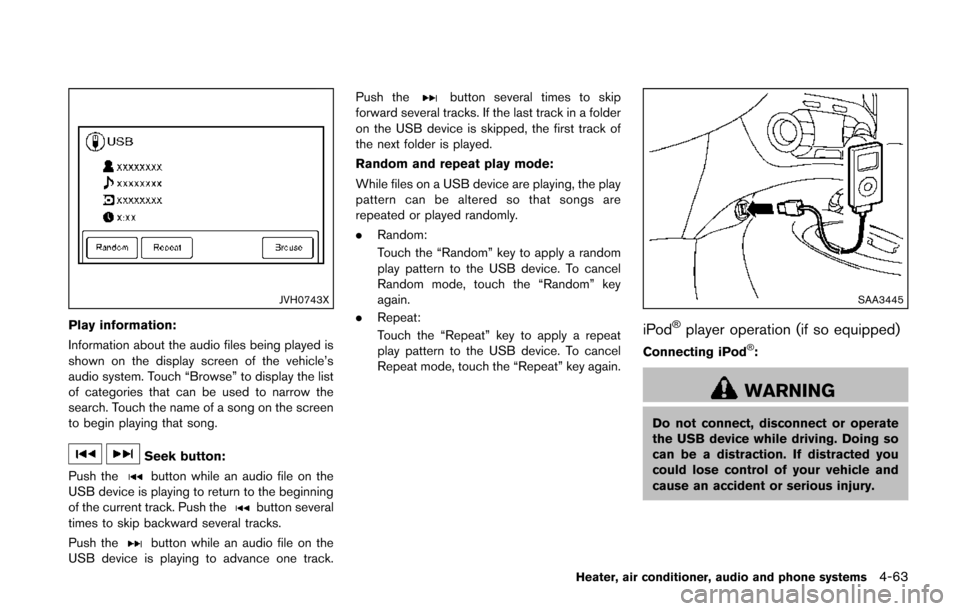
Play information:
Information about the audio files being played is
shown on the display screen of the vehicle’s
audio system. Touch “Browse” to display the list
of categories that can be used to narrow the
search. Touch the name of a song on the screen
to begin playing that song.
Seek button:
Push the
button while an audio file on the
USB device is playing to return to the beginning
of the current track. Push the
button several
times to skip backward several tracks.
Push the
button while an audio file on the
USB device is playing to advance one track. Push the
button several times to skip
forward several tracks. If the last track in a folder
on the USB device is skipped, the first track of
the next folder is played.
Random and repeat play mode:
While files on a USB device are playing, the play
pattern can be altered so that songs are
repeated or played randomly.
. Random:
Touch the “Random” key to apply a random
play pattern to the USB device. To cancel
Random mode, touch the “Random” key
again.
. Repeat:
Touch the “Repeat” key to apply a repeat
play pattern to the USB device. To cancel
Repeat mode, touch the “Repeat” key again.
SAA3445
iPod®player operation (if so equipped)
Connecting iPod®:
WARNING
Do not connect, disconnect or operate
the USB device while driving. Doing so
can be a distraction. If distracted you
could lose control of your vehicle and
cause an accident or serious injury.
Heater, air conditioner, audio and phone systems4-63