2014 MITSUBISHI LANCER SPORTBACK CD player
[x] Cancel search: CD playerPage 225 of 422

Link System (if so equipped) 5-158 Features and controls
5
N00563701079
The Link System takes overall control of the devices connected via the USB input terminal or the Bluetooth
® 2.0 interface allowing the
connected devices to be operated by using theswitches in the vehicle or voice commands.See the following section for details on how to operate. Refer to “Bluetooth
® 2.0 interface” on page
5-158.Refer to “USB input terminal” on page 5-180. Refer to “Listen to Audio Files on a USB Device” on page 7-46.Refer to “Listen to Bluetooth Audio” on page 7-49.
Bluetooth
® is a registered trademark of
BLUETOOTH SIG, INC.
N00563800015
You have acquired a device that includes soft- ware licensed by Mitsubishi Motors Corpora- tion from JOHNSON CONTROLS Inc (theautomotive experience business unit), andtheir subsequent 3rd party suppliers. For a complete list of these 3rd party products and their end user license agreements, please goto the following website. http://www.jciblueconn
ect.com/faq/fulldis-
closure.pdf
N00563901202
The Bluetooth
® 2.0 interface allows for mak-
ing/receiving hands-free calls in the vehicle using a Bluetooth
® compatible cellular phone
based on the wireless communication tech- nology commonly known as Bluetooth
®. It
also allows the user to
play music, saved in a
Bluetooth
® music player, from the vehicle’s
speakers.
The system is equipped with a voice recogni- tion function, which allows you to make hands-free calls by simple switch operations and voice command operations using adefined voice tree. The Bluetooth
® 2.0 interface can be used
when the ignition switch is in the “ON” or “ACC” position. Before you can use the Bluetooth
® 2.0 inter-
face, you must pair the Bluetooth
® device
and Bluetooth
® 2.0 interface. Refer to “Con-
necting the Bluetooth
® 2.0 interface and
Bluetooth
® device” on page 5-165.
Bluetooth
® is a registered trademark of
BLUETOOTH SIG, INC.
Link System
(if so equipped)
Type 2
Link System End User License Agreement
Bluetooth
® 2.0 interface
(if so
equipped)
WA R N I N G Although the Bluetooth
® 2.0 interface
allows you to make hands-free calls, if you choose to use the cellular phone whiledriving, you must not allow yourself to be distracted from the safe operation of your vehicle. Anything, including cellularphone usage, that distracts you from the safe operation of your vehicle increases your risk of an accident. Refer to and comply with all state and local laws in your area regarding cellularphone usage while driving.
BK0200700US.book
158 ページ 2013年2月15日 金曜日 午後12時17分
Page 226 of 422
Bluetooth® 2.0 interface (if so equipped)
Features and controls 5-159
5
Steering control switch and microphone
P.5-159Voice recognition function
P.5-161
Useful voice commands
P.5-162
Speaker enrollment function
P.5-163
Connecting the Bluetooth
® 2.0 interface and
the Bluetooth
® device
P.5-165
Operating a music player connected via Blue- tooth
® P.5-170
How to make or receive hands-free calls
P.5-170 Phonebook function
P.5-172
N00564001112
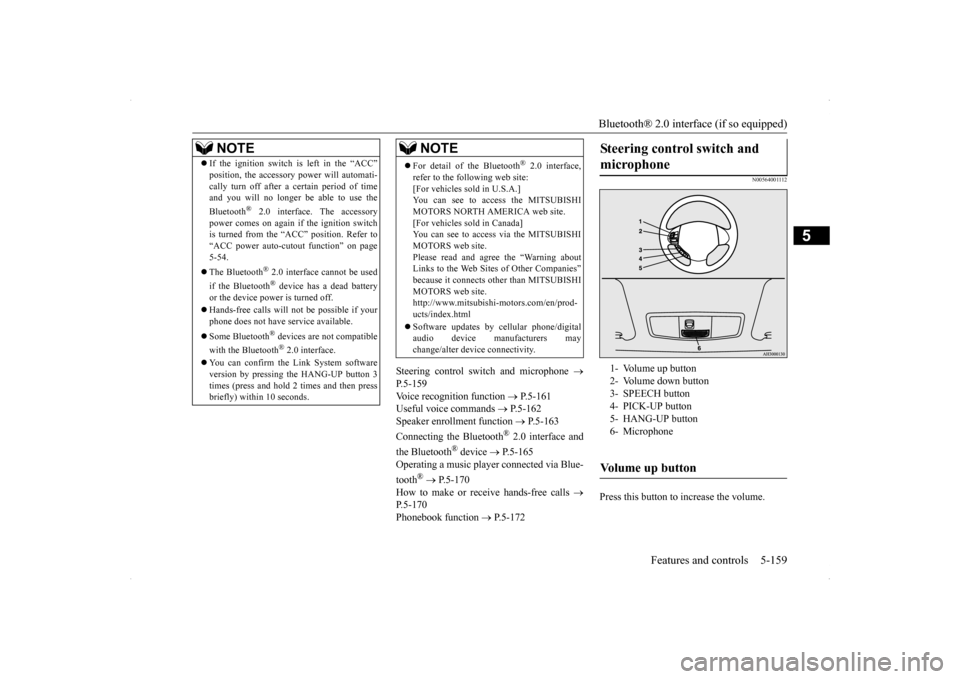
Press this button to increase the volume.
NOTE
If the ignition switch is left in the “ACC” position, the accessory power will automati- cally turn off after a
certain period of time
and you will no longer be able to use the Bluetooth
® 2.0 interface. The accessory
power comes on again if the ignition switch is turned from the “ACC” position. Refer to “ACC power auto-cutout function” on page5-54. The Bluetooth
® 2.0 interface cannot be used
if the Bluetooth
® device has a dead battery
or the device power is turned off. Hands-free calls will not be possible if your phone does not have service available. Some Bluetooth
® devices are not compatible
with the Bluetooth
® 2.0 interface.
You can confirm the Link System software version by pressing the HANG-UP button 3 times (press and hold 2 times and then press briefly) within 10 seconds.
For detail of the Bluetooth
® 2.0 interface,
refer to the following web site:[For vehicles sold in U.S.A.] You can see to access the MITSUBISHI MOTORS NORTH AMERICA web site.[For vehicles sold in Canada] You can see to access via the MITSUBISHI MOTORS web site.Please read and agree the “Warning about Links to the Web Sites of Other Companies” because it connects other than MITSUBISHIMOTORS web site. http://www.mitsubishi-motors.com/en/prod- ucts/index.html Software updates by cellular phone/digital audio device manufacturers maychange/alter device connectivity.NOTE
Steering control switch and microphone
1- Volume up button 2- Volume down button3- SPEECH button 4- PICK-UP button 5- HANG-UP button6- MicrophoneVolume up button
BK0200700US.book
159 ページ 2013年2月15日 金曜日 午後12時17分
Page 232 of 422

Bluetooth® 2.0 interface (if so equipped)
Features and controls 5-165
5
N00564901065
You can turn a voice model registered with the speaker enrollment function on and off whenever you want.You can also retrain the system. Use the following procedure to perform these actions. 1. Press the SPEECH button (except for vehicles with Mitsubishi Multi-Commu-nication System) or PICK-UP button (for vehicles with Mitsubishi Multi-Commu- nication System).2. Say “Voice training.” 3. If you have completed a speaker enroll- ment process once already, the voiceguide will say either “Enrollment is enabled. Would you like to disable or retrain?” or “Enrollment is disabled.Would you like to enable or retrain?” 4. When enrollment is “enabled,” the voice model is on; when enrollment is “dis-abled,” the voice model is off. Say the command that fits your needs. Say “Retrain” to start the speaker enroll-ment process and recreate a new voice model. (Refer to “Speaker enrollment” on page 5-163.)
N00565001207
Before you can make or receive hands-free calls or play music using the Bluetooth
® 2.0
interface function, you must pair the Blue- tooth
® device and Bluetooth
® 2.0 interface.
Up to 7 Bluetooth
® devices can be paired
with the Bluetooth
® 2.0 interface.
If multiple paired Bluetooth
® devices are
available in the vehicle, the cellular phone or music player most recently connected is auto- matically connected to the Bluetooth
® 2.0
interface. You can also change a Bluetooth
® device to
be connected.
To pair a Bluetooth
® device with the Blue-
tooth
® 2.0 interface, follow the steps below.
1. Stop your vehicle in a safe area, put the gearshift lever (manual transaxle) in the “N” (Neutral) position, or the selector lever {continuously variable transmission(CVT)} or gearshift lever (Twin Clutch SST) in the “P” (PARK) position, and then pull the parking brake lever. 2. Press the SPEECH button (except for vehicles with Mitsubishi Multi-Commu- nication System) or PICK-UP button (forvehicles with Mitsubishi Multi-Commu-nication System). 3. Say “Setup.” 4. Say “Pairing Options.”
Enabling and disabling the voice model and retraining
Connecting the Bluetooth
® 2.0
interface and Bluetooth
® device
NOTE
Pairing is required only when the device is used for the first time. Once the device has been paired with the Bluetooth
® 2.0 inter-
face, all you need is to bring the device into the vehicle next time and the device will connect to the Bluetooth
® 2.0 interface auto-
matically (if supported by the device).
To p a i r
NOTE
You cannot pair any Bluetooth
® device with
the Bluetooth
® 2.0 interface unless the vehi-
cle is parked. Before pairing a Bluetooth
®
device with the Bluetooth
® 2.0 interface,
confirm that the vehicle is parked in a safe location.
BK0200700US.book
165 ページ 2013年2月15日 金曜日 午後12時17分
Page 233 of 422

Bluetooth® 2.0 interface (if so equipped) 5-166 Features and controls
5
5. The voice guide will say “Select one of the following: pair, edit, delete, or list.” Say “Pair.” 6. The voice guide will say “Please say a 4- digit pairing code.” Say a 4-digit number.When the confirmation function is on, the system will confirm whether the number said is acceptable. Answer “Yes.”Answer “No” to return to pairing code selection.
7. The voice guide will say “Start pairing procedure on the device. See the device manual for instructions.” Enter in the Bluetooth
® device the 4-digit number you
have registered in Step 6.
8. The voice guide will say “Please say the name of the device after the beep.” You can assign a desired name for the Blue- tooth
® device and register it as a device
tag. Say the name you want to register after the beep. 9. The voice guide will say “Pairing com- plete,” after which a beep will be playedand the pairing process will end.
N00565101064
If multiple paired Bluetooth
® devices are
available in the vehicle, the cellular phone or music player most recently connected is auto-
NOTE
If 7 devices have already been paired, the voice guide will say “Maximum devices paired” and then the system will end thepairing process. To register a new device, delete one device and then repeat the pairing process.(Refer to “Selecting a device: Deleting a device” on page 5-166.)NOTE
Some Bluetooth
® devices require a specific
pairing code. Please refer to the device man- ual for pairing code requirements.
The pairing code entered here is only used for the Bluetooth
® connection certification.
It is any 4-digit number the user would like to select. Remember the pairing code as it needs to be keyed into the Bluetooth
® device later in the
pairing process. Depending on the connection settings of the Bluetooth
® device, this code may have to be
entered each time you connect the Blue- tooth
® device to the Bluetooth
® 2.0 inter-
face. For the default connection settings, refer to the instructions for the device.NOTE
Depending on the Bluetooth
® device, it may
take a few minutes to pair it with the Blue- tooth
® 2.0 interface.
If the Bluetooth
® 2.0 interface cannot recog-
nize the Bluetooth
® device, the voice guide
will say “Pairing has timed out” and the pair-ing process will be cancelled. Confirm that the device you are pairing sup- ports Bluetooth
®, and try pairing it again.
NOTE
If you enter the wrong number, the voice guide will say “Pairing failed” and the pair- ing process will be cancelled. Confirm the number is right, and try pairing it again.NOTE
When the confirmation function is on, after repeating the device tag you have said, the voice guide will ask “Is this correct?” Answer “Yes.”To change the device tag, answer “No” and then say the device tag again.
Selecting a device
NOTE
BK0200700US.book
166 ページ 2013年2月15日 金曜日 午後12時17分
Page 234 of 422

Bluetooth® 2.0 interface (if so equipped)
Features and controls 5-167
5
matically connected to the Bluetooth
® 2.0
interface. You can connect to the other cellular phone or music player by following setting change pro-cedures. 1. Press the SPEECH button (except for vehicles with Mitsubishi Multi-Commu- nication System) or PICK-UP button (forvehicles with Mitsubishi Multi-Commu-nication System). 2. Say “Setup.” 3. Say “Select phone.”
4. After the voice guide says “Please say,” the numbers of the cellular phones and device tags of corresponding cellular phones will be read out in order, startingwith the cellular phone that has been most recently connected. Say the number of the cellular phone thatyou want to connect to. When the confirmation function is on, the system will ask you again whether thephone that you want to connect to is cor-rect. Answer “Yes” to continue and con- nect to the cellular phone. Answer “No,” and the voice guide willsay “Please say.” Say the number of the phone that you want to connect to. 5. The selected phone will be connected to the Bluetooth
® 2.0 interface. The voice
guide will say “
1. Press the SPEECH button (except for vehicles with Mitsubishi Multi-Commu- nication System) or PICK-UP button (for vehicles with Mitsubishi Multi-Commu-nication System). 2. Say “Setup.” 3. Say “Select music player.”
To select a cellular phone
NOTE
You can connect to a phone at any time by pressing the SPEECH button and saying the number, even before all of the paired num- bers and device tags of corresponding cellu-lar phones are read out by the system.
To select a music player
BK0200700US.book
167 ページ 2013年2月15日 金曜日 午後12時17分
Page 235 of 422

Bluetooth® 2.0 interface (if so equipped) 5-168 Features and controls
5
4. After the voice guide says “Please say,” the numbers of the music players and device tags of corresponding music play- ers will be read out in order, starting withthe music player that has been most recently connected. Say the number of the music player thatyou want to connect to. When the confirmation function is on, the system will ask you again whether themusic player that you want to connect tois correct. Answer “Yes” to continue and connect to the music player. Answer “No,” and the voice guide willsay “Please say.” Say the number of the music player that you want to connect to. 5. The selected music player will be con- nected to the Bluetooth
® 2.0 interface.
The voice guide will say “
Use the following procedure to delete a paired Bluetooth
® device from the Blue-
tooth
® 2.0 interface.
1. Press the SPEECH button (except for vehicles with Mitsubishi Multi-Commu-nication System) or PICK-UP button (for vehicles with Mitsubishi Multi-Commu- nication System).2. Say “Setup.”3. Say “Pairing Options.” 4. The voice guide will say “Select one of the following: pair, edit, delete, or list.”Say “Delete.” 5. After the voice guide says “Please say,” the numbers of the devices and devicetags of corresponding devices will be read out in order, starting with the device that has been most recently connected. After itcompletes reading all pairs, the voice guide will say “or all.” Say the number of the device that youwant to delete from the system. If you want to delete all paired phones from the system, say “All.”
6. For confirmation purposes, the voice guide will say “Deleting
N00565201023
You can check a paired Bluetooth
® device by
following the steps below. 1. Press the SPEECH button (except for vehicles with Mitsubishi Multi-Commu- nication System) or PICK-UP button (for vehicles with Mitsubishi Multi-Commu-nication System). 2. Say “Setup.” 3. Say “Pairing Options.”
NOTE
You can connect to a music player at any time by pressing the SPEECH button and saying the number, even before all of the paired numbers and device tags of corre-sponding music players are read out by the system.
Deleting a device
NOTE
If the device deletion process fails for some reason, the voice guide will say “Delete failed” and then the system will cancel delet- ing the device.
To check a paired Bluetooth
®
device
BK0200700US.book
168 ページ 2013年2月15日 金曜日 午後12時17分
Page 236 of 422

Bluetooth® 2.0 interface (if so equipped)
Features and controls 5-169
5
4. The voice guide will say “Select one of the following: pair, edit, delete, or list.” Say “List.” 5. The voice guide will read out device tagsof corresponding devices in order, starting with the Bluetooth
® device that has been
most recently connected.6. After the device tags of all paired Blue- tooth
® devices have been read, the system
will say “End of list, would you like tostart from the beginning?”To hear the list again from the beginning, answer “Yes.” When you are done, answer “No” toreturn to the main menu.
N00565301024
You can change the device tag of a paired cel-lular phone or music player. Follow the steps below to change a device tag. 1. Press the SPEECH button (except for vehicles with Mits
ubishi Multi-Commu-
nication System) or PICK-UP button (for vehicles with Mits
ubishi Multi-Commu-
nication System). 2. Say “Setup.” 3. Say “Pairing Options.”4. The voice guide will say “Select one of the following: pair, edit, delete, or list.” Say “Edit.”
5. The voice guide will say “Please say,” and read out the numbers of the Bluetooth
®
devices and device tags of corresponding devices in order, starting with the Blue- tooth
® that has been most recently con-
nected. After all paired device tags have beenread, the voice guide will say “Which device, please?” Say the number of the device tag you want to change. 6. The voice guide will say “New name, please.” Say the name you want to regis- ter as a new device tag.When the confirmation function is on, the voice guide will say “
NOTE
If you press and release the SPEECH button and say “Continue” or “Previous” while the list is being read, the system will advance or rewind the list.Say “Continue” to proceed to the device with the next highest number or “Previous” to return to the phone with the previous num-ber. You can change the device tag by pressing and releasing the SPEECH button and then saying “Edit” while the list is being read. You can change the phone to be connected by pressing and releasing the SPEECH but-ton and then saying “S
elect phone” while the
list is being read.
You can change the music player to be con- nected by pressing and releasing the SPEECH button and then saying “Select music player” while the list is being read.
Changing a device tag
NOTE
NOTE
You can press and release the SPEECH but- ton while the list is being read, and immedi- ately say the number of the device tag you want to change.
BK0200700US.book
169 ページ 2013年2月15日 金曜日 午後12時17分
Page 237 of 422

Bluetooth® 2.0 interface (if so equipped) 5-170 Features and controls
5
N00565401054
For the operation of a music player connected via Bluetooth
®, refer to “Listen to Bluetooth
Audio” on page 7-49.
N00565500074
You can make or receive hands-free calls using a Bluetooth
® compatible cellular phone
connected to the Bluetooth
® 2.0 interface.
You can also use the phonebooks in the Blue- tooth
® 2.0 interface to make calls without
dialing telephone numbers. To make a call P.5-170 Send function P.5-172 Receiving calls P.5-172 Mute function P.5-172Switching between hands-free mode and pri- vate mode P.5-172
N00565601085
You can make a call in the following 3 ways using the Bluetooth
® 2.0 interface:
By saying a telephone number By using the Bluetooth
® 2.0 interface’s
phonebook By redialing a telephone number
You can make a call by saying the telephone number. 1. Press the SPEECH button (except for vehicles with Mitsubishi Multi-Commu- nication System) or PICK-UP button (forvehicles with Mitsubishi Multi-Commu- nication System). 2. Say “Dial.”3. After the voice guide says “Number please,” say the telephone number.
4. The voice guide will say “Dialing
® 2.0 interface will then
make the call. When the confirmation function is on, the system will confirm the telephone number again. To continue with that number,answer “Yes.” To change the telephone number, answer “No.” The system will say “Numberplease” then say the telephone numberagain.
You can make calls using the vehicle phone- book or mobile phonebook of the Bluetooth
®
2.0 interface.
Operating a music player con- nected via Bluetooth
®
How to make or receive hands-free calls
NOTE
Hands-free calls may not operate correctly when you place or receive the call directly from your cellular phone, instead of using the Bluetooth
® 2.0 interface.
To m a k e a c a l l
Making a call by using the telephone number
NOTE
In the case of English, the system will recog- nise both “zero” and “oh” (Letter “o”) for the number “0.” The Bluetooth
® 2.0 interface supports num-
bers (0 to 9) and characters (+, # and
*).
The maximum supported telephone number length is as follows: • International telephone number: + and tele- phone numbers (to 18 digits). • Except for international telephone number: telephone numbers (to 19 digits).
Making a call using a phonebook
BK0200700US.book
170 ページ 2013年2月15日 金曜日 午後12時17分