2014 MITSUBISHI ASX audio
[x] Cancel search: audioPage 280 of 418

SymptomsCauseResponseThere is no sound, even if
the disc is inserted.Damage to or dirt on the disc means that its data cannot be read.Check the disc. Additionally, if using CD-R/RW discs,
their characteristics may render them unable to be
played.
Antenna
E00710500543
To remove
Turn the pole (A) anticlockwise.
To install
Screw the pole (A) clockwise into the base (B) until it is securely retained.
NOTEl Be sure to remove the roof antenna in the
following cases:
• When using an automatic car wash.
• When placing a car cover over the vehi-
cle.
• When driving into a structure that has a
low ceiling.Link System*
E00764500227
The Link System takes overall control of thedevices connected via the USB input terminal
or the Bluetooth ®
2.0 interface allowing the
connected devices to be operated by using the
switches in the vehicle or voice commands.
See the following section for details on how
to operate.
Refer to “Bluetooth ®
2.0 interface” on page
7-47.
Refer to “USB input terminal” on page
7-66.
Refer to “Listen to Audio Files on a USB De-
vice” on page 7-32.
Refer to “Listen to Bluetooth Audio*” on
page 7-34.
Refer to “Use AUX*” on page 7-36.
Bluetooth ®
is a registered trademark of
BLUETOOTH SIG, INC.Link System End User Licence
Agreement
E00764600013
You have acquired a device that includes software licensed by MITSUBISHI
MOTORS CORPORATION from JOHN-
SON CONTROLS Inc (the automotive expe-
rience business unit), and their subsequent 3 rd
party suppliers. For a complete list of these
3 rd
party products and their end user licence
agreements, please go to the following web-
site.
http://www.jciblueconnect.com/faq/fulldi- sclosure.pdf
Antenna
7-46 OGAE14E1For pleasant driving7
Page 281 of 418

Bluetooth®
2.0 interface*
E00726001960
The Bluetooth ®
2.0 interface allows for mak-
ing/receiving hands-free calls in the vehicle
using a Bluetooth ®
compatible cellular phone
based on the wireless communication tech-
nology commonly known as Bluetooth ®
. It
also allows the user to play music, saved in a
Bluetooth ®
music player, from the vehicle’s
speakers.
The system is equipped with a voice recogni-
tion function, which allows you to make hands-free calls by simple switch operations
and voice command operations using a de-
fined voice tree.
The Bluetooth ®
2.0 interface can be used
when the ignition switch or the operation
mode is in ON or ACC.
Before you can use the Bluetooth ®
2.0 inter-
face, you must pair the Bluetooth ®
device
and Bluetooth ®
2.0 interface. Refer to “Con-
necting the Bluetooth® 2.0 interface and
Bluetooth® device” on page 7-52.
Bluetooth ®
is a registered trademark of
BLUETOOTH SIG, INC.WARNINGl Although the Bluetooth ®
2.0 interface al-
lows you to make hands-free calls, if you
choose to use the cellular phone while
driving, you must not allow yourself to be
distracted from the safe operation of your vehicle. Anything, including cellularphone usage, that distracts you from the safe operation of your vehicle increasesyour risk of an accident.
l Refer to and comply with all state and lo-
cal laws in your area regarding cellular
phone usage while driving.NOTEl If the ignition switch or the operation mode
is left in ACC, the accessory power will au- tomatically turn off after a certain period of
time and you will no longer be able to use
the Bluetooth ®
2.0 interface. The accessory
power comes on again if the ignition switch or the engine switch is operated.
Refer to “ACC power auto-cutout function”
on page 6-12.
l The Bluetooth ®
2.0 interface cannot be used
if the Bluetooth ®
device has a flat battery or
the device power is turned off.
l Hands-free calls will not be possible if your
phone does not have service available.
l If you place the Bluetooth ®
device in the
luggage compartment, you may not be able
to use the Bluetooth ®
2.0 interface.NOTEl Some Bluetooth ®
devices are not compatible
with the Bluetooth ®
2.0 interface.
l For details on the Bluetooth ®
2.0 interface,
you can see them by accessing the MITSUBISHI MOTORS website.
Please read and agree on the “Warning about
Links to the Web Sites of Other Companies”
because it connects to other than MITSUBISHI MOTORS website.
http://www.mitsubishi-motors.com/en/prod-
ucts/index.html
l Software updates by cellular phone/digital
audio device manufacturers may change/ alter device connectivity.
Steering control switch and microphone
® p. 7-48
Voice recognition function ® p. 7-49
Useful voice commands ® p. 7-49
Speaker enrollment function ® p. 7-51
Connecting the Bluetooth® 2.0 interface and Bluetooth® device ® p. 7-52
Operating a music player connected via Blue-
tooth® ® p. 7-56
How to make or receive hands-free calls ® p. 7-56
Phone book function ® p. 7-59
Bluetooth ®
2.0 interface*
7-47
OGAE14E1For pleasant driving7
Page 282 of 418
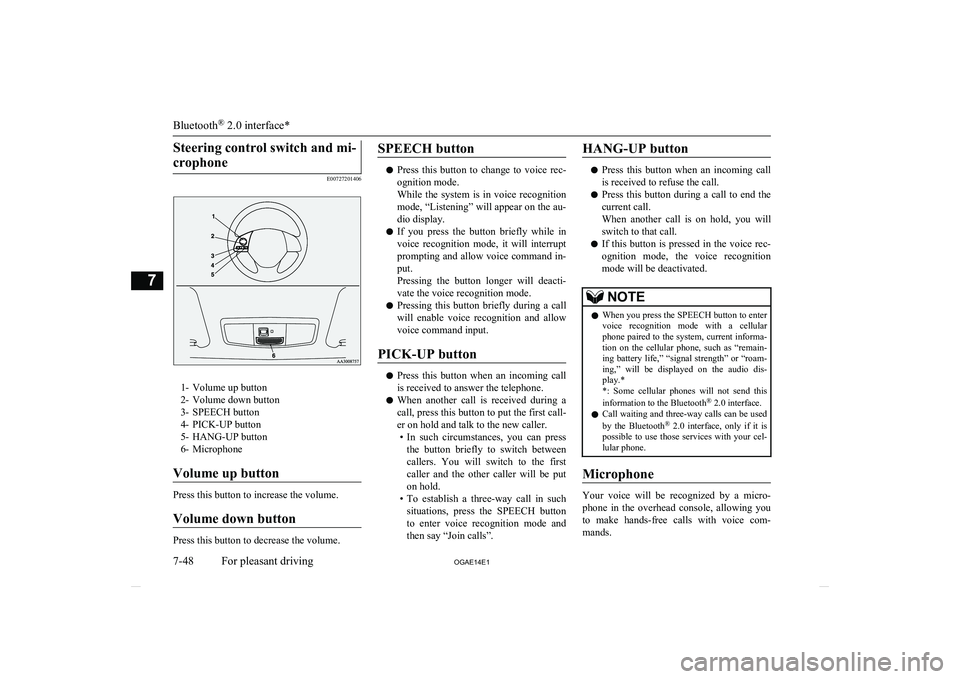
Steering control switch and mi-crophone
E00727201406
1- Volume up button
2- Volume down button
3- SPEECH button
4- PICK-UP button
5- HANG-UP button
6- Microphone
Volume up button
Press this button to increase the volume.
Volume down button
Press this button to decrease the volume.
SPEECH button
l Press this button to change to voice rec-
ognition mode.
While the system is in voice recognition
mode, “Listening” will appear on the au- dio display.
l If you press the button briefly while in
voice recognition mode, it will interrupt prompting and allow voice command in-
put.
Pressing the button longer will deacti-
vate the voice recognition mode.
l Pressing this button briefly during a call
will enable voice recognition and allow voice command input.
PICK-UP button
l Press this button when an incoming call
is received to answer the telephone.
l When another call is received during a
call, press this button to put the first call-
er on hold and talk to the new caller. • In such circumstances, you can press
the button briefly to switch between
callers. You will switch to the first
caller and the other caller will be put on hold.
• To establish a three-way call in such
situations, press the SPEECH button
to enter voice recognition mode and then say “Join calls”.
HANG-UP button
l Press this button when an incoming call
is received to refuse the call.
l Press this button during a call to end the
current call.
When another call is on hold, you will switch to that call.
l If this button is pressed in the voice rec-
ognition mode, the voice recognition
mode will be deactivated.
NOTEl When you press the SPEECH button to enter
voice recognition mode with a cellular
phone paired to the system, current informa- tion on the cellular phone, such as “remain- ing battery life,” “signal strength” or “roam-
ing,” will be displayed on the audio dis-
play.*
*: Some cellular phones will not send this
information to the Bluetooth ®
2.0 interface.
l Call waiting and three-way calls can be used
by the Bluetooth ®
2.0 interface, only if it is
possible to use those services with your cel- lular phone.
Microphone
Your voice will be recognized by a micro-
phone in the overhead console, allowing you to make hands-free calls with voice com-
mands.
Bluetooth ®
2.0 interface*
7-48 OGAE14E1For pleasant driving7
Page 290 of 418

NOTElIf you press and release the SPEECH button
and say “Continue” or “Previous” while the list is being read, the system will advance or
rewind the list.
Say “Continue” to proceed to the device with the next highest number or “Previous”
to return to the phone with the previous
number.
l You can change the device tag by pressing
and releasing the SPEECH button and then
saying “Edit” while the list is being read.
l You can change the phone to be connected
by pressing and releasing the SPEECH but-
ton and then saying “Select phone” while the list is being read.
l You can change the music player to be con-
nected by pressing and releasing the SPEECH button and then saying “Select mu-
sic player” while the list is being read.Changing a device tag
E00760900018
You can change the device tag of a paired
cellular phone or music player.
Follow the steps below to change a device
tag. 1. Press the SPEECH button.
2. Say “Setup”.
3. Say “Pairing options.”
4. The voice guide will say “Select one of
the following: pair, edit, delete, or list.”
Say “Edit.”
5. The voice guide will say “Please say,”
and read out the numbers of the Blue-
tooth ®
devices and device tags of corre-
sponding devices in order, starting with
the Bluetooth ®
that has been most re-
cently connected.
After all paired device tags have been read, the voice guide will say “Whichdevice, please?” Say the number of the
device tag you want to change.NOTEl You can press and release the SPEECH but-
ton while the list is being read, and immedi- ately say the number of the device tag you
want to change.
6. The voice guide will say “New name,
please.” Say the name you want to regis-
ter as a new device tag.
When the confirmation function is on, the voice guide will say “
Answer “No,” to say the new device tag
you want to register again.
7. The device tag is changed. When the change is complete, the voice
guide will say “New name saved” and then the system will return to the main
menu.
Operating a music player con-
nected via Bluetooth ®
E00761000104
For the operation of a music player connected
via Bluetooth ®
, refer to “Listen to Bluetooth
Audio*” on page 7-34.
How to make or receive hands-
free calls
E00761100059
You can make or receive hands-free calls us-
ing a Bluetooth ®
compatible cellular phone
connected to the Bluetooth ®
2.0 interface.
You can also use the phone books in the
Bluetooth ®
2.0 interface to make calls with-
out dialling telephone numbers.
“To make a call” on page 7-57
“SEND function” on page 7-58
“Receiving calls” on page 7-58
“MUTE function” on page 7-58
“Switching between hands-free mode and
private mode” on page 7-59
NOTEl The hands-free calls might not be operated
correctly when it makes calling or receiving
by operating the cellular phone directly.
Bluetooth ®
2.0 interface*
7-56 OGAE14E1For pleasant driving7
Page 292 of 418

NOTElIf the name you selected has matching data
in the vehicle phone book but no telephone
number is registered under the selected loca- tion, the voice guide will say “{home/work/
mobile/other} not found for
Say “Add location” and you can register an
additional telephone number under the selec-
ted location.
l If the name you selected has matching data
in the mobile phone book but no telephone
number is registered under the selected loca- tion, the voice guide will say “{home/work/
mobile/other} not found for
Answer “Yes,” and the system will return to Step 3.
Answer “No,” and the call will be cancelled. Start over again from Step 1.
6. The voice guide will say “Calling
tem will dial the telephone number.
NOTEl When the confirmation function is on, the
system will ask if the name and location of the receiver are correct.
If the name is correct, answer “Yes.”
If you want to change the name or location
to call, answer “No.” The system will return to Step 3.
Redialing
You can redial the last number called, based
on the history of dialed calls in the paired cel-
lular phone.
Use the following procedure to redial. 1. Press the SPEECH button.
2. Say “Redial.”
SEND function
E00761300035
During a call, press the SPEECH button to
enter voice recognition mode, then say “
For example, if during a call you need to sim- ulate the press of a phone button as a re-
sponse to an automated system, press the SPEECH button and speak “1 2 3 4 pound SEND” and the 1234# will be sent on your
cellular phone.
Receiving calls
E00761600025
If an incoming phone call is received while
the ignition switch or the operation mode isin ON or ACC, the audio system will be au-
tomatically turned on and switched to the in-
coming call, even when the audio system was originally off.
The voice guide announcement for the in-
coming call will be output from the front pas- senger’s seat speaker.
If the CD player or radio was playing when
the incoming call was received, the audio system will mute the sound from the CD
player or radio and output only the incoming call.
To receive the call, press the PICK-UP but- ton on the steering wheel control switch.
When the call is over, the audio system will return to its previous state.
MUTE function
E00760300054
At any time during a call, you can mute the
vehicle microphone.
Pressing the SPEECH button and then saying
“Mute” during a call will turn ON the MUTE
function and mute the microphone.
Saying “Mute off” in the same way will turn off the MUTE function and cancel the muteon the microphone.
Bluetooth ®
2.0 interface*
7-58 OGAE14E1For pleasant driving7
Page 300 of 418

Enrollment commands
E00732400193
PhraseEnglishFrenchSpanishItalianGermanDutchPortugueseRussian11234567891234567891234567891234567891234567891234567891234567891234567892888 555 1212888 555 1212888 555 1212888 555 1212888 555 1212888 555 1212888 555 1212888 555 12123CallAppelerLlamarChiamaAnrufenBellenLigarВызов4DialComposerMarcarComponiWählenNummer keuzeMarcarНабор5SetupConfigurerConfiguraciónConfiguraEinrichtungSetupConfigurarНастройка6CancelAnnulerCancelarAnnullaAbbrechenAnnulerenCancelarОтмена7ContinueContinuerContinuarContinuaWeiterDoorgaanContinuarПродолжить8HelpAideAyudaAiutoHilfeHelpAjudaСправка
USB input terminal*E00761900099
You can connect your USB memory device or iPod* to play music files stored in the USB memory device or iPod.
The following explains how to connect and
remove a USB memory device or iPod.
Refer to the following sections for details on
how to play music files:
Refer to “Listen to Audio Files on a USB De-
vice” on page 7-32.
*: “iPod” is a registered trademark of Apple
Inc. in the United States and other countries.How to connect a USB memory
device
E00762000390
1. Park your vehicle in a safe place and
turn the ignition switch to the “LOCK”
position or put the operation mode in
OFF.
2. Open the USB input terminal cover (A)
in the floor console box.
USB input terminal*
7-66 OGAE14E1For pleasant driving7
Page 302 of 418

4.Connect the Dock connector (C) to the
USB input terminal (D).CAUTIONl Keep the lid of the floor console box closed
while driving the vehicle. A lid or the con- tents of the floor console box could other-
wise cause injuries.NOTEl When closing the floor console box, be care-
ful not to trap the connector cable.
5. To remove the Dock connector, turn the
ignition switch to the “LOCK” position
or put the operation mode in OFF first and perform the installation steps in re-verse.
Types of connectable devices
and supported file specifica-tions
E00762200015
Device types
E00762300348
Devices of the following types can be con- nected.
Model nameConditionUSB memory deviceStorage capacity of
256 Mbytes or moreiPod touch*F/W Ver.1.1.1 or lat-
eriPod classic*F/W Ver.1.0 or lateriPod (fifth genera- tion)*F/W Ver.1.2.2 or lat-
eriPod nano (fifth gen-
eration)*F/W Ver.1.2 or lateriPod nano (second generation)*F/W Ver.1.1.2 or lat-
erModels other than
USB memory devi-
ces and iPodsDigital audio player
supporting mass stor- age class
*: “iPod touch,” “iPod classic,” “iPod” and
“iPod nano” are registered trademarks of Ap- ple Inc. in the United States and other coun-
tries.
NOTEl Depending on the type of the USB memory
device or other device connected, the con-
nected device may not function properly or the available functions may be limited.
l It is recommended to use an iPod with firm-
ware updated to the latest version.
l You can charge your iPod by connecting it
to the USB input terminal when the ignition switch or the operation mode is in ON orACC.
l Do not keep your USB memory device or
iPod in your vehicle.
l It is recommended that you back up files in
case of data damage.
l Do not connect to the USB input terminal
any device (hard disk, card reader, memory reader, etc.) other than the connectable devi- ces specified in the previous section.
The device and/or data may be damaged. If
any of these devices was connected by mis-
take, remove it after turning the ignition switch to the “LOCK” position or putting the operation mode in OFF.File specifications
E00762400017
You can play music files of the following
specifications that are saved in a USB memo-ry device or other device supporting mass
storage class.
USB input terminal*
7-68 OGAE14E1For pleasant driving7
Page 311 of 418

NOTElThere is a limit to the size of pens that can
be stored in the holder. Forcibly inserting large pens could damage the holder.
Card holder
There is a card holder inside the glove box.
Floor console box
E00723300978
Type 1
To open the console box, lift the release lever (A) and raise the lid.
Type 2
Upper and lower boxes are located inside the
floor console box.
The floor console box can also be used as an
armrest.
1- Upper box
2- Lower box
NOTEl The Auxiliary Audio connector (RCA) is lo-
cated in the floor console box (if so equip-
ped). For details, refer to “Use AUX*” on page 7-36.
Storage spaces
7-77
OGAE14E1For pleasant driving7 LHD RHD 1 2