2014 MERCEDES-BENZ E-Class destinations
[x] Cancel search: destinationsPage 76 of 270
X
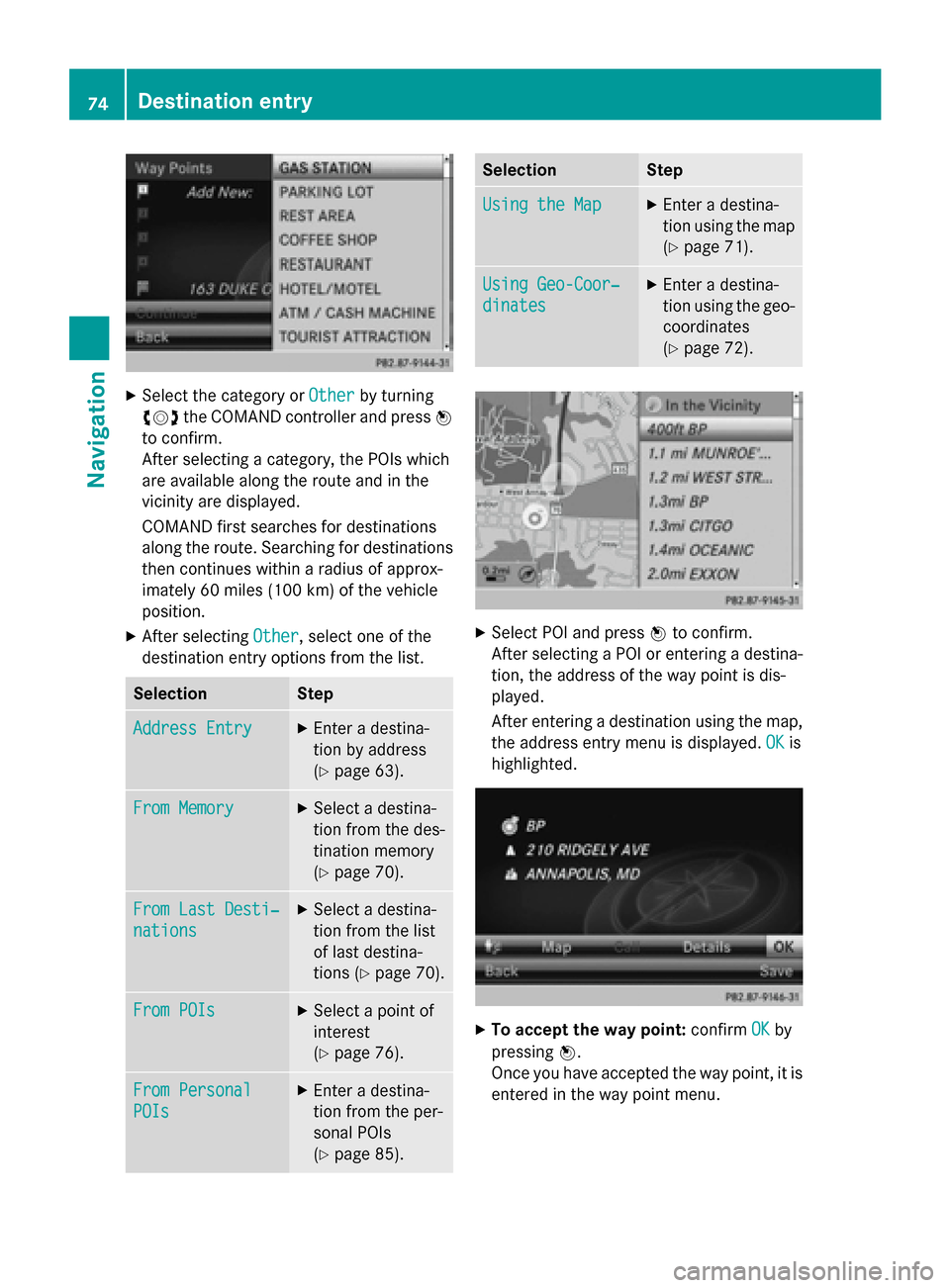
Select the category or Other
Otherby turning
00790052007A the COMAND controller and press 0098
to confirm.
After selecting a category, the POIs which
are available along the route and in the
vicinity are displayed.
COMAND first searches for destinations
along the route. Searching for destinations
then continues within a radius of approx-
imately 60 miles (100 km) of the vehicle
position.
X After selecting Other Other, select one of the
destination entry options from the list. Selection Step
Address Entry
Address Entry X
Enter a destina-
tion by address
(Y page 63). From Memory From Memory X
Select a destina-
tion from the des-
tination memory
(Y page 70). From Last Desti‐ From Last Desti‐
nations nations X
Select a destina-
tion from the list
of last destina-
tions (Y page 70). From POIs From POIs X
Select a point of
interest
(Y page 76). From Personal From Personal
POIs POIs X
Enter a destina-
tion from the per-
sonal POIs
(Y page 85). Selection Step
Using the Map Using the Map X
Enter a destina-
tion using the map (Y page 71). Using Geo-Coor‐
Using Geo-Coor‐
dinates dinates X
Enter a destina-
tion using the geo- coordinates
(Y page 72). X
Select POI and press 0098to confirm.
After selecting a POI or entering a destina- tion, the address of the way point is dis-
played.
After entering a destination using the map,
the address entry menu is displayed. OK OKis
highlighted. X
To accept the way point: confirmOK
OKby
pressing 0098.
Once you have accepted the way point, it is entered in the way point menu. 74
Destination entryNavigation
Page 78 of 270
X
To change the sequence: from the menu,
select Move
Move by turning 00790052007Athe COMAND
controller and press 0098to confirm.
X Turn 00790052007A the COMAND controller and
move the way point or destination to the
desired position, then press 0098to confirm.
X To delete way points: from the menu,
select Delete
Delete and press 0098to confirm.
Accepting way points for the route X
Select Start
Startin the way point menu by
turning 00790052007Athe COMAND controller and
press 0098to confirm.
The route is calculated with the entered
way points.
i Continue Continue
is displayed instead of Start
Start
when Calculate Alternative Routes
Calculate Alternative Routes
is activated in the navigation menu
(Y page 93).
i If a way point has been passed during
route guidance, the way point will be dis-
played in the way point menu with a green
arrow. Once the route has been recalcula-
ted, the way point is deleted from the way
point menu.
Searching for a gas station when the
fuel level is low If the reserve fuel warning is displayed, you
will see the message:
Fuel tank reserve Fuel tank reserve
level. Do you want to start the
level. Do you want to start the
search for gas stations?
search for gas stations? .
X Select Yes
YesorNo
No.
If you select Yes
Yes, the gas station search
starts. When the search is complete, a list
of the gas stations available along the route or in the vicinity is displayed. If you select
No
No, the search is canceled.
X Select a gas station and press 0098to con-
firm.
The address of the gas station is displayed.
X Confirm Start Startby pressing 0098.
The selected gas station is entered into
position 1 of the way points menu. Route
guidance begins.
If the way points menu already contains
four way points, a prompt will be displayed, asking you whether you wish to enter the
gas station into position 1. If you select
Yes Yes , the gas station is transferred into the
list and way point 4 is deleted. Entering a POI
Calling up the POI menu
Example: POI menu
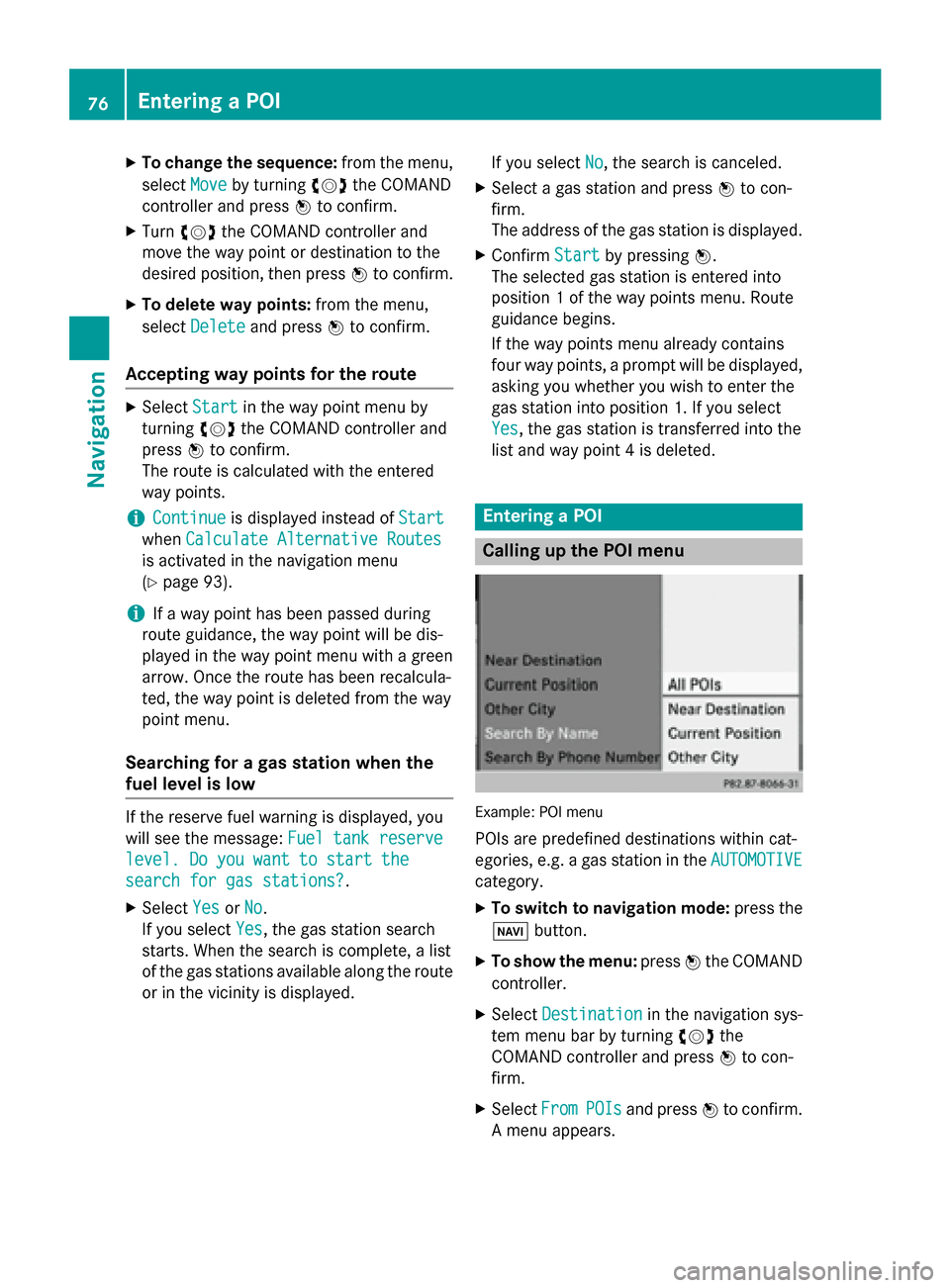
POIs are predefined destinations within cat-
egories, e.g. a gas station in the AUTOMOTIVE AUTOMOTIVE
category.
X To switch to navigation mode: press the
00BE button.
X To show the menu: press0098the COMAND
controller.
X Select Destination
Destination in the navigation sys-
tem menu bar by turning 00790052007Athe
COMAND controller and press 0098to con-
firm.
X Select From
FromPOIs
POIsand press 0098to confirm.
A menu appears. 76
Entering a POINavigation
Page 87 of 270
X
Hide the menu to show the map in full
screen mode (Y page 61).
X Press 0098the COMAND controller for longer
than two seconds.
The current position of the vehicle is saved
as a personal POI on the SD memory card in
the Not Classified
Not Classified category.
i The crosshair position is saved in the
scrolling map function (Y page 108).
Option 2
X Insert the SD memory card (Y page 196).
X To switch to navigation mode: press the
00BE button.
X To show the menu: press0098the COMAND
controller.
X Select Position
Position in the navigation system
menu bar by turning 00790052007Athe COMAND
controller and press 0098to confirm.
X Select Save
Save Position Position As
AsPersonal
Personal POI
POI
or Save
Save Crosshair
Crosshair Pos.
Pos.as
asPersonal
Personal
POI
POI ("Move map" function active) and press
0098 to confirm.
The list of personal categories appears.
X Select a category and press 0098to confirm.
X Name for the personal point of interest.
Character entry (Y page 33).
Option 3
X Insert the SD memory card (Y page 196).
X To switch to navigation mode: press the
00BE button.
X Call up the address entry menu
(Y page 64).
X Select Save
Save from the address entry menu
and press 0098to confirm.
X Select Save As Personal POI
Save As Personal POI and press
0098 to confirm.
X Select a category.
X Enter the name.
The current address is saved as a personal
point of interest on the SD memory card. Importing personal POIs via the online
function
You can import personal POIs (destinations,
routes) via the online function (Y page 171).
When importing, you can choose whether to
write files to the SD memory card or to file
them in the address book. The imported per- sonal POIs have their own icon and are filed in
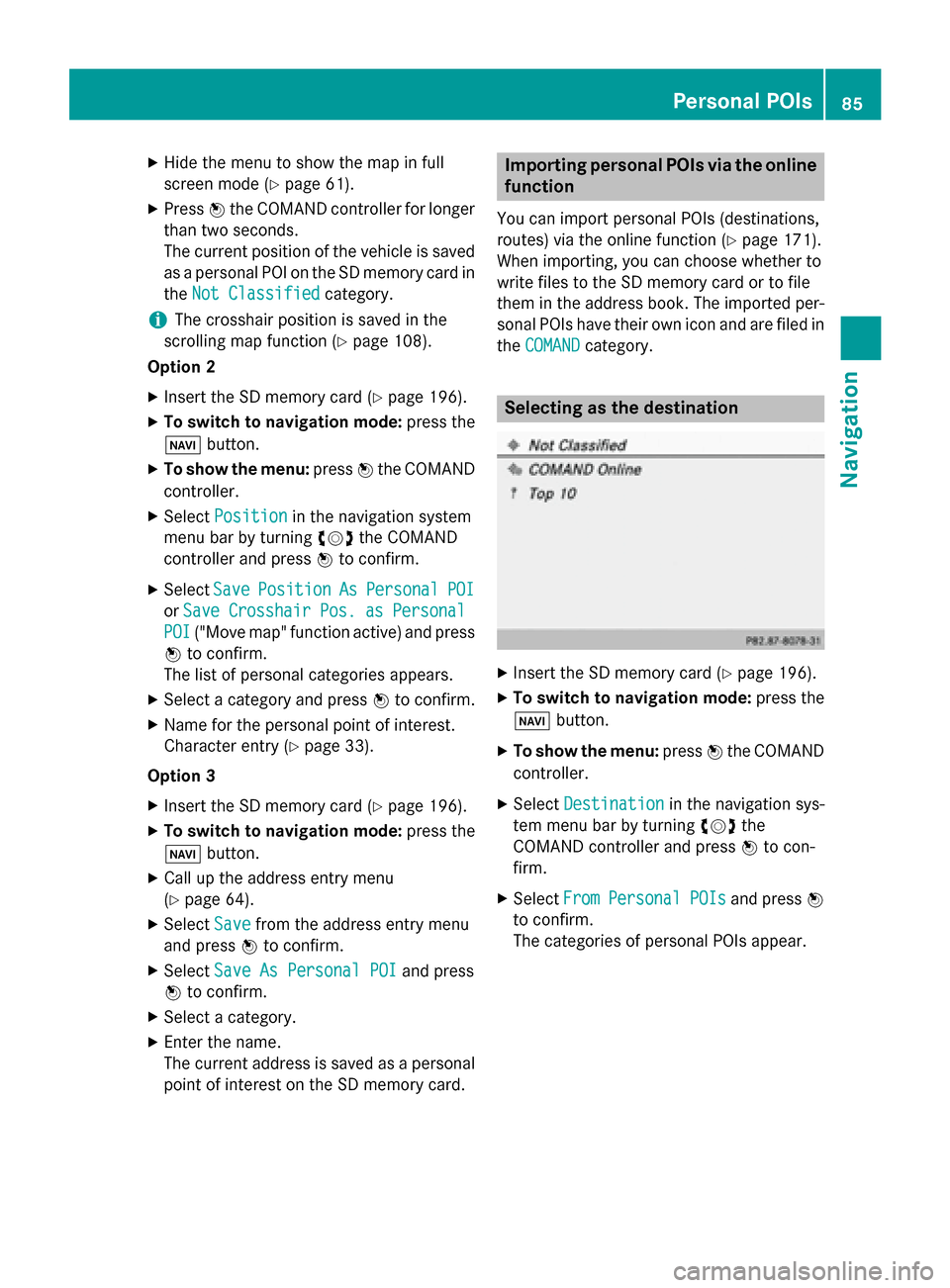
the COMAND COMAND category. Selecting as the destination
X
Insert the SD memory card (Y page 196).
X To switch to navigation mode: press the
00BE button.
X To show the menu: press0098the COMAND
controller.
X Select Destination
Destination in the navigation sys-
tem menu bar by turning 00790052007Athe
COMAND controller and press 0098to con-
firm.
X Select From
FromPersonal
Personal POIs
POIsand press 0098
to confirm.
The categories of personal POIs appear. Personal POIs
85Navigation Z
Page 89 of 270
Search & Send is a service assisting you in
entering destinations for the navigation sys-
tem. This mbrace service can send a destina-
tion address directly from the Google Maps ®
website to the navigation system of your vehi-
cle. Selecting and sending a destination
address
Please also refer to the notes about address
entry online: maps.google.com.
X Call up the maps.google.com website and
enter the destination address in the
address entry field.
X Click the corresponding button to send the
destination address to the e-mail address
registered with mbrace.
X Enter the e-mail address you specified
when setting up your mbrace account into
the corresponding field in the "Send" dialog
window.
X Click "Send". Calling up destination addresses
X
Press the 00D9mbrace information button.
Downloading of the destination address to
the navigation system of your vehicle
begins.
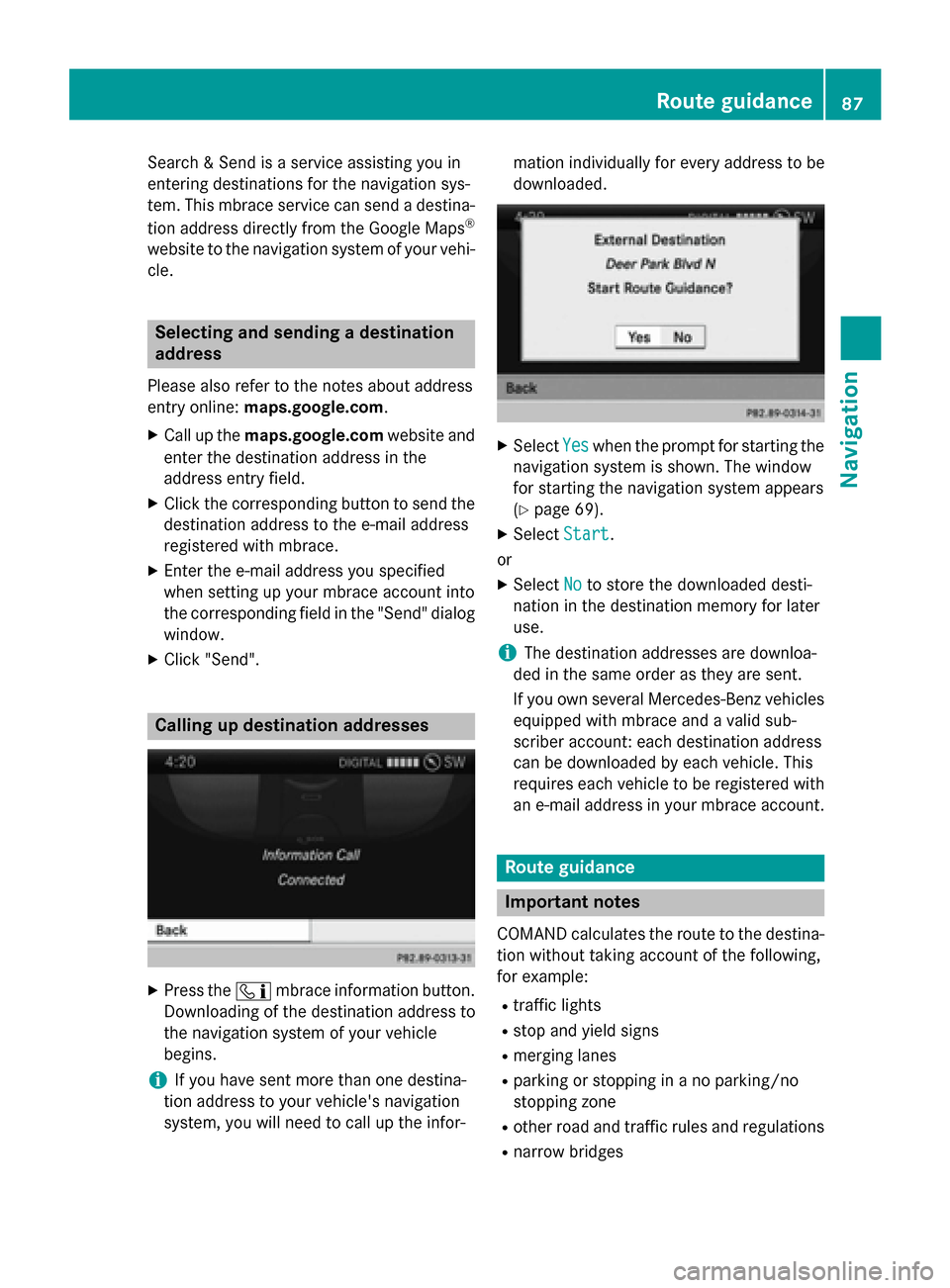
i If you have sent more than one destina-
tion address to your vehicle's navigation
system, you will need to call up the infor- mation individually for every address to be
downloaded.
X
Select Yes Yeswhen the prompt for starting the
navigation system is shown. The window
for starting the navigation system appears
(Y page 69).
X Select Start
Start.
or
X Select No Noto store the downloaded desti-
nation in the destination memory for later
use.
i The destination addresses are downloa-
ded in the same order as they are sent.
If you own several Mercedes-Benz vehicles equipped with mbrace and a valid sub-
scriber account: each destination address
can be downloaded by each vehicle. This
requires each vehicle to be registered with
an e-mail address in your mbrace account. Route guidance
Important notes
COMAND calculates the route to the destina- tion without taking account of the following,
for example:
R traffic lights
R stop and yield signs
R merging lanes
R parking or stopping in a no parking/no
stopping zone
R other road and traffic rules and regulations
R narrow bridges Route guidance
87Navigation Z
Page 100 of 270

Route guidance to a destination that is
not on a digitized road Example: route guidance to an off-road destination
0043 Off-road destination
0044 Off-road route section (blue dashes)
0087 Current vehicle position (the tip of the tri-
angle indicates the vehicle’s direction of
travel)
0085 Off-road (if available)
COMAND can guide you to destinations
which are within the area of the digital map,
but which are not themselves recorded on the map.
These destinations are known as off-road
destinations, which you can enter using the
map, for example. In these cases, COMAND
guides you for as long as possible with navi-
gation announcements and displays on roads
known to the system.
If the vehicle reaches an area which is not part
of the digital map, the display appears as a
split-screen view. On the right, an arrow
appears that points to off-road destina-
tion 0043. You will hear the announcement:
"Please follow the arrow on the display". As
the vehicle approaches the destination, the
Area of destination reached
Area of destination reached message
appears.
Route guidance from an off-road loca-
tion to a destination If the vehicle position is within the area cov-
ered by the digital map, but the map does not
contain any information about that location,
the vehicle is in an off-road location. COMAND is also able to guide you to a des-
tination even from an off-road location.
At the start of route guidance, you will see the Off Mapped Road Off Mapped Road message, an arrow and
the distance to the destination. The arrow
shows the compass heading to the actual
destination.
The route is highlighted blue, starting from
the last recognized street the vehicle was on
before it left the map.
As soon as the vehicle is back on a road
known to the system, route guidance contin- ues in the usual way.
Route guidance from an off-map loca-
tion to a destination If the vehicle position is outside the area cov-
ered by the digital map, then the vehicle is in an off-map location. COMAND is also able to
guide you to a destination even from an off-
map location.
At the start of route guidance, you will see the
Off Mapped Road Off Mapped Road message, an arrow and
the distance to the destination. The direction
arrow shows the compass heading to the des- tination.
The route is highlighted in blue from the near- est road known to the system.
As soon as the vehicle is back on a road
known to the system, route guidance contin-
ues in the usual way.
Off-road during route guidance Due to road works, for example, there may be
differences between the data on the digital
map and the actual course of the road.
In such cases, the system will temporarily be
unable to locate the vehicle position on the
digital map. The vehicle is therefore in an off- road position.
In the display, you will see the Off Mapped Off Mapped
Road
Road message, an arrow and the distance to
the destination. The direction arrow shows
the compass heading to the destination. 98
Route guidanceNavigation
Page 106 of 270
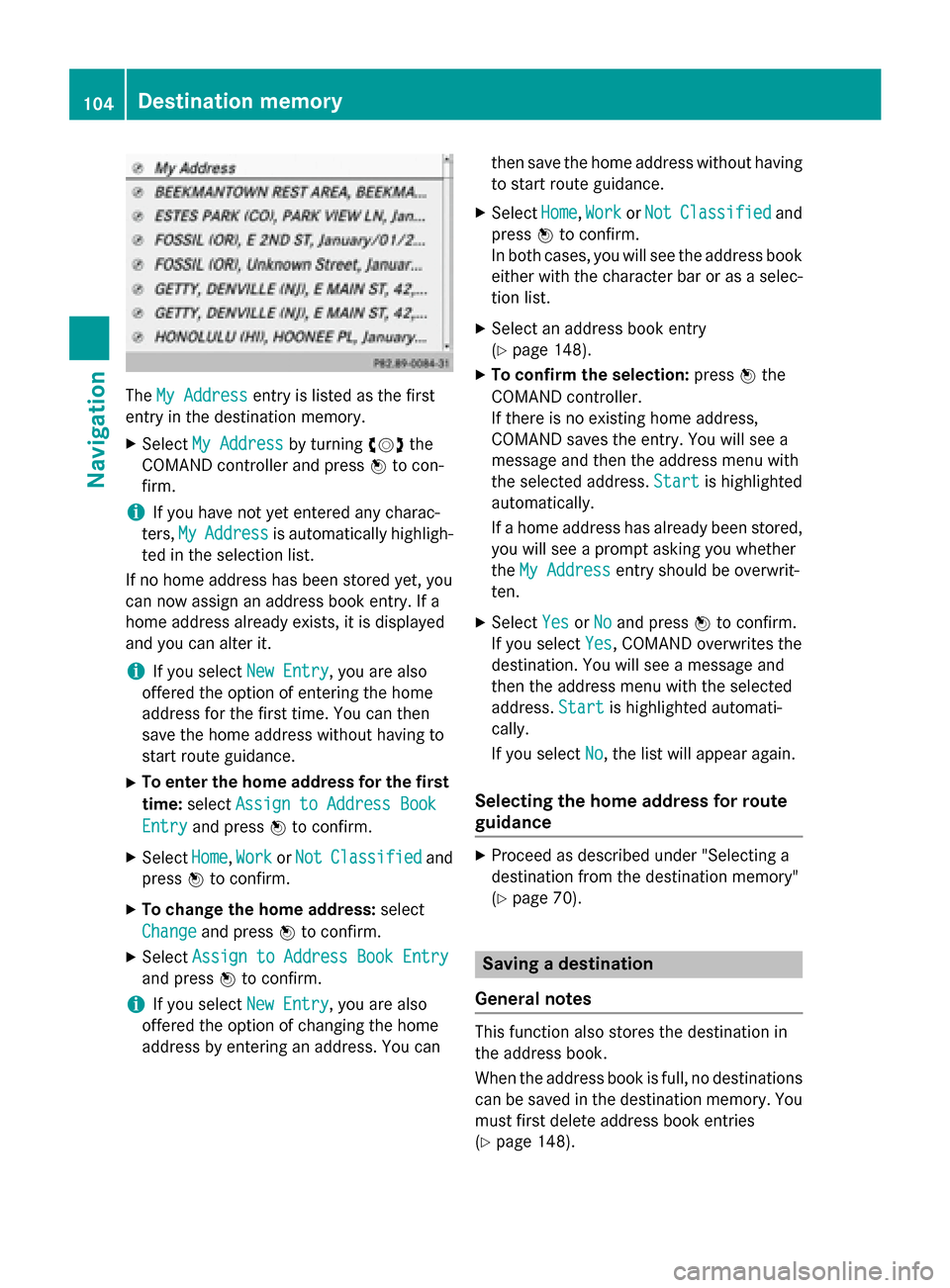
The
My Address
My Address entry is listed as the first
entry in the destination memory.
X Select My Address
My Address by turning00790052007Athe
COMAND controller and press 0098to con-
firm.
i If you have not yet entered any charac-
ters, My
My Address Address is automatically highligh-
ted in the selection list.
If no home address has been stored yet, you
can now assign an address book entry. If a
home address already exists, it is displayed
and you can alter it.
i If you select
New Entry
New Entry, you are also
offered the option of entering the home
address for the first time. You can then
save the home address without having to
start route guidance.
X To enter the home address for the first
time: select Assign to Address Book
Assign to Address Book
Entry Entry and press 0098to confirm.
X Select Home
Home,Work
WorkorNot
Not Classified
Classified and
press 0098to confirm.
X To change the home address: select
Change
Change and press 0098to confirm.
X Select Assign to Address Book Entry
Assign to Address Book Entry
and press 0098to confirm.
i If you select
New Entry
New Entry, you are also
offered the option of changing the home
address by entering an address. You can then save the home address without having
to start route guidance.
X Select Home Home,Work
WorkorNot
Not Classified
Classified and
press 0098to confirm.
In both cases, you will see the address book either with the character bar or as a selec-
tion list.
X Select an address book entry
(Y page 148).
X To confirm the selection: press0098the
COMAND controller.
If there is no existing home address,
COMAND saves the entry. You will see a
message and then the address menu with
the selected address. Start Startis highlighted
automatically.
If a home address has already been stored, you will see a prompt asking you whether
the My Address My Address entry should be overwrit-
ten.
X Select Yes
Yes orNo
No and press 0098to confirm.
If you select Yes
Yes, COMAND overwrites the
destination. You will see a message and
then the address menu with the selected
address. Start Startis highlighted automati-
cally.
If you select No No, the list will appear again.
Selecting the home address for route
guidance X
Proceed as described under "Selecting a
destination from the destination memory"
(Y page 70). Saving a destination
General notes This function also stores the destination in
the address book.
When the address book is full, no destinations can be saved in the destination memory. You
must first delete address book entries
(Y page 148). 104
Destination memoryNavigation
Page 107 of 270
After destination entry
X
The destination has been entered and is
shown in the address entry menu
(Y page 64).
X Select Save
Save by sliding 00520064and turning
00790052007A the COMAND controller and press 0098
to confirm.
You can now select storing options
(Y page 105).
During route guidance X
To show the menu: press0098the COMAND
controller.
X Select Destination Destination in the navigation sys-
tem menu bar by turning 00790052007Athe
COMAND controller and press 0098to con-
firm.
X Select Save
SaveDestination
Destination and press0098to
confirm.
You can now select storing options
(Y page 105).
From the list of previous destinations X
To show the menu: press0098the COMAND
controller.
X Select Destination Destination in the navigation sys-
tem menu bar by turning 00790052007Athe
COMAND controller and press 0098to con-
firm.
X Select From Last Destinations
From Last Destinations and
press 0098to confirm.
The list of last destinations appears.
X Select a destination by turning 00790052007Athe
COMAND controller and press 0098to con-
firm.
The destination address is shown.
X Select Save
Save and press 0098to confirm.
You can now select storing options
(Y page 105). Selecting storing options Once you have chosen one of the following
options for storing a destination, you can
specify storage options:
R After destination entry (Y page 105)
R During route guidance (Y page 105)
R From the list of previous destinations
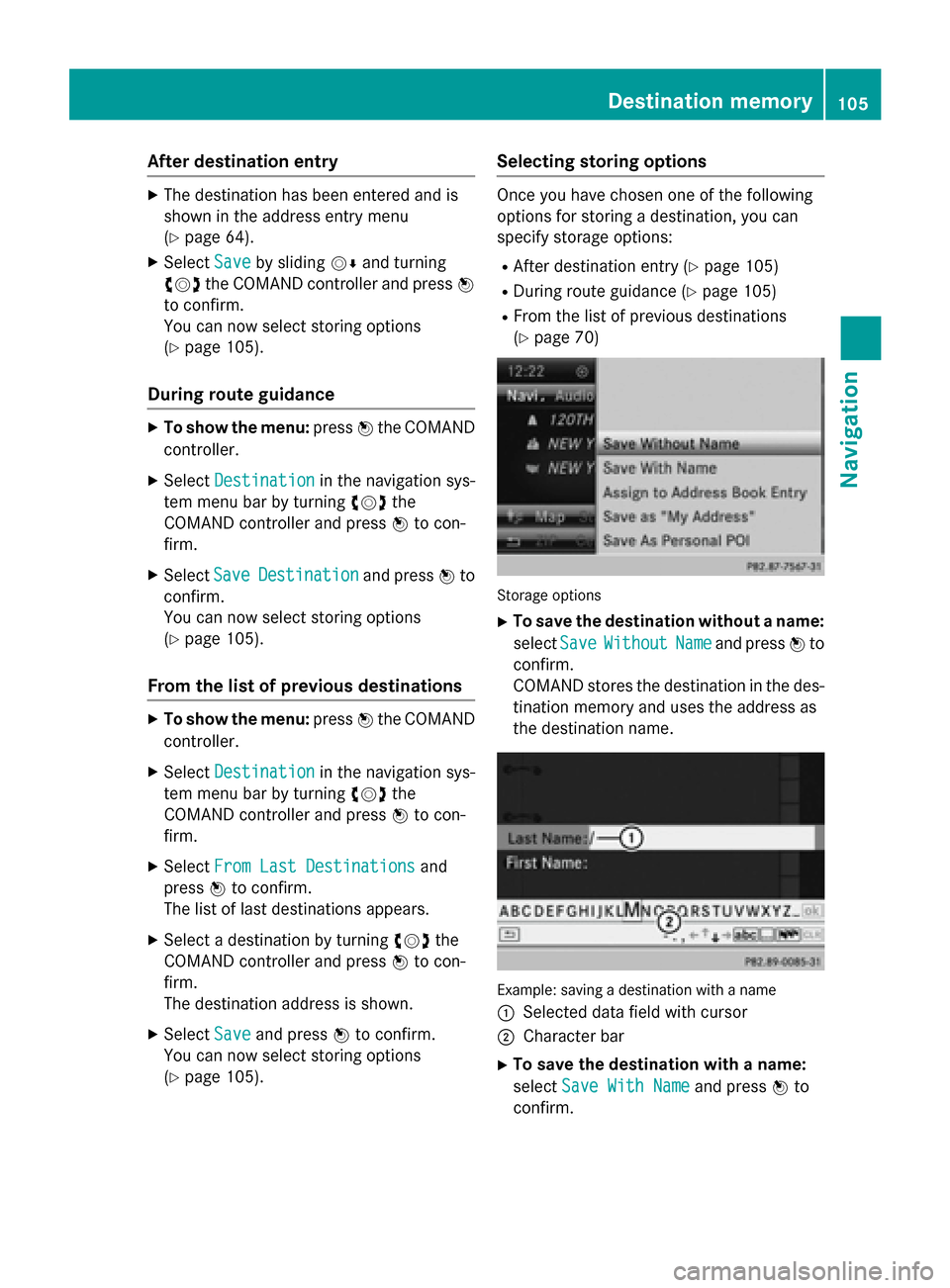
(Y page 70) Storage options
X To save the destination without a name:
select Save SaveWithout
Without Name
Nameand press 0098to
confirm.
COMAND stores the destination in the des-
tination memory and uses the address as
the destination name. Example: saving a destination with a name
0043
Selected data field with cursor
0044 Character bar
X To save the destination with a name:
select Save With Name Save With Name and press0098to
confirm. Destination
memory
105Navigation Z
Page 109 of 270
X
Select Yes
YesorNo
No and press 0098to confirm.
If you select Yes
Yes, COMAND deletes the
destination. You will see a message to this effect.
If you select No No, the process will be can-
celed.
i If the navigable address data for the des-
tination being deleted is also assigned to an
address book entry, COMAND will also
delete this data from there. If the corre-
sponding address book entry does not con-
tain any further data, such as telephone
numbers, COMAND deletes the entire
address book entry. Previous destinations
Introduction
COMAND automatically stores the previous
destinations for which route calculation has
been started. If the memory is full, COMAND deletes the oldest destination. You can also
save a destination from the list of previous
destinations in the destination memory. It will
be stored there permanently. Storing a destination permanently in
the destination memory
X Proceed as described in the "From the list
of previous destinations" section
(Y page 70). Storing the vehicle position in the list
of previous destinations
X To switch on navigation mode: press the
00BE function button.
X To show the menu: press0098the COMAND
controller. X
Select Position
Position in the navigation system
menu bar by turning 00790052007Athe COMAND
controller and press 0098to confirm.
X Select Save SaveVehicle
Vehicle Position
Position and press
0098 to confirm.
COMAND stores the current vehicle posi-
tion as a destination in the list of previous
destinations. Storing the crosshair position in the
list of previous destinations
A crosshair appears on the map if you have
moved the map manually (Y page 108). You
can store the crosshair position as a destina-
tion in the list of previous destinations.
X To show the menu: press0098the COMAND
controller.
X Select Position Position in the navigation system
menu bar by turning 00790052007Athe COMAND
controller and press 0098to confirm.
X Select Save Crosshair Position
Save Crosshair Position and
press 0098to confirm. Deleting one of the previous destina-
tions
X To switch on navigation mode: press the
00BE function button.
X To show the menu: press0098the COMAND
controller.
X Select Destination
Destination in the navigation sys-
tem menu bar by turning 00790052007Athe
COMAND controller and press 0098to con-
firm.
X Select From Last Destinations From Last Destinations and
press 0098to confirm.
The list of last destinations appears.
X Select the desired destination and press 0098
to confirm.
The destination address appears. Previous destinations
107Navigation Z