Page 382 of 665
Multimedia System
NameDescription
Incoming CallReceivng phone
Call EndedCall Ended
Call RejectedWhen there is unwanted call, youpush the button on the steeringremote controller
Unknown"Unknown" mean Headunit or phonedon't have any information aboutphone number
Call is not possibleCall is not possible
MIC MuteMicrophone mute
Activate BluetoothSystem?Activate Bluetooth®WirelessTechnology System
Bluetooth SystemactivatedBluetooth®Wireless Technology sys-tem activated
No phone paired. Pair a phone?Empty phone paired.Pair a phone?
No connected phone.Connect a phone?No connected phone.Connect a phone?
Phone book is empty.Download?Phone book is empty
Available only when This is a warning, Do not enter theMENU about BT Setup.When vehicle is moving
Listening...Listen to instruction of audio
Phone book Downloadvehicle is stationaryDownloading phone book fromphone paired to audio
NameDescription
Auto DownloadAfter pairing phone, audio systemautomatically download phone book
Audio Streaming
After pairing phone, audio system can
support Bluetooth®Wireless
Te c h n o l o g y s t r e a m i n g m o d e
Outgoing VolumeSet outoging volume "0 ~ 5"
Bluetooth System OffTurn off Bluetooth®Wireless
Technology System
Bluetooth System ONTurn on Bluetooth®Wireless
Technology System
Device : Bluetooth®Wireless Technology
device name
PasskeyPasskey for pair ing a phone
Pairing completePair a Bluetooth®WirelessTechnology phone to the audio
Pairing failedAudio & Phone connection have
failed
Already 5 devicespaired. Delete apaired phone?
All 5 phones have already been
paired. Delete a previously paired
phone to pair new phone
Connection completeAudio & Phone connection have succeed
Connection failed.Retry?
Audio & Phone connection have
failed
4-124
Page 383 of 665
4-125
Multimedia System
4
NameDescription
Priority changedChanged priority about the regis-tered phones
Overwrite previous Overwrite previous phone book
information
Phone does not supportPhone book downloadPhone does not support Phone book download
No connected Bluetoothdevice
There are phone in the connection
list
Phone does not supportBluetooth audio
But it was actually not connected BT
pairing
Downloading stoppedDownloading stopped
Page 388 of 665
4-130
Multimedia System
System Settings
Press the key Select [System]
through tune knob or key
Memory Information
Displays currently used memory and
total my music memory.
Select [Memory Information] OK
The currently used memory is dis-
played on the left side while total my
music memory. is displayed on the
right side.
Language
This menu is used to set the display
and voice recognition language.
Select [Language] Set through TUNE
knob
❈The system will reboot after the
language is changed.
❈Language support by region
-
3
Page 391 of 665
4-133
Multimedia System
NameDescription
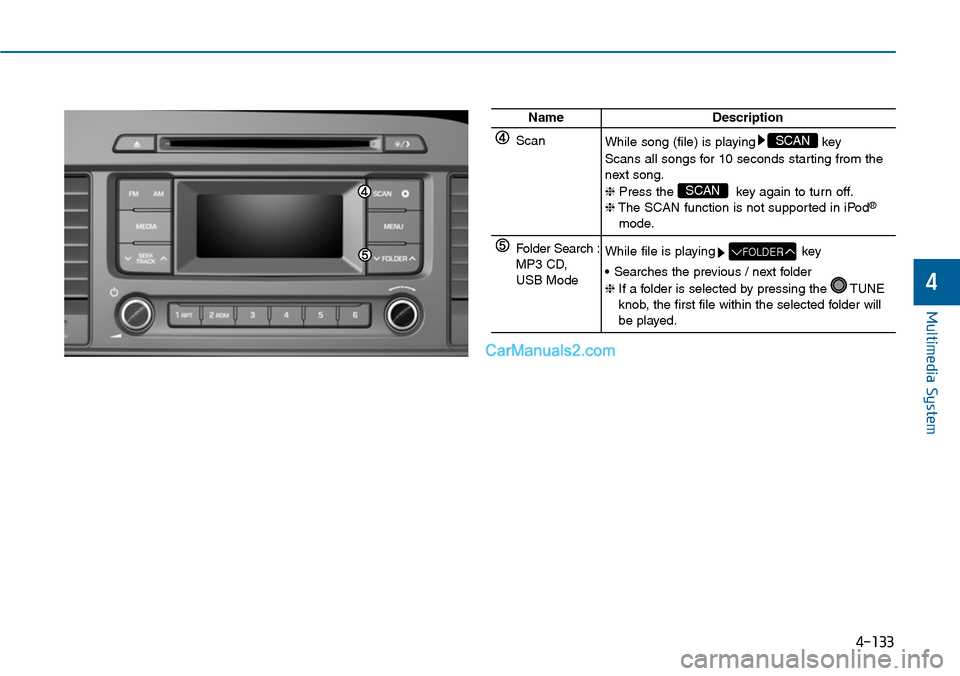
ScanWhile song (file) is playing key
Scans all songs for 10 seconds starting from thenext song.
❈Press the key again to turn off.❈The SCAN function is not supported in iPod®
mode.
SCAN
SCAN
Folder Search :MP3 CD, USB Mode
While file is playing key
•Searches the previous / next folder
❈If a folder is selected by pressing the TUNEknob, the first file within the selected folder willbe played.
FOLDER
4
Page 399 of 665
4-141
Multimedia System
4
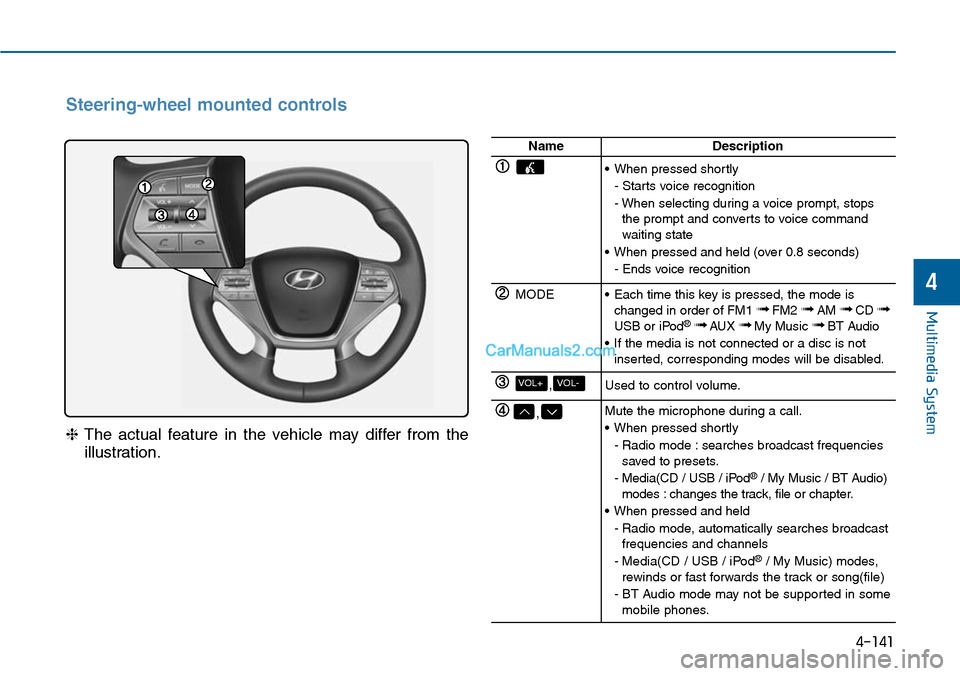
Steering-wheel mounted controls
❈The actual feature in the vehicle may differ from the
illustration.
NameDescription
•When pressed shortly
- Starts voice recognition
- When selecting during a voice prompt, stopsthe prompt and converts to voice commandwaiting state
•When pressed and held (over 0.8 seconds)
- Ends voice recognition
MODE•Each time this key is pressed, the mode ischanged in order of FM1 ➟FM2 ➟AM ➟CD ➟USB or iPod®➟ AUX ➟My Music ➟BT Audio
•If the media is not connected or a disc is notinserted, corresponding modes will be disabled.
,VOL-VOL+Used to control volume.
,Mute the microphone during a call.
•When pressed shortly
- Radio mode : searches broadcast frequenciessaved to presets.
- Media(CD / USB / iPod®/ My Music / BT Audio)modes : changes the track, file or chapter.
•When pressed and held
- Radio mode, automatically searches broadcastfrequencies and channels
- Media(CD / USB / iPod®/ My Music) modes,rewinds or fast forwards the track or song(file)
- BT Audio mode may not be supported in somemobile phones.
Page 409 of 665
USB MODE
Using USB Mode
Playing/Pausing USB Files
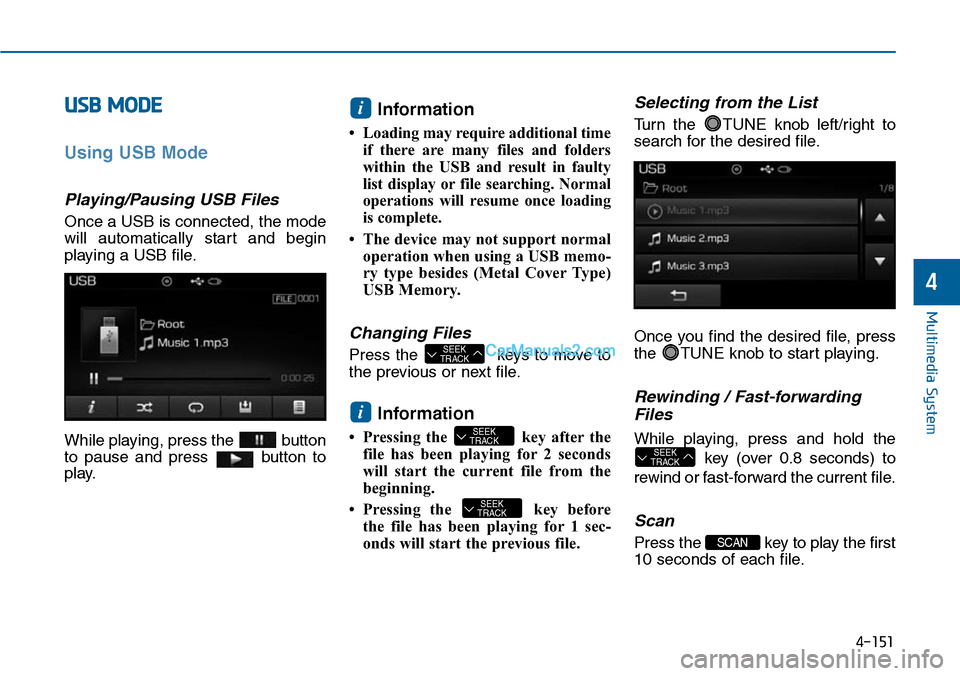
Once a USB is connected, the mode
will automatically start and begin
playing a USB file.
While playing, press the button
to pause and press button to
play.
Information
•Loading may require additional time
if there are many files and folders
within the USB and result in faulty
list display or file searching. Normal
operations will resume once loading
is complete.
• The device may not support normal
operation when using a USB memo-
ry type besides (Metal Cover Type)
USB Memory.
Changing Files
Press the keys to move to
the previous or next file.
Information
• Pressing the key after the
file has been playing for 2 seconds
will start the current file from the
beginning.
• Pressing the key before
the file has been playing for 1 sec-
onds will start the previous file.
Selecting from the List
Turn the TUNE knob left/right to
search for the desired file.
Once you find the desired file, press
the TUNE knob to start playing.
Rewinding / Fast-forwarding
Files
While playing, press and hold the
key (over 0.8 seconds) to
rewind or fast-forward the current file.
Scan
Press the key to play the first
10 seconds of each file.
SCAN
SEEKTRACK
SEEKTRACK
SEEKTRACK
i
SEEKTRACK
i
Multimedia System
4-151
4
Page 412 of 665
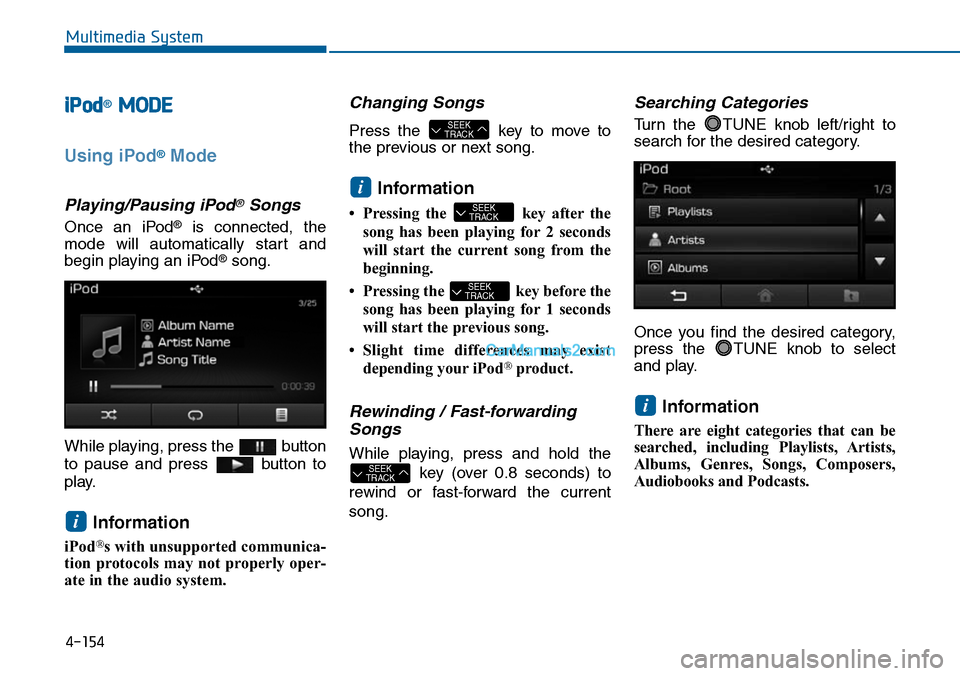
iPod®MODE
Using iPod®Mode
Playing/Pausing iPod®Songs
Once an iPod®is connected, the
mode will automatically start and
begin playing an iPod®song.
While playing, press the button
to pause and press button to
play.
Information
iPod®s with unsupported communica-
tion protocols may not properly oper-
ate in the audio system.
Changing Songs
Press the key to move to
the previous or next song.
Information
•Pressing the key afterthe
song has been playing for 2 seconds
will start the current song from the
beginning.
•Pressing the key before the
song has been playing for 1 seconds
will start the previous song.
•Slight time differences may exist
depending your iPod®product.
Rewinding / Fast-forwarding
Songs
While playing, press and hold the
key (over 0.8 seconds) to
rewind or fast-forward the current
song.
Searching Categories
Turn the TUNE knob left/right to
search for the desired category.
Once you find the desired category,
press the TUNE knob to select
and play.
Information
There are eight categories that can be
searched, including Playlists, Artists,
Albums, Genres, Songs, Composers,
Audiobooks and Podcasts.
i
SEEKTRACK
SEEKTRACK
SEEKTRACK
i
SEEKTRACK
i
Multimedia System
4-154
Page 420 of 665
4-162
Multimedia System
Information
- Using upon connecting
Bluetooth®Wireless
Technology phone
•Before connecting the caraudio sys-
tem with the mobile phone, check to
see that the mobile phone supports
Bluetooth®Wireless Technology fea-
tures.
•Even if the phone supports
Bluetooth®Wireless Technology, the
phone will not be found during
device searches if the phone has been
set to hidden state or the Bluetooth®
Wireless Technology power is turned
off. Disable the hidden state or turn
on the Bluetooth®Wireless
Te c h n o l o g y p o w e r p r i o r t o s e a r c h -
ing/connecting with the car audio
system.
(Continued)
(Continued)
• If you do not want to automatically
connect yourBluetooth®Wireless
Technology phone, try the following.
1. Turn off the Bluetooth®Wireless
Te c h n o l o g y f e a t u r e i n y o u r
mobile phone.
- For more information on
Bluetooth®Wireless Technology
features within your mobile, refer
to your mobile phone user’s man-
ual.
2. Turn off the Bluetooth®Wireless
Technology feature in your car
audio system.
- To turn off the Bluetooth®Wireless
Te c h n o l o g y f e a t u r e i n y o u r c a r
audio system, go to
[Phone] and [turn off] the
Bluetooth®Wireless Technology
feature.
• Park the vehicle when connecting
the car audio system with your
mobile phone.
(Continued)
(Continued)
•Bluetooth®Wireless Technology
connection may become intermit-
tently disconnected in some mobile
phones. Follow these steps to try
again.
1. Turn the Bluetooth®Wireless
Te c h n o l o g y f u n c t i o n w i t h i n t h e
mobile phone off/on and try
again.
2. Turn the mobile phone power
Off/On and try again.
3 Completely remove the mobile
phone battery, reboot, and then
again.
4. Reboot the audio system and try
again.
5. Delete all paired devices, pair and
try again.
•The Handsfree call volume and
quality may differ depending on the
mobile phone.
(Continued)
i

![Hyundai Sonata 2014 Owners Manual 4-130
Multimedia System
System Settings
Press the key Select [System]
through tune knob or key
Memory Information
Displays currently used memory and
total my music memory.
Select [Memory Information](/manual-img/35/16805/w960_16805-387.png "Hyundai Sonata 2014 Owners Manual 4-130
Multimedia System
System Settings
Press the key Select [System]
through tune knob or key
Memory Information
Displays currently used memory and
total my music memory.
Select [Memory Information")