Page 306 of 665
![Hyundai Sonata 2014 Owners Manual Phone MENU (for RDS model)
Press the key to display three
menus (Call History, Phone Book,
Phone Setup).
Call history
Press the key Set [
History] through the TUNE knob
or key.
The call h](/manual-img/35/16805/w960_16805-305.png "Hyundai Sonata 2014 Owners Manual Phone MENU (for RDS model)
Press the key to display three
menus (Call History, Phone Book,
Phone Setup).
Call history
Press the key Set [
History] through the TUNE knob
or key.
The call h")
Phone MENU (for RDS model)
Press the key to display three
menus (Call History, Phone Book,
Phone Setup).
Call history
Press the key Set [
History] through the TUNE knob
or key.
The call history is displayed and can
be used to select a number and
make a call.
If call history does not exist, a screen
asking whether to download call his-
tory is displayed. (The download fea-
ture may not be supported in some
mobile phones)
Phone Book
Press the key Set [ P.
Book] through the TUNE knob or
key.
The phone book is displayed and
can be used to select a number and
make a call.
❈If more than one number is saved
to one contact, then a screen
showing the mobile phone num-
ber, Home and office number is
displayed. Select the desired num-
ber to make the call.
❈If phone book do not exist, a
screen asking whether to down-
load phone book is displayed. (The
download feature may not be sup-
ported in some mobile phones)
Phone Setup
Press the key Set [ Setup]
through the TUNE knob or
key.
The Bluetooth®Wireless Technology
mobile phone setup screen is dis-
played. For more information, refer to
“Phone Setup”.
3
PHONE
2 RDM
PHONE
1 RPT
PHONE
PHONE
4-48
Multimedia System
Page 307 of 665
![Hyundai Sonata 2014 Owners Manual 4-49
Multimedia System
4
Phone MENU
Press the key to display three
menus (Call History, Contacts,
Phone Setup).
Call history
Press the key Set [ History]
through the TUNEknob or
key.
The call](/manual-img/35/16805/w960_16805-306.png "Hyundai Sonata 2014 Owners Manual 4-49
Multimedia System
4
Phone MENU
Press the key to display three
menus (Call History, Contacts,
Phone Setup).
Call history
Press the key Set [ History]
through the TUNEknob or
key.
The call")
4-49
Multimedia System
4
Phone MENU
Press the key to display three
menus (Call History, Contacts,
Phone Setup).
Call history
Press the key Set [ History]
through the TUNEknob or
key.
The call history is displayed and can
be used to select a number and
make a call.
If call history does not exist, a screen
asking whether to download call his-
tory is displayed. (The download fea-
ture may not be supported in some
mobile phones)
Contacts
Press the key Set [
Contacts] through the TUNEknob or
key.
The Contacts are displayed and can
be used to select a number and
make a call.
❈If more than one number is saved
to one contact, then a screen
showing the mobile phone num-
ber, Home and office number is
displayed. Select the desired num-
ber to make the call.
❈If Contacts do not exist, a screen
asking whether to download
Contacts is displayed. (The down-
load feature may not be supported
in some mobile phones)
Phone Setup
Press the key Set [ Setup]
through the TUNEknob or
key.
The Bluetooth®Wireless Technology
mobile phone setup screen is dis-
played. For more information, refer to
“Phone Setup”.
3
PHONE
2 RDM
PHONE
1 RPT
PHONE
PHONE
Page 309 of 665
(Continued)
•The hands-free call volume and
quality may differ depending on the
mobile phone type.
•Bluetooth®Wireless Technology fea-
tures can be used only when the
mobile phone has been paired and
connected with the device. For more
information on pairing and connect-
ing Bluetooth®Wireless Technology
enabled mobile phones, refer to the
“Phone Setup” section.
•When a Bluetooth®Wireless
Te c h n o l o g y m o b i l e p h o n e i s c o n -
nected, a ( ) icon will appear at the
top of the screen. If a ( ) icon is not
displayed, this indicates that a
Bluetooth®Wireless Technology
enabled device has not been con-
nected. You must connect the device
before use. For more information on
Bluetooth®Wireless Technology
mobile phones, refer to the “Phone
Setup” section.
(Continued)
(Continued)
• Pairing and connecting a Bluetooth®
Wireless Technology enabled mobile
phone will work only when the
Bluetooth®Wireless Technology
option within your mobile phone
has been turned on. (Methods of
turning on the Bluetooth®Wireless
Te c h n o l o g y e n a b l e d f e a t u r e m a y
differ depending on the mobile
phone.)
• In some mobile phones, starting the
ignition while talking through
Bluetooth®Wireless Technology
enabled handsfree call will result in
the call becoming disconnected.
(Switch the call back to your mobile
phone when starting the ignition.)
• Some features may not be supported
in some Bluetooth®Wireless
Te c h n o l o g y m o b i l e p h o n e a n d
devices.
(Continued)
(Continued)
•Bluetooth®Wireless Technology
enabled operation may be unstable
depending on the communication
state.
• Placing the audio system within an
electromagnetic environment may
result in noise interference.
4-51
Multimedia System
4
Page 312 of 665
4-54
Multimedia System
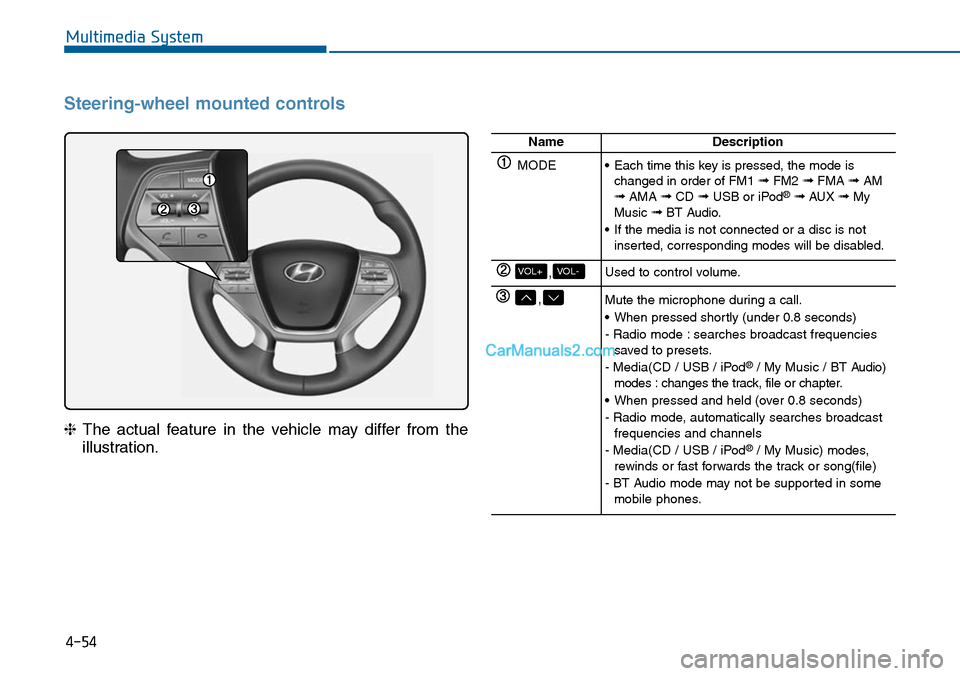
Steering-wheel mounted controls
❈The actual feature in the vehicle may differ from the
illustration.
NameDescription
MODE•Each time this key is pressed, the mode ischanged in order of FM1 ➟FM2 ➟FMA ➟AM➟AMA ➟CD ➟USB or iPod®➟ AUX ➟MyMusic ➟BT Audio.
•If the media is not connected or a disc is notinserted, corresponding modes will be disabled.
,VOL-VOL+Used to control volume.
,Mute the microphone during a call.
•When pressed shortly (under 0.8 seconds)
- Radio mode : searches broadcast frequenciessaved to presets.
- Media(CD / USB / iPod®/ My Music / BT Audio)modes : changes the track, file or chapter.
•When pressed and held (over 0.8 seconds)
- Radio mode, automatically searches broadcastfrequencies and channels
- Media(CD / USB / iPod®/ My Music) modes,rewinds or fast forwards the track or song(file)
- BT Audio mode may not be supported in somemobile phones.
Page 317 of 665
4-59
Multimedia System
4
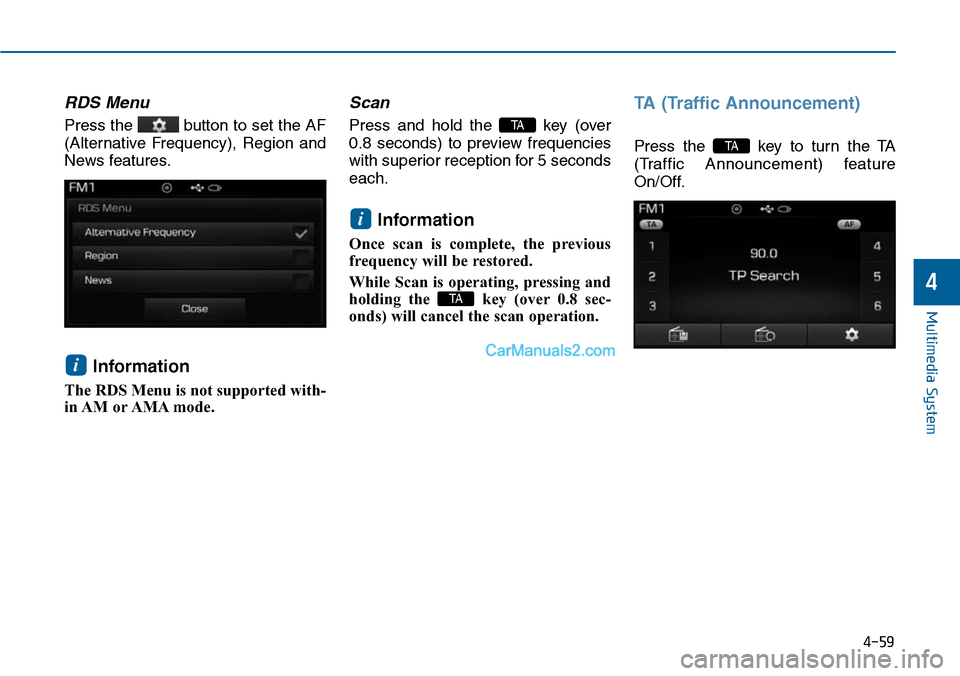
RDS Menu
Press the button to set the AF
(Alternative Frequency), Region and
News features.
Information
The RDS Menu is not supported with-
in AM or AMA mode.
Scan
Press and hold the key (over
0.8 seconds) to preview frequencies
with superior reception for 5 seconds
each.
Information
Once scan is complete, the previous
frequency will be restored.
While Scan is operating, pressing and
holding the key (over 0.8 sec-
onds) will cancel the scan operation.
TA (Traffic Announcement)
Press the key to turn the TA
(Traffic Announcement) feature
On/Off.
TA
TA
i
TA
i
Page 327 of 665
4-69
Multimedia System
4
USB MODE
Using USB Mode
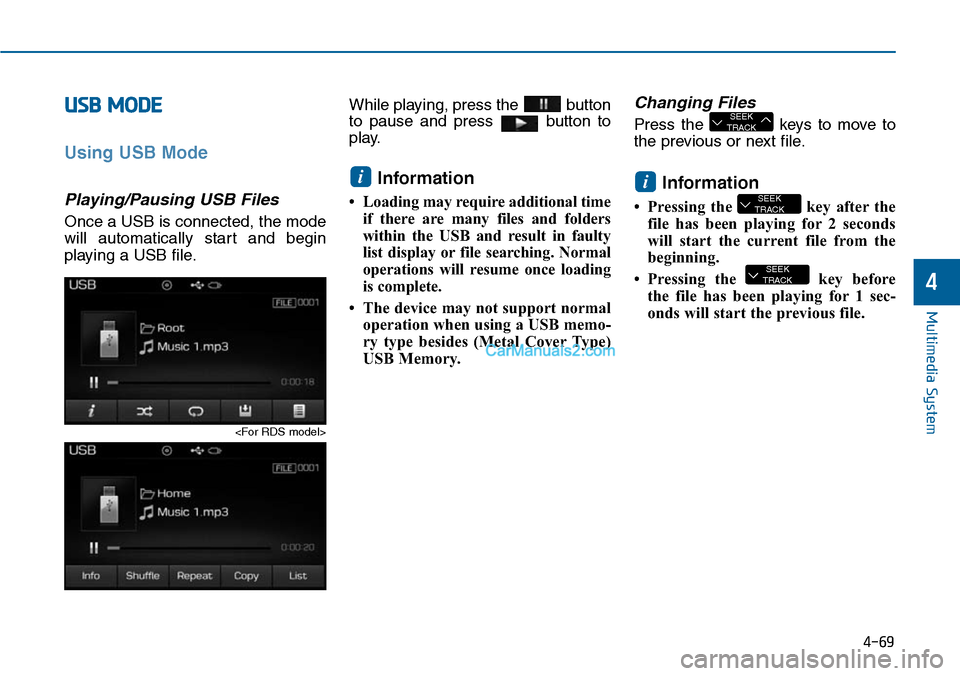
Playing/Pausing USB Files
Once a USB is connected, the mode
will automatically start and begin
playing a USB file.
While playing, press the button
to pause and press button to
play.
Information
•Loading may require additional time
if there are many files and folders
within the USB and result in faulty
list display or file searching. Normal
operations will resume once loading
is complete.
• The device may not support normal
operation when using a USB memo-
ry type besides (Metal Cover Type)
USB Memory.
Changing Files
Press the keys to move to
the previous or next file.
Information
• Pressing the key after the
file has been playing for 2 seconds
will start the current file from the
beginning.
• Pressing the key before
the file has been playing for 1 sec-
onds will start the previous file.
SEEKTRACK
SEEKTRACK
i
SEEKTRACK
i
Page 330 of 665
4-72
Multimedia System
iPod®MODE
Using iPod®Mode
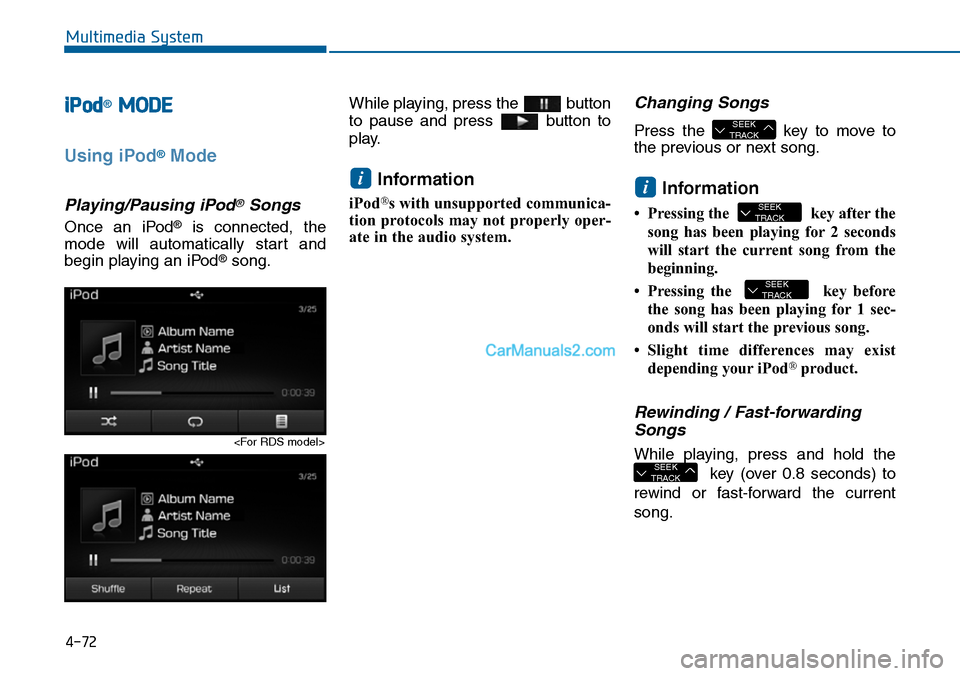
Playing/Pausing iPod®Songs
Once an iPod®is connected, the
mode will automatically start and
begin playing an iPod®song.
While playing, press the button
to pause and press button to
play.
Information
iPod®s with unsupported communica-
tion protocols may not properly oper-
ate in the audio system.
Changing Songs
Press the key to move to
the previous or next song.
Information
•Pressing the key afterthe
song has been playing for 2 seconds
will start the current song from the
beginning.
•Pressing the key before
the song has been playing for 1 sec-
onds will start the previous song.
•Slight time differences may exist
depending your iPod®product.
Rewinding / Fast-forwarding
Songs
While playing, press and hold the
key (over 0.8 seconds) to
rewind or fast-forward the current
song.
SEEKTRACK
SEEKTRACK
SEEKTRACK
i
SEEKTRACK
i
Page 338 of 665
4-80
Multimedia System
Bluetooth®Wireless Technology
(for RDS,Bluetooth®Wireless
Te ch n o l o g yequipped model)
Using Bluetooth®Wireless
Technology Handsfree
• Bluetooth®Wireless Technology
refers to a short-distance wireless
networking technology which uses a
2.45GHz frequency to connect vari-
ous devices within a certain dis-
tance.
• Suppor ted within PCs, external
devices, Bluetooth®Wireless
Te c h n o l o g y p h o n e s , P D A s , v a r i -
ous electronic devices, and auto-
motive environments, Bluetooth®
Wireless Technology allows data to
be transmitted at high speeds with-
out having to use a connector
cable.
• Bluetooth®Wireless Technology
Handsfree refers to a device which
allows the user to conveniently
make phone calls with Bluetooth®
Wireless Technology mobile
phones through the audio system.
•Bluetooth®Wireless Technology
Handsfree is a feature that
enables drivers to practice safe
driving. Connecting the car
audio system with a Bluetooth®
Wireless Technology phone
allows the user to conveniently
make calls, receive calls, and
manage the phone book. Before
using the Bluetooth®Wireless
Technology , carefully read the
contents of this user’s manual.
•Excessive use or operations
while driving may lead to negli-
gent driving practices and be
the cause of accidents.
•Do not operate the device exces-
sively while driving.
•Viewing the screen for pro-
longed periods of time is dan-
gerous and may lead to acci-
dents. When driving, view the
screen only for short periods of
time.
Information
- Using upon connecting
Bluetooth®Wireless
Technology phone
•Before connecting the caraudio sys-
tem with the mobile phone, check to
see that the mobile phone supports
Bluetooth®Wireless Technology fea-
tures.
•Even if the phone supports
Bluetooth®Wireless Technology, the
phone will not be found during
device searches if the phone has been
set to hidden state or the Bluetooth®
Wireless Technology power is turned
off. Disable the hidden state or turn
on the Bluetooth®Wireless
Te c h n o l o g y p o w e r p r i o r t o s e a r c h -
ing/connecting with the car audio
system.
(Continued)
iNOTICE