Page 245 of 665

3-149
Convenient features of your vehicle
3
Auto defogging system
(only for automatic climate
control system, if equipped)
Auto defogging reduces the possibil-
ity of fogging up the inside of the
windshield by automatically sensing
the moisture of inside the windshield.
The auto defogging system operates
when the heater or air conditioning is
on.
Information
The auto defogging system may not
operate normally, when the outside
temperature is below -10 °C.
When the Auto Defogging
System operates, the indi-
cator will illuminate.
If higher level of moisture are sensed
in the vehicle, the Auto Defogging
System will operate in the following
order:
Step 1 : Operating the air conditioning
Step 2 : Outside air position
Step 3 : Blowing air toward the wind-
shield
Step 4 : Increasing air flow toward
the windshield
Step 5 : Maximizing the air condi-
tioning
If the air conditioning is off or recircu-
lated air position is manually selected
while Auto Defogging System is ON,
the Auto Defogging System Indicator
will blink 3 times to signal that the
manual operation has been canceled.
To cancel or reset the Auto
Defogging System
Press the front windshield defroster
button for 3 seconds when the igni-
tion switch is in the ON position. The
front windshield defroster button indi-
cator will blink 3 times and the ADS
OFF will be displayed on the climate
control information screen.
Information
•When the airconditioning is turned
on by Auto defogging system, if you
try to turn off the air conditioning, the
indicator will blink 3 times and the air
conditioning will not be turned off.
• For efficiency, do not select recircu-
lated air position while Auto defog-
ging system is operating.
Do not remove the sensor cover
located on the upper end of the
driver side windshield glass.
Damage to system parts could
occur and may not be covered by
your vehicle warranty.
NOTICE
i
i
OLF044260
Page 255 of 665
3-159
Convenient features of your vehicle
3
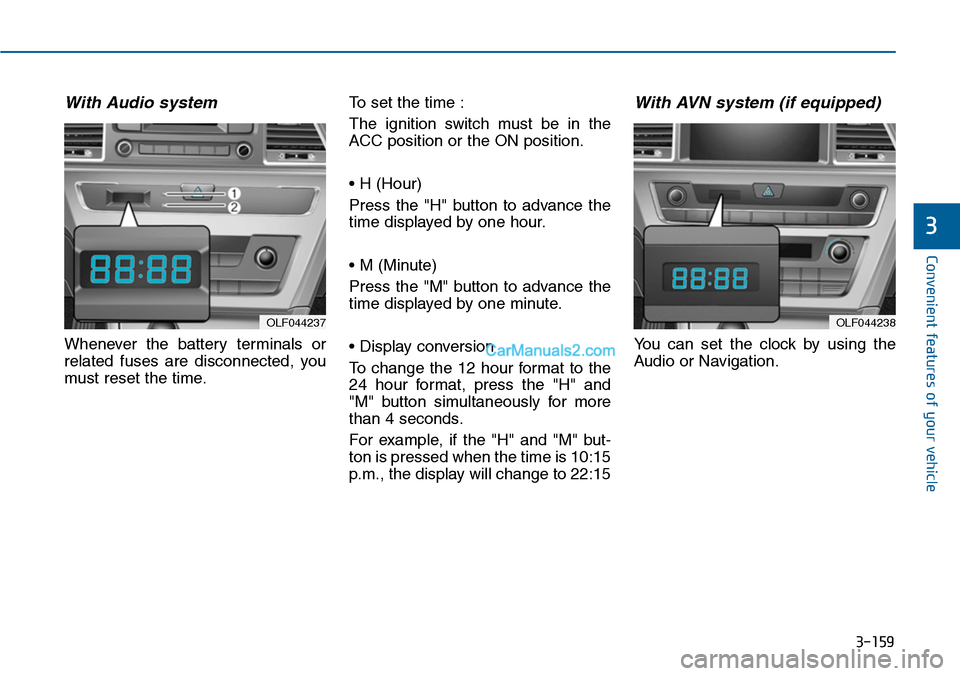
With Audio system
Whenever the battery terminals or
related fuses are disconnected, you
must reset the time.
To set the time :
The ignition switch must be in the
ACC position or the ON position.
• H (Hour)
Press the "H" button to advance the
time displayed by one hour.
• M (Minute)
Press the "M" button to advance the
time displayed by one minute.
• Display conversion
To change the 12 hour format to the
24 hour format, press the "H" and
"M" button simultaneously for more
than 4 seconds.
For example, if the "H" and "M" but-
ton is pressed when the time is 10:15
p.m., the display will change to 22:15
With AVN system (if equipped)
Yo u c a n s e t t h e c l o c k b y u s i n g t h e
Audio or Navigation.
OLF044237OLF044238
Page 266 of 665
Caring for disc
•If the temperature inside the car is too
high, open the car windows to venti-
late before using the system.
•It is illegal to copy and use
MP3/WMA files without permission.
Use CDs that are created only by
lawful means.
•Do not apply volatile agents, such
as benzene and thinner, normal
cleaners and magnetic sprays
made for analogue disc onto CDs.
•To prevent the disc surface from
getting damaged, hold CDs by the
edges or the center hole only.
•Clean the disc surface with a piece
of soft cloth before playback (wipe
it from the center to the outside
edge).
•Do not damage the disc surface or
attach pieces of sticky tape or
paper.
•Make certain only CDs are insert-
ed into the CD player (Do not insert
more than one CD at a time).
•Keep CDs in their cases after use to
protect them from scratches or dirt.
•Depending on the type of CD-
R/CD-RW CDs, certain CDs may
not operate normally according to
the manufacturing companies. In
such circumstances, continued
use may cause malfunctions to
your audio system.
Information
- Playing an Incompatible
Copy Protected Audio CD
Some copy protected CDs, which do
not comply with international audio
CD standards (Red Book), may not
play on your car audio. Please note
that inabilities to properly play a copy
protected CD may indicate that the
CD is defective, not the CD player.
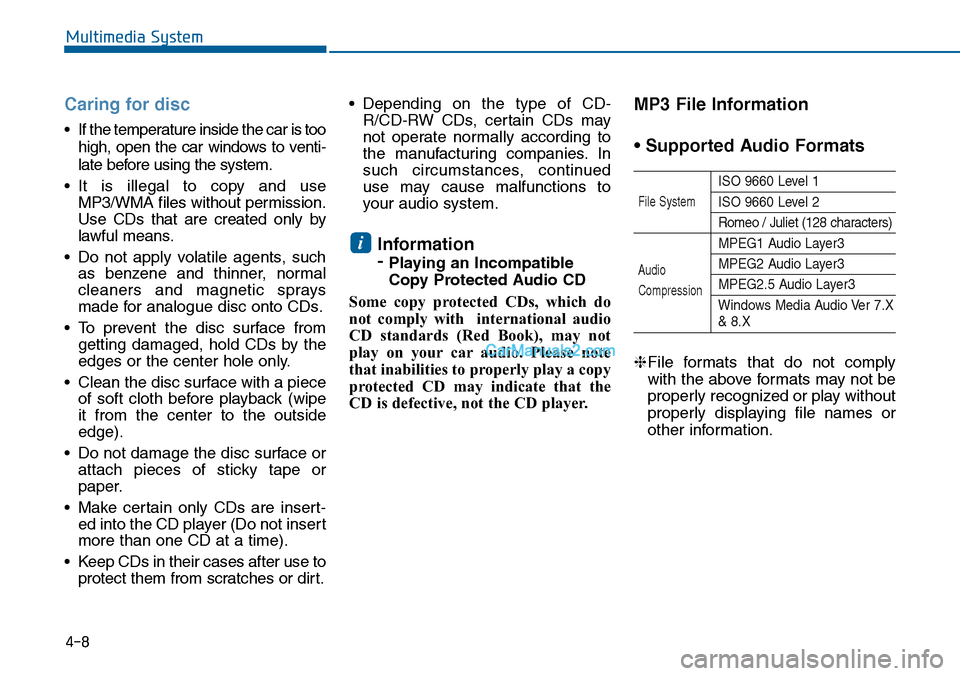
MP3 File Information
• Supported Audio Formats
ISO 9660 Level 1
ISO 9660 Level 2
Romeo / Juliet (128 characters)
MPEG1 Audio Layer3
MPEG2 Audio Layer3
MPEG2.5 Audio Layer3
Windows Media Audio Ver 7.X& 8.X
❈File formats that do not comply
with the above formats may not be
properly recognized or play without
properly displaying file names or
other information.
i
File System
Audio
Compression
Multimedia System
4-8
Page 267 of 665
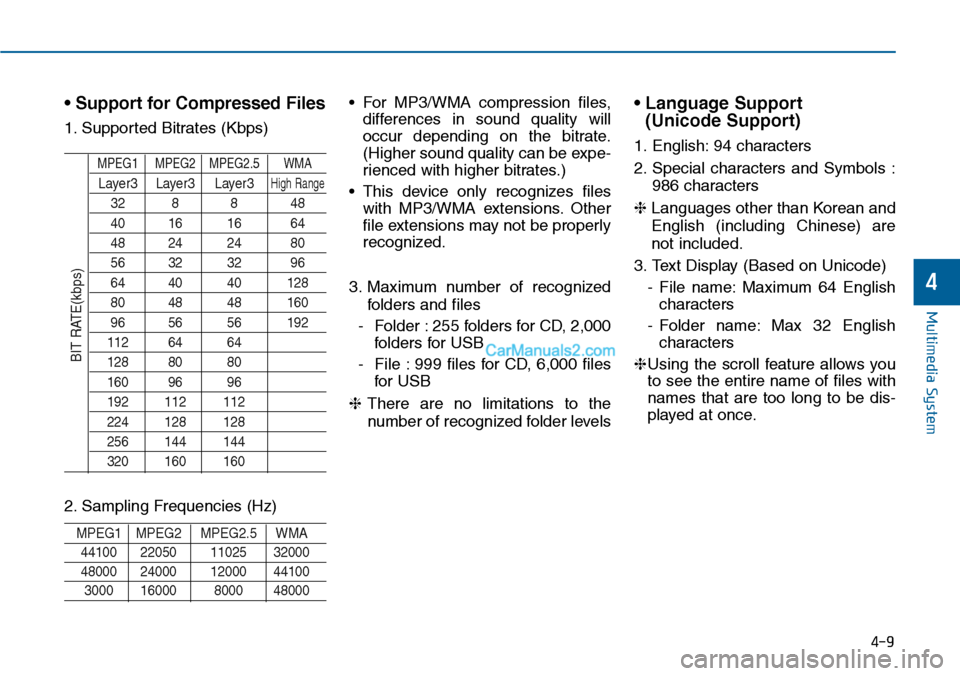
• Support for Compressed Files
1. Supported Bitrates (Kbps)
MPEG1 MPEG2 MPEG2.5 WMA
Layer3 Layer3 Layer3High Range
32 8 8 48
40 16 16 64
48 24 24 80
56 32 32 96
64 40 40 128
80 48 48 160
96 56 56 192
112 64 64
128 80 80
160 96 96
192 112 112
224 128 128
256 144 144
320 160 160
2. Sampling Frequencies (Hz)
MPEG1 MPEG2 MPEG2.5 WMA
44100 22050 11025 32000
48000 24000 12000 44100
3000 16000 8000 48000
• For MP3/WMA compression files,
differences in sound quality will
occur depending on the bitrate.
(Higher sound quality can be expe-
rienced with higher bitrates.)
• This device only recognizes files
with MP3/WMA extensions. Other
file extensions may not be properly
recognized.
3. Maximum number of recognized
folders and files
-Folder :255 folders for CD, 2,000
folders for USB
-File :999 files for CD, 6,000 files
for USB
❈There are no limitations to the
number of recognized folder levels
• Language Support
(Unicode Support)
1. English: 94 characters
2. Special characters and Symbols :
986 characters
❈ Languages other than Korean and
English (including Chinese) are
not included.
3. Text Display (Based on Unicode)
-File name:Maximum 64 English
characters
-Folder name: Max 32 English
characters
❈Using the scroll feature allows you
to see the entire name of files with
names that are too long to be dis-
played at once.
BIT RATE(kbps)
Multimedia System
4-9
4
Page 268 of 665
• Compatibility by Disc Type
1. Playing MIXED CDs: First plays
the audio CD, then plays the com-
pressed file(s).
2. Playing EXTRA CDs: First plays
the audio CD, then plays the com-
pressed file(s).
3. Playing multisession CDs: Plays in
order of sessions
-MIXED CD : CD type in which
both MP3 and audio CD files are
recognized in one disc.
-Multisession CD CD type that
includes more than two sessions.
Different from Extra CDs, multi-
session CDs are recorded by
sessions and have no media lim-
itation.
• Precautions upon Writing CDs
1. In all cases except when creating
multisession discs, check the
close session option before creat-
ing the disc. Though product mal-
functions will not occur, some time
may be required for the device to
check whether the session state is
closed (approximately 25 sec-
onds). (Additional time may also
be required depending on the
number of folders or files.)
2. Changing the MP3/WMA file
extensions or changing files of
other extensions to MP3/WMA
may result in product malfunction.
3. When naming files with
MP3/WMA file extensions, write
using only Korean and English.
(Languages other than Korean
and English are not supported and
are displayed as blank.)
4. Unauthorized use or duplication of
music files are prohibited by law.
5. Prolonged use of CD-R/CD-RW
discs that do not satisfy related
standards and/or specifications
could result in product malfunc-
tion.
6. Unauthorized use or duplication of
MP3/WMA files is prohibited by
law.
Multimedia System
4-10
Page 269 of 665
Multimedia System
4-11
Using a cellular phone or a two-
way radio
When a cellular phone is used inside
the vehicle, noise may be produced
from the audio system. This does not
mean that something is wrong with
the audio equipment. In such a case,
try to operate mobile devices as far
from the audio equipment as possible.
When using a communication sys-
tem such as a cellular phone or a
radio set inside the vehicle, a sepa-
rate external antenna must be fitted.
When a cellular phone or a radio set
is used with an internal antenna
alone, it may interfere with the vehi-
cle's electrical system and adversely
affect safe operation of the vehicle.
NOTE:
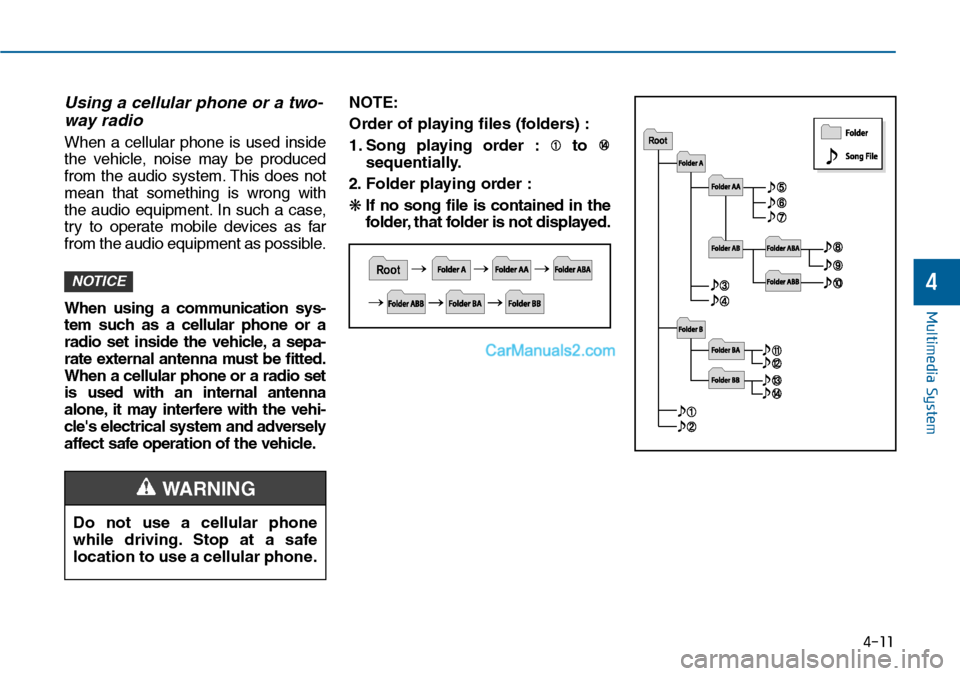
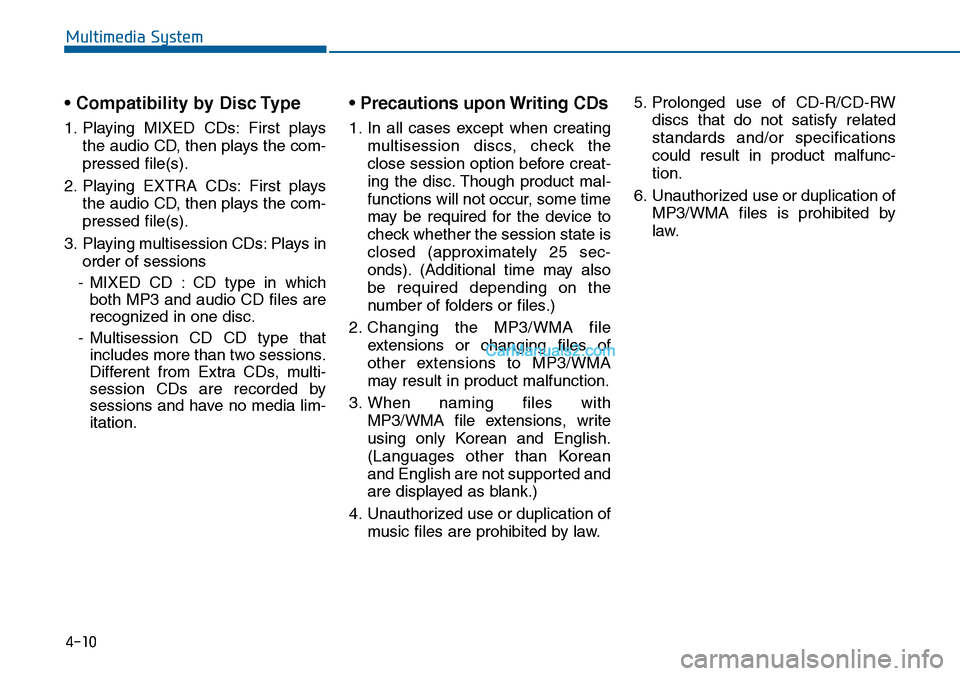
Order of playing files (folders) :
1. Song playing order : to
sequentially.
2. F o l d e r p l ay i n g o rd e r :
❋If no song file is contained in the
folder, that folder is not displayed.
NOTICE
Do not use a cellular phone
while driving. Stop at a safe
location to use a cellular phone.
4
WARNING
Page 278 of 665
❈Display and settings may differ depending on the
selected audio.
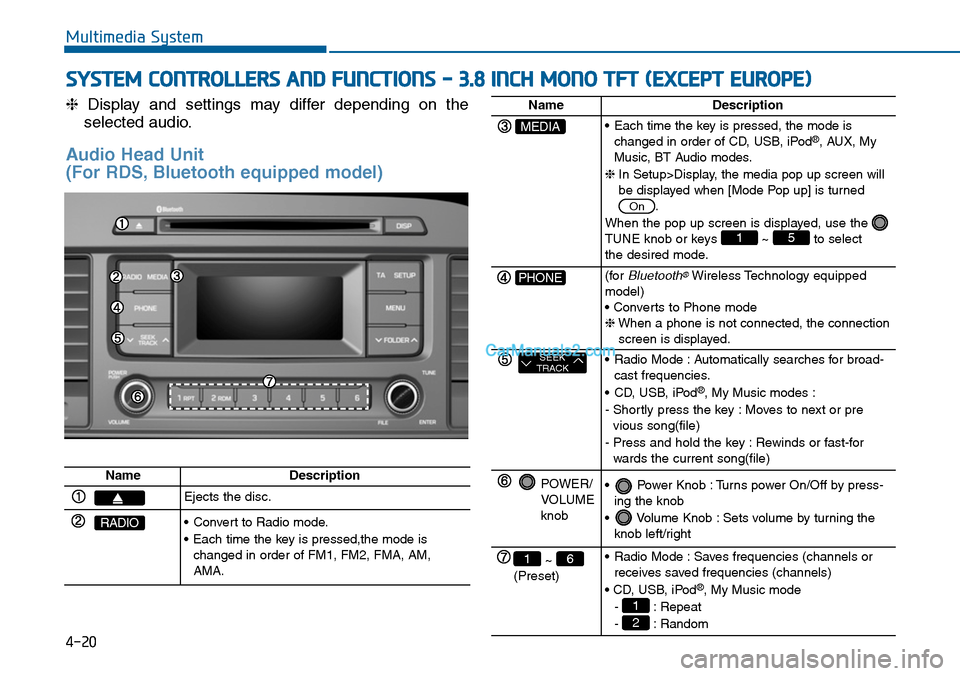
Audio Head Unit
(For RDS, Bluetooth equipped model)
Multimedia System
SYSTEM CONTROLLERS AND FUNCTIONS - 3.8 INCH MONO TFT (EXCEPT EUROPE)
4-20
NameDescription
Ejects the disc.
RADIO•Convert to Radio mode.
•Each time the key is pressed,the mode ischanged in order of FM1, FM2, FMA, AM,AMA.
NameDescription
MEDIA•Each time the key is pressed, the mode ischanged in order of CD, USB, iPod®, AUX, MyMusic, BT Audio modes.
❈In Setup>Display, the media pop up screen willbe displayed when [Mode Pop up] is turned.
When the pop up screen is displayed, use the TUNE knob or keys ~ to selectthe desired mode.
51
On
PHONE(forBluetooth®Wireless Technology equippedmodel)• Converts to Phone mode❈When a phone is not connected, the connectionscreen is displayed.
SEEKTRACK•Radio Mode :Automatically searches for broad-cast frequencies.
•CD, USB, iPod®, My Music modes :
- Shortly press the key : Moves to next or previous song(file)
- Press and hold the key : Rewinds or fast-forwards the current song(file)
POWER/VOLUMEknob
•Power Knob :Turns power On/Off by press-ing the knob
•Volume Knob :Sets volume by turning theknob left/right
~ (Preset)
61•Radio Mode :Saves frequencies (channels orreceives saved frequencies (channels)
• CD, USB, iPod®, My Music mode
- : Repeat
- : Random2
1
Page 279 of 665
Multimedia System
4-21
4
NameDescription
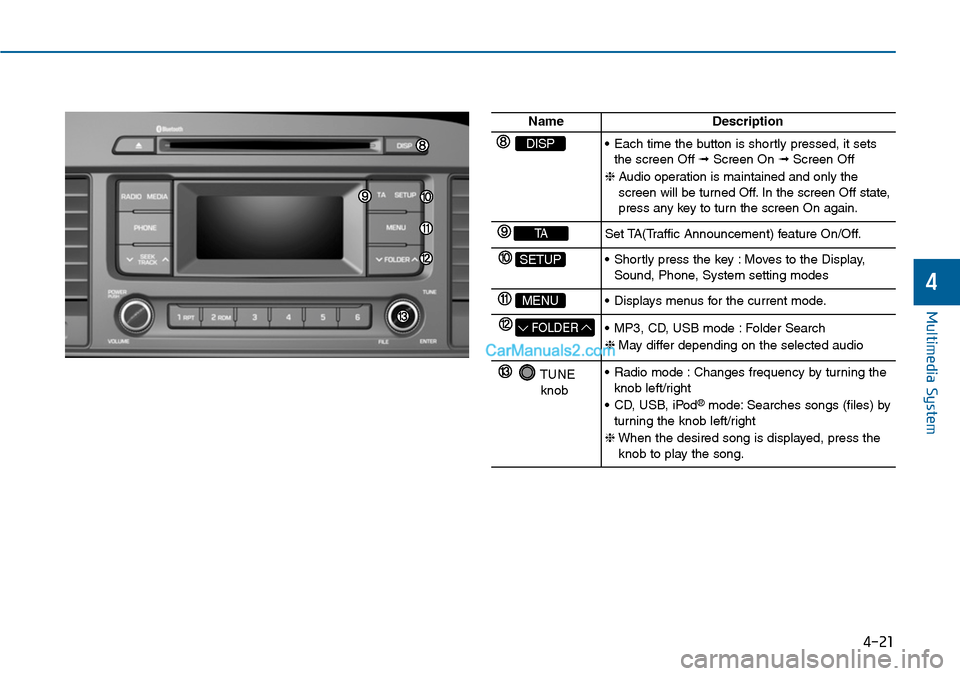
DISP•Each time the button is shortly pressed, it setsthe screen Off ➟Screen On ➟Screen Off
❈Audio operation is maintained and only thescreen will be turned Off. In the screen Off state,press any key to turn the screen On again.
TASet TA(Traffic Announcement) feature On/Off.
SETUP•Shortly press the key :Moves to the Display,Sound, Phone, System setting modes
MENU•Displays menus for the current mode.
FOLDER•MP3, CD, USB mode :Folder Search
❈May differ depending on the selected audio
TUNEknob
•Radio mode :Changes frequency by turning theknob left/right
•CD, USB, iPod®mode: Searches songs (files) byturning the knob left/right
❈When the desired song is displayed, press theknob to play the song.