Page 371 of 665
4-113
Multimedia System
4
System Setting
Memory Information
Press the key Select
[System] Select [Memory Information]
This feature displays information
related to system memory.
1) Using : Displays capacity currently
in use
2) Capacity : Displays total capacity
Language
Press the key Select
[System] Select [Language]
This feature is used to change the
system and voice recognition lan-
guage.
If the language is changed, the sys-
tem will restart and apply the select-
ed language.
SETUP
SETUP
Page 372 of 665
4-114
Multimedia System
SETUP
(for Bluetooth®Wireless
Technology equipped model)
Starting Mode
Press the key to display the
Setup screen.
Yo u c a n s e l e c t a n d c o n t r o l o p t i o n s
related to [Display], [Sound], [Phone]
and [System].
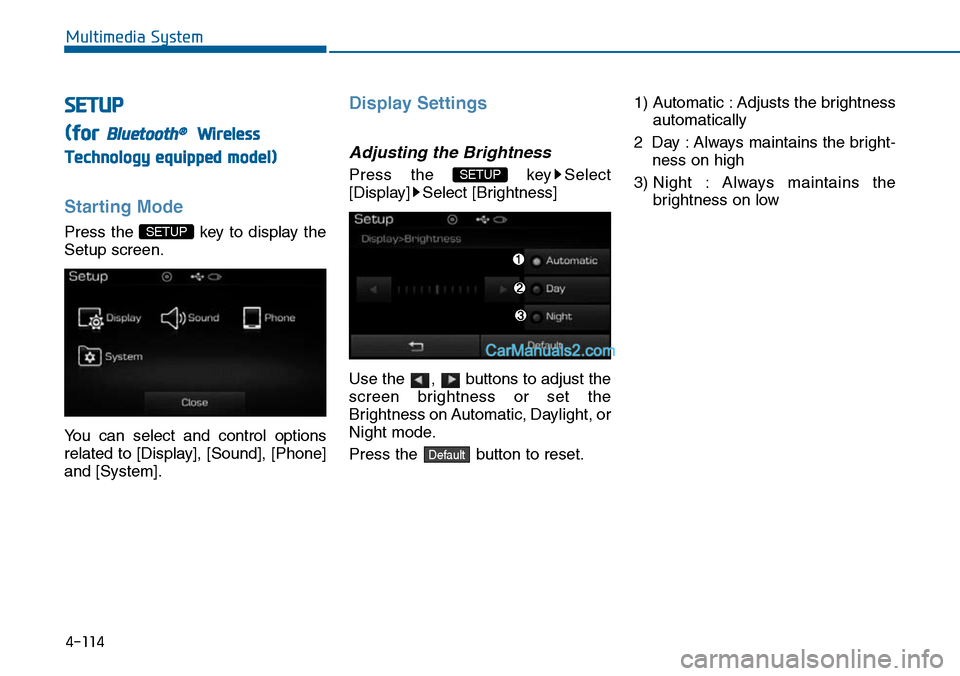
Display Settings
Adjusting the Brightness
Press the key Select
[Display] Select [Brightness]
Use the , buttons to adjust the
screen brightness or set the
Brightness on Automatic, Daylight, or
Night mode.
Press the button to reset.
1) Automatic : Adjusts the brightness
automatically
2 Day : Always maintains the bright-
ness on high
3) Night : Always maintains the
brightness on low
Default
SETUP
SETUP
Page 373 of 665
4-115
Multimedia System
4
Mode Pop up
Press the key Select
[Display] Select [Mode Pop up]
This feature is used to display the
Mode Pop up screen when entering
radio and media modes.
When this feature is turned on,
pressing the or key
will display the Mode Pop up screen.
Information
The media Mode Pop up screen can be
displayed only when two or more
media modes have been connected.
Text Scroll
Press the key Select
[Display] Select [Text Scroll]
This feature is used to scroll text dis-
played on the screen when it is too
long to be displayed at once.
When turned on, the text is repeat-
edly scrolled. When turned off, the
text is scrolled just once.
MP3 Information Display
Press the key Select
[Display] Select [Media Display]
This feature is used to change the
information displayed within USB
and MP3 CD modes.
1) Folder File : Displays file name
and folder name
2) Album Ar tist Song : Displays
album name/artist name/song
SETUP SETUP
i
MEDIA RADIO
SETUP
Page 376 of 665
![Hyundai Sonata 2014 Owners Manual 4-118
Multimedia System
Downloading Contacts
Press the key Select
[Phone] Select [Contacts Download]
The contacts is downloaded from the
mobile phone and the download
progress is displayed.
Info](/manual-img/35/16805/w960_16805-375.png "Hyundai Sonata 2014 Owners Manual 4-118
Multimedia System
Downloading Contacts
Press the key Select
[Phone] Select [Contacts Download]
The contacts is downloaded from the
mobile phone and the download
progress is displayed.
Info")
4-118
Multimedia System
Downloading Contacts
Press the key Select
[Phone] Select [Contacts Download]
The contacts is downloaded from the
mobile phone and the download
progress is displayed.
Information
• Up to 1,000 contacts entries can be
copied into car contacts.
• Up to 1,000 contacts entries can be
saved for each paired device.
•Upon downloading contacts data,
previously saved contacts data will
be deleted. However, contacts
entries saved to other paired phones
are not deleted.
Auto Download (Contacts)
Press the key Select
[Phone] Select [Auto Download]
This feature is used to automatically
download mobile contacts entries
once a Bluetooth®Wireless
Technology phone is connected.
Information
•The Auto Download feature will
download mobile contacts entries
every time the phone is connected.
The download time may differ
depending on the number of saved
contacts entries and the communi-
cation state.
• When downloading a contacts, first
check to see that your mobile phone
supports the contacts download fea-
ture.
Streaming Audio
Press the key Select
[Phone] Select [Streaming Audio]
When Streaming Audio is turned on,
you can play music files saved in
your Bluetooth®Wireless Technology
device from the car.
SETUP
i
SETUP
i
SETUP
Page 377 of 665
4-119
Multimedia System
4
Outgoing Volume
Press the key Select
[Phone] Select [Outgoing Volume]
Use the , buttons to adjust the
outgoing volume level.
Turning Bluetooth System Off
Press the key Select
[Phone] Select [Bluetooth System
Off]
Once Bluetooth®Wireless Technology
is turned off, Bluetooth®Wireless
Te c h n o l o g y r e l a t e d f e a t u r e s w i l l n o t b e
supported within the audio system.
Information
To t u r n Bluetooth®Wireless
Technology back on, go to
[Phone] and press “Yes”.
System Setting
Memory Information
Press the key Select
[System] Select [Memory Information]
This feature displays information
related to system memory.
1) Using : Displays capacity currently
in use
2) Capacity : Displays total capacity
SETUP
SETUP
i
SETUP
SETUP
Page 380 of 665

4-122
Multimedia System
NameDescription
Ejecting CDEjecting CD
Audio CDAudio CD
TrackAudio CD song order
Reading MediaReading Media
Not supportedNot supported file format
Empty iPodEmpty iPod, iPod don't have playabledata
Communication ErrorCommunication error between audio and iPod or usb
DeleteDelete the paired phone or files in MY MUSIC
Del.AllDelete all files
Del.SelSelect files to delete
ReturnReturn menu
ListList files or paired phones
Select FilesSelect Files
Memory is full,Delete files Memory is full, Delete files
Over 6000 files. cannot be copied Over 6000 files. can not be copied
Over 1000 same filescan not be copied Over 1000 same files can not becopied
System will automati-cally switch off after 1hour with ignition off
System will automatically switchoffafter 1 hour with ignition off
NameDescription
Battery dischargeStart the engineBattery discharge Start the engine
SetupSetup
DisplaySetup display mode
Mode Pop upThis function is used to selectpopup menu on or off
Scroll textThis function is used to display characters longer than the LCD textdisplays
Song InfoSetup display information beingplayed
Folder/FileDisplay Folder/file name, file currently being played
Album/Artist/SongDisplay Album/Artist/Song name, file currently being played
SoundSetup sound mode
Audio SettingsSetup Audio settings that consistBASS, Middle, Treble, Fader andBalance
Power BassThis function is used to improvebass sound quality
Speed DependentVo l .Automatically adjust the volume according to the car speed
Vo l u m e D i a l o g u eAdjust volume level of Dialogue
BassBass is sound of low frequency. It can be adjusted sound by user
MiddleMiddle is sound of middle frequency. It can be adjusted sound by user
Page 381 of 665
4-123
Multimedia System
4
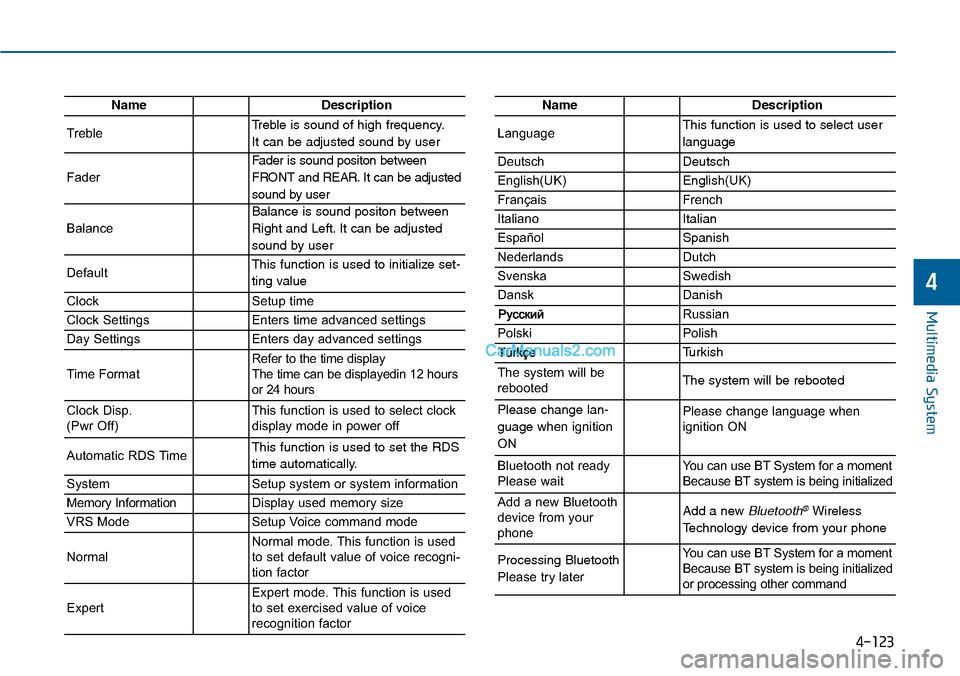
NameDescription
TrebleTreble is sound of high frequency.
It can be adjusted sound by user
Fader
Fader is sound positon between
FRONT and REAR. It can be adjusted
sound by user
Balance
Balance is sound positon between
Right and Left. It can be adjusted
sound by user
DefaultThis function is used to initialize set-
ting value
ClockSetup time
Clock SettingsEnters time advanced settings
Day SettingsEnters day advanced settings
Time FormatRefer to the time display The time can be displayedin 12 hoursor 24 hours
Clock Disp.(Pwr Off)This function is used to select clockdisplay mode in power off
Automatic RDS TimeThis function is used to set the RDS
time automatically.
SystemSetup system or system information
Memory InformationDisplay used memory size
VRS ModeSetup Voice command mode
NormalNormal mode. This function is usedto set default value of voice recogni-tion factor
ExpertExpert mode. This function is usedto set exercised value of voicerecognition factor
NameDescription
LanguageThis function is used to select user
language
DeutschDeutsch
English(UK)English(UK)
FrançaisFrench
Italiano Italian
EspañolSpanish
NederlandsDutch
SvenskaSwedish
DanskDanish
Russian
PolskiPolish
Turkish
The system will berebootedThe system will be rebooted
Please change lan-
guage when ignition
ON
Please change language when ignition ON
Bluetooth not readyPlease waitYo u c a n u s e B T S y s t e m f o r a m o m e n tBecause BT system is being initialized
Add a new Bluetoothdevice from yourphone
Add a new Bluetooth®Wireless
Technology device from your phone
Processing Bluetooth
Please try later
Yo u c a n u s e B T S y s t e m f o r a m o m e n tBecause BT system is being initializedor processing other command
Page 384 of 665
4-126
SYSTEM CONTROLLERS AND FUNCTIONS - 3.8 INCH MONO TFT (FOR EUROPE)
Multimedia System
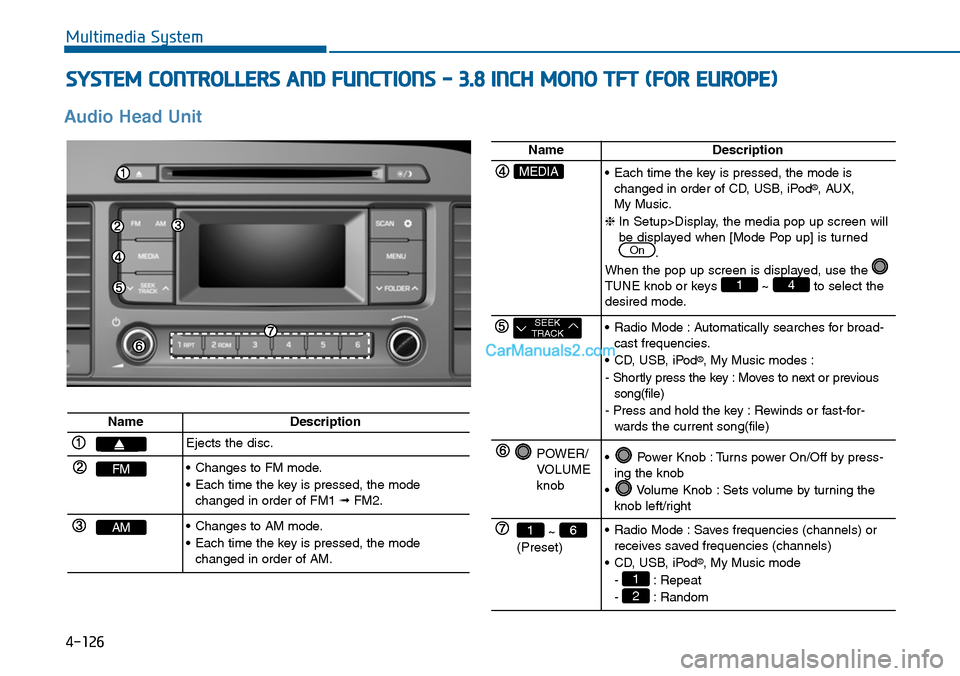
Audio Head Unit
NameDescription
Ejects the disc.
FM•Changes to FM mode.
•Each time the key is pressed, the modechanged in order of FM1 ➟FM2.
AM•Changes to AM mode.
•Each time the key is pressed, the modechanged in order of AM.
NameDescription
MEDIA•Each time the key is pressed, the mode ischanged in order of CD, USB, iPod®, AUX, My Music.
❈In Setup>Display, the media pop up screen willbe displayed when [Mode Pop up] is turned.
When the pop up screen is displayed, use the TUNE knob or keys ~ to select thedesired mode.
41
On
SEEKTRACK•Radio Mode :Automatically searches for broad-cast frequencies.
•CD, USB, iPod®, My Music modes :
- Shortly press the key : Moves to next or previoussong(file)
- Press and hold the key : Rewinds or fast-for-wards the current song(file)
POWER/VOLUMEknob
•Power Knob :Turns power On/Off by press-ing the knob
•Volume Knob :Sets volume by turning theknob left/right
~ (Preset)
61•Radio Mode :Saves frequencies (channels) orreceives saved frequencies (channels)
•CD, USB, iPod®, My Music mode
- : Repeat
- : Random2
1
![Hyundai Sonata 2014 Owners Manual 4-113
Multimedia System
4
System Setting
Memory Information
Press the key Select
[System] Select [Memory Information]
This feature displays information
related to system memory.
1) Using : Displa](/manual-img/35/16805/w960_16805-370.png "Hyundai Sonata 2014 Owners Manual 4-113
Multimedia System
4
System Setting
Memory Information
Press the key Select
[System] Select [Memory Information]
This feature displays information
related to system memory.
1) Using : Displa")
![Hyundai Sonata 2014 Owners Manual 4-115
Multimedia System
4
Mode Pop up
Press the key Select
[Display] Select [Mode Pop up]
This feature is used to display the
Mode Pop up screen when entering
radio and media modes.
When](/manual-img/35/16805/w960_16805-372.png "Hyundai Sonata 2014 Owners Manual 4-115
Multimedia System
4
Mode Pop up
Press the key Select
[Display] Select [Mode Pop up]
This feature is used to display the
Mode Pop up screen when entering
radio and media modes.
When")
![Hyundai Sonata 2014 Owners Manual 4-119
Multimedia System
4
Outgoing Volume
Press the key Select
[Phone] Select [Outgoing Volume]
Use the , buttons to adjust the
outgoing volume level.
Turning Bluetooth System Off
Press the key S](/manual-img/35/16805/w960_16805-376.png "Hyundai Sonata 2014 Owners Manual 4-119
Multimedia System
4
Outgoing Volume
Press the key Select
[Phone] Select [Outgoing Volume]
Use the , buttons to adjust the
outgoing volume level.
Turning Bluetooth System Off
Press the key S")