Page 355 of 665
![Hyundai Sonata 2014 Owners Manual Call History
Press the key Select [Call
History]
A list of incoming, outgoing and
missed calls is displayed.
Press the button to down-
load the call history.
1) Call History :
- Displays re](/manual-img/35/16805/w960_16805-354.png "Hyundai Sonata 2014 Owners Manual Call History
Press the key Select [Call
History]
A list of incoming, outgoing and
missed calls is displayed.
Press the button to down-
load the call history.
1) Call History :
- Displays re")
Call History
Press the key Select [Call
History]
A list of incoming, outgoing and
missed calls is displayed.
Press the button to down-
load the call history.
1) Call History :
- Displays recent calls (call history)
- Connects call upon selection
2) Download : Download Recent Call
History
Contacts
Press the key Select
[Contacts]
The list of saved phone book entries
is displayed. Press the but-
ton to download the call history.
1) Contacts List :
- Displays downloaded contacts
entries
- Connects call upon selection
2) Download : Download contacts
entries
Information
• Up to 1,000 contacts entries can be
copied into car contacts.
•Upon downloading contacts data,
previously saved contacts data will
be deleted.
• Downloading is not possible if the
contacts download feature is turned
off within the Bluetooth®Wireless
Te c h n o l o g y d e v i c e . A l s o , s o m e
devices may require device authori-
zation upon attempting to down-
load. If downloading cannot be nor-
mally conducted, check the
Bluetooth®Wireless Technology
device setting or the screen state.
• Caller ID information will not be
displayed for unsaved callers.
• The download feature may not be
supported in some mobile phones.
Check to see that the Bluetooth®
Wireless Technology device sup-
ports the download feature.
i
Download
PHONE
Download
PHONE
4-97
Multimedia System
4
Page 360 of 665
4-102
Multimedia System
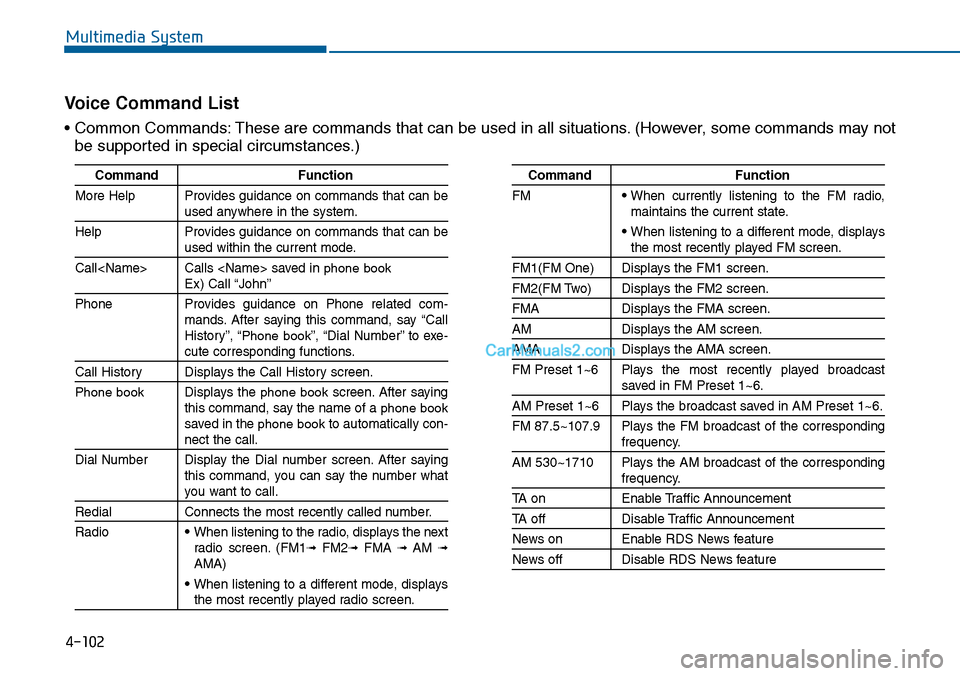
Command Function
More Help Provides guidance on commands that can beused anywhere in the system.
Help Provides guidance on commands that can beused within the current mode.
Call Calls saved in phone bookEx) Call “John”
Phone Provides guidance on Phone related com-mands. After saying this command, say “CallHistory”, “Phone book”, “Dial Number” to exe-cute corresponding functions.
Call History Displays the Call History screen.
Phone bookDisplays the phone bookscreen. After sayingthis command, say the name of a phone booksaved in the phone bookto automatically con-nect the call.
Dial Number Display the Dial number screen. After sayingthis command, you can say the number whatyou want to call.
Redial Connects the most recently called number.
Radio• When listening to the radio, displays the nextradio screen. (FM1➟FM2➟FMA ➟ AM ➟AMA)
• When listening to a different mode, displaysthe most recently played radio screen.
Command Function
FM• When currently listening to the FM radio,maintains the current state.
• When listening to a different mode, displaysthe most recently played FM screen.
FM1(FM One) Displays the FM1 screen.
FM2(FM Two) Displays the FM2 screen.
FMA Displays the FMA screen.
AM Displays the AM screen.
AMA Displays the AMA screen.
FM Preset 1~6 Plays the most recently played broadcastsaved in FM Preset 1~6.
AM Preset 1~6 Plays the broadcast saved in AM Preset 1~6.
FM 87.5~107.9 Plays the FM broadcast of the correspondingfrequency.
AM 530~1710 Plays the AM broadcast of the correspondingfrequency.
TA on Enable Traffic Announcement
TA off Disable Traffic Announcement
News on Enable RDS News feature
News off Disable RDS News feature
Vo i c e C o m m a n d L i s t
• Common Commands: These are commands that can be used in all situations. (However, some commands may not
be supported in special circumstances.)
Page 362 of 665
4-104
Multimedia System
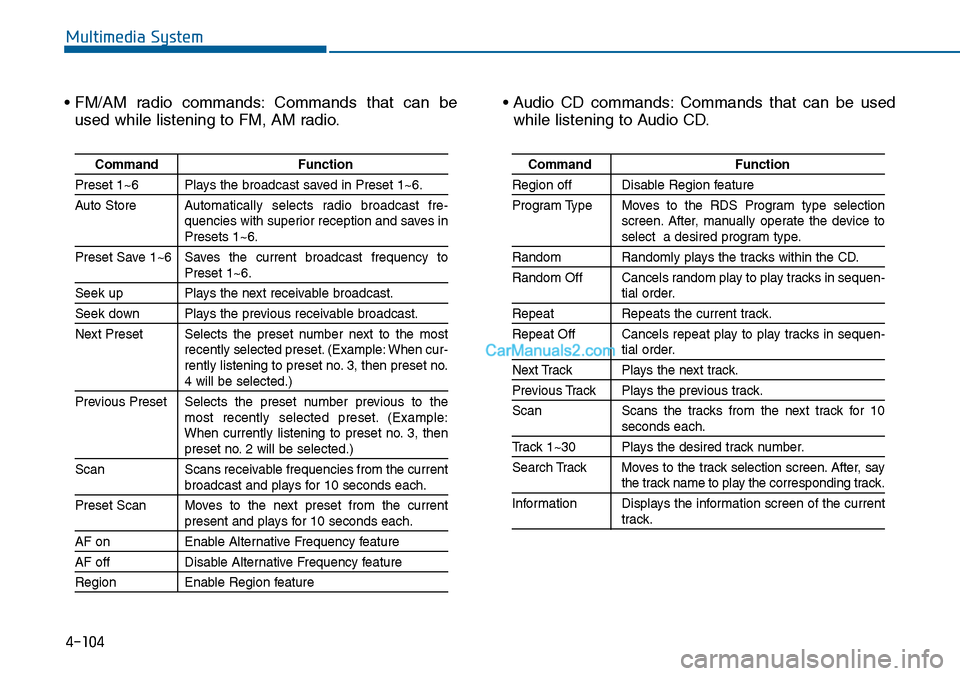
• FM/AM radio commands: Commands that can be
used while listening to FM, AM radio.
• Audio CD commands: Commands that can be used
while listening to Audio CD.
Command Function
Preset 1~6 Plays the broadcast saved in Preset 1~6.
Auto StoreAutomatically selects radio broadcast fre-quencies with superior reception and saves inPresets 1~6.
Preset Save 1~6 Saves the current broadcast frequency toPreset 1~6.
Seek up Plays the next receivable broadcast.
Seek down Plays the previous receivable broadcast.
Next Preset Selects the preset number next to the mostrecently selected preset. (Example: When cur-rently listening to preset no. 3, then preset no.4 will be selected.)
Previous Preset Selects the preset number previous to themost recently selected preset. (Example:When currently listening to preset no. 3, thenpreset no. 2 will be selected.)
Scan Scans receivable frequencies from the currentbroadcast and plays for 10 seconds each.
Preset Scan Moves to the next preset from the currentpresent and plays for 10 seconds each.
AF on Enable Alternative Frequency feature
AF off Disable Alternative Frequency feature
Region Enable Region feature
Command Function
Region off Disable Region feature
Program Type Moves to the RDS Program type selectionscreen. After, manually operate the device toselect a desired program type.
Random Randomly plays the tracks within the CD.
Random Off Cancels random play to play tracks in sequen-tial order.
Repeat Repeats the current track.
Repeat Off Cancels repeat play to play tracks in sequen-tial order.
Next Track Plays the next track.
Previous Track Plays the previous track.
Scan Scans the tracks from the next track for 10seconds each.
Track 1~30 Plays the desired track number.
Search Track Moves to the track selection screen. After, saythe track name to play the corresponding track.
Information Displays the information screen of the currenttrack.
Page 363 of 665
4-105
Multimedia System
4
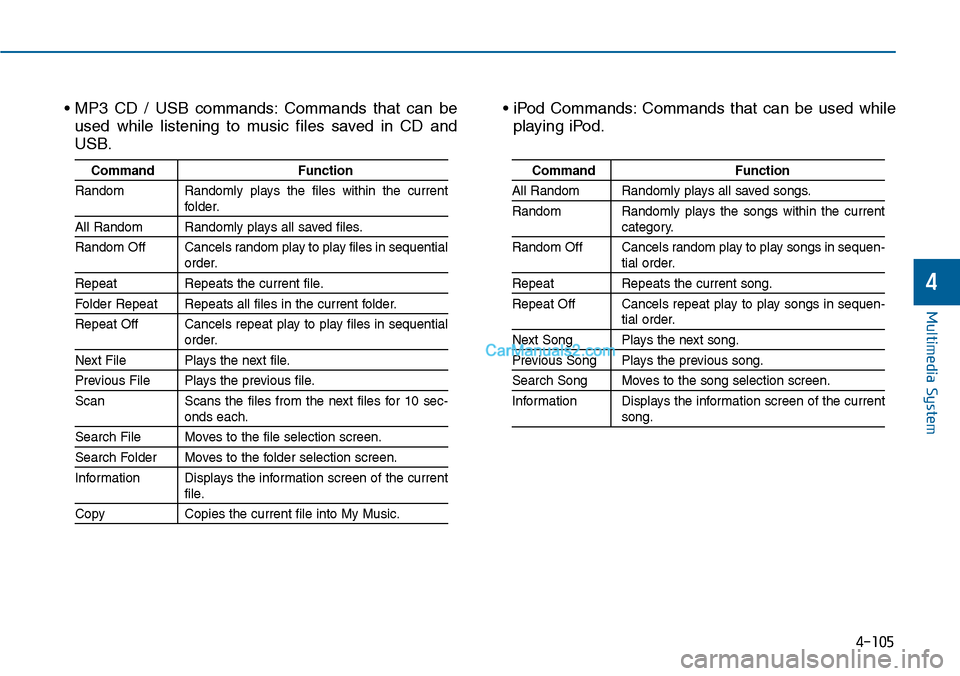
• MP3 CD / USB commands: Commands that can be
used while listening to music files saved in CD and
USB.
• iPod Commands: Commands that can be used while
playing iPod.
Command Function
Random Randomly plays the files within the currentfolder.
All Random Randomly plays all saved files.
Random Off Cancels random play to play files in sequentialorder.
Repeat Repeats the current file.
Folder Repeat Repeats all files in the current folder.
Repeat Off Cancels repeat play to play files in sequentialorder.
Next File Plays the next file.
Previous File Plays the previous file.
Scan Scans the files from the next files for 10 sec-onds each.
Search File Moves to the file selection screen.
Search Folder Moves to the folder selection screen.
Information Displays the information screen of the currentfile.
Copy Copies the current file into My Music.
Command Function
All Random Randomly plays all saved songs.
Random Randomly plays the songs within the currentcategory.
Random Off Cancels random play to play songs in sequen-tial order.
Repeat Repeats the current song.
Repeat Off Cancels repeat play to play songs in sequen-tial order.
Next Song Plays the next song.
Previous Song Plays the previous song.
Search Song Moves to the song selection screen.
Information Displays the information screen of the currentsong.
Page 364 of 665
4-106
Multimedia System
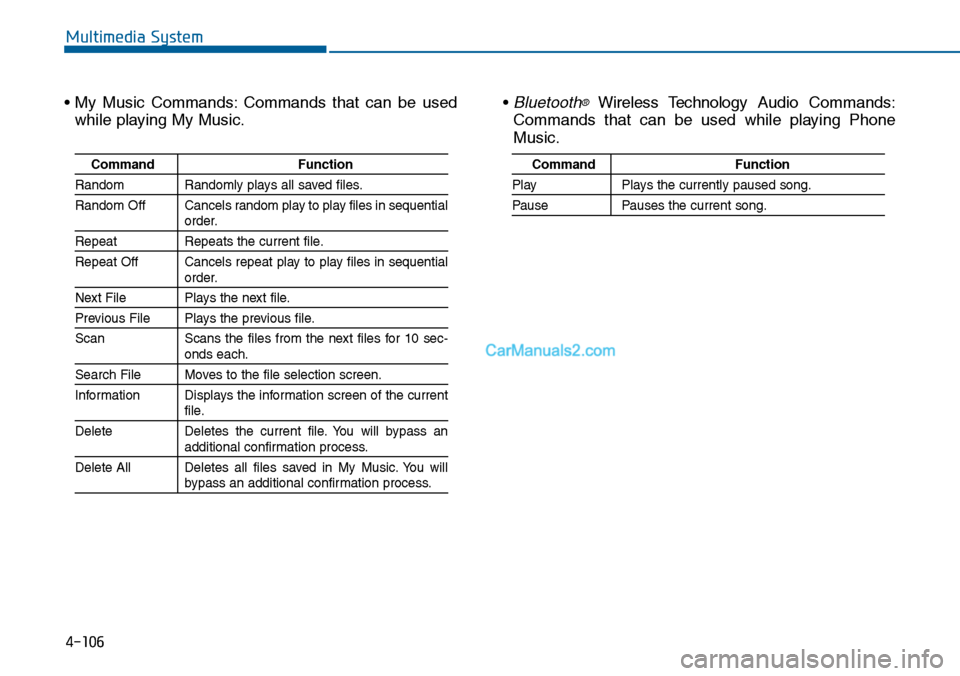
• My Music Commands: Commands that can be used
while playing My Music.
• Bluetooth®Wireless Technology Audio Commands:
Commands that can be used while playing Phone
Music.
Command Function
Random Randomly plays all saved files.
Random Off Cancels random play to play files in sequentialorder.
Repeat Repeats the current file.
Repeat Off Cancels repeat play to play files in sequentialorder.
Next File Plays the next file.
Previous File Plays the previous file.
Scan Scans the files from the next files for 10 sec-onds each.
Search File Moves to the file selection screen.
Information Displays the information screen of the currentfile.
Delete Deletes the current file. You will bypass anadditional confirmation process.
Delete All Deletes all files saved in My Music. You willbypass an additional confirmation process.
Command Function
Play Plays the currently paused song.
Pause Pauses the current song.
Page 365 of 665
4-107
Multimedia System
4
SETUP
(for RDS, Bluetooth®Wireless
Technology equipped model)
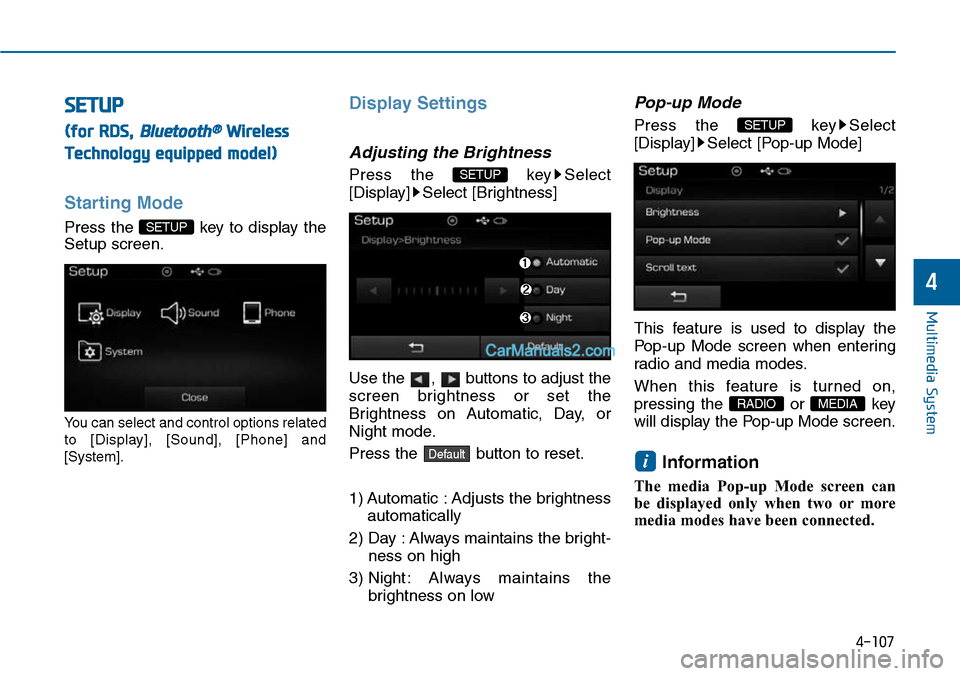
Starting Mode
Press the key to display the
Setup screen.
Yo u c a n s e l e c t a n d c o n t r o l o p t i o n s r e l a t e d
to [Display], [Sound], [Phone] and
[System].
Display Settings
Adjusting the Brightness
Press the key Select
[Display] Select [Brightness]
Use the , buttons to adjust the
screen brightness or set the
Brightness on Automatic, Day, or
Night mode.
Press the button to reset.
1) Automatic : Adjusts the brightness
automatically
2) Day : Always maintains the bright-
ness on high
3) Night : Always maintains the
brightness on low
Pop-up Mode
Press the key Select
[Display] Select [Pop-up Mode]
This feature is used to display the
Pop-up Mode screen when enter ing
radio and media modes.
When this feature is turned on,
pressing the or key
will display the Pop-up Mode screen.
Information
The media Pop-up Mode screen can
be displayed only when two or more
media modes have been connected.
i
MEDIA RADIO
SETUP
Default
SETUP
SETUP
Page 366 of 665
4-108
Multimedia System
Scroll Text
Press the key Select
[Display] Select [Scroll text]
This feature is used to scroll text dis-
played on the screen when it is too
long to be displayed at once.
When turned on, the text is repeat-
edly scrolled. When turned off, the
text is scrolled just once.
MP3 Information Display
Press the key Select
[Display] Select [Song Info]
This feature is used to change the
information displayed within USB
and MP3 CD modes.
1) Folder File : Displays file name
and folder name
2) Album Ar tist Song : Displays
album name/artist name/song
Sound Settings
Audio Settings
Press the key Select
[Sound] Select [Audio Setting]
Use the , , , buttons to
adjust the Fader/Balance settings.
Use the , buttons to adjust the
Bass/Middle/Treble settings.
Press the button to reset.Default
SETUP
SETUP SETUP
Page 369 of 665
![Hyundai Sonata 2014 Owners Manual 4-111
Multimedia System
4
Downloading Phone books
Press the key Select
[Phone] Select [Phone book
Download]
The Phone book is downloaded from
the mobile phone and the download
progress is dis](/manual-img/35/16805/w960_16805-368.png "Hyundai Sonata 2014 Owners Manual 4-111
Multimedia System
4
Downloading Phone books
Press the key Select
[Phone] Select [Phone book
Download]
The Phone book is downloaded from
the mobile phone and the download
progress is dis")
4-111
Multimedia System
4
Downloading Phone books
Press the key Select
[Phone] Select [Phone book
Download]
The Phone book is downloaded from
the mobile phone and the download
progress is displayed.
Information
• Up to 1,000 phone book entries can
be copied into car phone book.
• Up to 1,000 phone book entries can
be saved for each paired device.
•Upon downloading phone book
data, previously saved phone book
data will be deleted. However,
Phone book entries saved to other
paired phones are not deleted.
Auto Download (Phone Book)
Press the key Select
[Phone] Select [Auto Download]
This feature is used to automatically
download mobile phone book entries
once a Bluetooth®Wireless Technology
phone is connected.
Information
•The Auto Download feature will
download mobile phone book
entries every time the phone is con-
nected. The download time may dif-
fer depending on the number of
saved phone book entries and the
communication state.
• When downloading a phone book,
first check to see that your mobile
phone supports the phone book
download feature.
Audio Streaming
Press the key Select
[Phone] Select [Audio Streaming]
When Audio Streaming is turned on,
you can play music files saved in
your Bluetooth®Wireless Technology
device from the car.
SETUP
i
SETUP
i
SETUP
![Hyundai Sonata 2014 Owners Manual 4-108
Multimedia System
Scroll Text
Press the key Select
[Display] Select [Scroll text]
This feature is used to scroll text dis-
played on the screen when it is too
long to be displayed at on](/manual-img/35/16805/w960_16805-365.png "Hyundai Sonata 2014 Owners Manual 4-108
Multimedia System
Scroll Text
Press the key Select
[Display] Select [Scroll text]
This feature is used to scroll text dis-
played on the screen when it is too
long to be displayed at on")