Page 1129 of 1534
Features of your vehicle
58
4
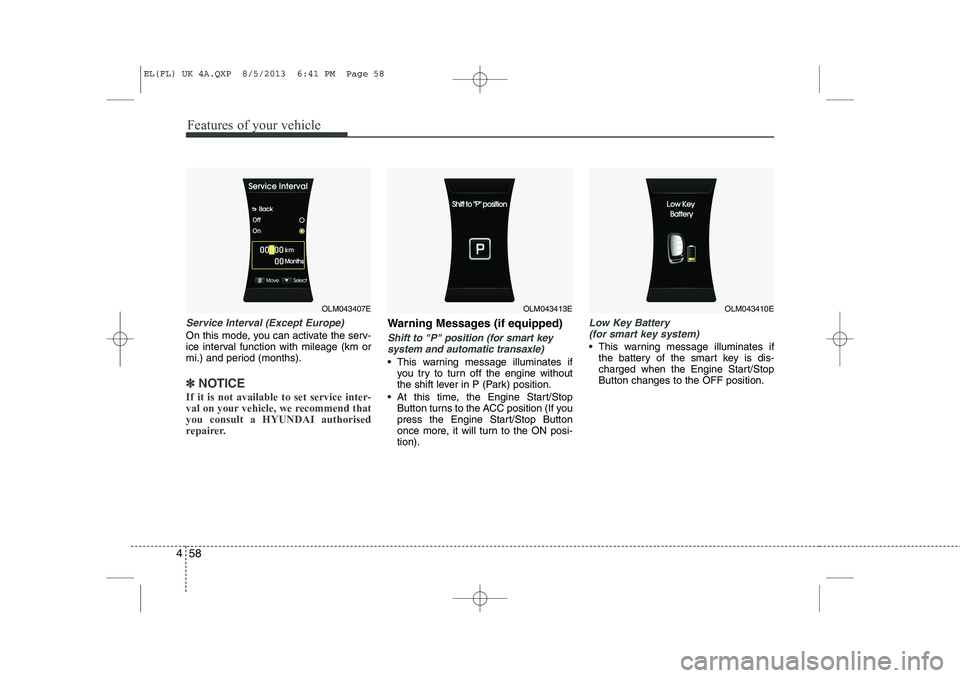
Service Interval (Except Europe)
On this mode, you can activate the serv-
ice interval function with mileage (km or
mi.) and period (months).
✽✽
NOTICE
If it is not available to set service inter-
val on your vehicle, we recommend thatyou consult a HYUNDAI authorised
repairer.
Warning Messages (if equipped)
Shift to "P" position (for smart key system and automatic transaxle)
This warning message illuminates if you try to turn off the engine without
the shift lever in P (Park) position.
At this time, the Engine Start/Stop Button turns to the ACC position (If you
press the Engine Start/Stop Button
once more, it will turn to the ON posi-tion).
Low Key Battery
(for smart key system)
This warning message illuminates if the battery of the smart key is dis-
charged when the Engine Start/StopButton changes to the OFF position.
OLM043407EOLM043413EOLM043410E
EL(FL) UK 4A.QXP 8/5/2013 6:41 PM Page 58
Page 1135 of 1534
Features of your vehicle
64
4
Overview
Description
The trip computer is a microcomputer-
controlled driver information system that
displays information related to driving.
✽✽
NOTICE
Some driving information stored in the
trip computer (for example Average
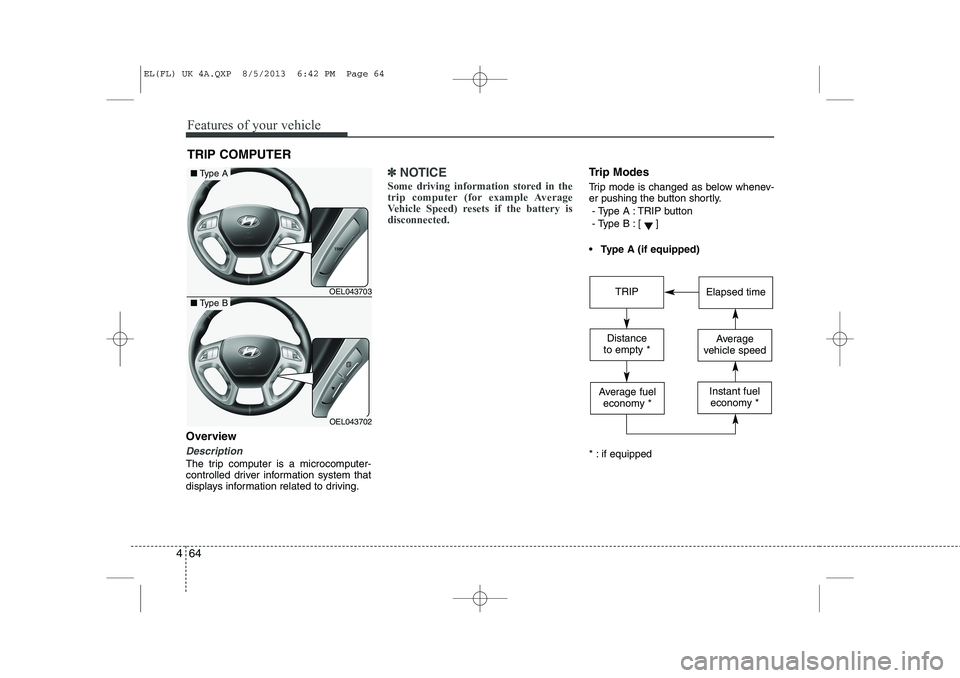
Vehicle Speed) resets if the battery isdisconnected.Trip Modes
Trip mode is changed as below whenev-
er pushing the button shortly.
- Type A : TRIP button
- Type B :
[]
Type A (if equipped)
* : if equipped
TRIP COMPUTER
OEL043703
OEL043702
■ Type A
■Type BTRIPElapsed time
Distance
to empty *Average
vehicle speed
Average fuel economy *Instant fueleconomy *
EL(FL) UK 4A.QXP 8/5/2013 6:42 PM Page 64
Page 1136 of 1534
465
Features of your vehicle
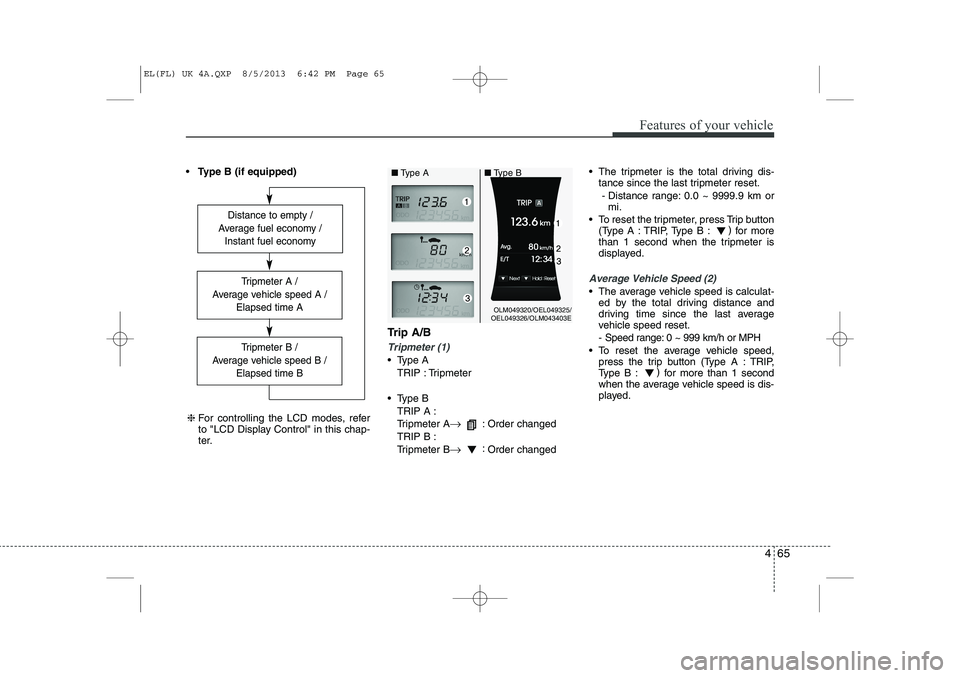
Type B (if equipped)
Trip A/B
Tripmeter (1)
Type ATRIP : Tripmeter
Type B TRIP A :
Tripmeter A →
: Order changed
TRIP B :
Tripmeter B →:
Order changed The tripmeter is the total driving dis-
tance since the last tripmeter reset.
- Distance range: 0.0 ~ 9999.9 km or mi.
To reset the tripmeter, press Trip button (Type A : TRIP, Type B : )
for more
than 1 second when the tripmeter is
displayed.
Average Vehicle Speed (2)
The average vehicle speed is calculat- ed by the total driving distance and
driving time since the last average
vehicle speed reset.
- Speed range: 0 ~ 999 km/h or MPH
To reset the average vehicle speed, press the trip button (Type A : TRIP,
Type B : )
for more than 1 second
when the average vehicle speed is dis-
played.
Distance to empty /
Average fuel economy / Instant fuel economy
Tripmeter B /
Average vehicle speed B / Elapsed time B
Tripmeter A /
Average vehicle speed A / Elapsed time A
❈For controlling the LCD modes, refer
to "LCD Display Control" in this chap-
ter.
OLM049320/OEL049325/
OEL049326/OLM043403E
■
Type A ■Type B
EL(FL) UK 4A.QXP 8/5/2013 6:42 PM Page 65
Page 1173 of 1534
Features of your vehicle
102
4
Flashing headlights
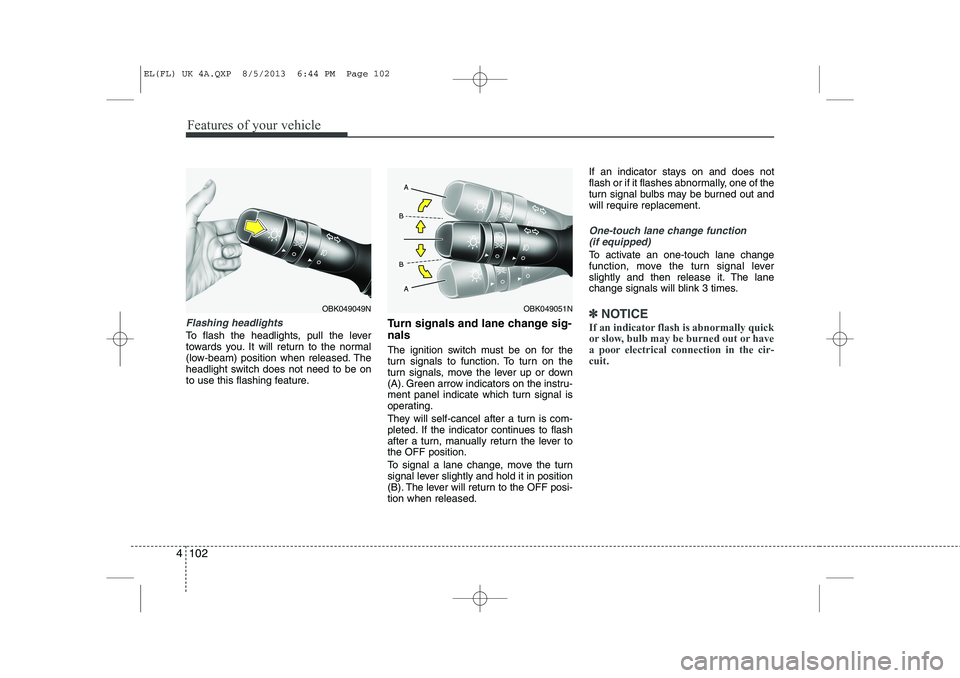
To flash the headlights, pull the lever
towards you. It will return to the normal
(low-beam) position when released. The
headlight switch does not need to be on
to use this flashing feature. Turn signals and lane change sig- nals
The ignition switch must be on for the
turn signals to function. To turn on the
turn signals, move the lever up or down
(A). Green arrow indicators on the instru-
ment panel indicate which turn signal is
operating.
They will self-cancel after a turn is com-
pleted. If the indicator continues to flash
after a turn, manually return the lever tothe OFF position.
To signal a lane change, move the turn
signal lever slightly and hold it in position
(B). The lever will return to the OFF posi-tion when released.If an indicator stays on and does not
flash or if it flashes abnormally, one of the
turn signal bulbs may be burned out andwill require replacement.
One-touch lane change function
(if equipped)
To activate an one-touch lane change
function, move the turn signal lever
slightly and then release it. The lane
change signals will blink 3 times.
✽✽ NOTICE
If an indicator flash is abnormally quick
or slow, bulb may be burned out or have
a poor electrical connection in the cir-cuit.OBK049051NOBK049049N
EL(FL) UK 4A.QXP 8/5/2013 6:44 PM Page 102
Page 1193 of 1534
Features of your vehicle
122
4
Air conditioning system operation tips
If the vehicle has been parked in direct
sunlight during hot weather, open the
windows for a short time to let the hot
air inside the vehicle escape.
To help reduce moisture inside of the windows on rainy or humid days,
decrease the humidity inside the vehi-
cle by operating the air conditioningsystem.
During air conditioning system opera- tion, you may occasionally notice aslight change in engine speed as the
air conditioning compressor cycles.
This is a normal system operation
characteristic.
Use the air conditioning system every month only for a few minutes to ensure
maximum system performance. When using the air conditioning sys-
tem, you may notice clear water drip-
ping (or even puddling) on the ground
under the passenger side of the vehi-
cle. This is a normal system operation
characteristic.
Operating the air conditioning system in the recirculated air position provides
maximum cooling, however, continual
operation in this mode may cause the
air inside the vehicle to become stale.
During cooling operation, you may occasionally notice a misty air flow
because of rapid cooling and humid air
intake. This is a normal system opera-
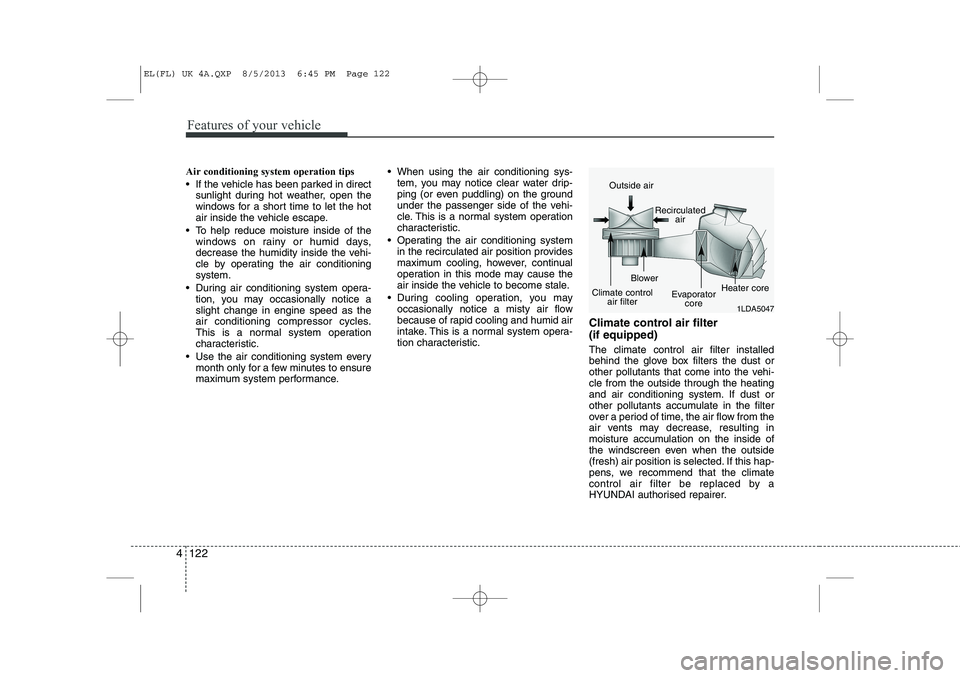
tion characteristic. Climate control air filter (if equipped) The climate control air filter installed
behind the glove box filters the dust or
other pollutants that come into the vehi-cle from the outside through the heating
and air conditioning system. If dust or
other pollutants accumulate in the filter
over a period of time, the air flow from the
air vents may decrease, resulting in
moisture accumulation on the inside of
the windscreen even when the outside
(fresh) air position is selected. If this hap-
pens, we recommend that the climate
control air filter be replaced by a
HYUNDAI authorised repairer.
1LDA5047
Outside air
Recirculatedair
Climate control air filter Blower
Evaporatorcore Heater core
EL(FL) UK 4A.QXP 8/5/2013 6:45 PM Page 122
Page 1227 of 1534
Features of your vehicle
156
4
SYSTEM CONTROLLERS AND FUNCTIONS ❈ Display and settings may differ
depending on the selected audio.
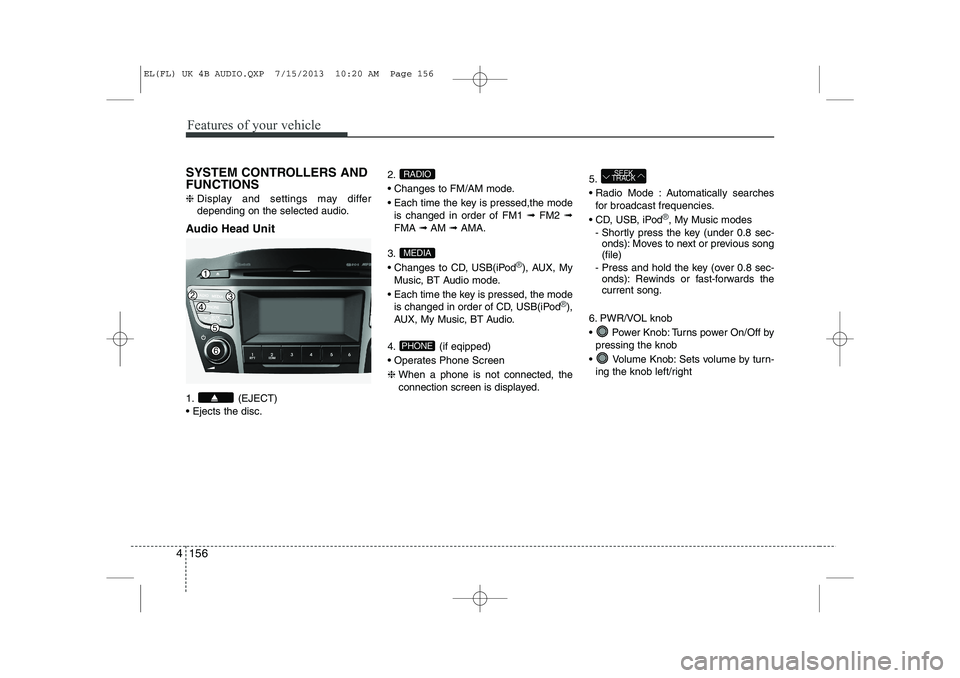
Audio Head Unit
1. (EJECT) Ejects the disc. 2.
Changes to FM/AM mode.
Each time the key is pressed,the mode
is changed in order of FM1 ➟FM2 ➟
FMA ➟AM ➟AMA.
3.
Changes to CD, USB(iPod
®), AUX, My
Music, BT Audio mode.
Each time the key is pressed, the mode is changed in order of CD, USB(iPod
®),
AUX, My Music, BT Audio.
4. (if eqipped)
Operates Phone Screen❈ When a phone is not connected, the
connection screen is displayed. 5.
Radio Mode : Automatically searches
for broadcast frequencies.
CD, USB, iPod
®, My Music modes
- Shortly press the key (under 0.8 sec- onds): Moves to next or previous song (file)
- Press and hold the key (over 0.8 sec- onds): Rewinds or fast-forwards thecurrent song.
6. PWR/VOL knob
Power Knob: Turns power On/Off by pressing the knob
Volume Knob: Sets volume by turn- ing the knob left/right
SEEK
TRACK
PHONE
MEDIA
RADIO
EL(FL) UK 4B AUDIO.QXP 7/15/2013 10:20 AM Page 156
Page 1229 of 1534
Features of your vehicle
158
4
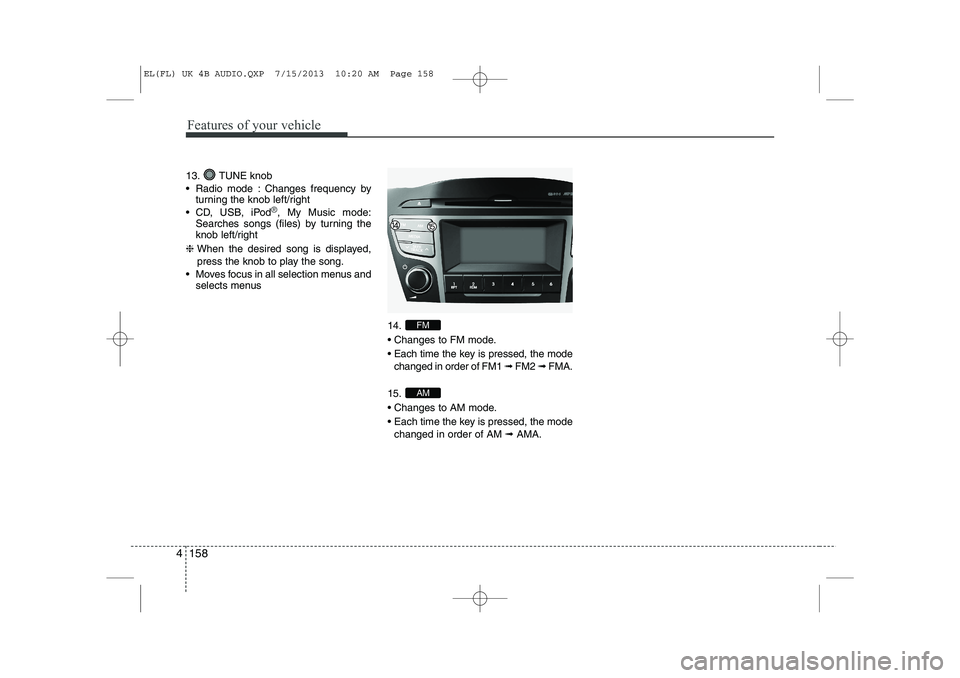
13. TUNE knob
Radio mode : Changes frequency by
turning the knob left/right
CD, USB, iPod
®, My Music mode:
Searches songs (files) by turning the
knob left/right
❈ When the desired song is displayed,
press the knob to play the song.
Moves focus in all selection menus and selects menus
14.
Changes to FM mode.
Each time the key is pressed, the modechanged in order of FM1 ➟ FM2 ➟ FMA.
15.
Changes to AM mode.
Each time the key is pressed, the mode changed in order of AM ➟AMA.
AM
FM
EL(FL) UK 4B AUDIO.QXP 7/15/2013 10:20 AM Page 158
Page 1230 of 1534
4 159
Features of your vehicle
SETUP
- AC100ELEE, AC110ELEE
Display Settings
Press the key Select [Display]
through TUNE knob or key
Select menu through TUNE knobMode Pop up
[Mode Pop up] Changes . selec- tion mode
During On state, press the or
key to display the mode
change pop up screen.
When the pop up screen is displayed, use the TUNE knob or keys
~ to select the desired mode.
Scroll text
[Scroll text] Set /
: Maintains scroll
: Scrolls only one (1) time.
Song Info
When playing an MP3 file, select the
desired display info from ‘Folder/File’ or
‘Album/Artist/Song’. Sound Settings
Press the key Select [Sound]
through TUNE knob or key
Select menu through TUNE knob
2
RDM
SETUP
CLOCK
Off
On
OffOn
6
1
MEDIA
RADIO
On
1
RPT
SETUP
CLOCK
EL(FL) UK 4B AUDIO.QXP 7/15/2013 10:20 AM Page 159
![HYUNDAI IX35 2014 Owners Manual 4 159
Features of your vehicle
SETUP
- AC100ELEE, AC110ELEE
Display Settings
Press the key Select [Display]
through TUNE knob or key
Select menu through TUNE knobMode Pop up
[Mode Pop up] C](/manual-img/35/56237/w960_56237-1229.png "HYUNDAI IX35 2014 Owners Manual 4 159
Features of your vehicle
SETUP
- AC100ELEE, AC110ELEE
Display Settings
Press the key Select [Display]
through TUNE knob or key
Select menu through TUNE knobMode Pop up
[Mode Pop up] C")