Page 625 of 1534
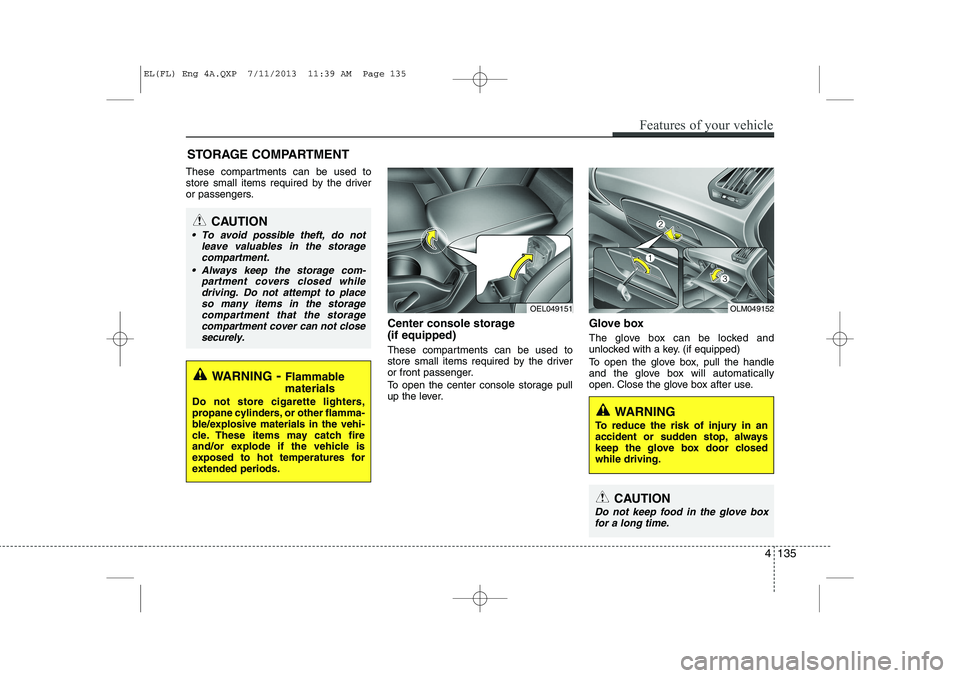
These compartments can be used to
store small items required by the driver
or passengers.Center console storage (if equipped)
These compartments can be used to
store small items required by the driver
or front passenger.
To open the center console storage pull
up the lever.Glove box
The glove box can be locked and
unlocked with a key. (if equipped)
To open the glove box, pull the handle
and the glove box will automatically
open. Close the glove box after use.
STORAGE COMPARTMENT
WARNING
- Flammable
materials
Do not store cigarette lighters,
propane cylinders, or other flamma-
ble/explosive materials in the vehi-
cle. These items may catch fire
and/or explode if the vehicle is
exposed to hot temperatures for
extended periods.
CAUTION
To avoid possible theft, do not leave valuables in the storagecompartment.
Always keep the storage com- partment covers closed whiledriving. Do not attempt to place so many items in the storagecompartment that the storage
compartment cover can not close securely.
OEL049151OLM049152
WARNING
To reduce the risk of injury in an
accident or sudden stop, always
keep the glove box door closedwhile driving.
CAUTION
Do not keep food in the glove box for a long time.
Features of your vehicle
135
4
EL(FL) Eng 4A.QXP 7/11/2013 11:39 AM Page 135
Page 626 of 1534
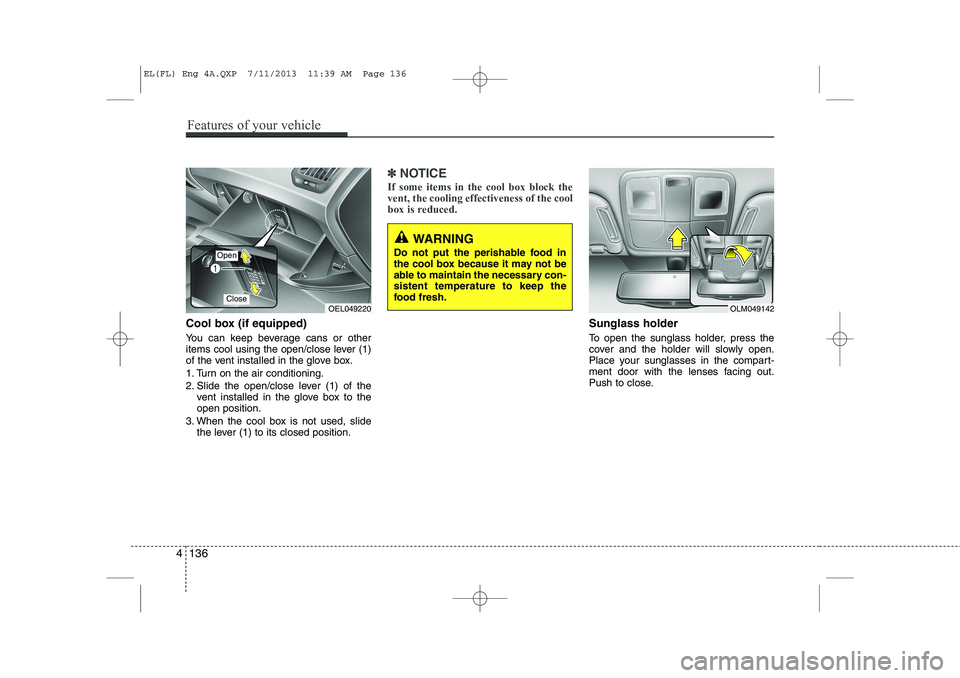
Cool box (if equipped)
You can keep beverage cans or other
items cool using the open/close lever (1)
of the vent installed in the glove box.
1. Turn on the air conditioning.
2. Slide the open/close lever (1) of thevent installed in the glove box to the open position.
3. When the cool box is not used, slide the lever (1) to its closed position.
✽✽ NOTICE
If some items in the cool box block the vent, the cooling effectiveness of the cool
box is reduced.
Sunglass holder
To open the sunglass holder, press the
cover and the holder will slowly open.
Place your sunglasses in the compart-
ment door with the lenses facing out.
Push to close.
OEL049220
WARNING
Do not put the perishable food in
the cool box because it may not be
able to maintain the necessary con-sistent temperature to keep the
food fresh.
Open
CloseOLM049142
4 136
Features of your vehicle
EL(FL) Eng 4A.QXP 7/11/2013 11:39 AM Page 136
Page 627 of 1534
WARNING
Do not keep objects except sun- glasses inside the sunglass hold-
er. Such objects can be thrown
from the holder in the event of a
sudden stop or an accident, pos-
sibly injuring the passengers in
the vehicle.
Do not open the sunglasses hold- er while the vehicle is moving.
The rear view mirror of the vehi-
cle can be blocked by an open
sunglass holder.
Do not put the glasses forcibly into a sunglass holder to prevent
breakage or deformation of
glasses. It may cause personal
injury if you try to open it forciblywhen the glasses are jammed in
holder.
Features of your vehicle
137
4
EL(FL) Eng 4A.QXP 7/11/2013 11:39 AM Page 137
Page 631 of 1534

Digital clock (if equipped)
Whenever the battery terminals or relat-
ed fuses are disconnected, you must
reset the time.
When the ignition switch is in the ACC or
ON position, the clock buttons operate as
follows:
Setup the clock
With audio off
1. Press the [SETUP CLOCK] buttonuntil the clock of the display blinks.
2. Set the clock by turning the knob(1) and press it.
With audio on
1. Press the [SETUP CLOCK] button.
2. Select the [CLOCK] mode by turning the knob(1) and press it.
3. Set the clock by turning the knob(1) and press it. Aux, USB and iPod®
(if equipped)
If your vehicle has an aux and/or
USB(universal serial bus) port, you can
use an aux port to connect audio devices
and an USB port to plug in an USB.
✽✽ NOTICE
When using a portable audio device
connected to the power outlet, noise may
occur during playback. If this happens,
use the power source of the portableaudio device.
❈ iPod ®
is a trademark of Apple Inc.
Features of your vehicle
141
4
OEL044208/Q
WARNING
Do not adjust the clock while driv-
ing. You may lose your steering
control and cause severe personal
injury or accidents.
OEL043195
EL(FL) Eng 4A.QXP 7/11/2013 11:39 AM Page 141
Page 639 of 1534

4 149
Features of your vehicle
Fading - As your vehicle moves awayfrom the radio station, the signal will
weaken and sound will begin to fade.
When this occurs, we suggest that youselect another stronger station.
Flutter/Static - Weak FM signals or large obstructions between the trans-
mitter and your radio can disturb the
signal causing static or fluttering nois-
es to occur. Reducing the treble level
may lessen this effect until the distur-
bance clears. Station Swapping - As a FM signal
weakens, another more powerful sig-
nal near the same frequency may
begin to play. This is because your
radio is designed to lock onto the clear-
est signal. If this occurs, select anotherstation with a stronger signal.
Multi-Path Cancellation - Radio signals being received from several directions
can cause distortion or fluttering. This
can be caused by a direct and reflect-
ed signal from the same station, or by
signals from two stations with close
frequencies. If this occurs, selectanother station until the condition haspassed.
Using a cellular phone or a two-way
radio
When a cellular phone is used inside the
vehicle, noise may be produced from the
audio system. This does not mean thatsomething is wrong with the audio equip-
ment. In such a case, use the cellular
phone at a place as far as possible fromthe audio equipment.
JBM004JBM005
CAUTION
When using a communication sys-tem such as a cellular phone or a
radio set inside the vehicle, a sepa-rate external antenna must be fitted. When a cellular phone or a radio set is used with an internal antenna
alone, it may interfere with the vehi- cle's electrical system and adverselyaffect safe operation of the vehicle.
WARNING
Do not use a cellular phone while
driving. Stop at a safe location to
use a cellular phone.
EL(FL) Eng 4B AUDIO.QXP 7/11/2013 11:20 AM Page 149
Page 648 of 1534

Features of your vehicle
158
4
7.
~ (Preset)
Radio Mode: Saves frequencies (chan- nels) or receives saved frequencies (channels)
CD, USB, iPod
®, My Music mode
- : Repeat
- : Random
In the Radio, Media, Setup, and Menu pop up screen, the number menu is selected. 8.
Each time the button is shortly pressed
(under 0.8 seconds), sets screen Off ➟
Screen On ➟Screen Off
❈ Audio operation is maintained and
only the screen will be turned Off. In
the screen Off state, press any key to
turn the screen On again.
9. Radio Mode - Shortly press the key (under 0.8sec-onds): TA On/Off- Press and hold the
key (over 0.8seconds): Previews
each broadcast for 5 seconds each.
Media mode - Press and hold the key (over 0.8sec-onds): Previews each song (file) for10 seconds each.
❈ Press and holding the key again to
continue listening to the current song(file). 10.
Shortly press the key (under 0.8 sec-
onds) : Moves to the Display, Sound,
Clock, Phone, System setting modes
Press and hold the key (over 0.8 sec- onds) : Move to the Time setting screen
11.
Displays menus for the current mode.❈ iPod
®List : Move to parent category
12.
FM : RDS Program Type Search
CD MP3, USB mode : Folder Search
PTY
FOLDER
MENU
SETUP
CLOCK
TA
SCAN
2
RDM
1
RPT
61
EL(FL) Eng 4B AUDIO.QXP 7/11/2013 11:20 AM Page 158
Page 650 of 1534
Features of your vehicle
160
4
SETUP
- AC100ELEE, AC110ELEE
Display Settings
Press the key Select [Display]
through TUNE knob or key
Select menu through TUNE knob Mode Pop up
[Mode Pop up] Changes . selec- tion mode
During On state, press the or
key to display the mode
change pop up screen.
When the pop up screen is displayed, use the TUNE knob or keys
~ to select the desired mode.
Scroll text
[Scroll text] Set /
: Maintains scroll
: Scrolls only one (1) time.
Song Info
When playing an MP3 file, select the
desired display info from ‘Folder/File’ or
‘Album/Artist/Song’. Sound Settings
Press the key Select [Sound]
through TUNE knob or key
Select menu through TUNE knob
2
RDM
SETUP
CLOCK
Off
On
OffOn
6
1
MEDIA
RADIO
On
1
RPT
SETUP
CLOCK
EL(FL) Eng 4B AUDIO.QXP 7/11/2013 11:20 AM Page 160
Page 652 of 1534
Features of your vehicle
162
4
Clock Settings
Press the key Select [Clock]
through TUNE knob or key
Select menu through TUNE knob Clock Settings
This menu is used to set the time.
Select [Clock Settings] Set through
TUNE knob Press TUNE knob ❈
Adjust the number currently in focus to set the [hour] and press the tune knob
to set the [minute]. Day Settings
This menu is used to set the date.
Select [Day Settings] Set through
TUNE knob Press TUNE knob
❈ Adjust the number currently in focus to
make the settings and press the tune
knob to move to the next setting. (Set
in order of Year/Month/Day)
3
SETUP
CLOCK
EL(FL) Eng 4B AUDIO.QXP 7/11/2013 11:20 AM Page 162

![HYUNDAI IX35 2014 Owners Manual Features of your vehicle
160
4
SETUP
- AC100ELEE, AC110ELEE
Display Settings
Press the key Select [Display]
through TUNE knob or key
Select menu through TUNE knob Mode Pop up
[Mode Pop up]](/manual-img/35/56237/w960_56237-649.png "HYUNDAI IX35 2014 Owners Manual Features of your vehicle
160
4
SETUP
- AC100ELEE, AC110ELEE
Display Settings
Press the key Select [Display]
through TUNE knob or key
Select menu through TUNE knob Mode Pop up
[Mode Pop up]")
![HYUNDAI IX35 2014 Owners Manual Features of your vehicle
162
4
Clock Settings
Press the key Select [Clock]
through TUNE knob or key
Select menu through TUNE knob Clock Settings
This menu is used to set the time.
Select [Cloc](/manual-img/35/56237/w960_56237-651.png "HYUNDAI IX35 2014 Owners Manual Features of your vehicle
162
4
Clock Settings
Press the key Select [Clock]
through TUNE knob or key
Select menu through TUNE knob Clock Settings
This menu is used to set the time.
Select [Cloc")