Page 249 of 327
248
Rear Entertainment System
Audio Sources for Front and Rear Seats
Rear Entertainment System
Audio Sources for Front and Rear SeatsThe table shows the possible audio source combinations of the front audio system
and rear entertainment system’s simultaneous use.
*1. The front seat passengers are only able to hear the DVD’s sound from the front
speakers.
Front
Rear
AM/FM
Radio
XM
®
Radio
CD
DVD
*1
HDD
USB
iPod
®
Bluetooth
®
Audio
Pandora
®
Aha
TM
AM/FM
Radio
Yes
Yes
Yes
Yes
Yes
Yes
Yes
Yes
XM
®
Radio
Yes
Yes
Yes
Yes
Yes
Yes
No
No
CD
Yes
Yes
Yes
Yes
Yes
Yes
Yes
Yes
DVD
Yes
Yes
Yes
Yes
Yes
Yes
Yes
Yes
HDD
Yes
Yes
Yes
Yes
Yes
Yes
Yes
Yes
USB
iPod
®
Yes
Yes
Yes
Yes
Yes
Yes
Yes
Yes
1Audio Sources for Front and Rear Seats
Yes: These audio sources are simultaneously
playable. When listening to same source in both
the front and rear, the playing channel or track
will also be the same for each.
No: These audio sources are not simultaneously
playable.
Page 278 of 327
277
Troubleshooting
Troubleshooting................................... 278
Map, Voice, Entering Destinations ........ 278
Traffic .................................................. 280
Guidance, Routing ............................... 281
Update, Coverage, Map Errors ............. 283
Display, Accessories.............................. 283
Miscellaneous Questions ...................... 283
Error Messages...................................... 284
Navigation System ................................ 284
CD Player ............................................. 285
Hard Disc Drive (HDD) Audio ................ 286
iPod®/USB Flash Drive .......................... 287
Pandora® ............................................ 288
Aha
TM Radio ......................................... 289
Page 290 of 327
289
Error Messages
Aha
TM Radio
Troubleshooting
Aha
TM
Radio
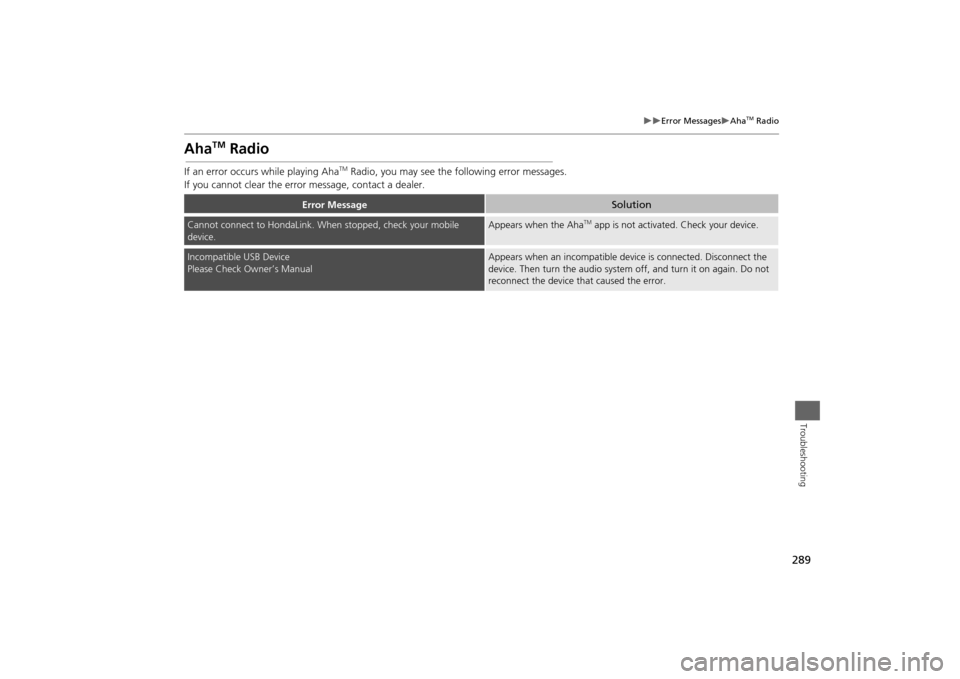
If an error occurs while playing Aha
TM Radio, you may see the following error messages.
If you cannot clear the error message, contact a dealer.
Error Message
Solution
Cannot connect to HondaLink. When stopped, check your mobile
device.
Appears when the Aha
TM app is not activated. Check your device.
Incompatible USB Device
Please Check Owner’s Manual
Appears when an incompatible device is connected. Disconnect the
device. Then turn the audio system off, and turn it on again. Do not
reconnect the device that caused the error.
Page 306 of 327

305
Legal Information
As required by the FCC
Reference Information
As required by the FCC1.This device complies with Part 15 of the
FCC Rules and Canadian RSS-210/
RSSGen. Operation is subject to the
following two conditions: (1) this device
may not cause harmful interference, and
(2) this device must accept any
interference received, including
interference that may cause undesired
operation.
2.The FCC requires the user to be notified
that any changes or modifications made
to this device that are not expressly
approved by the party responsible for
compliance may void the user’s
authority to operate the equipment.
3.This product emits radio frequency
energy, but the radiated output power
of this device is far below the FCC and
IC radio frequency exposure limits. This
equipment complies with FCC and IC RF
radiation exposure limits set forth for an
uncontrolled environment. Nevertheless,
the device should be used in such a
manner that the potential for human
contact with the antenna during normal
operation is minimized.
Page 313 of 327
312
Voice Commands
Audio Commands
Voice Commands
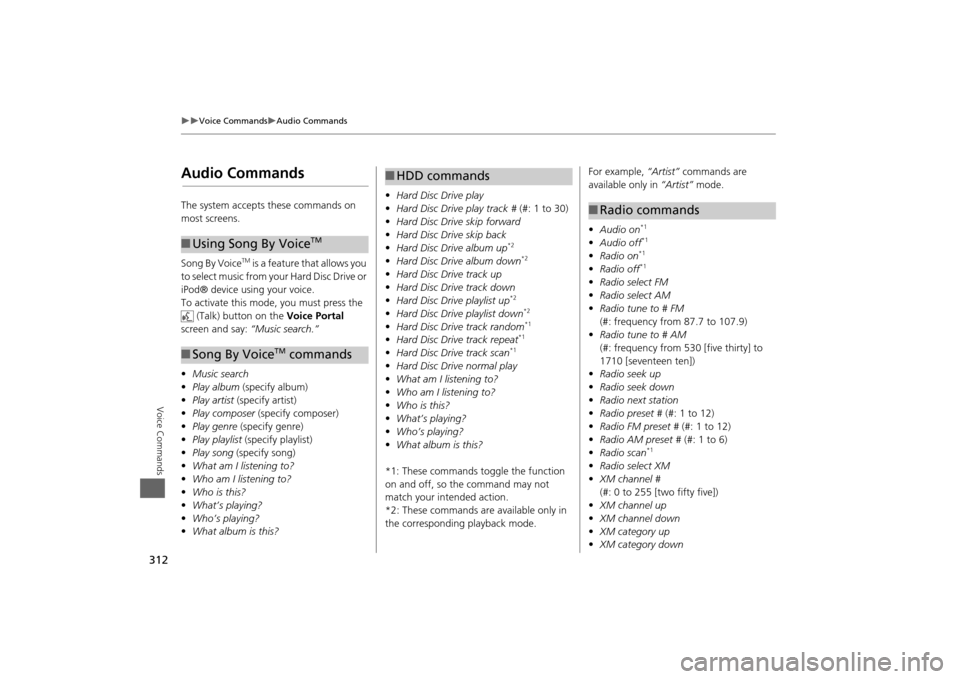
Audio CommandsThe system accepts these commands on
most screens.
Song By Voice
TM is a feature that allows you
to select music from your Hard Disc Drive or
iPod® device using your voice.
To activate this mode, you must press the (Talk) button on the Voice Portal
screen and say: “Music search.”
• Music search
• Play album (specify album)
• Play artist (specify artist)
• Play composer (specify composer)
• Play genre (specify genre)
• Play playlist (specify playlist)
• Play song (specify song)
• What am I listening to?
• Who am I listening to?
• Who is this?
• What’s playing?
• Who’s playing?
• What album is this?
■Using Song By Voice
TM
■Song By Voice
TM commands
• Hard Disc Drive play
• Hard Disc Drive play track # (#: 1 to 30)
• Hard Disc Drive skip forward
• Hard Disc Drive skip back
• Hard Disc Drive album up
*2
•Hard Disc Drive album down
*2
•Hard Disc Drive track up
• Hard Disc Drive track down
• Hard Disc Drive playlist up
*2
•Hard Disc Drive playlist down
*2
•Hard Disc Drive track random
*1
•Hard Disc Drive track repeat
*1
•Hard Disc Drive track scan
*1
•Hard Disc Drive normal play
• What am I listening to?
• Who am I listening to?
• Who is this?
• What’s playing?
• Who’s playing?
• What album is this?
*1: These commands toggle the function
on and off, so the command may not
match your intended action.
*2: These commands are available only in
the corresponding playback mode.■ HDD commands
For example, “Artist” commands are
available only in “Artist” mode.
• Audio on
*1
•Audio off
*1
•Radio on
*1
•Radio off
*1
•Radio select FM
• Radio select AM
• Radio tune to # FM
(#: frequency from 87.7 to 107.9)
• Radio tune to # AM
(#: frequency from 530 [five thirty] to
1710 [seventeen ten])
• Radio seek up
• Radio seek down
• Radio next station
• Radio preset # (#: 1 to 12)
• Radio FM preset # (#: 1 to 12)
• Radio AM preset # (#: 1 to 6)
• Radio scan
*1
•Radio select XM
• XM channel #
(#: 0 to 255 [two fifty five])
• XM channel up
• XM channel down
• XM category up
• XM category down■Radio commands
Page 314 of 327

313
Voice Commands
Audio Commands
Voice Commands
•XM preset # (#: 1 to 12)
• XM scan
*1
•XM category mode
• XM channel mode
*1: These commands to ggle the function
on and off, so the command may not
match your intended action.
NOTE:
Radio volume levels cannot be controlled
using voice control.
• Disc play
• Disc play track # (#: 1 to 30)
• Disc skip forward
• Disc skip back
• Disc track random
*1
•Disc track repeat
*1
•Disc track scan
*1
•Disc folder up
• Disc folder down
• Disc folder random
*1
•Disc folder repeat
*1
•Disc folder scan
*1
•Disc normal play■Disc commands
*1: These commands toggle the function
on and off, so the command may not
match your intended action.
• iPod play
• iPod play track # (#: 1 to 30)
• iPod skip forward
• iPod skip back
• iPod track shuffle
*1
•iPod album shuffle
*1
•iPod track repeat
*1
•iPod normal play
• What am I listening to?
• Who am I listening to?
• Who is this?
• What’s playing?
• Who’s playing?
• What album is this?
*1: These commands toggle the function
on and off, so the command may not
match your intended action.■ iPod® commands
• USB play
• USB play track # (#: 1 to 30)
• USB skip forward
• USB skip back
• USB track random
*1
•USB track repeat
*1
•USB track scan
*1
•USB folder up
• USB folder down
• USB folder random
*1
•USB folder repeat
*1
•USB folder scan
*1
•USB normal play
*1: These commands toggle the function
on and off, so the command may not
match your intended action.■ USB commands
Page 315 of 327

314
Voice Commands
Audio Commands
Voice Commands
•Bluetooth Audio play
• Bluetooth Audio skip forward
• Bluetooth Audio skip back
• Bluetooth Audio group up
• Bluetooth Audio group down
• Bluetooth Audio pause
• Bluetooth Audio resume
NOTE:
Bluetooth ® Audio commands may not
work on some phones or Bluetooth®
Audio devices.
• Auxiliary play■Bluetooth® Audio commands■AUX commands
The system accepts these commands while
the Pandora® is playing.
• Pandora play
• Pandora skip forward
• Pandora station up
• Pandora station down
• Pandora pause
• Pandora resume
• Pandora thumbs up
• Pandora thumbs down
The system accepts these commands while
the Aha
TM is playing.
• Aha radio play
• Aha radio skip forward
• Aha radio skip back
• Aha radio station up
• Aha radio station down
• Aha radio resume
• Aha radio pause
• Aha radio like
• Aha radio dislike
■Pandora® commands■Aha
TM Radio commands
• Internet service play
• Internet service skip forward
*1
•Internet service skip back
*1
•Internet service station up
*1
•Internet service station down
*1
•Internet service resume
*1
•Internet service pause
*1
•Internet service like
*1
•Internet service dislike
*1
*1: The system accepts these commands
while the Internet service is playing.
Rear audio on*
Rear audio off*
Rear radio on*
Rear radio off*
Rear radio select FM
Rear radio select AM
Rear radio tune to # FM (#: frequency,
e.g., 95.5)
Rear radio tune to # AM (#: frequency,
e.g., 1020)
Rear radio seek up
Rear radio seek down
Rear radio next station■ Internet service commands■Rear Radio Commands
Page 316 of 327

315
Voice Commands
Audio Commands
Voice Commands
Rear radio preset # (#: 1 to 12)
Rear radio FM preset # (#: 1 to 12)
Rear radio AM preset # (#: 1 to 6)
Rear radio scan*
Rear radio select XM
Rear XM channel # (#: 0 to 255)
Rear XM channel up
Rear XM channel down
Rear XM category up
Rear XM category down
Rear XM preset # (#: 1 to 12)
Rear XM scan*
Rear XM category mode
Rear XM channel mode
* These commands toggle the function between on and off, so the command
may not match your intended action.
NOTE:
Radio volume levels cannot be controlled
using voice control. Rear CD play
Rear CD play track #
(#: 1 to 30)
Rear CD skip forward
Rear CD skip back
Rear CD track random*
Rear CD track repeat*
Rear CD track scan*
Rear CD normal play (resumes “Play”
from the random-, rep eat-, or scan-play)
Rear CD folder up
Rear CD folder down
Rear CD folder random*
Rear CD folder repeat*
Rear CD folder scan*
* These commands toggle the function between on and off, so the command
may not match your intended action.
■Rear CD Commands
Rear DVD play
Rear DVD pause
Rear DVD title up
Rear DVD title down
Rear DVD chapter up
Rear DVD chapter down
Rear DVD title # (#: 1 to 30)
Rear DVD chapter # (#: 1 to 30)
Rear DVD title #1 chapter #2 (#1, #2: 1
to 30)
Rear DVD play track # (#: 1 to 30)
Rear DVD skip forward
Rear DVD skip back
Rear DVD track random*
Rear DVD track repeat*
Rear DVD track scan*
Rear DVD normal play (resumes “Play”
from the random-, repeat-, or scan-play)
Rear DVD folder random*
Rear DVD folder repeat*
Rear DVD folder scan*
* These commands toggle the function between on and off, so the command
may not match your intended action.■Rear DVD Commands