Page 356 of 573
Continued
355
uuBluetooth® HandsFreeLink®uHFL Menus
Features
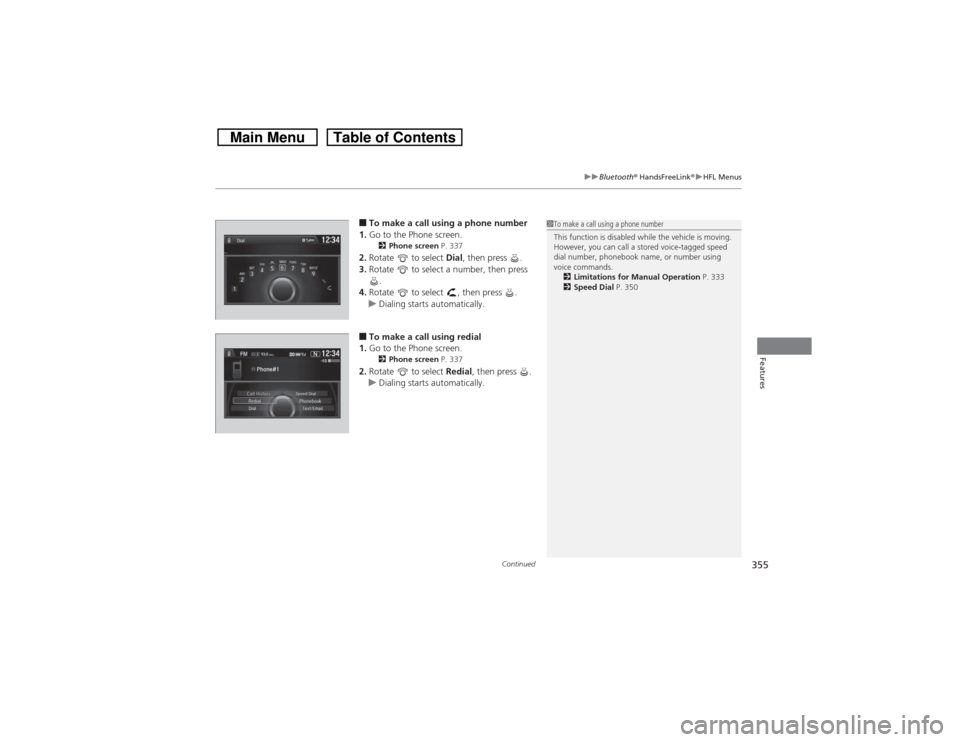
■To make a call using a phone number
1.Go to the Phone screen.2Phone screen P. 337
2.Rotate to select Dial, then press .
3.Rotate to select a number, then press
.
4.Rotate to select , then press .
uDialing starts automatically.■To make a call using redial
1.Go to the Phone screen.2Phone screen P. 337
2.Rotate to select Redial, then press .
uDialing starts automatically.
1To make a call using a phone number
This function is disabled while the vehicle is moving.
However, you can call a stored voice-tagged speed
dial number, phonebook name, or number using
voice commands.
2Limitations for Manual Operation P. 333
2Speed Dial P. 350
Page 357 of 573
uuBluetooth® HandsFreeLink®uHFL Menus
356Features
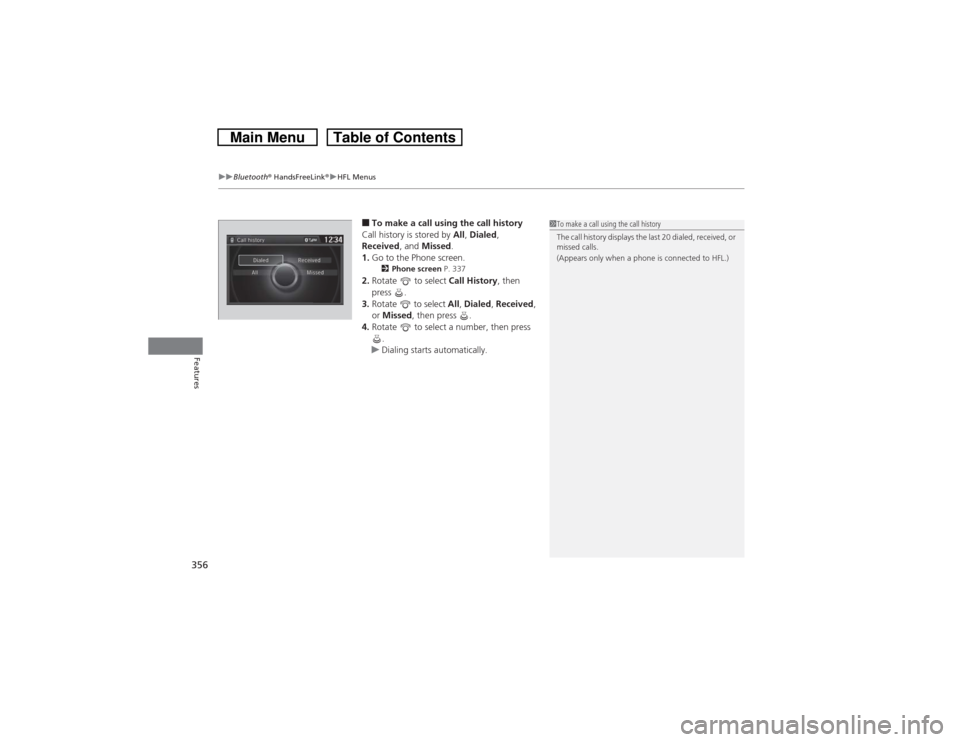
■To make a call using the call history
Call history is stored by All, Dialed,
Received, and Missed.
1.Go to the Phone screen.2Phone screen P. 337
2.Rotate to select Call History, then
press .
3.Rotate to select All, Dialed, Received,
or Missed, then press .
4.Rotate to select a number, then press
.
uDialing starts automatically.
1To make a call using the call history
The call history displays the last 20 dialed, received, or
missed calls.
(Appears only when a phone is connected to HFL.)
Page 358 of 573
Continued
357
uuBluetooth® HandsFreeLink®uHFL Menus
Features
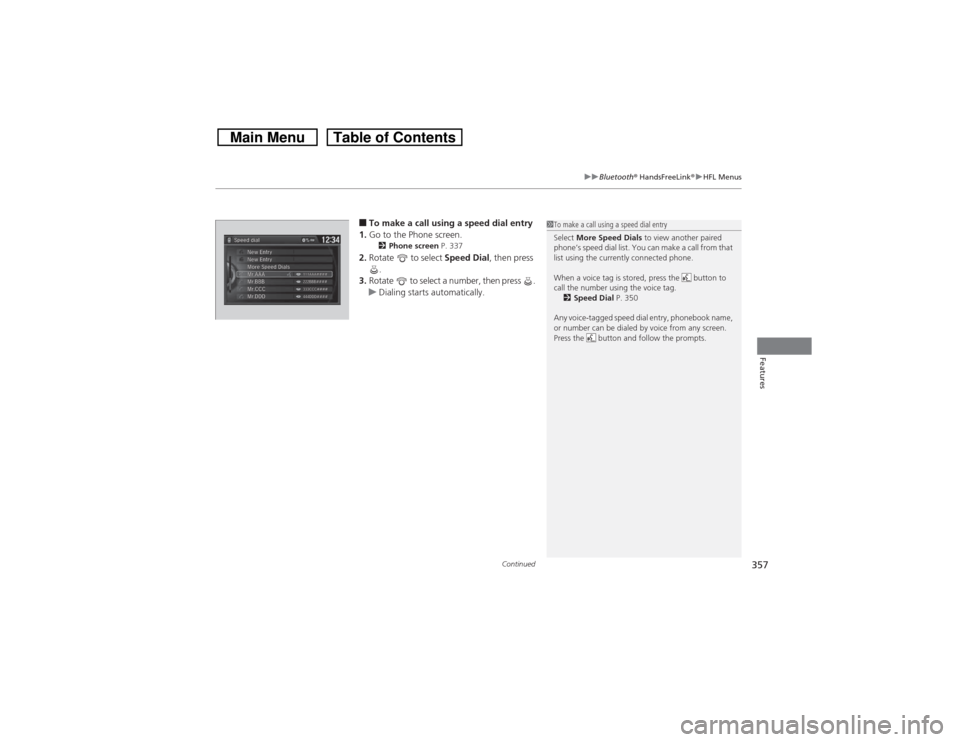
■To make a call using a speed dial entry
1.Go to the Phone screen.2Phone screen P. 337
2.Rotate to select Speed Dial, then press
.
3.Rotate to select a number, then press .
uDialing starts automatically.
1To make a call using a speed dial entry
Select More Speed Dials to view another paired
phone’s speed dial list. You can make a call from that
list using the currently connected phone.
When a voice tag is stored, press the button to
call the number using the voice tag.
2Speed Dial P. 350
Any voice-tagged speed dial entry, phonebook name,
or number can be dialed by voice from any screen.
Press the button and follow the prompts.
Page 359 of 573
uuBluetooth® HandsFreeLink®uHFL Menus
358Features
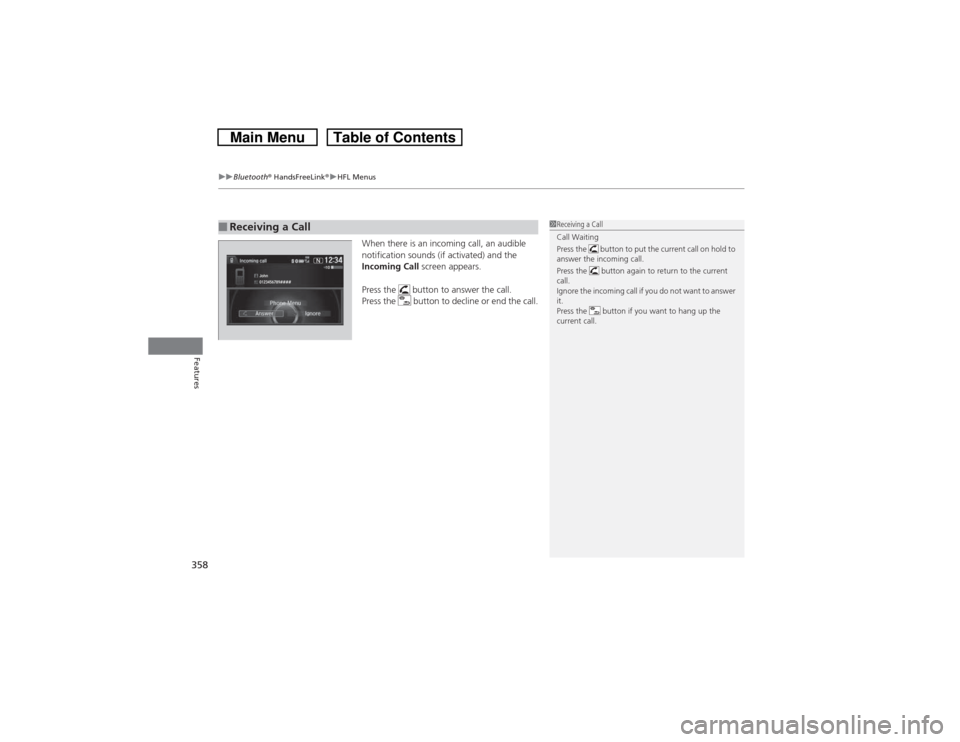
When there is an incoming call, an audible
notification sounds (if activated) and the
Incoming Call screen appears.
Press the button to answer the call.
Press the button to decline or end the call.
■Receiving a Call
1Receiving a Call
Call Waiting
Press the button to put the current call on hold to
answer the incoming call.
Press the button again to return to the current
call.
Ignore the incoming call if you do not want to answer
it.
Press the button if you want to hang up the
current call.
Page 360 of 573
Continued
359
uuBluetooth® HandsFreeLink®uHFL Menus
Features
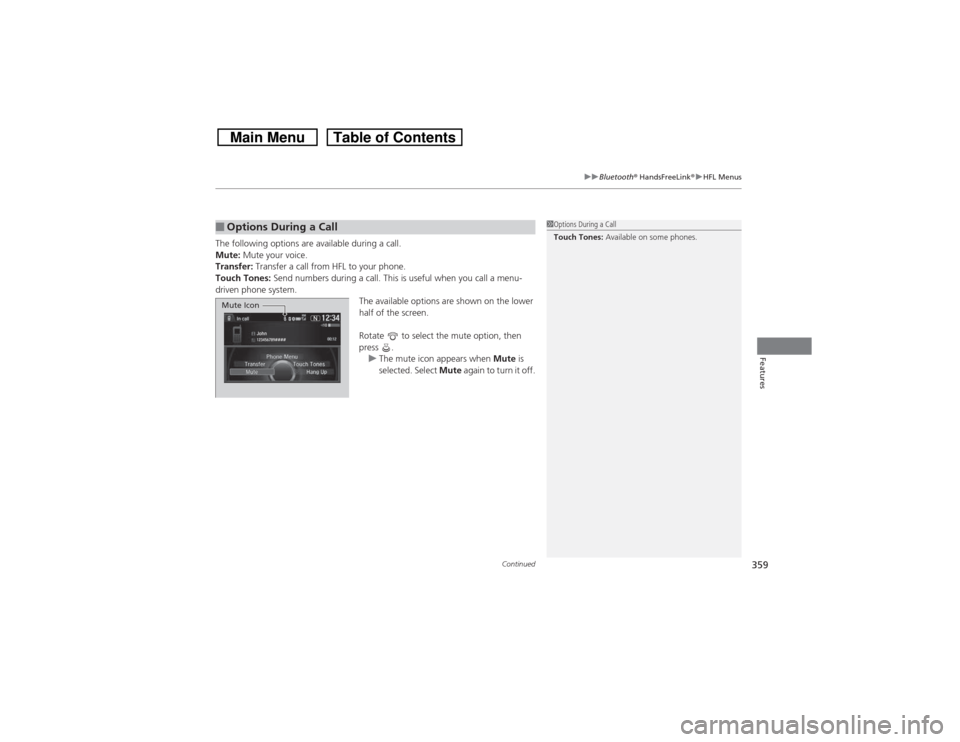
The following options are available during a call.
Mute: Mute your voice.
Transfer: Transfer a call from HFL to your phone.
Touch Tones: Send numbers during a call. This is useful when you call a menu-
driven phone system.
The available options are shown on the lower
half of the screen.
Rotate to select the mute option, then
press .
uThe mute icon appears when Mute is
selected. Select Mute again to turn it off.■Options During a Call
1Options During a Call
Touch Tones: Available on some phones.
Mute Icon
Page 361 of 573
uuBluetooth® HandsFreeLink®uHFL Menus
360Features
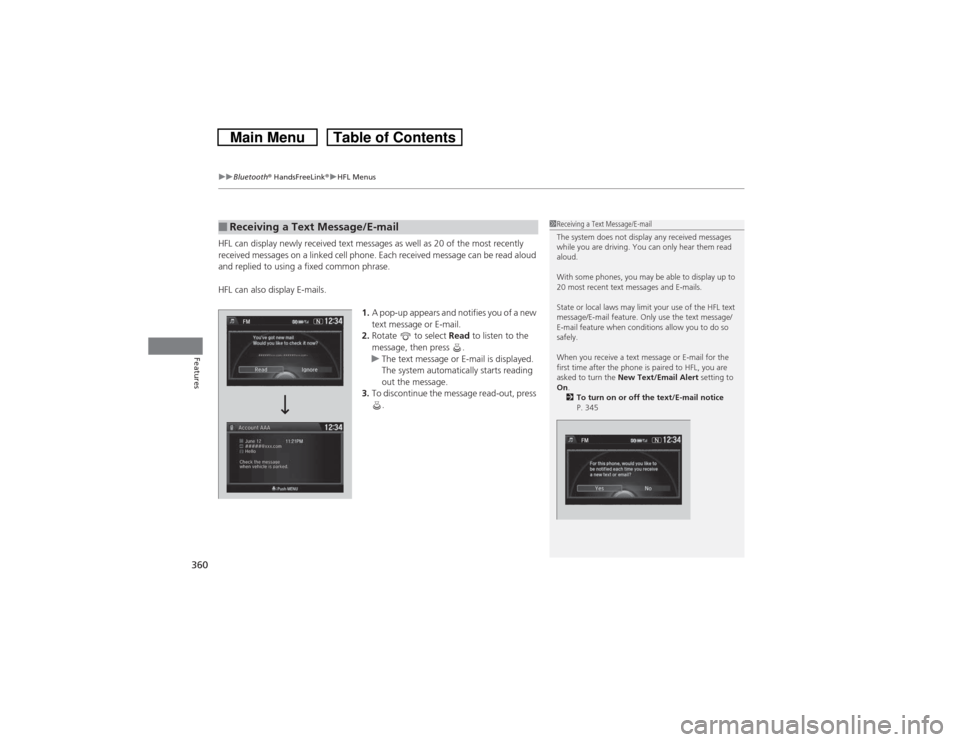
HFL can display newly received text messages as well as 20 of the most recently
received messages on a linked cell phone. Each received message can be read aloud
and replied to using a fixed common phrase.
HFL can also display E-mails.
1.A pop-up appears and notifies you of a new
text message or E-mail.
2.Rotate to select Read to listen to the
message, then press .
uThe text message or E-mail is displayed.
The system automatically starts reading
out the message.
3.To discontinue the message read-out, press
.■Receiving a Text Message/E-mail
1Receiving a Text Message/E-mail
The system does not display any received messages
while you are driving. You can only hear them read
aloud.
With some phones, you may be able to display up to
20 most recent text messages and E-mails.
State or local laws may limit your use of the HFL text
message/E-mail feature. Only use the text message/
E-mail feature when conditions allow you to do so
safely.
When you receive a text message or E-mail for the
first time after the phone is paired to HFL, you are
asked to turn the New Text/Email Alert setting to
On.
2To turn on or off the text/E-mail notice
P. 345
Page 362 of 573
Continued
361
uuBluetooth® HandsFreeLink®uHFL Menus
Features
If a paired phone has text message or mail accounts, you can select one of them to
be active and receive notifications.
1.Go to the Phone Settings screen.
2Phone Settings screen P. 334
2.Rotate to select Text/Email, then press
.
uRepeat the procedure to select Select
Account.
3.Rotate to select Text message or an
E-mail account you want, then press .
■Selecting a Mail Account
1Selecting a Mail Account
You can also select a mail account from the folder list
screen or the message list screen.
Rotate to select Select Account on the top of the
list, then press .
You can only receive notifications from one text
message or mail account at a time.
Message List
Page 363 of 573
uuBluetooth® HandsFreeLink®uHFL Menus
362Features
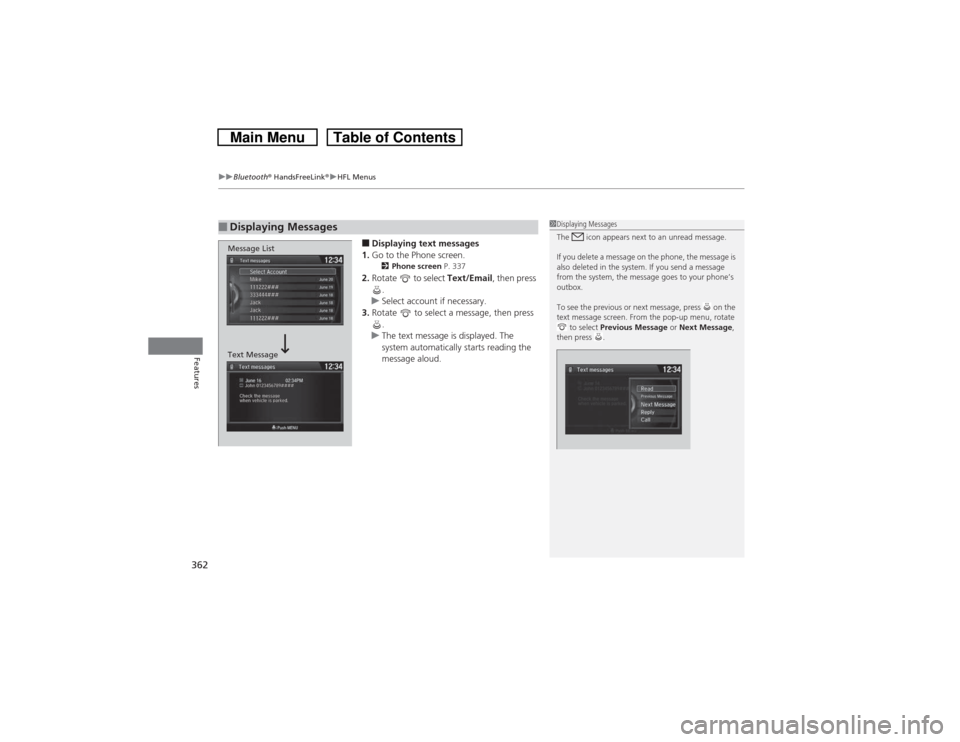
■Displaying text messages
1.Go to the Phone screen.2Phone screen P. 337
2.Rotate to select Text/Email, then press
.
uSelect account if necessary.
3.Rotate to select a message, then press
.
uThe text message is displayed. The
system automatically starts reading the
message aloud.
■Displaying Messages
1Displaying Messages
The icon appears next to an unread message.
If you delete a message on the phone, the message is
also deleted in the system. If you send a message
from the system, the message goes to your phone’s
outbox.
To see the previous or next message, press on the
text message screen. From the pop-up menu, rotate
to select Previous Message or Next Message,
then press .
Message List
Text Message