Page 217 of 469
uuAudio System Basic Operation uPlaying a USB Flash Drive
216Features
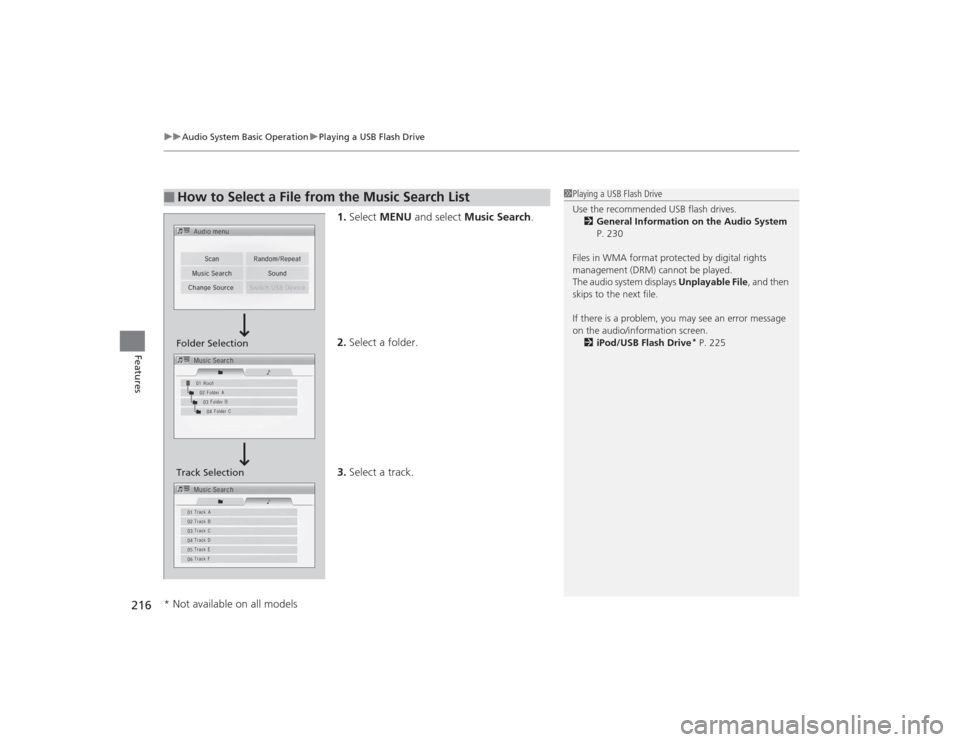
1. Select MENU and select Music Search .
2. Select a folder.
3. Select a track.
■
How to Select a File from the Music Search List
1Playing a USB Flash Drive
Use the recommended USB flash drives.
2 General Information on the Audio System
P. 230
Files in WMA format protected by digital rights
management (DRM) cannot be played.
The audio system displays Unplayable File, and then
skips to the next file.
If there is a problem, you may see an error message
on the audio/information screen.
2 iPod/USB Flash Drive
* P. 225
Folder Selection
Track Selection
* Not available on all models
Page 218 of 469
217
uuAudio System Basic Operation uPlaying a USB Flash Drive
Features
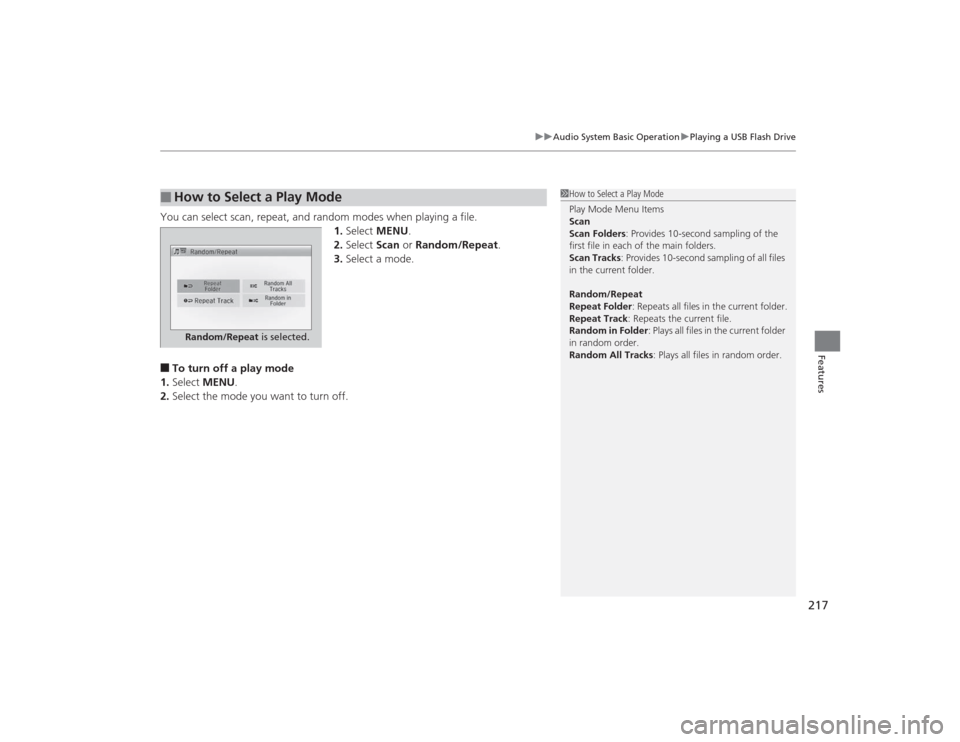
You can select scan, repeat, and random modes when playing a file.
1.Select MENU .
2. Select Scan or Random/Repeat .
3. Select a mode.■To turn off a play mode
1. Select MENU .
2. Select the mode you want to turn off.■
How to Select a Play Mode
1How to Select a Play Mode
Play Mode Menu Items
Scan
Scan Folders: Provides 10-second sampling of the
first file in each of the main folders.
Scan Tracks: Provides 10-second sampling of all files
in the current folder.
Random/Repeat
Repeat Folder : Repeats all files in the current folder.
Repeat Track: Repeats the current file.
Random in Folder : Plays all files in the current folder
in random order.
Random All Tracks : Plays all files in random order.
Random/Repeat is selected.
Page 220 of 469
219
uuAudio System Basic Operation uPlaying Bluetooth ® Audio
Features
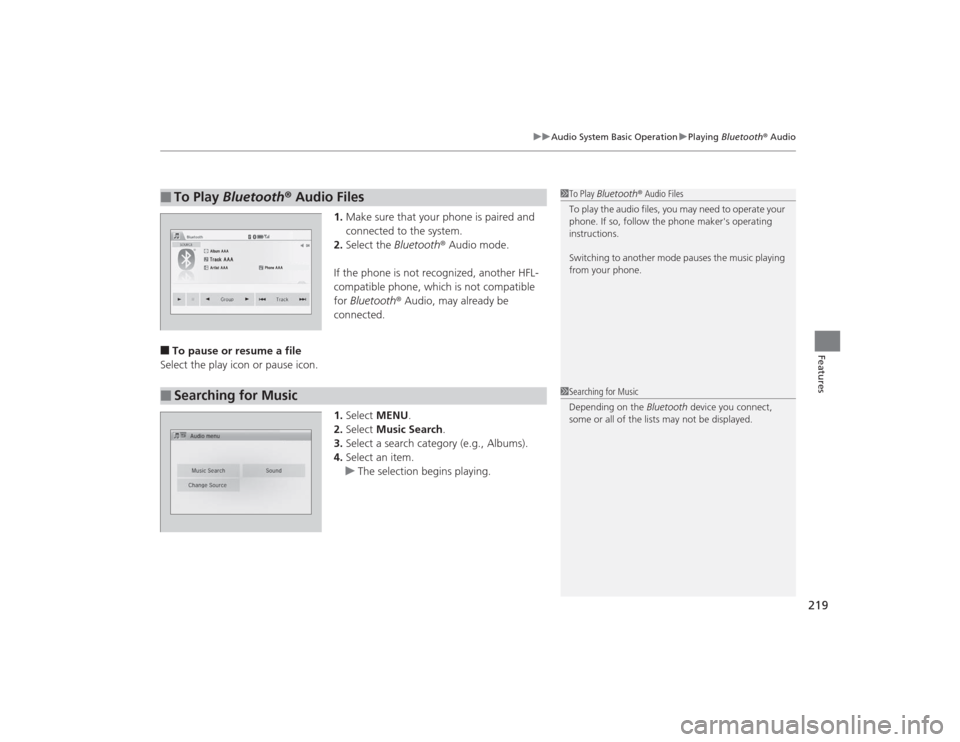
1. Make sure that your phone is paired and
connected to the system.
2. Select the Bluetooth® Audio mode.
If the phone is not recognized, another HFL-
compatible phone, which is not compatible
for Bluetooth ® Audio, may already be
connected.
■To pause or resume a file
Select the play icon or pause icon.
1.Select MENU .
2. Select Music Search.
3. Select a search category (e.g., Albums).
4. Select an item.
u The selection begins playing.■
To Play Bluetooth ® Audio Files
1 To Play Bluetooth ® Audio Files
To play the audio files, you may need to operate your
phone. If so, follow the phone maker's operating
instructions.
Switching to another mode pauses the music playing
from your phone.
�Û
�Û
■
Searching for Music
1 Searching for Music
Depending on the Bluetooth device you connect,
some or all of the lists may not be displayed.
Page 226 of 469
225
uuAudio Error Messages uiPod/USB Flash Drive
*
Continued
Features
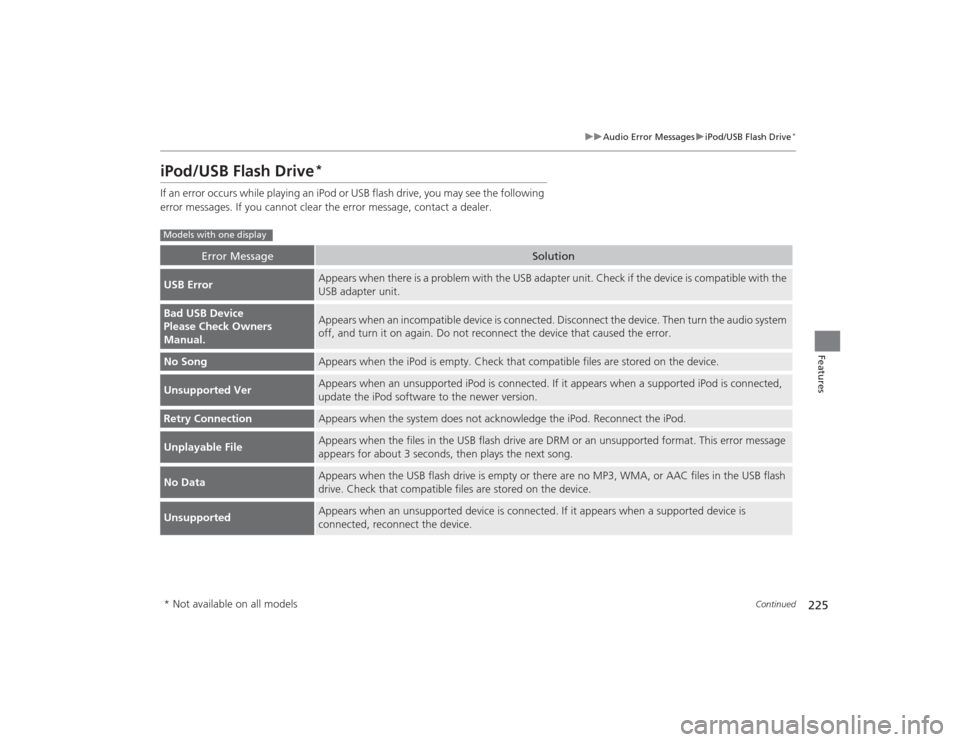
iPod/USB Flash Drive
*
If an error occurs while playing an iPod or USB flash drive, you may see the following
error messages. If you cannot clear the error message, contact a dealer.
Error Message
Solution
USB Error
Appears when there is a problem with the USB adapter unit. Check if the device is compatible with the
USB adapter unit.
Bad USB Device
Please Check Owners
Manual.
Appears when an incompatible device is connected. Disconnect the device. Then turn the audio system
off, and turn it on again. Do not reconnect the device that caused the error.
No Song
Appears when the iPod is empty. Check that compatible files are stored on the device.
Unsupported Ver
Appears when an unsupported iPod is connected. If it appears when a supported iPod is connected,
update the iPod software to the newer version.
Retry Connection
Appears when the system does not acknowledge the iPod. Reconnect the iPod.
Unplayable File
Appears when the files in the USB flash drive are DRM or an unsupported format. This error message
appears for about 3 seconds, then plays the next song.
No Data
Appears when the USB flash drive is empty or there are no MP3, WMA, or AAC files in the USB flash
drive. Check that compatible files are stored on the device.
Unsupported
Appears when an unsupported device is connected. If it appears when a supported device is
connected, reconnect the device.
Models with one display* Not available on all models
Page 227 of 469
226
uuAudio Error Messages uiPod/USB Flash Drive
*
Features
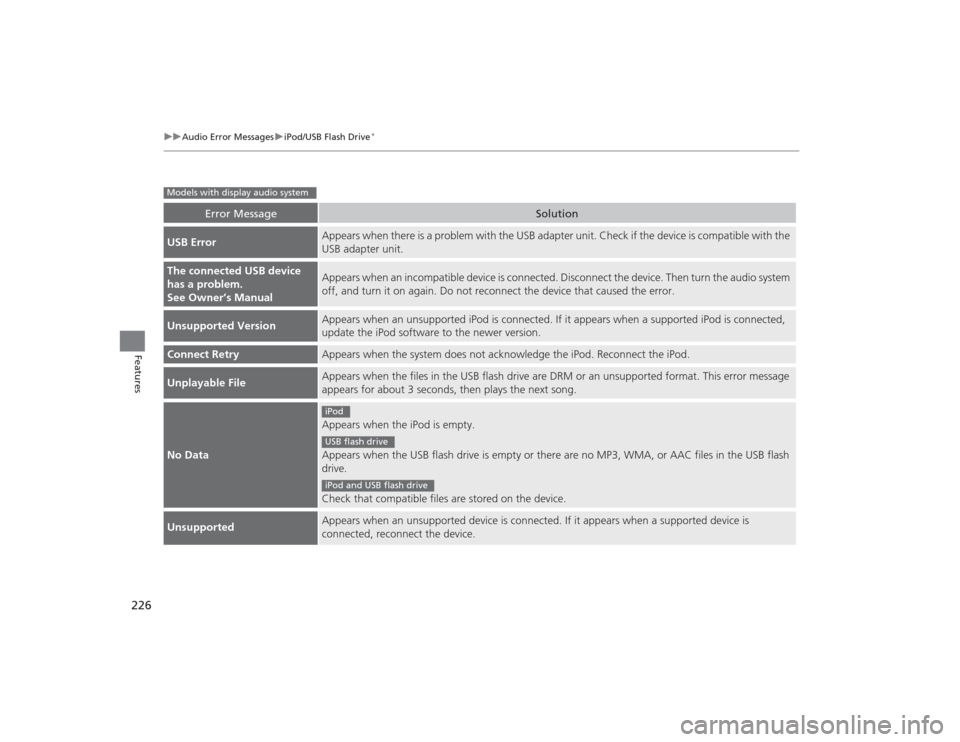
Error Message
Solution
USB Error
Appears when there is a problem with the USB adapter unit. Check if the device is compatible with the
USB adapter unit.
The connected USB device
has a problem.
See Owner’s Manual
Appears when an incompatible device is connected. Disconnec t the device. Then turn the audio system
off, and turn it on again. Do not reconnect the device that caused the error.
Unsupported Version
Appears when an unsupported iPod is connected. If it appears when a supported iPod is connected,
update the iPod software to the newer version.
Connect Retry
Appears when the system does not acknowledge the iPod. Reconnect the iPod.
Unplayable File
Appears when the files in the USB flash drive are DRM or an unsupported format. This error message
appears for about 3 seconds, then plays the next song.
No Data
Appears when the iPod is empty.
Appears when the USB flash drive is empty or there are no MP3, WMA, or AAC files in the USB flash
drive.
Check that compatible files are stored on the device.
Unsupported
Appears when an unsupported device is connected. If it appears when a supported device is
connected, reconnect the device.
Models with display audio system
iPodUSB flash driveiPod and USB flash drive
Page 230 of 469
229
uuAudio Error Messages uPandora ®
Features
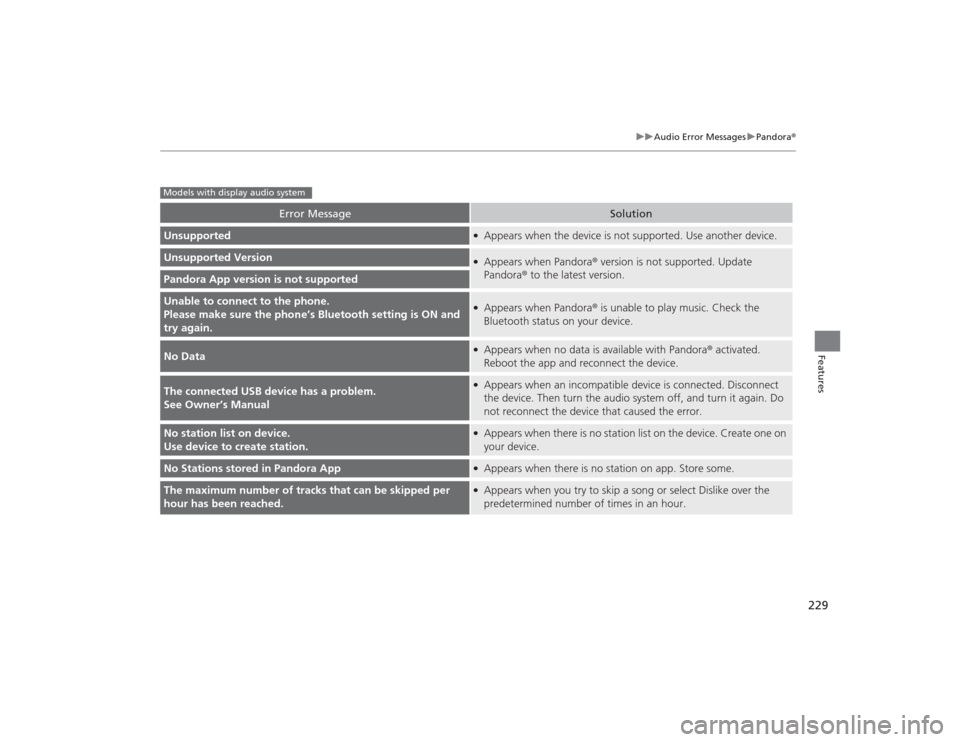
Error Message
Solution
Unsupported
●Appears when the device is not supported. Use another device.
Unsupported Version
●Appears when Pandora ® version is not supported. Update
Pandora ® to the latest version.
Pandora App version is not supportedUnable to connect to the phone.
Please make sure the phon e’s Bluetooth setting is ON and
try again.
●Appears when Pandora ® is unable to play music. Check the
Bluetooth status on your device.
No Data
●Appears when no data is available with Pandora ® activated.
Reboot the app and reconnect the device.
The connected USB device has a problem.
See Owner’s Manual
●Appears when an incompatible device is connected. Disconnect
the device. Then turn the audio system off, and turn it again. Do
not reconnect the device that caused the error.
No station list on device.
Use device to create station.
●Appears when there is no station list on the device. Create one on
your device.
No Stations stored in Pandora App
●Appears when there is no station on app. Store some.
The maximum number of tracks that can be skipped per
hour has been reached.
●Appears when you try to skip a song or select Dislike over the
predetermined number of times in an hour.
Models with display audio system
Page 233 of 469

232
uuGeneral Information on the Audio System uCompatible iPod and USB Flash Drives
Features
Compatible iPod and USB Flash Drives*1:Models with display audio system
• Use a recommended USB flash drive of 256 MB or higher.
• Some digital audio players may not be compatible.
• Some USB flash drives (e.g., a device with security lockout) may not work.
• Some software files may not allow for audio play or text data display.
• Some versions of MP3, WMA, or AAC formats may be unsupported.■
iPod and iPhone Model Compatibility
Model
iPod (5th generation)
iPod classic 80GB/160GB (launch in 2007)
iPod classic 120GB (launch in 2008)iPod classic 160GB (launch in 2009)
iPod nanoiPod touch
iPhone 3G/iPhone 3GS/iPhone 4/iPhone 4S/iPhone 5
*1
■
USB Flash DrivesModels with i-MID
1iPod and iPhone Model Compatibility
This system may not work with all software versions
of these devices.1USB Flash Drives
Files on the USB flash drive are played in their stored
order. This order may be different from the order
displayed on your PC or device.
Page 235 of 469
234
uuCustomized Features
*u
Features
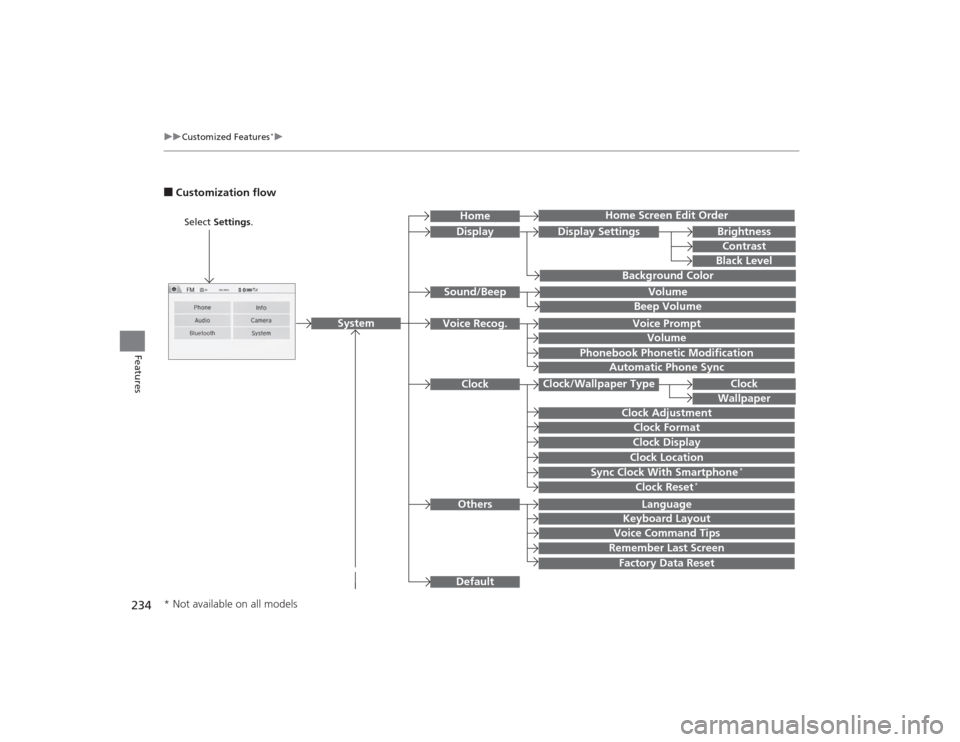
■Customization flow
Clock Format
Remember Last ScreenFactory Data ResetClock Adjustment
Select Settings .
Language
Default
BrightnessContrastBlack Level
Clock
Wallpaper
Display
Home Screen Edit Order
Background Color
Volume
Sync Clock With Smartphone
*
Clock LocationClock DisplayBeep VolumeKeyboard Layout
Home
Sound/Beep
Display Settings
Clock
Clock/Wallpaper Type
System
Clock Reset
*
Others
Phonebook Phonetic Modification
Automatic Phone Sync
Voice Prompt
Volume
Voice Recog.
Voice Command Tips
* Not available on all models