Page 16 of 469
15Quick Reference Guide
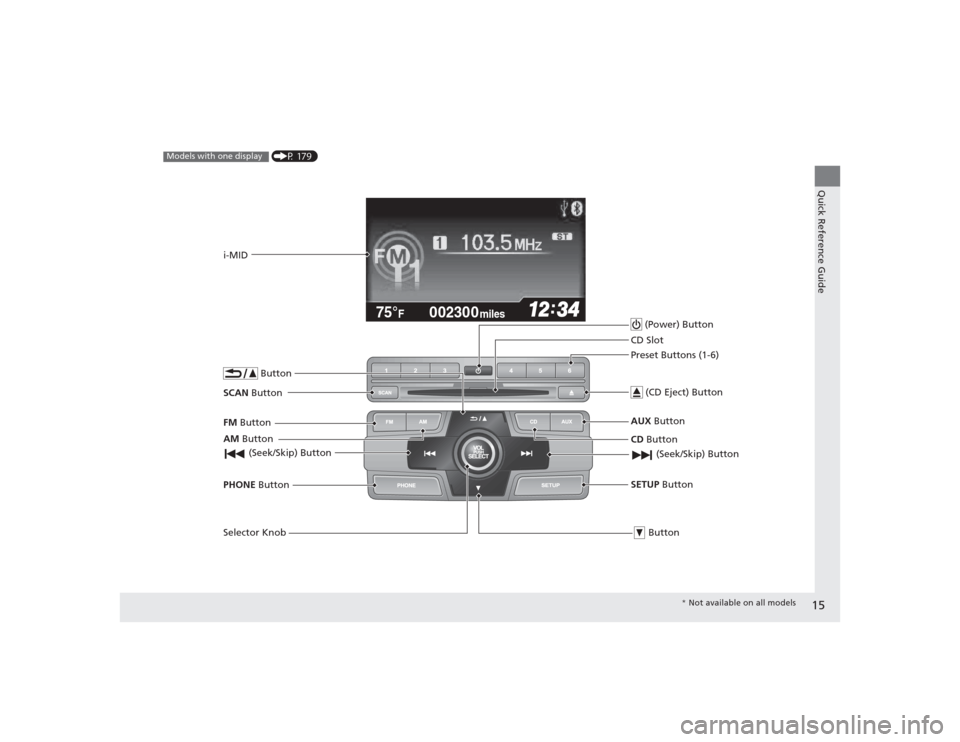
002300
75°
F miles
(P 179)
Models with one display
AM Button
FM
Button
SCAN Button
(Seek/Skip) ButtonSelector Knob ButtonPHONE
Buttoni-MID
(Power) Button
CD Button
AUX
Button
CD Slot
(CD Eject) ButtonPreset Buttons (1-6)
ButtonSETUP Button (Seek/Skip) Button
*
Not available on all models
Page 29 of 469
28Safe Driving
For Safe DrivingThe following pages explain your vehicle's safety features and how to use them
properly. The safety precautions below are ones that we consider to be among the
most important.Important Safety Precautions■Always wear your seat belt
A seat belt is your best protection in all types of collisions. Airbags are designed to
supplement seat belts, not replace them. So even though your vehicle is equipped
with airbags, make sure you and your passengers always wear your seat belts, and
wear them properly.■Restrain all children
Children ages 12 and under should ride properly restrained in a back seat, not the
front seat. Infants and small children should be restrained in a child seat. Larger
children should use a booster seat and a lap/shoulder seat belt until they can use the
belt properly without a booster seat.■Be aware of airbag hazards
While airbags can save lives, they can cause serious or fatal injuries to occupants
who sit too close to them, or are not properly restrained. Infants, young children,
and short adults are at the greatest risk. Be sure to follow all instructions and
warnings in this manual.■Don't drink and drive
Alcohol and driving don't mix. Even one drin k can reduce your ability to respond to
changing conditions, and your reaction time gets worse with every additional drink.
So don't drink and dri ve, and don't let your friends drink and drive, either.
1Important Safety Precautions
Some states, provinces and territories prohibit the use
of cell phones other than hands-free devices by the
driver while driving.
Page 30 of 469
29
uuFor Safe Driving uImportant Safety Precautions
Safe Driving
■Pay appropriate attention to the task of driving safely
Engaging in cell phone conversation or other activities that keep you from paying
close attention to the road, other vehicles, and pedestrians could lead to a crash.
Remember, situations can change quickly, and only you can decide when it is safe to
divert some attention away from driving.■Control your speed
Excessive speed is a major factor in crash injuries and deaths. Generally, the higher
the speed, the greater the risk, but serious injuries can also occur at lower speeds.
Never drive faster than is safe for current conditions, regardless of the maximum
speed posted.■Keep your vehicle in safe condition
Having a tire blowout or a mechanical failure can be extremely hazardous.
To reduce the possibility of such problems, check your tire pressures and condition
frequently, and perform all regularly scheduled maintenance.
Page 106 of 469
105
uuClock uAdjusting the Clock
Controls
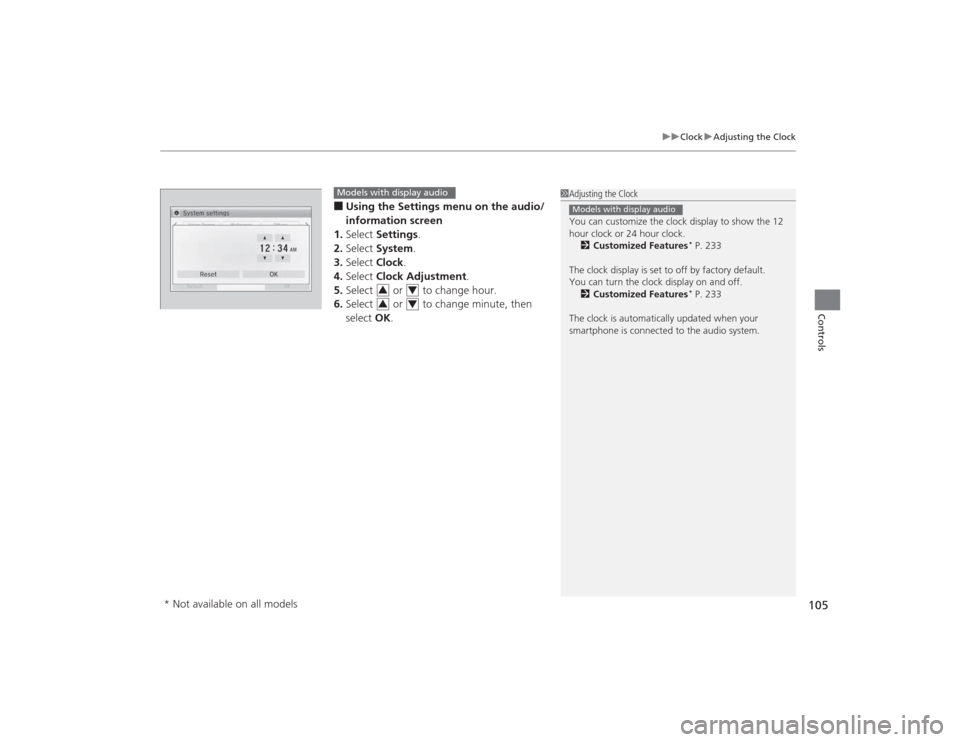
■Using the Settings menu on the audio/
information screen
1. Select Settings .
2. Select System.
3. Select Clock.
4. Select Clock Adjustment .
5. Select or to change hour.
6. Select or to change minute, then
select OK.
1Adjusting the Clock
You can customize the clock display to show the 12
hour clock or 24 hour clock.
2 Customized Features
* P. 233
The clock display is set to off by factory default.
You can turn the clock display on and off. 2 Customized Features* P. 233
The clock is automatically updated when your
smartphone is connected to the audio system.
Models with display audio
Models with display audio
3
4
3
4
* Not available on all models
Page 109 of 469
108
uuLocking and Unlocking the Doors uLow Smart Entry Remote Signal Strength
*
Controls
Low Smart Entry Remote Signal Strength
*
The vehicle transmits radio waves to locate the smart entry remote when locking/
unlocking the doors, opening the trunk, or to start the engine.
In the following cases, locking/unlocking the doors, opening the trunk, or starting
the engine may be inhibited or operation may be unstable:
• Strong radio waves are being transmitted by nearby equipment.
• You are carrying the smart entry remote together with telecommunications
equipment, laptop computers, cell phones, or wireless devices.
• A metallic object is touching or covering the smart entry remote.
1Low Smart Entry Remote Signal Strength
*
Communication between the smart entry remote and
the vehicle consumes the smart entry remote’s
battery.
Battery life is about two years, but this varies
depending on regularity of use.
The battery is consumed whenever the smart entry
remote is receiving strong radio waves. Avoid placing
it near electrica l appliances such as televisions and
personal computers.
* Not available on all models
Page 170 of 469
169
Features
This chapter describes how to operate technology features.
Audio SystemAbout Your Audio System ................ 170
USB/HDMI ® Port
*............................. 171
USB Adapter Cable*........................ 172
Auxiliary Input Jack*........................ 172
Audio System Theft Protection
*....... 173
Audio Remote Controls
*.................. 174
Audio System Basic Operation ...... 176
Adjusting the Sound ........................ 176
Playing AM/FM Radio ....................... 177
Playing a CD .................................... 178
Models with information display
Audio System Basic Operation ...... 179
Adjusting the Sound ........................ 180
Playing AM/FM Radio ....................... 181
Playing a CD .................................... 184
Playing an iPod ................................ 187
Playing Internet Radio ...................... 190
Playing a USB Flash Drive ................. 192
Playing Bluetooth ® Audio................. 195
Audio System Basic Operation ........ 197
Audio/Information Screen ................ 198
Adjusting the Sound ........................ 202
Display Setup ................................... 203Models with one displayModels with display audio system
Playing AM/FM Radio....................... 204
Playing a CD .................................... 207
Playing an iPod ................................ 210
Playing Internet Radio ...................... 213
Playing a USB Flash Drive ................. 215
Playing Bluetooth ® Audio ................ 218
Playing a Video Using the HDMI ®..... 220
Smartphone Apps ............................ 222
Siri Eyes Free .................................... 223
Audio Error Messages ...................... 224
General Information on the Audio System ............................................. 230
Customized Features
*...................... 233
Bluetooth® HandsFreeLink ®
*... 246, 277
* Not available on all models
Page 171 of 469
170Features
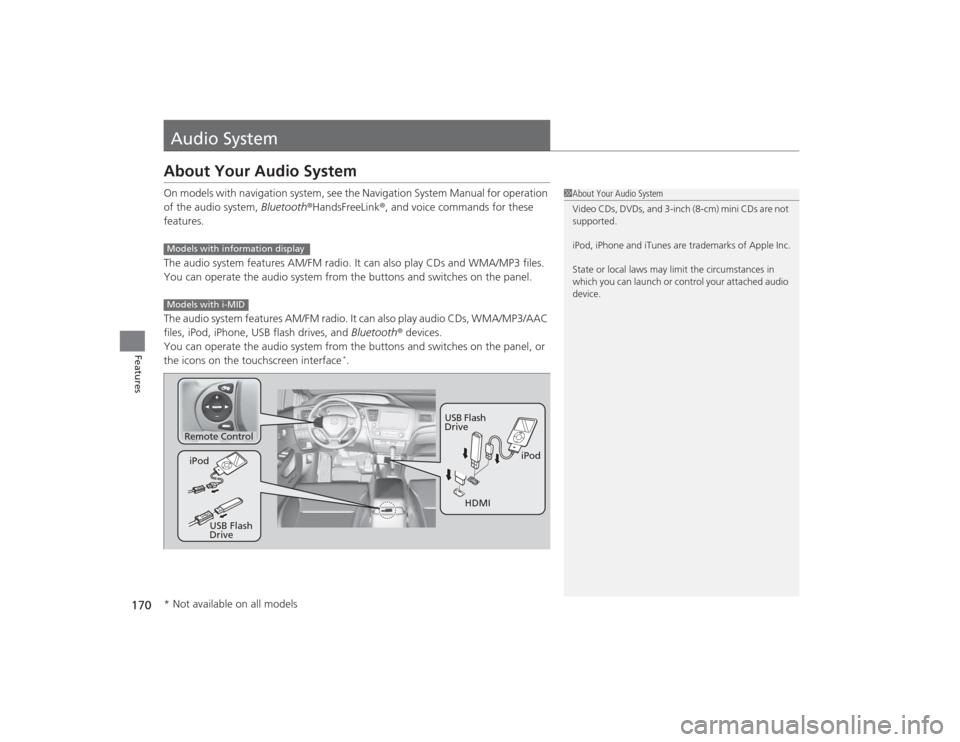
Audio SystemAbout Your Audio SystemOn models with navigation system, see the Navigation System Manual for operation
of the audio system, Bluetooth®HandsFreeLink ®, and voice commands for these
features.
The audio system features AM/FM radio. It can also play CDs and WMA/MP3 files.
You can operate the audio system from the buttons and switches on the panel.
The audio system features AM/FM radio. It can also play audio CDs, WMA/MP3/AAC
files, iPod, iPhone, USB flash drives, and Bluetooth ® devices.
You can operate the audio system from the buttons and switches on the panel, or
the icons on the touchscreen interface
*.
1 About Your Audio System
Video CDs, DVDs, and 3-inch (8-cm) mini CDs are not
supported.
iPod, iPhone and iTunes are trademarks of Apple Inc.
State or local laws may limit the circumstances in
which you can launch or control your attached audio
device.
Models with information displayModels with i-MID
Remote Control
iPod
USB Flash
Drive
iPod
USB Flash
Drive HDMI
* Not available on all models
Page 191 of 469
190
uuAudio System Basic Operation uPlaying Internet Radio
Features
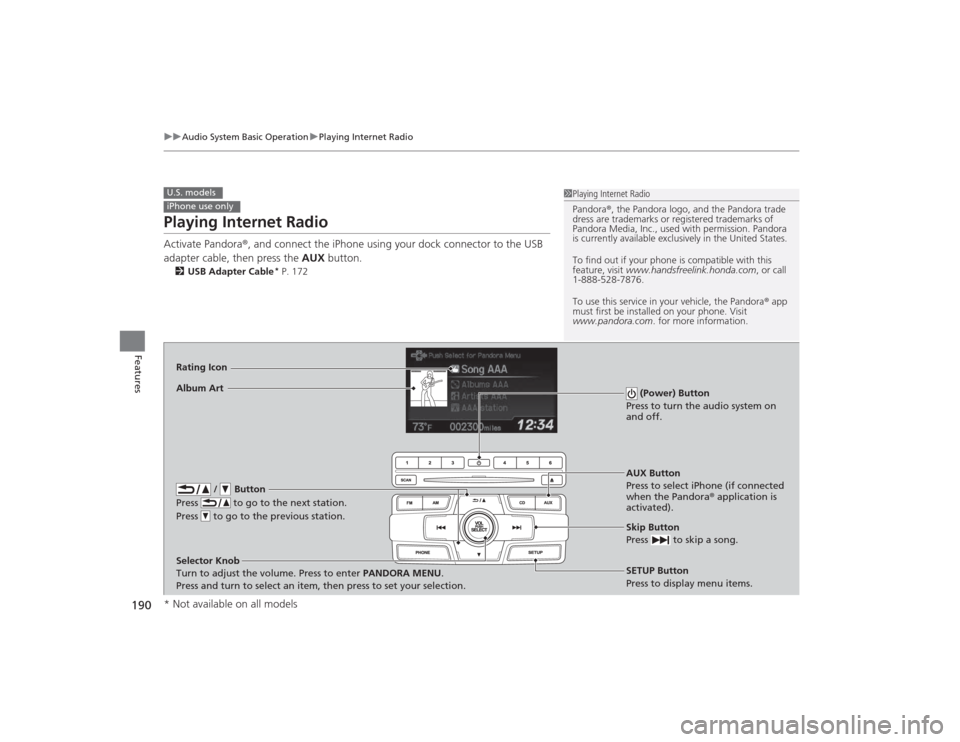
Playing Internet RadioActivate Pandora ®, and connect the iPhone using your dock connector to the USB
adapter cable, then press the AUX button.2USB Adapter Cable
* P. 172
U.S. modelsiPhone use only
1Playing Internet Radio
Pandora ®, the Pandora logo, and the Pandora trade
dress are trademarks or regi stered trademarks of
Pandora Media, Inc., used with permission. Pandora
is currently available exclusively in the United States.
To find out if your phone is compatible with this
feature, visit www.handsfreelink.honda.com , or call
1-888-528-7876.
To use this service in your vehicle, the Pandora ® app
must first be installed on your phone. Visit
www.pandora.com . for more information.
AUX Button
Press to select iPhone (if connected
when the Pandora ® application is
activated).
Skip Button
Press to skip a song.SETUP Button
Press to display menu items.
Selector Knob
Turn to adjust the volume. Press to enter PANDORA MENU
.
Press and turn to select an item, then press to set your selection.
Album ArtRating Icon
/ Button
Press to go to the next station.
Press to go to the previous station.
(Power) Button
Press to turn the audio system on
and off.
* Not available on all models