Page 100 of 403

Low tire pressure warning
Illuminates when your tire pressure is low. If the light remains
on at start up or while driving, the tire pressure should be
checked. When the vehicle is first turned on, the light will
illuminate for 3 seconds to ensure the bulb is working. If the light does
not turn on or begins to flash, contact your authorized dealer as soon as
possible.
Low washer fluid (RTT)
Illuminates when the windshield washer fluid is low.
Motor coolant overheat warning (RTT)
Illuminates when the motor cooling system is overheating. Stop
the vehicle in a safe place and contact your authorized dealer.
Overdrive cancel and grade assist (if equipped)
Illuminates when the overdrive function of the transmission has
been turned off and the grade assist function has been turned on.
Park lamps
Illuminates when the park lamps are on.
Powertrain malfunction/reduced power (RTT)
Illuminates when a powertrain or high-voltage charge system
fault has been detected. If the indicator stays on or continues
to come on, contact your authorized dealer as soon as possible.
Ready to drive
Illuminates once the vehicle has been switched on and is ready
to drive. A corresponding message may display stating ready to
drive or a message regarding budget if a charge point has not
been entered.
Safety belt
Reminds you to fasten your safety belt. A Belt-Minder® chime
will also sound to remind you to fasten your safety belt.
Instrument Cluster99
2014 Focus Electric Vehicle(fob)
Owners Guide gf, 1st Printing, May 2013
USA(fus)
Page 101 of 403

Speed control (if equipped) (RTT)
Illuminates when the speed control is activated. Turns off when
the speed control system is deactivated.
Stability Control System
Displays when the AdvanceTrac®/Traction control is active.
If the light remains on, have the system serviced immediately.
Stability Control System Off
Illuminates when AdvanceTrac®/Traction control has been
disabled by the driver.
Stop safely (RTT)
Indicates electrical component fault/failure that will cause the
vehicle to shutdown or enter into a limited operating mode.
A message may also display.
If the indicator stays on or continues to come on, contact your
authorized dealer as soon as possible
Turn signal
Illuminates when the left or right turn signal or the hazard
warning flasher is turned on. If the indicators stay on or flash
faster, check for a burned out bulb.
Vehicle plugged in (RTT)
Illuminates when the vehicle is plugged in. A corresponding
message may display after attempting to start the vehicle.
100Instrument Cluster
2014 Focus Electric Vehicle(fob)
Owners Guide gf, 1st Printing, May 2013
USA(fus)
Page 103 of 403
GENERAL INFORMATION
WARNING:Driving while distracted can result in loss of vehicle
control, crash and injury. We strongly recommend that you use
extreme caution when using any device that may take your focus off
the road. Your primary responsibility is the safe operation of your
vehicle. We recommend against the use of any handheld device while
driving and encourage the use of voice-operated systems when possible.
Make sure you are aware of all applicable local laws that may affect the
use of electronic devices while driving..
Various systems on your vehicle can be controlled using the information
display controls on the steering wheel. Corresponding information is
displayed in the information display.
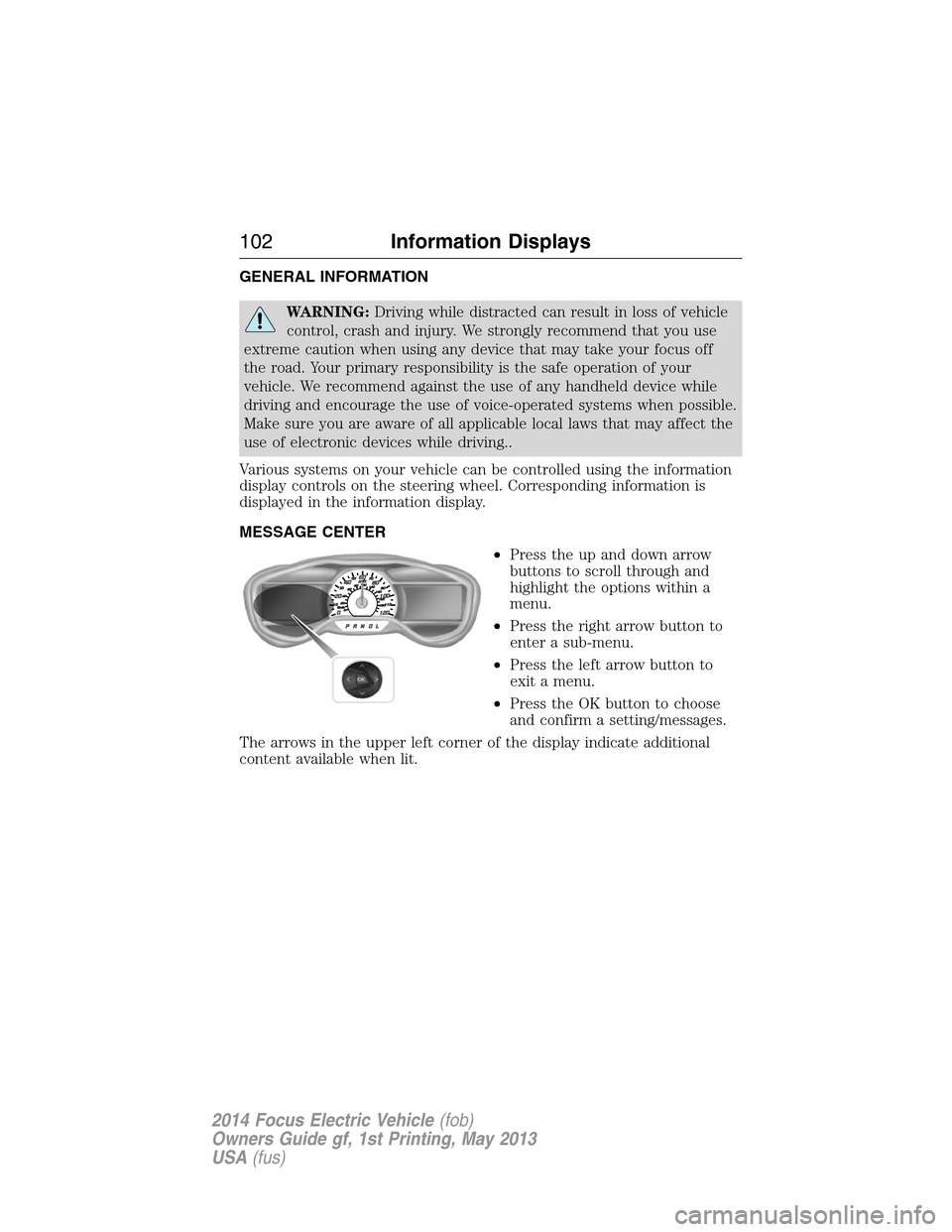
MESSAGE CENTER
•Press the up and down arrow
buttons to scroll through and
highlight the options within a
menu.
•Press the right arrow button to
enter a sub-menu.
•Press the left arrow button to
exit a menu.
•Press the OK button to choose
and confirm a setting/messages.
The arrows in the upper left corner of the display indicate additional
content available when lit.
102Information Displays
2014 Focus Electric Vehicle(fob)
Owners Guide gf, 1st Printing, May 2013
USA(fus)
Page 104 of 403
Main menu
From the main menu bar on the left side of the information display, you
can choose from the following categories:
Display Mode
Trip1&2
Energy
Information
Settings
Scroll up/down to highlight one of the categories, then press the right
arrow key or OK to enter into that category. Press the left arrow key as
needed to exit back to the main menu.
Display Mode
Use the arrow buttons to choose between the following display
options.
Display Mode
Budget Text View Options Budget Text / Help
Budget View Options Gauge Scale / Budget Text / Help
Range View OptionsSurplus Graphic / Budget Text /
Help
Information Displays103
2014 Focus Electric Vehicle(fob)
Owners Guide gf, 1st Printing, May 2013
USA(fus)
Page 105 of 403
Display Mode
MyView OptionsGauge
Scale——
Budget
Text——
Change
MyViewBudget
text onlyBlank
Range
ViewBudget
View
Range +
SurplusBudget +
AVG.
Accessory
PowerAccessory
Power
Trip 1 Trip 1
Trip 2 Trip 2
Energy
HistoryEnergy
Coach
Energy
Coach—
Help — —
•Budget Text View: contains basic information to help you reach your
next charging destination or to achieve your vehicle range estimate.
Charge pt: is the distance remaining to the next charge point you
identified using the Navigation system.
Surplus: is the available range beyond your identified charge point
(current Range Estimate shown on Battery Gauge minus Charge pt
distance).
If you don’t enter a charge point, you will see:
Budget: is set to the Range Estimate at the point of departure.
This will count down with the odometer.
Status: is your performance against your Budget (current Range
Estimate shown on Battery Gauge minus Budget distance). A positive
Status indicates you are using less energy than typical and have
extended your Range Estimate by the distance shown.
104Information Displays
2014 Focus Electric Vehicle(fob)
Owners Guide gf, 1st Printing, May 2013
USA(fus)
Page 106 of 403
•Budget view: helps you manage your energy use.
Your current Energy Use is the white line that moves up and down in
the Budget Gauge. A higher line means you are using more energy
(lower is better). Your energy use includes input from the accelerator
pedal as well as the accessories, such as Climate Control.
The Budget is shown by the blue cup shape around the Budget Gauge.
As long as your current Energy Use is within the cup, you are staying
within your budget. Your Budget represents the maximum energy usage
you can maintain in order to achieve your vehicle range estimate, or
reach your intended charge point. Driving for extended periods outside
of the Budget Cup reduces your budget and could put you at risk of not
reaching your intended charge point.
•Range view: shows your range relative to your charge point as well as
performance to your budget.
A blue charge point icon means you have a Surplus. If an E appears to
the left of an amber charge point icon, then you are projected to run
out of charge prior to reaching your charge point.
Current performance to your budget is represented by the glow of the car
icon: more Blue = better performance to budget, more Amber = worse.
The optional Surplus Graphic displays available range beyond your
charge point.
If you didn’t enter your charge point through the Navigation system,
your budget will be set to the range estimate at the start of your trip.
The gauge will show your estimated distance to E (empty) along with
your current performance to budget. The optional Surplus Graphic is
not available in this case.
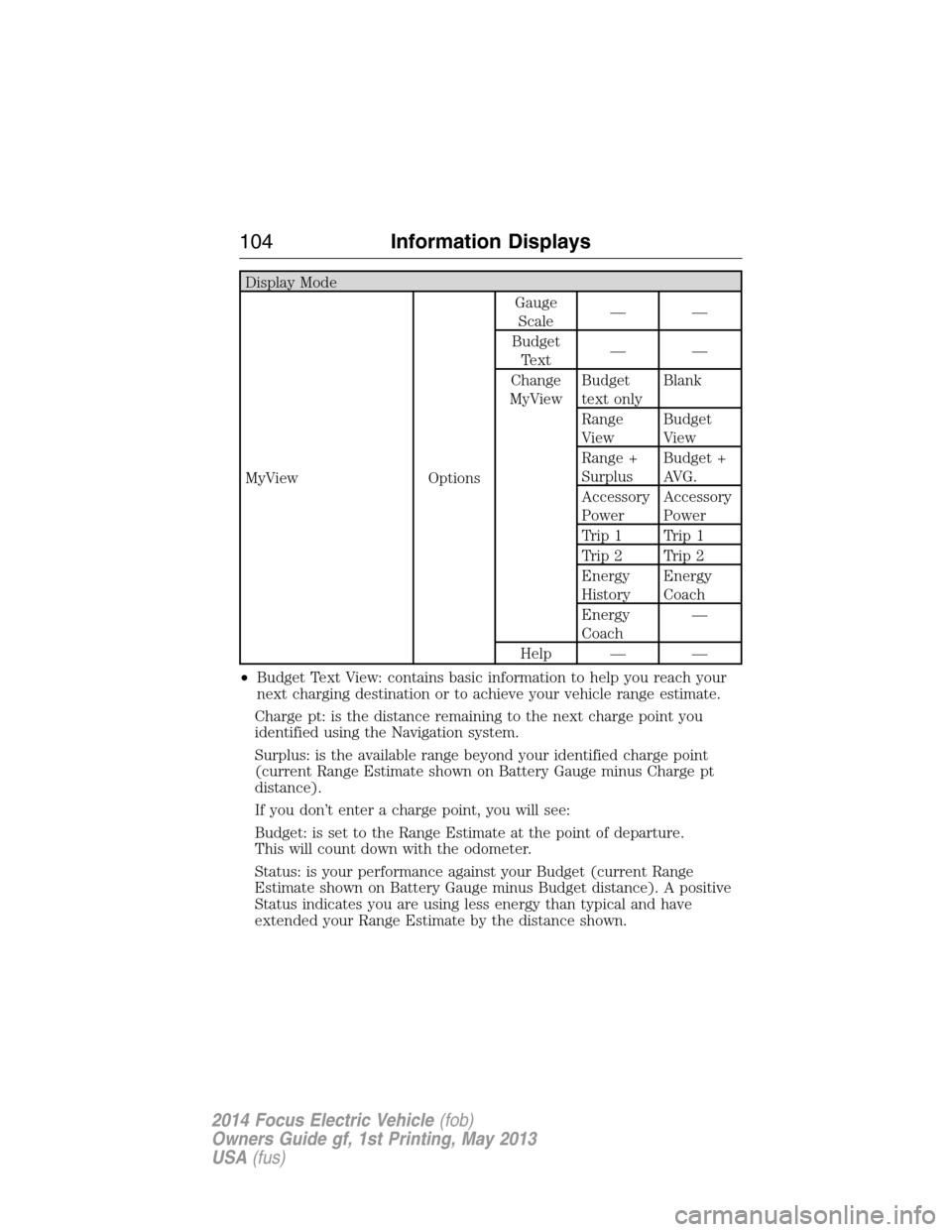
•MyView: You can choose what to display in this view. Selecting Change
MyView in the options menu allows you to use the right and left
arrows to scroll through two columns of content choices. Once you
have your desired content showing in each column, press OK to save.
The content you select is saved to the current driver’s key as MyView.
Accessory Power: Indicates electrical power demands from your
vehicle’s accessory systems. The gauge separately displays power
demand in kilowatts (kW) for climate and other accessories.
Information Displays105
2014 Focus Electric Vehicle(fob)
Owners Guide gf, 1st Printing, May 2013
USA(fus)
Page 107 of 403
Budget + Avg: The white pointers on the outside of the budget gauge
indicate your average watt hours per mi (km) since you last charged
your vehicle. Immediately after charging the white pointers will start
out at the top of the gauge, as you begin driving they will reflect your
average energy use.
Note:Trip data cannot be reset in MyView. You must reset Trip data
fromthemainTrip1&2screens.
Trip1&2
Use the arrow buttons to choose between the following.
Trip1&2 Standard Enhanced Budget text
Trip distance x x x
Elapsed trip time x x x
XXX Wh/mi (km)
– Energy used
per unit of
distancex
XX.X kWh
–Energy usedx
Budget Text x
Total Odometer. x x x
Press and hold OK to reset the currently displayed trip information.
•Trip distance — shows the accumulated trip distance.
•Elapsed trip time — timer stops when the vehicle is turned off and
restarts when the vehicle is restarted.
•XXX Wh/mi (km) — shows the average Energy (watt-hours) used per
unit of distance for a given trip
•XX.X kWh — shows the total Energy (kilowatt-hours) used for a given
trip.
•Budget Text — Shows the distance to your next charge point and the
surplus distance available, or your budget and status if you didn’t
identify a charge point through the navigation system.
•Total Odometer — Displays the total distance the vehicle has traveled.
This value can not be reset.
106Information Displays
2014 Focus Electric Vehicle(fob)
Owners Guide gf, 1st Printing, May 2013
USA(fus)
Page 108 of 403
Energy
Use the arrow buttons to choose the desired energy display.
Energy
Energy History
OptionsTime intervals /
Help
Energy Coach Options Help
•Energy History: This view from left to right starts with the Budget
View gauge and adds historical Energy Use and Budget data. The data
is represented as an average for time intervals of either 1, 2 or
6 minutes, with the leftmost interval being the most recent. Total time
for the five intervals is shown at the bottom of the view. Interval time
can be selected in the Options menu. Intervals shown in grey color are
from the previous drive.
•
Energy Coach: This view provides a comparison of your recent
Acceleration, Braking and Cruising behavior to what is recommended for
most efficient use of energy under present conditions. The horizontal
bars fill from left to right with best efficiency (and Blue color) shown
as at least half full. When the bars are less than half full, the color is
Amber, suggesting that a change in behavior is needed to achieve better
energy efficiency.
Information
In this mode, you can view different vehicle system information
and perform a system check.
Warnings
XX Warnings Displays the number of warnings that need
immediate attention in red. You can only view the
warnings from the System Check menu. View them
immediately by pressing OK and then OK again to
enter system check. Use the up/down arrows to
scroll through the warnings.
Information Displays107
2014 Focus Electric Vehicle(fob)
Owners Guide gf, 1st Printing, May 2013
USA(fus)