2014 FORD EXPEDITION reset
[x] Cancel search: resetPage 431 of 519
Only the photograph(s), which meets the following conditions, display:
•The file must be 1.5MB or smaller.
•The file extension must be .jpe, .jpg or .jpeg.
•The file path must be 255 characters or fewer.
•Up to 256 files or folders can display in one folder.
•The CD or DVD must be ISO 9660 format; the system does not
support UDF format.
To load photos:
1. Touch the left side of the home screen.
2. Touch the Add button. When the disclaimer appears asking to
confirm the supported photo formats, press OK.
3. Insert a CD-ROM that contains your photos.
4. Touch OK. The right side of the screen displays a list of the photos.
5. Select either Add or Add All to save photos to the hard drive.
Editing and Deleting Photos
To edit photos, go to the home screen, then:
1. Touch the current photo on the home screen.
2. Select the Edit button.
3. Adjust the photo by zooming in or out, moving right, left, up or down
and rotating left or right.
Note:Press the Reset button to return to the original image.
To delete a photo, select the Delete button.
To delete all photos:
1. Press the Menu hard button.
2. Select the System Settings tab on the touchscreen.
3. Press the View button for Delete Stored Items.
4. Select Saved photos.
Using the Touch-sensitive Controls on Your System
To turn a feature on and off, just touch the graphic with your finger.
To get the best performance from the touch-sensitive controls:
•Make sure your hands are clean and dry.
•Since the touchscreen operates based on the touch of a finger, you
may have trouble using it if you are wearing gloves.
•Use your bare finger to touch the center of a touch-control graphic.
Touching off-center of the graphic may affect operation of a nearby
control.
430Navigation System (If Equipped)
2014 Expedition(exd)
Owners Guide gf, 1st Printing, June 2013
USA(fus)
Page 436 of 519
If you select: You can:
System Settings Languageallows you to choose between
English, Spanish and French.
Unitsallows you to choose between English
and Metric measurements.
Keyboard Layoutallows you to choose
between an ABC and QWERTY keyboard.
Delete Stored Itemsallows you to choose
to delete all of the entries from Address Book,
Previous Destinations, Avoid Areas, Saved
Photos and Voice Recognition Profiles. Touch
View to see what entries have been stored.
Restore Factory Default Settingsallows
you to restore factory default settings.
Valet ModeLock and unlock the system using a four-digit
PIN.
Note:You can reset the PIN by
simultaneously pressing and holding presets 1
and 5 while on the PIN entry screen. After
approximately five seconds, the system
transitions to the valet mode screen indicating
that you reset the PIN. Once you have reset
the PIN, the system then allows you to set a
new PIN.
Voice ControlSet the system to listen automatically for USB
or SYNC voice commands first. This
eliminates the need to say “USB” or “User
Device” before any SYNC media commands.
Navigation System (If Equipped)435
2014 Expedition(exd)
Owners Guide gf, 1st Printing, June 2013
USA(fus)
Page 437 of 519
ENTERTAINMENT
Your system offers many media options. You can access these options
using the touchscreen or voice commands.
AM/FM Radio
Press the RADIO hard button.
To change between AM, FM1 and FM2, touch the AM or FM
tab. You can also access satellite radio by pressing this button.
SeeSirius satellite radiolater in this section for more information.
When you select: You can:
Show Options Scanallows you to hear a brief sampling of
all radio stations.
Scan Presetsallows you to hear a brief
sampling of all stations stored in the memory
presets.
Autoset Presetsallows you to store the
strongest local stations available in the AM
and FM frequency bands.
HD Radioturns HD radio on. This allows you
to receive radio broadcasts digitally (where
available), providing free, crystal-clear sound.
See theHD Radio™ informationin the
following section.
*
Multicastallows you to choose which HD
radio broadcast you would like to receive.
When HD Radio broadcasts are available, this
button appears if the selected station has
more than one digital broadcast. HD1 signifies
the main programming status and is available
in analog and digital broadcasts. Any
additional multicast stations (HD2 through
HD8) broadcast digitally. You can access these
by pressing Multicast. See theHD Radio™
informationin the following section.
**
436Navigation System (If Equipped)
2014 Expedition(exd)
Owners Guide gf, 1st Printing, June 2013
USA(fus)
Page 438 of 519
When you select: You can:
Show PresetsView the preset stations. Save a station by
pressing and holding one of the memory
preset areas. There is a brief mute while the
radio saves the station. Sound returns when
finished.
Set PTY/AllSelect a category of music you would like to
search for and then choose to either seek or
scan for the stations.
**
Note:The system scans the frequency band
three times for the chosen program type.
If the program type is unavailable in your
reception range, the system returns to the
previous station.
*This feature is only available in the United States.
**This feature is only available on the FM1 and FM2 radio tabs in the
United States.
Audio and Radio Voice Commands
If you are listening to the audio system, press the voice button
on the steering wheel control. When prompted, say any of the
commands in the following chart.
If you are not listening to the audio system, press the voice button and,
after the tone, say “Audio”, then any of the commands in the following
chart.
“AUDIO”
“CD” “Line in” “Sirius”
“Disc” “Off ” “SYNC”
“DVD” “On” “USB”
“Headphones” “Phone” “User Device”
“Headphones off” “Radio” “Video CD”
“Jukebox” “Read Message” “Help”
Navigation System (If Equipped)437
2014 Expedition(exd)
Owners Guide gf, 1st Printing, June 2013
USA(fus)
Page 439 of 519
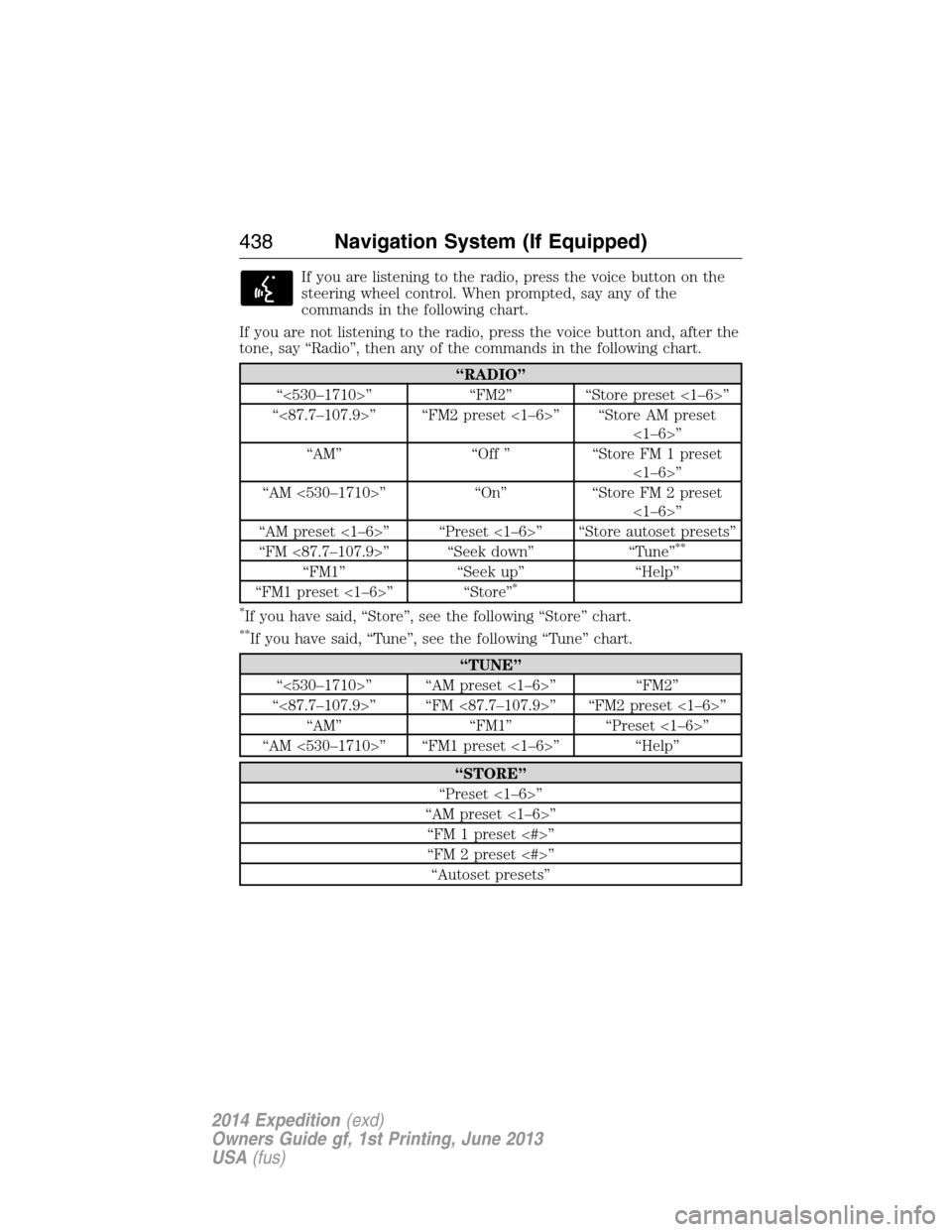
If you are listening to the radio, press the voice button on the
steering wheel control. When prompted, say any of the
commands in the following chart.
If you are not listening to the radio, press the voice button and, after the
tone, say “Radio”, then any of the commands in the following chart.
“RADIO”
“<530–1710>” “FM2” “Store preset <1–6>”
“<87.7–107.9>” “FM2 preset <1–6>” “Store AM preset
<1–6>”
“AM” “Off ” “Store FM 1 preset
<1–6>”
“AM <530–1710>” “On” “Store FM 2 preset
<1–6>”
“AM preset <1–6>” “Preset <1–6>” “Store autoset presets”
“FM <87.7–107.9>” “Seek down” “Tune”
**
“FM1” “Seek up” “Help”
“FM1 preset <1–6>” “Store”*
*
If you have said, “Store”, see the following “Store” chart.
**If you have said, “Tune”, see the following “Tune” chart.
“TUNE”
“<530–1710>” “AM preset <1–6>” “FM2”
“<87.7–107.9>” “FM <87.7–107.9>” “FM2 preset <1–6>”
“AM” “FM1” “Preset <1–6>”
“AM <530–1710>” “FM1 preset <1–6>” “Help”
“STORE”
“Preset <1–6>”
“AM preset <1–6>”
“FM 1 preset <#>”
“FM 2 preset <#>”
“Autoset presets”
438Navigation System (If Equipped)
2014 Expedition(exd)
Owners Guide gf, 1st Printing, June 2013
USA(fus)
Page 441 of 519
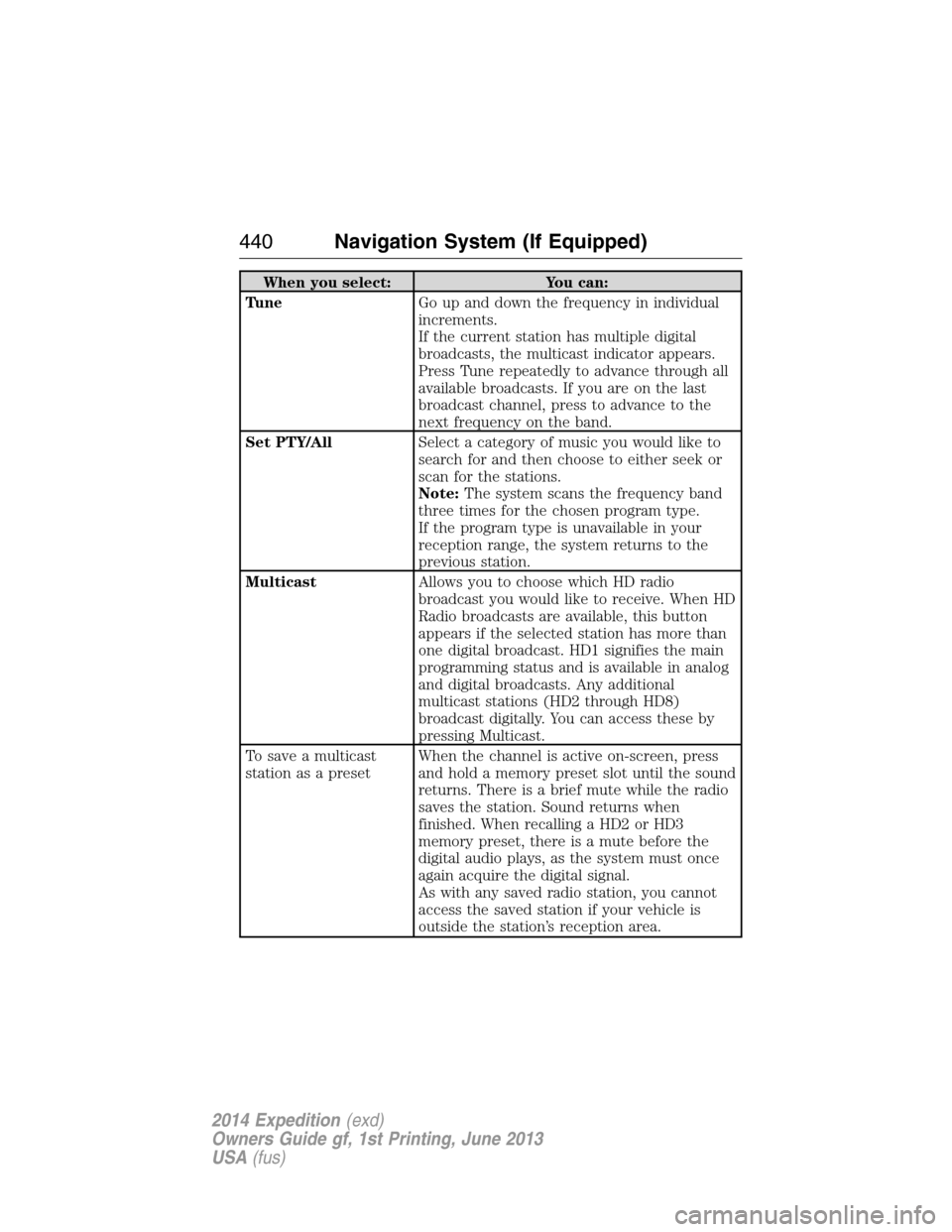
When you select: You can:
TuneGo up and down the frequency in individual
increments.
If the current station has multiple digital
broadcasts, the multicast indicator appears.
Press Tune repeatedly to advance through all
available broadcasts. If you are on the last
broadcast channel, press to advance to the
next frequency on the band.
Set PTY/AllSelect a category of music you would like to
search for and then choose to either seek or
scan for the stations.
Note:The system scans the frequency band
three times for the chosen program type.
If the program type is unavailable in your
reception range, the system returns to the
previous station.
MulticastAllows you to choose which HD radio
broadcast you would like to receive. When HD
Radio broadcasts are available, this button
appears if the selected station has more than
one digital broadcast. HD1 signifies the main
programming status and is available in analog
and digital broadcasts. Any additional
multicast stations (HD2 through HD8)
broadcast digitally. You can access these by
pressing Multicast.
To save a multicast
station as a presetWhen the channel is active on-screen, press
and hold a memory preset slot until the sound
returns. There is a brief mute while the radio
saves the station. Sound returns when
finished. When recalling a HD2 or HD3
memory preset, there is a mute before the
digital audio plays, as the system must once
again acquire the digital signal.
As with any saved radio station, you cannot
access the saved station if your vehicle is
outside the station’s reception area.
440Navigation System (If Equipped)
2014 Expedition(exd)
Owners Guide gf, 1st Printing, June 2013
USA(fus)
Page 443 of 519
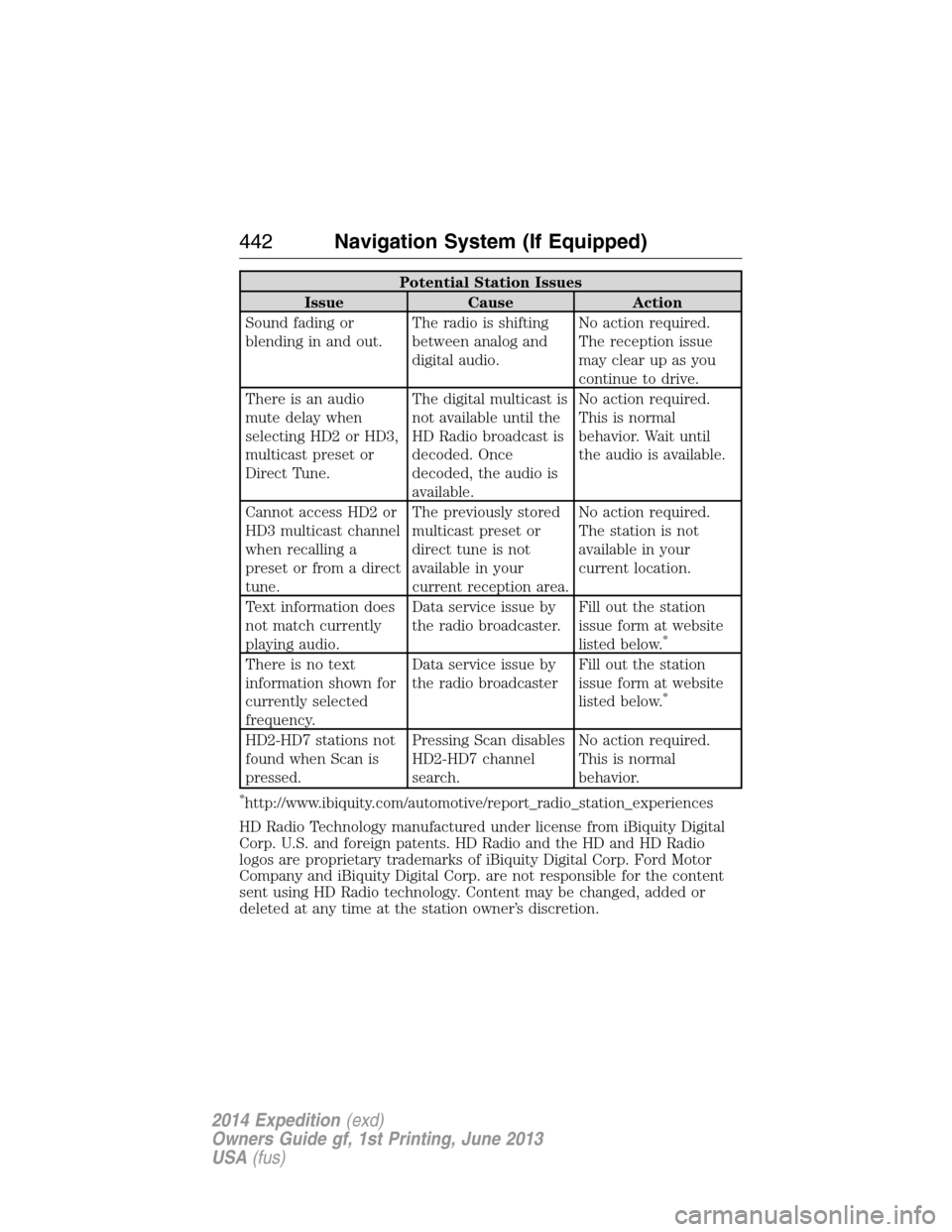
Potential Station Issues
Issue Cause Action
Sound fading or
blending in and out.The radio is shifting
between analog and
digital audio.No action required.
The reception issue
may clear up as you
continue to drive.
There is an audio
mute delay when
selecting HD2 or HD3,
multicast preset or
Direct Tune.The digital multicast is
not available until the
HD Radio broadcast is
decoded. Once
decoded, the audio is
available.No action required.
This is normal
behavior. Wait until
the audio is available.
Cannot access HD2 or
HD3 multicast channel
when recalling a
preset or from a direct
tune.The previously stored
multicast preset or
direct tune is not
available in your
current reception area.No action required.
The station is not
available in your
current location.
Text information does
not match currently
playing audio.Data service issue by
the radio broadcaster.Fill out the station
issue form at website
listed below.
*
There is no text
information shown for
currently selected
frequency.Data service issue by
the radio broadcasterFill out the station
issue form at website
listed below.
*
HD2-HD7 stations not
found when Scan is
pressed.Pressing Scan disables
HD2-HD7 channel
search.No action required.
This is normal
behavior.
*http://www.ibiquity.com/automotive/report_radio_station_experiences
HD Radio Technology manufactured under license from iBiquity Digital
Corp. U.S. and foreign patents. HD Radio and the HD and HD Radio
logos are proprietary trademarks of iBiquity Digital Corp. Ford Motor
Company and iBiquity Digital Corp. are not responsible for the content
sent using HD Radio technology. Content may be changed, added or
deleted at any time at the station owner’s discretion.
442Navigation System (If Equipped)
2014 Expedition(exd)
Owners Guide gf, 1st Printing, June 2013
USA(fus)
Page 444 of 519
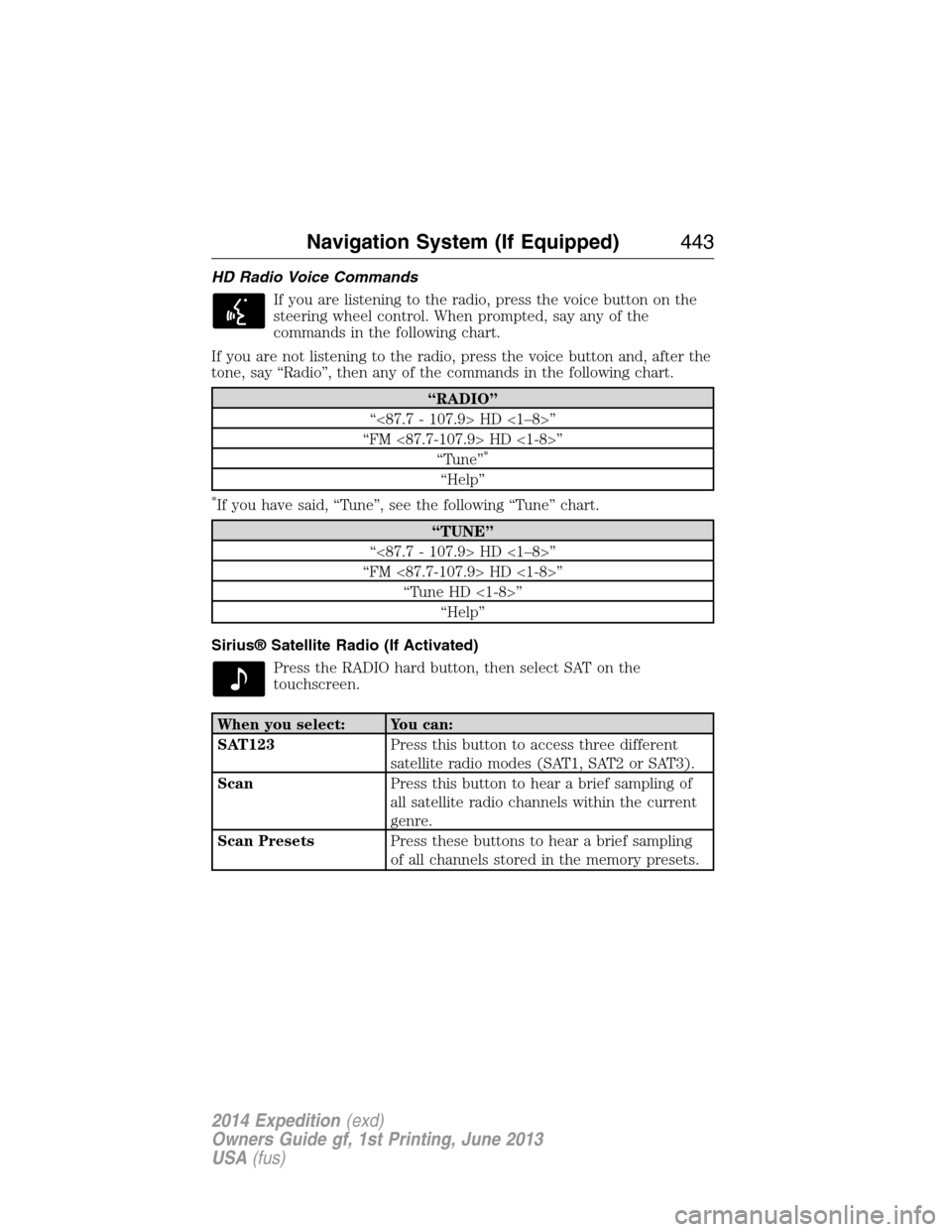
HD Radio Voice Commands
If you are listening to the radio, press the voice button on the
steering wheel control. When prompted, say any of the
commands in the following chart.
If you are not listening to the radio, press the voice button and, after the
tone, say “Radio”, then any of the commands in the following chart.
“RADIO”
“<87.7 - 107.9> HD <1–8>”
“FM <87.7-107.9> HD <1-8>”
“Tune”
*
“Help”
*If you have said, “Tune”, see the following “Tune” chart.
“TUNE”
“<87.7 - 107.9> HD <1–8>”
“FM <87.7-107.9> HD <1-8>”
“Tune HD <1-8>”
“Help”
Sirius® Satellite Radio (If Activated)
Press the RADIO hard button, then select SAT on the
touchscreen.
When you select: You can:
SAT123Press this button to access three different
satellite radio modes (SAT1, SAT2 or SAT3).
ScanPress this button to hear a brief sampling of
all satellite radio channels within the current
genre.
Scan PresetsPress these buttons to hear a brief sampling
of all channels stored in the memory presets.
Navigation System (If Equipped)443
2014 Expedition(exd)
Owners Guide gf, 1st Printing, June 2013
USA(fus)