2014 FORD EXPEDITION reset
[x] Cancel search: resetPage 415 of 519
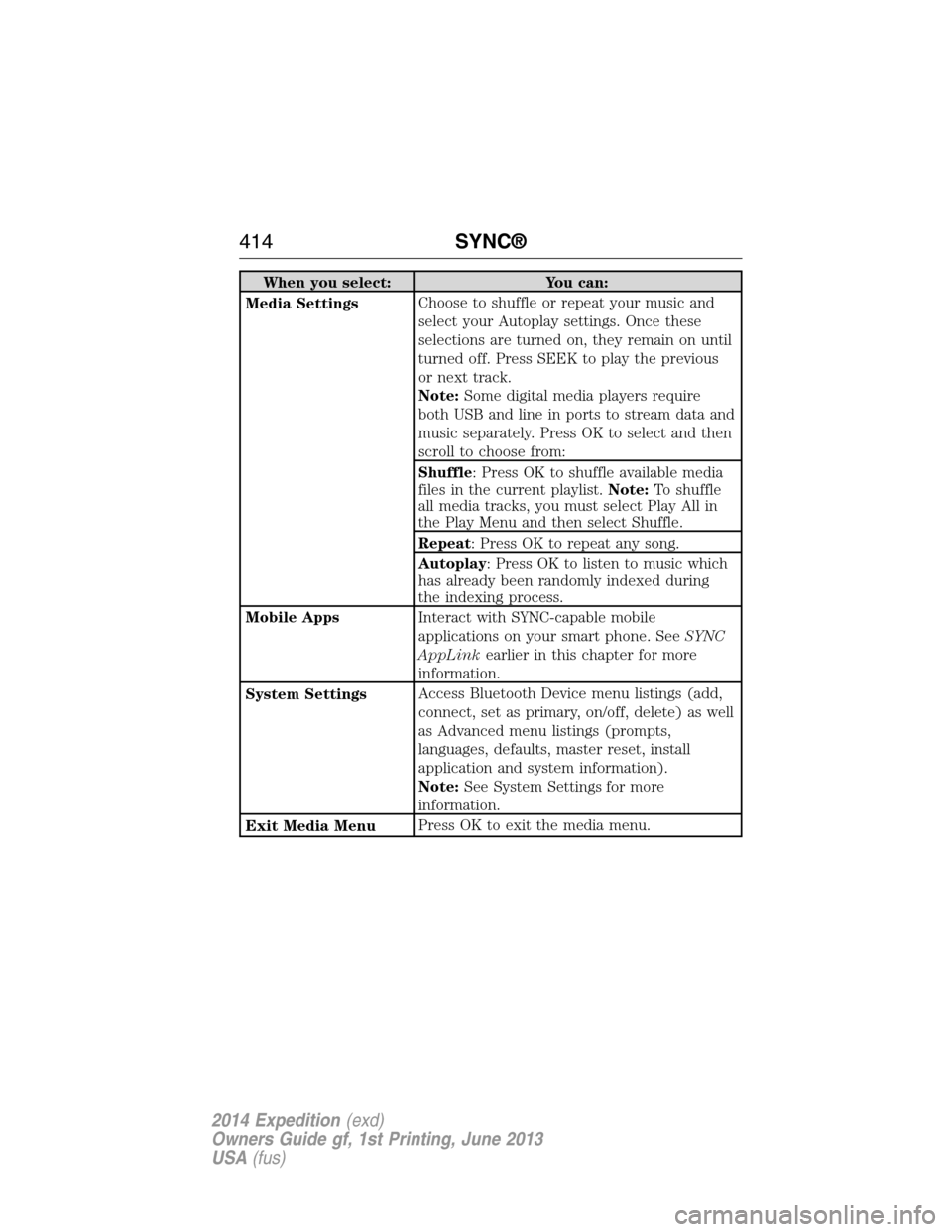
When you select: You can:
Media SettingsChoose to shuffle or repeat your music and
select your Autoplay settings. Once these
selections are turned on, they remain on until
turned off. Press SEEK to play the previous
or next track.
Note:Some digital media players require
both USB and line in ports to stream data and
music separately. Press OK to select and then
scroll to choose from:
Shuffle: Press OK to shuffle available media
files in the current playlist.Note:To shuffle
all media tracks, you must select Play All in
the Play Menu and then select Shuffle.
Repeat: Press OK to repeat any song.
Autoplay: Press OK to listen to music which
has already been randomly indexed during
the indexing process.
Mobile AppsInteract with SYNC-capable mobile
applications on your smart phone. SeeSYNC
AppLinkearlier in this chapter for more
information.
System SettingsAccess Bluetooth Device menu listings (add,
connect, set as primary, on/off, delete) as well
as Advanced menu listings (prompts,
languages, defaults, master reset, install
application and system information).
Note:See System Settings for more
information.
Exit Media MenuPress OK to exit the media menu.
414SYNC®
2014 Expedition(exd)
Owners Guide gf, 1st Printing, June 2013
USA(fus)
Page 418 of 519
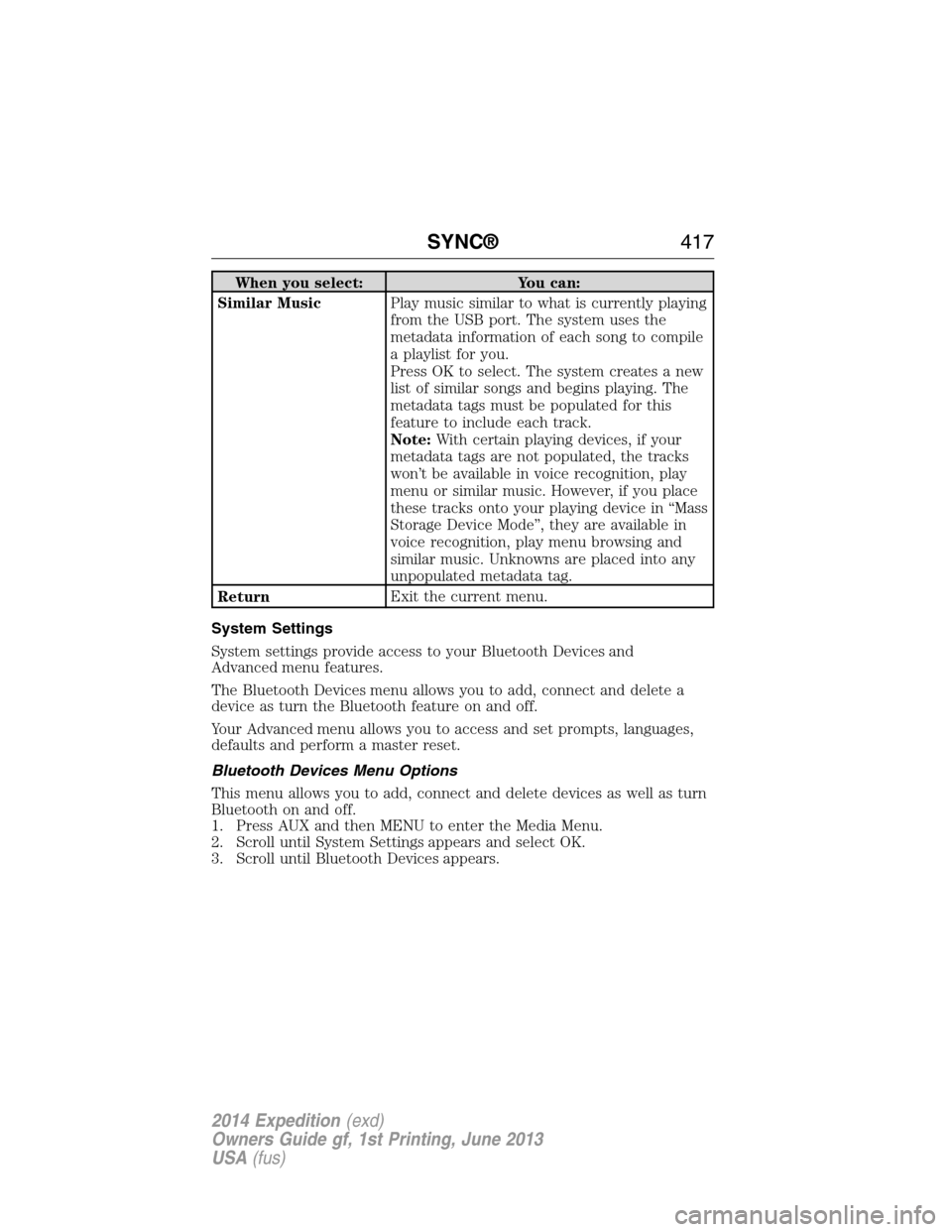
When you select: You can:
Similar MusicPlay music similar to what is currently playing
from the USB port. The system uses the
metadata information of each song to compile
a playlist for you.
Press OK to select. The system creates a new
list of similar songs and begins playing. The
metadata tags must be populated for this
feature to include each track.
Note:With certain playing devices, if your
metadata tags are not populated, the tracks
won’t be available in voice recognition, play
menu or similar music. However, if you place
these tracks onto your playing device in “Mass
Storage Device Mode”, they are available in
voice recognition, play menu browsing and
similar music. Unknowns are placed into any
unpopulated metadata tag.
ReturnExit the current menu.
System Settings
System settings provide access to your Bluetooth Devices and
Advanced menu features.
The Bluetooth Devices menu allows you to add, connect and delete a
device as turn the Bluetooth feature on and off.
Your Advanced menu allows you to access and set prompts, languages,
defaults and perform a master reset.
Bluetooth Devices Menu Options
This menu allows you to add, connect and delete devices as well as turn
Bluetooth on and off.
1. Press AUX and then MENU to enter the Media Menu.
2. Scroll until System Settings appears and select OK.
3. Scroll until Bluetooth Devices appears.
SYNC®417
2014 Expedition(exd)
Owners Guide gf, 1st Printing, June 2013
USA(fus)
Page 419 of 519
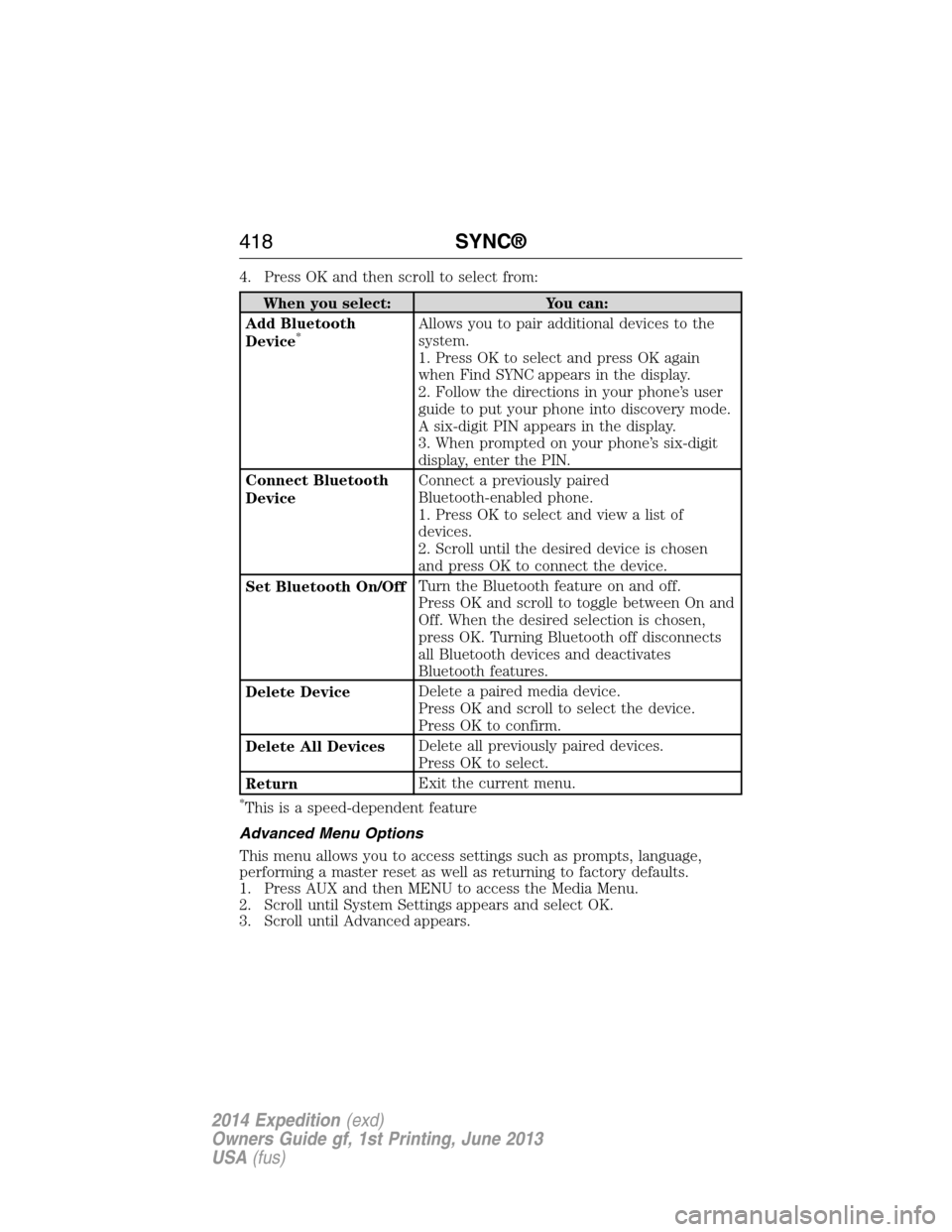
4. Press OK and then scroll to select from:
When you select: You can:
Add Bluetooth
Device
*Allows you to pair additional devices to the
system.
1. Press OK to select and press OK again
when Find SYNC appears in the display.
2. Follow the directions in your phone’s user
guide to put your phone into discovery mode.
A six-digit PIN appears in the display.
3. When prompted on your phone’s six-digit
display, enter the PIN.
Connect Bluetooth
DeviceConnect a previously paired
Bluetooth-enabled phone.
1. Press OK to select and view a list of
devices.
2. Scroll until the desired device is chosen
and press OK to connect the device.
Set Bluetooth On/OffTurn the Bluetooth feature on and off.
Press OK and scroll to toggle between On and
Off. When the desired selection is chosen,
press OK. Turning Bluetooth off disconnects
all Bluetooth devices and deactivates
Bluetooth features.
Delete DeviceDelete a paired media device.
Press OK and scroll to select the device.
Press OK to confirm.
Delete All DevicesDelete all previously paired devices.
Press OK to select.
ReturnExit the current menu.
*This is a speed-dependent feature
Advanced Menu Options
This menu allows you to access settings such as prompts, language,
performing a master reset as well as returning to factory defaults.
1. Press AUX and then MENU to access the Media Menu.
2. Scroll until System Settings appears and select OK.
3. Scroll until Advanced appears.
418SYNC®
2014 Expedition(exd)
Owners Guide gf, 1st Printing, June 2013
USA(fus)
Page 420 of 519
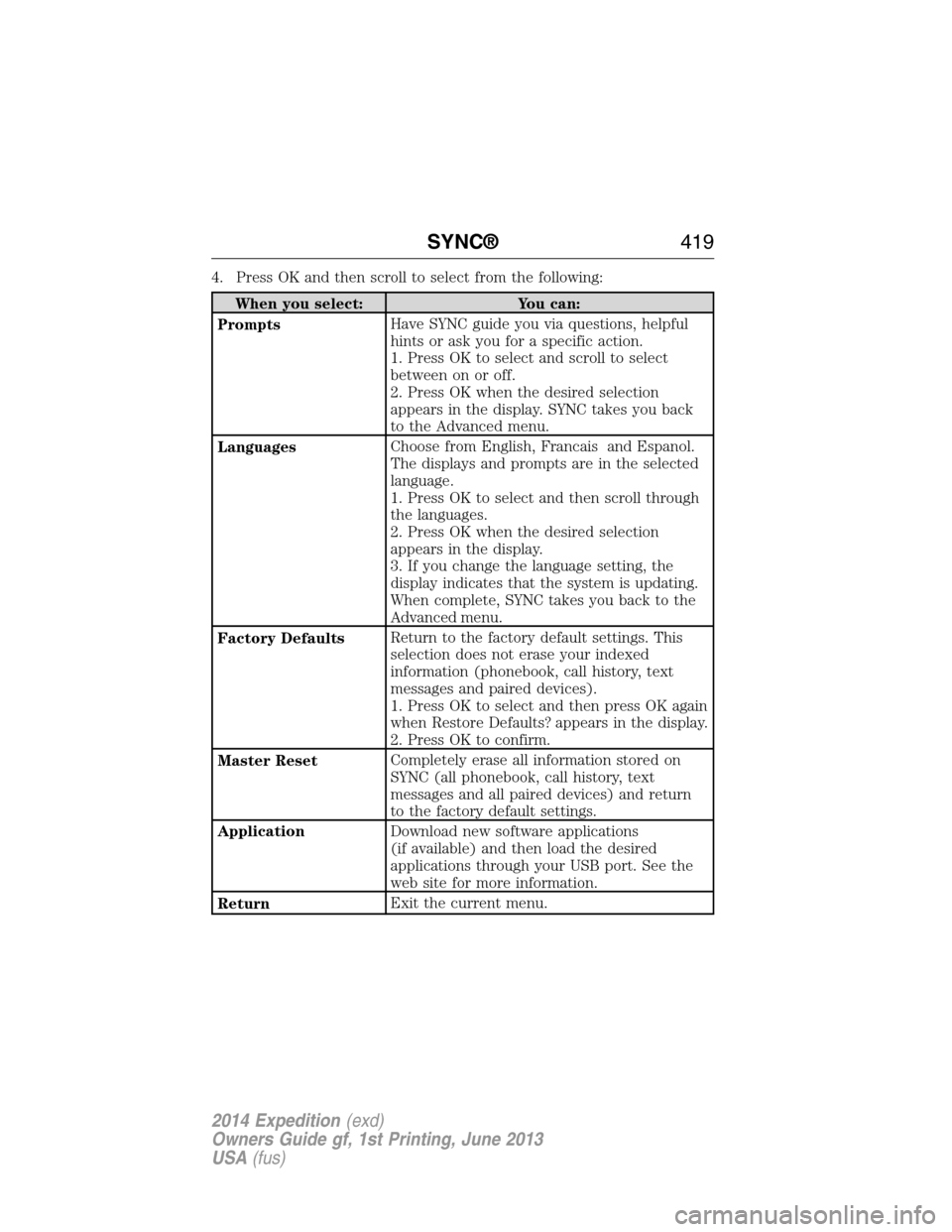
4. Press OK and then scroll to select from the following:
When you select: You can:
PromptsHave SYNC guide you via questions, helpful
hints or ask you for a specific action.
1. Press OK to select and scroll to select
between on or off.
2. Press OK when the desired selection
appears in the display. SYNC takes you back
to the Advanced menu.
LanguagesChoose from English, Francais and Espanol.
The displays and prompts are in the selected
language.
1. Press OK to select and then scroll through
the languages.
2. Press OK when the desired selection
appears in the display.
3. If you change the language setting, the
display indicates that the system is updating.
When complete, SYNC takes you back to the
Advanced menu.
Factory DefaultsReturn to the factory default settings. This
selection does not erase your indexed
information (phonebook, call history, text
messages and paired devices).
1. Press OK to select and then press OK again
when Restore Defaults? appears in the display.
2. Press OK to confirm.
Master ResetCompletely erase all information stored on
SYNC (all phonebook, call history, text
messages and all paired devices) and return
to the factory default settings.
ApplicationDownload new software applications
(if available) and then load the desired
applications through your USB port. See the
web site for more information.
ReturnExit the current menu.
SYNC®419
2014 Expedition(exd)
Owners Guide gf, 1st Printing, June 2013
USA(fus)
Page 421 of 519
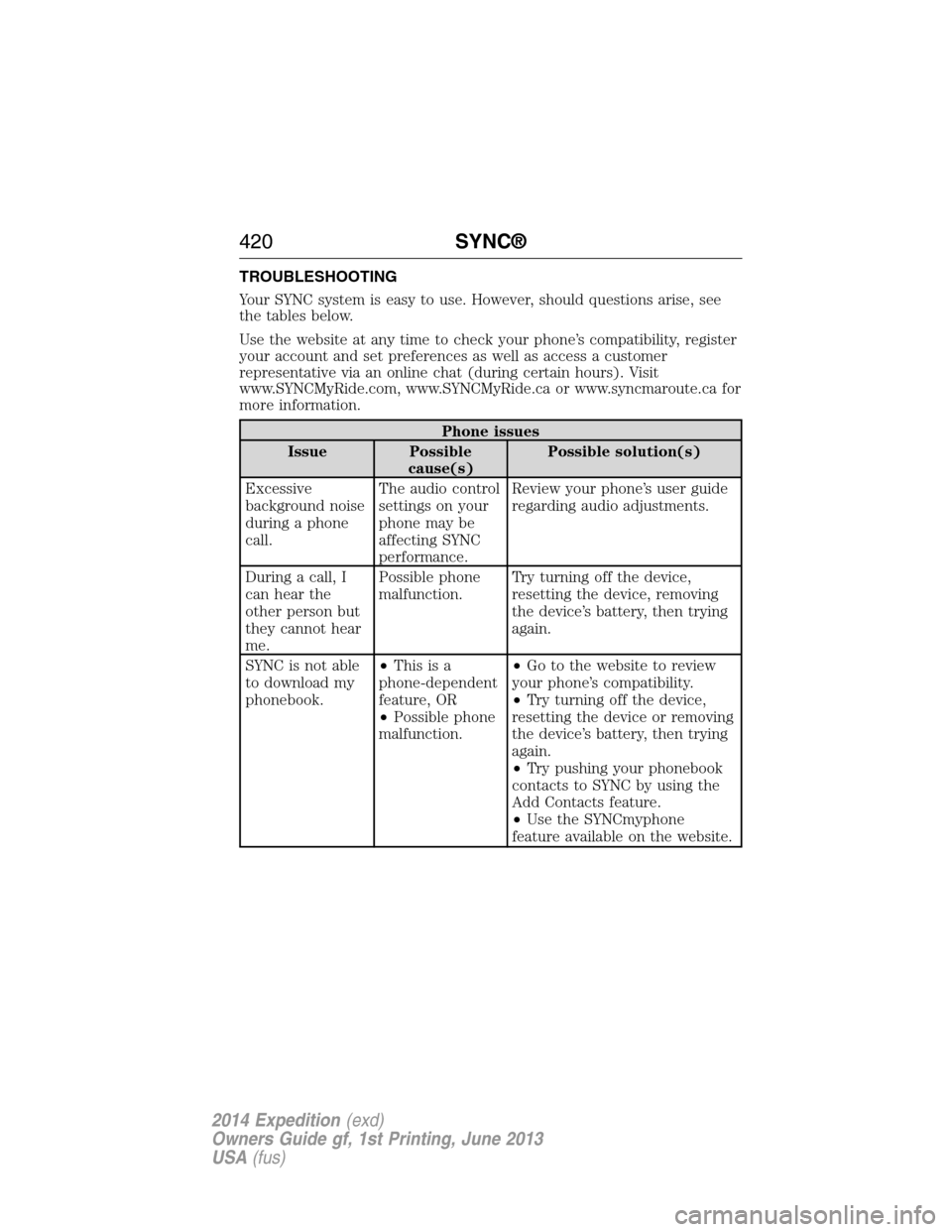
TROUBLESHOOTING
Your SYNC system is easy to use. However, should questions arise, see
the tables below.
Use the website at any time to check your phone’s compatibility, register
your account and set preferences as well as access a customer
representative via an online chat (during certain hours). Visit
www.SYNCMyRide.com, www.SYNCMyRide.ca or www.syncmaroute.ca for
more information.
Phone issues
Issue Possible
cause(s)Possible solution(s)
Excessive
background noise
during a phone
call.The audio control
settings on your
phone may be
affecting SYNC
performance.Review your phone’s user guide
regarding audio adjustments.
During a call, I
can hear the
other person but
they cannot hear
me.Possible phone
malfunction.Try turning off the device,
resetting the device, removing
the device’s battery, then trying
again.
SYNC is not able
to download my
phonebook.•Thisisa
phone-dependent
feature, OR
•Possible phone
malfunction.•Go to the website to review
your phone’s compatibility.
•Try turning off the device,
resetting the device or removing
the device’s battery, then trying
again.
•Try pushing your phonebook
contacts to SYNC by using the
Add Contacts feature.
•Use the SYNCmyphone
feature available on the website.
420SYNC®
2014 Expedition(exd)
Owners Guide gf, 1st Printing, June 2013
USA(fus)
Page 422 of 519
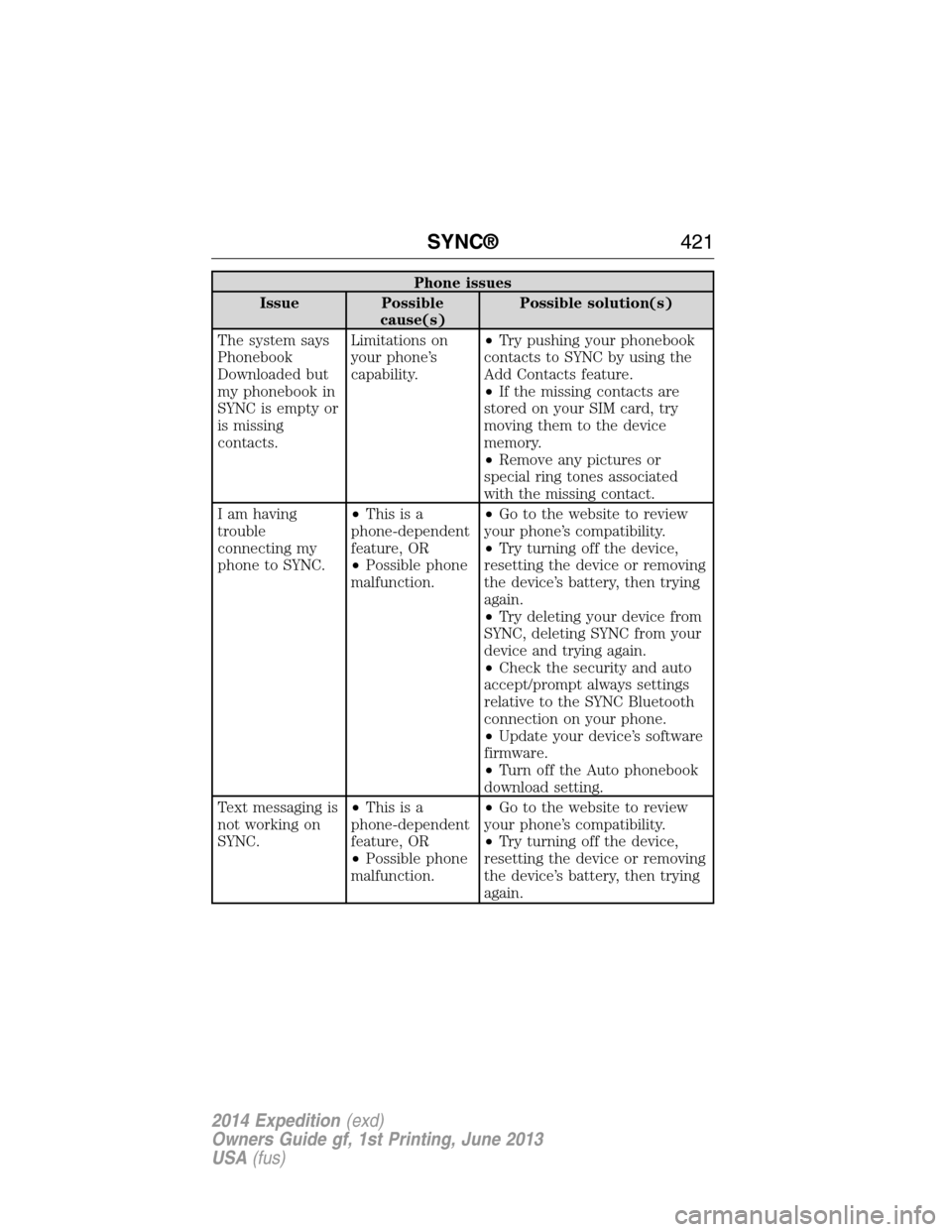
Phone issues
Issue Possible
cause(s)Possible solution(s)
The system says
Phonebook
Downloaded but
my phonebook in
SYNC is empty or
is missing
contacts.Limitations on
your phone’s
capability.•Try pushing your phonebook
contacts to SYNC by using the
Add Contacts feature.
•If the missing contacts are
stored on your SIM card, try
moving them to the device
memory.
•Remove any pictures or
special ring tones associated
with the missing contact.
I am having
trouble
connecting my
phone to SYNC.•Thisisa
phone-dependent
feature, OR
•Possible phone
malfunction.•Go to the website to review
your phone’s compatibility.
•Try turning off the device,
resetting the device or removing
the device’s battery, then trying
again.
•Try deleting your device from
SYNC, deleting SYNC from your
device and trying again.
•Check the security and auto
accept/prompt always settings
relative to the SYNC Bluetooth
connection on your phone.
•Update your device’s software
firmware.
•Turn off the Auto phonebook
download setting.
Text messaging is
not working on
SYNC.•Thisisa
phone-dependent
feature, OR
•Possible phone
malfunction.•Go to the website to review
your phone’s compatibility.
•Try turning off the device,
resetting the device or removing
the device’s battery, then trying
again.
SYNC®421
2014 Expedition(exd)
Owners Guide gf, 1st Printing, June 2013
USA(fus)
Page 423 of 519
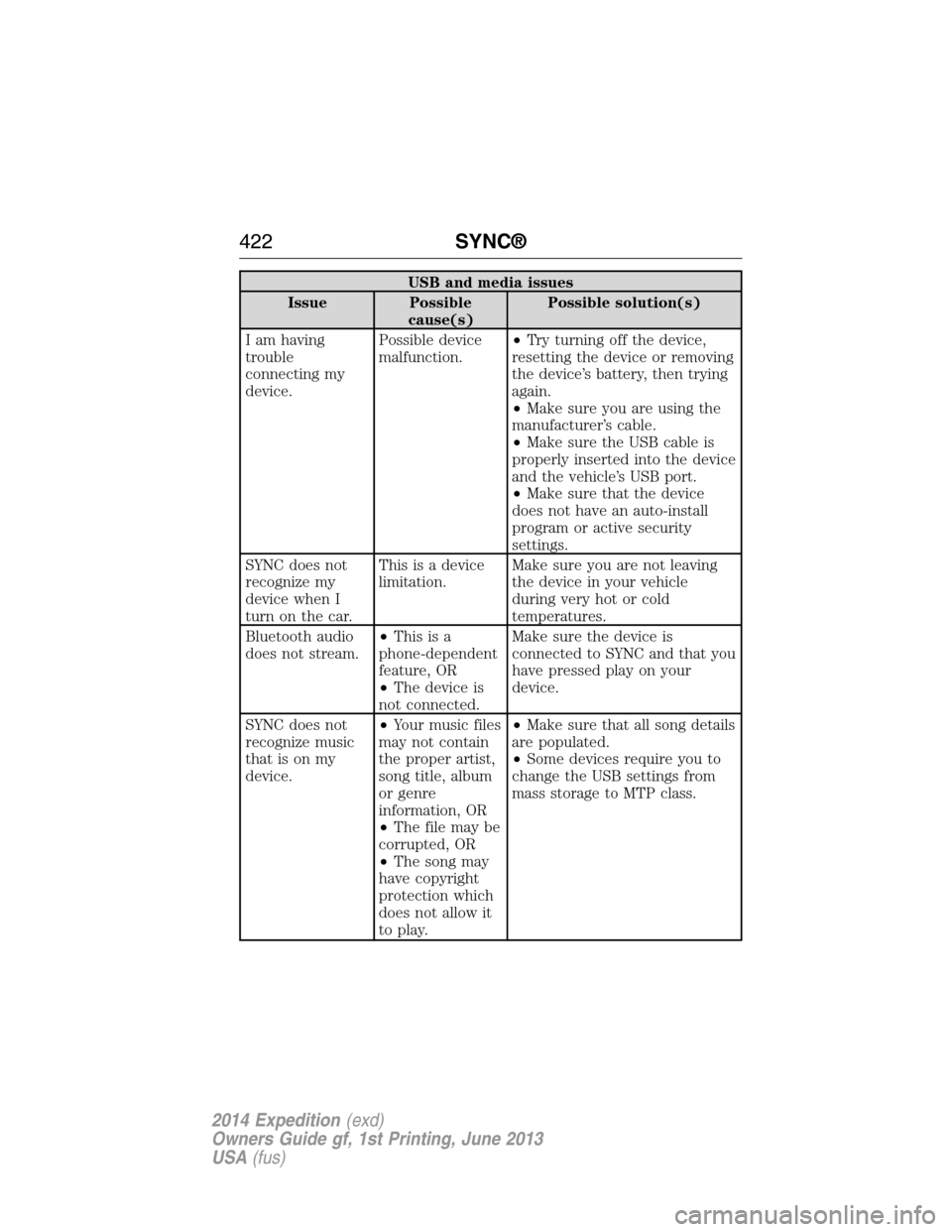
USB and media issues
Issue Possible
cause(s)Possible solution(s)
I am having
trouble
connecting my
device.Possible device
malfunction.•Try turning off the device,
resetting the device or removing
the device’s battery, then trying
again.
•Make sure you are using the
manufacturer’s cable.
•Make sure the USB cable is
properly inserted into the device
and the vehicle’s USB port.
•Make sure that the device
does not have an auto-install
program or active security
settings.
SYNC does not
recognize my
device when I
turn on the car.This is a device
limitation.Make sure you are not leaving
the device in your vehicle
during very hot or cold
temperatures.
Bluetooth audio
does not stream.•Thisisa
phone-dependent
feature, OR
•The device is
not connected.Make sure the device is
connected to SYNC and that you
have pressed play on your
device.
SYNC does not
recognize music
that is on my
device.•Your music files
may not contain
the proper artist,
song title, album
or genre
information, OR
•The file may be
corrupted, OR
•The song may
have copyright
protection which
does not allow it
to play.•Make sure that all song details
are populated.
•Some devices require you to
change the USB settings from
mass storage to MTP class.
422SYNC®
2014 Expedition(exd)
Owners Guide gf, 1st Printing, June 2013
USA(fus)
Page 428 of 519
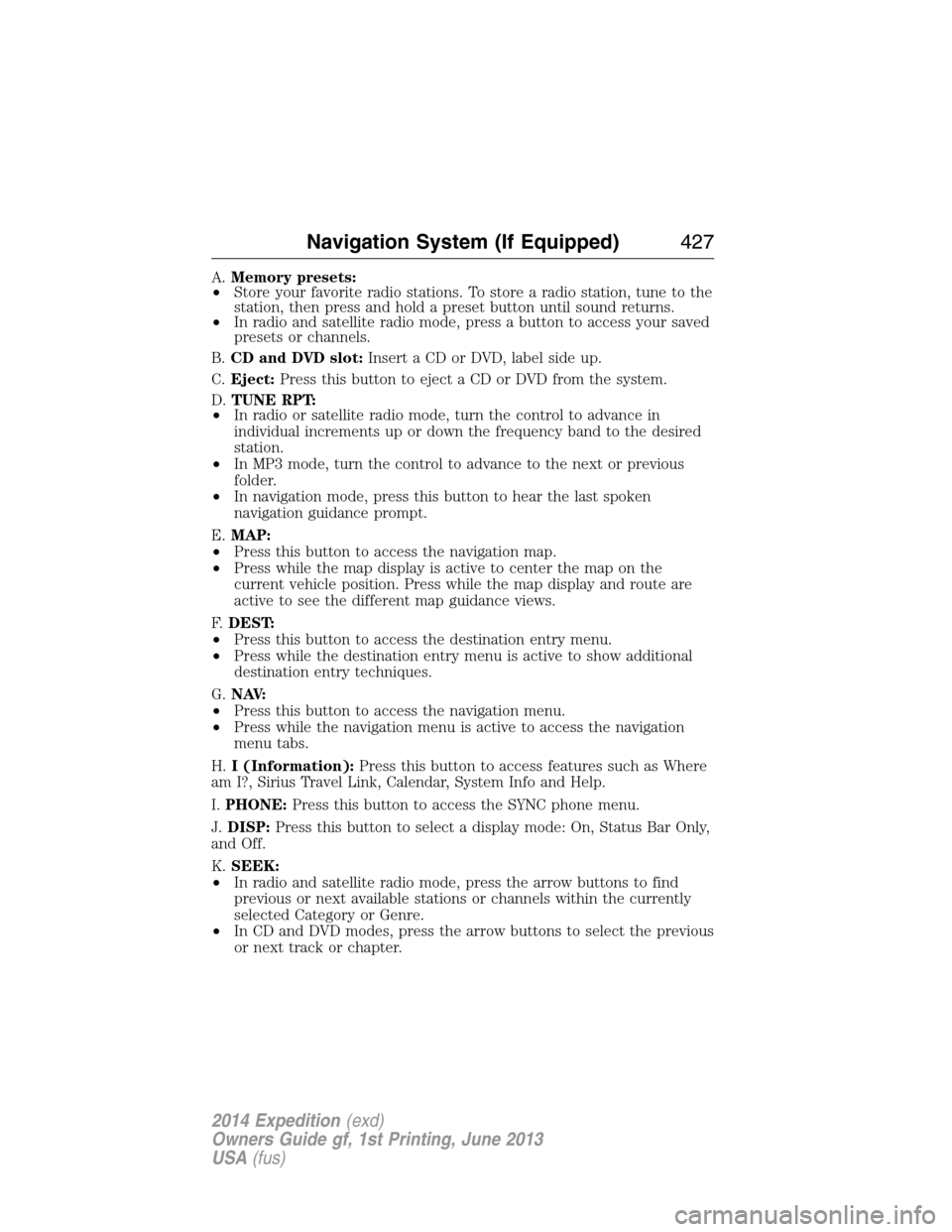
A.Memory presets:
•Store your favorite radio stations. To store a radio station, tune to the
station, then press and hold a preset button until sound returns.
•In radio and satellite radio mode, press a button to access your saved
presets or channels.
B.CD and DVD slot:Insert a CD or DVD, label side up.
C.Eject:Press this button to eject a CD or DVD from the system.
D.TUNE RPT:
•In radio or satellite radio mode, turn the control to advance in
individual increments up or down the frequency band to the desired
station.
•In MP3 mode, turn the control to advance to the next or previous
folder.
•In navigation mode, press this button to hear the last spoken
navigation guidance prompt.
E.MAP:
•Press this button to access the navigation map.
•Press while the map display is active to center the map on the
current vehicle position. Press while the map display and route are
active to see the different map guidance views.
F.DEST:
•Press this button to access the destination entry menu.
•Press while the destination entry menu is active to show additional
destination entry techniques.
G.N AV:
•Press this button to access the navigation menu.
•Press while the navigation menu is active to access the navigation
menu tabs.
H.I (Information):Press this button to access features such as Where
am I?, Sirius Travel Link, Calendar, System Info and Help.
I.PHONE:Press this button to access the SYNC phone menu.
J.DISP:Press this button to select a display mode: On, Status Bar Only,
and Off.
K.SEEK:
•In radio and satellite radio mode, press the arrow buttons to find
previous or next available stations or channels within the currently
selected Category or Genre.
•In CD and DVD modes, press the arrow buttons to select the previous
or next track or chapter.
Navigation System (If Equipped)427
2014 Expedition(exd)
Owners Guide gf, 1st Printing, June 2013
USA(fus)