2014 FORD EXPEDITION buttons
[x] Cancel search: buttonsPage 460 of 519
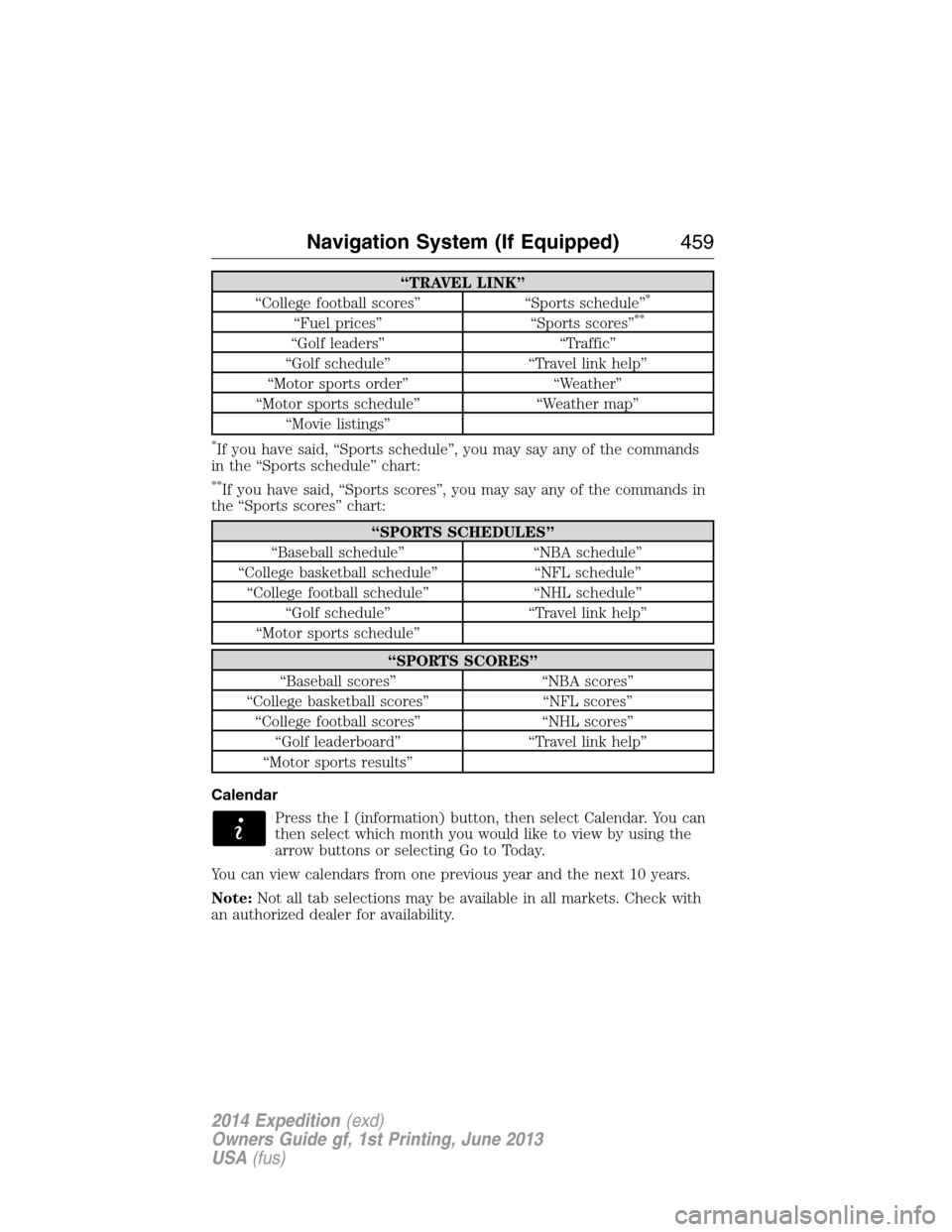
“TRAVEL LINK”
“College football scores” “Sports schedule”*
“Fuel prices” “Sports scores”**
“Golf leaders” “Traffic”
“Golf schedule” “Travel link help”
“Motor sports order” “Weather”
“Motor sports schedule” “Weather map”
“Movie listings”
*If you have said, “Sports schedule”, you may say any of the commands
in the “Sports schedule” chart:
**If you have said, “Sports scores”, you may say any of the commands in
the “Sports scores” chart:
“SPORTS SCHEDULES”
“Baseball schedule” “NBA schedule”
“College basketball schedule” “NFL schedule”
“College football schedule” “NHL schedule”
“Golf schedule” “Travel link help”
“Motor sports schedule”
“SPORTS SCORES”
“Baseball scores” “NBA scores”
“College basketball scores” “NFL scores”
“College football scores” “NHL scores”
“Golf leaderboard” “Travel link help”
“Motor sports results”
Calendar
Press the I (information) button, then select Calendar. You can
then select which month you would like to view by using the
arrow buttons or selecting Go to Today.
You can view calendars from one previous year and the next 10 years.
Note:Not all tab selections may be available in all markets. Check with
an authorized dealer for availability.
Navigation System (If Equipped)459
2014 Expedition(exd)
Owners Guide gf, 1st Printing, June 2013
USA(fus)
Page 461 of 519
System Information
Press the I (information) button, then select System
Information.
In this screen, you can view the following options:
•Phone number for your Customer Service Center
•Current system versions installed
•Current Sirius Radio ESN
•Sirius Travel Link ESN.
Note:Not all tab selections may be available in all markets. Check with
an authorized dealer for availability.
Help
The Help screen allows you to view basic information about controls and
driving restrictions as well as traffic legend information and basic voice
commands available in various modes.
If you select: You can:
Basic OperationView hard buttons on your navigation system.
Press the desired icon to view the button
description.
Driving RestrictionView the system’s driving restriction.
Traffic LegendView the color code for the Speed and Flow
of roads on the navigation system. You can
also select Traffic Incidents to help you
differentiate between viewed and unviewed
incidents.
Voice CommandsView a brief listing of possible voice
commands in a specific mode.
460Navigation System (If Equipped)
2014 Expedition(exd)
Owners Guide gf, 1st Printing, June 2013
USA(fus)
Page 475 of 519
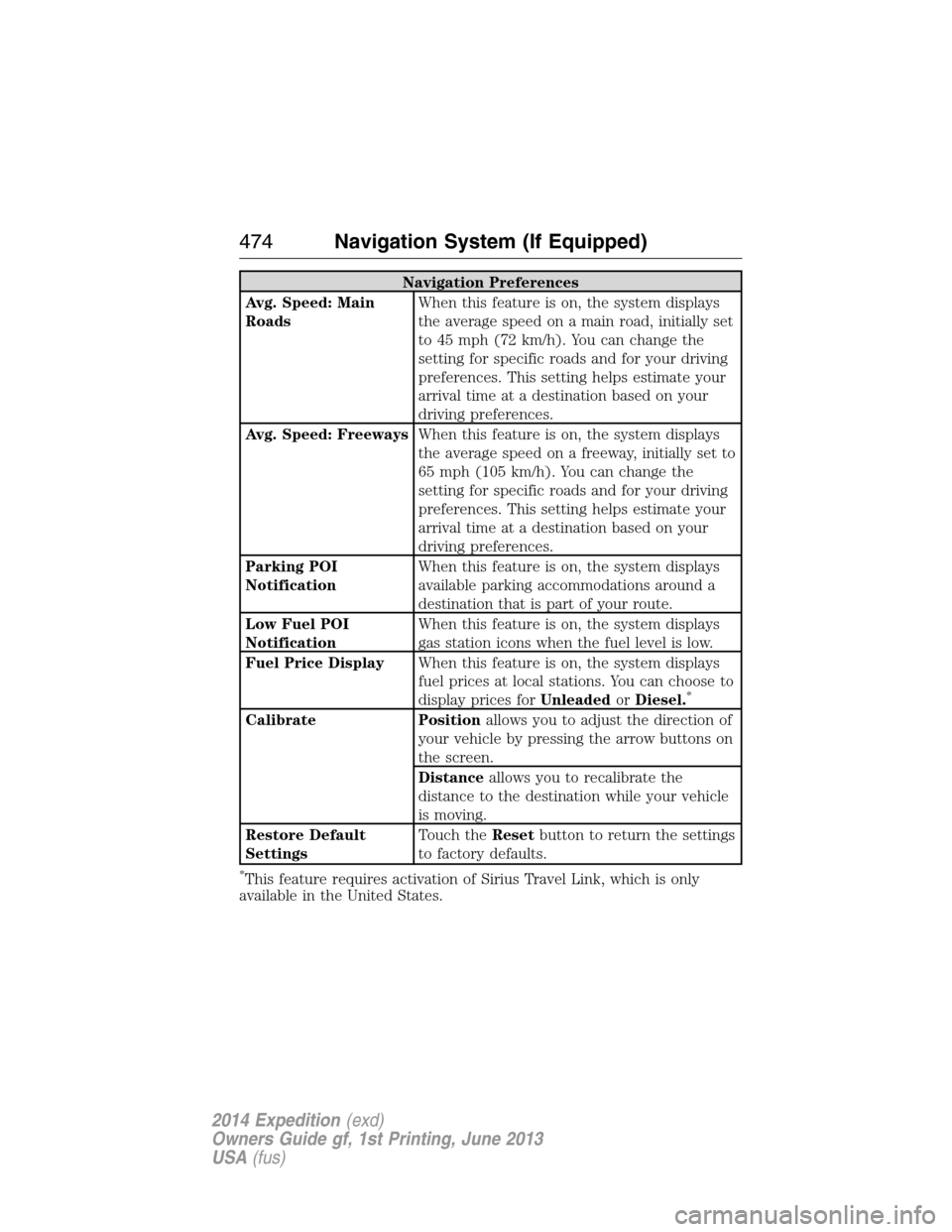
Navigation Preferences
Avg. Speed: Main
RoadsWhen this feature is on, the system displays
the average speed on a main road, initially set
to 45 mph (72 km/h). You can change the
setting for specific roads and for your driving
preferences. This setting helps estimate your
arrival time at a destination based on your
driving preferences.
Avg. Speed: FreewaysWhen this feature is on, the system displays
the average speed on a freeway, initially set to
65 mph (105 km/h). You can change the
setting for specific roads and for your driving
preferences. This setting helps estimate your
arrival time at a destination based on your
driving preferences.
Parking POI
NotificationWhen this feature is on, the system displays
available parking accommodations around a
destination that is part of your route.
Low Fuel POI
NotificationWhen this feature is on, the system displays
gas station icons when the fuel level is low.
Fuel Price DisplayWhen this feature is on, the system displays
fuel prices at local stations. You can choose to
display prices forUnleadedorDiesel.
*
Calibrate Positionallows you to adjust the direction of
your vehicle by pressing the arrow buttons on
the screen.
Distanceallows you to recalibrate the
distance to the destination while your vehicle
is moving.
Restore Default
SettingsTouch theResetbutton to return the settings
to factory defaults.
*This feature requires activation of Sirius Travel Link, which is only
available in the United States.
474Navigation System (If Equipped)
2014 Expedition(exd)
Owners Guide gf, 1st Printing, June 2013
USA(fus)
Page 478 of 519
Map Scale
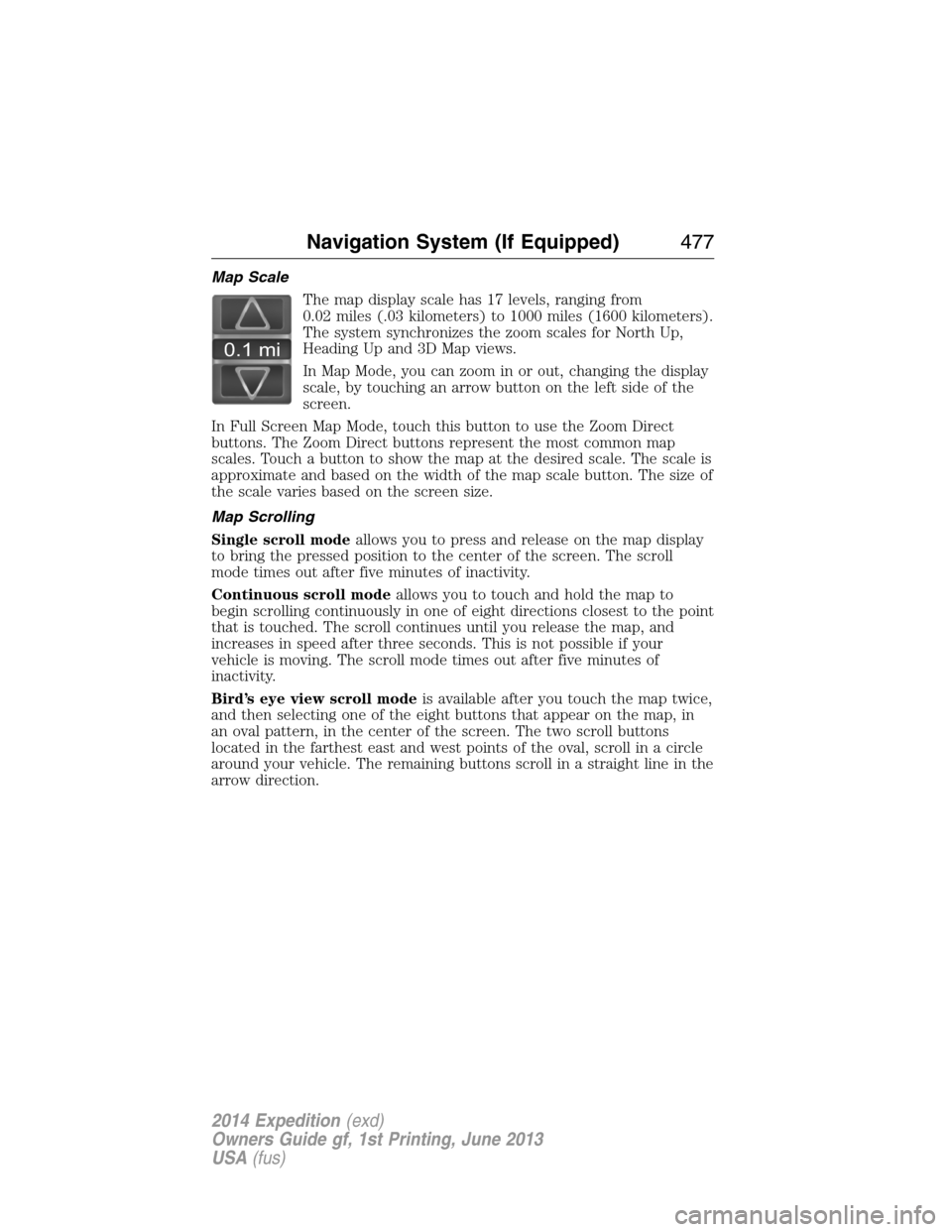
The map display scale has 17 levels, ranging from
0.02 miles (.03 kilometers) to 1000 miles (1600 kilometers).
The system synchronizes the zoom scales for North Up,
Heading Up and 3D Map views.
In Map Mode, you can zoom in or out, changing the display
scale, by touching an arrow button on the left side of the
screen.
In Full Screen Map Mode, touch this button to use the Zoom Direct
buttons. The Zoom Direct buttons represent the most common map
scales. Touch a button to show the map at the desired scale. The scale is
approximate and based on the width of the map scale button. The size of
the scale varies based on the screen size.
Map Scrolling
Single scroll modeallows you to press and release on the map display
to bring the pressed position to the center of the screen. The scroll
mode times out after five minutes of inactivity.
Continuous scroll modeallows you to touch and hold the map to
begin scrolling continuously in one of eight directions closest to the point
that is touched. The scroll continues until you release the map, and
increases in speed after three seconds. This is not possible if your
vehicle is moving. The scroll mode times out after five minutes of
inactivity.
Bird’s eye view scroll modeis available after you touch the map twice,
and then selecting one of the eight buttons that appear on the map, in
an oval pattern, in the center of the screen. The two scroll buttons
located in the farthest east and west points of the oval, scroll in a circle
around your vehicle. The remaining buttons scroll in a straight line in the
arrow direction.
0.1 mi
Navigation System (If Equipped)477
2014 Expedition(exd)
Owners Guide gf, 1st Printing, June 2013
USA(fus)
Page 479 of 519
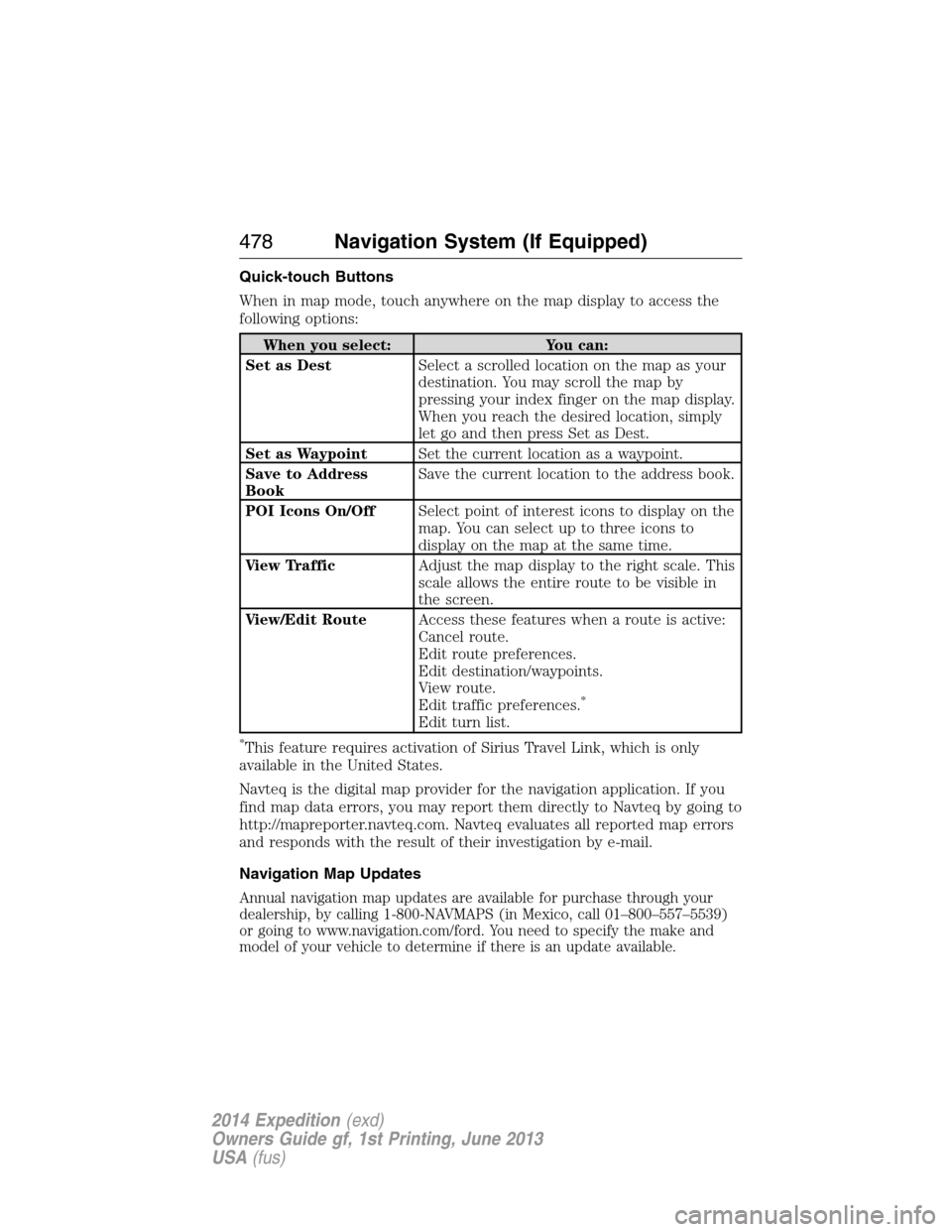
Quick-touch Buttons
When in map mode, touch anywhere on the map display to access the
following options:
When you select: You can:
Set as DestSelect a scrolled location on the map as your
destination. You may scroll the map by
pressing your index finger on the map display.
When you reach the desired location, simply
let go and then press Set as Dest.
Set as WaypointSet the current location as a waypoint.
Save to Address
BookSave the current location to the address book.
POI Icons On/OffSelect point of interest icons to display on the
map. You can select up to three icons to
display on the map at the same time.
View TrafficAdjust the map display to the right scale. This
scale allows the entire route to be visible in
the screen.
View/Edit RouteAccess these features when a route is active:
Cancel route.
Edit route preferences.
Edit destination/waypoints.
View route.
Edit traffic preferences.
*
Edit turn list.
*This feature requires activation of Sirius Travel Link, which is only
available in the United States.
Navteq is the digital map provider for the navigation application. If you
find map data errors, you may report them directly to Navteq by going to
http://mapreporter.navteq.com. Navteq evaluates all reported map errors
and responds with the result of their investigation by e-mail.
Navigation Map Updates
Annual navigation map updates are available for purchase through your
dealership, by calling 1-800-NAVMAPS (in Mexico, call 01–800–557–5539)
or going to www.navigation.com/ford. You need to specify the make and
model of your vehicle to determine if there is an update available.
478Navigation System (If Equipped)
2014 Expedition(exd)
Owners Guide gf, 1st Printing, June 2013
USA(fus)
Page 516 of 519
Lubricant specifications ...........337
Lug nuts ....................................335
M
MAP DVD - Loading and
Unloading ..................................370
Map icons ..................................475
Map mode ..................................475
Map updates ..............................478
Master lighting switch ................87
Media Bluetooth menu options
(adding, connecting, deleting,
turning on/off) ..........................417
Message center .................106, 111
system check button ..............108
warning messages ...................116
Mirrors ...................................93, 96
fold away ...................................93
programmable memory ............58
side view mirrors (power) .......93
signal ...................................94–95
Moon roof ....................................98
Motorcraft® parts .............293, 341
MyKey ..........................................60
N
Navigation end user license
agreement ..................................489
Navigation features ...................461
O
Octane rating ............................176
P
Pairing other phones ................387Pairing your phone for the
first time ....................................386
Parental MyKey programming ...60
Parking brake ............................201
Parts
(see Motorcraft® parts) ..........341
Phone Bluetooth menu options
(adding, connecting, deleting,
turning on/off) ..........................397
Phone redial ..............................391
Playing a DVD in the system ...370
Playing music (by artist,
album, genre, playlist, tracks,
similar) ......................................415
POI categories ...........................470
Point of Interest (POI) .............470
Power deployable running
boards ........................................224
Power distribution box
(see Fuses) .......................261, 265
Power door locks ........................67
Power liftgate ..............................72
Power mirrors .............................93
Powerpoint ................................164
Power steering ..........................213
fluid, checking and adding ....278
fluid, refill capacity ................337
fluid, specifications .................337
Power Windows ...........................92
Privacy information ..................383
Putting a call on/off hold .........389
Q
Quick touch buttons .................478
Index515
2014 Expedition(exd)
Owners Guide gf, 1st Printing, June 2013
USA(fus)