Page 130 of 476

•Notice LaneSense
• By selecting this function, you can select the �readi-
ness� of LaneSense, choosing between the options
�Near,�� Medium,� or�Far.�
• Intensity LaneSense
• Using this function, you can select the force applied
to the steering wheel to keep the car in the roadway
through the electrical drive system due to LaneSense.
Audio
This menu item allows you to view the instrument
cluster display and the information present on the
display of the Uconnect system.
The information displayed is:
• “Radio (AM or FM)”
• View Radio Station Name (if equipped), frequency,
and graphical icon
• �MP3”
• Title display or number song playing
• �USB�
• Title display or number song playing
• �Ipod�
• Display the song title and graphic element. •
Bluetooth Displays the song title and a graphic
element.
• SAT displays the station name and a graphic ele-
ment.
• AUX displays graphic element.
• APP displays strings and a graphic element.
Messages (Stored)
This menu item allows you to display the information
messages/malfunction stored.
The background color of the display varies according to
the priorities of the failure:
• Failed Messages with low priority displays in yellow
• Failed Messages with high priority displays in red
Settings
This menu item allows you to change the settings for
the following:
•Display
• Units
• Clock and Date
• Security
128 GETTING TO KNOW YOUR INSTRUMENT PANEL
Page 315 of 476
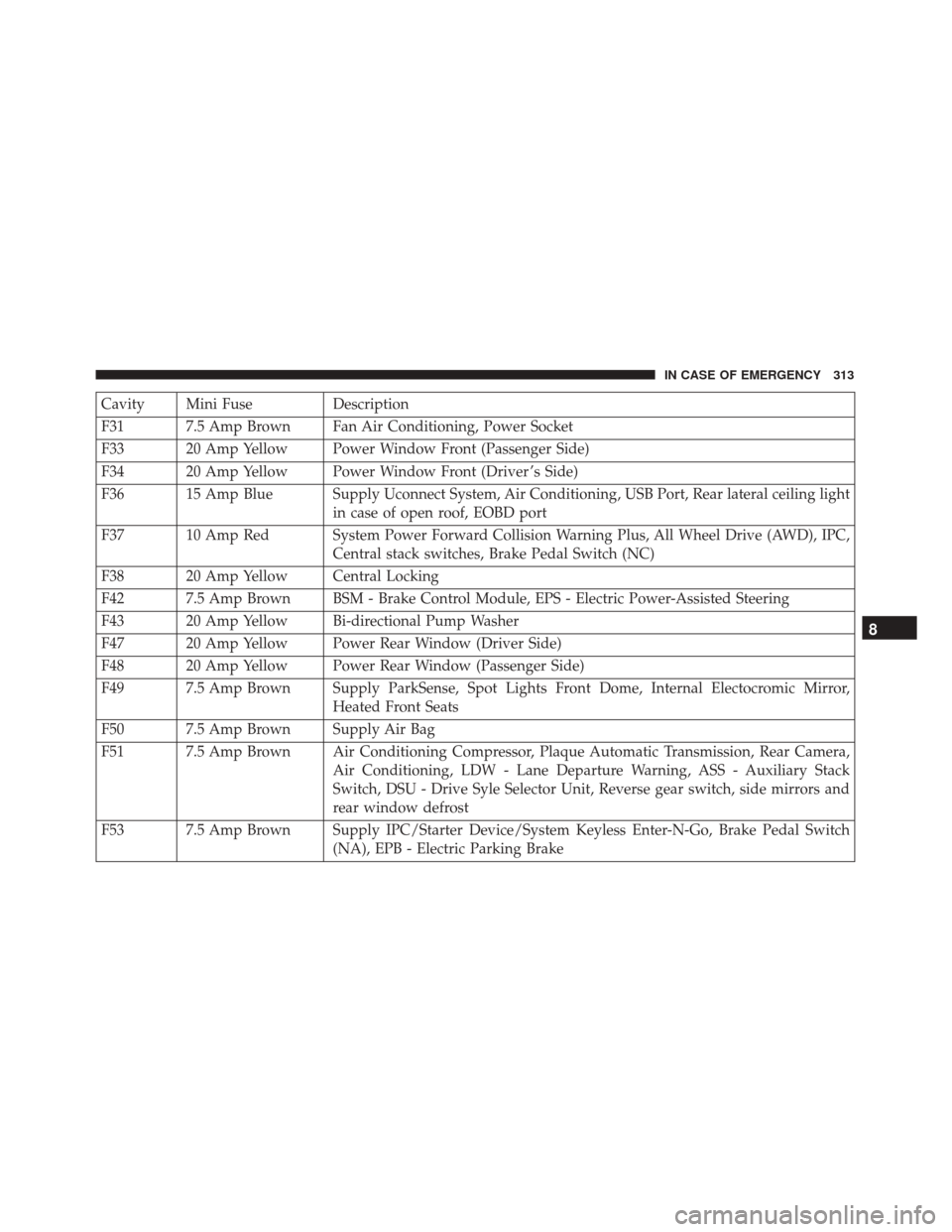
Cavity Mini FuseDescription
F31 7.5 Amp Brown Fan Air Conditioning, Power Socket
F33 20 Amp Yellow Power Window Front (Passenger Side)
F34 20 Amp Yellow Power Window Front (Driver ’s Side)
F36 15 Amp Blue Supply Uconnect System, Air Conditioning, USB Port, Rear lateral ceiling light in case of open roof, EOBD port
F37 10 Amp Red System Power Forward Collision Warning Plus, All Wheel Drive (AWD), IPC, Central stack switches, Brake Pedal Switch (NC)
F38 20 Amp Yellow Central Locking
F42 7.5 Amp Brown BSM - Brake Control Module, EPS - Electric Power-Assisted Steering
F43 20 Amp Yellow Bi-directional Pump Washer
F47 20 Amp Yellow Power Rear Window (Driver Side)
F48 20 Amp Yellow Power Rear Window (Passenger Side)
F49 7.5 Amp Brown Supply ParkSense, Spot Lights Front Dome, Internal Electocromic Mirror, Heated Front Seats
F50 7.5 Amp Brown Supply Air Bag
F51 7.5 Amp Brown Air Conditioning Compressor, Plaque Automatic Transmission, Rear Camera, Air Conditioning, LDW - Lane Departure Warning, ASS - Auxiliary Stack
Switch, DSU - Drive Syle Selector Unit, Reverse gear switch, side mirrors and
rear window defrost
F53 7.5 Amp Brown Supply IPC/Starter Device/System Keyless Enter-N-Go, Brake Pedal Switch (NA), EPB - Electric Parking Brake
8
IN CASE OF EMERGENCY 313
Page 428 of 476
Audio
After pressing the “Audio” button on the touchscreen,
the following settings will be available:
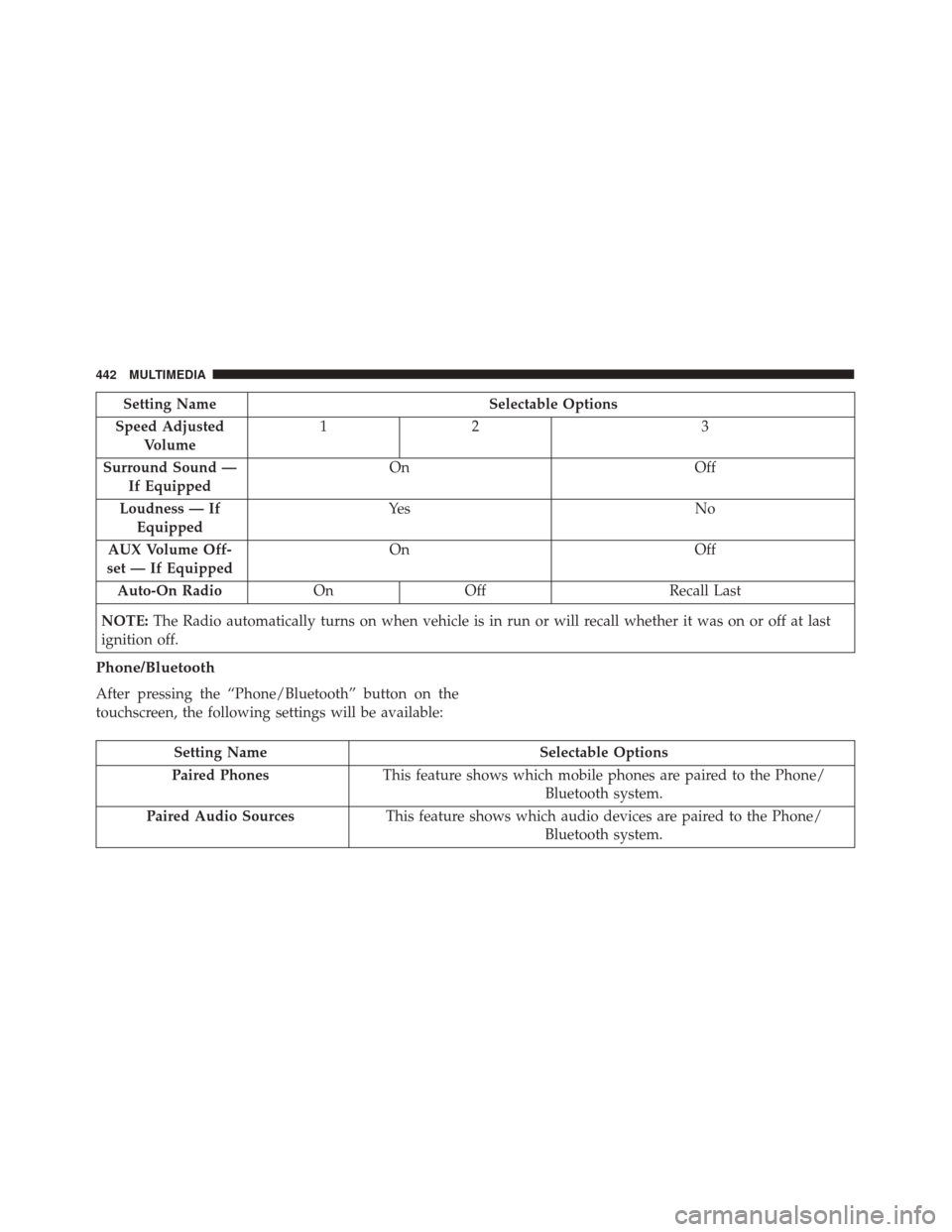
Setting NameSelectable Options
Equalizer +–
NOTE: Bass/Mid/Treble allow you to simply slide your finger up or down to change the setting as well as
press directly on the desired setting.
Balance/Fade When in this display you may adjust the Balance and Fade settings.
Speed Adjusted Volume 12
3
Surround Sound — If Equipped On
Off
Loudness — If Equipped Ye s
N o
AUX Volume Off-
set — If Equipped On
Off
Auto-On Radio OnOff Recall Last
NOTE: The Radio automatically turns on when vehicle is in run or will recall whether it was on or off at last
ignition off.
426 MULTIMEDIA
Page 444 of 476
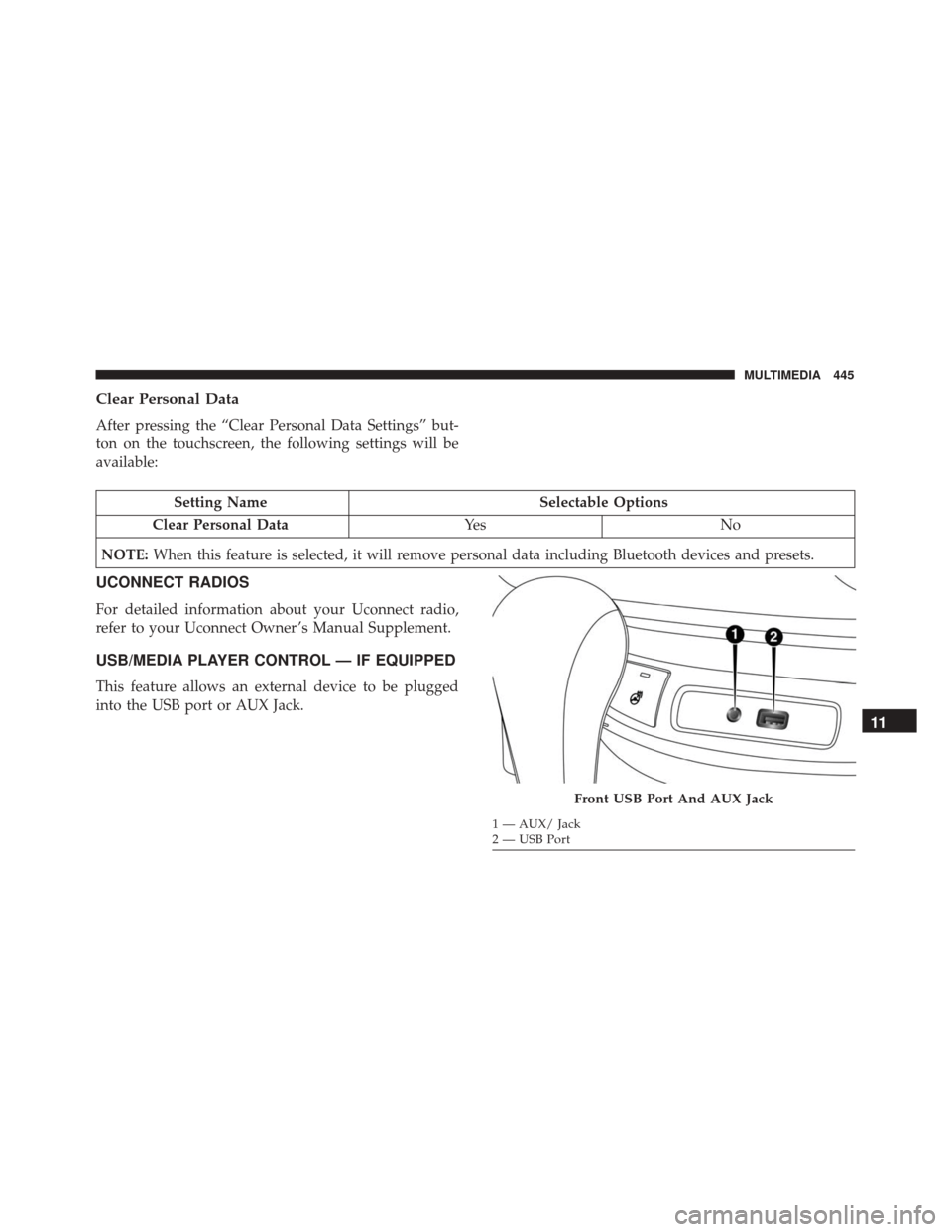
Setting NameSelectable Options
Speed Adjusted Volume 12
3
Surround Sound — If Equipped On
Off
Loudness — If Equipped Ye s
N o
AUX Volume Off-
set — If Equipped On
Off
Auto-On Radio OnOff Recall Last
NOTE: The Radio automatically turns on when vehicle is in run or will recall whether it was on or off at last
ignition off.
Phone/Bluetooth
After pressing the “Phone/Bluetooth” button on the
touchscreen, the following settings will be available:
Setting Name Selectable Options
Paired Phones This feature shows which mobile phones are paired to the Phone/
Bluetooth system.
Paired Audio Sources This feature shows which audio devices are paired to the Phone/
Bluetooth system.
442 MULTIMEDIA
Page 447 of 476
Clear Personal Data
After pressing the “Clear Personal Data Settings” but-
ton on the touchscreen, the following settings will be
available:
Setting NameSelectable Options
Clear Personal Data Ye sN o
NOTE: When this feature is selected, it will remove personal data including Bluetooth devices and presets.
UCONNECT RADIOS
For detailed information about your Uconnect radio,
refer to your Uconnect Owner ’s Manual Supplement.
USB/MEDIA PLAYER CONTROL — IF EQUIPPED
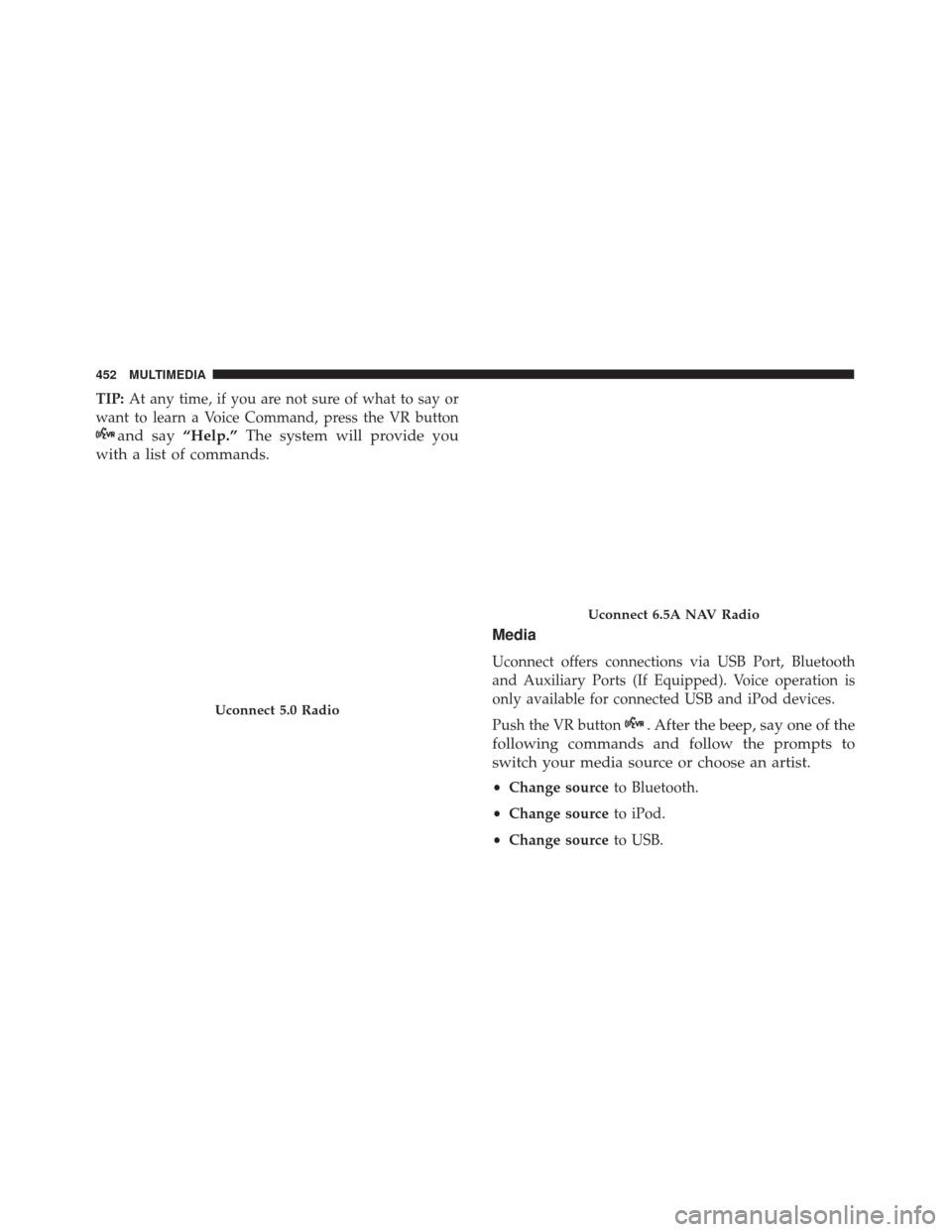
This feature allows an external device to be plugged
into the USB port or AUX Jack.
Front USB Port And AUX Jack
1 — AUX/ Jack
2 — USB Port
11
MULTIMEDIA 445
Page 448 of 476
Located below the heating ventilation and air condi-
tioning controls is the front USB port and AUX jack.
Refer to the Uconnect Owner ’s Manual Supplement for
external USB support capability.
Center Console USB Port
Located in the center console is a second USB port.
NOTE:Depending on vehicle configuration, the USB
port may be charge only, or media file capable.STEERING WHEEL AUDIO CONTROLS
The remote sound system controls are located at the
rear of the steering wheel. Reach behind the wheel to
access the switches.
The right-hand control is a rocker-type switch with a
pushbutton in the center and controls the volume and
mode of the sound system. Pushing the top of the
rocker switch will increase the volume, and pushing the
bottom of the rocker switch will decrease the volume.
Pushing the center button will make the radio switch
between the various modes available (AM/FM/SAT/
Center Console USB (Charge Only) Port — If Equipped
Remote Sound System Controls (Back View Of
Steering Wheel)
446 MULTIMEDIA
Page 449 of 476
AUX/Media Player, etc.) and can also be used to
select/enter an item while scrolling through menu.
The left-hand control is a rocker-type switch with a
pushbutton in the center. The function of the left-hand
control is different depending on which mode you are
in.
The following describes the left-hand control operation
in each mode.
Radio Operation
Pushing the top of the switch will “Seek” up for the next
listenable station and pushing the bottom of the switch
will “Seek” down for the next listenable station.
The button located in the center of the left-hand control
will tune to the next preset station that you have
programmed in the radio preset button.
Media Mode
Pushing the top of the switch once will go to the next
track on the selected media (USB, Bluetooth). Pushing
the bottom of the switch once will go to the beginning
of the current track, or to the beginning of the previous
track if it is within eight seconds after the current track
begins to play.If you push the switch up or down twice, it plays the
second track; three times, it will play the third, etc.
RADIO OPERATION AND MOBILE DEVICES
Under certain conditions, an “on” mobile device in your
vehicle can cause erratic or noisy performance from
your radio. This condition may be lessened or elimi-
nated by relocating the mobile device antenna. This
condition is not harmful to the radio. If your radio
performance does not satisfactorily “clear” by the repo-
sitioning of the antenna, it is recommended that the
radio volume be turned down or off during mobile
device operation when not using Uconnect (if
equipped).
Regulatory And Safety Information
USA/CANADA
Exposure to Radio Frequency Radiation
The radiated output power of the internal wireless
radio is far below the FCC radio frequency exposure
limits. Nevertheless, the wireless radio will be used in
such a manner that the radio is 8 inches (20 centimeters)
or further from the human body.
11
MULTIMEDIA 447
Page 454 of 476
TIP:At any time, if you are not sure of what to say or
want to learn a Voice Command, press the VR button
and say “Help.”The system will provide you
with a list of commands.
Media
Uconnect offers connections via USB Port, Bluetooth
and Auxiliary Ports (If Equipped). Voice operation is
only available for connected USB and iPod devices.
Push the VR button
. After the beep, say one of the
following commands and follow the prompts to
switch your media source or choose an artist.
• Change source to Bluetooth.
• Change source to iPod.
• Change source to USB.
Uconnect 5.0 Radio
Uconnect 6.5A NAV Radio
452 MULTIMEDIA