Page 429 of 476
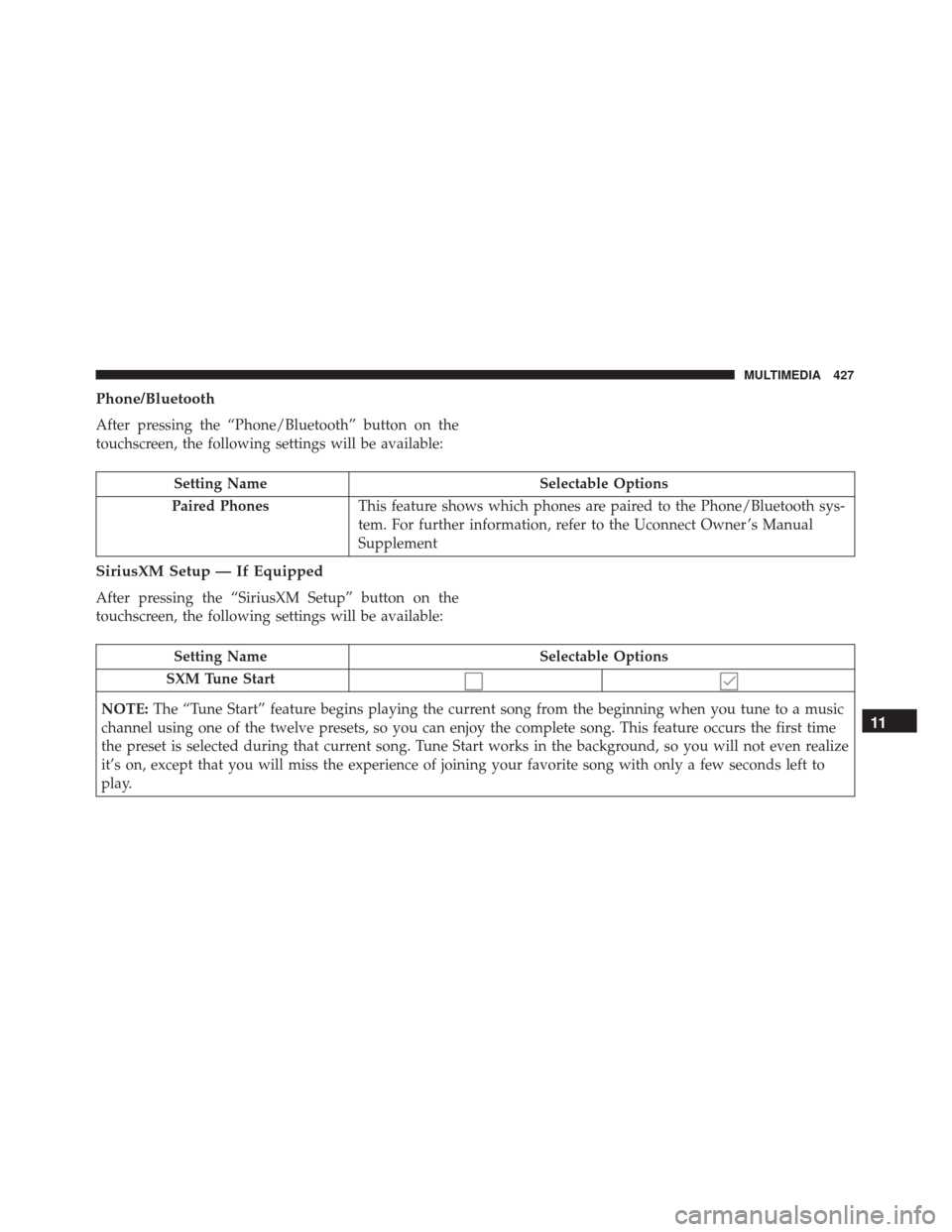
Phone/Bluetooth
After pressing the “Phone/Bluetooth” button on the
touchscreen, the following settings will be available:
Setting NameSelectable Options
Paired Phones This feature shows which phones are paired to the Phone/Bluetooth sys-
tem. For further information, refer to the Uconnect Owner ’s Manual
Supplement
SiriusXM Setup — If Equipped
After pressing the “SiriusXM Setup” button on the
touchscreen, the following settings will be available:
Setting Name Selectable Options
SXM Tune Start
NOTE: The “Tune Start” feature begins playing the current song from the beginning when you tune to a music
channel using one of the twelve presets, so you can enjoy the complete song. This feature occurs the first time
the preset is selected during that current song. Tune Start works in the background, so you will not even realize
it’s on, except that you will miss the experience of joining your favorite song with only a few seconds left to
play.
11
MULTIMEDIA 427
Page 431 of 476
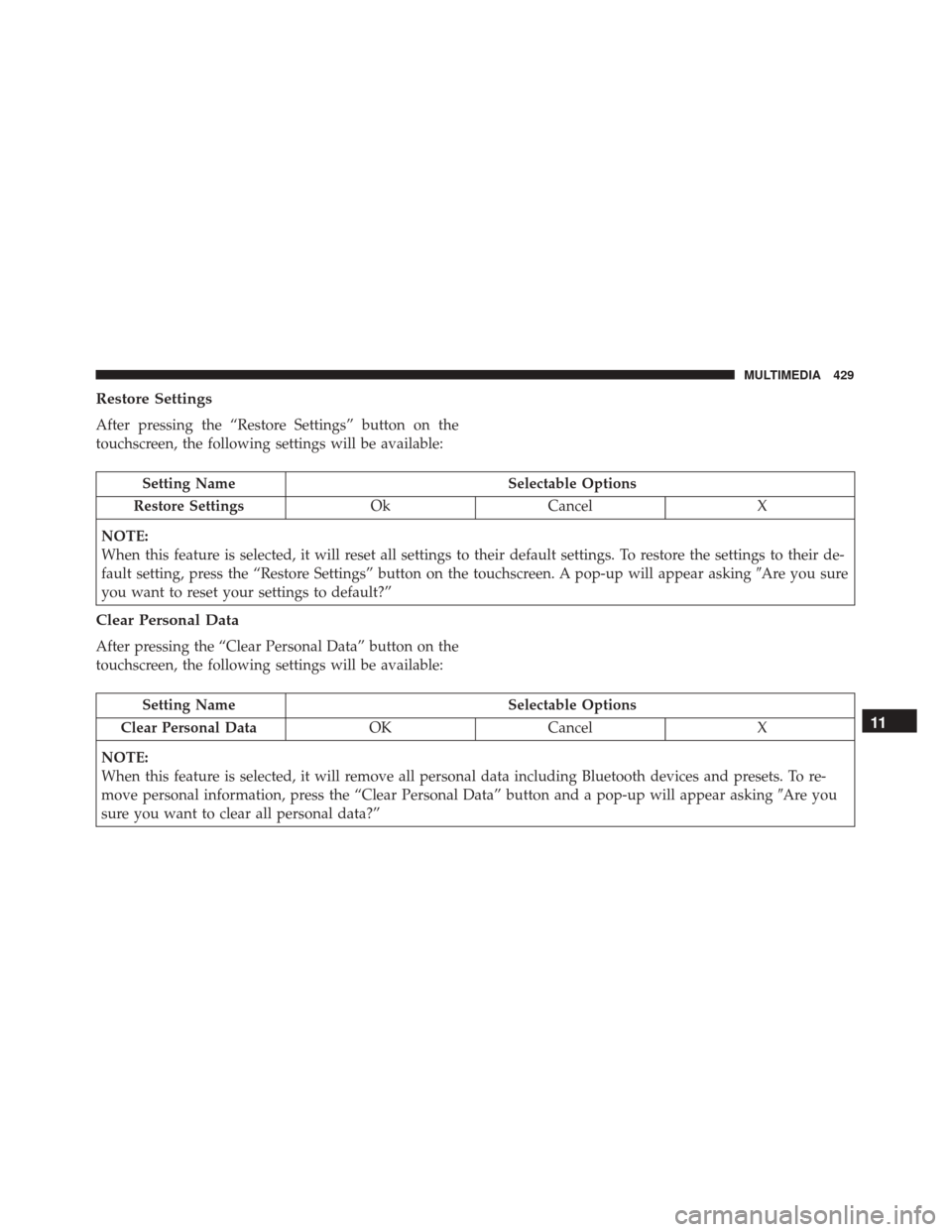
Restore Settings
After pressing the “Restore Settings” button on the
touchscreen, the following settings will be available:
Setting NameSelectable Options
Restore Settings OkCancel X
NOTE:
When this feature is selected, it will reset all settings to their default settings. To restore the settings to their de-
fault setting, press the “Restore Settings” button on the touchscreen. A pop-up will appear asking �Are you sure
you want to reset your settings to default?”
Clear Personal Data
After pressing the “Clear Personal Data” button on the
touchscreen, the following settings will be available:
Setting Name Selectable Options
Clear Personal Data OKCancel X
NOTE:
When this feature is selected, it will remove all personal data including Bluetooth devices and presets. To re-
move personal information, press the “Clear Personal Data” button and a pop-up will appear asking �Are you
sure you want to clear all personal data?”
11
MULTIMEDIA 429
Page 445 of 476
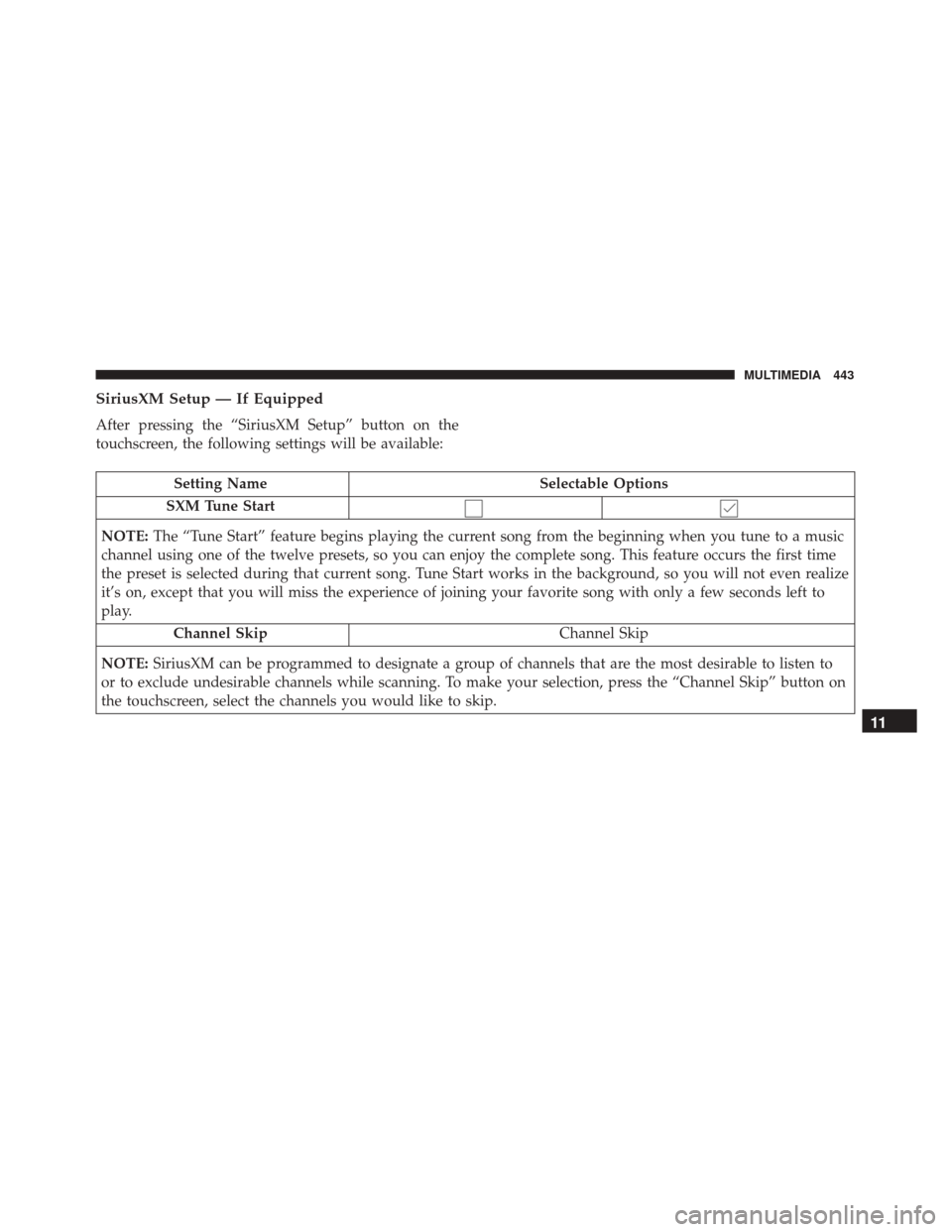
SiriusXM Setup — If Equipped
After pressing the “SiriusXM Setup” button on the
touchscreen, the following settings will be available:
Setting NameSelectable Options
SXM Tune Start
NOTE: The “Tune Start” feature begins playing the current song from the beginning when you tune to a music
channel using one of the twelve presets, so you can enjoy the complete song. This feature occurs the first time
the preset is selected during that current song. Tune Start works in the background, so you will not even realize
it’s on, except that you will miss the experience of joining your favorite song with only a few seconds left to
play.
Channel Skip Channel Skip
NOTE: SiriusXM can be programmed to designate a group of channels that are the most desirable to listen to
or to exclude undesirable channels while scanning. To make your selection, press the “Channel Skip” button on
the touchscreen, select the channels you would like to skip.
11
MULTIMEDIA 443
Page 446 of 476
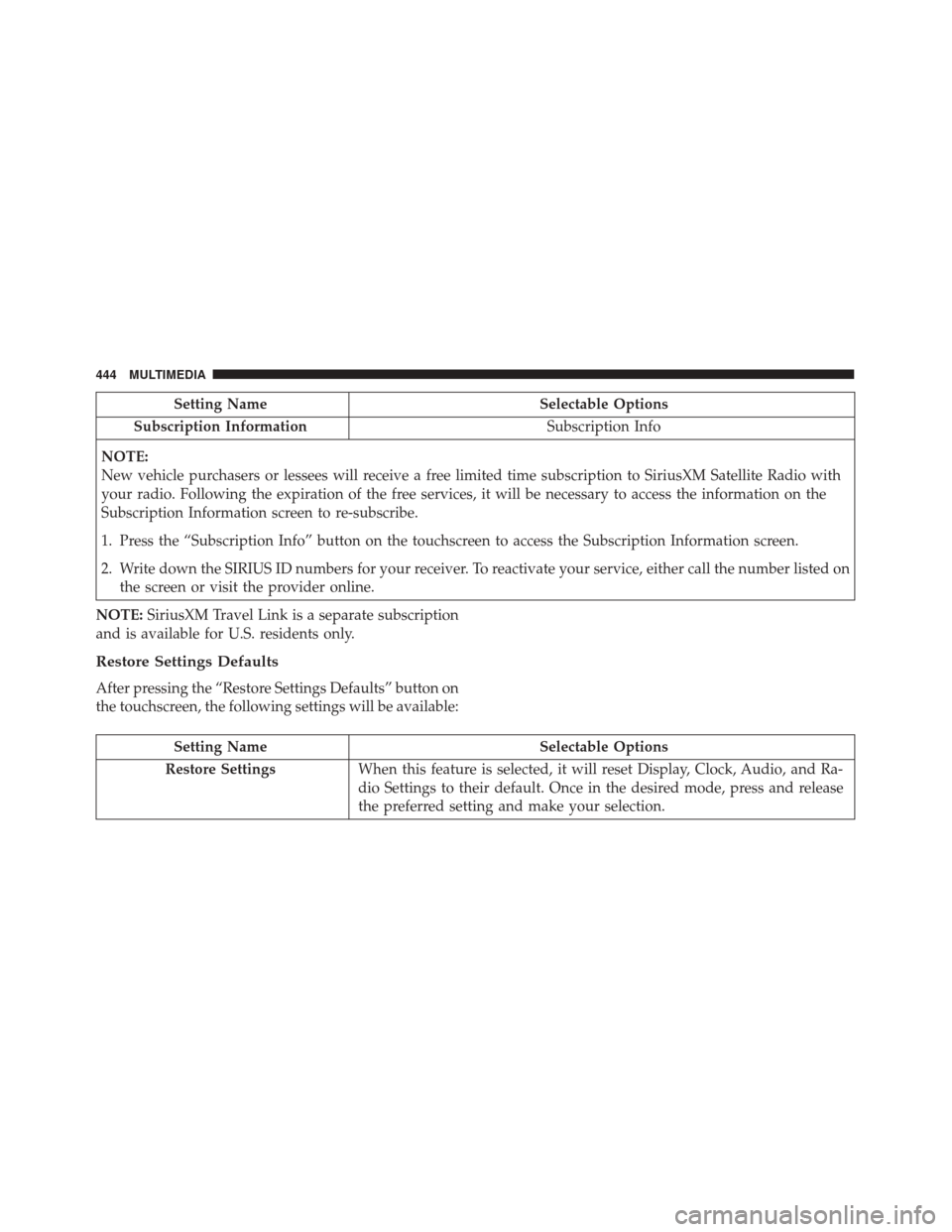
Setting NameSelectable Options
Subscription Information Subscription Info
NOTE:
New vehicle purchasers or lessees will receive a free limited time subscription to SiriusXM Satellite Radio with
your radio. Following the expiration of the free services, it will be necessary to access the information on the
Subscription Information screen to re-subscribe.
1. Press the “Subscription Info” button on the touchscreen to access the Subscription Information screen.
2. Write down the SIRIUS ID numbers for your receiver. To reactivate your service, either call the number listed on the screen or visit the provider online.
NOTE: SiriusXM Travel Link is a separate subscription
and is available for U.S. residents only.
Restore Settings Defaults
After pressing the “Restore Settings Defaults” button on
the touchscreen, the following settings will be available:
Setting Name Selectable Options
Restore Settings When this feature is selected, it will reset Display, Clock, Audio, and Ra-
dio Settings to their default. Once in the desired mode, press and release
the preferred setting and make your selection.
444 MULTIMEDIA
Page 447 of 476
Clear Personal Data
After pressing the “Clear Personal Data Settings” but-
ton on the touchscreen, the following settings will be
available:
Setting NameSelectable Options
Clear Personal Data Ye sN o
NOTE: When this feature is selected, it will remove personal data including Bluetooth devices and presets.
UCONNECT RADIOS
For detailed information about your Uconnect radio,
refer to your Uconnect Owner ’s Manual Supplement.
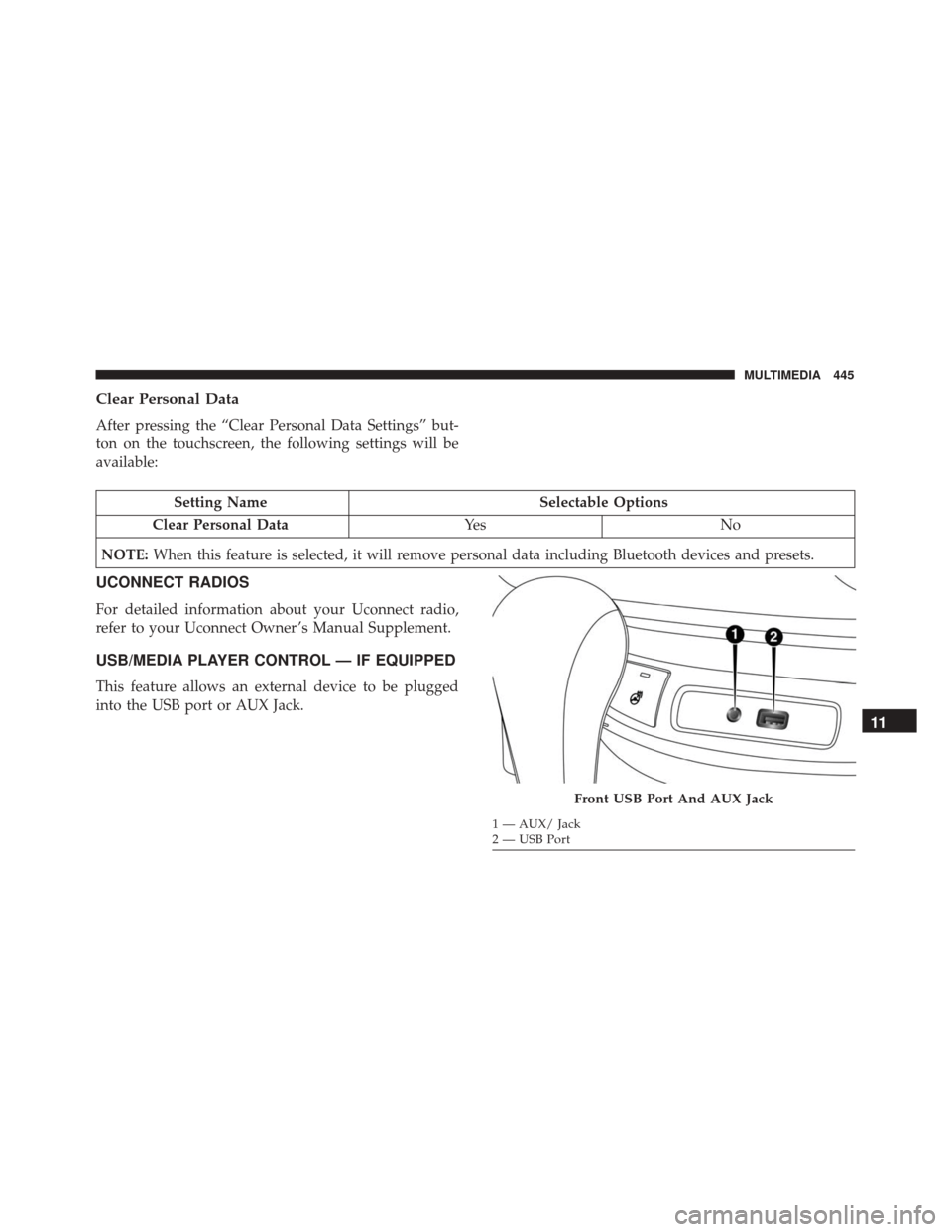
USB/MEDIA PLAYER CONTROL — IF EQUIPPED
This feature allows an external device to be plugged
into the USB port or AUX Jack.
Front USB Port And AUX Jack
1 — AUX/ Jack
2 — USB Port
11
MULTIMEDIA 445
Page 449 of 476
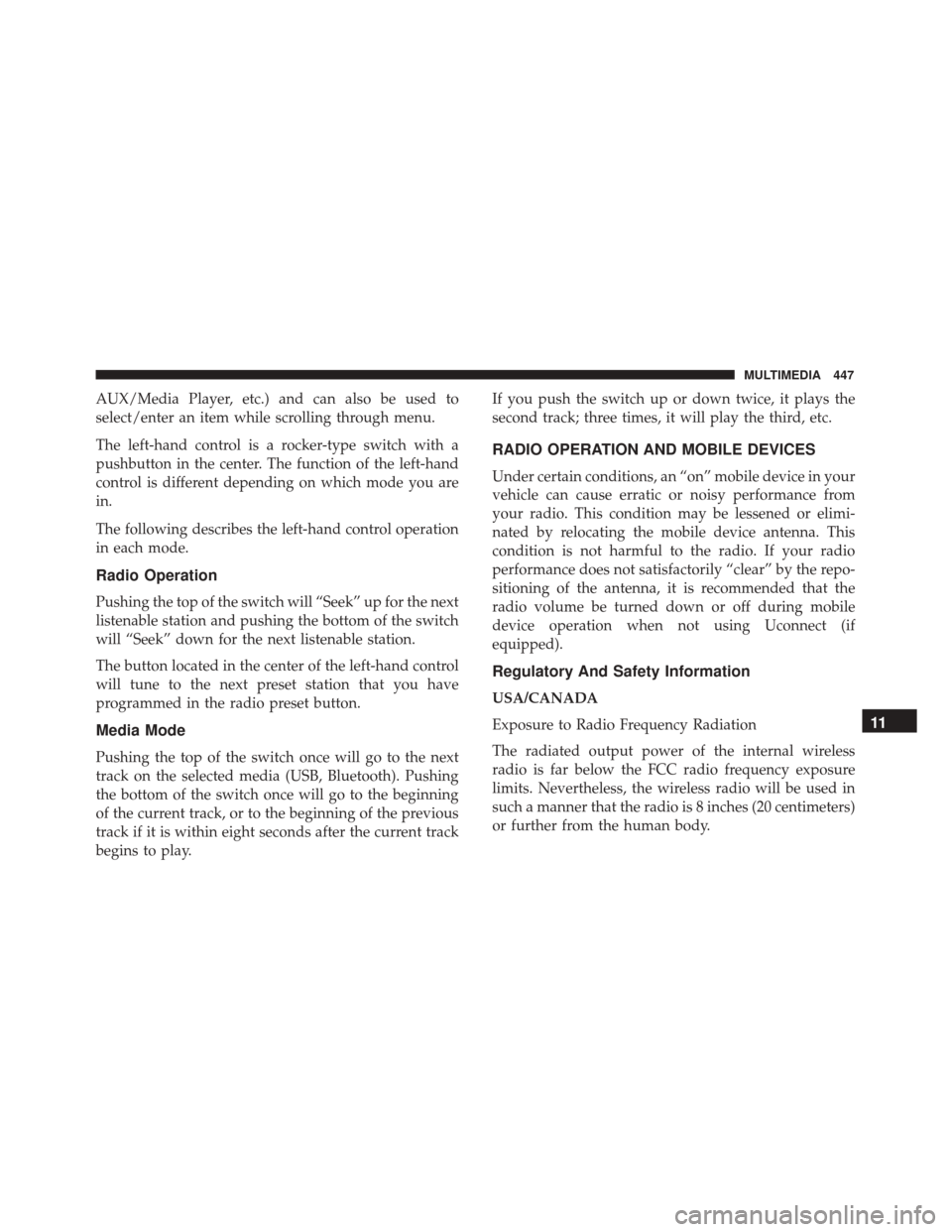
AUX/Media Player, etc.) and can also be used to
select/enter an item while scrolling through menu.
The left-hand control is a rocker-type switch with a
pushbutton in the center. The function of the left-hand
control is different depending on which mode you are
in.
The following describes the left-hand control operation
in each mode.
Radio Operation
Pushing the top of the switch will “Seek” up for the next
listenable station and pushing the bottom of the switch
will “Seek” down for the next listenable station.
The button located in the center of the left-hand control
will tune to the next preset station that you have
programmed in the radio preset button.
Media Mode
Pushing the top of the switch once will go to the next
track on the selected media (USB, Bluetooth). Pushing
the bottom of the switch once will go to the beginning
of the current track, or to the beginning of the previous
track if it is within eight seconds after the current track
begins to play.If you push the switch up or down twice, it plays the
second track; three times, it will play the third, etc.
RADIO OPERATION AND MOBILE DEVICES
Under certain conditions, an “on” mobile device in your
vehicle can cause erratic or noisy performance from
your radio. This condition may be lessened or elimi-
nated by relocating the mobile device antenna. This
condition is not harmful to the radio. If your radio
performance does not satisfactorily “clear” by the repo-
sitioning of the antenna, it is recommended that the
radio volume be turned down or off during mobile
device operation when not using Uconnect (if
equipped).
Regulatory And Safety Information
USA/CANADA
Exposure to Radio Frequency Radiation
The radiated output power of the internal wireless
radio is far below the FCC radio frequency exposure
limits. Nevertheless, the wireless radio will be used in
such a manner that the radio is 8 inches (20 centimeters)
or further from the human body.
11
MULTIMEDIA 447
Page:
< prev 1-8 9-16 17-24