Page 417 of 476
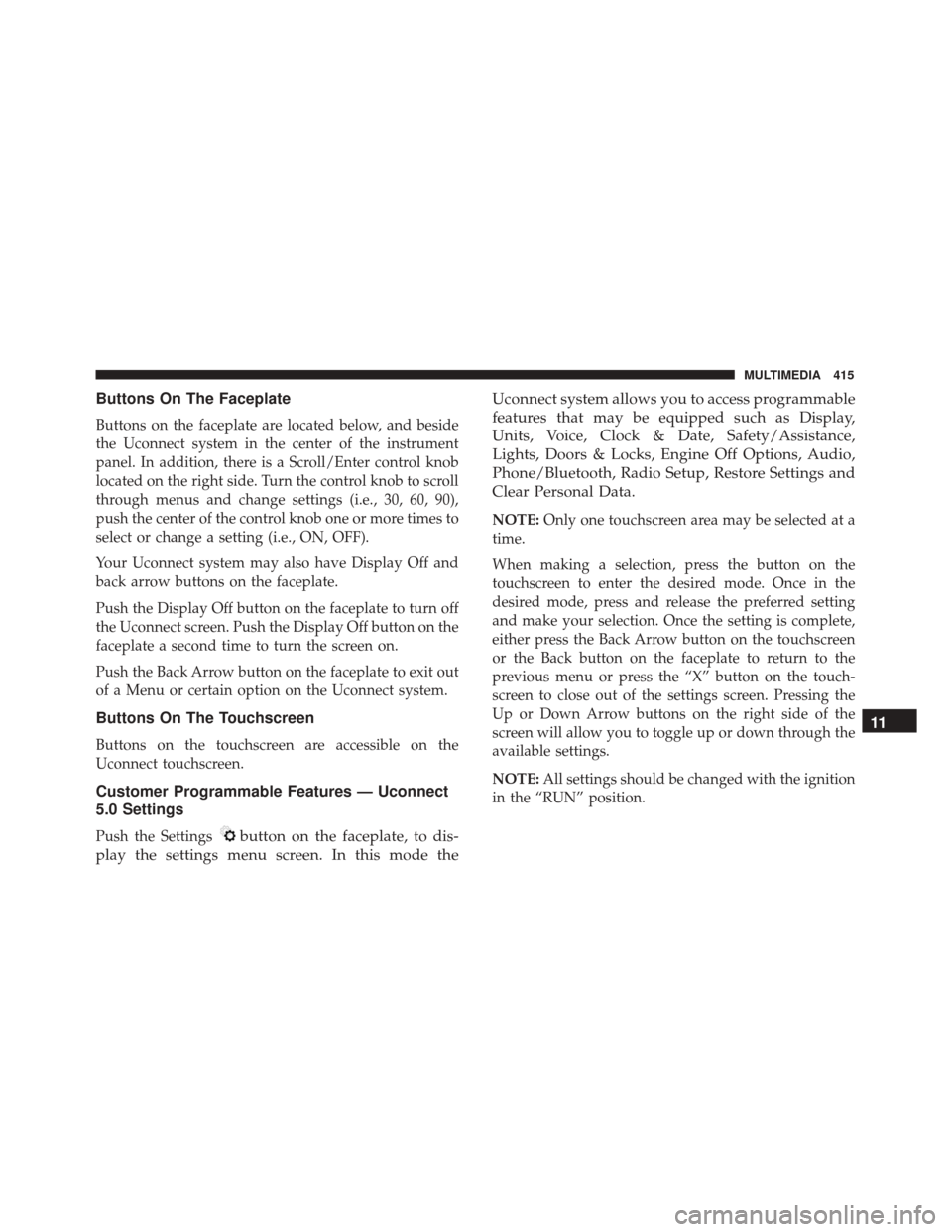
Buttons On The Faceplate
Buttons on the faceplate are located below, and beside
the Uconnect system in the center of the instrument
panel. In addition, there is a Scroll/Enter control knob
located on the right side. Turn the control knob to scroll
through menus and change settings (i.e., 30, 60, 90),
push the center of the control knob one or more times to
select or change a setting (i.e., ON, OFF).
Your Uconnect system may also have Display Off and
back arrow buttons on the faceplate.
Push the Display Off button on the faceplate to turn off
the Uconnect screen. Push the Display Off button on the
faceplate a second time to turn the screen on.
Push the Back Arrow button on the faceplate to exit out
of a Menu or certain option on the Uconnect system.
Buttons On The Touchscreen
Buttons on the touchscreen are accessible on the
Uconnect touchscreen.
Customer Programmable Features — Uconnect
5.0 Settings
Push the Settingsbutton on the faceplate, to dis-
play the settings menu screen. In this mode the Uconnect system allows you to access programmable
features that may be equipped such as Display,
Units, Voice, Clock & Date, Safety/Assistance,
Lights, Doors & Locks, Engine Off Options, Audio,
Phone/Bluetooth, Radio Setup, Restore Settings and
Clear Personal Data.
NOTE:
Only one touchscreen area may be selected at a
time.
When making a selection, press the button on the
touchscreen to enter the desired mode. Once in the
desired mode, press and release the preferred setting
and make your selection. Once the setting is complete,
either press the Back Arrow button on the touchscreen
or the Back button on the faceplate to return to the
previous menu or press the “X” button on the touch-
screen to close out of the settings screen. Pressing the
Up or Down Arrow buttons on the right side of the
screen will allow you to toggle up or down through the
available settings.
NOTE: All settings should be changed with the ignition
in the “RUN” position.
11
MULTIMEDIA 415
Page 424 of 476

Setting NameSelectable Options
Blind Spot Alert — If Equipped Off
LightsLights & Chime
NOTE:
•When this feature is selected, the Blind Spot Alert feature can be set to Off, Lights or Lights and Chime. The
Blind Spot Alert feature can be activated in Lights mode. When this mode is selected, the Blind Spot Monitor
(BSM) system is activated and will only show a visual alert in the outside mirrors. When Lights & Chime
mode is activated, the Blind Spot Monitor (BSM) will show a visual alert in the outside mirrors as well as an
audible alert when the turn signal is on. When Off is selected, the Blind Spot Monitor (BSM) system is deac-
tivated.
•If your vehicle has experienced any damage in the area where the sensor is located, even if the fascia is not
damaged, the sensor may have become misaligned. Take your vehicle to an authorized dealer to verify sen-
sor alignment. A sensor that is misaligned will result in the BSM not operating to specification.
Setting Name Selectable Options
Rain Sensing Wipers — If Equipped
NOTE: When this feature is selected, the system will automatically activate the windshield wipers if it senses
moisture on the windshield.
422 MULTIMEDIA
Page 425 of 476
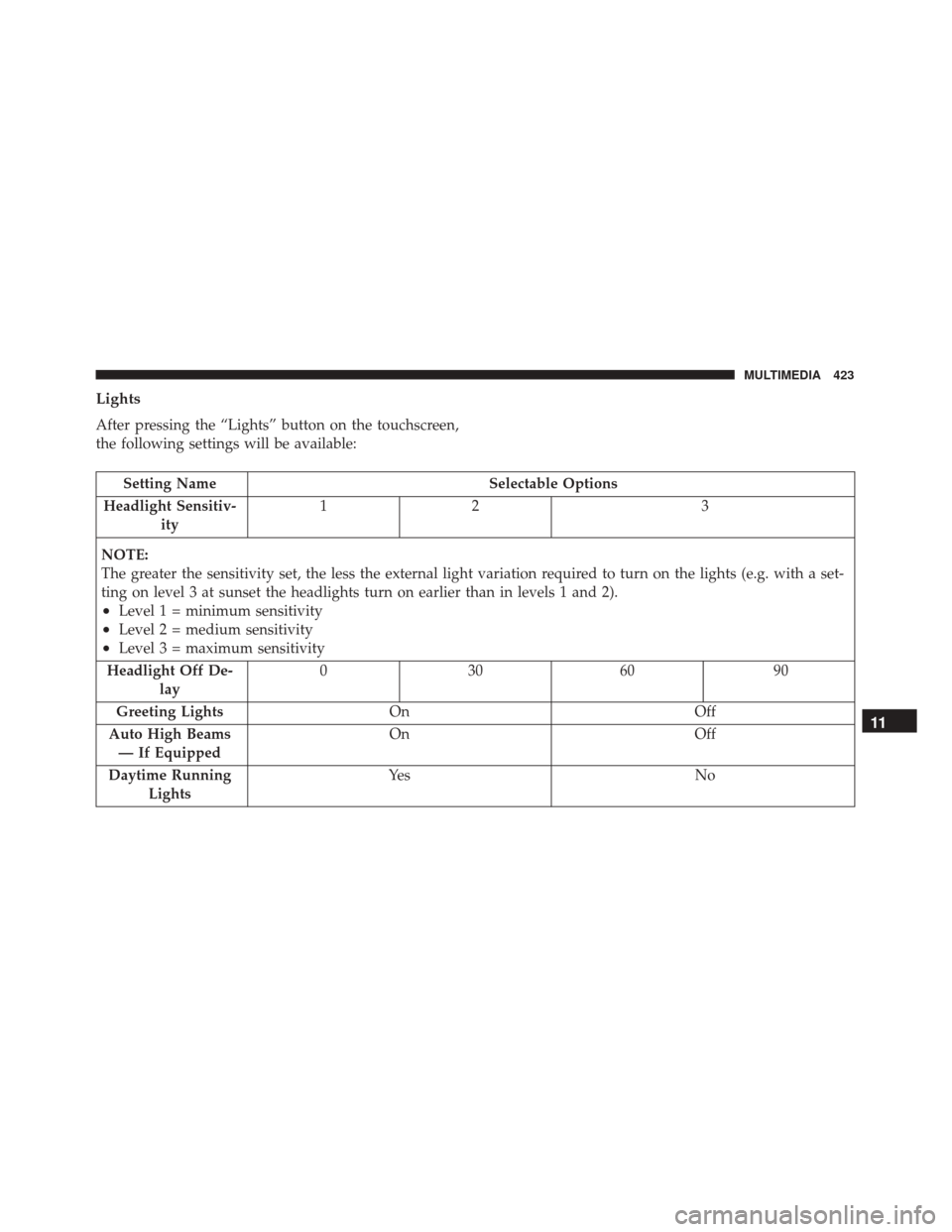
Lights
After pressing the “Lights” button on the touchscreen,
the following settings will be available:
Setting NameSelectable Options
Headlight Sensitiv- ity 12
3
NOTE:
The greater the sensitivity set, the less the external light variation required to turn on the lights (e.g. with a set-
ting on level 3 at sunset the headlights turn on earlier than in levels 1 and 2).
•Level 1 = minimum sensitivity
•Level 2 = medium sensitivity
•Level 3 = maximum sensitivity
Headlight Off De- lay 03
0609 0
Greeting Lights On Off
Auto High Beams — If Equipped On
Off
Daytime Running Lights Ye s
N o
11
MULTIMEDIA 423
Page 426 of 476
Setting NameSelectable Options
Cornering Lights On Off
Flash Lights With Lock — IfEquipped On
Off
Doors & Locks
After pressing the “Doors & Locks” button on the
touchscreen, the following settings will be available:
Setting Name Selectable Options
Auto Door Locks On Off
NOTE:
When this feature is selected, all doors will lock automatically when the vehicle reaches a speed of 12 mph
(20 km/h). Auto Unlock On Exit On Off
Flash Lights With Lock On Off
Horn With Lock Off1st Press 2nd Press
Horn With Remote Start — If Equipped On
Off
424 MULTIMEDIA
Page 427 of 476
Setting NameSelectable Options
Passive Entry On Off
Remote Door Unlock/ Door Unlock Driver
All
NOTE: When “Driver” is selected, only the driver’s door will unlock on the first push of the key fob unlock
button, you must push the key fob unlock button twice to unlock the passenger’s doors. When “All” is selected,
all of the doors will unlock on the first press of the key fob unlock button.
Engine Off Options
After pressing the “Engine Off Options” button on the
touchscreen, the following settings will be available:
Setting Name Selectable Options
Headlight Off Delay +–
NOTE: When this feature is selected, the driver can choose to have the headlights remain on for 0, 30, 60, or 90
seconds when exiting the vehicle.
Radio Off Delay 0 MIN20 MIN
11
MULTIMEDIA 425
Page 432 of 476
Customer Programmable Features — Uconnect
6.5 NAV Settings
Press the Settings button to display the menu setting
screen. In this mode the Uconnect system allows you to
access programmable features that may be equipped
such as Display, Clock, Safety & Driving Assistance,
Lights, Doors & Locks, Engine Off Options, Audio,
Phone/Bluetooth, SiriusXM Setup, Restore Settings De-
faults, Clear Personal Data and System Information.
NOTE:
•Only one touchscreen area may be selected at a time.
• Depending on the vehicles options, feature settings
may vary. When making a selection, press the button on the
touchscreen to enter the desired mode. Once in the
desired mode, press and release the preferred setting
and make your selection. Once the setting is complete,
either press the Back Arrow button on the touchscreen
to return to the previous menu, or press the “X” button
on the touchscreen to close out of the settings screen.
Pressing the Up or Down Arrow button on the right
side of the screen will allow you to toggle up or down
through the available settings.
430 MULTIMEDIA
Page 433 of 476
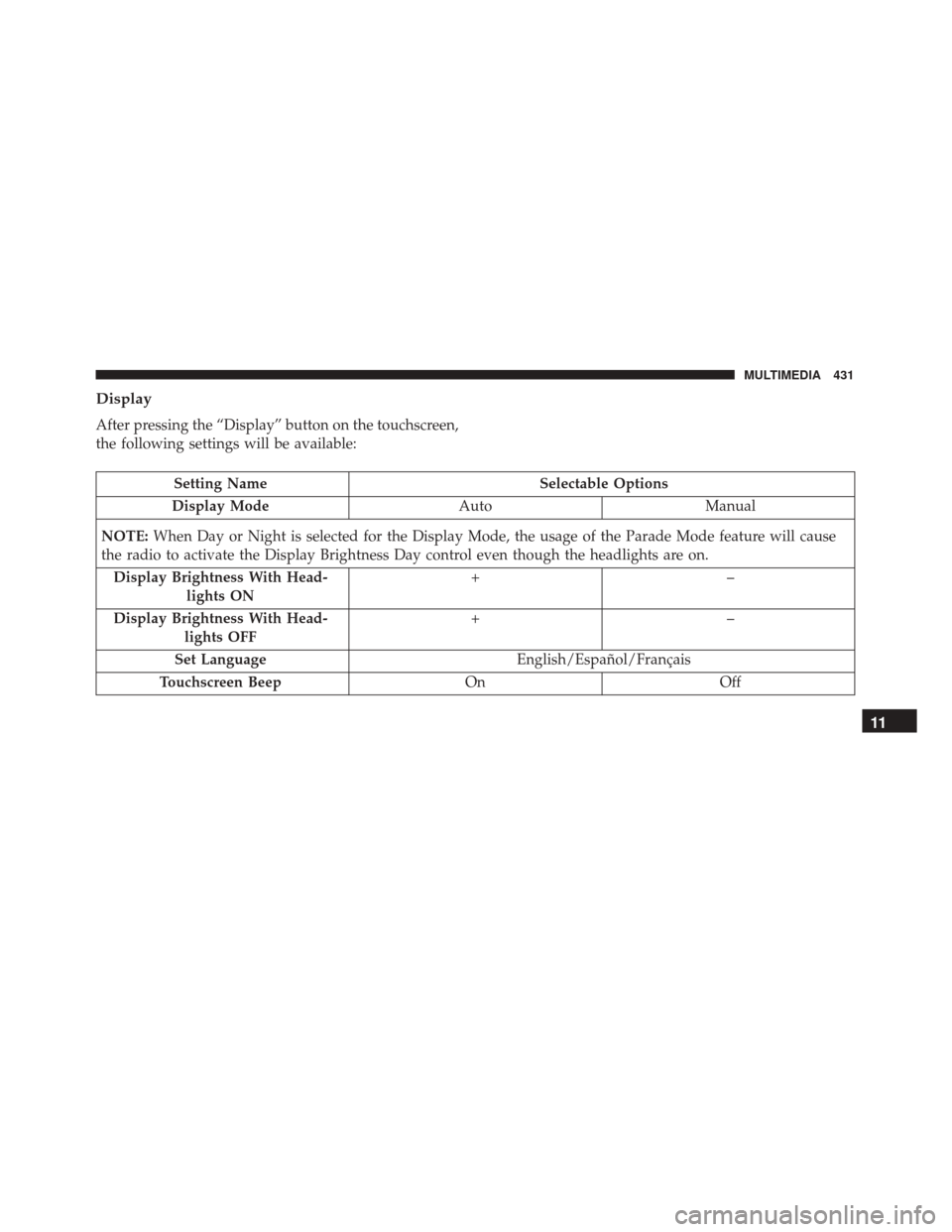
Display
After pressing the “Display” button on the touchscreen,
the following settings will be available:
Setting NameSelectable Options
Display Mode AutoManual
NOTE: When Day or Night is selected for the Display Mode, the usage of the Parade Mode feature will cause
the radio to activate the Display Brightness Day control even though the headlights are on.
Display Brightness With Head- lights ON +–
Display Brightness With Head- lights OFF +–
Set Language English/Español/Français
Touchscreen Beep OnOff
11
MULTIMEDIA 431
Page 437 of 476
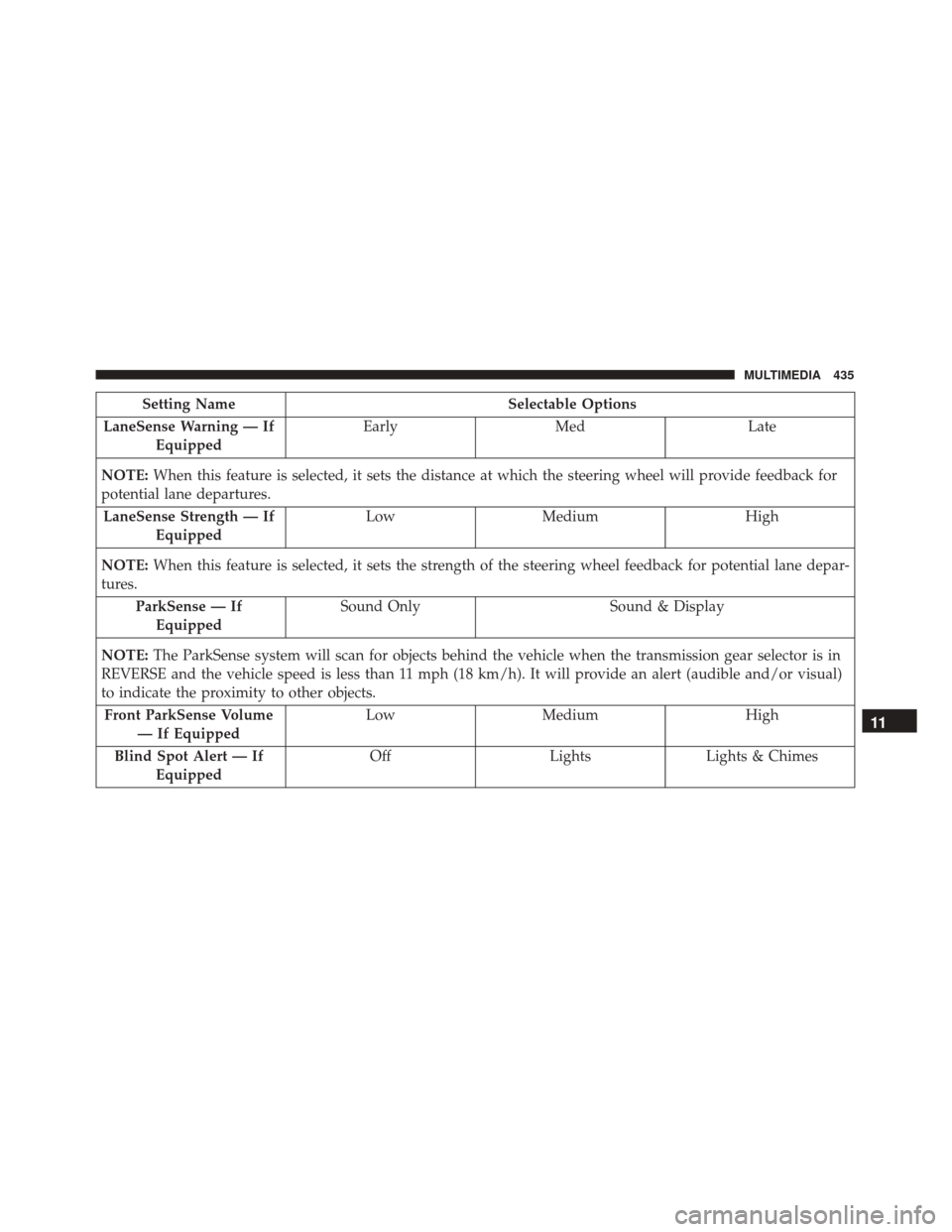
Setting NameSelectable Options
LaneSense Warning — If Equipped Early
Med Late
NOTE: When this feature is selected, it sets the distance at which the steering wheel will provide feedback for
potential lane departures.
LaneSense Strength — If Equipped Low
Medium High
NOTE: When this feature is selected, it sets the strength of the steering wheel feedback for potential lane depar-
tures.
ParkSense — IfEquipped Sound Only
Sound & Display
NOTE: The ParkSense system will scan for objects behind the vehicle when the transmission gear selector is in
REVERSE and the vehicle speed is less than 11 mph (18 km/h). It will provide an alert (audible and/or visual)
to indicate the proximity to other objects.
Front ParkSense Volume — If Equipped Low
Medium High
Blind Spot Alert — If Equipped Off
LightsLights & Chimes
11
MULTIMEDIA 435