Page 140 of 422
Black plate (26,1)Chevrolet Impala Owner Manual (GMNA-Localizing-U.S./Canada-5772216) -
2014 - 2nd crc - 5/14/13
5-26 Instruments and Controls
turns green when the ACC is set
and active. SeeAdaptive Cruise
Control on page 9-37.
Door Ajar Light
This light comes on in the Driver
Information Center (DIC) when a
door is open or not securely latched.
Before driving, check that all doors
are properly closed.
Information Displays
Power Flows
(eAssist Only)
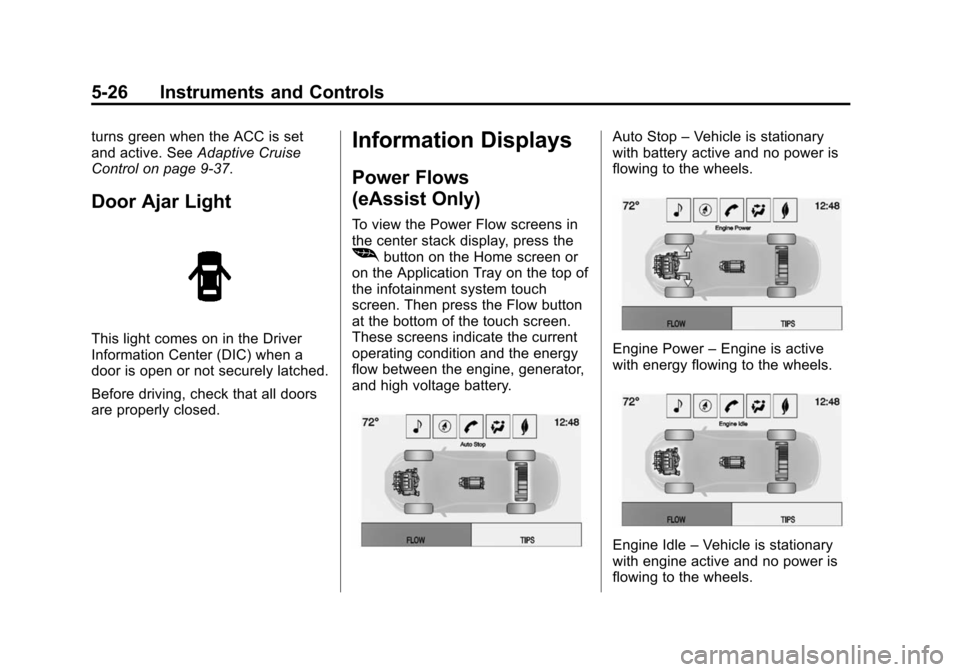
To view the Power Flow screens in
the center stack display, press the
[button on the Home screen or
on the Application Tray on the top of
the infotainment system touch
screen. Then press the Flow button
at the bottom of the touch screen.
These screens indicate the current
operating condition and the energy
flow between the engine, generator,
and high voltage battery.
Auto Stop –Vehicle is stationary
with battery active and no power is
flowing to the wheels.
Engine Power –Engine is active
with energy flowing to the wheels.
Engine Idle –Vehicle is stationary
with engine active and no power is
flowing to the wheels.
Page 141 of 422
Black plate (27,1)Chevrolet Impala Owner Manual (GMNA-Localizing-U.S./Canada-5772216) -
2014 - 2nd crc - 5/14/13
Instruments and Controls 5-27
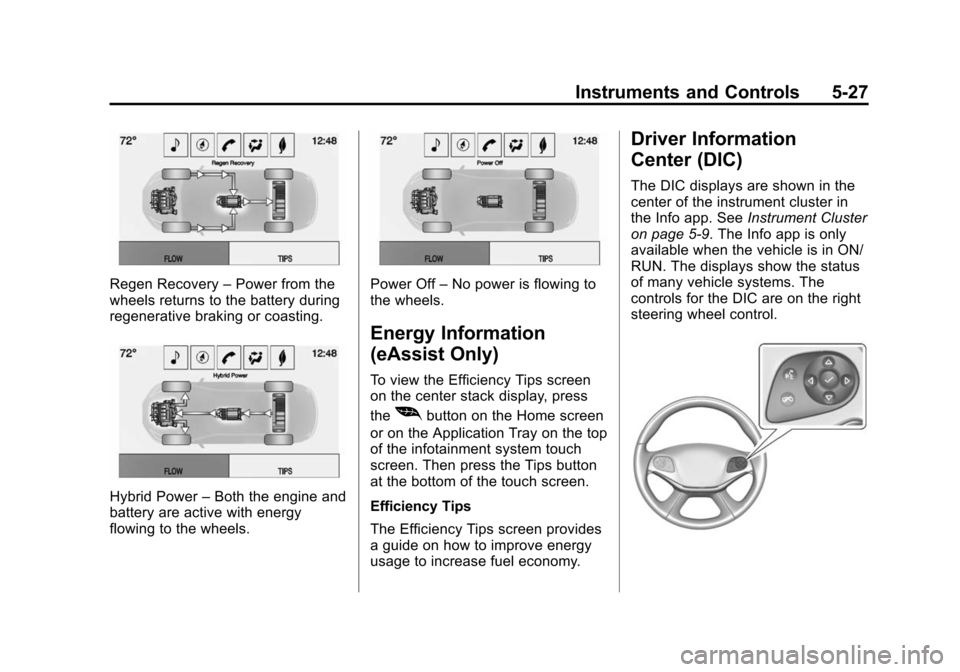
Regen Recovery–Power from the
wheels returns to the battery during
regenerative braking or coasting.
Hybrid Power –Both the engine and
battery are active with energy
flowing to the wheels.
Power Off –No power is flowing to
the wheels.
Energy Information
(eAssist Only)
To view the Efficiency Tips screen
on the center stack display, press
the
[button on the Home screen
or on the Application Tray on the top
of the infotainment system touch
screen. Then press the Tips button
at the bottom of the touch screen.
Efficiency Tips
The Efficiency Tips screen provides
a guide on how to improve energy
usage to increase fuel economy.
Driver Information
Center (DIC)
The DIC displays are shown in the
center of the instrument cluster in
the Info app. See Instrument Cluster
on page 5-9. The Info app is only
available when the vehicle is in ON/
RUN. The displays show the status
of many vehicle systems. The
controls for the DIC are on the right
steering wheel control.
Page 154 of 422
Black plate (40,1)Chevrolet Impala Owner Manual (GMNA-Localizing-U.S./Canada-5772216) -
2014 - 2nd crc - 5/14/13
5-40 Instruments and Controls
Washer Fluid Messages
WASHER FLUID LOW ADD
FLUID
This message may display when the
washer fluid level is low. See
Washer Fluid on page 10-24.
Window Messages
OPEN, THEN CLOSE DRIVER/
PASSENGER WINDOW
This message is displayed when the
window needs to be reprogrammed.
If the vehicle's battery has been
recharged or disconnected, you will
need to index each front window for
the express-up feature to work. See
Power Windows on page 2-21.
Vehicle
Personalization
The audio system controls are used
to access the personalization
menus for customizing vehicle
features.
Base Radio Audio System
Controls
To access the personalization
menus:
1. On the Home page, turn theMENU knob to highlight Settings
and press the MENU knob.
2. Turn the MENU knob to highlight the desired feature and press
the MENU knob to display a list
of available options.
3. Turn the MENU knob to scroll through and highlight the desired
option, then press the
MENU knob.
4. Turn the MENU knob to highlight the desired option setting and
press the MENU knob. 5. Press
qBACK to return to the
previous menu.
Uplevel Radio Audio System
Controls
To access the personalization
menus:
1. Press SETTINGS on the Home page on the infotainment system
display.
2. Press the desired feature to display a list of available
options.
3. Press the desired option.
4. Press to select the desired option setting.
5. Press
qBACK to return to the
previous menu.
Personalization Menus
The following list of features may be
available:
.Time and Date
.Language [Language]
Page 159 of 422
Black plate (45,1)Chevrolet Impala Owner Manual (GMNA-Localizing-U.S./Canada-5772216) -
2014 - 2nd crc - 5/14/13
Instruments and Controls 5-45
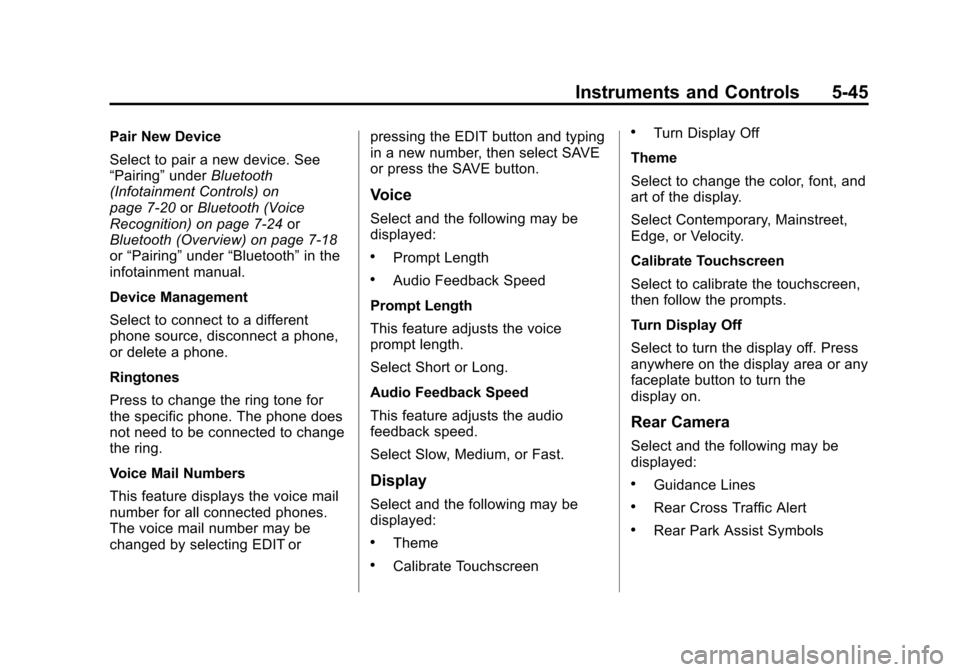
Pair New Device
Select to pair a new device. See
“Pairing”underBluetooth
(Infotainment Controls) on
page 7-20 orBluetooth (Voice
Recognition) on page 7-24 or
Bluetooth (Overview) on page 7-18
or “Pairing” under“Bluetooth” in the
infotainment manual.
Device Management
Select to connect to a different
phone source, disconnect a phone,
or delete a phone.
Ringtones
Press to change the ring tone for
the specific phone. The phone does
not need to be connected to change
the ring.
Voice Mail Numbers
This feature displays the voice mail
number for all connected phones.
The voice mail number may be
changed by selecting EDIT or pressing the EDIT button and typing
in a new number, then select SAVE
or press the SAVE button.
Voice
Select and the following may be
displayed:
.Prompt Length
.Audio Feedback Speed
Prompt Length
This feature adjusts the voice
prompt length.
Select Short or Long.
Audio Feedback Speed
This feature adjusts the audio
feedback speed.
Select Slow, Medium, or Fast.
Display
Select and the following may be
displayed:
.Theme
.Calibrate Touchscreen
.Turn Display Off
Theme
Select to change the color, font, and
art of the display.
Select Contemporary, Mainstreet,
Edge, or Velocity.
Calibrate Touchscreen
Select to calibrate the touchscreen,
then follow the prompts.
Turn Display Off
Select to turn the display off. Press
anywhere on the display area or any
faceplate button to turn the
display on.
Rear Camera
Select and the following may be
displayed:
.Guidance Lines
.Rear Cross Traffic Alert
.Rear Park Assist Symbols
Page 160 of 422
Black plate (46,1)Chevrolet Impala Owner Manual (GMNA-Localizing-U.S./Canada-5772216) -
2014 - 2nd crc - 5/14/13
5-46 Instruments and Controls
Guidance Lines
Select to turn Off or On. See
Assistance Systems for Parking or
Backing on page 9-46.
Rear Cross Traffic Alert
Select to turn Off or On. See
Assistance Systems for Parking or
Backing on page 9-46.
Rear Park Assist Symbols
Select to turn Off or On. See
Assistance Systems for Parking or
Backing on page 9-46.
Return to Factory Settings
Select and the following may be
displayed:
.Restore Vehicle Settings
.Clear All Private Data
.Restore Radio SettingsRestore Vehicle Settings
This allows selection of restoring
vehicle settings.
Select Cancel or Continue.
Clear All Private Data
This allows selection to clear all
private information from the vehicle.
Select Cancel or Continue.
Restore Radio Settings
This allows selection to restore
radio settings.
Select Cancel or Continue.
Software Information
Select to view the infotainment
system current software information.
Universal Remote
System
See
Radio Frequency Statement on
page 13-15.
Universal Remote System
Programming
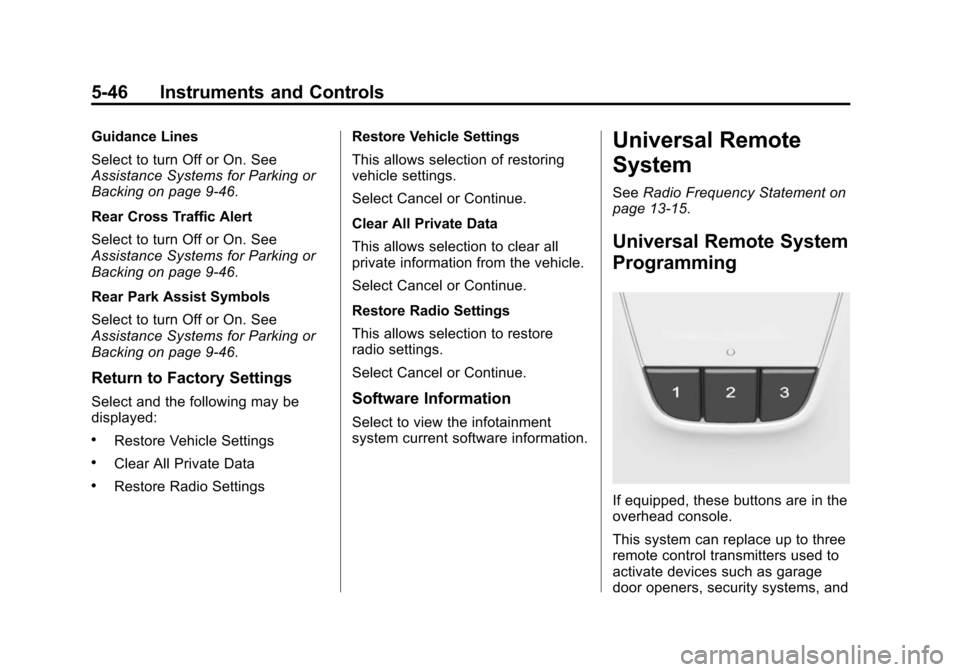
If equipped, these buttons are in the
overhead console.
This system can replace up to three
remote control transmitters used to
activate devices such as garage
door openers, security systems, and
Page 171 of 422

Black plate (1,1)Chevrolet Impala Owner Manual (GMNA-Localizing-U.S./Canada-5772216) -
2014 - 2nd crc - 5/14/13
Infotainment System 7-1
Infotainment
System
Introduction
Infotainment . . . . . . . . . . . . . . . . . . . 7-1
Theft-Deterrent Feature . . . . . . . 7-2
Overview . . . . . . . . . . . . . . . . . . . . . . 7-3
Home Page . . . . . . . . . . . . . . . . . . . 7-4
Software Updates . . . . . . . . . . . . . 7-7
Radio
AM-FM Radio . . . . . . . . . . . . . . . . . 7-7
Satellite Radio . . . . . . . . . . . . . . . . 7-9
Radio Reception . . . . . . . . . . . . . 7-10
Backglass Antenna . . . . . . . . . . 7-11
Multi-Band Antenna . . . . . . . . . . 7-11
Audio Players
CD Player . . . . . . . . . . . . . . . . . . . 7-12
USB Port . . . . . . . . . . . . . . . . . . . . 7-14
Auxiliary Jack . . . . . . . . . . . . . . . . 7-17
Phone
Bluetooth (Overview) . . . . . . . . 7-18
Bluetooth (InfotainmentControls) . . . . . . . . . . . . . . . . . . . 7-20
Bluetooth (Voice Recognition) . . . . . . . . . . . . . . . 7-24
Trademarks and License
Agreements
Trademarks and License
Agreements . . . . . . . . . . . . . . . . 7-29
Introduction
Infotainment
Read the following pages to
become familiar with the
infotainment system featured in this
owner manual.
{Warning
Taking your eyes off the road
for too long or too often while
using any infotainment features
can cause a crash resulting in
injury or death. Do not give
extended attention to
infotainment tasks while
driving. Focus your attention
on driving and limit glances to
the instrument cluster or center
stack screens. Use voice
guidance whenever possible.
The infotainment system has built-in
features intended to help with this
by disabling some functions when
Page 172 of 422
Black plate (2,1)Chevrolet Impala Owner Manual (GMNA-Localizing-U.S./Canada-5772216) -
2014 - 2nd crc - 5/14/13
7-2 Infotainment System
driving. A grayed-out function is not
available when the vehicle is
moving.
All functions are available when the
vehicle is parked. Before driving:
.Become familiar with the
infotainment system operation
and buttons on the faceplate.
.Set up the audio by presetting
favorite stations, setting the
tone, and adjusting the
speakers.
.Set up phone numbers in
advance so they can be called
easily by pressing a single
button or by using a single voice
command for vehicles equipped
with phone capability.
See Defensive Driving on page 9-3.
The vehicle has Retained
Accessory Power (RAP). With RAP,
the audio system can be played
even after the ignition is turned off.
See Retained Accessory Power
(RAP) on page 9-24. The base radio information is
included in this manual, if equipped.
See the infotainment manual for
information on the uplevel radios,
audio players, phone, navigation
system, and voice or speech
recognition. There is also
information on settings.
Theft-Deterrent Feature
TheftLock®is designed to
discourage theft of the vehicle's
radio by learning a portion of the
Vehicle Identification Number (VIN).
The radio does not operate if it is
stolen or moved to a different
vehicle.
Page 173 of 422
Black plate (3,1)Chevrolet Impala Owner Manual (GMNA-Localizing-U.S./Canada-5772216) -
2014 - 2nd crc - 5/14/13
Infotainment System 7-3
Overview
Infotainment System Overview
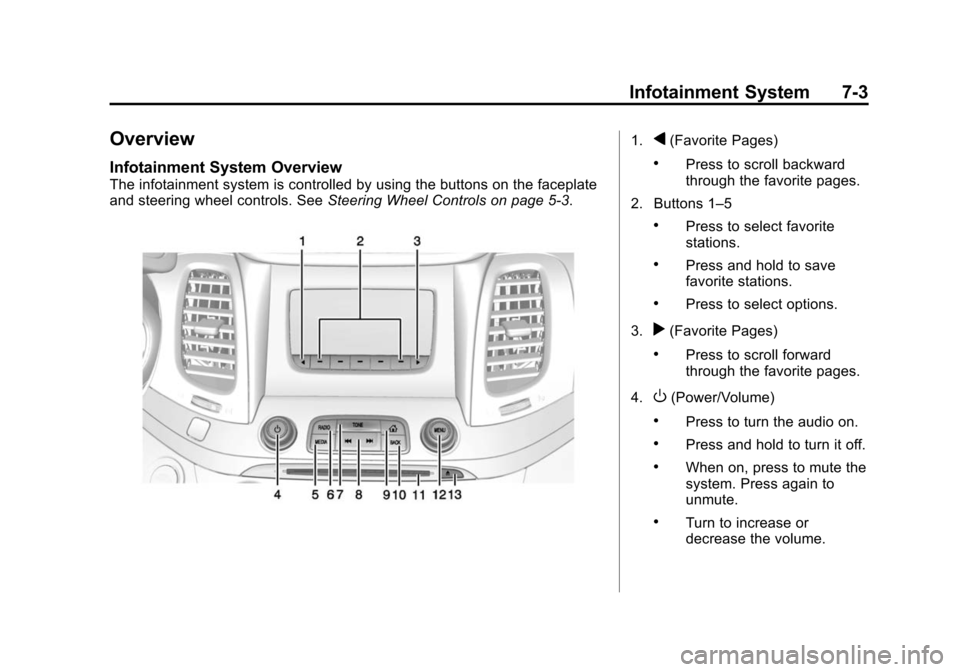
The infotainment system is controlled by using the buttons on the faceplate
and steering wheel controls. SeeSteering Wheel Controls on page 5-3.
1.q(Favorite Pages)
.Press to scroll backward
through the favorite pages.
2. Buttons 1–5
.Press to select favorite
stations.
.Press and hold to save
favorite stations.
.Press to select options.
3.
r(Favorite Pages)
.Press to scroll forward
through the favorite pages.
4.
O(Power/Volume)
.Press to turn the audio on.
.Press and hold to turn it off.
.When on, press to mute the
system. Press again to
unmute.
.Turn to increase or
decrease the volume.