2014.5 Citroen C4 DAG phone
[x] Cancel search: phonePage 289 of 340

287
C4-2_en_Chap13b_RT6_ed01-2014
FREqUENTLY ASKED q UESTIONS
qUESTION ANSWER SOLUTION
Certain traffic jams
along
the route are not
indicated
in real time. On
starting, it is several minutes before the system begins to receive the
traffic
information. Wait
until the traffic information is being received
correctly
(display of the traffic information icons on
the
map).
The
filters are too restrictive. Modify
the "Geographic filter" settings.
In
certain countries, only major routes (motorways...) are listed for the
traffic
information. This
phenomenon is normal.
The
system is
dependent
on the traffic information available.
The
altitude is not
displayed. On
starting, the initialisation of the GPS may take up to 3 minutes to
receive
more than 4 satellites correctly.Wait
until the system has started up completely.
Check
that there is a GPS coverage of at least
4 satellites
(long press on the SETUP
button, then
select
"GPS coverage").
Depending
on the geographical environment (tunnel...) or the weather,
the
conditions of reception of the GPS signal may vary.This
phenomenon is normal.
The
system
is
dependent on the GPS signal reception
conditions.
I
am
unable to connect
my
Bluetooth telephone. The
telephone's Bluetooth function may be switched off or the telephone
may
not be visible. -
Check
that your telephone's Bluetooth
function
is switched on.
-
Check
in the telephone settings that it is
"visible
to all".
The
Bluetooth telephone is not compatible with the system.You
can check the compatibility of your telephone
on
www.citroen.co.uk (services)
The
volume of the
telephone
connected
in
Bluetooth mode is
inaudible. The
volume depends both on the system and on the telephone.Increase
the volume of the audio system, to
maximum
if required, and increase the volume of
the
telephone if necessary.
The
ambient noise level has an influence on the quality of telephone
communication.Reduce
the ambient noise level (close the windows,
reduce
the booster fan speed, slow down, ...).
Page 290 of 340

288
C4-2_en_Chap13b_RT6_ed01-2014
FREqUENTLY ASKED q UESTIONS
qUESTION ANSWER SOLUTION
Some
contacts are
duplicated
in the list. The
options for synchronizing contacts are synchronizing the contacts
on
the SIM card, the contacts on the telephone, or both. When both
synchronizations
are selected, some contacts may be duplicated.Select
"Display SIM card contacts" or "Display
telephone
contacts".
Contacts are not shown
in
alphabetical order. Some
telephones offer display options. Depending on the settings
chosen,
contacts can be transferred in a specific order.Modify
the display setting in the telephone
directory
.
The system does not receive SMS text messages.The Bluetooth mode does not permit sending SMS text messages to the system.
The
CD
is
ejected
automatically
or
is
not
played
by
the
player. The
CD is inserted upside down, is unplayable, does not contain any
audio
data or contains an audio format which the player cannot play.-
Check that the CD is inserted in the player the right way up.
- Check the condition of the CD: the CD cannot be played
if it is too damaged.
- Check the content in the case of a recorded CD: refer
to the information and advice in the "MUSIC MEDIA
PLAYERS" section.
- The audio system's CD player does not play DVDs.
- Some recorded CDs will not be played by the audio system
because they are not of the correct quality.
The CD has been recorded in a format that is not compatible with the player (udf, ...).
The
CD is protected by an anti-pirating protection system which is not
recognised
by the audio system.
There is a long waiting period following the insertion of a C
d or connection of a
USB
memory stick.When a new medium is inserted, the system reads a certain amount of data (directory, title, artist, etc.). This may take from a few seconds to a
few
minutes. This
phenomenon is normal.
The
CD
player
sound
is
poor
. The
CD used is scratched or of poor quality. Insert
good quality CDs and store them in suitable
conditions.
The
audio equipment settings (bass, treble, ambiences) are unsuitable. Set the treble or bass level to 0, without selecting
an
ambience.
Page 293 of 340

291
C4-2_en_Chap13b_RT6_ed01-2014
FREqUENTLY ASKED q UESTIONS
qUESTION ANSWER SOLUTION
With
the engine off, the
system
switches off after
a
few
minutes of use. When
the engine is switched off, the system's operating time depends on
the
state of charge of the battery.
The
switch-off is normal: economy mode is activated automatically to
maintain
the state of charge of the vehicle's battery, needed for engine
starting.
(See the "Energy economy mode" section).Start
the vehicle's engine to increase the battery
charge.
Playback
of my USB
memory
stick starts only
after
a
very long wait
(around
2 to 3 minutes). Some
files supplied with the memory stick may greatly slow down access
to
reading the memory stick (multiplication by 10 of the catalogue time).Delete
the files supplied with the memory stick
and
limit the number of sub-folders in the file
structure
on the memory stick.
When
I connect my
iPhone
as telephone and
to
the
USB port at the
same
time, I am unable
to
play
the music files.When
the iPhone connects automatically as a telephone, it forces the
streaming
function.
The
streaming function takes the place of the USB
function
which is then not useable, there is a period without sound of the
track
being played with
Apple® players. Disconnect and reconnect to the USB port (the
USB
function takes priority over streaming).
Page 295 of 340

293
C4-2_en_Chap13c_RD5_ed01-2014
The system is coded in such a way that it will only operate in your vehicle.
AUDIO SYSTEM / BLUETOOTH
For safety reasons, the driver must only carry out operations
which require prolonged attention while
the
vehicle is stationary.
When
the engine is switched off and to prevent
discharging
of the battery, the audio system may switch
of
f after a few minutes.
CONTENTS
01
First steps
02
Steering mounted
controls
03
Main
menu
04
Audio
05
Using
the telephone
06
Audio
settings
07
Screen menu map
Frequently
asked questions p.
p.
p.
p.
p.
p.
p.
p.
294
295
296
297
309
317
319
322
Page 296 of 340

01
294
C4-2_en_Chap13c_RD5_ed01-2014
Automatic search up / down for radio frequencies.
Select previous / next CD, USB,
streaming
track.
Navigation
in a list.
d
isplay the list of stations
received,
CD/MP3
tracks
or
folders.
Long
press:
managing
the
classification
of
MP3/WMA
files
/
update
the
list
of
stations
received.
Abandon
the current
operation.
Up
one level (menu or
folder).
On
/
Off. Selection
of FM / DAB /
AM*
wavebands.
Select
preset
radio
station.
Long
press:
store
a
station.
Select
screen
display
between
modes:
Full
screen:
Audio
(or telephone if call in
progress)
/
In
a
window:
Audio
(or telephone if call in
progress)
-
T
ime
or
T
rip
computer
.
Long
press:
black
screen
(DARK).
Audio
settings:
audio
ambiences,
treble,
bass,
loudness,
distribution,
left/right
balance,
front/rear
fader
,
automatic
volume. Access
to main menu.
TA
(Traffic
Announcement)
function
On
/
Off.
Long
press:
access to type of
information. Select
source:
Radio,
CD,
AUX,
USB,
Streaming.
Accept
an
incoming
call. Confirmation
or display of
contextual
menu.
Manual
step
by
step
search
up
/
down
for
radio
frequencies.
Select
previous
/
next
MP3
folder.
Select
previous
/
next
folder
/
genre
/
artist
/
playlist
in
the
USB
device.
Navigation
in
a
list.
Volume
adjustment.
FIRST STEPS
* Depending on model.
Page 297 of 340

295
C4-2_en_Chap13c_RD5_ed01-2014
STEERING MOUNTED CONTROLS
- Short press: Change
multimedia source.
Accept
an incoming call.
Call
in progress: access to the telephone menu (End call, Secret
mode,
Hands-free mode).
-
Long
press:
Reject
an incoming call.
End
a call in progress.
No
call in progress: access to the telephone menu (Call, Contacts,
call
log, Voice mail).
-
Rotation. Radio:
automatic search for the previous / next station.
Media:
previous / next track.
-
Press:
confirmation.
-
Short
press:
Radio:
display the list of stations.
Media:
display the list of tracks.
-
Long
press: update the list of stations received.
-
Increase
volume.
-
Decrease
volume.
-
Short
press:
mute:
change
multimedia
source.
-
Long
press:
mute
/
restore
sound.
-
Rotation: Radio:
automatic
search
for
the
previous
/
next
station.
Media:
previous
/
next
track.
-
Press:
confirmation.
-
Short
press:
Radio:
display
the
list
of
stations.
Media:
display
the
list
of
tracks.
-
Long
press:
update
the
list
of
stations
received.
-
Increase
volume.
-
Decrease
volume.
Audio system Audio / Bluetooth telephone system
02
Page 298 of 340

03
296
C4-2_en_Chap13c_RD5_ed01-2014
"Multimedia": Media parameters, Radio parameters. "Trip computer":
Warning log.
For a detailed global view of the
menus
available, refer to "Screen
menu
map" section.
"Bluetooth connection
":
Connections
management,
Search
for a device.
"Telephone": Call, Directory
management,
T
elephone
management,
Hang up.
MAIN MENU
"Personalisation-configuration
": Define the
vehicle parameters, Choice of language,
Display
configuration, Choice of units, Date
and
time adjustment.
Screen C
Screen A
Page 310 of 340
04
308
C4-2_en_Chap13c_RD5_ed01-2014
AUDIO
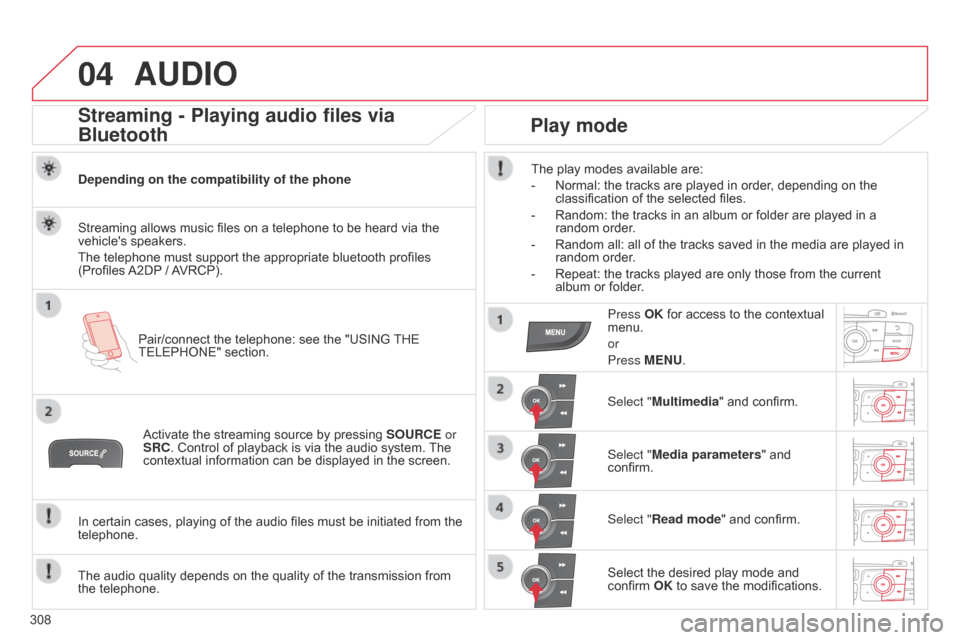
Streaming - Playing audio files via
Bluetooth
Depending on the compatibility of the phonePair/connect the telephone: see the "USING
THE
TELEPHONE"
section.
Streaming
allows music files on a telephone to be heard via the
vehicle's
speakers.
The
telephone must support the appropriate bluetooth profiles
(Profiles
A2DP
/
A
VRCP).
Activate
the streaming source by pressing
SOURCE
or
SRC.
Control of playback is via the audio system.
The
contextual
information can be displayed in the screen.
In
certain cases, playing of the audio files must be initiated from the
telephone.
The
audio quality depends on the quality of the transmission from
the
telephone.
Play mode
The play modes available are:
-
Normal:
the tracks are played in order, depending on the
classification
of the selected files.
-
Random:
the tracks in an album or folder are played in a
random
order.
-
Random
all: all of the tracks saved in the media are played in
random
order.
-
Repeat:
the tracks played are only those from the current
album
or folder.
Press OK
for access to the contextual
menu.
or
Press
MENU.
Select "Multimedia"
and confirm.
Select "Media parameters "
and
confirm.
Select "
Read mode" and confirm.
Select
the desired play mode and
confirm
OK to save the modifications.