Page 265 of 340

06
263
C4-2_en_Chap13b_RT6_ed01-2014
Editing, importing or deleting a contact
Press PHONE then select "Directory of
contacts" and confirm.
Select "Search",
then turn the knob to
choose
in numerical or alphabetical order
a
group of contacts from the entries made
previously
, then confirm.
Go to the list of contacts, select the
desired
contact then confirm.
Select "Import"
to copy a contact from
the
telephone to the system.
Select "Delete"
to delete a contact
recorded
in the system. Select OK
or press the back button to exit
this
menu.
Once
the contact has been imported, the Bluetooth symbol
disappears,
replaced by the telephone symbol which shows that the
contact
has been saved in the system.
USING THE TELEPHONE
It is not possible to modify or delete contacts in the telephone or the SIM card via the Bluetooth connection.
Select "Open" to view a contact on the
telephone
or
modify
a
contact
saved
in
the
system. In the "Directory of contacts"
menu, the import and deletion of
contacts
is done one by one.
Page 266 of 340
06
264
C4-2_en_Chap13b_RT6_ed01-2014
USING THE TELEPHONE
Press PHONE twice.
Select " Dial" then confirm. Select "Directory of contacts" then
confirm.
Dial
the telephone number using the
virtual
keypad selecting each number
in
turn.
Confirm
"OK" to make the call. Press TEL or twice on PHONE.
Calling a new number
Calling a contact
Select the desired contact and confirm.
If access was via the PHONE button,
select "Call"
and confirm.
Select
the number and confirm to start
the
call.
Making a callUse of the telephone is not recommended while driving. We recommended that you park safely or make use of the steering
mounted
controls.
Page 267 of 340
06
265
C4-2_en_Chap13b_RT6_ed01-2014
USING THE TELEPHONE
Calling a recently entered numberPress TEL, select "Call list" and
confirm,
Select
the desired number and confirm.
To
erase the calls log, press
PHONE
twice, select "Phone
functions"
and confirm then select "Delete calls log" and
confirm.
Ending a call
Press PHONE then select "OK" to end the call.
Or
make a long press on TEL at the
steering
mounted controls.
Or
make two short presses on TEL at
the
steering mounted controls.
o
r press the MODE button, as many
times
as necessary, until the telephone
screen
is displayed.
Press PHONE
to
display
the
calls
log.
or
Press "OK"
to display the contextual
menu
then select "Hang up" and
confirm.
It
is
always
possible
to
start
a
call
directly
from
the
telephone;
park
the
vehicle
as
a
safety
measure.
Page 268 of 340
06
266
C4-2_en_Chap13b_RT6_ed01-2014
USING THE TELEPHONE
Receiving a call
An incoming call is announced by a ring and a superimposed display on the screen.
"Ye s"
to accept the call is selected by
default.
Press "
OK" to accept the call.
Select "No"
and confirm to reject the
call.
a short press on
TEL accepts an
incoming
call.
A
long press on
TEL
rejects an incoming
call.
Page 269 of 340
06
267
C4-2_en_Chap13b_RT6_ed01-2014
USING THE TELEPHONE
Options during a call*
During a call, press the MODE button
several times to select display of the
telephone screen, then press "OK
" to
open
the contextual menu.
Select "Private mode"
and confirm to
take
the call on the handset.
o
r select "Hands-free mode" and
confirm
to take the call via the vehicle's
speakers.
Select "
Put call on hold "
and confirm to
put
the current call on hold.
o
r select "Resume the call" and
confirm
to resume the call on hold. Select "DTMF ring tones
" to use the
numerical keypad, so as to navigate through
the menu of an interactive vocal server
.
Select "Hang up"
to end the call.
*
Depending on the compatibility of the phone and your service plan.
it
is possible to hold a 3-way conference
call
by making 2 calls in succession*.
Select "
Conference mode call" in the
contextual
menu accessible using this
button.
Or
make a short press on this button.
Page 270 of 340
06
268
C4-2_en_Chap13b_RT6_ed01-2014
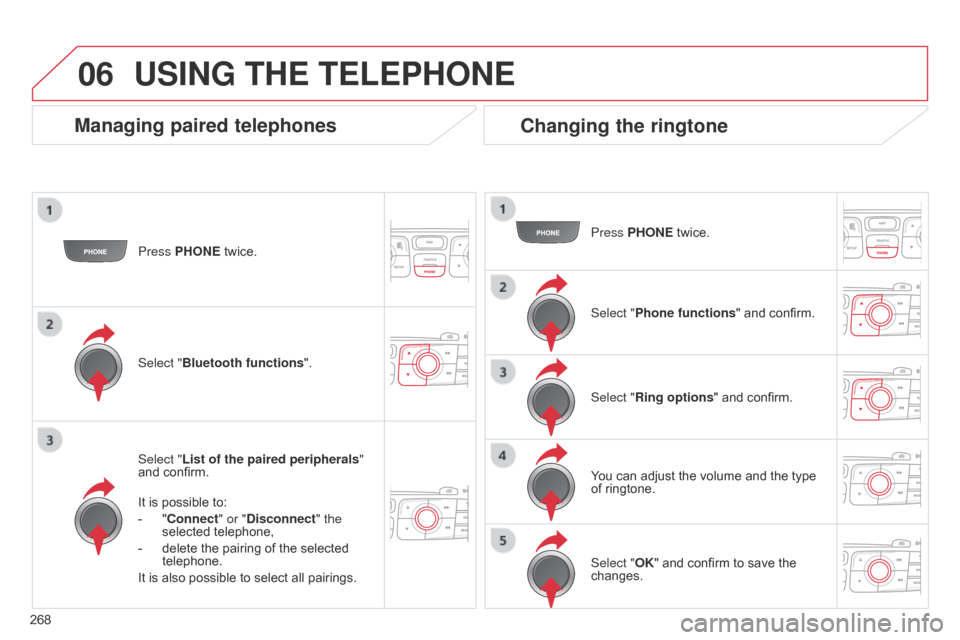
Press PHONE twice.
Select " List of the paired peripherals "
and
confirm.
It
is possible to:
-
"
Connect" or "Disconnect" the
selected
telephone,
-
delete
the pairing of the selected
telephone.
It
is also possible to select all pairings.
USING THE TELEPHONE
Managing paired telephones Changing the ringtone
Press PHONE twice.
Select " Phone functions "
and confirm.
Select "Ring options "
and confirm.
You
can adjust the volume and the type
of
ringtone.
Select "Bluetooth functions
".
Select "OK"
and confirm to save the
changes.
Page 280 of 340

08
278
C4-2_en_Chap13b_RT6_ed01-2014
Audio streaming
Streaming allows audio files on your telephone to be played via the vehicle's speakers.
Connect
the telephone: see "USING THE TELEPHONE ".
Select "Audio" or "All"
profile.
If
play does not start automatically, it may be necessary to start the
audio
playback from the telephone.
Control
is from the peripheral device or by using the audio system
buttons.
Once
connected in streaming mode, the telephone is considered to be
a
media source.
It
is recommended that you activate "Repeat" on the b luetooth
peripheral.
MUSIC MEDIA PLAYERS
Connecting APPLE® players
Connect the apple® player to the USB port using a suitable cable (not supplied).
Play
starts
automatically.
Control
is
via
the
audio system.
The
classifications
available are those of the portable device
connected
(artists
/
albums / genres / playlists / audiobooks /
podcasts).
The
default
classification used is by artist.
T
o modify the classification
used,
return
to
the
first level of the menu then select the desired
classification
(playlists for example) and confirm to go down through
the
menu
to
the
desired track.
The
"Shuffle
tracks" mode on an iPod
® corresponds to the "Random" mode
on
the
audio
system.
The
"Shuffle
albums"
mode
on
an
iPod
® corresponds to the "Random all"
on
the
audio
system.
"Shuffle
tracks"
is
restored
by
default
on each connection.
The
version
of
software
in
the
audio
system may not be compatible
with
the
generation
of
your
Apple® player.
Page 285 of 340
11
283
C4-2_en_Chap13b_RT6_ed01-2014
SCREEN MENU MAP(S)
Select TMC station
Automatic TMC
Manual TMC
List of TMC stations
Display / Do not display
messages
"TRAFFIC INFORMATION"
MENU
Geographic filter
Retain all the messages:
Retain the messages:
Around
the vehicle
o
n the route
1
2
2
2
1
2
2
3
3
1
Dial
Directory of contacts
Call
Open
Import
"TELEPHONE" MENU
1
2
2
2
1
2
2
2
2
1
2
3
3
3
2
2
2
1
1
1
3
3
3
2
3
2
2
3
List of the paired peripheralsConnect
d
isconnect
d
elete
d
elete all
Contact mem. status
Phone functions
Ring options
Delete calls log
Bluetooth functions
Peripherals search
Rename radiotelephone
Hang up
display all phone contacts
Search
Contacts management
New contact
Delete all contacts
Import all the entries
Synchronization options
d
isplay telephone contacts
No
synchronization
Display
SIM card contacts
2
2
Delete
Cancel
2Sort by First name/Name
3Cancel