Page 241 of 340

01
239
C4-2_en_Chap13b_RT6_ed01-2014
Select:
-
the
next lower / higher radio frequency automatically.
-
the
previous / next CD track, MP3 track or media.
-
the
left / right of the screen when a menu is displayed.
Move
left / right in "Move the map" mode.
Abandon
the current
operation, up one level in
the
menu.
Long
press: return to the
permanent
display.
a
ccess to the "RADIO" menu and display
the
list of stations received.
Long
press: display the audio settings
screen
for the radio tuner source.
Long
press:
open
the
" Audio settings "
menu: music ambience, bass, treble, loudness, left/
right
balance,
front/rear fader, automatic volume adjustment.
a
ccess to the "MUSIC" menu, and display of
the
CD/MP3/Apple
® tracks and folders.
Long
press:
display
the audio settings screen
for the "
MEDIA"
(CD/USB/iPod/Streaming/
AUX)
sources.
Selection
and
OK
confirmation
knob:
Selection
of
an
item
on
the
screen
or
in
a
list
or
a
menu,
then
confirmation
with
a
short
press.
Other
than
for
menus
and
lists,
a
short
press
displays
a
contextual
menu
depending
on
the
current
screen.
Rotation
with
map
displayed:
zoom
the
map
scale
in
and
out.
Select:
-
the
previous/next
line
in
a
list
or
menu.
-
the
previous
/
next
media
folder.
-
step
by
step
selection
of
the
previous/next
radio
frequency.
-
the
previous
/
next
MP3
folder.
Move
up/down,
in
"
Move the map"
mode.
FIRST STEPS
Page 242 of 340
02
240
C4-2_en_Chap13b_RT6_ed01-2014
STEERING MOUNTED CONTROLS
- Change the audio source.
Long
press: mute.
-
V
olume increase.
-
V
olume decrease.
-
Radio:
display the list of stations.
Media:
display the list of tracks.
-
Rotation
Radio
-automatic selection of next /
previous
frequency.
Media:
previous / next track.
-
Press
then rotation: access to
6 preset
stations. -
TEL button:
Access
to the telephone menu:
Call
list / Contacts / Hands-free
mode
/
Answer
/ Hang up.
Accept
an incoming call.
Long
press: reject an incoming call
or
end the current call.
-
Move
in the menus.
Zoom
the map in and out
Press:
confirmation
-
Abandon
the current operation.
Page 243 of 340
03
241
C4-2_en_Chap13b_RT6_ed01-2014
For the details of the menus, refer to the "Screen menu map" section.
For
cleaning
the
screen,
the
use
of
a
soft,
non-abrasive
cloth
(spectacles
cloth)
is
recommended,
with
no
additional
product.
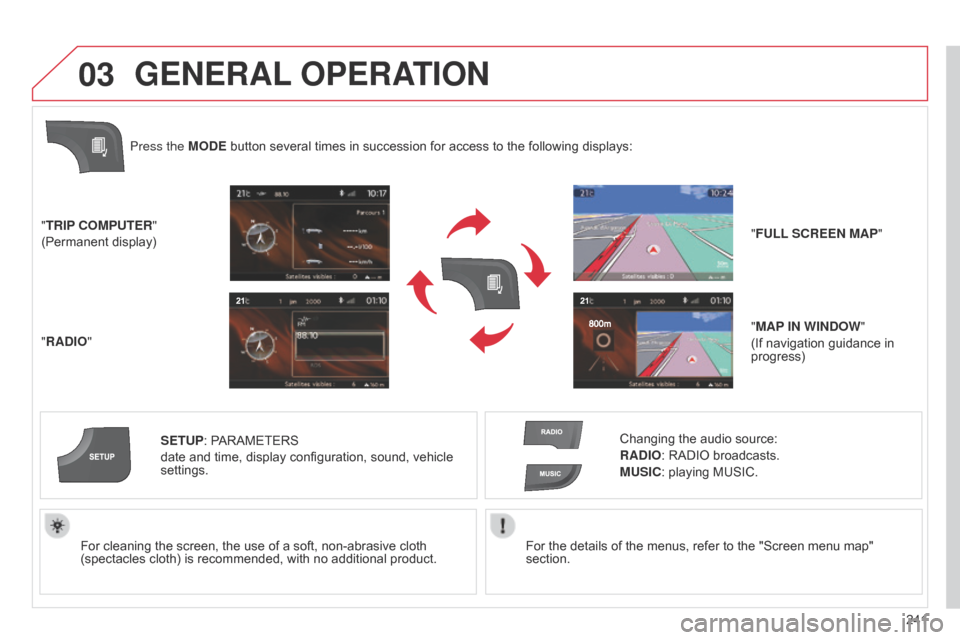
"TRIP COMPUTER"
(Permanent
display)
"RADIO" SETUP:
PARAMETERS
date
and
time,
display
configuration,
sound,
vehicle
settings.
Changing
the audio source:
RADIO: RADIO broadcasts.
MUSIC: playing MUSIC.
Press the MODE
button
several
times
in
succession
for
access
to
the
following displays:
GENERAL
OPERATION
"FULL SCREEN MAP"
"MAP IN WINDOW "
(If
navigation guidance in
progress)
Page 244 of 340
03
242
C4-2_en_Chap13b_RT6_ed01-2014
A press on the knob gives access to
short-cut menus according to the
display
in the screen.
GENERAL OPERATION
Display according to context
RADIO: Change waveband
MUSIC MEDIA PLAYERS,
CD or USB
(according to media):
Play modes:
Normal
Random
Random on all media
Repetition
TELEPHONE
(call in progress):
Private mode FULL SCREEN MAP
OR IN A NEW WINDOW:
Stop / Restore guidance
Select destination
Enter an address
Directory
GPS coordinates
Divert route
Move the map
Info. on location
Select as destination Select as stage
Save this place (contacts)
q
uit map mode
Guidance criteria
Put call on hold
DTMF ring tones
Hang up
FM
Traffic anouncements (TA) DAB
Information AM
Entertainment
Special or Urgent
Service announcements
1
1
1
1
1
1
1
2
2
2
2
2
1
2
2
2
1
1
1
1
1
12
2
2
2
2
2
2
1
Page 260 of 340

05
258
C4-2_en_Chap13b_RT6_ed01-2014
TRAFFIC INFORMATION
Principal TMC symbols
Red and yellow triangle: traffic information, for example:
Black and blue triangle: general information, for example:
Weather reports
Modified
signage
Risk
of explosion Traffic
reports
Narrow carriageway
Road
closed
Wind
Slippery surface
Demonstration Fog
Accident
Danger
Parking
d
elay
n
o entry Snow
/ ice
Roadworks
Traffic
jam
Receiving TA messages
The TA (Traffic Announcement) function gives priority to T A alert messages.
T o operate, this function needs good reception of a
radio
station transmitting this type of message. When a traffic report
is
transmitted, the current audio source (Radio, CD, USB, ...) is
interrupted
automatically to play the
T
A
message. Normal playback
of
the audio source resumes at the end of the transmission of the
message.Press
RADIO to display the menu.
Select "Service announcements" then
confirm.
Activate
or deactivate "TA"
then confirm.
The
volume setting for
T
A
messages can be adjusted only during the
transmission
of this type of alert.
Activate
or deactivate the function at any time by pressing
the
button.
During
a message, press the button to interrupt it.
Page 271 of 340
07
269
C4-2_en_Chap13b_RT6_ed01-2014
RADIO
Access to the "RADIO" menu
"FM / DAB / AM""Change waveband"
("FM / DAB / AM")
"Options" ("TA, RDS, DAB/FM
station tracking")
"Audio settings (see this section)
"Update radio list "
a
lphabetical list of stations
received.
Press 5 or 6 or use the rotary control to select the
previous
or
next
station
in
the
list.
This
list
can
also
be
displayed
by
pressing
LIST on the
steering
mounted
controls. Go
from the list to the menu (left/right).
or
A
long
press
on
LIST refreshes
the
list
of
stations
received.
Press RADIO.
Page 272 of 340
07
270
C4-2_en_Chap13b_RT6_ed01-2014
RADIO
By alphabetical list
Press RADIO or LIST, select the station
of
your choice and confirm.
By automatic frequency search
Press 7 or 8
for the automatic search
for
a lower or higher radio frequency.
Or
turn the thumb wheel at the steering
mounted
controls.
By manual frequency search
Press 5 or 6
to adjust the radio
frequency
step by step.
Selecting a station
The external environment (hill, building, tunnel, underground car park…) may interfere with the reception, including in RDS station tracking mode. This phenomenon is a normal result of the way in which radio waves are transmitted and does not in any way indicate a fault with the audio system.
The
quality of reception is represented by the number of
active
waves in this symbol.
Press RADIO or OK
to display the
contextual
menu.
Changing waveband
Select "Change waveband".
Select "FM / DAB / AM" and confirm.
Page 273 of 340
07
271
C4-2_en_Chap13b_RT6_ed01-2014
Press the button on the numerical keypad to recall a preset station.
Or
press then turn the thumb wheel at
the
steering mounted controls.
Presetting a station
After selecting a station, press one of the buttons on the numerical keypad for
2
seconds to preset the current station.
An
audible signal confirms that the
station
has been preset. Press RADIO.
Activate / Deactivate RDS
RDS, if activated, allows you to continue listening to the same station
by automatic retuning to alternative frequencies. However,
in
certain conditions, coverage of an RDS station may not be
assured
throughout the entire country as radio stations do not
cover
100 % of the territory.
This
explains the loss of reception of
the
station during a journey.
Select "Guidance options " then
confirm.
Activate
or deactivate "RDS" then
confirm.
RADIO