2014.5 Citroen C4 DAG audio
[x] Cancel search: audioPage 36 of 340

34
C4-2_en_Chap01_controle-de-marche_ed01-2014
In the instrument panel, you can change the
colour of its dials (button A)
indepen -
dently
from that of the screens (button B).
There
are
five
colour
variants,
from
white
to blue.
F
press
the appropriate button as
many
times
as
needed
to
obtain
the
desired
colour. This
menu
allows
you
to
choose
a
fam
-
ily
of
polyphonic
sounds
from
the
four
available.
These
sounds
are
grouped
together
in
a
family
and
are
adapted
to
suit
the
situation
and
context
(alert,
confirmation,
rejection,
direction
indica
-
tors, lighting left on, key in ignition...).
Customising the instrument
panel colours
Customising the polyphonic
sounds
For the customisable colour
instrument panel with audio or
navigation system
F
Press the
"MENU" button for ac-
cess
to the main menu.
F
Select
the
"Personalisation-confi
-
guration"
menu and confirm.
F
Select
the
"Choice
of
sounds"
line
and
confirm.
F
Select
the
desired
family
of
sounds
and
confirm.
F
Save
the
modifications
by
confirm
-
ing
"OK". For
safety
reasons,
the
driver must
only
carry
out
these
opera
-
tion when stationary.
1
MONITORING
Page 37 of 340
22
35
C4-2_en_Chap02_ecran-multifonction_ed01-2014
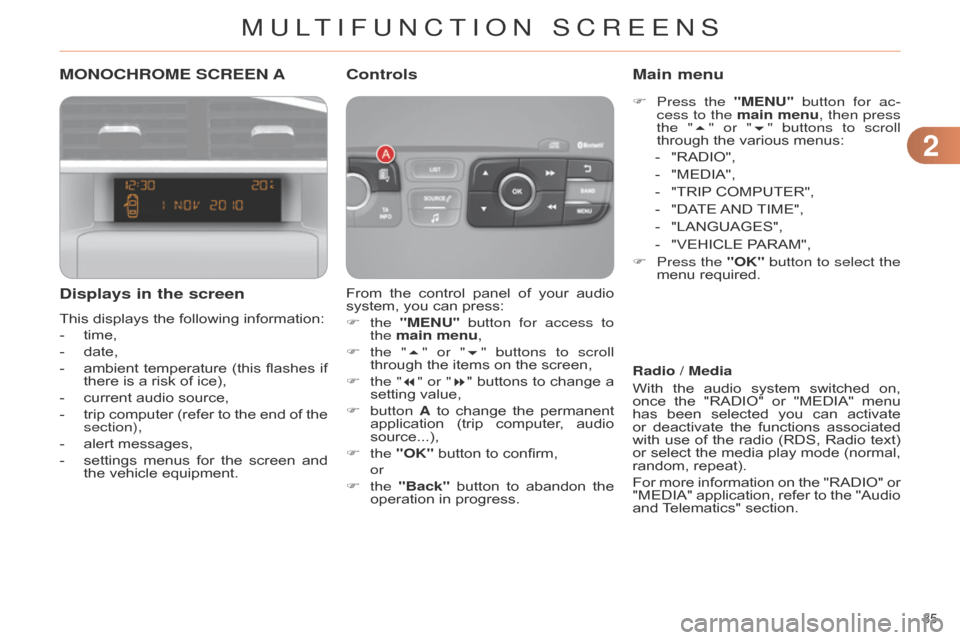
MONOCHROME SCREEN A
Displays in the screen
This displays the following information:
-
time,
-
date,
-
ambient
temperature
(this
flashes
if
there
is a risk of ice),
-
current
audio source,
-
trip
computer
(refer
to
the
end
of
the
section),
-
alert
messages,
-
settings
menus
for
the
screen
and
the
vehicle equipment. From
the
control
panel
of
your
audio
system,
you can press:
F the "MENU" button for access to
the main menu,
F
the "
5" or "6" buttons to scroll
through
the items on the screen,
F
the
"7" or "8"
buttons
to
change
a
setting
value,
F
button A
to
change
the
permanent
application
(trip
computer
,
audio
source...),
F
the "OK"
button to confirm,
or
F
the "Back"
button
to
abandon
the
operation
in progress.
Controls
F Press the "MENU" button for ac-
cess to the main menu, then press
the "5" or "6" buttons to scroll
through
the various menus:
-
"RADIO",
-
"MEDIA",
-
"TRIP
COMPUTER",
-
"DA
TE
AND
TIME",
-
"LANGUAGES",
-
"VEHICLE
PARAM",
F
Press
the "OK" button to select the
menu
required.
Main menu
Radio / Media
With
the
audio
system
switched
on,
once
the
"RADIO"
or
"MEDIA"
menu
has
been
selected
you
can
activate
or
deactivate
the
functions
associated
with
use
of
the
radio
(RDS,
Radio
text)
or
select
the
media
play
mode
(normal,
random,
repeat).
For
more
information
on
the
"RADIO"
or
"MEDIA"
application,
refer
to
the
"Audio
and
T
elematics" section.
MULTIFUNCTION SCREENS
Page 39 of 340

22
37
C4-2_en_Chap02_ecran-multifonction_ed01-2014
MONOCHROME SCREEN C
Displays in the screen
This displays the following information:
-
time,
-
date,
-
ambient
temperature
(this
flashes
if
there
is a risk of ice),
-
parking
sensor information,
-
parking
space measurement,
-
current
audio source,
-
telephone
or
Bluetooth
system
in
-
formation,
-
trip
computer
(refer
to
the
end
of
the
section),
-
alert
messages,
-
settings
menus
for
the
screen
and
the
vehicle equipment. From
the
control
panel
of
your
audio
system,
you can press:
F button A to chooses between the
display
of
audio
information
in
full
screen
or
the
shared
display
of
au
-
dio
and trip computer information,
F
the "MENU" button for access to
the main menu,
F
the "
5" or "6" buttons to scroll
through
the items on the screen,
F
the
"7" or "8"
buttons
to
change
a
setting
value,
F
the "OK"
button to confirm,
or
F
the "Back"
button
to
abandon
the
operation
in progress.
Controls
F Press the "MENU" button for ac-
cess to the main menu:
-
"Multimedia",
-
"T
elephone",
-
"T
rip computer",
-
"Bluetooth
connection",
-
"Personalisation-configuration",
F
Press
the "7" or "8" button to se-
lect
the
menu
required,
then
confirm
by
pressing the "OK" button.
Main menu
"Multimedia" menu
With the audio system switched on, this
menu allows you to activate or de -
activate
the
functions
associated
with
use
of
the
radio
(RDS,
DAB
/ FM
auto
tracking,
RadioT
ext
(TXT)
display)
or
to
choose
the
media
play
mode
(Normal,
Random,
Random all, Repeat).
For
more
information
on
the
"Multimedia" application,
refer
to
the
"Audio
and T
elematics" section.
MULTIFUNCTION SCREENS
Page 40 of 340

22
38
C4-2_en_Chap02_ecran-multifonction_ed01-2014
Define the vehicle parameters
This
menu
allows
you
to
activate
or
de
-
activate
the
following
equipment,
clas
-
sified
in different categories:
-
"Access
to
the
vehicle"
(see
the
"Access"
section):
●
"Plip
action"
(Selective
unlocking
of
the driver's door),
●
"Unlocking
boot
only"
(Selective
unlocking
of the boot).
"Telephone" menu
With the audio system switched on, this menu
allows you to make a call or view
the
various telephone directories.
For
more
information
on
the
"T
elephone"
application,
refer
to
the
"Audio
and
T
elematics" section. This
menu
allows
you
to
view
informa
-
tion on the status of the vehicle.
Warning log
This
summarises
the
status
and
warn
-
ing
messages
for
systems
(active,
not
active
or
faulty),
displaying
them
in
suc
-
cession in the multifunction screen.
F
Press the
"MENU" button for ac-
cess to the main menu.
F
Press the arrows, then the
"OK"
button to select the "Trip computer"
menu.
F In the " Trip computer" menu, se -
lect the "W arning log" line and con -
firm.
"Bluetooth connection"
menu "Trip computer" menu
Wit the audio system on, this menu al -
lows a Bluetooth device (telephone,
media
player)
to
be
connected
or
dis
-
connected
and
the
connection
mode
to
be
defined
(hands-free,
playing
audio
files).
For
more
information
on
the
"Bluetooth
connection" application, refer to the
"Audio
and
T
elematics" section.
"Personalisation-
configuration" menu
This menu gives access to the following functions:
-
"Define
the vehicle parameters",
-
"Choice
of language",
-
"Display
configuration",
-
"Choice
of sounds".
MULTIFUNCTION SCREENS
Page 43 of 340

22
41
C4-2_en_Chap02_ecran-multifonction_ed01-2014
COLOUR SCREEN
From the navigation system control panel,
to select one of the applications:
F
press
the
dedicated
"RADIO"
,
"MUSIC", "NAV", "TRAFFIC",
"PHONE" or "SETUP" button for
access
to the corresponding menu,
F
turn
the
dial
A
to select a function,
an
item in a list,
F
press button
B
to
confirm
the
selec
-
tion,
or
F
press the
"Back" button to aban-
don
the
current
operation
and
return
to
the previous display.
With
repeated
presses
on
the
C
"MODE"
button, the screen displays:
-
"RADIO
/ MEDIA"*,
-
"TELEPHONE"*,
-
"FULL
SCREEN MAP"*,
-
"MAP
IN
A
WINDOW"*,
-
"TRIP
COMPUTER".
Controls "SETUP" menu
F Press the "SETUP" button to open
the configuration menu:
-
"Sound
choice",
-
"Display
configuration",
-
"Speech
synthesis setting".
-
"Select
language",
-
"Define
vehicle parameters",
-
"Alert
log".
For
safety
reasons,
configura
-
tion
of
the
multifunction
screen
by
the
driver
must
only
be
done
when
stationary.
Displays in the screen
Depending on the context, it displays the
following information:
-
time,
-
date,
-
altitude,
-
ambient
temperature
(the
value
dis
-
played
flashes
if
there
is
a
risk
of
ice),
-
parking
sensor information,
-
parking
space measurement,
-
audio
functions,
-
directory
and telephone information,
-
satellite navigation system information,
- trip computer,
-
alert
messages,
-
settings
menus
for
the
screen,
the
satellite
navigation
system
and
ve
-
hicle
systems.
* For more information on these applica -
tions, refer to the "Audio and telematics" section.
MULTIFUNCTION SCREENS
Page 46 of 340

22
44
C4-2_en_Chap02_ecran-multifonction_ed01-2014
Monochrome screen C
You can choose between two types of
display by pressing button A:
-
the trip computer information appears temporarily
above the audio informa -
tion,
displayed
permanently
in
full screen,
or
-
the
trip
computer
and
audio
infor
-
mation
both
appear
permanently
in
a
shared screen.
Information displays
-
the
current
information
tab
with:
●
the
range,
●
the current fuel
consumption,
● the
Stop & Start time counter
,
-
the
trip "1" tab with:
●
the
distance travelled,
●
the
average fuel
consumption,
●
the
average speed,
for
the first trip. -
the
trip "2" tab with:
●
the
distance travelled,
●
the
average fuel
consumption,
●
the
average speed,
for
the second trip.
F
Press
the
button,
located
at
the
end
of the
wiper stalk,
to
display
the
various
trip
computer
tabs
in
suc
-
cession.
F
When the trip required is displayed, press
the button on the end of the wiper stalk
for more than two seconds.
Trips "1" and "2" are independent but their
use is identical.
For
example,
trip
"1"
can
be
used
for
daily
figures,
and
trip
"2"
for
monthly
figures. T
rip zero reset
MULTIFUNCTION SCREENS
Page 97 of 340

95
C4-2_en_Chap06_amenagement_ed01-2014
INTERIOR FITTINGS
1. Grab handle
2.
Sun visor
(see
details on a following page)
3.
T
icket/map holder
4.
Illuminated
glove box
(see
details on a following page)
5.
Door pocket
s
6.
Large open storage box
(without audio system)
or
Small storage box with flap
(with audio system)
7.
Small open storage box
(without audio system)
8.
USB port /
Auxiliary socket
(see
details on a following page)
9.
12 V accessory socket
(see
details on following pages)
10.
Centre armrest with storage
(see
details on a following page)
6
FITTINGS
Page 99 of 340

97
C4-2_en_Chap06_amenagement_ed01-2014
12 V ACCESSORY SOCKET
F To connect a 12 V accessory (max power:
120 W), lift the cover and
connect
a suitable adaptor.
USB PORT / AUXILIAR Y SOCKET
The "AUX" connection box, located in the
centre console, comprises an aux -
iliary
JACK socket and/or a USB port.
It
permits
the
connection
of
a
portable
device,
such
as
a
digital
audio
player
of
the iPod
® or USB memory stick type.
It
reads
certain
audio
file
formats
allow
-
ing
them
to
be
heard
via
the
vehicle's
speakers.
Y
ou
can
manage
these
files
using
the
steering
mounted
controls
or
the
audio
system
control
panel
and
display
them
on
the
multifunction screen.
For
more
information
on
the
use
of
this
equipment,
refer
to
the
"Audio
and
tele
-
matics"
section.
Connected
to
the
USB
port,
the
portable
device
charges
auto
-
matically
while in use.
LOWER CENTRE CONSOLE
1. Storage pocket
2.
Cup holder
3.
Large open storage box
6
FITTINGS