2013 NISSAN LEAF ad blue
[x] Cancel search: ad bluePage 34 of 275

1-14Getting Started
2. When a PIN code appears on the screen,operate the compatible Bluetooth®cellular
phone to enter the PIN code.
The procedure for cellular phone connection
varies according to each cellular phone.
Refer to the cellular phone Owner’s Manual
for the details.
You can also visit www.nissanusa.com/blue-
tooth or call NISSAN Consumer Affairs
Department for instructions on pairing
NISSAN recommended cellular phones.
When the connection process is completed,
the screen will return to the Phone menu
screen.
Some cellular phones or other devices may
cause interference or a buzzing noise to
come from the audio system speakers.
Storing the device in a different location
may reduce or eliminate the noise.
INFO:
The cellular phone connection can also be set
by performing the following procedure.
1. Push the MENUbutton and touch [Set-
tings].
2. Touch [Bluetooth Connections].
3. Touch [Connect Bluetooth].
DISPLAY ADJUSTMENT
This menu turns on and off the display and
adjusts the image quality of the navigation
screen.
1. Push the MENUbutton and touch [Set-
tings].
2. Touch [Display].
3. Touch the preferred adjustment item and adjust to the preferred setting. Available settings
.
[Display]:
Turn on or off the screen.
“Display” (page 1-14)
. [Brightness]:
Adjust the screen brightness.
“Brightness” (page 1-15)
. [Contrast]:
Adjust the screen contrast.
“Contrast” (page 1-15)
. [Background Color]:
Set the background color.
“Background color” (page 1-15)
Display
To turn off the display, touch [Display].
The display can also be turned off by pushing
and holding the
button for more than 2
seconds.
Page 59 of 275
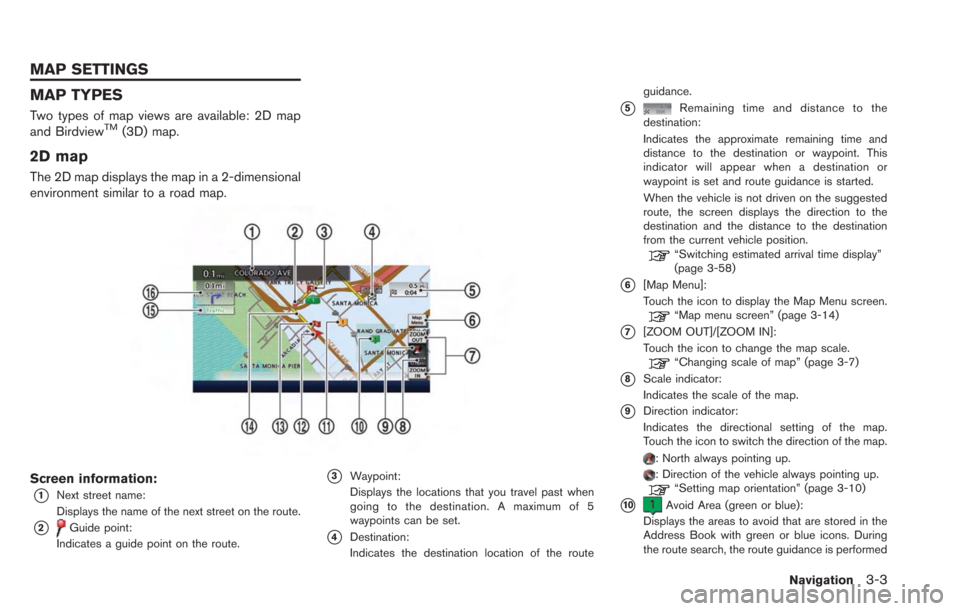
MAP TYPES
Two types of map views are available: 2D map
and BirdviewTM(3D) map.
2D map
The 2D map displays the map in a 2-dimensional
environment similar to a road map.
Screen information:
*1Next street name:
Displays the name of the next street on the route.
*2Guide point:
Indicates a guide point on the route.
*3Waypoint:
Displays the locations that you travel past when
going to the destination. A maximum of 5
waypoints can be set.
*4Destination:
Indicates the destination location of the route guidance.
*5Remaining time and distance to the
destination:
Indicates the approximate remaining time and
distance to the destination or waypoint. This
indicator will appear when a destination or
waypoint is set and route guidance is started.
When the vehicle is not driven on the suggested
route, the screen displays the direction to the
destination and the distance to the destination
from the current vehicle position.
“Switching estimated arrival time display”
(page 3-58)
*6[Map Menu]:
Touch the icon to display the Map Menu screen.
“Map menu screen” (page 3-14)
*7[ZOOM OUT]/[ZOOM IN]:
Touch the icon to change the map scale.
“Changing scale of map” (page 3-7)
*8Scale indicator:
Indicates the scale of the map.
*9Direction indicator:
Indicates the directional setting of the map.
Touch the icon to switch the direction of the map.
: North always pointing up.: Direction of the vehicle always pointing up.“Setting map orientation” (page 3-10)
*10Avoid Area (green or blue):
Displays the areas to avoid that are stored in the
Address Book with green or blue icons. During
the route search, the route guidance is performed
Navigation3-3
MAP SETTINGS
Page 124 of 275
3-68Navigation
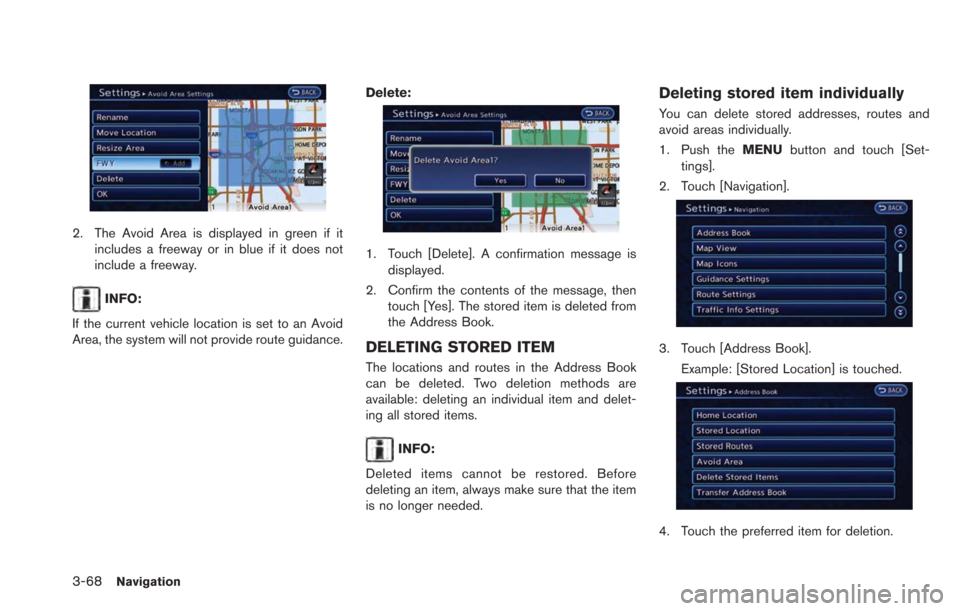
2. The Avoid Area is displayed in green if itincludes a freeway or in blue if it does not
include a freeway.
INFO:
If the current vehicle location is set to an Avoid
Area, the system will not provide route guidance. Delete:
1. Touch [Delete]. A confirmation message is
displayed.
2. Confirm the contents of the message, then touch [Yes]. The stored item is deleted from
the Address Book.
DELETING STORED ITEM
The locations and routes in the Address Book
can be deleted. Two deletion methods are
available: deleting an individual item and delet-
ing all stored items.
INFO:
Deleted items cannot be restored. Before
deleting an item, always make sure that the item
is no longer needed.
Deleting stored item individually
You can delete stored addresses, routes and
avoid areas individually.
1. Push the MENUbutton and touch [Set-
tings].
2. Touch [Navigation].
3. Touch [Address Book]. Example: [Stored Location] is touched.
4. Touch the preferred item for deletion.
Page 135 of 275

4 Audio system
Audio operation precautions ................................................... 4-2Radio ........................................................................\
............... 4-2
Compact Disc (CD) player ................................................ 4-3
USB (Universal Serial Bus) ............................................... 4-4
iPod
®player and iPhone®................................................. 4-6
Compressed Audio Files (MP3/WMA) .......................... 4-7
Bluetooth
®streaming audio ........................................... 4-11
FM-AM-SAT radio with compact disc (CD) player ........ 4-11 Audio main operation ....................................................... 4-11 FM-AM-SAT radio operation ........................................ 4-12
Compact Disc (CD) player operation........................ 4-14
iPod
®player operation .................................................. 4-16
Pandora®operation (if so equipped) ........................ 4-17
USB memory operation ................................................. 4-19
Bluetooth
®streaming audio operation ...................... 4-20
Auxiliary input jack .......................................................... 4-23
Steering wheel switches for audio control .............. 4-24
Page 141 of 275
the song that was last played will not be
saved. This can be fixed by updating the
iPod
®’s firmware (version 4.0 or later) .
. After the Album Shuffle setting has been set
when an iPhone
®is connected, if the USB
cable is pulled out and inserted again, or if
the power switch is placed in the "ACC" or
"OFF" positions from the "ON" position, the
song that was last played will not be saved.
. After the Album Shuffle setting has been set
when an iPhone
®3G or iPhone®3GS is
connected, if the USB cable is pulled out
and inserted again, or if the power switch is
placed in the "ACC" or "OFF" positions from
the "ON" position, the song that was last
played will not be saved. This can be fixed
by updating the iPhone
®’s firmware (version
4.0 or later) .
. When an iPhone
®3G, iPhone®3GS or
iPhone®4 is playing back music, if a
Bluetooth®audio device is connected, or if
the iPod®mode is switched to again after
switching to the Bluetooth®streaming audio
mode and playing back Bluetooth®audio,
there may be no audio output. In this case,
disconnect the iPhone
®from the system and
then reconnect it again. .
There may be no audio output of Bluetooth
®
streaming audio if an iPhone®3G or an
iPhone®3GS and a Bluetooth®audio
device are connected to the system and
the audio mode is toggled back and forth
between the Bluetooth
®streaming audio
mode and the iPod®mode. In this case,
disconnect the Bluetooth®streaming audio
from the system and connect again. Addi-
tionally, this can be fixed by updating the
iPhone
®’s firmware (version 4.0 or later) .
iPod®and iPhone®are a trademark of Apple
Inc., registered in the U.S. and other countries.
Compatibility
The following models are available.
. Fifth generation iPod®(firmware version 1.3
or later)
. iPod Classic
®(firmware version 1.1.2 or
later)
. First generation iPod touch
®(firmware ver-
sion 2.2.1 or later)
. Second generation iPod touch
®(firmware
version 2.2.1 or later)
. Third generation iPod touch
®(firmware
version 5.1.1 or later)
. First generation iPod nano
®(firmware ver-
sion 1.3.1 or later) .
Second generation iPod nano
®(firmware
version 1.1.3 or later)
. Third generation iPod nano
®(firmware ver-
sion 1.1 or later)
. Fourth generation iPod nano
®(firmware
version 1.0.3 or later)
. Fifth generation iPod nano
®(firmware ver-
sion 1.0.1PC or later)
. iPhone
®(firmware version 3.1.3 or later)
. iPhone®3G (firmware version 3.1.3 or later)
. iPhone®3GS (firmware version 3.1.3 or
later)
. iPhone
®4 (firmware version 4.0 or later)
. iPhone®4S (firmware version 5.0 or later)
Make sure that the iPod®firmware version is
updated.
COMPRESSED AUDIO FILES (MP3/
WMA)
Explanation of terms
. MP3 — MP3 is short for Moving Pictures
Experts Group Audio Layer 3. MP3 is the
most well known compressed digital audio
file format. This format allows for near "CD
quality" sound, but at a fraction of the size of
normal audio files. MP3 conversion of an
audio track can reduce the file size by
approximately a 10:1 ratio (Sampling: 44.1
Audio system4-7
Page 145 of 275
BLUETOOTH®STREAMING AUDIO
.Some Bluetooth®audio devices may not be
recognized by the in-vehicle audio system.
. It is necessary to set up the wireless
connection between a compatible Blue-
tooth
®audio device and the in-vehicle
Bluetooth®module before using the Blue-
tooth®streaming audio.
. The Bluetooth®streaming audio may be
stopped under the following conditions:
— Receiving a hands-free call.
— Checking the connection to the hands-
free phone.
— Connecting the hands-free phone or the audio device.
— Downloading the phonebook memory from the connected cellular phone.
. Do not place a Bluetooth
®audio device in
an area surrounded by metal or far away
from the in-vehicle Bluetooth
®module to
prevent tone quality degradation and wire-
less connection disruption.
. While an audio device is connected through
a Bluetooth
®wireless connection, the bat-
tery of the device may discharge quicker
than usual. .
This system supports the Bluetooth
®Audio
Distribution Profile (A2DP, AVRCP).
. Wireless LAN (Wi-Fi) and the Bluetooth
®
functions share the same frequency band
(2.4 GHz) . Using the Bluetooth®and the
wireless LAN functions at the same time may
slow down or disconnect the communica-
tion and cause undesired noise. It is
recommended that you turn off the wireless
LAN (Wi-Fi) when using the Bluetooth
®
functions.
. Bluetooth®trademark:
Bluetooth®is a trademark owned
by Bluetooth SIG, Inc., and
licensed to Clarion.
AUDIO MAIN OPERATION
Turning audio system on/off
Push the power switch to the "ACC" or "ON"
position, and then push thebutton while the
system is off to turn on the last audio source,
that was playing immediately before the system
was turned off. While the system is on, pushing
the
button turns the system off.
Switching audio screen
. FM/AM radio band select:
Pushing the FM·AMbutton will change the
band as follows:
AM ?FM1 ?FM2 ?AM
. SiriusXM satellite radio band select:
Pushing the XMbutton will change the
band as follows:
XM1 ?XM2 ?XM3 ?XM1
. Audio mode select:
Pushing the CD·AUXbutton will switch the
displays as follows:
USB memory/iPod
®player*1/Pandora® *1*2
? CD ?Bluetooth®streaming audio*1?
AUX ?USB memory/iPod®player*1/Pan-
dora®*1*2
*1 Screen only displays when a device capable of
playback is connected.
Audio system4-11
FM-AM-SAT RADIO WITH
COMPACT DISC (CD) PLAYER
Page 154 of 275
4-20Audio system
again to choose the last track that was played
last time.
Next/Previous File and Fast For-
ward/Rewind
Push theTUNE SEEK CH button for more than
1.5 seconds while a USB memory is being
played to fast forward or rewind though the
current track.
When the TUNE SEEK CH button is released,
the USB memory will return to normal play
speed.
When the TUNE SEEK CH button is pushed for
less than 1.5 seconds while a USB memory is
being played, the next track or the beginning of
the current track on the USB memory will be
played.
Select play mode
The play mode setting display will appear when
[Mode] is selected.
Select the preferred play mode from the
following items.
. Normal
. 1 Folder Repeat
. 1 Track Repeat
. All Random .
1 Folder Random
BLUETOOTH®STREAMING AUDIO
OPERATION
Your vehicle is equipped with Bluetooth®
Streaming Audio.
If you have a compatible Bluetooth®device with
streaming audio (A2DP profile) , you can set up a
wireless connection between your Bluetooth
®
device and the in-vehicle audio system. This
connection allows you to listen to the audio from
the Bluetooth
®device using your vehicle speak-
ers. It also may allow basic control of the device
for playing and skipping audio files using the
AVRCP Bluetooth
®profile. Not all Bluetooth®
devices have the same level of controls for
AVRCP. Please consult the manual for your
Bluetooth
®device for more details.
Wireless LAN (Wi-Fi) and the Bluetooth®
functions share the same frequency band (2.4
GHz) . Using the Bluetooth®and the wireless
LAN functions at the same time may slow down
or disconnect the communication and cause
undesired noise. It is recommended that you
turn off the wireless LAN (Wi-Fi) when using the
Bluetooth
®functions.
Regulatory information
FCC Regulatory information:
. CAUTION: To maintain compliance with
FCC’s RF exposure guidelines, use only
the supplied antenna. Unauthorized antenna,
modification, or attachments could damage
the transmitter and may violate FCC regula-
tions.
. Operation is subject to the following two
conditions:
— This device may not cause interference
and
— This device must accept any interfer- ence, including interference that may
cause undesired operation of the device
IC Regulatory information:
. Operation is subject to the following two
conditions:
— This device may not cause interference,
and
— This device must accept any interfer- ence, including interference that may
cause undesired operation of the device.
. This Class B digital apparatus meets all
requirements of the Canadian Interference-
Causing Equipment Regulations.
Page 155 of 275
![NISSAN LEAF 2013 1.G Navigation Manual Bluetooth®trademark:
Bluetooth®is a trademark owned
by Bluetooth®SIG, Inc., and
licensed to Clarion.
Connecting procedure
1. Push the MENUand touch [Settings].
2. Touch [Bluetooth].
3. Touch [Conne](/manual-img/5/324/w960_324-154.png "NISSAN LEAF 2013 1.G Navigation Manual Bluetooth®trademark:
Bluetooth®is a trademark owned
by Bluetooth®SIG, Inc., and
licensed to Clarion.
Connecting procedure
1. Push the MENUand touch [Settings].
2. Touch [Bluetooth].
3. Touch [Conne")
Bluetooth®trademark:
Bluetooth®is a trademark owned
by Bluetooth®SIG, Inc., and
licensed to Clarion.
Connecting procedure
1. Push the MENUand touch [Settings].
2. Touch [Bluetooth].
3. Touch [Connect Bluetooth]. A confirmation
message is displayed.
4. Confirm the contents of the message, thentouch [No].
INFO:
Selecting [Yes] will only connect the hands-
free phone portion of a Bluetooth
®device.
5. Choose a PIN code to use with the compatible Bluetooth®audio device using
the number input screen. The PIN code will
need to be entered into the Bluetooth
®
audio device after step 6.
6. Touch [OK]. The standby message screen will appear. Operate the compatible Blue-
tooth
®audio device. Please refer to the
device’s Owners Manual for the Bluetooth®
audio connection instructions for your spe-
cific device. When the connection is com-
pleted, the screen will return to the
Bluetooth
®setup display.
INFO:
It may not be possible to connect to a Blue-
tooth
®audio profile from the system. In this
case, perform connection operation from the
Bluetooth
®audio player, after connecting the
system and the Bluetooth®audio. For details of
how to perform connection, refer to the Owner’s
Manual of the Bluetooth
®audio player that is
being used.
Audio system4-21