2013 LINCOLN MKZ radio
[x] Cancel search: radioPage 367 of 474

You Can
When You Select
RDS Text Display allows you to always view the
information broadcast by FM stations by selecting
On.
Auto Presets (AST) allows you to have the system
automatically store the six strongest stations in your
current location.
TAG Button
(if available) allows you to tag a song
to download later. When you select On, TAG
appears on-screen when HD Radio is active. You
can press TAG to save the information of the song
that is playing. When you plug in your portable music
player, the information is transferred (if supported
by your device). When you are connected to
iTunes®, the tags appear to remind you of the songs
you would like to download.
Enter the desired station number when prompted.
Press Enter.
Direct Tune
HD Radio ™ Information (If
Available)
Note: HD Radio broadcasts are not
available in all markets.
HD Radio technology is the digital
evolution of analog AM/FM radio. Your
system has a special receiver which
allows it to receive digital broadcasts
(where available) in addition to the
analog broadcasts it already receives.
Digital broadcasts provide a better
sound quality than analog broadcasts
with free, crystal-clear audio and no
static or distortion. For more
information, and a guide to available
stations and programming, please
visit www.hdradio.com. When this feature is enabled and you
are tuned to a station broadcasting
HD Radio technology, you may notice
the following indicators on your
screen:
The HD Radio logo blinks when a
digital station is being acquired and is
solid when digital audio is playing.
When this logo is available, you may
also see Title and Artist fields
on-screen .
364
MyLincoln Touch
™E142616
Page 368 of 474

The multicast indicator appears in FM
mode (only) if the current station is
broadcasting multiple digital
broadcasts. The numbers that are
highlighted signify available digital
channels where new or different
content is available. HD1 signifies the
main programming status and is
available in analog and digital
broadcasts. Any additional multicast
stations (HD2 through HD7) are only
broadcast digitally.
TAG allows you to save a song to
download later. When you are on an
acquired HD Radio station, the TAG
button is available (provided the
feature has been turned on). To use
the tag feature:
1. Press AM or FM > Options > TAG Button > On.
2. When you hear a song you like, touch TAG. 3. The system automatically saves
the song's information and
transfers it to your portable music
player (if supported) when it is
connected to the system. If your
music player is connected at the
time, the system automatically
transfers the tag to your player and
a pop-up confirms the transfer.
4. When you access iTunes® with your portable music player, the
tags appear to you as a reminder.
The system allows you to tag up
to approximately 100 songs. For a
list of devices that support tagging,
refer to www.SYNCMyRide.com,
www.SYNCMyRide.ca or
www.syncmaroute.ca.
When HD Radio broadcasts are active,
you can access the following
functions: You Can
When You Select
Hear a brief sampling of all available stations.
Scan
This feature still works when HD Radio reception is
activated, although it does not scan for HD2-HD7
channels. You may see the HD logo appear if the
station has a digital broadcast.
When the channel is active on-screen, press and
hold a memory preset slot until the sound returns.
There is a brief mute, then the sound returns signi-
fying it was saved. When recalling a HD2 or HD3
memory preset, there is a mute before the digital
audio is played as the system must once again
acquire the digital signal. As with any saved radio
station, you cannot access the saved station if your
vehicle is outside the station's reception area.
To save a multicast
station as a preset
365
MyLincoln Touch
™
Page 369 of 474

HD Radio Reception and Station Troubleshooting
Potential Reception Issues
If you are listening to a multicast station and you
are on the fringe of the reception area, the station
may mute due to weak signal strength.
If you are listening to HD1, the system switches back
to the analog broadcast until the digital broadcast
is available again. However, if you are listening to
any of the possible HD2-HD7 multicast channels,
the station mutes and stays muted unless it is able
to connect to the digital signal again.
Reception area
When a station is first received (aside from HD2-
HD7 multicast stations), the system first plays the
station in the analog version and then, if the receiver
verifies the station is an HD Radio station, it shifts
to the digital version. Depending on the station
quality, you may hear a slight sound change when
the station changes from analog to digital. This shift
from analog to digital sound or digital back to
analog, is known as blending.
Station blending
In order to provide the best possible
experience, a contact form has been
developed to report any station issues
found while listening to a station
broadcasting with HD Radio
technology. Every station is
independently owned and operated.
These stations are responsible for
ensuring all audio streams and data
fields are accurate.
366
MyLincoln Touch
™
Page 370 of 474

Potential Station Issues
Action
Cause
Issues
None. Broadcast issue.
Poor time alignment by
the radio broadcaster.
Echo, stutter, skip or
repeat in audio. Increase
or decrease in audio
volume.
None. Reception issue
that may clear up as you
continue to drive.
The radio is shifting
between analog and
digital audio.
Sound fading or blending
in and out.
None. This is normal
behavior. Wait until the
audio is available.
The digital multicast is
not available until the HD
Radio broadcast is
decoded. Once decoded,
the audio is available.
Audio mute delay when
selecting HD2/HD3,
multicast preset or
Direct Tune.
None. The station is not
available in your current
location.
The previously stored
multicast preset or direct
tune is not available in
your current reception
area.
Cannot access HD2/HD3
multicast channel when
recalling a preset or from
a direct tune.
Fill out the station issue
form at website listed
below.*
Data service issue by the
radio broadcaster.
Text information does
not match currently
playing audio.
Fill out the station issue
form at website listed
below.*
Data service issue by the
radio broadcaster.
No text information
shown for currently
selected frequency.
None. This is normal
behavior.
Pressing Scan disables
HD2-HD7 channel
search.
HD2-HD7 stations not
found when
Scan is
pressed.
* http://www.ibiquity.com/automotive/report_radio_station_experiences
367
MyLincoln Touch
™
Page 371 of 474

HD Radio Technology manufactured
under license from iBiquity Digital
Corp. U.S. and foreign patents. HD
Radio and the HD and HD Radio logos
are proprietary trademarks of iBiquity
Digital Corp. Ford Motor Company and
iBiquity Digital Corp. are not
responsible for the content sent using
HD Radio technology. Content may
be changed, added or deleted at any
time at the station owner's discretion.
Radio Voice Commands If you are listening to the
radio, press the voice button
on the steering wheel
controls. When prompted, say any of
the following commands.
If you are not listening to the radio,
press the voice button and, after the
tone, say "Radio", then any of the
following commands. "RADIO"
"FM autoset preset <#>"
"<87.9-107.9>"
"FM preset <#>"
"<87.9-107.9> HD" 1
"FM 1"
"<530-1710>"
"FM 1 preset <#>"
"AM"
"FM 2"
"AM <530-1710>"
"FM 2 preset <#>"
"AM autoset"
"HD <#>"1
"AM autoset preset <#>"
"Preset <#>"
"AM preset <#>"
"Radio off"
"Browse" 2
"Radio on"
"FM"
"Set PTY"
"FM <87.9-107.9>"
"Tune"3
"FM <87.9-107.9> HD <#>" 1
"Help"
"FM autoset"
1 If available
2 If you have said "Browse", refer to the "Browse" chart later in this section.
3 If you have said "Tune", refer to the following "Tune" chart.
368
MyLincoln Touch
™E142599
Page 372 of 474
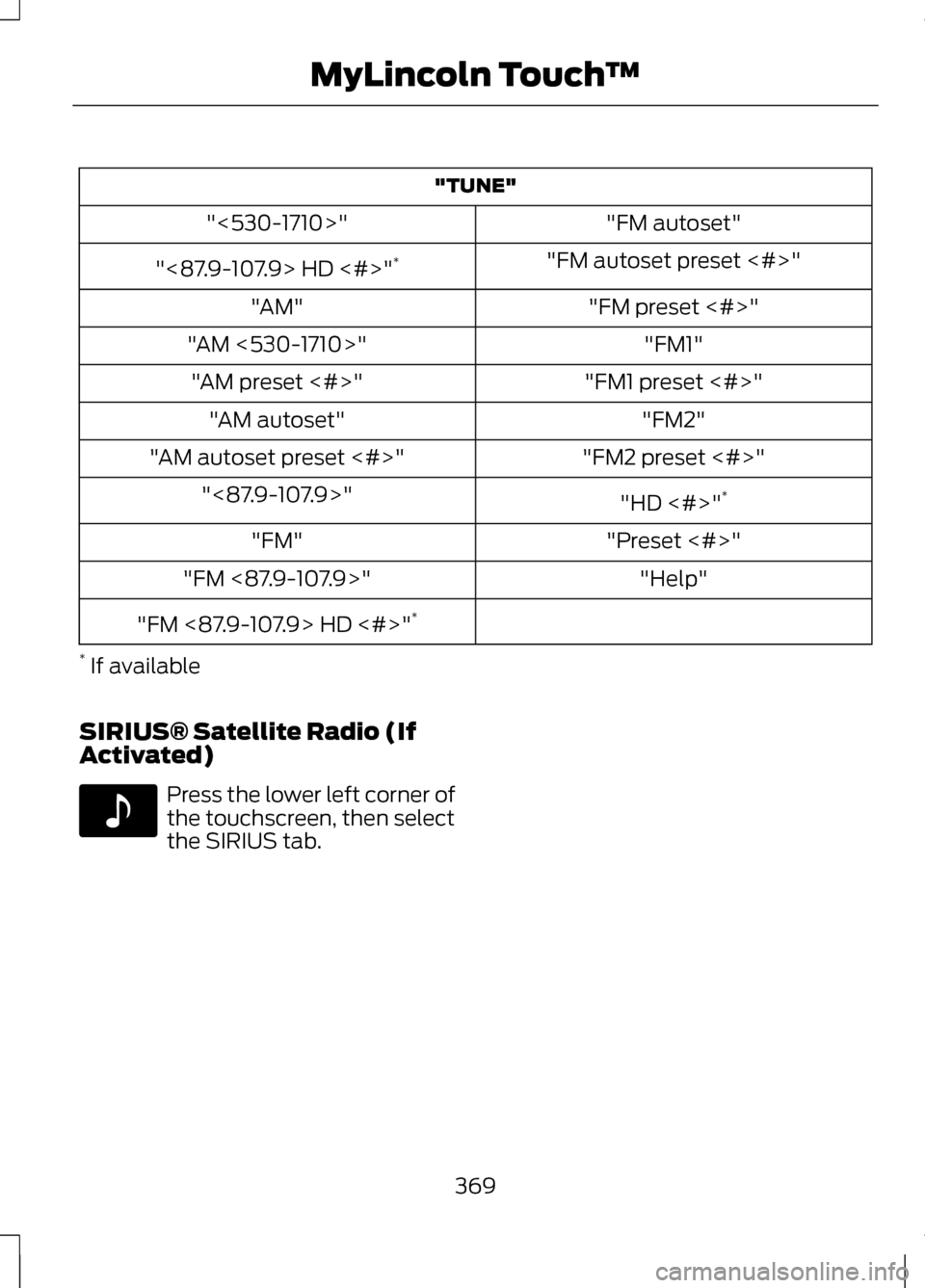
"TUNE"
"FM autoset"
"<530-1710>"
"FM autoset preset <#>"
"<87.9-107.9> HD <#>" *
"FM preset <#>"
"AM"
"FM1"
"AM <530-1710>"
"FM1 preset <#>"
"AM preset <#>"
"FM2"
"AM autoset"
"FM2 preset <#>"
"AM autoset preset <#>"
"HD <#>"*
"<87.9-107.9>"
"Preset <#>"
"FM"
"Help"
"FM <87.9-107.9>"
"FM <87.9-107.9> HD <#>" *
* If available
SIRIUS® Satellite Radio (If
Activated) Press the lower left corner of
the touchscreen, then select
the SIRIUS tab.
369
MyLincoln Touch
™E142611
Page 374 of 474

You Can
When You Select
Artist/Title/Team Alerts allows you to select
Artists, Titles and Teams that you would like the
system to alert you to when they are playing on
other channels. Press Edit Alerts to delete or turn
off alerts. You can also set all alerts to on or off.
When an alert appears on the screen, you can
choose to Tune to the channel, to Cancel the alert
or to Disable Alerts. If you are listening to a sporting
event, you can save your favorite teams so that the
system can alert you when they are playing on a
satellite radio channel.
Note:
SIRIUS does not support the Alert feature on
all channels. Ford Motor Company shall not be
responsible for Alert feature variation.
Electronic Serial Number (ESN) is required when
communicating with SIRIUS about your account.
Enter the desired satellite channel number using
the on-screen keypad.
Direct Tune
View a list of all available stations. Scroll and select
the desired station.
Browse
You can also lock or skip unwanted channels or view
the song and artist on other stations.
* SIRIUS does not support the Alert feature on all channels. Ford Motor Company
shall not be responsible for Alert feature variation.
SIRIUS Satellite Radio Information
Note: SIRIUS reserves the unrestricted
right to change, rearrange, add or
delete programming including
canceling, moving or adding particular
channels, and its prices, at any time,
with or without notice to you. Ford
Motor Company shall not be
responsible for any such programming
changes.
371
MyLincoln Touch
™
Page 375 of 474

SIRIUS satellite radio is a
subscription-based satellite radio
service that broadcasts a variety of
music, sports, news, weather, traffic
and entertainment programming.
Your factory-installed SIRIUS satellite
radio system includes hardware and
a limited subscription term which
begins on the date of sale or lease of
the vehicle. Refer to your authorized
dealer for availability.
For more information on extended
subscription terms (a service fee is
required), the online media player and
a complete list of SIRIUS satellite
radio channels, and other features,
please visit www.siriusxm.com in the
United States, www.sirius.ca in
Canada, or call SIRIUS at
1-888-539-7474.
Satellite Radio Electronic Serial
Number (ESN)
You need your ESN to activate, modify
or track your satellite radio account.
The ESN is found on the System
Information Screen (SR ESN:
XXXXXXXXXXXX). To access your
ESN, touch the bottom left corner of
the touchscreen. Touch SIRIUS,
Options, then ESN.
SIRIUS Satellite Radio Reception Factors and Troubleshooting Potential Reception Issues
For optimal reception performance, keep the
antenna clear of snow and ice build-up and keep
luggage and other material as far away from the
antenna as possible.
Antenna obstructions
Hills, mountains, tall buildings, bridges, tunnels,
freeway overpasses, parking garages, dense tree
foliage and thunderstorms can interfere with your
reception.
Terrain
When you pass a ground-based broadcast repeating
tower, a stronger signal may overtake a weaker one
and the audio system may mute.
Station overload
Your display may show ACQUIRING... to indicate
the interference and the audio system may mute.
Satellite radio signal
interference
372
MyLincoln Touch
™E142593