Page 242 of 1168
4 163
Features of your vehicle
Cargo security screen (wagon) (if equipped)
Use the cargo security screen to hide items stored in the cargo area.To use the cargo security screen
1. Pull the cargo security screen towardsthe rear of the vehicle by the handle (1).
2. Insert the guide pin into the guide (2).
✽✽ NOTICE
Pull out the cargo security screen with
the handle in the center to prevent the
guide pin from falling out of the guide.
When the cargo security screen is not in use:
1. Pull the cargo security screen rear and down to release it from the guides.
2. The cargo security screen will auto- matically slide back in.
✽✽ NOTICE
The cargo security screen may not auto- matically slide back in if the cargo secu-
rity screen is not fully pulled out. Fullypull it out and then let go.
OGDE042304OGDE042305
JD eng 4a(~168).qxp 7/17/2012 10:27 AM Page 163
Page 249 of 1168

Features of your vehicle
170
4
Audio remote control (if equipped)
The steering wheel audio remote control
button is installed to promote safe driving.
VOL (+/ -) (1)
• Push up the lever to increase volume.
Push down the lever to decrease vol-
ume.
SEEK ( / ) (2)
The SEEK/PRESET button has different
functions base on the system mode. For
the following functions the button should
be pressed for 0.8 seconds or more. RADIO mode
It will function as the AUTO SEEK select
button.
CDP mode
It will function as the FF/REW button.
If the SEEK button is pressed for less
than 0.8 second, it will work as follows in
each mode. RADIO mode
It will function as the PRESET STATION
select buttons.
CDP mode
It will function as the TRACK UP/DOWN
button.
Detailed information for audio control
buttons are described in the followingpages in this section.
MUTE (3)
Press the MUTE button to cancel the
sound.
Press the MUTE button again to acti- vate the sound.
MODE (4)
Press the button to select Radio or CD (compact disc).
CAUTION
Do not operate the audio remote
control buttons simultaneously.
OJD042149
■
■■■TTTTyyyyppppeeee BBBBOJD042147
■
Type A
JD eng 4b(169~).qxp 7/19/2012 3:45 PM Page 170
Page 258 of 1168
4 179
Features of your vehicle
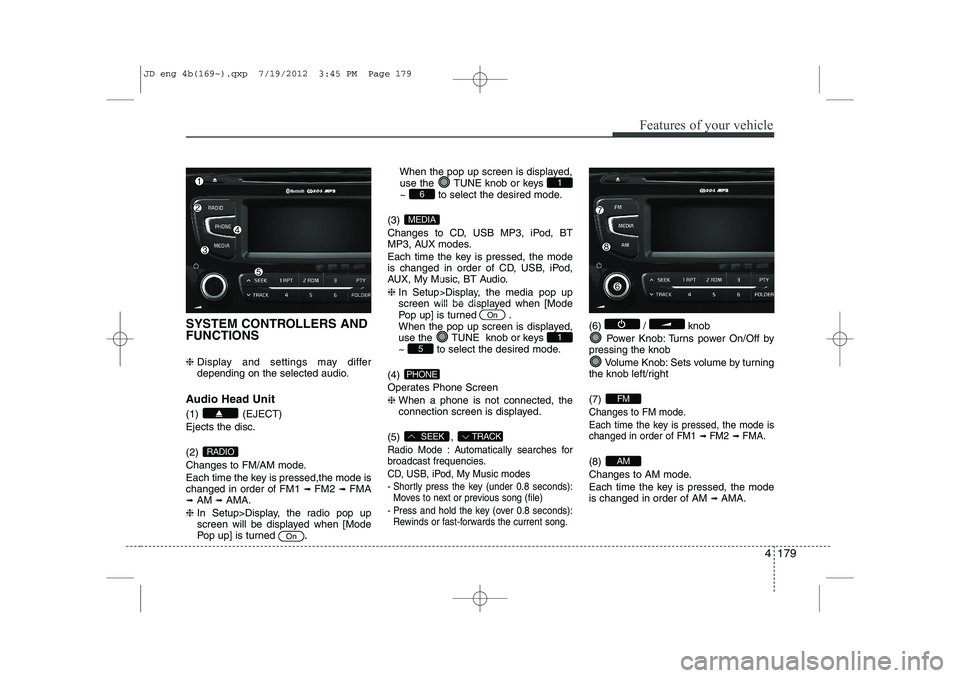
SYSTEM CONTROLLERS AND FUNCTIONS ❈ Display and settings may differ
depending on the selected audio.
Audio Head Unit (1) (EJECT) Ejects the disc. (2)
Changes to FM/AM mode.
Each time the key is pressed,the mode is changed in order of FM1 ➟
FM2 ➟FMA
➟ AM ➟AMA.
❈ In Setup>Display, the radio pop up
screen will be displayed when [Mode
Pop up] is turned .When the pop up screen is displayed,
use the TUNE knob or keys
~ to select the desired mode.
(3)
Changes to CD, USB MP3, iPod, BT
MP3, AUX modes.
Each time the key is pressed, the mode
is changed in order of CD, USB, iPod,
AUX, My Music, BT Audio. ❈ In Setup>Display, the media pop up
screen will be displayed when [Mode
Pop up] is turned .
When the pop up screen is displayed,
use the TUNE knob or keys
~ to select the desired mode.
(4)
Operates Phone Screen❈ When a phone is not connected, the
connection screen is displayed.
(5) ,
Radio Mode : Automatically searches for
broadcast frequencies.
CD, USB, iPod, My Music modes
- Shortly press the key (under 0.8 seconds): Moves to next or previous song (file)
- Press and hold the key (over 0.8 seconds): Rewinds or fast-forwards the current song.
(6) / knob
Power Knob: Turns power On/Off by
pressing the knob
Volume Knob: Sets volume by turning
the knob left/right (7)
Changes to FM mode.
Each time the key is pressed, the mode is changed in order of FM1
➟ FM2➟ FMA.
(8)
Changes to AM mode.
Each time the key is pressed, the mode is changed in order of AM ➟
AMA.AM
FM
TRACKSEEK
PHONE
51
On
MEDIA
61
On
RADIO
JD eng 4b(169~).qxp 7/19/2012 3:45 PM Page 179
Page 261 of 1168
Features of your vehicle
182
4
Audio Settings
This menu allows you to set the ‘Bass,
Middle, Treble’ and the Sound Fader and
Balance.
Select [Audio Settings] Select menu through
TUNE knobTu r n
TUNE knobleft/right to set
Bass, Middle, Treble : Selects the sound tone.
Fader, Balance : Moves the sound fader and balance.
Default : Restores default settings. ❈ Return : While adjusting values, re-
pressing the TUNE knob will
restore the parent menu. Power Bass
This is a sound system feature that pro-
vides live bass.
Select [Power Bass] Set
/
through TUNE knob
Speed Dependent Volume Control
This feature is used to automatically con-
trol the volume level according to the
speed of the vehicle.
Select [SDVC] Set in 4 levels [Off/
Low/Mid/High] of
TUNEknob Volume Dialogue
Adjusts voice recognition volume.
Select [Volume Dialogue] Set vol- ume of
TUNEknobOffOn
JD eng 4b(169~).qxp 7/19/2012 3:45 PM Page 182
Page 262 of 1168
![KIA CEED 2013 Owners Manual 4 183
Features of your vehicle
PHONE SETUP (if equipped)
Press the key Select [Phone]
through TUNE knob or key
Select menu through TUNE knob
Pair Phone
To pair a
Bluetooth®Wireless Technology](/manual-img/2/57944/w960_57944-261.png "KIA CEED 2013 Owners Manual 4 183
Features of your vehicle
PHONE SETUP (if equipped)
Press the key Select [Phone]
through TUNE knob or key
Select menu through TUNE knob
Pair Phone
To pair a
Bluetooth®Wireless Technology")
4 183
Features of your vehicle
PHONE SETUP (if equipped)
Press the key Select [Phone]
through TUNE knob or key
Select menu through TUNE knob
Pair Phone
To pair a
Bluetooth®Wireless Technology
enabled mobile phone, authentication and connection processes are first
required. As a result, you cannot pair
your mobile phone while driving the vehi-
cle. First park your vehicle before use.
Select [Pair Phone] Set through TUNE knob
➀ Search for device names as displayed
on your mobile phone and connect.
➁ Input the passkey displayed on the
screen. (Passkey : 0000)
❈ The device name and passkey will be
displayed on the screen for up to 3
minutes. If pairing is not completed
within the 3 minutes, the mobile phone
pairing process will automatically becanceled.
➂ Pairing completion is displayed.
❈ In some mobile phones, pairing will
automatically be followed by connection. ❈
It is possible to pair up to five
Bluetooth®Wireless Technology
enabled mobile phones.
3
SETUP
JD eng 4b(169~).qxp 7/19/2012 3:45 PM Page 183
Page 263 of 1168
![KIA CEED 2013 Owners Manual Features of your vehicle
184
4
Phone List The names of up to 5 paired phones will
be displayed.
A [ ] is displayed in front of the currently
connected phone. Select the desired name to setup the
s](/manual-img/2/57944/w960_57944-262.png "KIA CEED 2013 Owners Manual Features of your vehicle
184
4
Phone List The names of up to 5 paired phones will
be displayed.
A [ ] is displayed in front of the currently
connected phone. Select the desired name to setup the
s")
Features of your vehicle
184
4
Phone List The names of up to 5 paired phones will
be displayed.
A [ ] is displayed in front of the currently
connected phone. Select the desired name to setup the
selected phone.
Connecting a phone
Select [Phone List] Select mobile
phone through TUNE knob Select[Connect Phone]
➀ Select a mobile phone that is not cur- rently connected.
➁ Connect the selected mobile phone. ➂
Connection completion is displayed.
❈ If a phone is already connected, dis-connect the currently connected
phone and select a new phone to con-nect.
Disconnecting a connected phone
Select [Phone List] Select mobile
phone through TUNE knob Select[Disconnect Phone]
➀ Select the currently connected mobile
phone.
➁ Disconnect the selected mobile
phone.
➂ Disconnection completion is dis-
played.
Changing connection sequence
(Priority)
This is used to change the order (priori-
ty) of automatic connection for the paired
mobile phones.
Select [Phone List] Select mobile
phone through TUNE knob Select
[Priority]
➀ Select [ Phone] in the [Setup]
➁ Select [Phone List]
➂ From the paired phones, select the
phone desired for No.1 priority.
Select [ Priority]
❈ Once the connection sequence (priori-
ty) is changed, the new no. 1 prioritymobile phone will be connected.
- when the no. 1 priority cannot be con- nected: Automatically attempts to con-nect the most recently connected
phone.
- Cases when the most recently con- nected phone cannot be connected:Attempts to connect in the order inwhich paired phones are listed.
JD eng 4b(169~).qxp 7/19/2012 3:45 PM Page 184
Page 264 of 1168
![KIA CEED 2013 Owners Manual 4 185
Features of your vehicle
Delete
Select [Phone List] Select mobile
phone through TUNE knob Select[Delete]
➀Select the desired mobile phone.
➁ Delete the selected mobile phone.
➂ Deletion](/manual-img/2/57944/w960_57944-263.png "KIA CEED 2013 Owners Manual 4 185
Features of your vehicle
Delete
Select [Phone List] Select mobile
phone through TUNE knob Select[Delete]
➀Select the desired mobile phone.
➁ Delete the selected mobile phone.
➂ Deletion")
4 185
Features of your vehicle
Delete
Select [Phone List] Select mobile
phone through TUNE knob Select[Delete]
➀Select the desired mobile phone.
➁ Delete the selected mobile phone.
➂ Deletion completion is displayed.
❈ When attempting to delete a currently
connected phone, the phone is firstdisconnected.
When you delete a mobile phone, lt's
phone book will also be erased.
For stable
Bluetooth®Wireless Technologycommunication, delete the mobile phonefrom the audio and also delete the audio
from your mobile phone
Phone book Download
This feature is used to download a phone
book and call histories into the audio sys-tem.
Select [Phone] Select [ History]
[ P.BOOK] through
TUNEknob
The download feature may not be support-
ed in some mobile phones.
If a different operation is performed while a phone book is being downloaded,
downloading will be discontinued. Thephone book already downloaded will be
saved.
When downloading a new phone book,
delete all previously saved phone book
before starting download.
Auto Download
When connecting a mobile phone, it is
possible to automatically download a
new phone book and Call Histories.
Select [Auto Download] Set / through TUNE knob
Audio Streaming
Songs (files) saved in your
Bluetooth®
Wireless Technology enabledmobile phone
can be played through the audio system.
Select [Audio Streaming] Set /
through TUNE knob
The Bluetooth®Wireless Technology
audio streaming feature may not be sup-
ported in some mobile phones.
Outgoing Volume
This is used to set the volume of your
voice as heard by the other party whileon a
Bluetooth®Wireless Technology
enabled handsfree call.
Select [Outgoing Volume] Set vol- ume through
TUNEknob
Off
On
Off
On
JD eng 4b(169~).qxp 7/19/2012 3:45 PM Page 185
Page 265 of 1168

Features of your vehicle
186
4
Bluetooth®Wireless Technology
System Off
This feature is used when you do not wish to use the
Bluetooth®Wireless
Technologysystem.
Select [Bluetooth®Wireless Technology
System Off] Set through TUNE knob
❈ If a phone is already connected, dis- connect the currently connected phone
and turn the
Bluetooth®Wireless
Technologysystem off.
Using the
Bluetooth®Wireless
Technology System
To use
Bluetooth®Wireless Technologywhen the system is currently off, follow
these next steps.
Turning On
Bluetooth®Wireless
Technologythrough the Key
Press the key Screen Guidance
❈ Moves to the screen where Bluetooth®
Wireless Technology functions can be
used and displays guidance. Turning On
Bluetooth®Wireless
Technologythrough the Key
Press the key Select [Phone]
through TUNE knob or key
➀ A screen asking whether to turn onBluetooth®Wireless Technologywill be
displayed.
➁ On the screen, select to turn on
Bluetooth®Wireless Technologyand
display guidance.
❈ If the
Bluetooth®Wireless Technologysystem is turned on, the system will
automatically try to connect the mostrecently connected
Bluetooth®
Wireless Technologymobile phone.
Bluetooth®Wireless Technology con-
nection may become intermittently dis-
connected in some mobile phones. Follow
these next steps to try again.
1) Turn the Bluetooth®Wireless Technologyfunction within the mobile phone
ON/OFF and try to connect again.
2) Turn the mobile phone power ON/OFF and try to connect again.
3) Completely remove the mobile phone
battery, reboot, and then try to connectagain.
4) Reboot the audio system and try to con-
nect again
5) Delete all paired devices in your mobile phone and the audio system and pair
again for use.
YES
3
SETUP
SETUP
PHONE
PHONE
JD eng 4b(169~).qxp 7/19/2012 3:45 PM Page 186

![KIA CEED 2013 Owners Manual Features of your vehicle
182
4
Audio Settings
This menu allows you to set the ‘Bass,
Middle, Treble’ and the Sound Fader and
Balance.
Select [Audio Settings] Select menu through
TUNE knobTu r](/manual-img/2/57944/w960_57944-260.png "KIA CEED 2013 Owners Manual Features of your vehicle
182
4
Audio Settings
This menu allows you to set the ‘Bass,
Middle, Treble’ and the Sound Fader and
Balance.
Select [Audio Settings] Select menu through
TUNE knobTu r")