2013 KIA CEED Auto
[x] Cancel search: AutoPage 268 of 1168
![KIA CEED 2013 Owners Manual 4 189
Features of your vehicle
RADIO Changing RADIO mode Press the
(, )key
to change the mode in order
: FM1➟FM2 ➟ FMA ➟AM ➟AMA
: FM1
➟FM2 ➟FMA
: AM
➟AMA
[Mode Pop up] On state : Dis](/manual-img/2/57944/w960_57944-267.png "KIA CEED 2013 Owners Manual 4 189
Features of your vehicle
RADIO Changing RADIO mode Press the
(, )key
to change the mode in order
: FM1➟FM2 ➟ FMA ➟AM ➟AMA
: FM1
➟FM2 ➟FMA
: AM
➟AMA
[Mode Pop up] On state : Dis")
4 189
Features of your vehicle
RADIO Changing RADIO mode Press the
(, )key
to change the mode in order
: FM1➟FM2 ➟ FMA ➟AM ➟AMA
: FM1
➟FM2 ➟FMA
: AM
➟AMA
[Mode Pop up] On state : Displays the
change radio mode pop up screen.
While the pop up screen is displayed, you
can change the radio modethrough the
tune knob or ~ keys.
Adjust Volume
Turn the VOL knob left/right to adjust
the volume. SEEK
Press the ( , )key
,
Shortly pressing the key (under 0.8 seconds): Changes the frequency.
Pressing and holding the key (over 0.8 seconds): Automatically searches for
the next frequency.
Preset SEEK
Press the ( , ) key
~
Shortly pressing the key (under 0.8 seconds): Plays the frequency saved in
the corresponding key.
Pressing and holding the key (over 0.8 seconds): Pressing and holding thedesired key from ~ will
save the currently playing broadcast to
the selected key and sound a BEEP. SCAN
Press the ( , ) key
Pressing and holding the key (over 0.8
seconds): The broadcast frequency
increases and previews each broadcast
for 5 seconds each. After scanning all
frequencies, returns and plays the cur-
rent broadcast frequency.
Selecting through manual search
Turn the TUNE knob left/right to adjust
the frequency. - FM : Changes by 50KHz
- AM : Changes by 9khz
TA/SCAN
AMFMRADIO
61
61
AMFMRADIO
TRACKSEEK
AMFMRADIO
51
AM
FM
RADIO
AMFMRADIO
JD eng 4b(169~).qxp 7/19/2012 3:45 PM Page 189
Page 269 of 1168
Features of your vehicle
190
4
Traffic Announcement (TA)
Shortly pressing the key
(under 0.8 seconds): Set
/TA
Traffic Announcement) mode.
PTY Up/Down
Press the , key when searching PTY in RDS
Broadcasting Program Type selection.
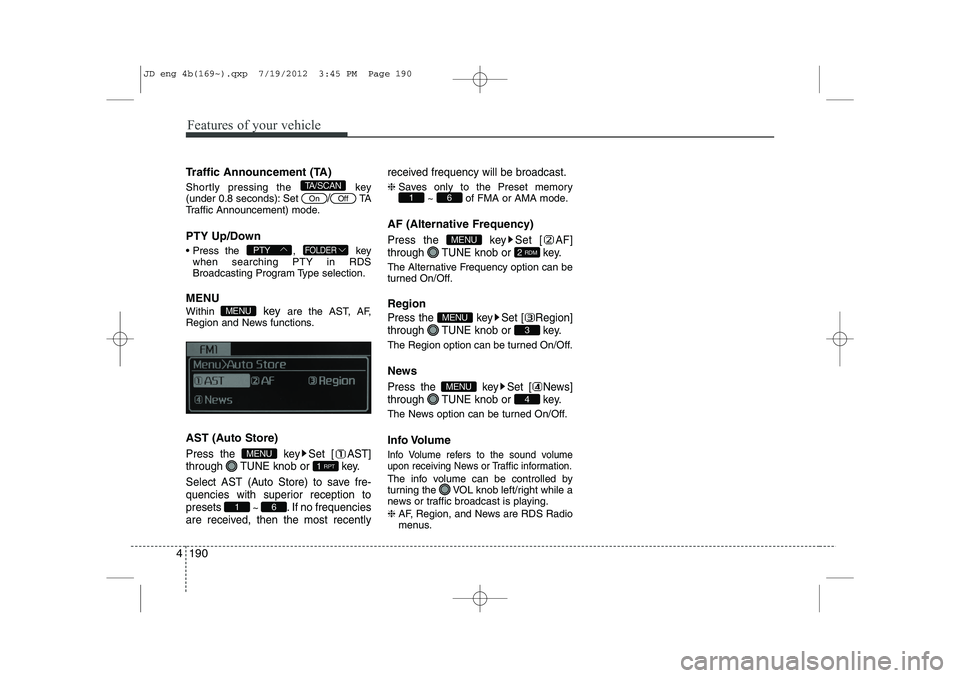
MENU Within key are the AST, AF,
Region and News functions.
AST (Auto Store)
Press the key Set [ AST]
through TUNE knob or key.
Select AST (Auto Store) to save fre-
quencies with superior reception topresets
~ . If no frequencies
are received, then the most recently received frequency will be broadcast.
❈
Saves only to the Preset memory
~ of FMA or AMA mode.
AF (Alternative Frequency)
Press the key Set [ AF]
through TUNE knob or key.
The Alternative Frequency option can be
turned On/Off. Region
Press the key Set [ Region]
through TUNE knob or key.
The Region option can be turned On/Off.
News
Press the key Set [ News]
through TUNE knob or key.
The News option can be turned On/Off.
Info Volume
Info Volume refers to the sound volume
upon receiving News or Traffic information.
The info volume can be controlled by
turning the VOL knob left/right while a
news or traffic broadcast is playing. ❈ AF, Region, and News are RDS Radio
menus.
4
MENU
3
MENU
2 RDM
MENU
61
61
1 RPT
MENU
MENU
FOLDERPTY
OffOn
TA/SCAN
JD eng 4b(169~).qxp 7/19/2012 3:45 PM Page 190
Page 270 of 1168
4 191
Features of your vehicle
BASIC METHOD OF USE :
Audio CD / MP3 CD / USB /
iPod / My Music
Press the key to change the mode in order of CD➟USB(iPod) ➟AUX
➟ My Music ➟BT Audio.
The folder/file name is displayed on thescreen. ❈ The CD is automatically played when
a CD is inserted.
❈ The USB music is automatically
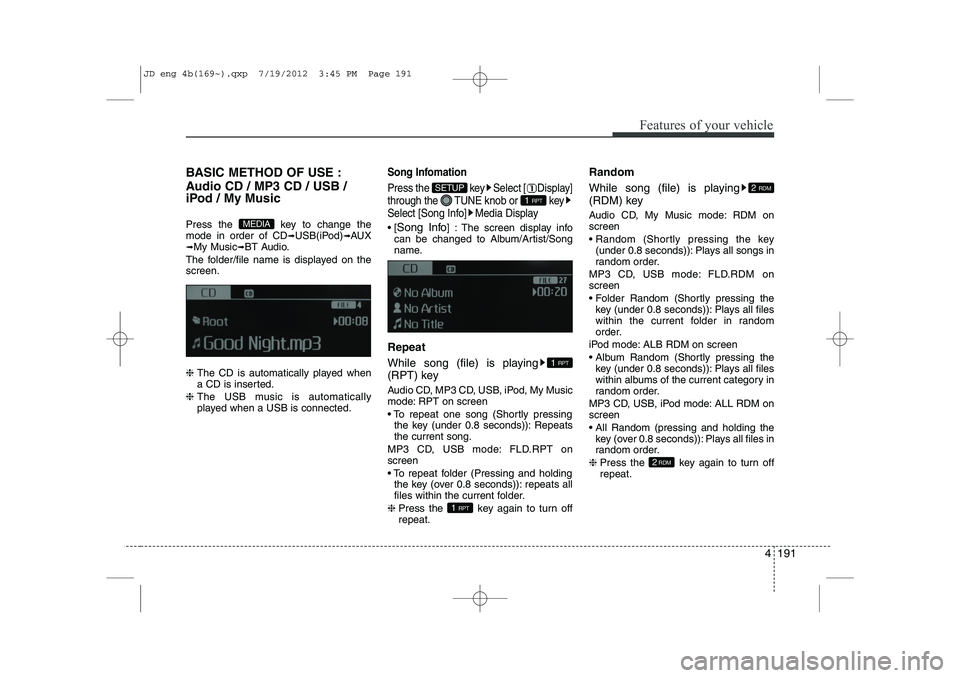
played when a USB is connected.Song Infomation
Press the key Select [ Display]
through the TUNE knob or key
Select [Song Info] Media Display
[Song Info ] : The screen display info
can be changed to Album/Artist/Song
name.
Repeat
While song (file) is playing
(RPT) key
Audio CD, MP3 CD, USB, iPod, My Music
mode: RPT on screen
To repeat one song (Shortly pressing the key (under 0.8 seconds)): Repeats the current song.
MP3 CD, USB mode: FLD.RPT onscreen
To repeat folder (Pressing and holding the key (over 0.8 seconds)): repeats all
files within the current folder.
❈ Press the key again to turn offrepeat. Random
While song (file) is playing
(RDM) key
Audio CD, My Music mode: RDM on screen
Random (Shortly pressing the key
(under 0.8 seconds)): Plays all songs in
random order.
MP3 CD, USB mode: FLD.RDM onscreen
Folder Random (Shortly pressing the key (under 0.8 seconds)): Plays all files
within the current folder in random
order.
iPod mode: ALB RDM on screen
Album Random (Shortly pressing the key (under 0.8 seconds)): Plays all files
within albums of the current category in
random order.
MP3 CD, USB, iPod mode: ALL RDM onscreen
All Random (pressing and holding the key (over 0.8 seconds)): Plays all files in
random order.
❈ Press the key again to turn offrepeat.
2RDM
2 RDM
1 RPT
1 RPT
1 RPT
SETUP
MEDIA
JD eng 4b(169~).qxp 7/19/2012 3:45 PM Page 191
Page 277 of 1168

Features of your vehicle
198
4
Bluetooth®Wireless Technology
AUDIO
Before using
Bluetooth®Wireless
Technology
audio features
Bluetooth®Wireless Technology audio
may not be supported depending on
the compatibility of your
Bluetooth®
Wireless Technologymobile phone.
In order to use
Bluetooth®Wireless
Technologyaudio, you must first pair and
connect the Bluetooth®Wireless
Technologymobile phone.
Bluetooth®Wireless Technologyaudio
can be used only when the [Audio
Streaming] of Phone is turned .
❈ Setting
Bluetooth®Wireless TechnologyAudio Streaming : Press the
key Select [Phone] through the tune
knob or key Select [Audio
Streaming] through the TUNE
knob Set
/
Starting Bluetooth®Wireless
Technology
Audio
Press the key to change the mode in order of CD ➟USB ➟AUX ➟My
Music ➟BT Audio.
If BT Audio is selected,
Bluetooth®
Wireless Technology audio will start play-
ing.
❈ Audio may not automatically start play-
ing in some mobile phones.
Using the
Bluetooth®Wireless
Technologyaudio features
Play / Stop
Press the TUNE knob to play and pause the current song. ❈ The previous song / next song / play /
pause functions may not be supported
in some mobile phones. Changing Song/File
While song (file) is playing key
Press the key : Plays the
current song from the beginning.
❈ If the key is pressed again
within 1 second, the previous song is
played.
While song (file) is playing key
Press the key : Plays the
next song.SEEK
SEEK
TRACK
TRACK
TRACK
MEDIA
OffOn
3
SETUP
On
JD eng 4b(169~).qxp 7/19/2012 3:45 PM Page 198
Page 278 of 1168

4 199
Features of your vehicle
PHONE (if equipped)
Before using the
Bluetooth®Wireless
Technology
phone features
In order to use
Bluetooth®Wireless
Technologyphone, you must first pair
and connect the Bluetooth®Wireless
Technologymobile phone.
If the mobile phone is not paired or con- nected, it is not possible to enter Phone
mode. Once a phone is paired or con-nected, the guidance screen will be dis-
played.
If Priority is set upon vehicle ignition (IGN/ACC ON), the
Bluetooth®Wireless
Technologyphone will be automatically
connected. Even if you are outside, the
Bluetooth®Wireless Technologyphone
will be automatically connected once
you are in the vicinity of the vehicle. If
you do not want automatic
Bluetooth®
Wireless Technologyphone connection,
set the Bluetooth®Wireless Technologyto OFF. Making a call using the Steering
remote controller
(1) VOLUME button : Raises or lowers
speaker volume.
(2) MUTE button : Mutes audio Volume during a call.
(3) button : Activates voice recogni- tion.
(4) button : Places and transfers calls.
(5) button : Ends calls or cancels functions.
Check call history and making call
➀Shortly press (under 0.8 seconds) the
key on the steering remote con-
troller.
➁ The call history list will be displayed on the screen.
➂ Press the key again to connect a
call to the selected number.
Redialing the most recently called
number
➀ Press and hold (over 0.8 seconds) the
key on the steering remote con-
troller.
➁ The most recently called number is redialed.
JD eng 4b(169~).qxp 7/19/2012 3:46 PM Page 199
Page 281 of 1168

Features of your vehicle
202
4
(continued)
If the cellular phone signal is poor or the
vehicles interior noise is too loud, it may
be difficult to hear the other person’s
voice during a call.
Do not place the phone near or inside metallic objects, otherwise communica-tions with
Bluetooth®Wireless
Technologysystem or cellular service
stations can be disturbed.
While a phone is connected through
Bluetooth®Wireless Technologyyour
phone may discharge quicker than usual
for additional
Bluetooth®Wireless
Technology-related operations.
Some cellular phones or other devices may cause interference noise or mal-
function to audio system. In this case,
store the device in a different location
may resolve the situation.
Please save your phone name in English, or your phone name may not
be displayed correctly.
If Priority is set upon vehicle ignition(IGN/ACC ON), the
Bluetooth®
Wireless Technologyphone will be auto-
matically connected.
Even if you are outside, the
Bluetooth®
Wireless Technology phone will be auto-
matically connected once you are in the
vicinity of the vehicle. If you do not want automatic
Bluetooth®
Wireless Technologypower off.
JD eng 4b(169~).qxp 7/19/2012 3:46 PM Page 202
Page 284 of 1168

4 205
Features of your vehicle
Monday Monday
Tuesday Tuesday
Wednesday Wednesday
Thursday Thursday
Friday Friday
Saturday Saturday
Sunday Sunday
Use tune knob Use tune knob
Volume Volume
MaxVolume maxinmum
MinVolume mininmum
AST (Auto store) Automatically selects and saves
channels
No Media Empty media file in CD or USB
No File Empty media file in CD or USB
Empty File Empty media file in MY MUSIC
Info (Information) Information of playing files
Artist Artist name, MP3/CD file cur-
rently being played
Title Song name, MP3/CD file cur-
rently being played
Album Album name, MP3/CD file cur-
rently being played
Genres "Genres" is keyword for search-
ing mode of playlists for iPod
Composers "Composers" is filtering keyword for searching mode of playlists
for iPod
Playlists"Playlists" is filtering keyword for
searching mode of playlists for iPod
Songs"Songs" is filtering keyword for
searching mode of playlists for iPod
Audiobooks "Audiobooks" is filtering keywordfor searching mode of playlists
for iPod
Podcasts "Podcasts" is filtering keyword for searching mode of playlists
for iPod
RPT (Repeat) Audio play mode of Reapeat
F.RPT (Folder Repeat)Audio play mode of Folder
Reapeat
RDM (Random) Audio play mode of Random
F.RDM(Folder Random)Audio play mode of Folder
Random
A.RDM (All Random)Audio play mode of All Random
COPY Copy MP3 file to flash memory
for MY MUSIC
Cancel copy Cancel copy mode
File copied Completed File copy
Free Free size of memory
Copy failed Copy failed
Search Search files
Loading CD Loading CD
Reading CD Reading CD
Reading Error Reading Error
Mechanism Error Mechanism Error
Ejecting CD Ejecting CD
JD eng 4b(169~).qxp 7/19/2012 3:46 PM Page 205
Page 285 of 1168

Features of your vehicle
206
4
Audio CD Audio CD
Track Audio CD song order
Reading Media Reading Media
Not supported Not supported file format
Empty iPod Empty iPod, iPod don't have
playable data
Communication ErrorCommunication error between
audio and iPod or usb
Delete Delete the paired phone or files
in MY MUSIC
Del.All Delete all files
Del.Sel Select files to delete
Return Return menu
List List files or paired phones
Select Files Select Files
Memory is full, Memory is full, Delete
files
Over 6000 files. can Over 6000 files. can not be
copied
Over 1000 same files Over 1000 same files can not
be copied
System will automatiSystem will automatically
switchoff after 1 hour with igni-
tion off
Battery discharge Battery discharge
Start the engine
Setup Setup
Display Setup display mode
Mode Pop up This function is used to select
popup menu on or off
Scroll text This function is used to display characters longer than the LCD
text displays
Song Info Setup display information being
played
Folder/File Display Folder/file name, file
currently being played
Album/Artist/Song Display Album/Artist/Song
name, file currently being played
Sound Setup sound mode
Audio Settings Setup Audio settings that con- sist BASS,Middle,Treble,Fader
and Balance
PowerBass This function is used to improve
bass sound quality
Speed Dependent Vol.Automatically adjust the volume
according to the car speed
Volume Dialogue Adjust volume level of Dialogue Bass Bass is sound of low frequency.
It can be adjusted sound by
user
Middle Middle is sound of middle fre- quency. It can be adjusted
sound by user
Treble
Treble is sound of high frequency. It
can be adjusted sound by user
cally switchoff after 1 hour with ignition off
Delete files not be copied
can not be copied
Start the engine
JD eng 4b(169~).qxp 7/19/2012 3:46 PM Page 206