Page 69 of 267
67
Navigation
This section describes how to enter a destination, select a route to take,
and follow the route to your destination. It also describes how to change your route or destination along the way.
Entering a Destination........................... 68
Address ................................................. 70
Address Book ......................................... 75
Previous Destination ............................... 76
Place Name ............................................ 77
Place Category ....................................... 80
Place Phone Number .............................. 84
ZAGAT................................................... 84
Coordinate ............................................ 86
Intersection ............................................ 87
Map Input.............................................. 88 Calculating the Route
..............................90
Changing the Route Preference ..............91
Viewing the Routes .................................92
Calculating the Route on the Destination Map ......................................................92
Driving to Your Destination ...................93
Viewing the Route ..................................93
Listening to Voice Guidance ....................97
Map Menu ................................................98
Displaying the Map Menu .......................98
Guidance Menu ....................................100
Map Information ...................................105
FM Traffic .............................................114 Changing Your Route
........................... 116
Canceling the Route............................. 117
Taking a Detour ................................... 117
Avoiding Streets ................................... 117
Adding Waypoints ............................... 118
Editing the Destination List ................... 122
Changing Your Destination ................. 123
Find Nearest Place ................................ 123
Selecting a Destination on the Map ...... 124
Entering a New Destination .................. 125
Resuming Your Trip .............................. 127
Page 71 of 267
69
Entering a Destination
Navigation
•Place Name : Sets a destination by entering a place name. 2Place Name
P. 77
• Place Category : Sets a destination by selecting a place/landmark.
2Place Category
P. 80
• Place Phone No. : Sets a destination by entering the phone number of a place/
landmark.
2 Place Phone Number
P. 84
• ZAGAT: Sets a destination (restaurant) by using ZAGAT® SURVEY Rating
information.
2 ZAGAT
P. 84
• Coordinate: Sets a destination by entering latitude and longitude.
2 Coordinate
P. 86
• Intersection : Sets a destination (intersectio n) by entering two streets.
2Intersection
P. 87
• Map Input : Sets a destination by scrolling through the map.
2Map Input
P. 88
• Go Home 1 or 2 : Sets your home addres s as a destination.
2Going Home
P. 12
Page 86 of 267
84
Entering a Destination
Place Phone Number
Navigation
Place Phone NumberHDEST/ROUTE button
Dest. MENU 2
Place Phone No.
Select a destination by phone number. On ly phone numbers in the database are
recognized.
1.Enter the area code and phone
number. Move r to select OK.
2. Set the route to your destination.
2 Calculating the Route
P. 90
ZAGATHDEST/ROUTE button
Dest. MENU 2
ZAGAT
Find a restaurant by ZAGAT® SURVEY Rating information. 1.Select a metropolitan area, region,
neighborhood, and restaurant type
when prompted.
1Place Phone Number
All 10 digits must be entered.
Phone numbers of private residences entered in
your address book are not stored in the database
and thus cannot be used to search for a
destination.
A list is displayed if there are multiple locations in
the database with the same phone number.
Rotate i to select a place from the list. Press
u .
Page 92 of 267
90Navigation
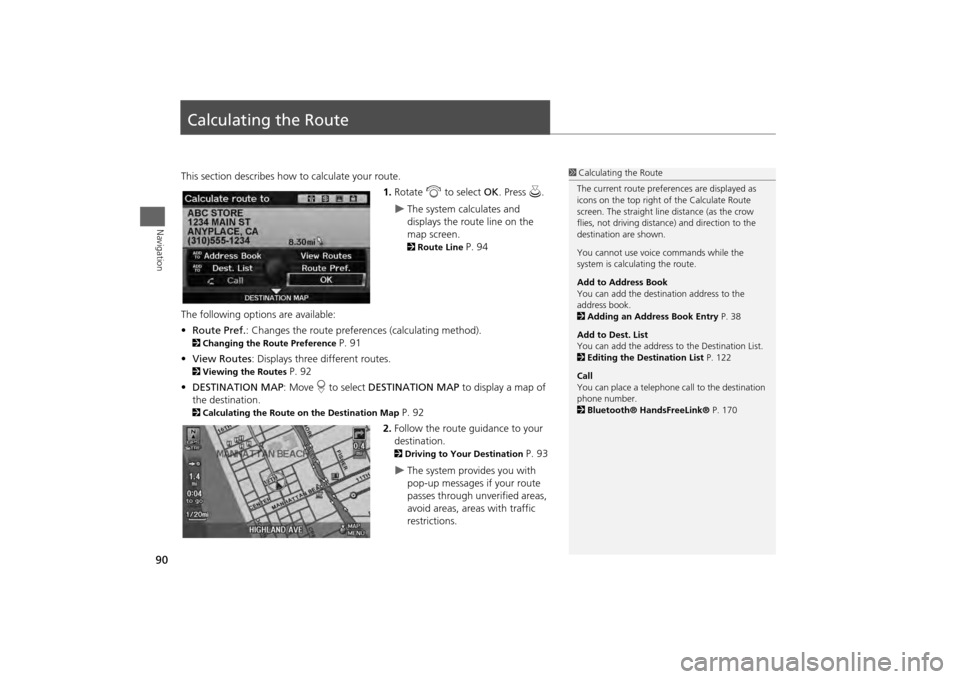
Calculating the RouteThis section describes how to calculate your route.1.Rotate i to select OK . Press u.
The system calculates and
displays the route line on the
map screen. 2Route Line
P. 94
The following options are available:
• Route Pref. : Changes the route preferences (calculating method).
2Changing the Route Preference
P. 91
• View Routes : Displays three different routes.
2Viewing the Routes
P. 92
• DESTINATION MAP : Move r to select DESTINATION MAP to display a map of
the destination.
2 Calculating the Route on the Destination Map
P. 92
2. Follow the route guidance to your
destination. 2 Driving to Your Destination
P. 93
The system provides you with
pop-up messages if your route
passes through unverified areas,
avoid areas, areas with traffic
restrictions.
1Calculating the Route
The current route prefer ences are displayed as
icons on the top right of the Calculate Route
screen. The straight line distance (as the crow
flies, not driving distan ce) and direction to the
destination are shown.
You cannot use voice commands while the
system is calculating the route.
Add to Address Book
You can add the destination address to the
address book.
2 Adding an Address Book Entry P. 38
Add to Dest. List
You can add the address to the Destination List.
2 Editing the Destination List P. 122
Call
You can place a telephone ca ll to the destination
phone number.
2 Bluetooth® HandsFreeLink® P. 170
Page 111 of 267
109
Map Menu
Map Information
Navigation
HENTER button (on map)
Map Information
Current Location
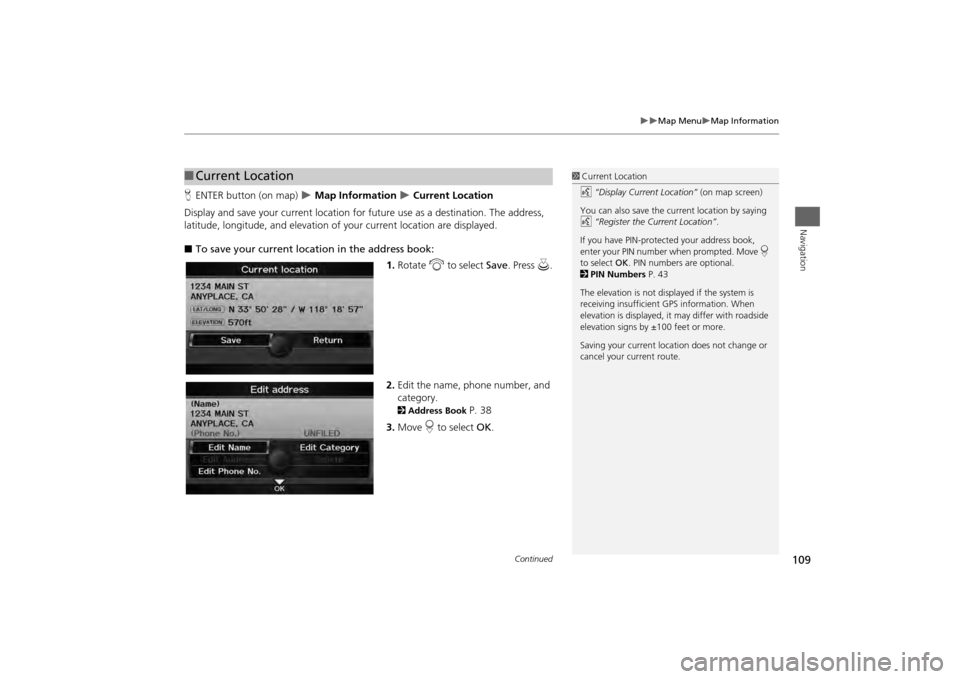
Display and save your current location for fu ture use as a destination. The address,
latitude, longitude, and elevation of your current location are displayed.
■ To save your current loca tion in the address book:
1.Rotate i to select Save . Press u.
2. Edit the name, phone number, and
category.
2 Address Book
P. 38
3. Move r to select OK.
■Current Location
1 Current Location
d “Display Current Location” (on map screen)
You can also save the current location by saying
d “Register the Current Location” .
If you have PIN-protec ted your address book,
enter your PIN number when prompted. Move r
to select OK. PIN numbers are optional.
2 PIN Numbers P. 43
The elevation is not displayed if the system is
receiving insufficient GPS information. When
elevation is displayed, it may differ with roadside
elevation signs by ±100 feet or more.
Saving your current loca tion does not change or
cancel your current route.
Continued
Page 129 of 267
127Navigation
Resuming Your TripStop your vehicle en route (e.g., to rest, stop for gas, etc.), and then continue on
your route.
If you did not complete your route, the C ontinue Trip screen is displayed when you
restart your vehicle.
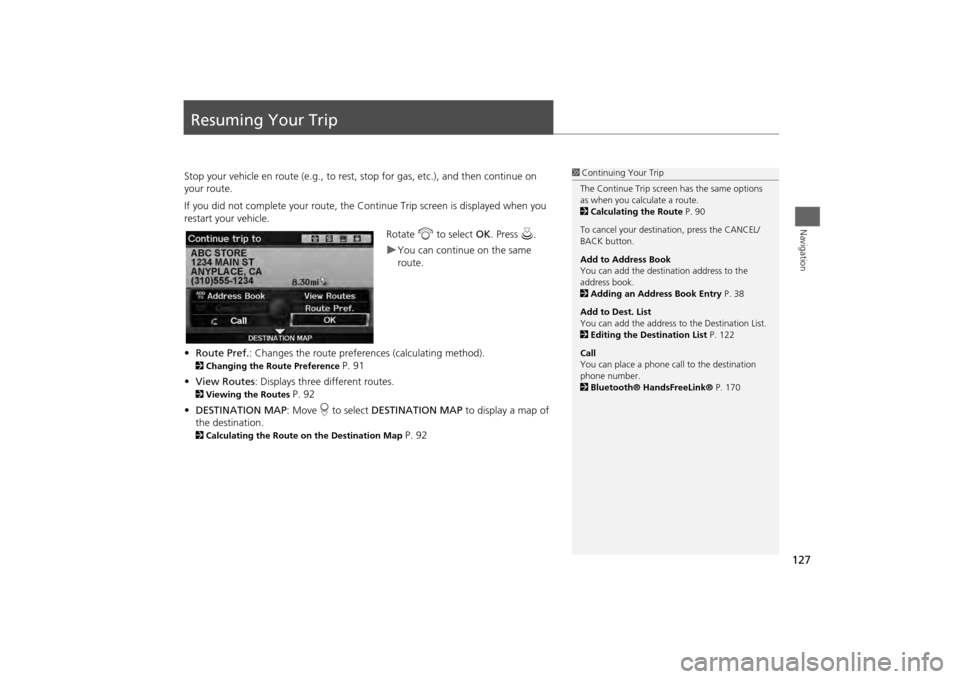
Rotate i to select OK. Press u.
You can continue on the same
route.
• Route Pref. : Changes the route preferences (calculating method).
2Changing the Route Preference
P. 91
• View Routes : Displays three different routes.
2Viewing the Routes
P. 92
• DESTINATION MAP : Move r to select DESTINATION MAP to display a map of
the destination.
2 Calculating the Route on the Destination Map
P. 92
1Continuing Your Trip
The Continue Trip screen has the same options
as when you calculate a route.
2 Calculating the Route P. 90
To cancel your destination, press the CANCEL/
BACK button.
Add to Address Book
You can add the destination address to the
address book.
2 Adding an Address Book Entry P. 38
Add to Dest. List
You can add the address to the Destination List.
2 Editing the Destination List P. 122
Call
You can place a phone ca ll to the destination
phone number.
2 Bluetooth® HandsFreeLink® P. 170
Page 161 of 267
159Audio
Searching for Music Using Song By Voice™ (SBV)Use Song By Voice™ (SBV) to search for and play music from your HDD or iPod®
device using voice commands.
1.Set Song By Voice to ON in the
system setup.
2 Song By Voice™ (SBV)
P. 46
2. Say d “Hard Disc Drive Search” or
d “iPod Search” to activate the
SBV feature for the HDD or iPod®.
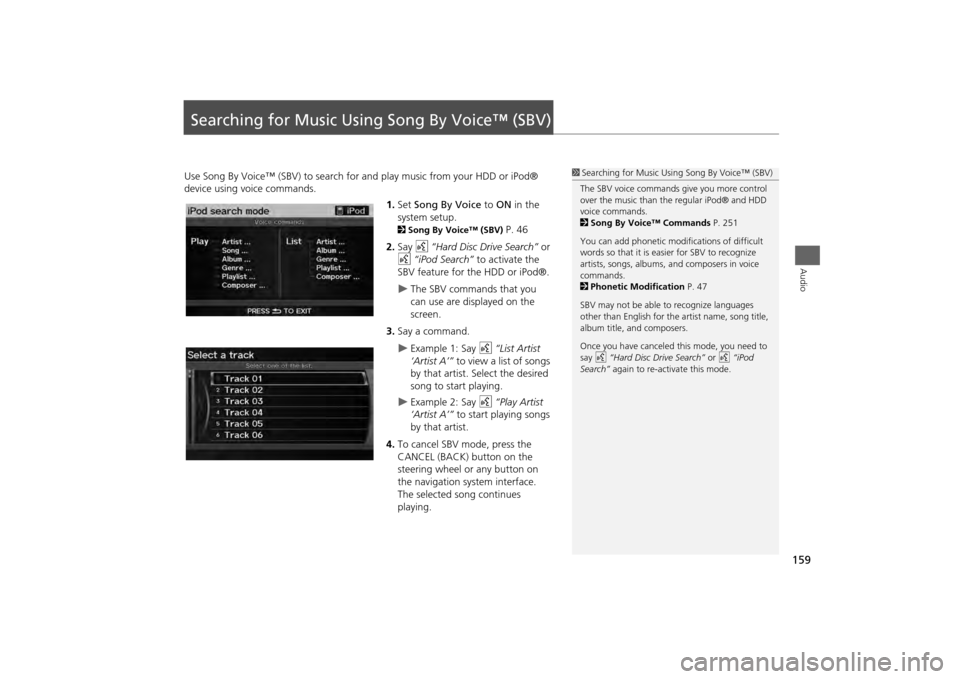
The SBV commands that you
can use are displayed on the
screen.
3. Say a command.
Example 1: Say d “List Artist
‘Artist A’” to view a list of songs
by that artist. Select the desired
song to start playing.
Example 2: Say d “Play Artist
‘Artist A’” to start playing songs
by that artist.
4. To cancel SBV mode, press the
CANCEL (BACK) button on the
steering wheel or any button on
the navigation system interface.
The selected song continues
playing.
1Searching for Music Using Song By Voice™ (SBV)
The SBV voice commands give you more control
over the music than the regular iPod® and HDD
voice commands.
2 Song By Voice™ Commands P. 251
You can add phonetic modi fications of difficult
words so that it is easier for SBV to recognize
artists, songs, albums, and composers in voice
commands.
2 Phonetic Modification P. 47
SBV may not be able to recognize languages
other than English for the artist name, song title,
album title, and composers.
Once you have canceled this mode, you need to
say d “Hard Disc Drive Search” or d “iPod
Search” again to re-activate this mode.
Page 166 of 267
164Audio
Playing Bluetooth ® AudioYour audio system allows you to listen to music tracks stored on your Bluetooth-
compatible phone.
This function is available when the phone is linked to the vehicle’s Bluetooth®
HandsFreeLink® (HFL) system. 2 Bluetooth® HandsFreeLink®
P. 169
Selecting Bluetooth ® Audio Mode1.Make sure that your phone is on, paired, and linked to HFL. 2Pairing a Phone
P. 172
2. Press the USB/AUX button to select Bluetooth® Audio mode.
A Bluetooth ® message and icon are displaye d on the display and screen.
3. If necessary, follow the cell phone operating instructions for playing audio tracks.
Check the following if the phone is not recognized:
• Another HFL-compatible phone, which is not compatible for Bluetooth® Audio, is
already connected.
1 Playing Bluetooth ® Audio
d “Display audio screen”
You can control the audio system using voice
control commands.
2 Bluetooth® Audio Commands P. 251
Not all Bluetooth -enabled phones with
streaming audio capabilities are compatible. To
check if your phone is compatible:•U.S.: Visit automobiles.honda.com/
handsfreelink.•Canada: Visit www.handsfreelink.ca .•Call HandsFreeLink customer support at
(888) 528-7876.
In some states, it may be illegal to perform some
data device functions while driving.
In some cases, the name of the artist, album, or
track may not appear correctly.
Only one phone can be used with HFL at a time.
When there are more than two paired phones in
the vehicle, the first paired phone the system
finds will be automatically linked.
Pressing the TITLE side of the SCAN/TITLE bar
switches the center display between the
Bluetooth ® Audio message and the device
name.

