Page 25 of 267
23
Voice Control System
Voice Recognition
System Setup
Voice RecognitionTo achieve optimum voice recognition when using either the navigation voice
control system or Bluetooth® HandsFreeLink®:
• Make sure the correct screen is displa yed for the voice command that you are
using. 2 Voice Commands
P. 246
• Close the windows and moonroof.
• Adjust the dashboard and side vents so air does not blow onto the microphone on
the ceiling.
• Speak clearly in a clear, natural speaking voice without pausing between words.
• Reduce any background noise if possible. The system may misinterpret your
command if more than one person is speaking at the same time.
• Refer to the Voice Help tutorial.
2 Voice Help
P. 5
1Voice Recognition
The voice control system can only be used from
the driver’s seat beca use the microphone unit
removes noises from the front passenger’s side.
Page 41 of 267
39
Personal Information
Address Book
System Setup
2.Rotate i to select an item. Press
u .
The following items are available:
• Edit Name : Edits the name of the entry.
• Edit Address : Edits the address of the entry.
• Edit Phone No. : Edits the phone number of the entry.
• Edit Category : Specifies the category of the entry.
• Delete : Deletes the entry.
3.Rotate i to select Edit Name .
Press u.
4. Enter a name or title. Move r to
select OK.
5. Rotate i to select Edit Address .
Press u.
6. Rotate i to select an item for
specifying the address. Press u.
Continued
Page 42 of 267
40
Personal Information
Address Book
System Setup
The following items are available:
• Current Position: Select your current position.
• Address: Enter an address on the character input screen when prompted.2Address
P. 70
• Previous Destinations: Select a previous destination.
2Previous Destination
P. 76
• Place Name: Enter the name of a place/landmark.
2Place Name
P. 77
• Place Category: Select a category to search for a place/landmark (e.g., Banking,
Lodging).
2 Place Category
P. 80
• Place Phone Number: Enter the phone number of a place/landmark.
2Place Phone Number
P. 84
H INFO button
Setup
Personal Information
Address Book
1. Rotate i to select the address to
edit. Press u.
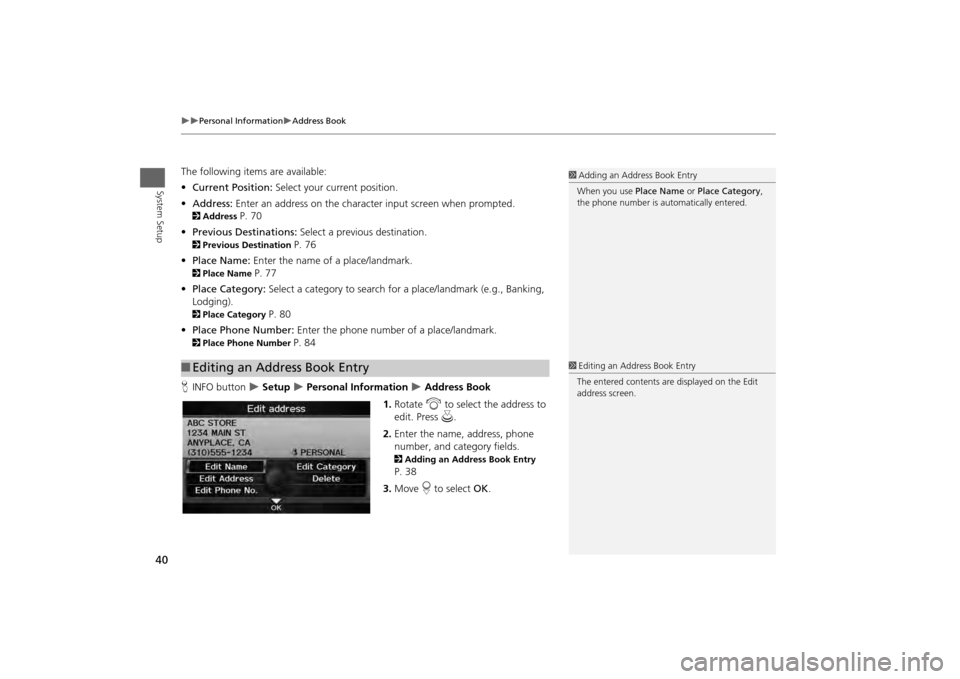
2. Enter the name, address, phone
number, and category fields.
2 Adding an Address Book Entry P. 38
3. Move r to select OK.
■Editing an Address Book Entry
1 Adding an Address Book Entry
When you use Place Name or Place Category ,
the phone number is automatically entered.1 Editing an Address Book Entry
The entered contents are displayed on the Edit
address screen.
Page 44 of 267
42
Personal Information
Home Addresses
System Setup
HINFO button
Setup
Personal Information
Address Book
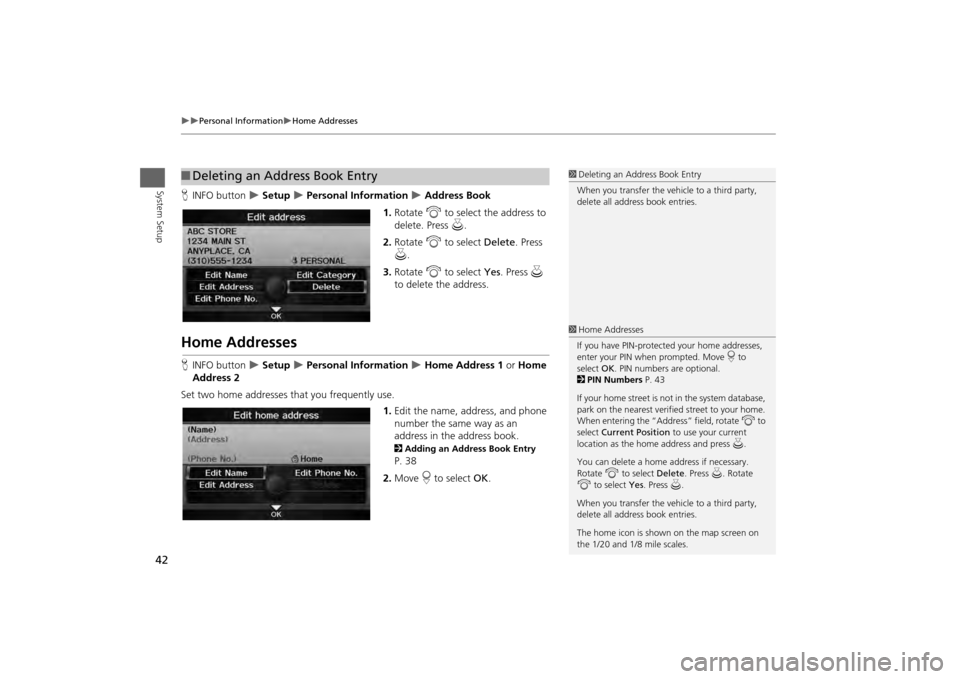
1. Rotate i to select the address to
delete. Press u.
2. Rotate i to select Delete . Press
u .
3. Rotate i to select Yes . Press u
to delete the address.
Home AddressesH INFO button
Setup
Personal Information
Home Address 1 or Home
Address 2
Set two home addresses that you frequently use. 1.Edit the name, address, and phone
number the same way as an
address in the address book.
2 Adding an Address Book Entry P. 38
2. Move r to select OK.
■Deleting an Address Book Entry
1 Deleting an Address Book Entry
When you transfer the vehicle to a third party,
delete all address book entries.1 Home Addresses
If you have PIN-protecte d your home addresses,
enter your PIN when prompted. Move r to
select OK. PIN numbers are optional.
2 PIN Numbers P. 43
If your home street is not in the system database,
park on the nearest verified street to your home.
When entering the “Address” field, rotate i to
select Current Position to use your current
location as the home address and press u.
You can delete a home address if necessary.
Rotate i to select Delete. Press u . Rotate
i to select Yes. Press u.
When you transfer the vehicle to a third party,
delete all address book entries.
The home icon is shown on the map screen on
the 1/20 and 1/8 mile scales.
Page 47 of 267
45System Setup
Music SearchHINFO button
Setup
Other
Music Search
Use this feature to set up the music sear ch abilities when using Song By Voice™
(SBV) commands.
Rotate i to select an item. Press u.
The following items are available:
• Song By Voice : Turns the feature on or off.
2Song By Voice™ (SBV)
P. 46
• Phonetic Modification : Changes the phonetic (song name, artist name, etc.) so
that they are more easily recognized through voice commands.
2 Phonetic Modification
P. 47
Page 49 of 267
47
Music Search
Phonetic Modification
System Setup
Phonetic ModificationHINFO button
Setup
Other
Music Search
Phonetic Modification
Add phonetic modifications of difficult or foreign words so that it is easier for SBV to
recognize artists, songs, albums, and comp osers in voice commands when searching
for music on the HDD or iPod®.
1.Rotate i to select New
Modification . Press u.
2. Rotate i to select the media
source ( HDD or iPod). Press u.
1Phonetic Modification
Phonetic Modification is grayed out when
Song By Voice is set to OFF.
You can store up to 2, 000 phonetic modification
items.
SBV may not be able to recognize languages
other than English. The Phonetic Modification
feature is helpful in the following situations:•The music information cannot be identified
using Gracenote®.•The phonetics are in languages other than
English.
Continued
Page 50 of 267
48
Music Search
Phonetic Modification
System Setup
3.Rotate i to select the item to
modify (e.g., Artist). Press u.
4. Rotate i to select an entry (e.g.,
“No Name”). Press u .
5. Rotate i to select Edit . Press u.
Rotate i to select Play to
listen to the phonetic
modification. Press u.
Rotate i to select OK and
press u when finished.
6. Enter the phonetic spelling you
wish to use (e.g., “Artist A”) when
prompted.
7. Move r to select OK to exit.
The artist “No Name” is
phonetically modified to “Artist
A.” When in SBV mode, you can
use the voice command d
“Play Artist ‘Artist A’” to play
songs by the artist “No Name.”
Page 67 of 267
65
Data Reset
Clear Personal Data
System Setup
Clear Personal DataHINFO button
Setup
Other
Clear Personal Data
Delete uploaded data, calendar entries, addr ess books, or stored destinations, or
reset other settings to their factory defaults.
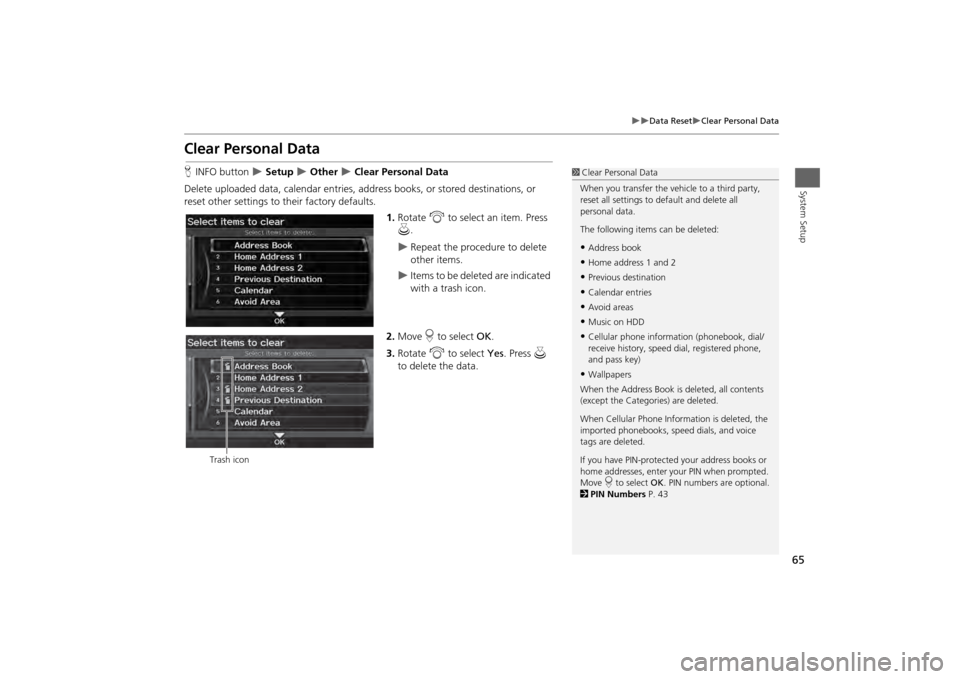
1.Rotate i to select an item. Press
u .
Repeat the procedure to delete
other items.
Items to be deleted are indicated
with a trash icon.
2. Move r to select OK.
3. Rotate i to select Yes. Press u
to delete the data.
1 Clear Personal Data
When you transfer the vehicle to a third party,
reset all settings to default and delete all
personal data.
The following item s can be deleted:•Address book•Home address 1 and 2•Previous destination•Calendar entries•Avoid areas•Music on HDD•Cellular phone inform ation (phonebook, dial/
receive history, speed dial, registered phone,
and pass key)•Wallpapers
When the Address Book is deleted, all contents
(except the Categor ies) are deleted.
When Cellular Phone Information is deleted, the
imported phonebooks, speed dials, and voice
tags are deleted.
If you have PIN-protecte d your address books or
home addresses, enter your PIN when prompted.
Move r to select OK. PIN numbers are optional.
2 PIN Numbers P. 43
Trash icon


