Page 208 of 267
206Rear Entertainment System
Wireless HeadphonesUsing the Wireless HeadphonesAudio for the Rear Entertainment System is sent to the wireless headphones that
come with the system.
1.Pivot the earpieces outward.
2. Adjust the volume by turning the
dial on the bottom of the right
earpiece.
3. Wear the headphones correctly.
L (left) and R (right) are marked
on the sides of the frame.
1Using the Wireless Headphones
When you remove the headphones, the
earpieces automatically pivot inward, and the
headphones turn off. When not in use, store the
headphones in the back pocket of either front
seat.
Some state and local government agencies
prohibit the use of headphones by the driver of a
motor vehicle. Always obey applicable laws and
regulations.
You can use wired headphones through the
auxiliary input jacks.
2 Auxiliary Console Panel P. 190
Volume Dial
Page 209 of 267
207
Wireless Headphones
Changing the Sound Source (Ultrawide RES only)
Rear Entertainment System
Changing the Sound Source (Ultrawide RES only)In dual screen mode, you can switch the sound source of the wireless headphones
between the left and right side screens.
Slide the tab to ‘‘L’’ for the left side,
or ‘‘R’’ for the right side.■ Wireless Headphone
1 Changing the Sound Source (Ultrawide RES only)
You can switch the sound source from the setup
menu if you connecte d a set of wired
headphones.
1. Press the SETUP button on the rear control
panel.
2. Select Wired Headphones . Press the ENTER
button.
3. Select Left or Right to switch the sound
source. Press the ENTER button.
Tab
Page 210 of 267
208
Wireless Headphones
Replacing the Batteries
Rear Entertainment System
Replacing the Batteries
1.Insert a coin in the slot and twist it
slightly to pry the cover away from
the earpiece.
2. Pull the cover outward, and pivot it
out of the way.
3. Remove the battery.
4. Install the new battery in the
earpiece as shown in the diagram
next to the battery slot.
Battery Type: AAA battery
5. Slide the cover back into place on
the earpiece, then press down on
the back edge to lock it in place.
1Replacing th e Batteries
The battery is under the cover on the left
earpiece.
An improperly disposed of battery can hurt the
environment. Always c onfirm local regulations
for battery disposal.
Coin
Cover
Battery
Page 222 of 267
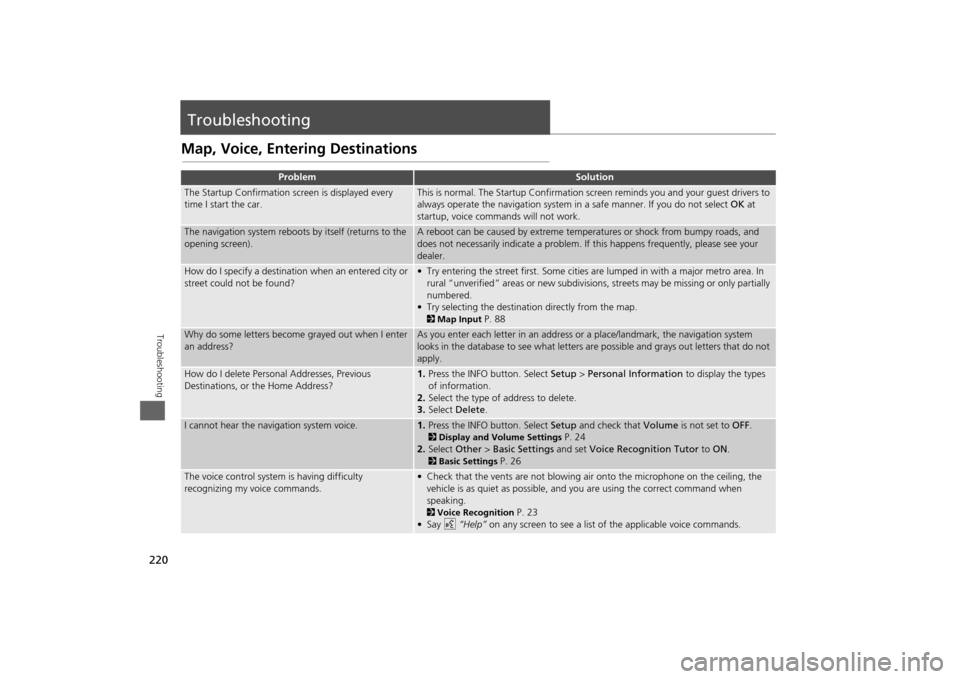
220Troubleshooting
TroubleshootingMap, Voice, Entering Destinations
Problem
Solution
The Startup Confirmation screen is displayed every
time I start the car.
This is normal. The Startup Confirmation screen reminds you and your guest drivers to
always operate the navigation system in a safe manner. If you do not select OK at
startup, voice commands will not work.
The navigation system reboots by itself (returns to the
opening screen).
A reboot can be caused by extreme temper atures or shock from bumpy roads, and
does not necessarily indicate a problem. If this happens frequently, please see your
dealer.
How do I specify a destination when an entered city or
street could not be found?
• Try entering the street first. Some cities are lumped in with a major metro area. In
rural “unverified” areas or new subdivisions, streets may be missing or only partially
numbered.
• Try selecting the destinati on directly from the map. 2Map Input
P. 88
Why do some letters become grayed out when I enter
an address?
As you enter each letter in an address or a place/landmark, the navigation system
looks in the database to see what letters are possible and grays out letters that do not
apply.
How do I delete Personal Addresses, Previous
Destinations, or the Home Address?
1. Press the INFO button. Select Setup > Personal Information to display the types
of information.
2. Select the type of address to delete.
3. Select Delete .
I cannot hear the navigation system voice.
1.Press the INFO button. Select Setup and check that Volume is not set to OFF. 2Display and Volume Settings
P. 24
2. Select Other > Basic Settings and set Voice Recognition Tutor to ON .
2Basic Settings
P. 26
The voice control system is having difficulty
recognizing my voice commands.
• Check that the vents are not blowing air onto the microphone on the ceiling, the
vehicle is as quiet as possible, and you are using the correct command when
speaking. 2 Voice Recognition
P. 23
•Say d “Help” on any screen to see a list of the applicable voice commands.
Page 223 of 267
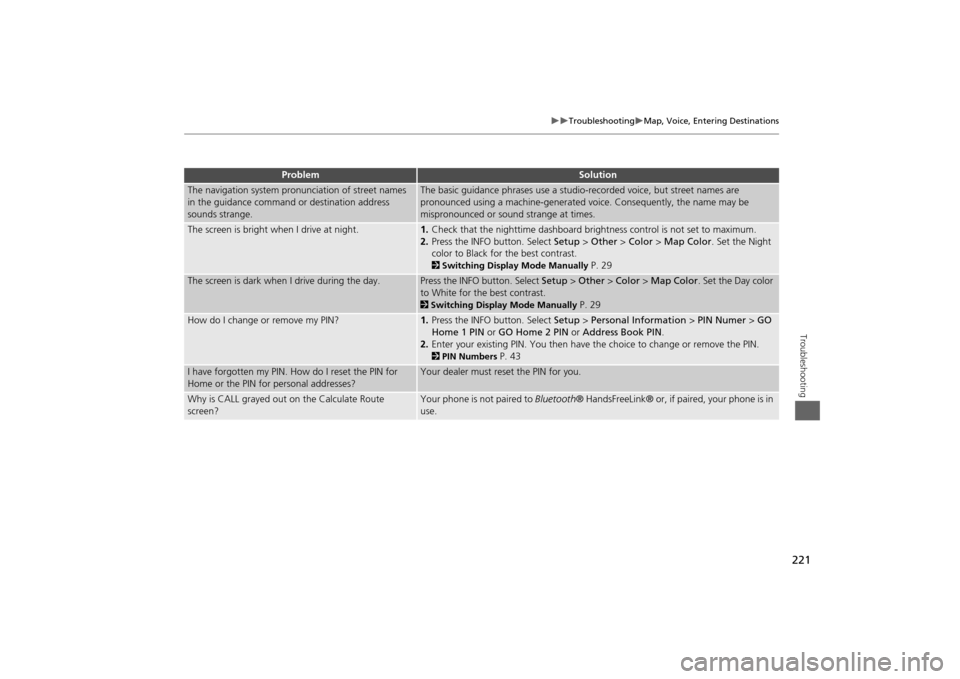
221
Troubleshooting
Map, Voice, Entering Destinations
Troubleshooting
The navigation system pronunciation of street names
in the guidance command or destination address
sounds strange.
The basic guidance phrases use a studio- recorded voice, but street names are
pronounced using a machine-generated voice. Consequently, the name may be
mispronounced or sound strange at times.
The screen is bright when I drive at night.
1. Check that the nighttime dashboard brig htness control is not set to maximum.
2. Press the INFO button. Select Setup > Other > Color > Map Color . Set the Night
color to Black for the best contrast. 2 Switching Display Mode Manually
P. 29
The screen is dark when I drive during the day.
Press the INFO button. Select Setup > Other > Color > Map Color . Set the Day color
to White for the best contrast. 2 Switching Display Mode Manually
P. 29
How do I change or remove my PIN?
1. Press the INFO button. Select Setup > Personal Information > PIN Numer > GO
Home 1 PIN or GO Home 2 PIN or Address Book PIN .
2. Enter your existing PIN. Yo u then have the choice to change or remove the PIN. 2PIN Numbers
P. 43
I have forgotten my PIN. How do I reset the PIN for
Home or the PIN for personal addresses?
Your dealer must reset the PIN for you.
Why is CALL grayed out on the Calculate Route
screen?
Your phone is not paired to Bluetooth® HandsFreeLink® or, if paired, your phone is in
use.
Problem
Solution
Page 225 of 267
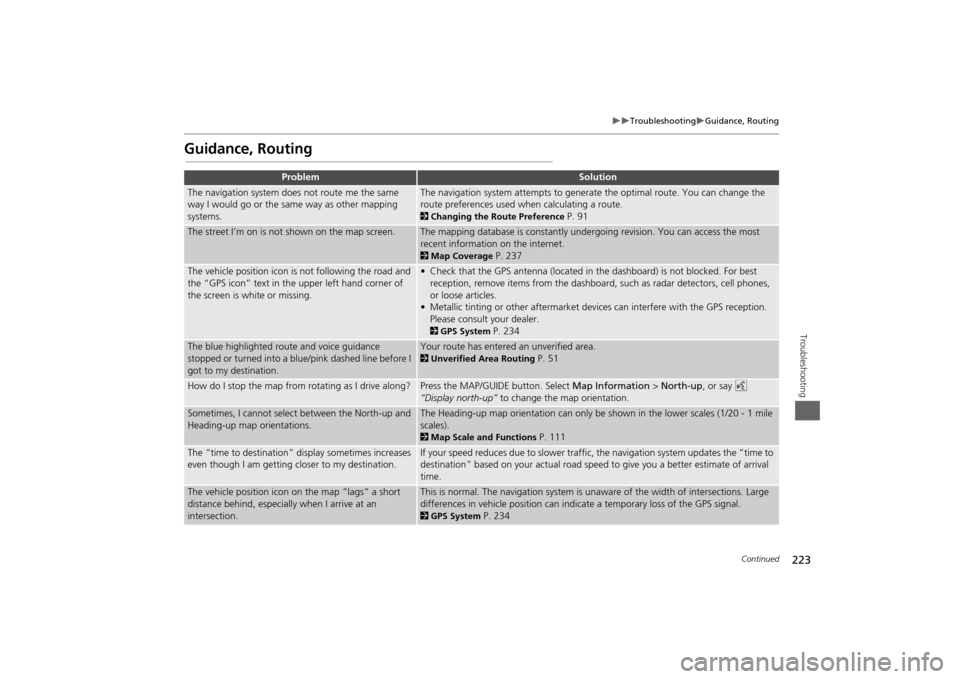
223
Troubleshooting
Guidance, Routing
Troubleshooting
Guidance, Routing
Problem
Solution
The navigation system does not route me the same
way I would go or the same way as other mapping
systems.
The navigation system attempts to generate the optimal route. You can change the
route preferences used when calculating a route. 2Changing the Route Preference
P. 91
The street I’m on is not shown on the map screen.
The mapping database is constantly undergoing revision. You can access the most
recent information on the internet. 2Map Coverage
P. 237
The vehicle position icon is not following the road and
the “GPS icon” text in th e upper left hand corner of
the screen is white or missing.
• Check that the GPS antenna (located in the dashboard) is not blocked. For best reception, remove items from the dashboard, such as radar detectors, cell phones,
or loose articles.
• Metallic tinting or other aftermarket devi ces can interfere with the GPS reception.
Please consult your dealer. 2 GPS System
P. 234
The blue highlighted route and voice guidance
stopped or turned into a blue/pink dashed line before I
got to my destination.
Your route has entered an unverified area. 2Unverified Area Routing
P. 51
How do I stop the map from rotating as I drive along?
Press the MAP/GUID E button. Select Map Information > North-up , or say d
“Display north-up” to change the map orientation.
Sometimes, I cannot select between the North-up and
Heading-up map orientations.
The Heading-up map orientation can only be shown in the lower scales (1/20 - 1 mile
scales). 2Map Scale and Functions
P. 111
The “time to destination” display sometimes increases
even though I am getting closer to my destination.
If your speed reduces due to slower traffic, the navigation system updates the “time to
destination” based on your actual road speed to give you a better estimate of arrival
time.
The vehicle position icon on the map “lags” a short
distance behind, especially when I arrive at an
intersection.
This is normal. The navigation system is un aware of the width of intersections. Large
differences in vehicle position can indicate a temporary loss of the GPS signal. 2 GPS System
P. 234
Continued
Page 236 of 267

234Reference Information
System LimitationsGPS SystemThe signals received from the GPS satellites
are extremely weak (less than a millionth
of the strength of a local FM station) and
require an unobstructed view of sky. The
GPS antenna is located in the dashboard.
The signal reception can easily be
interrupted or interfered with by the
following:
• Metallic window tint on the front or side
windows
• Cell phones, PDAs, or other electronic
devices docked in a cradle or lying loose
on the dashboard
• Remote starters or “hidden” vehicle
tracking systems mounted near the
navigation unit
• Audio electronic devices mounted near
the navigation unit
• Trees, tall buildings, freeway overpasses,
tunnels, or overhead electrical power
wires
The GPS is operated by the U.S.
Department of Defense. For security
reasons, there are certain inaccuracies built
into the GPS for wh ich the navigation
system must constantly compensate. This can cause occasional positioning errors of
up to several hundred feet.
Address CalculationThe destination icon shows only the
approximate location of a destination
address. This occurs if the number of
possible addresses is different from the
number of actual addresses on a block.
e.g., the address 1425 on a 1400 block
with 100 possible addresses (because it is
followed by the 1500 block) will be shown
a quarter of the way down the block by
the system. If there are only 25 actual
addresses on the block,
the actual location
of address 1425 would be at the end of
the block.
DatabaseThe digitized map database reflects
conditions as they existed at various points
in time before production. Accordingly,
your database may contain inaccurate or
incomplete data or information due to the
passage of time, road construction,
changing conditions, or other causes.
For example, some places/landmarks may
be missing when you search the database
because the name was misspelled, the
place was improperly categorized, or a
place/landmark is not yet in the database.
This is also true for police stations,
hospitals, and other public institutions. Do
not rely on the navigation system if you
need law enforcement or hospital services.
Always check with local information
sources.
Page 247 of 267
245
Voice Commands
Voice Commands.................................. 246
Global Commands ............................... 246
Navigation Commands ......................... 246
Climate Control Commands ................. 249
Audio Commands ................................ 249
Cellular Phone Commands ................... 254
Main Setup Screen Commands ............ 254
On-Screen Commands ......................... 254
Spelling Assistance ............................... 254


