2013 FORD SUPER DUTY radio
[x] Cancel search: radioPage 442 of 563
To Access Using Voice Commands
1. Press the voice icon.
2. When prompted, say “Mobile Apps”.
3. Say the name of the application after the tone.
4. The app should start. While an app is running through SYNC, you can
press the voice button and speak commands specific to the app, such
as “Play Station Quickmix”. Say “Help” to discover available voice
commands.
USING SYNC WITH YOUR MEDIA PLAYER
You can access and play music from your digital music player over the
vehicle’s speaker system using the system’s media menu or voice
commands. You can also sort and play your music by specific categories,
such as artists, albums, etc.
SYNC is capable of hosting nearly any digital media player including:
iPod®, Zune™, Plays from device players, and most USB drives. SYNC
also supports audio formats such as MP3, WMA, WAV and ACC.
Connecting Your Digital Media Player via the USB Port
Note:If your digital media player has a power switch, ensure that the
device is turned on.
To connect using voice commands:
1. Plug the device into the vehicle’s USB port.
2. Press the voice icon and when prompted, say “USB”.
3. You can now play music by saying any of the appropriate voice
commands. See the media voice commands.
To connect using the system menu:
1. Plug the device into the vehicle’s USB port.
2. Press AUX and then MENU to enter the Media Menu.
3. Scroll until Select Source appears and press OK.
4. Scroll to select USB and press OK.
5. Depending on how many digital media files are on your connected
device, Indexing may appear in the radio display. When indexing is
complete, the screen returns to the Play Menu.
SYNC®441
2013 F-250/350/450/550(f23)
Owners Guide gf, 1st Printing
USA(fus)
Page 461 of 563
HOME
Press to access your home screen. Depending on your vehicle’s
option package and software, your screens may vary in
appearance from the descriptions in this section. Your features may also
be limited depending on your market. Check with your authorized dealer
for availability.
Using the Touch-sensitive Controls on Your System
To turn a feature on and off, just touch the graphic with your finger. To
get the best performance from the touch-sensitive controls:
•Do not press hard on the controls. They are sensitive to light touch.
•Use your bare finger to touch the center of a touch-control graphic.
Touching off-center of the graphic may affect operation of a nearby
control.
•Make sure your hands are clean and dry.
•Since the touchscreen operates based on the touch of a finger, you
may have trouble using it if you are wearing gloves.
•Keep metal and other conductive material away from the surface of
the touchscreen as this may cause electronic interference (for
example, inadvertently turning on a feature other than the one you
meant to turn on).
Depending on your vehicle and option package, you may also have these
controls on your bezel:
•Power: Switch the media or climate features off and on.
•VOL:Control the volume of playing media.
•Fan: Control the speed of the climate system fan.
•Seek and Tune buttons: Use as you normally would in media modes.
•Eject: Eject a CD from the entertainment system.
•Radio preset buttons: Located below the touchscreen, you can use
these buttons to enter a radio preset in addition to using the
touchscreen.
•MEDIA:Touch the word repeatedly to see all available media modes.
The screen does not change, but you see the media change in the
lower left status bar.
•Hazard flasher: Switch the hazard flashers off and on.
Cleaning the Touchscreen Display
Use a clean, soft cloth such as one used for cleaning glasses. If dirt or
fingerprints are still visible, apply a small amount of alcohol to the cloth.
Do not pour or spray alcohol onto the display. Do not use detergent or
any type of solvent to clean the display.
460MyFord Touch® (If Equipped)
2013 F-250/350/450/550(f23)
Owners Guide gf, 1st Printing
USA(fus)
Page 466 of 563

Accessing a List of Available Commands
•If you use the touchscreen, press the Settings icon >Help>Voice
Command List.
•If you use the steering wheel control, press the voice icon. After the
tone, speak your command clearly.
Voice command list
“Audio list of commands”
“Bluetooth audio list of commands”
“Browse list of commands”
“CD list of commands”
“Climate control list of commands”
“List of commands”
“Navigation list of commands”
“Phone list of commands”
“Radio list of commands”
“SD card list of commands”
“Sirius satellite list of commands”
“Travel link list of commands”
“USB list of commands”
“Voice instructions list of commands”
“Voice settings list of commands”
“Help”
Voice Settings
Voice settings allow you to customize the level of system interaction,
help and feedback. The system defaults to standard interaction that uses
candidate lists and confirmation prompts as these provide the highest
level of guidance and feedback.
Interaction Mode:Novice mode provides detailed interaction and
guidance while the advanced mode has less audible interaction and more
tone prompts.
Confirmation Prompts:The system uses these short questions to
confirm your voice request. If turned off, the system simply makes a best
guess as to what you requested. The system may still occasionally ask
you to confirm settings.
MyFord Touch® (If Equipped)465
2013 F-250/350/450/550(f23)
Owners Guide gf, 1st Printing
USA(fus)
Page 470 of 563
ENTERTAINMENT
Your system offers many media options. You can access these options
using the touchscreen or voice commands.
Browsing Device Content
When listening to any type of audio, you can browse through other
devices without having to change sources. For example, if you are
currently listening to the radio, you can browse all the artists that are
stored on your USB device.
Press the voice icon on the steering wheel. When prompted,
you can say:
“BROWSE” within Devices
“Browse”*
“Browse
“Browse
“Browse CD track list”
“Browse Sirius channel guide”
“Browse SD card”
“Browse USB”
“Help”
*If you have said “Browse”, you can then say any commands in the
following chart.
“BROWSE”
“
”
“CD track list”
“SD card”
“Sirius channel guide”
“USB”
“Help”
For a complete list of “Browse” voice commands, seeUSB and SD card
voice commandsandBluetooth audio voice commandsin the
following sections.
MyFord Touch® (If Equipped)469
2013 F-250/350/450/550(f23)
Owners Guide gf, 1st Printing
USA(fus)
Page 471 of 563

AM/FM Radio
Press the lower left corner of the touchscreen and then select
theAMorFMtab.
To change between AM and FM presets, just touch the AM or FM tab.
When you select: You can:
PresetsSave a station by pressing and holding one of
the memory preset areas. There is a brief
mute while the radio saves the station. Sound
returns when finished.
HD RadioTurn the feature on. This allows you to
receive radio broadcasts digitally (where
available), providing free, crystal-clear sound.
SeeHD Radio informationlater in this
chapter.
ScanGo to the next strong AM or FM radio station.
470MyFord Touch® (If Equipped)
2013 F-250/350/450/550(f23)
Owners Guide gf, 1st Printing
USA(fus)
Page 472 of 563
When you select: You can:
Options Sound Settingsallows you to adjust Bass,
Midrange, Treble, Balance and Fade, DSP
(Digital Signal Processing), Occupancy Mode,
and Speed Compensated Volume settings.
(Your vehicle may not have all these settings.)
Set PTY for Seek/Scanallows you to select
a category of music you would like to search
for and then choose to either seek or scan for
the stations.
RDS Text Displayallows you to view the
information broadcast by FM stations.
Auto Presets (AST)allows you to have the
system automatically store the six strongest
stations in your current location.
TAG Button(if available) allows you to tag a
song to download later. When you selectOn,
TAG appears on-screen when HD Radio is
active. You can touchTA Gto save the
information of the song that is playing. When
you plug in your portable music player, the
information transfers (if supported by your
device). When you are connected to iTunes®,
the tags appear to remind you of the songs
you would like to download. SeeHD Radio
informationlater in this chapter.
Direct TuneEnter the desired station number when
prompted. PressEnter.
MyFord Touch® (If Equipped)471
2013 F-250/350/450/550(f23)
Owners Guide gf, 1st Printing
USA(fus)
Page 473 of 563
HD Radio™ Information (If Available)
Note:HD Radio broadcasts are not available in all markets.
HD Radio technology is the digital evolution of analog AM/FM radio. Your
system has a special receiver that allows it to receive digital broadcasts
(where available) in addition to the analog broadcasts, it already
receives. Digital broadcasts provide a better sound quality than analog
broadcasts with free, crystal-clear audio and no static or distortion. For
more information, and a guide to available stations and programming,
please visit www.hdradio.com.
When HD Radio is on and you tune to a station broadcasting HD Radio
technology, you may notice the following indicators on your screen:
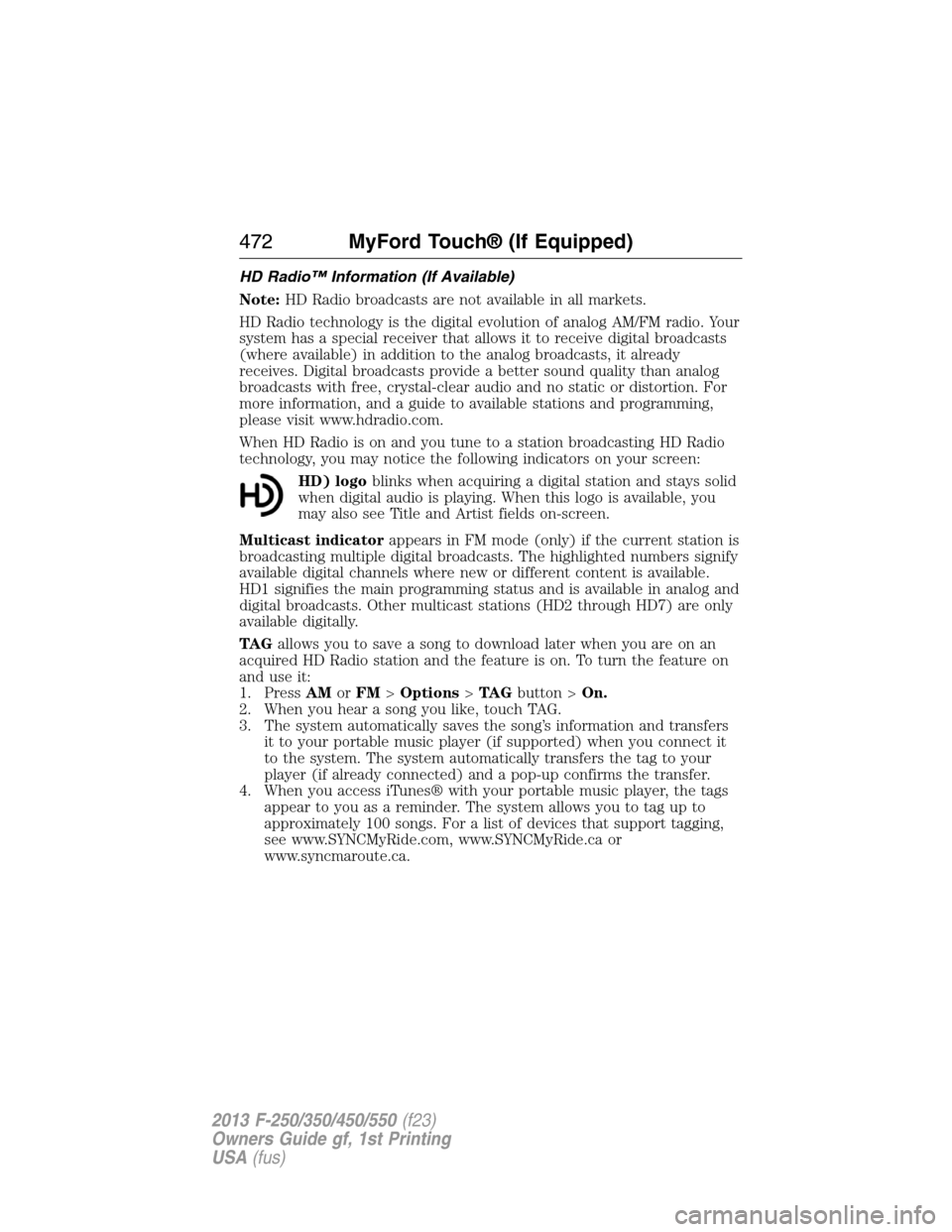
HD) logoblinks when acquiring a digital station and stays solid
when digital audio is playing. When this logo is available, you
may also see Title and Artist fields on-screen.
Multicast indicatorappears in FM mode (only) if the current station is
broadcasting multiple digital broadcasts. The highlighted numbers signify
available digital channels where new or different content is available.
HD1 signifies the main programming status and is available in analog and
digital broadcasts. Other multicast stations (HD2 through HD7) are only
available digitally.
TA Gallows you to save a song to download later when you are on an
acquired HD Radio station and the feature is on. To turn the feature on
and use it:
1. PressAMorFM>Options>TA Gbutton >On.
2. When you hear a song you like, touch TAG.
3. The system automatically saves the song’s information and transfers
it to your portable music player (if supported) when you connect it
to the system. The system automatically transfers the tag to your
player (if already connected) and a pop-up confirms the transfer.
4. When you access iTunes® with your portable music player, the tags
appear to you as a reminder. The system allows you to tag up to
approximately 100 songs. For a list of devices that support tagging,
see www.SYNCMyRide.com, www.SYNCMyRide.ca or
www.syncmaroute.ca.
472MyFord Touch® (If Equipped)
2013 F-250/350/450/550(f23)
Owners Guide gf, 1st Printing
USA(fus)
Page 474 of 563
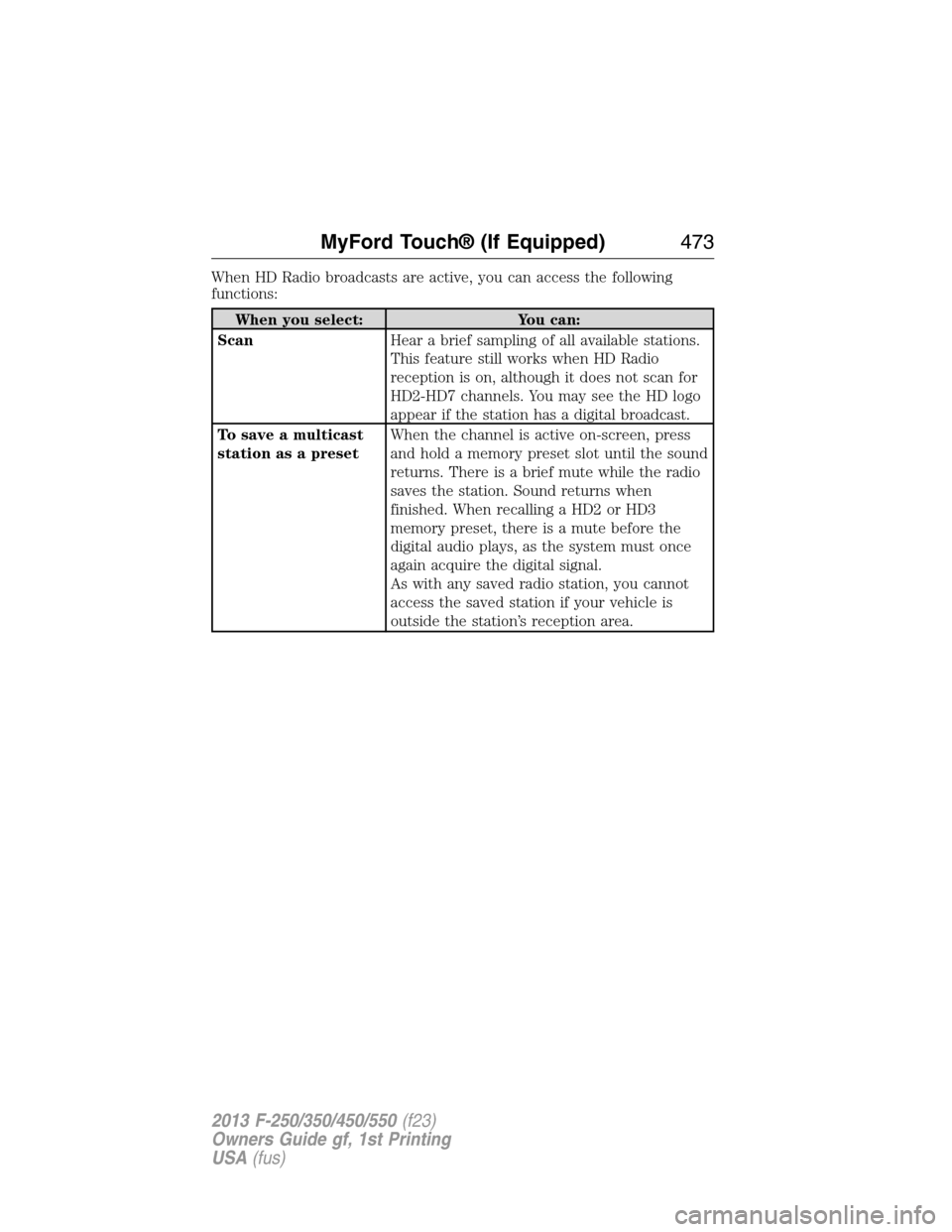
When HD Radio broadcasts are active, you can access the following
functions:
When you select: You can:
ScanHear a brief sampling of all available stations.
This feature still works when HD Radio
reception is on, although it does not scan for
HD2-HD7 channels. You may see the HD logo
appear if the station has a digital broadcast.
To save a multicast
station as a presetWhen the channel is active on-screen, press
and hold a memory preset slot until the sound
returns. There is a brief mute while the radio
saves the station. Sound returns when
finished. When recalling a HD2 or HD3
memory preset, there is a mute before the
digital audio plays, as the system must once
again acquire the digital signal.
As with any saved radio station, you cannot
access the saved station if your vehicle is
outside the station’s reception area.
MyFord Touch® (If Equipped)473
2013 F-250/350/450/550(f23)
Owners Guide gf, 1st Printing
USA(fus)