2013 FORD SUPER DUTY turn signal
[x] Cancel search: turn signalPage 456 of 563
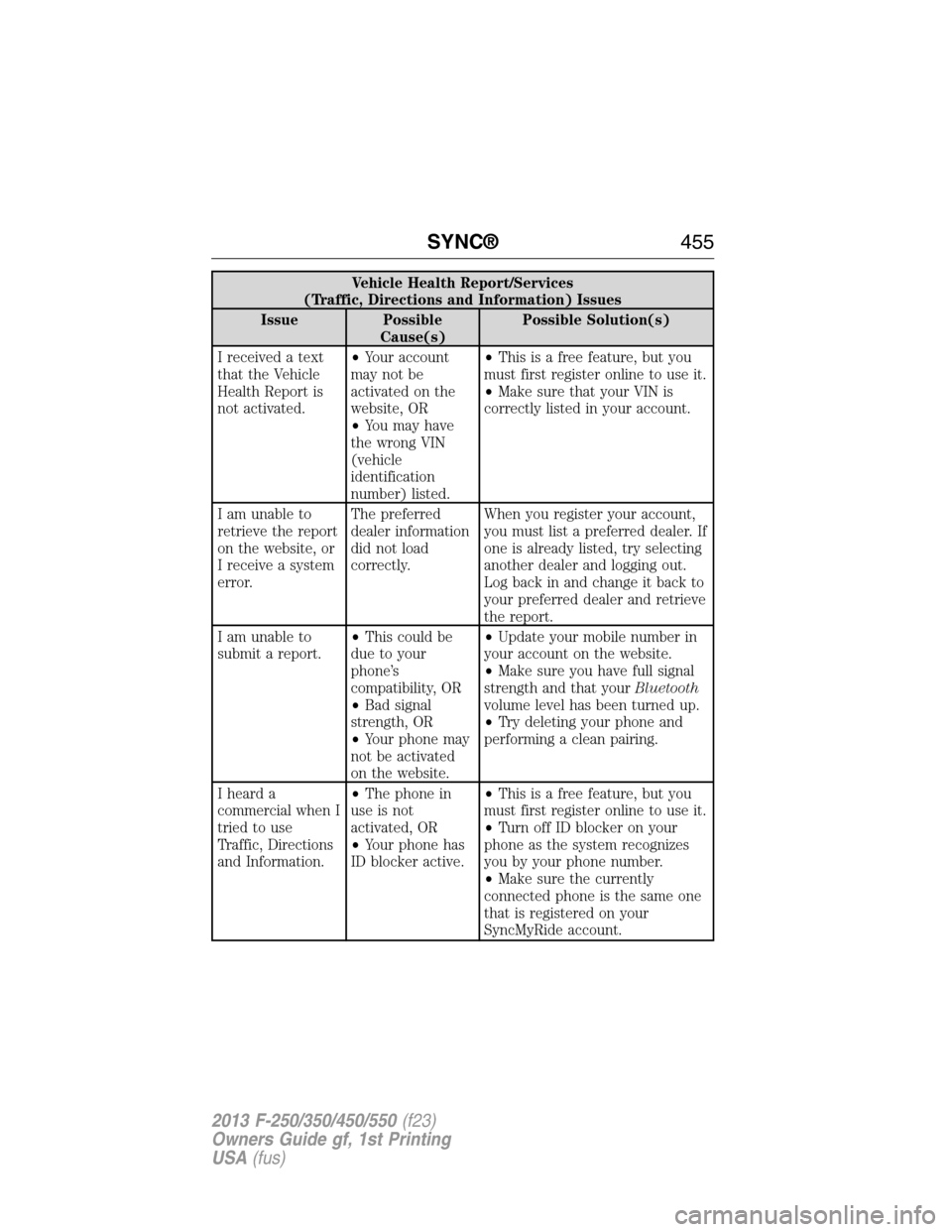
Vehicle Health Report/Services
(Traffic, Directions and Information) Issues
Issue Possible
Cause(s)Possible Solution(s)
I received a text
that the Vehicle
Health Report is
not activated.•Your account
may not be
activated on the
website, OR
•You may have
the wrong VIN
(vehicle
identification
number) listed.•This is a free feature, but you
must first register online to use it.
•Make sure that your VIN is
correctly listed in your account.
I am unable to
retrieve the report
on the website, or
I receive a system
error.The preferred
dealer information
did not load
correctly.When you register your account,
you must list a preferred dealer. If
one is already listed, try selecting
another dealer and logging out.
Log back in and change it back to
your preferred dealer and retrieve
the report.
I am unable to
submit a report.•This could be
due to your
phone’s
compatibility, OR
•Bad signal
strength, OR
•Your phone may
not be activated
on the website.•Update your mobile number in
your account on the website.
•Make sure you have full signal
strength and that yourBluetooth
volume level has been turned up.
•Try deleting your phone and
performing a clean pairing.
I heard a
commercial when I
tried to use
Traffic, Directions
and Information.•The phone in
use is not
activated, OR
•Your phone has
ID blocker active.•This is a free feature, but you
must first register online to use it.
•Turn off ID blocker on your
phone as the system recognizes
you by your phone number.
•Make sure the currently
connected phone is the same one
that is registered on your
SyncMyRide account.
SYNC®455
2013 F-250/350/450/550(f23)
Owners Guide gf, 1st Printing
USA(fus)
Page 474 of 563
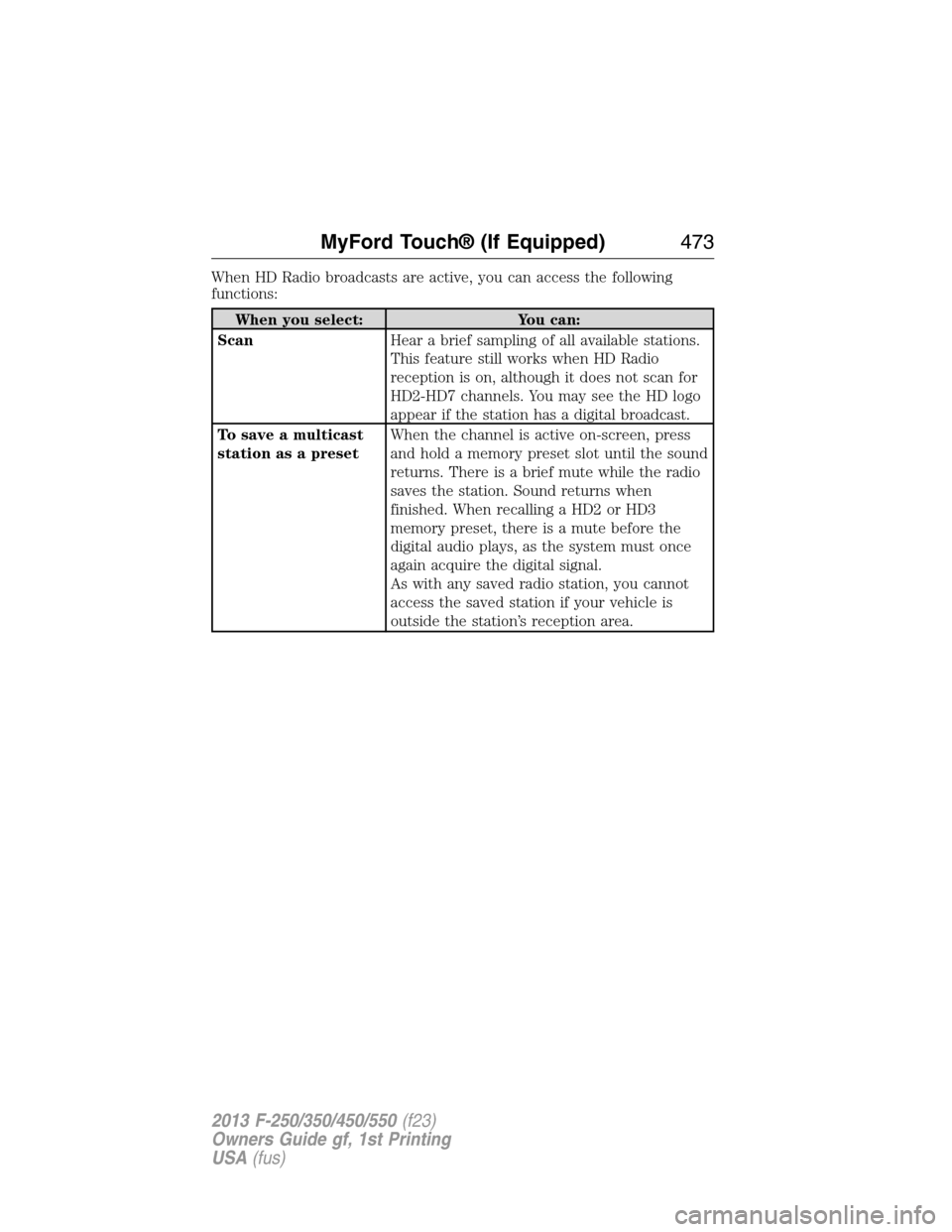
When HD Radio broadcasts are active, you can access the following
functions:
When you select: You can:
ScanHear a brief sampling of all available stations.
This feature still works when HD Radio
reception is on, although it does not scan for
HD2-HD7 channels. You may see the HD logo
appear if the station has a digital broadcast.
To save a multicast
station as a presetWhen the channel is active on-screen, press
and hold a memory preset slot until the sound
returns. There is a brief mute while the radio
saves the station. Sound returns when
finished. When recalling a HD2 or HD3
memory preset, there is a mute before the
digital audio plays, as the system must once
again acquire the digital signal.
As with any saved radio station, you cannot
access the saved station if your vehicle is
outside the station’s reception area.
MyFord Touch® (If Equipped)473
2013 F-250/350/450/550(f23)
Owners Guide gf, 1st Printing
USA(fus)
Page 479 of 563
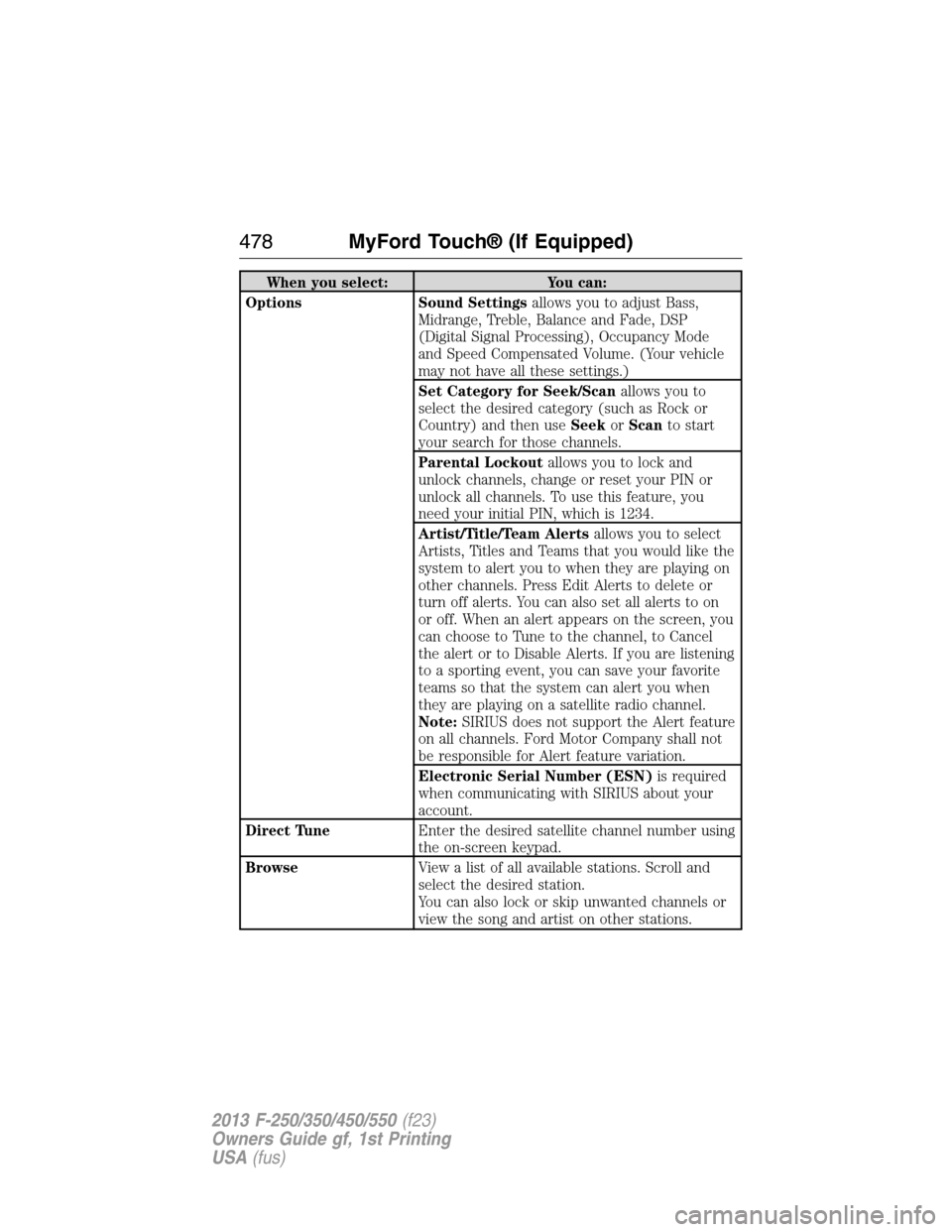
When you select: You can:
Options Sound Settingsallows you to adjust Bass,
Midrange, Treble, Balance and Fade, DSP
(Digital Signal Processing), Occupancy Mode
and Speed Compensated Volume. (Your vehicle
may not have all these settings.)
Set Category for Seek/Scanallows you to
select the desired category (such as Rock or
Country) and then useSeekorScanto start
your search for those channels.
Parental Lockoutallows you to lock and
unlock channels, change or reset your PIN or
unlock all channels. To use this feature, you
need your initial PIN, which is 1234.
Artist/Title/Team Alertsallows you to select
Artists, Titles and Teams that you would like the
system to alert you to when they are playing on
other channels. Press Edit Alerts to delete or
turn off alerts. You can also set all alerts to on
or off. When an alert appears on the screen, you
can choose to Tune to the channel, to Cancel
the alert or to Disable Alerts. If you are listening
to a sporting event, you can save your favorite
teams so that the system can alert you when
they are playing on a satellite radio channel.
Note:SIRIUS does not support the Alert feature
on all channels. Ford Motor Company shall not
be responsible for Alert feature variation.
Electronic Serial Number (ESN)is required
when communicating with SIRIUS about your
account.
Direct TuneEnter the desired satellite channel number using
the on-screen keypad.
BrowseView a list of all available stations. Scroll and
select the desired station.
You can also lock or skip unwanted channels or
view the song and artist on other stations.
478MyFord Touch® (If Equipped)
2013 F-250/350/450/550(f23)
Owners Guide gf, 1st Printing
USA(fus)
Page 482 of 563
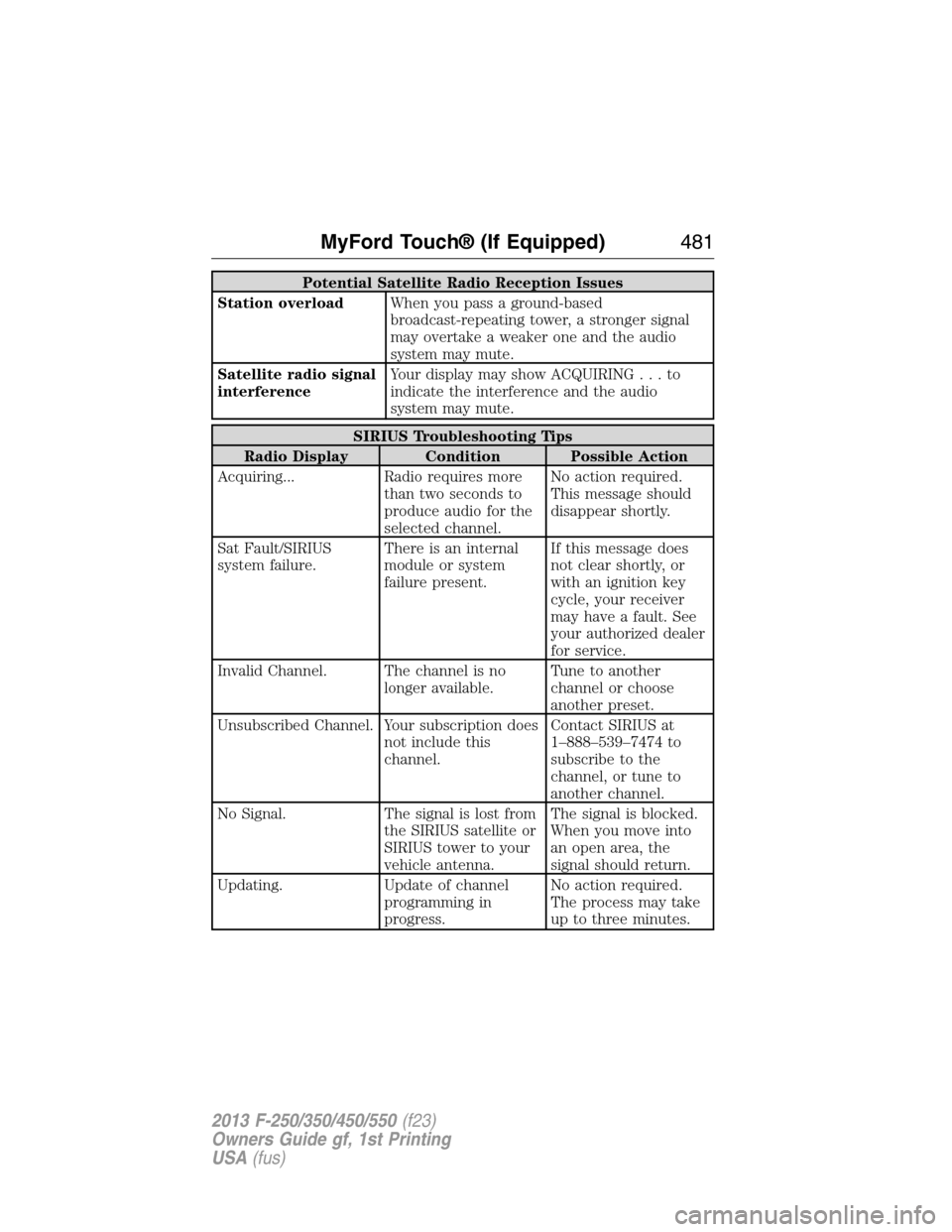
Potential Satellite Radio Reception Issues
Station overloadWhen you pass a ground-based
broadcast-repeating tower, a stronger signal
may overtake a weaker one and the audio
system may mute.
Satellite radio signal
interferenceYour display may show ACQUIRING...to
indicate the interference and the audio
system may mute.
SIRIUS Troubleshooting Tips
Radio Display Condition Possible Action
Acquiring... Radio requires more
than two seconds to
produce audio for the
selected channel.No action required.
This message should
disappear shortly.
Sat Fault/SIRIUS
system failure.There is an internal
module or system
failure present.If this message does
not clear shortly, or
with an ignition key
cycle, your receiver
may have a fault. See
your authorized dealer
for service.
Invalid Channel. The channel is no
longer available.Tune to another
channel or choose
another preset.
Unsubscribed Channel. Your subscription does
not include this
channel.Contact SIRIUS at
1–888–539–7474 to
subscribe to the
channel, or tune to
another channel.
No Signal. The signal is lost from
the SIRIUS satellite or
SIRIUS tower to your
vehicle antenna.The signal is blocked.
When you move into
an open area, the
signal should return.
Updating. Update of channel
programming in
progress.No action required.
The process may take
up to three minutes.
MyFord Touch® (If Equipped)481
2013 F-250/350/450/550(f23)
Owners Guide gf, 1st Printing
USA(fus)
Page 483 of 563
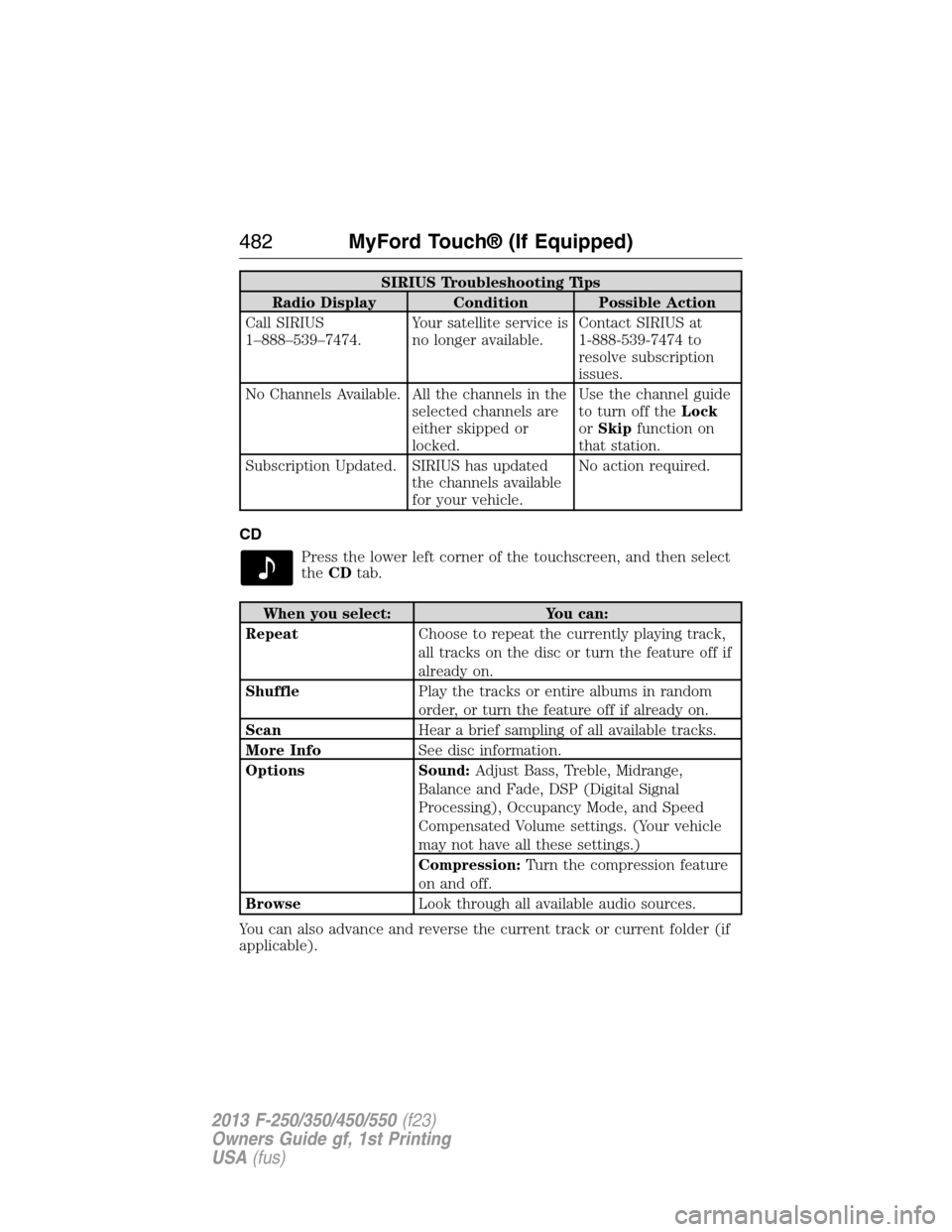
SIRIUS Troubleshooting Tips
Radio Display Condition Possible Action
Call SIRIUS
1–888–539–7474.Your satellite service is
no longer available.Contact SIRIUS at
1-888-539-7474 to
resolve subscription
issues.
No Channels Available. All the channels in the
selected channels are
either skipped or
locked.Use the channel guide
to turn off theLock
orSkipfunction on
that station.
Subscription Updated. SIRIUS has updated
the channels available
for your vehicle.No action required.
CD
Press the lower left corner of the touchscreen, and then select
theCDtab.
When you select: You can:
RepeatChoose to repeat the currently playing track,
all tracks on the disc or turn the feature off if
already on.
ShufflePlay the tracks or entire albums in random
order, or turn the feature off if already on.
ScanHear a brief sampling of all available tracks.
More InfoSee disc information.
Options Sound:Adjust Bass, Treble, Midrange,
Balance and Fade, DSP (Digital Signal
Processing), Occupancy Mode, and Speed
Compensated Volume settings. (Your vehicle
may not have all these settings.)
Compression:Turn the compression feature
on and off.
BrowseLook through all available audio sources.
You can also advance and reverse the current track or current folder (if
applicable).
482MyFord Touch® (If Equipped)
2013 F-250/350/450/550(f23)
Owners Guide gf, 1st Printing
USA(fus)
Page 510 of 563

SETTINGS
Under this menu, you can set your clock, access and adjust the display,
sound and vehicle settings as well as access settings for specific modes
or the help feature.
Clock
Note:You cannot manually set the date. Your vehicle’s GPS does this for
you.
Note:If the battery has been disconnected, your vehicle needs to
acquire a GPS signal to update the clock. Once your vehicle acquires the
signal, it may take a few minutes for the update to display the correct
time.
1. Press theSettingsicon >Clock.
2. Press + and to adjust the time.
From this screen, you can also make other adjustments, such as 12– or
24–hour mode, activate GPS time synchronization and have the system
automatically update for daylight savings time and new time zones.
You can also turn the outside air temperature display on and off. It
appears at the top center of the touchscreen, next to the time and date.
The system automatically saves any updates you make to the settings.
Display
You can adjust the touchscreen display through the touchscreen or by
pressing the voice button on your steering wheel controls and when
prompted, say, “Display settings”.
Press theSettingsicon >Display,then select from the following:
Brightnessallows you to make the screen display brighter or dimmer.
Modeallows you to set the screen to a certain brightness or have the
system automatically change based on the outside light level.
•If you select AUTO or NIGHT, you have the options of turning the
display’s Auto Dim feature on or off and changing the Auto Dim
Manual Offset feature.
Edit Wallpaper
•You can have your touchscreen display the default photo or upload
your own.
MyFord Touch® (If Equipped)509
2013 F-250/350/450/550(f23)
Owners Guide gf, 1st Printing
USA(fus)
Page 518 of 563
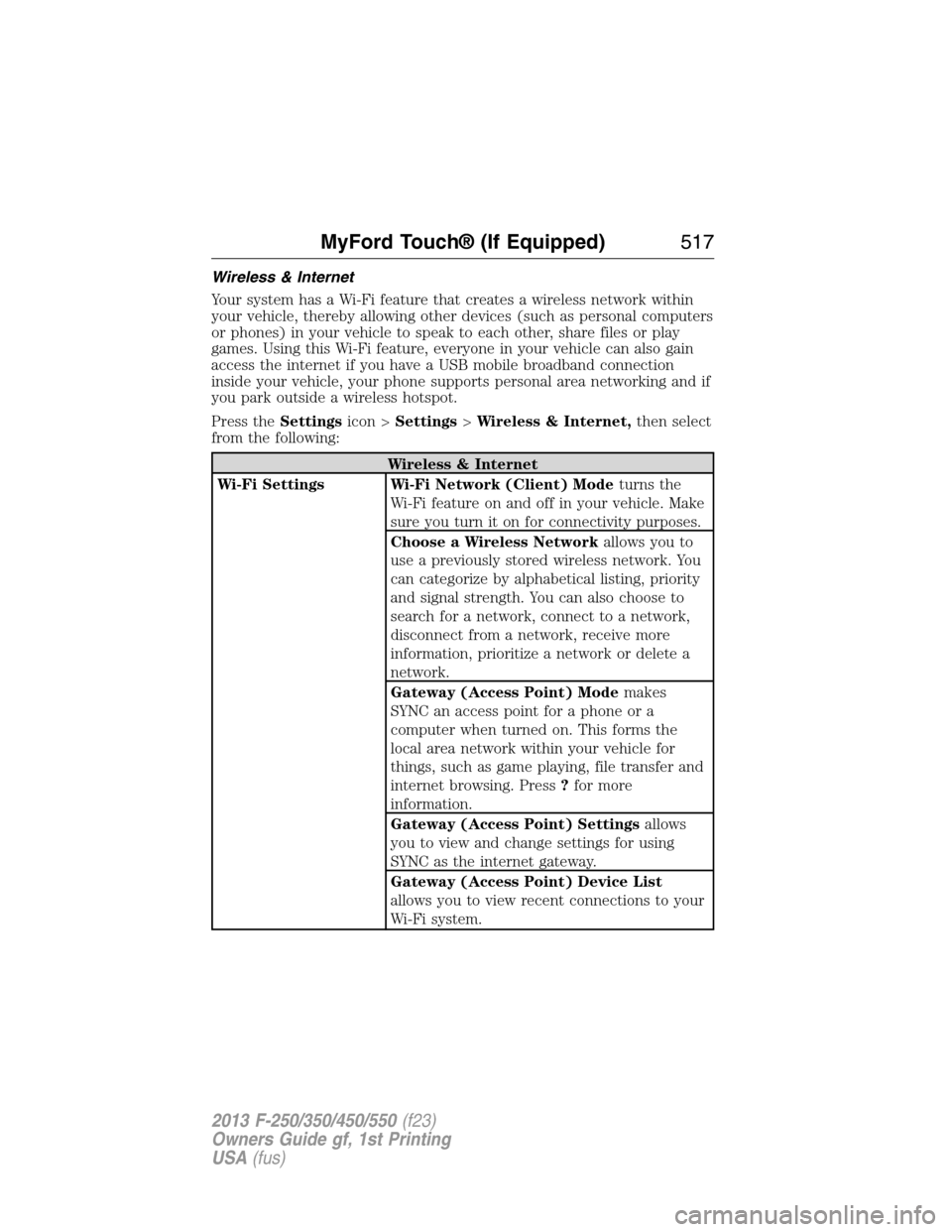
Wireless & Internet
Your system has a Wi-Fi feature that creates a wireless network within
your vehicle, thereby allowing other devices (such as personal computers
or phones) in your vehicle to speak to each other, share files or play
games. Using this Wi-Fi feature, everyone in your vehicle can also gain
access the internet if you have a USB mobile broadband connection
inside your vehicle, your phone supports personal area networking and if
you park outside a wireless hotspot.
Press theSettingsicon >Settings>Wireless & Internet,then select
from the following:
Wireless & Internet
Wi-Fi Settings Wi-Fi Network (Client) Modeturns the
Wi-Fi feature on and off in your vehicle. Make
sure you turn it on for connectivity purposes.
Choose a Wireless Networkallows you to
use a previously stored wireless network. You
can categorize by alphabetical listing, priority
and signal strength. You can also choose to
search for a network, connect to a network,
disconnect from a network, receive more
information, prioritize a network or delete a
network.
Gateway (Access Point) Modemakes
SYNC an access point for a phone or a
computer when turned on. This forms the
local area network within your vehicle for
things, such as game playing, file transfer and
internet browsing. Press?for more
information.
Gateway (Access Point) Settingsallows
you to view and change settings for using
SYNC as the internet gateway.
Gateway (Access Point) Device List
allows you to view recent connections to your
Wi-Fi system.
MyFord Touch® (If Equipped)517
2013 F-250/350/450/550(f23)
Owners Guide gf, 1st Printing
USA(fus)
Page 520 of 563
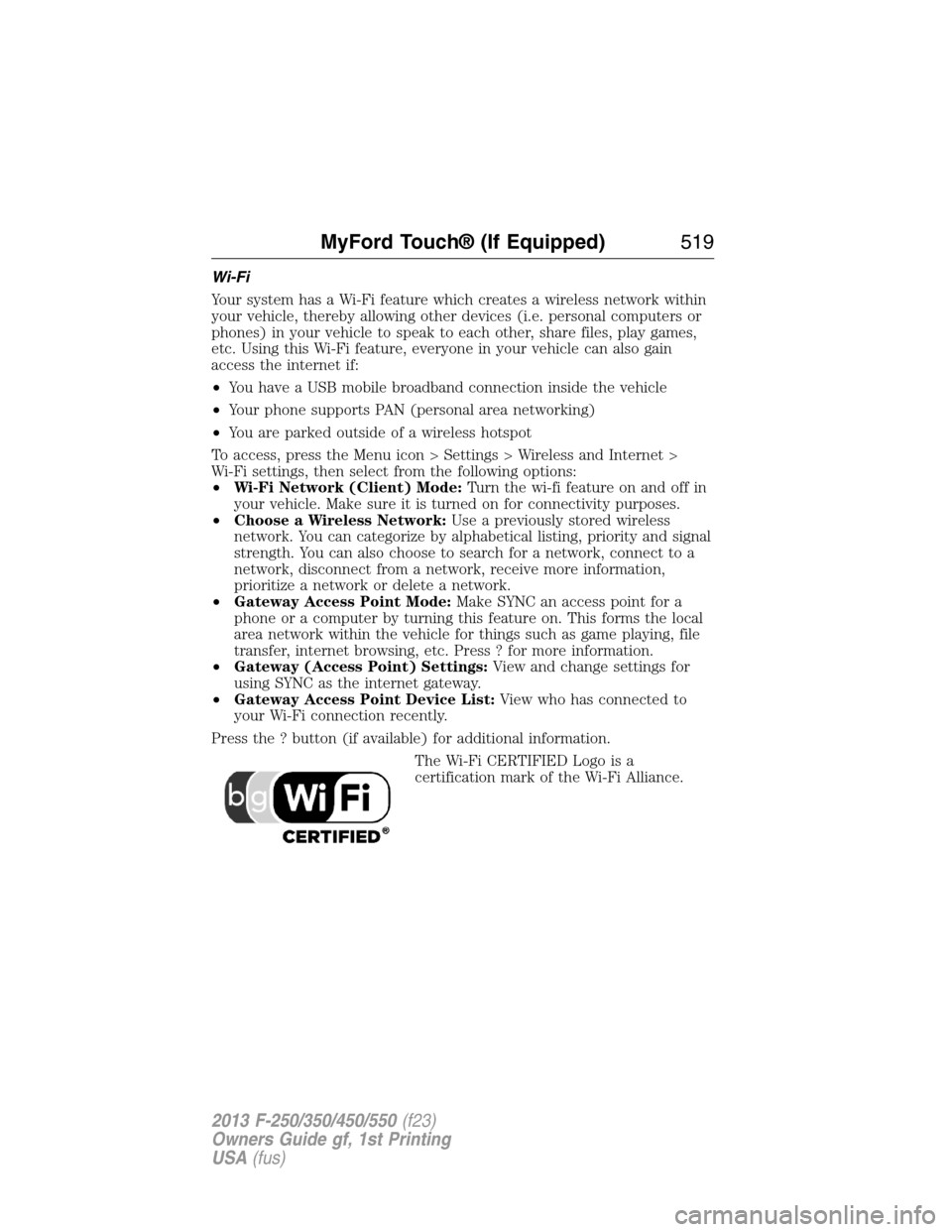
Wi-Fi
Your system has a Wi-Fi feature which creates a wireless network within
your vehicle, thereby allowing other devices (i.e. personal computers or
phones) in your vehicle to speak to each other, share files, play games,
etc. Using this Wi-Fi feature, everyone in your vehicle can also gain
access the internet if:
•You have a USB mobile broadband connection inside the vehicle
•Your phone supports PAN (personal area networking)
•You are parked outside of a wireless hotspot
To access, press the Menu icon > Settings > Wireless and Internet >
Wi-Fi settings, then select from the following options:
•Wi-Fi Network (Client) Mode:Turn the wi-fi feature on and off in
your vehicle. Make sure it is turned on for connectivity purposes.
•Choose a Wireless Network:Use a previously stored wireless
network. You can categorize by alphabetical listing, priority and signal
strength. You can also choose to search for a network, connect to a
network, disconnect from a network, receive more information,
prioritize a network or delete a network.
•Gateway Access Point Mode:Make SYNC an access point for a
phone or a computer by turning this feature on. This forms the local
area network within the vehicle for things such as game playing, file
transfer, internet browsing, etc. Press ? for more information.
•Gateway (Access Point) Settings:View and change settings for
using SYNC as the internet gateway.
•Gateway Access Point Device List:View who has connected to
your Wi-Fi connection recently.
Press the ? button (if available) for additional information.
The Wi-Fi CERTIFIED Logo is a
certification mark of the Wi-Fi Alliance.
MyFord Touch® (If Equipped)519
2013 F-250/350/450/550(f23)
Owners Guide gf, 1st Printing
USA(fus)