2013 FORD FLEX steering wheel
[x] Cancel search: steering wheelPage 486 of 558

When you select: You can:
Media Device
InformationDisplays information about the device, if
connected and available.
Text DisplayAllows you to choose how you would like the
information to display on-screen.
To view song information such as Title, Artist, File, Folder, Album, and
Genre, touch the on-screen album art.
You can also pressWhat’s Playing?to hear how the system pronounces
the current band and song. This can be helpful when using voice
commands to make sure the system correctly plays your request.
SD Card and USB Voice Commands
If you are listening to a USB device or an SD card, press the
voice button on the steering wheel controls. When prompted,
say any of the commands in the following chart.
If you are not listening to a USB device or an SD card, press the voice
button and, after the tone, say “USB” or “SD card”, then any of the
commands in the following chart.
“USB” or “SD CARD”
“Browse”1“Play podcast episode
“Next” “Play similar music”
“Pause” “Play song
“Play” “Play TV show
2
“Play album
“Play all” “Play video
“Play artist
“Play audiobook
“Play author
“Play composer
“Play folder
“Play genre
“Play movie
2“Shuffle”
486MyFord Touch™
2013 Flex(471)
Owners Guide gf, 1st Printing
USA(fus)
Page 488 of 558
Bluetooth Audio Voice Commands
If you are listening to a Bluetooth audio device, press the voice
button on the steering wheel controls. When prompted, say any
of the commands in the following chart.
If you are not listening to a Bluetooth audio device, press the voice
button and, after the tone, say “Bluetooth Audio”, then any of the
commands in the following chart.
Bluetooth audio voice commands
“Next”
“Pause”
“Play”
“Previous”
“Help”
A/V Inputs
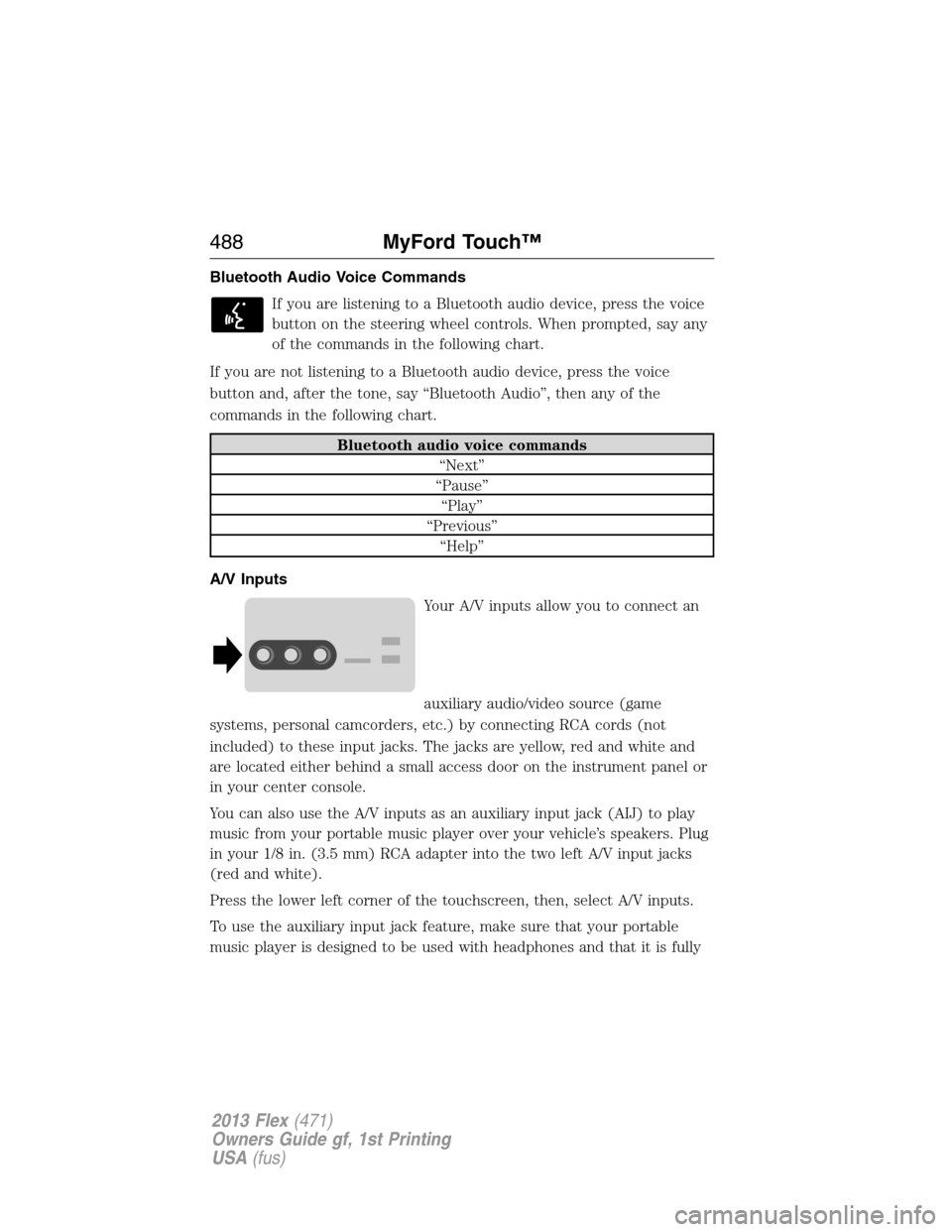
Your A/V inputs allow you to connect an
auxiliary audio/video source (game
systems, personal camcorders, etc.) by connecting RCA cords (not
included) to these input jacks. The jacks are yellow, red and white and
are located either behind a small access door on the instrument panel or
in your center console.
You can also use the A/V inputs as an auxiliary input jack (AIJ) to play
music from your portable music player over your vehicle’s speakers. Plug
in your 1/8 in. (3.5 mm) RCA adapter into the two left A/V input jacks
(red and white).
Press the lower left corner of the touchscreen, then, select A/V inputs.
To use the auxiliary input jack feature, make sure that your portable
music player is designed to be used with headphones and that it is fully
488MyFord Touch™
2013 Flex(471)
Owners Guide gf, 1st Printing
USA(fus)
Page 492 of 558
Pairing Subsequent Phones
Note:Make sure the vehicle ignition and radio are turned on and that
the transmission is in P (Park).
1. Press Menu > Settings > Phone > Bluetooth Devices > Add Device.
2. Make sure that Bluetooth is set to ON and that your cellular phone is
in the proper mode. Refer to your phone’s user guide if necessary.
3. When prompted on your phone’s display, enter the six-digit PIN
provided by SYNC on the screen. The display indicates when the
pairing is successful.
4. The system asks you if you want to download your phone book.
Depending on your phone’s capability, you may be prompted with
additional options. For more information on your phone’s capability, refer
to your phone’s user guide and visit the website.
Making Calls
Press the voice button. When prompted, say “Call
say “Dial”, then the desired number.
To end the call or exit phone mode, press and hold the phone
button.
Receiving Calls
During an incoming call, an audible tone sounds. Call information appears
in the display if it’s available.
Accept the call by pressing Accept on the touchscreen or by
pressing the phone button on your steering wheel controls.
Reject the call by pressing Reject on the touchscreen or by pressing and
holding the phone button on your steering wheel controls.
Ignore the call by doing nothing. SYNC logs it as a missed call.
Phone Menu Options
Press the top left corner on your touchscreen to select from the
following options:
492MyFord Touch™
2013 Flex(471)
Owners Guide gf, 1st Printing
USA(fus)
Page 497 of 558

Phone Voice Commands
Press the voice button on the steering wheel controls. After the
tone, say any of the following commands:
“PHONE”
“Bluetooth off” “Go to hands free”1
“Bluetooth on” “Hold call off”1
“Call” “Hold on”1
“Call
“Call
“Call
“Call
“Call
“Call voicemail” “Privacy on”1
“Dial” “Reply to text messages”
“Do not disturb off” “Turn ringer off”
“Do not disturb on” “Turn ringer on”
“Forward text messages” “Un-mute call”
1
“Help”1These commands are only available during an active call.2If you have said “Messages”, refer to the following “Messages” chart.
“MESSAGES”
“Call”
“Forward text messages”
“Listen to text messages”
“Reply to text messages”
“Help”
MyFord Touch™497
2013 Flex(471)
Owners Guide gf, 1st Printing
USA(fus)
Page 501 of 558

If your vehicle is equipped with the navigation feature, SYNC Services
downloads your requested destination to the navigation system. The
navigation system then calculates the route and provides driving
instructions. Refer to theNavigation Featuressection for more
information.
Disconnecting from SYNC Services
1. Press and hold the phone button on the steering wheel.
2. Say “Goodbye” from the SYNC Services main menu.
SYNC Services Quick Tips
PersonalizingYou can personalize your services feature to
provide quicker access to your most used or
favorite information. You can save address
points such as, work or home. You can also
save favorite information like sports teams,
such as Detroit Lions, or a news category. To
learn more, log onto www.SYNCMyRide.com.
Push to interruptPress the voice button at any time (while you
are connected to SYNC TDI Services) to
interrupt a voice prompt or an audio clip
(such as a sports report) and say your voice
command.
PortableYour subscription is associated with your
Bluetooth-enabled cellular phone number, not
your VIN (Vehicle Identification Number). You
can pair and connect your phone to any
vehicle equipped with Traffic, Directions and
Information and continue enjoying your
personalized services.
MyFord Touch™501
2013 Flex(471)
Owners Guide gf, 1st Printing
USA(fus)
Page 502 of 558

SYNC Services Voice Commands
When a route has been downloaded (non-navigation systems),
press the voice button on the steering wheel controls. When
prompted, say any of the following commands:
“SYNC SERVICES”
“Cancel route”
“Navigation voice off”
“Navigation voice on”
“Next turn”
“Route status”
“Route summary”
“Services”
“Update route”
“Help”
SIRIUS Travel Link (If Equipped and If Activated)
WARNING:Driving while distracted can result in loss of vehicle
control, accident and injury. Ford strongly recommends that
drivers use extreme caution when using any device or feature that may
take their focus off the road. Your primary responsibility is the safe
operation of the vehicle. We recommend against the use of any
handheld device while driving, encourage the use of voice-operated
systems when possible and that you become aware of applicable state
and local laws that may affect use of electronic devices while driving.
Note:In order to use SIRIUS Travel Link, your vehicle must be equipped
with navigation and your navigation SD card must be in the SD card slot.
Note:A paid subscription is required to access and use these features.
Go to www.siriusxm.com/travellink for more information.
Note:Visit www.siriusxm.com/traffic# and click on “Coverage map and
details” for a complete listing of all traffic areas covered by SIRIUS Travel
Link.
Note:Neither SIRIUS nor Ford is responsible for any errors or
inaccuracies in the SIRIUS Travel Link services or its use in vehicles.
502MyFord Touch™
2013 Flex(471)
Owners Guide gf, 1st Printing
USA(fus)
Page 507 of 558

•For information on the fuel pump shut-off, refer to theRoadside
Emergencieschapter.
Setting 911 Assist On
Press the information button > SYNC Apps. > 911 Assist, then
select ON.
You can also access 911 Assist by:
•Pressing Menu > Settings> Phone > 911 Assist, or
•Pressing Menu > Help > 911 Assist.
To Ensure that 911 Assist Works Properly
•SYNC must be powered and working properly at the time of the
incident and throughout feature activation and use.
•SYNC 911 Assist feature must be set on prior to the incident.
•A Bluetooth-enabled and compatible phone has to be paired and
connected to SYNC.
•A connected Bluetooth-enabled phone must have the ability to make
and maintain an outgoing call at the time of the incident.
•A connected Bluetooth-enabled phone must have adequate network
coverage, battery power and signal strength.
•The vehicle must have battery power and be located in the U.S.,
Canada or in a territory in which 911 is the emergency number.
In the Event of a Crash
Not all crashes deploy an airbag or activate the fuel pump shut-off
(which would activate 911 Assist); however, if 911 Assist is triggered,
SYNC tries to contact emergency services. If a connected phone is
damaged or loses connection to SYNC, SYNC searches for, and tries to
connect to, any available previously paired phone and tries to make the
call to 911.
Before making the call:
•SYNC provides a short window of time (about 10 seconds) to cancel
the call. Failure to cancel the call results in SYNC attempting to dial
911.
•SYNC says the following, or a similar message: “SYNC will attempt to
call 911, to cancel the call, press Cancel on your screen or press and
hold the phone button on your steering wheel.”
MyFord Touch™507
2013 Flex(471)
Owners Guide gf, 1st Printing
USA(fus)
Page 509 of 558
Note:In order to allow a break-in period for your vehicle, you may not
be able to create a Vehicle Health Report until your vehicle odometer has
reached 200 miles.
Note:Cellular phone and SMS charges may apply when making a report.
Register for Vehicle Health Report and set your report preferences at
www.SYNCMyRide.com. After registering you can request a Vehicle
Health Report (inside your vehicle). Return to your account at
www.SYNCMyRide.com to view your report. You can also choose for
SYNC to automatically remind you to run reports at specific mileage
intervals. Cellular phone airtime usage may apply when reporting.
The system allows you to check your vehicle’s overall health in the form
of diagnostic report card. The Vehicle Health Report contains valuable
information such as:
•Vehicle Diagnostic Information
•Scheduled maintenance
•Open Recalls and Field Service Actions
•Unserviced items from vehicle inspections by your authorized dealer
Making a Report
To run a report by touchscreen, touch the information button >
SYNC Apps > Vehicle Health Report.
To run a report by voice command, press the voice button on
the steering wheel and, when prompted, say “Vehicle Health
Report”.
Vehicle Health Report Privacy Notice
When you run a Vehicle Health Report, Ford Motor Company may collect
your cellular phone number (to process your report request) and
diagnostic information about your vehicle. Certain versions or updates to
Vehicle Health Report may also collect additional vehicle information.
Ford may use the vehicle information it collects for any purpose. If you
do not want to disclose your cellular phone number or vehicle
information, do not run the feature or set up your Vehicle Health Report
profile at www.SYNCMyRide.com. Refer to www.SYNCMyRide.com -
Vehicle Health Report Terms and Conditions, and Privacy Statement - for
more information.
MyFord Touch™509
2013 Flex(471)
Owners Guide gf, 1st Printing
USA(fus)