2013 FORD F250 light
[x] Cancel search: lightPage 482 of 577
AM and FM
Touch theAMorFMtab to listen to the radio.
To change between AM and FM presets, just touch theAMor
FMtab.
Memory Presets
Save a station by pressing and holding one of the memory preset areas.
There is a brief mute while the radio saves the station. Sound returns
when finished.
HD Radio
Touch this button to turn HD Radio on. The light on the button
illuminates when the feature is on. HD Radio allows you to receive radio
broadcasts digitally, where available, providing free, crystal-clear sound.
SeeHD Radio informationlater in this chapter.
Scan
Touch this button to go to the next strong AM or FM radio station.
The light on the button illuminates when the feature is on.
Options
Sound Settingsallows you to adjust settings for:
•Bass
•Midrange
•Treble
•Balance and Fade
•DSP (Digital Signal Processing)
•Occupancy Mode
•Speed Compensated Volume.
Note:Your vehicle may not have all these sound settings.
Set PTY for Seek/Scanallows you to select a category of music you
would like to search for. You can then choose to either seek or scan for
the stations playing that category.
RDS Text Displayallows you to view the information broadcast by FM
stations.
ASTallows you to have the system automatically store the six strongest
stations in your current location.
MyFord Touch® (If Equipped)481
2013 F-250/350/450/550(f23)
Owners Guide gf, 3rd Printing, December 2012
USA(fus)
Page 483 of 577
TAG Buttonis available when HD Radio is on, and allows you to tag a
song to download later. When you selectOn,TAG appears on-screen
when HD Radio is active. You can touchTA Gto save the information of
the song that is playing. When you plug in your portable music player,
the information transfers, if supported by your device. When you are
connected to iTunes, the tags appear to remind you of the songs you
would like to download. SeeHD Radio informationlater in this chapter.
Direct Tune
Touch this button to manually enter the desired station number. Touch
Enterwhen you are done.
HD Radio™ Information (If Available)
Note:HD Radio broadcasts are not available in all markets.
HD Radio technology is the digital evolution of analog AM/FM radio. Your
system has a special receiver that allows it to receive digital broadcasts
(where available) in addition to the analog broadcasts, it already receives.
Digital broadcasts provide a better sound quality than analog broadcasts
with free, crystal-clear audio and no static or distortion. For more
information, and a guide to available stations and programming, please
visit www.hdradio.com.
When HD Radio is on and you tune to a station broadcasting HD Radio
technology, you may notice the following indicators on your screen:
HD) logoblinks when acquiring a digital station and stays solid
when digital audio is playing. When this logo is available, you
may also see Title and Artist fields on-screen.
Multicast indicatorappears in FM mode (only) if the current station is
broadcasting multiple digital broadcasts. The highlighted numbers signify
available digital channels where new or different content is available.
HD1 signifies the main programming status and is available in analog and
digital broadcasts. Other multicast stations (HD2 through HD7) are only
available digitally.
482MyFord Touch® (If Equipped)
2013 F-250/350/450/550(f23)
Owners Guide gf, 3rd Printing, December 2012
USA(fus)
Page 485 of 577

HD Radio Reception and Station Troubleshooting
Potential Reception Issues
Reception areaIf you are listening to a multicast station and
you are on the fringe of the reception area,
the station may mute due to weak signal
strength.
If you are listening to HD1, the system
switches back to the analog broadcast until
the digital broadcast is available again.
However, if you are listening to any of the
possible HD2 through HD7 multicast
channels, the station mutes and stays muted
unless it is able to connect to the digital
signal again.
Station blendingWhen the system first receives a station
(aside from HD2-HD7 multicast stations), it
first plays the station in the analog version.
Once the receiver verifies the station is an HD
Radio station, it shifts to the digital version.
Depending on the station quality, you may
hear a slight sound change when the station
changes from analog to digital. Blending is the
shift from analog to digital sound or digital
back to analog sound.
In order to provide the best possible experience, use the contact form to
report any station issues found while listening to a station broadcasting
with HD Radio technology. Independent entities own and operate each
station. These stations are responsible for making sure all audio streams
and data fields are accurate.
484MyFord Touch® (If Equipped)
2013 F-250/350/450/550(f23)
Owners Guide gf, 3rd Printing, December 2012
USA(fus)
Page 521 of 577
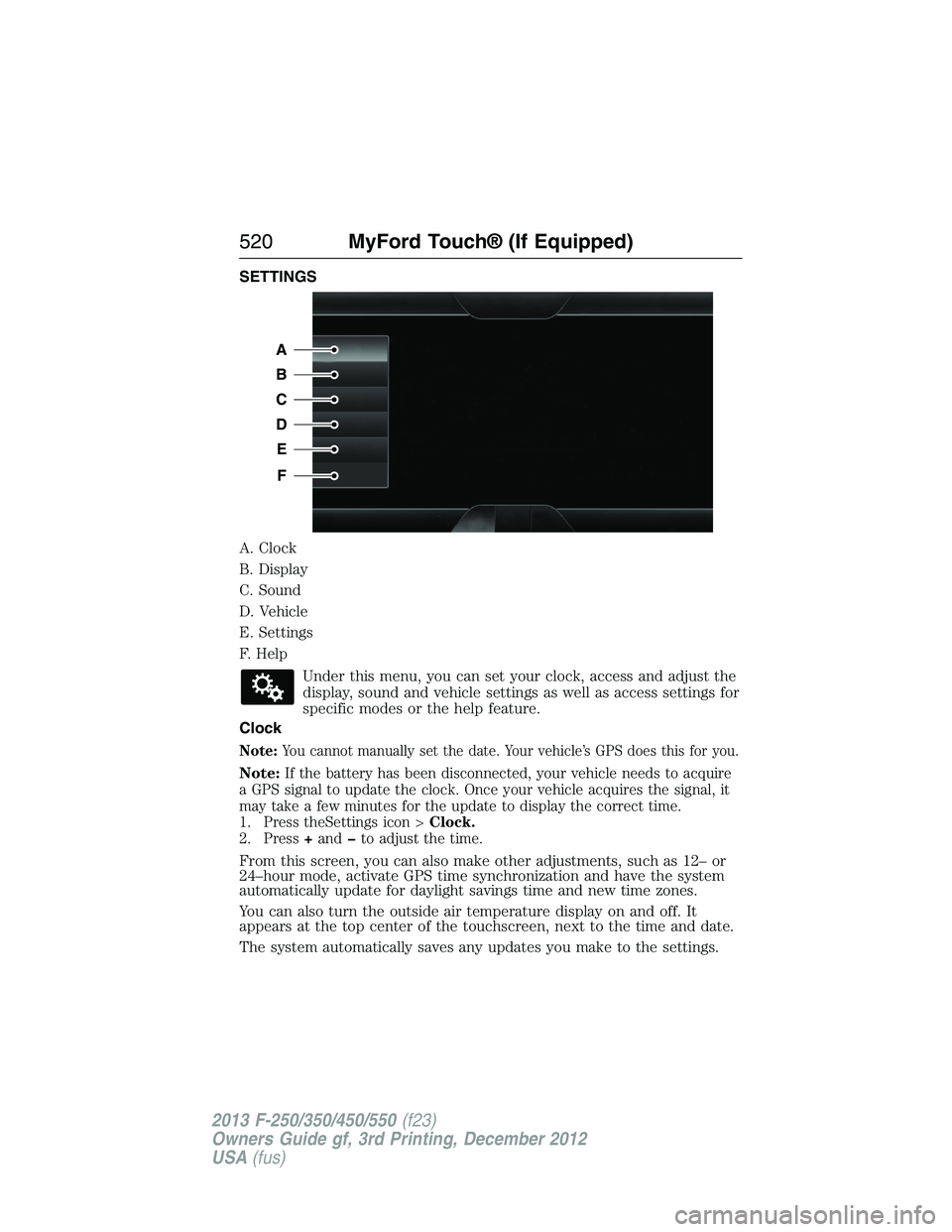
SETTINGS
A. Clock
B. Display
C. Sound
D. Vehicle
E. Settings
F. Help
Under this menu, you can set your clock, access and adjust the
display, sound and vehicle settings as well as access settings for
specific modes or the help feature.
Clock
Note:You cannot manually set the date. Your vehicle’s GPS does this for you.
Note:If the battery has been disconnected, your vehicle needs to acquire
a GPS signal to update the clock. Once your vehicle acquires the signal, it
may take a few minutes for the update to display the correct time.
1. Press theSettings icon >Clock.
2. Press+andto adjust the time.
From this screen, you can also make other adjustments, such as 12– or
24–hour mode, activate GPS time synchronization and have the system
automatically update for daylight savings time and new time zones.
You can also turn the outside air temperature display on and off. It
appears at the top center of the touchscreen, next to the time and date.
The system automatically saves any updates you make to the settings.
A
B
C
D
E
F
520MyFord Touch® (If Equipped)
2013 F-250/350/450/550(f23)
Owners Guide gf, 3rd Printing, December 2012
USA(fus)
Page 522 of 577
Display
You can adjust the touchscreen display through the touchscreen or by
pressing the voice button on your steering wheel controls and when
prompted, say, “Display settings”.
Press the Settings icon >Display,then select from the
following:
Brightnessallows you to make the screen display brighter or dimmer.
Modeallows you to set the screen to a certain brightness or have the
system automatically change based on the outside light level.
•If you selectAUTOorNIGHT,you have the options of turning the
display’s Auto Dim feature on or off and changing the Auto Dim
Manual Offset feature.
Edit Wallpaper
•You can have your touchscreen display the default photo or upload
your own.
Uploading Photos for Your Home Screen Wallpaper
Note:You cannot load photos directly from your camera. You must
access the photos either from your USB mass storage device or from an
SD card.
Note:Photographs with extremely large dimensions (such as 2048 x
1536) may not be compatible and appear as a blank (black) image on the
display.
Your system allows you to upload and view up to 32 photos.
To access, press theSettings icon >Display>Edit Wallpaper,and then
follow the system prompts to upload your photographs.
Only the photograph(s), which meets the following conditions, display:
•Compatible file formats are as follows: .jpg, .gif, .png, .bmp.
•Each file must be 1.5 MB or less.
•Recommended dimensions: 800 x 384.
MyFord Touch® (If Equipped)521
2013 F-250/350/450/550(f23)
Owners Guide gf, 3rd Printing, December 2012
USA(fus)
Page 523 of 577
Sound
Press the Settings icon >Sound,then select from the
following:
Sound Settings
Bass DSP*
Midrange Occupancy Mode*
Treble Speed Compensated Volume
Set Balance and Fade
*If equipped.
Vehicle
Press theSettingsicon >Vehicle,then select from the
following:
•Active Park Assist
•Ambient Lighting
•Vehicle Health Report
•Door Keypad Code
•Rear View Camera
•Enable Valet Mode.
Active Park Assist
When activated, your system displays directions for you regarding the
active park assist process.
For complete information on this system, seeActive park assistin the
Driving Aidschapter.
Ambient Lighting (If Equipped)
When activated, ambient lighting illuminates footwells and cupholders
with a choice of colors. To access and make adjustments:
1. Press the Settings icon >Vehicle>Ambient Lighting.
2. Touch the desired color.
3. Use the scroll bar to increase or decrease the intensity.
To turn the feature on or off, press the power button.
522MyFord Touch® (If Equipped)
2013 F-250/350/450/550(f23)
Owners Guide gf, 3rd Printing, December 2012
USA(fus)
Page 539 of 577
1. Enter the necessary information into the highlighted text fields
(in any order). For address destination entry,Go!appears once you
enter all the necessary information. PressingGo!makes the address
location appear on the map. If you choosePrevious Destination,
the last 20 destinations you have selected appear.
2. SelectSet as Destto make this your destination. You can also
choose to set this as a waypoint (have the system route to this point
on the way to your current destination) or save it as a favorite. The
system considers anyAvoid Areasselections in its route calculation.
3. Choose from up to three different types of routes, and then select
Start Route.
•Fastest Route:Uses the fastest moving roads possible.
•Shortest Route:Uses the shortest distance possible.
•Eco Route:Uses the most fuel-efficient route.
You can cancel the route or have the system demo the route for
you. SelectRoute Prefsto set route preferences like avoiding
freeways, tollroads, ferries and car trains as well as to use or not use
high-occupancy vehicle lanes. (High-occupancy vehicle lanes are also
known as carpool or diamond lanes. People who ride in buses, vanpools
or carpools use these lanes.)
Note:If your vehicle is on a recognized road and you do not press the
Start Routebutton, the system defaults to theFastest Routeoption
and begins guidance.
During route guidance, you can press the talking bubble icon that
appears in the upper right navigation corner (green bar) if you want the
system to repeat route guidance information. When the system repeats
the last guidance instruction, it updates the distance to the next
guidance instruction, since it detects when the vehicle is moving.
538MyFord Touch® (If Equipped)
2013 F-250/350/450/550(f23)
Owners Guide gf, 3rd Printing, December 2012
USA(fus)
Page 570 of 577
911 Assist™ ......................441, 516
A
ABS (see Brakes) .....................223
Accessing and using your
USB port ....................................494
Accessing call history/phone
book during active call .............429
Accessing your calendar ..........515
Accessing your media menu
features ......................................454
Accessing your phone menu
features ......................................431
Accessory delay ..........................92
Active call menu options .........429
Adding (pairing) a phone ........502
Advanced menu options ...439, 459
Advanced menu options
(prompts, languages, defaults,
master reset, installing
applications) ..............................439
Airbag supplemental restraint
system ..........................................48
and child safety seats ..............49
description ................................48
disposal ......................................60
driver airbag ..............................48
passenger airbag .......................48
passenger deactivation
switch ........................................51
side airbag ...........................48, 56
Air cleaner filter ...............323, 395
Air conditioning ........................146
manual heating and air
conditioning system ...............146
Air filter .............................323, 395All Wheel Drive (AWD),
driving off road .........................209
Ambient mood/lighting .....522–523
Ambulance packages ..................16
AM/FM .......................................481
Antifreeze
(see Engine coolant) ................307
Anti-lock brake system
(see Brakes) ..............................223
Anti-theft system ..................77, 79
arming the system ..............77, 79
disarming a triggered system ..79
AppLink™ .................................449
Audio system
Single CD ................136–137, 140
Audio system
(see Radio) ................136–137, 140
Automatic transmission ............201
driving an automatic
overdrive .................................199
fluid, adding ............................313
fluid, checking ........................313
fluid, refill capacities ..............391
fluid, specification ..................391
Selectshift (SST) ....................204
Auxiliary Input Jack .................490
Auxiliary input jack (Line in) ..141
Auxiliary powerpoint ................178
A/V inputs ..........................143, 498
Axle
refill capacities ........................391
B
Battery .......................................318
acid, treating emergencies .....318
jumping a disabled battery ....279
Index569
2013 F-250/350/450/550(f23)
Owners Guide gf, 3rd Printing, December 2012
USA(fus)