Page 171 of 350

•The use of original CD media is required for the best
quality audio production. Correct operation is not
guaranteed when CD-R/RW media are used that were
not correctly burned and/or with a maximum capacity
above 650 Mb.
• Do not use commercially available protective sheets
for CDs or discs, with stabilizers, etc. as they could get
stuck in the internal mechanism and damage the disc.
• If a copy-protected CD is used, it may take a few
seconds before the system starts to play it. The CD
player cannot be guaranteed to play all protected
discs. The fact that the CD is protected from being
copied is often shown in very small letters or is
difficult to read on the actual CD cover where it may
be, for example, “COPY CONTROL”, “COPY PRO-
TECTED”, “THIS CD CANNOT BE PLAYED ON A
PC/MAC”. •
The CD player is capable of reading most compression
systems currently in use, following the development of
these systems, the reading of all compression formats
is not guaranteed.
Technical Specifications
The complete system consists of:
• Two 165 mm diameter midwoofer speakers, one
speaker in each of the front doors.
• Two 22 mm diameter tweeter speakers, one speaker in
each of the front pillars.
• Two 100 mm diameter full range speakers, one speaker
in each of the rear side panels.
• Antenna on the car roof.
• Radio with CD/MP3 player.
4
UNDERSTANDING YOUR INSTRUMENT PANEL 169
Page 172 of 350
With Alpine Premium Audio system (if equipped):
•Two 165 mm diameter midwoofer speakers.
• Two 11 mm tweeter speakers in the front pillars.
• Two 100 mm full range speakers, one speaker in each
of the rear side panels. •
An amplifier in the trunk on the right-hand side panel.
• Antenna on the car roof.
• Radio with CD/MP3 player.
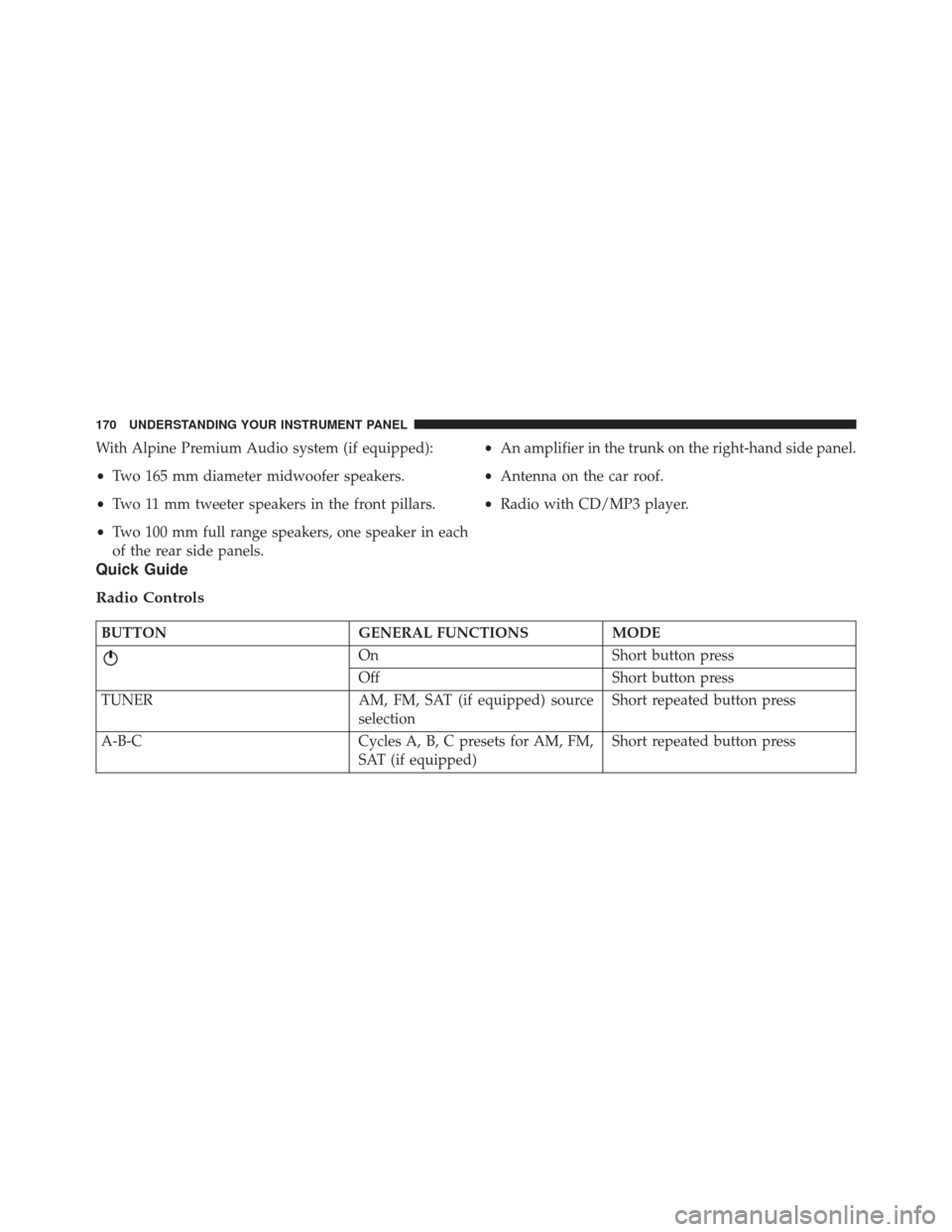
Quick Guide
Radio Controls
BUTTON GENERAL FUNCTIONSMODE
OnShort button press
Off Short button press
TUNER AM, FM, SAT (if equipped) source
selection Short repeated button press
A-B-C Cycles A, B, C presets for AM, FM,
SAT (if equipped)Short repeated button press
170 UNDERSTANDING YOUR INSTRUMENT PANEL
Page 173 of 350
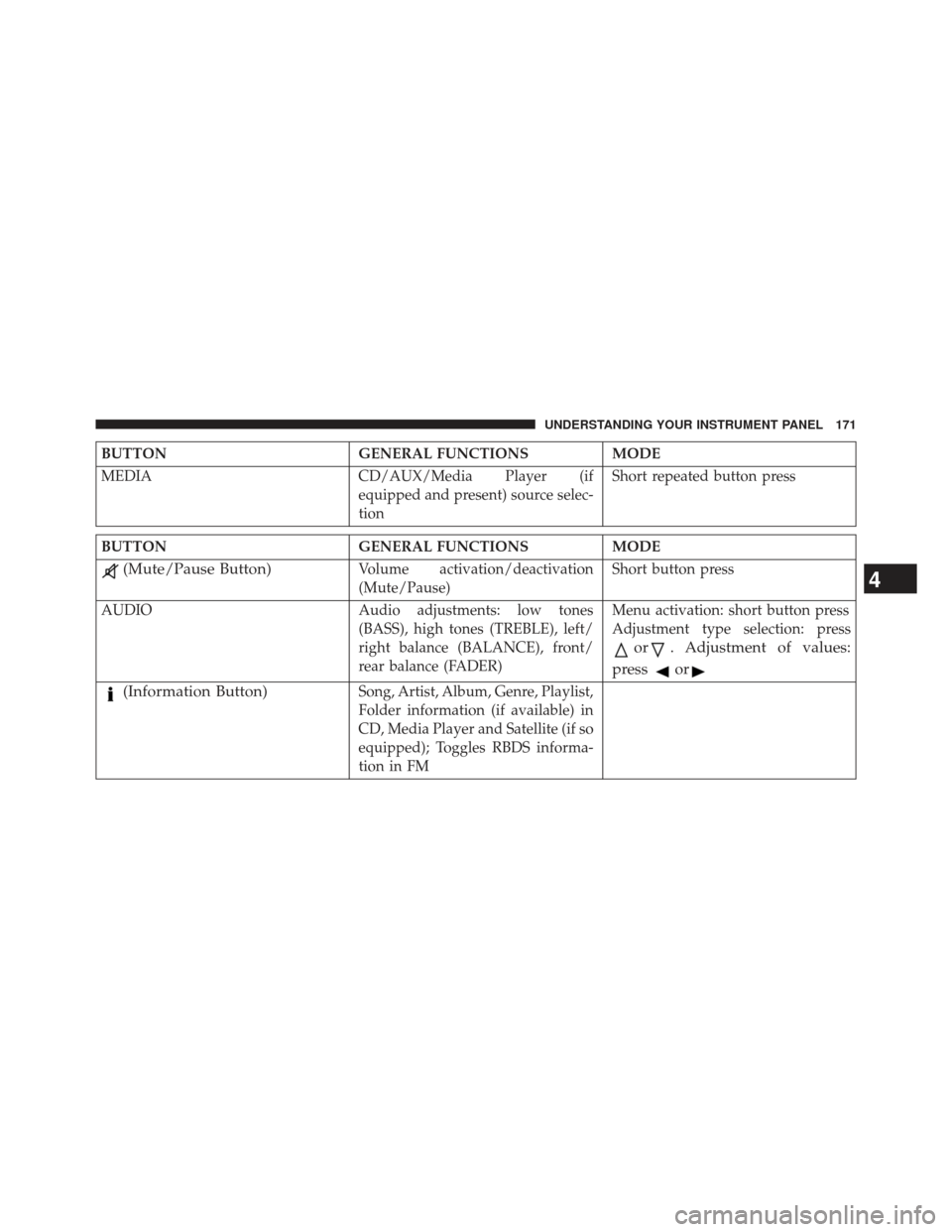
BUTTONGENERAL FUNCTIONSMODE
MEDIA CD/AUX/Media Player (if
equipped and present) source selec-
tionShort repeated button press
BUTTON
GENERAL FUNCTIONSMODE
(Mute/Pause Button)Volume activation/deactivation
(Mute/Pause)Short button press
AUDIO Audio adjustments: low tones (BASS), high tones (TREBLE), left/
right balance (BALANCE), front/
rear balance (FADER)Menu activation: short button press
Adjustment type selection: press
or. Adjustment of values:
press
or
(Information Button)Song, Artist, Album, Genre, Playlist,
Folder information (if available) in
CD, Media Player and Satellite (if so
equipped); Toggles RBDS informa-
tion in FM
4
UNDERSTANDING YOUR INSTRUMENT PANEL 171
Page 189 of 350
The following are instructions for retrieving the Elec-
tronic Serial Number (ESN) from FIAT 500 NAFTA model
radios:
To retrieve the ESN of SIRIUS Satellite Receiver Module
tune to Channel 0. Make sure that when the order is
placed, the ESN are correct. If any of the ESN numbers
are not entered correctly, then the SIRIUS subscription
will not be able to be transferred to the new radio and
will not be active when installed in the customer ’s
vehicle.
CD Player
Introduction
This chapter describes the operation of the CD player
only. To operate the radio, refer to the description in the
“Functions and Adjustments” chapter.
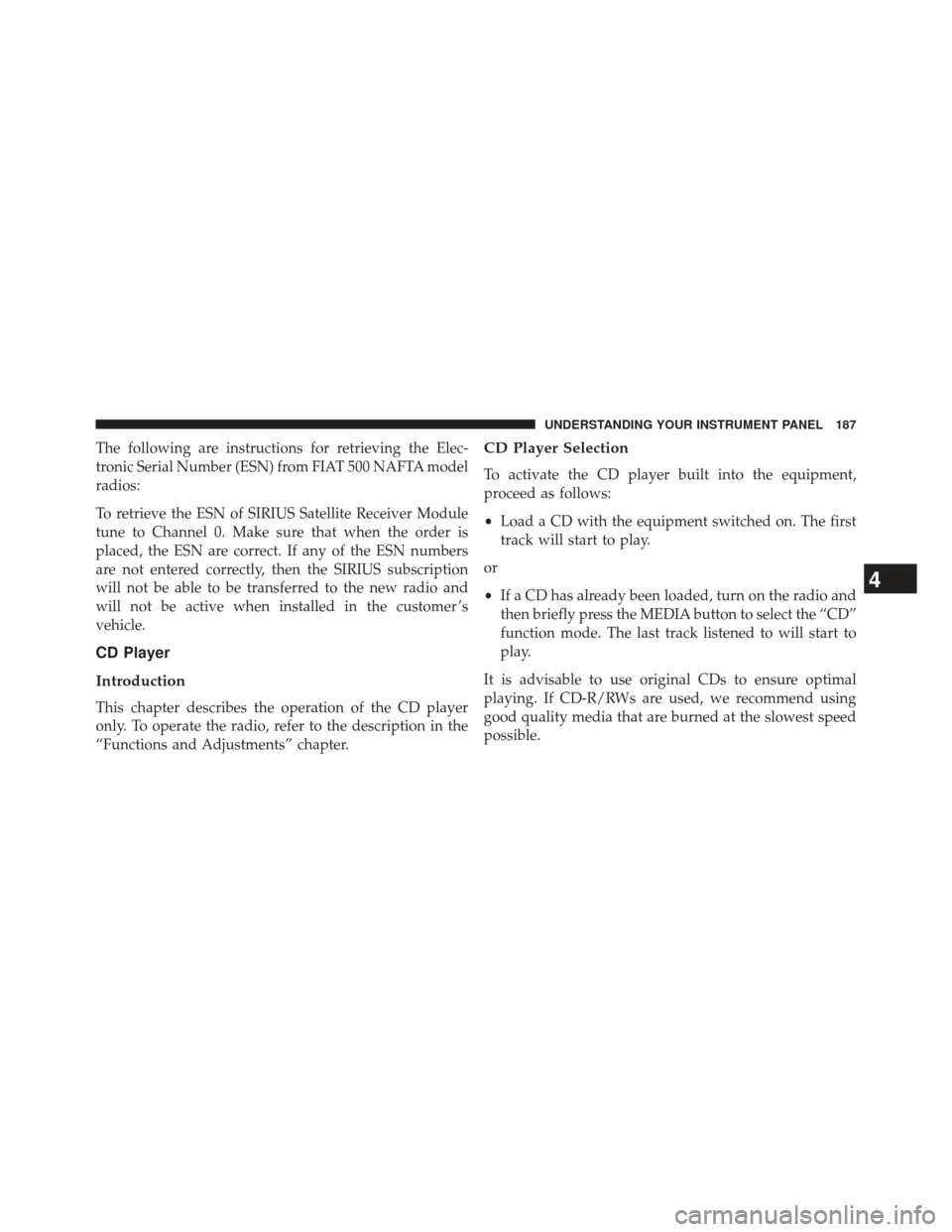
CD Player Selection
To activate the CD player built into the equipment,
proceed as follows:
•Load a CD with the equipment switched on. The first
track will start to play.
or
• If a CD has already been loaded, turn on the radio and
then briefly press the MEDIA button to select the “CD”
function mode. The last track listened to will start to
play.
It is advisable to use original CDs to ensure optimal
playing. If CD-R/RWs are used, we recommend using
good quality media that are burned at the slowest speed
possible.
4
UNDERSTANDING YOUR INSTRUMENT PANEL 187
Page 191 of 350

Display Information
When the CD player is operating, information will ap-
pear on the display with the following meaning:
•“Track 5” indicates the CD track number.
• “03:42” indicates the time elapsed since the start of the
track (if the relevant Menu function is activated).
Track Selection
Briefly press thebutton to play the previous CD track
and the
button to play the next track. The tracks are
selected cyclically: the first track is selected after the last
track and vice versa.
If the track has been played for more than 3 seconds,
pressing the
button, starts the track again from the
beginning. In this case, if you want to play the previous
track, press the
button twice consecutively.
Track Fast Forward/Rewind
Keep thebutton pressed down to fast forward the
selected track and keep the
button pressed down to
fast rewind the track. The fast forward/rewind will stop
once the button is released.
Pause Function
To pause the CD player, press thebutton. The word-
ing “CD Pause” appears on the display.
To resume listening to the track, press the
button
again.
CD MP3 Player
Introduction
This chapter describes the operation of the CD MP3
player.
NOTE: Layer-3 audio decoding technology is licensed
from Fraunhofer IIS and Thomson multimedia.
4
UNDERSTANDING YOUR INSTRUMENT PANEL 189
Page 193 of 350

move to the MP3 session while playing by keeping the
CD button pressed for more than two seconds.
NOTE:When the function is activated the radio may take
a few seconds to start playing. While checking the disc
the display will show “CD Reading.” If no MP3 files are
detected, the radio will resume playing the audio session
from the point where it was interrupted.
Display Information
ID3–Tag Information Display
In addition to the information relating to the time
elapsed, folder name and file name, the radio is also
capable of displaying ID3–TAG information relating to
Title Track, Artist and Author.
When one of the ID3-TAG pieces of information is chosen
to be displayed (Title, Artist, Album) and this informa-
tion has not been recorded for the track played, the text
�UNKNOWN� will be displayed for that field.
Selection Of Next/Previous Folder
Press thebutton to select a next folder or thebut-
ton to select the previous folder. The display will show
the number of the folder.
The folders are selected cyclically. The first folder is
selected after the last folder and vice versa.
If no other folder/track is selected in the next two
seconds, the first track on the new folder will be played.
At that moment selected the last track in the folder is
playing, the next folder will be played.
Structure Of The Folders
The radio with MP3 player:
• Recognizes only the folders that effectively contain
MP3 format files
4
UNDERSTANDING YOUR INSTRUMENT PANEL 191
Page 194 of 350
•If the MP3 files on a CD-ROM are structured in
sub-folders their structure is compressed to a single
level structure, where the sub-folders are taken to the
level of the main folders.
Troubleshooting
General
Sound Volume Low
The Fader function should be adjusted to the values “F”
(front) only to prevent the reduction in radio output
power and the cancelling of the volume if the Fader level
adjustment is equal to R+9.
Source Can Not Be Selected
Nothing has been loaded. Load the CD or the MP3 CD to
be listened to.
CD Player
The CD Does Not Play
The CD is dirty. Clean the CD.
The CD is scratched. Try using another CD.
The CD Can Not Be Loaded
A CD is already loaded. Press the
button and remove
the CD.
MP3 File Reading
Track Skips While Playing Mp3 Files
The CD is scratched or dirty.
The Duration Of The Mp3 Tracks Is Not Correctly
Displayed.
In some cases (due to the recording mode) the duration of
the MP3 tracks can be displayed incorrectly.
192 UNDERSTANDING YOUR INSTRUMENT PANEL
Page 195 of 350
Operating Instructions — Hands-Free Phone (If
Equipped)
Refer to the appropriate “BLUE&ME™ User ’s Manual”
for further information.
Personal/Portable Navigation Device (PND) — If
Equipped
A Personal/Portable Navigation Device (PND) is avail-
able as optional equipment for this vehicle, refer to the
Navigation User Guide for further information.
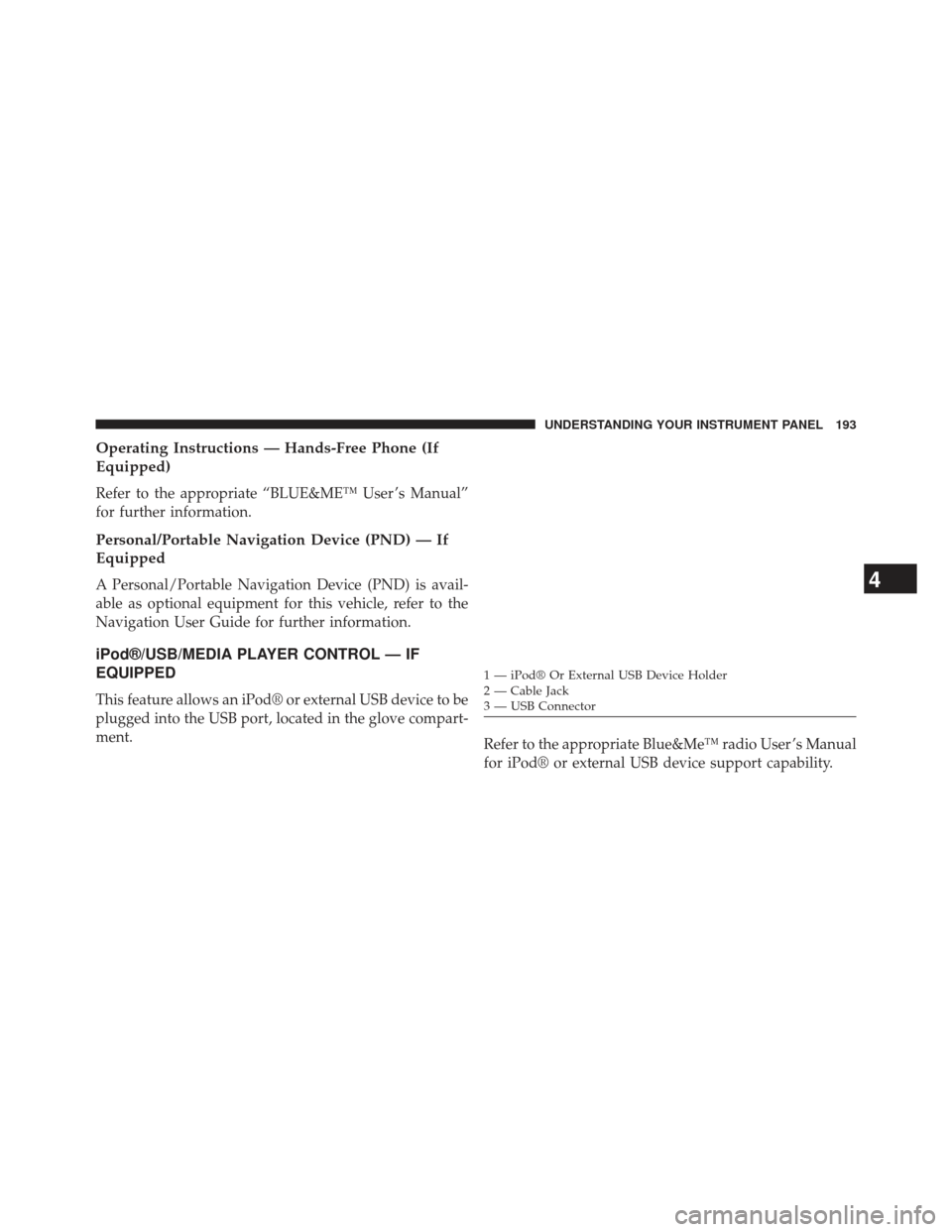
iPod®/USB/MEDIA PLAYER CONTROL — IF
EQUIPPED
This feature allows an iPod® or external USB device to be
plugged into the USB port, located in the glove compart-
ment.Refer to the appropriate Blue&Me™ radio User ’s Manual
for iPod® or external USB device support capability.
1 — iPod® Or External USB Device Holder
2 — Cable Jack
3 — USB Connector
4
UNDERSTANDING YOUR INSTRUMENT PANEL 193