Page 278 of 599
PARKVIEW® REAR BACK UP CAMERA —
IF EQUIPPED
Your vehicle may be equipped with the ParkView® Rear
Back Up Camera that allows you to see an on-screen
image of the rear surroundings of your vehicle whenever
the shift lever is put into REVERSE. The image will be
displayed on the touchscreen display along with a cau-
tion note to “check entire surroundings” across the top of
the screen. After five seconds this note will disappear.The ParkView® camera is located on the rear of the
vehicle above the rear License plate.
When the vehicle is shifted out of REVERSE, the rear
camera mode is exited and the navigation or audio screen
appears again.
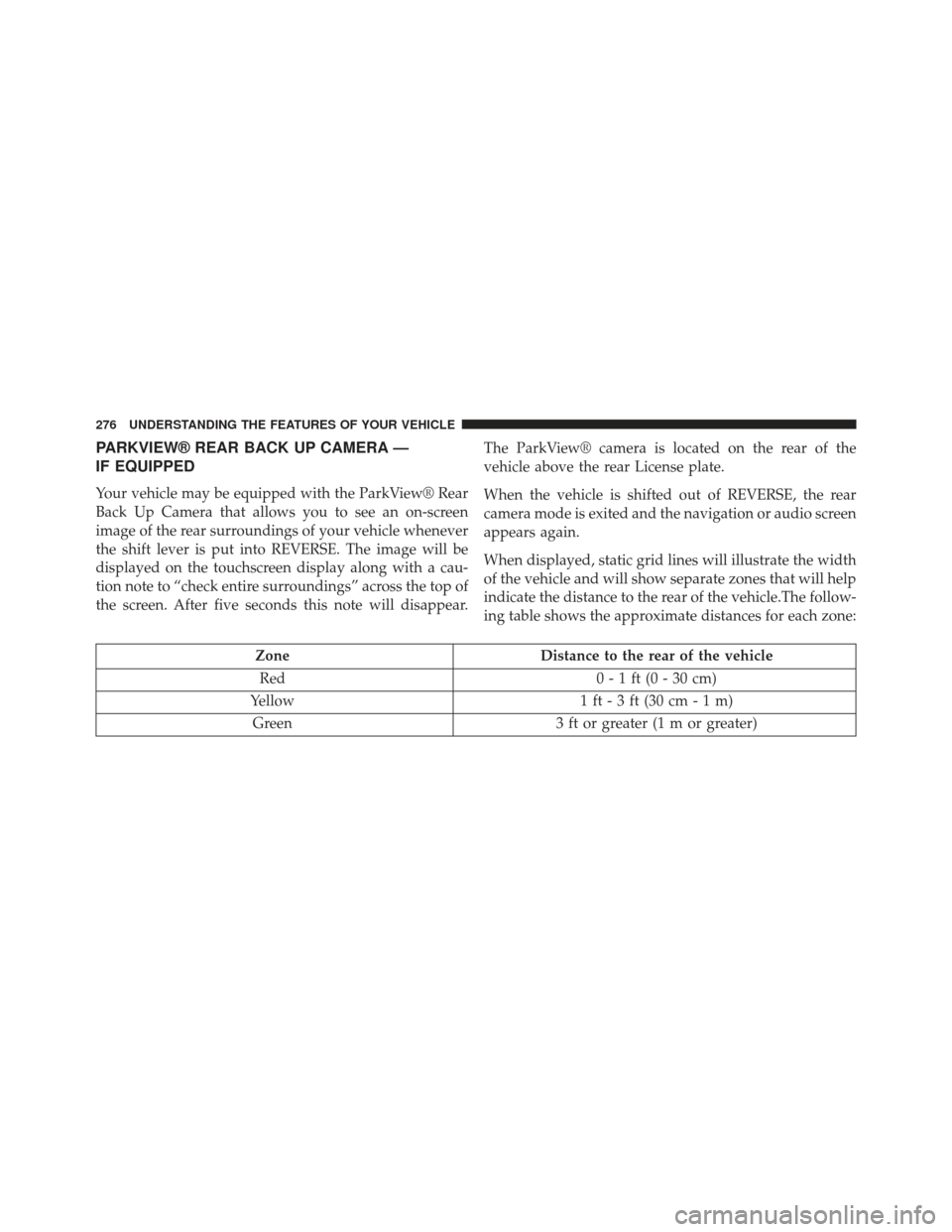
When displayed, static grid lines will illustrate the width
of the vehicle and will show separate zones that will help
indicate the distance to the rear of the vehicle.The follow-
ing table shows the approximate distances for each zone:
Zone
Distance to the rear of the vehicle
Red 0 - 1 ft (0 - 30 cm)
Yellow 1 ft - 3 ft (30 cm - 1 m)
Green 3 ft or greater (1 m or greater)
276 UNDERSTANDING THE FEATURES OF YOUR VEHICLE
Page 310 of 599

�Uconnect® SETTINGS ...................337
▫ Hard-Keys ......................... .337
▫ Soft-Keys .......................... .337
▫ Customer Programmable Features —
Uconnect® 4.3 Settings ..................337
▫ Customer Programmable Features —
Uconnect® 8.4 Settings ..................351
▫ SRT Performance Features ...............366
� iPod®/USB/MP3 CONTROL ..............369
� HARMAN KARDON® Logic7® HIGH
PERFORMANCE MULTICHANNEL SURROUND
SOUND SYSTEM WITH DRIVER-SELECTABLE
SURROUND (DSS) — IF EQUIPPED .........369�
STEERING WHEEL AUDIO CONTROLS —
IF EQUIPPED ........................ .370
▫ Radio Operation ..................... .371
▫ CD Player .......................... .371
� CD/DVD DISC MAINTENANCE ...........372
�
RADIO OPERATION AND MOBILE PHONES . . .372
� CLIMATE CONTROLS ...................373
▫ General Overview .....................373
▫ Hard-Keys ......................... .373
▫ Soft-Keys .......................... .374
▫ Climate Control Functions ...............380
▫ Automatic Temperature Control (ATC) ......382
▫ Operating Tips ...................... .383
308 UNDERSTANDING YOUR INSTRUMENT PANEL
Page 339 of 599

Turn Menu OFF
Select from Main Menu using the DOWN button. Press-
ing the SELECT button blanks the menu display. Pressing
any one of the four steering wheel buttons brings the
menu back.
Uconnect® SETTINGS
The Uconnect® system uses a combination of soft and
hard keys located on the center of the instrument panel
that allows you to access and change the customer
programmable features.
Hard-Keys
Hard-Keys are located on the left and right side of the
Uconnect® 4.3 screen. In addition, there is a Scroll/Enter
control knob located on the right side of the Climate
Controls in the center of the instrument panel. Turn thecontrol knob to scroll through menus and change settings
(i.e., 30, 60, 90), press the center of the control knob one or
more times to select or change a setting (i.e., ON, OFF).
Soft-Keys
Soft-Keys are accessible on the Uconnect® touch-screen.
Customer Programmable Features —
Uconnect® 4.3 Settings
In this mode the Uconnect® system allows you to access
programmable features that may be equipped such as
Display, Clock, Safety/Assistance, Lights, Doors &
Locks, Heated Seats, Engine Off Operation, Compass
Settings, Audio, Phone/Bluetooth and SIRIUS Setup
through hard-keys and soft-keys.
NOTE:
Only one touchscreen area may be selected at a
time.
4
UNDERSTANDING YOUR INSTRUMENT PANEL 337
Page 351 of 599
CAL until the compass is calibrated. You may also
calibrate the compass by touching the ON soft-key and
completing one or more 360-degree turns (in an area free
from large metal or metallic objects) until the CAL
indicator displayed in the EVIC turns off. The compass
will now function normally.
NOTE:
A good calibration requires a level surface and an
environment free from large metallic objects such as build-
ings, bridges, underground cables, railroad tracks, etc.
Audio
• Equalizer
Touch the Equalizer soft-key to change this display.
When in this display, you may adjust the Bass, Mid and
Treble settings. Adjust the settings with the + and –
setting soft-keys or by selecting any point on the scale
between the + and – soft-keys. Then touch the arrow back
soft-key. NOTE:
Bass/Mid/Treble allow you to simply slide your
finger up or down to change the setting as well as press
directly on the desired setting.
• Balance / Fade
Touch the Balance / Fade soft-key to change this display.
When in this display, you may adjust the Balance and
Fade settings.
• Speed Adjusted Volume
Touch the Speed Adjusted Volume soft-key to change this
display. This feature increases or decreases volume rela-
tive to vehicle speed. To change the Speed Adjusted
Volume, press the OFF, 1, 2 or 3 soft-key. Then touch the
arrow back soft-key.
• Surround Sound
Touch the Surround Sound soft-key to change this dis-
play. This feature provides simulated surround sound
4
UNDERSTANDING YOUR INSTRUMENT PANEL 349
Page 353 of 599

Customer Programmable Features —
Uconnect® 8.4 Settings
Press the More soft-key, then press the Settings soft-key
to display the menu setting screen. In this mode the
Uconnect® system allows you to access programmable
features that may be equipped such as Display, Clock,
Safety/Assistance, Lights, Doors & Locks, Auto-On
Comfort & Remote Start, Engine Off Operation, Compass
Settings, Audio, Phone/Bluetooth and SIRIUS Setup.
NOTE:Only one touchscreen area may be selected at a
time.
When making a selection, press the soft-key to enter the
desired mode. Once in the desired mode press and
release the preferred setting until a check-mark appears
next to the setting, showing that setting has been se-
lected. Once the setting is complete press the Back Arrow
soft-key to return to the previous menu or press the X
soft-key to close out of the settings screen. Pressing the
Up or Down Arrow soft-keys on the right side of the
screen will allow you to toggle up or down through the
available settings.
Display
After pressing the Display soft-key the following settings
will be available.
•
Display Mode
When in this display you may select one of the auto
display settings. To change Mode status, touch and
release the Day, Night or Auto soft-key. Then touch the
arrow back soft-key.
4
UNDERSTANDING YOUR INSTRUMENT PANEL 351
Page 365 of 599

NOTE:Keep magnetic materials away from the top of
the instrument panel, such as iPod’s, Mobile Phones,
Laptops and Radar Detectors. This is where the compass
module is located, and it can cause interference with the
compass sensor, and it may give false readings. •
Perform Compass Calibration
Touch the Calibration soft-key to change this setting. This
compass is self-calibrating, which eliminates the need to
manually reset the compass. When the vehicle is new, the
compass may appear erratic and the EVIC will display
CAL until the compass is calibrated. You may also
calibrate the compass by pressing the ON soft-key and
completing one or more 360-degree turns (in an area free
from large metal or metallic objects) until the CAL
indicator displayed in the EVIC turns off. The compass
will now function normally.
Audio
After pressing the Audio soft-key the following settings
will be available.
• Balance/Fade
When in this display you may adjust the Balance and
Fade settings.
Compass Variance Map
4
UNDERSTANDING YOUR INSTRUMENT PANEL 363
Page 371 of 599

Handling
When selected, this screen displays peak g-force, steering
and yaw angles.
Options
When selected, this screen allows you to choose a stan-
dard or customize display for your SRT home page.
iPod®/USB/MP3 CONTROL
This feature allows an iPod® or external USB device to be
plugged into the USB port.
iPod® control supports Mini, 4G, Photo, Nano, 5G iPod®
and iPhone® devices. Some iPod® software versions
may not fully support the iPod® control features. Please
visit Apple’s website for software updates.
For further information, refer to the Uconnect® User ’s
Manual.
HARMAN KARDON® Logic7® HIGH
PERFORMANCE MULTICHANNEL SURROUND
SOUND SYSTEM WITH DRIVER-SELECTABLE
SURROUND (DSS) — IF EQUIPPED
Your vehicle is equipped with a Harman Kardon® audio
system with GreenEdge™ technology that offers superior
sound quality, higher Sound Pressure Levels (SPL) and
reduced energy consumption. The new system utilizes
proprietary amplifier and speaker technologies deliver-
ing substantial increases in component and system effi-
ciency levels.
The 12 Channel Class D GreenEdge high efficiency
amplifier is governed by a high voltage tracking power
supply and drives a 7.5-channel playback architecture.
The Harman Kardon® audio system offers the ability to
choose Logic 7® surround sound for any audio source.
The GreenEdge high-efficiency speaker designs ensure
the system has higher SPL and a dramatic increase in
4
UNDERSTANDING YOUR INSTRUMENT PANEL 369
Page 372 of 599
dynamic sound quality. The speakers are tuned for
maximum efficiency and perfectly matched to the ampli-
fier output stage ensuring state of the art multi-seat
surround sound processing.
Logic7® multichannel surround-sound technology deliv-
ers an immersive, accurate sound-stage to every seating
position. This surround effect is available for audio from
any source - AM/FM/CD/ Satellite Radio or dashboard
AUX input; and is activated through the Uconnect®
System. Refer to “Surround Sound” under “Uconnect®
Settings” in “Understanding Your Instrument Panel”.
STEERING WHEEL AUDIO CONTROLS —
IF EQUIPPED
The remote sound system controls are located on the rear
surface of the steering wheel. Reach behind the wheel to
access the switches.The right-hand control is a rocker-type switch with a
pushbutton in the center and controls the volume and
mode of the sound system. Pressing the top of the rocker
switch will increase the volume, and pressing the bottom
of the rocker switch will decrease the volume.
Electronic Vehicle Information Center (EVIC)
370 UNDERSTANDING YOUR INSTRUMENT PANEL