Page 240 of 284
238
08MUSIC MEDIA PLAYERS
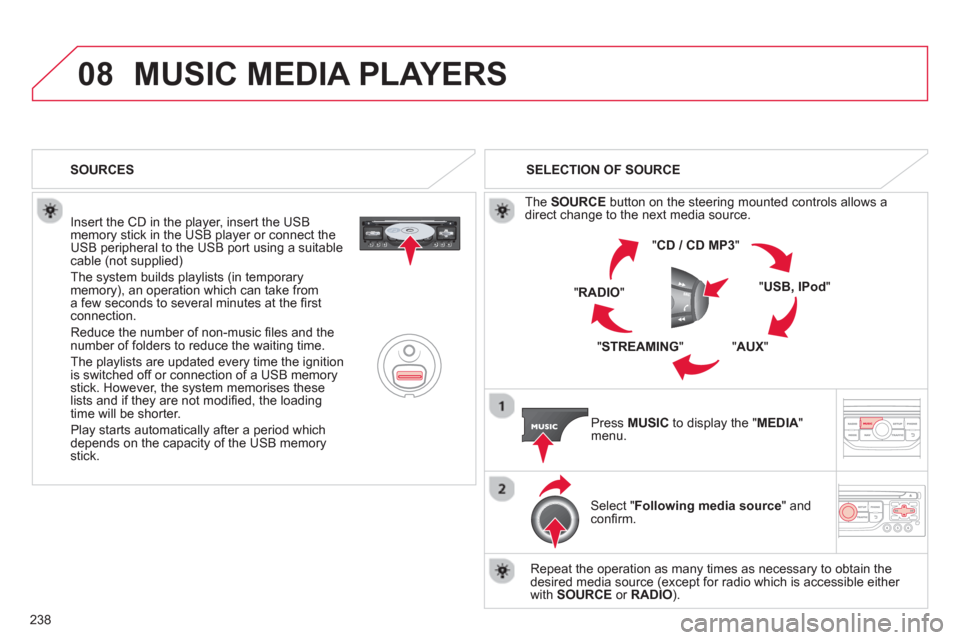
Insert the CD in the player, insert the USBmemory stick in the USB player or connect theUSB peripheral to the USB port using a suitablecable (not supplied)
The system builds playlists (in temporarymemory), an operation which can take froma few seconds to several minutes at the fi rstconnection.
R
educe the number of non-music fi les and the number of folders to reduce the waiting time.
The pla
ylists are updated every time the ignition
is switched off or connection of a USB memory stick. However, the system memorises these
lists and if they are not modifi ed, the loadingtime will be shorter.
Pla
y starts automatically after a period which
depends on the capacity of the USB memory stick. SELECTION OF SOURCE
Th
e SOURCE
button on the steering mounted controls allows adirect change to the next media source.
" CD / CD MP
3
"
"
USB, IPod"
"AUX
" "
STREAMING
" "RADIO
"
Pr
ess MUSICto display the "MEDIA
" menu.
Select "Following media source " and confi rm.
Repeat the operation as many times as necessary to obtain the
desired media source (except for radio which is accessible either
with SOURCE
or RADIO). SOURCES
Page 246 of 284
244
11SCREEN MENU MAP
"Navigation - guidance"
MENU
Enter an address
Select destination
Directory
GPS coordinates
(Archive)
Journey leg and route
Add a stage
Enter an address
Directory
Previous destinations
Order/delete
journey legs
Divert route
Chosen destination
Guidance options
Set speech synthesis
Delete last destinations
Map management
Map orientation
MAIN FUNCTION
option A1
option A2 OPTION A
OPTION B...
Map details
Move the map
Mapping and updating
Descri
ption of risk areas database
Stop / Restore guidance
1
2
3
1
3
3
2
2
2
2
1
3
1
1
2
2
2
2
2
2
2
2
2
2
1
1
Set parameters for risk areas
2
Defi ne calculation criteria 2
Fastest route
Shortest route
Distance/Time
2
2
2
With tolls2
With Ferry2
Traffi c info2
Page 249 of 284
247
11
2
3
3
1
4
2
2
1
4
4
2
2
Night mode
Auto Day/Night
Ad
just luminosity
Set date and time
"SETUP" MENU
Displa
y configuration
Choose colour
Harmon
y
Cartography
Day mode
Voice synthesis
Guidance instructions volume
Select male voice / Select female voice
2
Select units
SCREEN MENU MAP
2
3
3
2
Lighting confi guration
Parkin
g assistance
En
gage rear wiper in REVERSE
Duration of guide-me home lighting
1
Define vehicle parameters *
2
Operation of wipers
3Directional headlamps
3Mood lighting
3Daytime running lamps
* The parameters var
y according to the vehicle.
2
Alert log
1
Trip computer
2
Status of functions
Page 250 of 284

248
The following table groups together the answers to the most frequently asked questions concerning your audio system.
FREQUENTLY ASKED QUESTIONS
QUESTIONANSWER SOLUTION
The route calculation is not successful. The guidance criteria may confl ict with the current location (exclusion of
toll roads on a toll motorway). Check the guidance criteria on the Navigation Menu, "Guidance options"\ "Defi ne calculation criteria".
The P
OIs do not appear. The POIs have not been selected. Select the POIs in the list of POIs.
The P
OIs have not been downloaded. Download the POIs from the website:
"http://citroen.navigation.com".
Th
e risk areas audiblewarning does not work. The audible warning is not active. Activate audible warnings in the Guidance options menu, "Navigation - guidance", "Set parameters
for risk areas".
The system does notsuggest a detour around an incident on the route. The
guidance criteria do not take account of TMC messages. Select the "Traffi c info" function in the list of guidance criteria.
I r
eceive a Risk area alert
which is not on my route. Other than guidance, the system announces all Risk areas positioned in a cone located in front of the vehicle. It may provide an alert for a Risk area located on nearby or parallel roads. Zoom in on the ma
p to view the exact position of
the Risk area. Select "On the route" to no longer receive alerts other than guidance or to reduce the
time for the announcement.
Page 251 of 284
249
FREQUENTLY ASKED QUESTIONS
QUESTIONANSWER SOLUTION
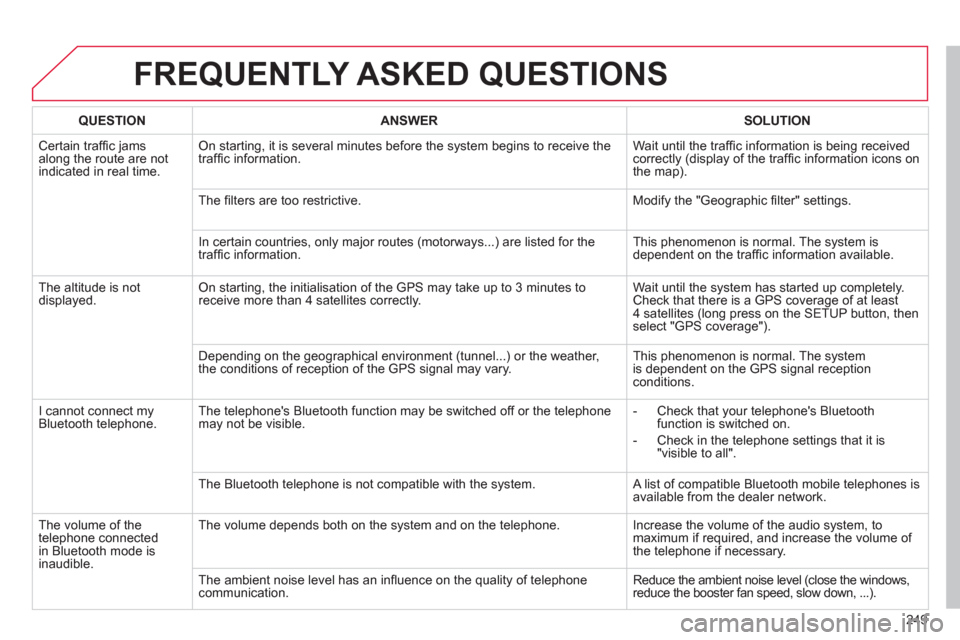
Certain traffi c jams
along the route are notindicated in real time.
On starting, it is several minutes before the system begins to receive the
traffi c information. Wait until the traffi c information is being received correctly (display of the traffi c information icons on
the map).
Th
e fi lters are too restrictive. Modify the "Geographic fi lter" settings.
In certain countries, onl
y major routes (motorways...) are listed for the
traffi c information. This phenomenon is normal. The system is
dependent on the traffi c information available.
The altitude is not displayed. On starting, the initialisation of the GPS may take up to 3 minutes toreceive more than 4 satellites correctly. Wait until the system has started up completely. Check that there is a GPS coverage of at least
4 satellites (long press on the SETUP button, then select "GPS coverage").
Dependin
g on the geographical environment (tunnel...) or the weather,
the conditions of reception of the GPS signal may vary. This phenomenon is normal. The system
is dependent on the GPS signal receptionconditions.
I cannot connect myBluetooth telephone.The telephone's Bluetooth function may be switched off or the telephone
may not be visible.
- Check that your telephone's Bluetoothfunction is switched on.
-
Check in the telephone settings that it is "visible to all".
The Bluetooth telephone is not compatible with the s
ystem. A list of compatible Bluetooth mobile telephones is available from the dealer network.
Th
e volume of thetelephone connectedin Bluetooth mode isinaudible.
The volume depends both on the system and on the telephone. Increase the volume of the audio system, tomaximum if required, and increase the volume of
the telephone if necessary.
The ambient noise level has an in
fl uence on the quality of telephone communication. Reduce the ambient noise level (close the windows, reduce the booster fan speed, slow down, ...).
Page 255 of 284

253
FREQUENTLY ASKED QUESTIONS
QUESTIONANSWER SOLUTION
With the engine off, the system switches off after a few minutes of use.When the en
gine is switched off, the system's operating time depends on
the battery charge.
The switch-off is normal: the s
ystem switches to economy mode and
switches off to prevent discharging of the vehicle's battery.
Start the vehicle's engine to increase the batterycharge.
Playback o
f my USB memory stick starts only
after a very long wait (around 2 to 3 minutes).
Some fi les supplied with the memory stick may greatly slow down access
to reading the memory stick (multiplication by 10 of the catalogue time). Delete the fi les supplied with the memory stickand limit the number of sub-folders in the fi le structure on the memory stick.
When I connect myiPhone as telephone and
to the USB port at thesame time, I am unable
to play the music fi les. When the iPhone connects automaticall
y as a telephone, it forces the
streaming function. The streaming function takes the place of the USBfunction which is then not useable, there is a period without sound of the
track being played with AppleÆ players.Æ
Disconnect and reconnect to the USB port (the USB function takes priority over streaming).
Page 261 of 284

259
04 AUDIO
Press the SOURCE button several
times in succession and select the radio.
Press the BAND AST button to select
a waveband: FM1, FM2, FMast, AM.
Briefl
y press one of the buttons tocarry out an automatic search of theradio stations.
Press one o
f the buttons to carry out
a manual search up / down for radiofrequencies.
Press the LI
ST REFRESH button to
display the list of stations received
locally (30 stations maximum).
To update this list, press for more
t
han two seconds.
The external environment
(hills, buildings, tunnels, basement car parks, ...)may block reception, including in RDS mode. This is a normal effect of the
way in which radio waves are transmitted and does not indicate any failure of the audio system.
RDS
RADIO
SELECTING A STATION
Press the MENU button.
Select AUDIO FUNCTIONS thenpress OK.
Select the FM WAVEBANDPREFERENCES function thenpress OK.
Select ACTIVATE RDS then pressOK. RDS appears on the screen.
In radio mode, press
OK directly to activate / deactivate RDSmode.
The RDS, if displayed, enables you to continue listening to the same station by automatic retuning to alternative frequencies. However, in certain conditions, coverage of an RDS station may not be assured throughout the country asradio stations do not cover 100 % of the territory. Under conditions of very
weak reception, the system may change to a regional station.
Page 262 of 284

260
04
Insert circular compact discs only.
Some anti-pirating systems, on original discs or CDs copied using a
personal recorder, may cause faults which are no refl ection on the quality of the original player.
Without pressin
g the EJECT button, insert a CD in the player, playbegins automatically.
CD
PLAYING A CD
To play a disc which has already been
inserted, press the SOURCE buttonseveral times in succession andselect CD.
Pr
ess one of the buttons to select a
track on the CD.
Press the LI
ST REFRESH button to display the list of tracks on
the CD.
Pr
ess and hold one of the buttons for
fast forwards or fast backwards.
RECEIVING TA MESSAGES
Press the TA button to activate or
deactivate traffi c messages.
The TA
(Traffi c Announcement) function gives priority to TA alert messages. To operate, this function needs good reception of a
radio station transmitting this type of message. When a traffi c
report is transmitted, the current audio source (Radio, CD, ...) is
interrupted automatically to play the TA message. Normal playbackof the audio source resumes at the end of the transmission of themessage.

