2012 VOLKSWAGEN GOLF start
[x] Cancel search: startPage 25 of 516
Changing the default volume
on page 3 and note the introductory informa
adjustments are indica te d on th e screen by a Meanwhile , d evice operatio n is blocked.
the device is mu ted (display:
Turn the volum e contro l Q counterclockwise is displayed.
ava ilab le on the devic e, br iefly press the !MUTE 1
on pag e 3 and note the
display s ca n be sho wn only after a co mplete
s yst em start of the radio naviga tio n syste m. T
he curr
ently played media source is stopped
wh ile the device is mu ted .
Please lower the volume befo re switching to another audio source if the base volume of an aud io source was increased considerably.
Country-dependent function button omission
Based on m arket specific conditions , it is poss ible
that not the fu nctions described in this manua l
a re exec utable , a nd the function buttons on the
scr een may be displayed differently than described
Depending on the vehicle, adju stments of air con
d itioning settings or displays regarding factory -in
z
1l no p h o ne pac kag e is
Introduction
Page 30 of 516
7 function button to save the tagged
station 16 .
Press button in order to close the FM
station list.
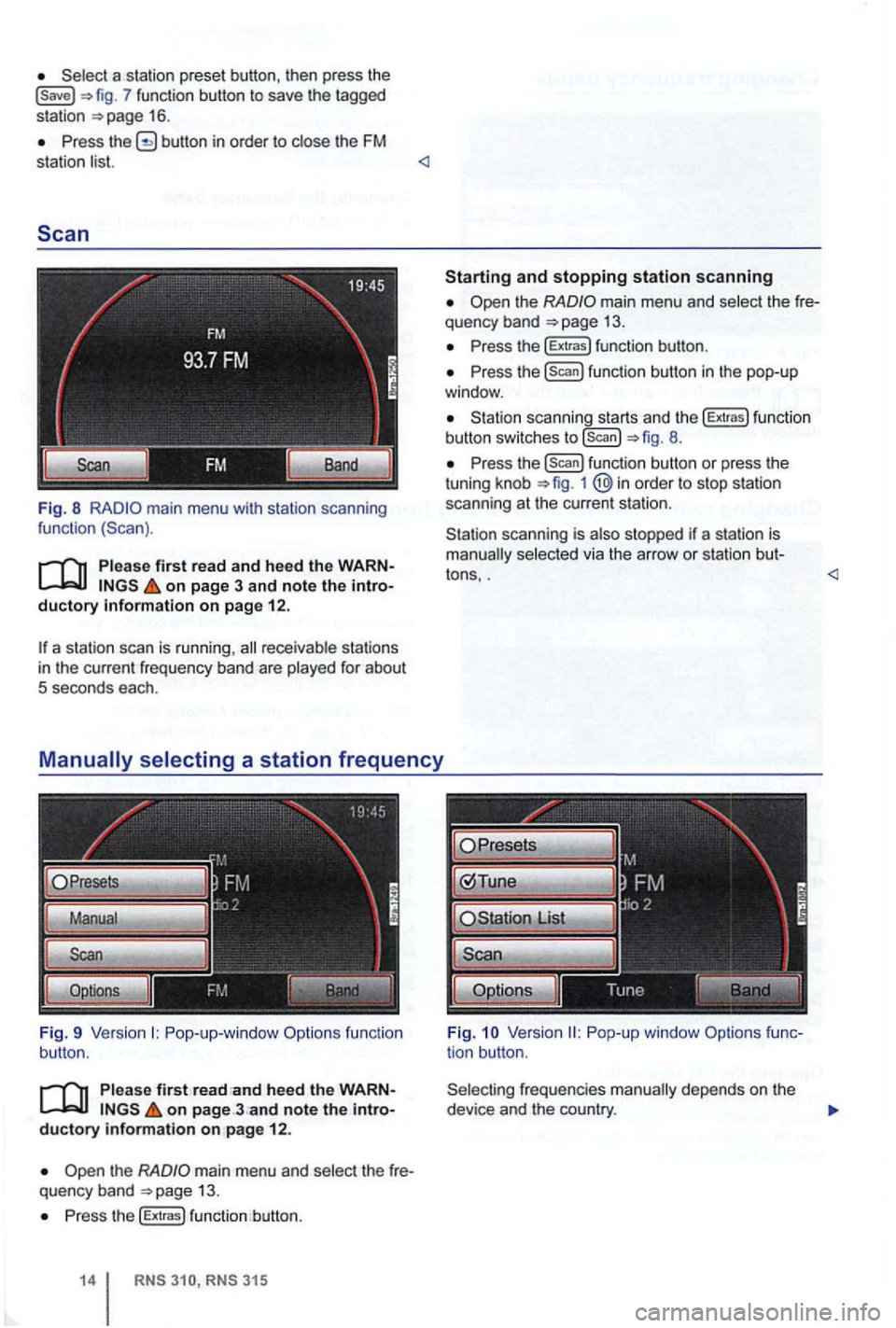
Fig. 8 main menu with station scanning
function
Pleas e first read and heed the on page 3 and note the ductory on page 12.
a station scan is running ,
Pop-up-window Options function
button.
P lease first on page ductory information on pag e 12 .
the main menu and select th e quency band 13.
Press the [Extras) function button.
315
and stopping station scanning
the main menu and select th e
Press the (Extras) functio n button .
Press the [Scan) function button in the pop-up
window .
scanning starts and the [Extras) fu nct io n
button switches to [scan) 8.
P ress the function button or press the
tuning knob 1 @in order to stop station
scanning at the current station .
scanning is also stopped if a station is selected via the arrow or station bu t-
tons, .
frequencies depends on the
device and the country.
Page 34 of 516
The method for stor ing and accessing preset stations is the same as in Radi o mode 12.
Changing
on page 3 and note the introductory information on page 12.
Changing stations using the arrow buttons
Press one of the arrow buttons on the device 1 switch to the next station in the se
lected category .
is displayed , only the stations saved on the
station preset buttons are browsed through
16.
Configuring station selection options
Press the options 14.
Activate the Presets
1
Chan nel List
315
The radio stations are respo nsible for
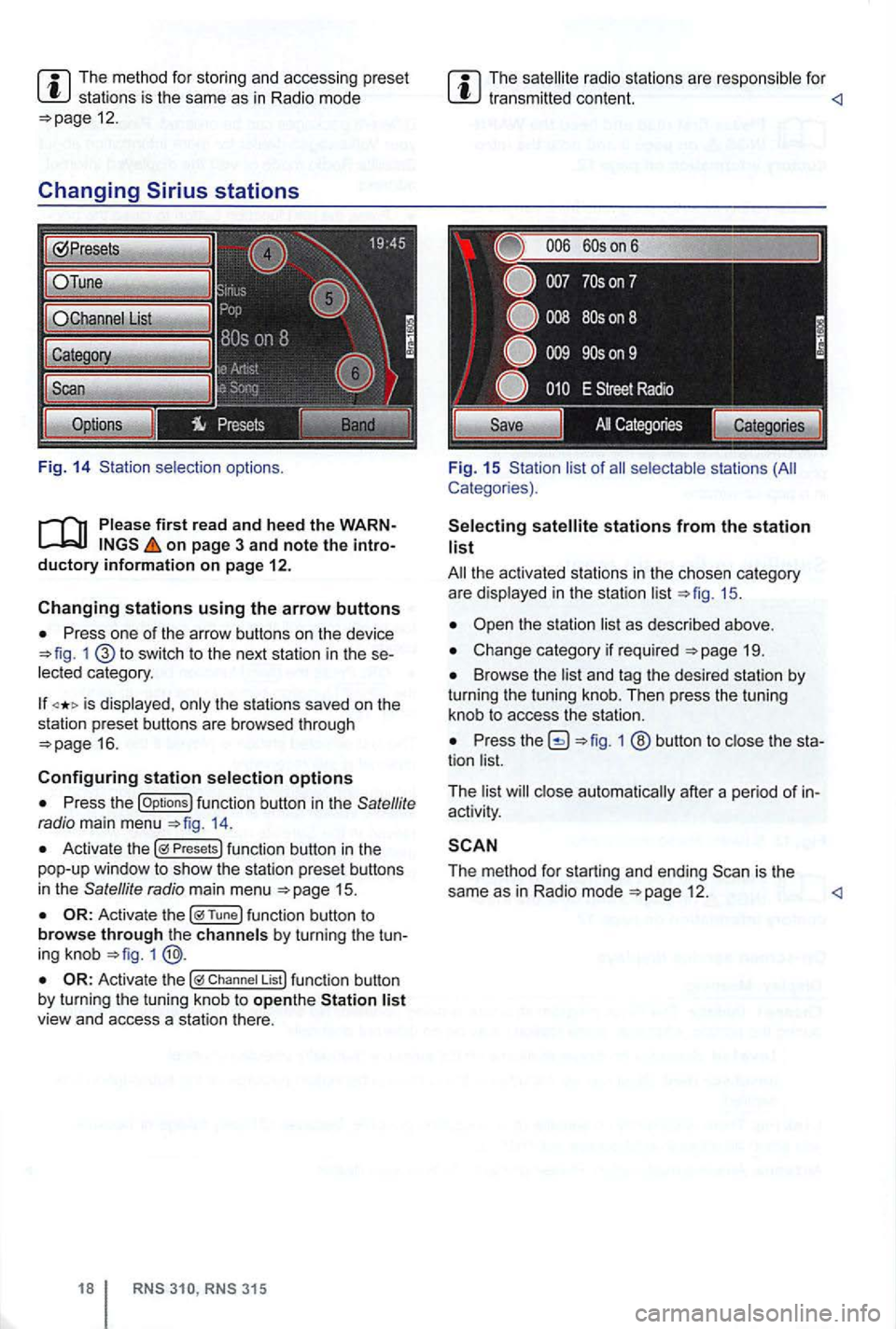
Fig. 15 Sta tion list of
stations from the station list
19.
Browse the list and tag the desired station by turning the tuning knob. Then press the tuning
knob to access the station.
Press 1 ® button to close the sta
tion list.
T he list
close automat ically after a pe riod of in
activity .
The method for starting and ending 12 .
Page 38 of 516
on page 3 and note the introductory information on page
Different media sources can be selected and
played back in the MEDIA main menu
playable audio sources are d isplayed and
played . files are igno red.
Press the button .
The last med ia source played will resume playing .
The current med ia source is displayed
in center of
the bottom line of the screen 19.
no med ia sou rce is selec table, the MEDIA main
menu cannot be opened.
F
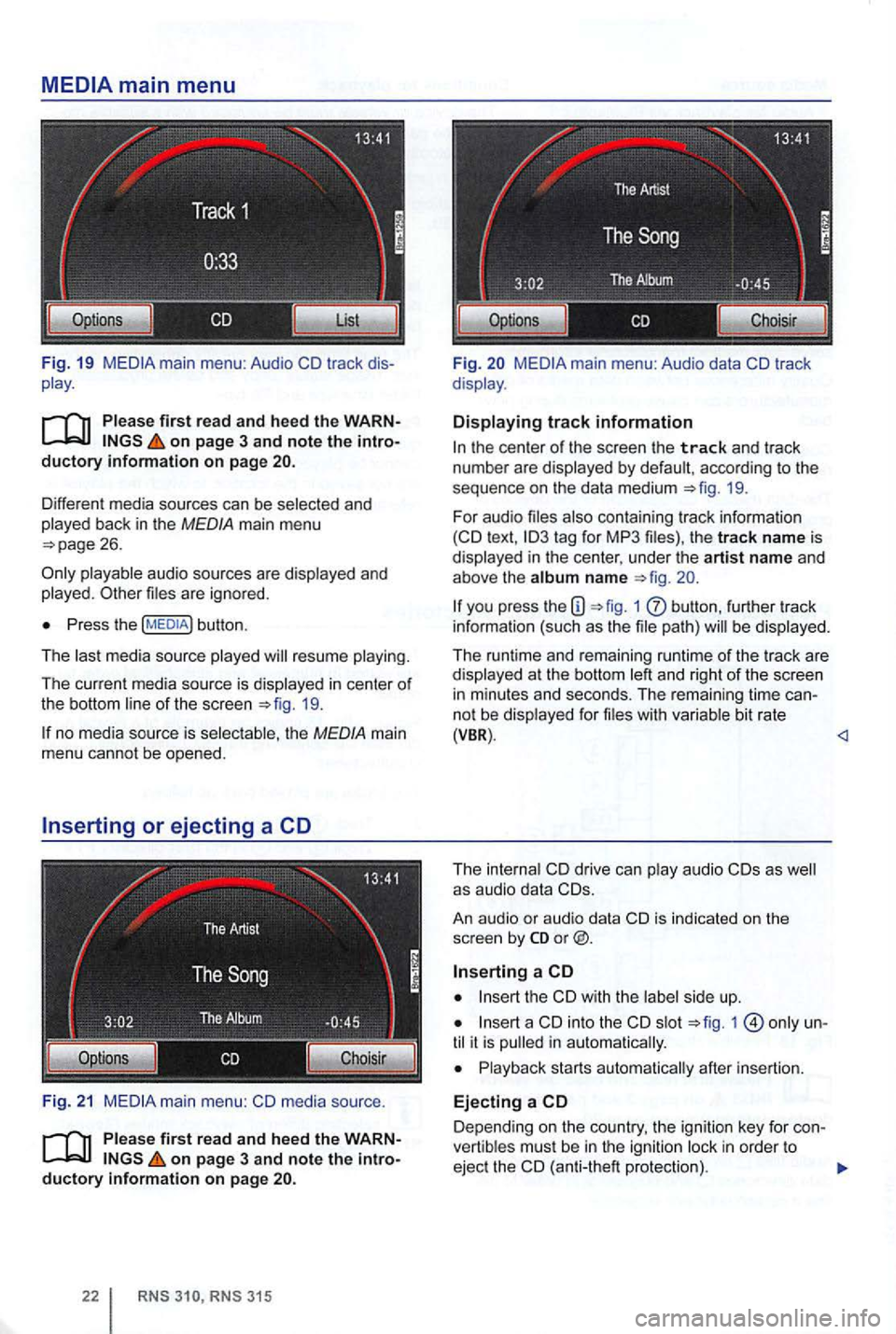
ig. 21 media source .
on page 3 and note the introductory information on page
315
Fi g. main menu: Audio data
the center of the screen the track and trac k
numbe r are d isplayed by defau lt , acc ording to the
sequence on
the da ta medium 19.
For audio files also conta in ing tr ack information text ,
you press the 1 butt on , furth er track
info rma tion (such as the file path) will be dis played .
The runtime and rema ining runtime of the track a
re displayed at t he bottom left and right of the screen in m inutes and seco nds. The rema ining tim e ca nnot be disp layed fo r file s w it h va riabl e bit rate (VBR) .
An au dio
or audio data
the
int o the slot 1 until it is pull ed in a utomatica lly.
Playback starts automatica lly after insertion.
Ejecting a
Depend ing on the country , the ign ition key for con
vert ib les mus t be in the igniti on l ock in order to
ejec t the (anti-the ft protectio n).
Page 41 of 516
first read and heed the on page 3 and note the ductory information on page
through an ed via (for a phone)
can be through the speakers. via the radio-navigation system is
audio source must support the
A2DP or AVRCP
in equipped with a factory -installed phone age that supports this function . To
responding owner's Cell
Phone Package.
Pairing and connec ting is done via the radio
audio
the directions in the owner 's
Redu ce
To change to
Bl uetooth function
button 26.
Aud io mode is indicated on the screen
by Bl uetooth Audio 25 .
The
o f t he be adjusted to match the of the other audio sources
activating audio
some devices ,
After the audio
transmission , a pop-up window opens.
Request fo r confir mation of aud io
BT-Audio Audio mode must be
swi tched to
Audio transmission, as
audio source is
started or s topped automatically by switc hing to
addition , track dio navigation system 's arrow keys 1
25.
the connection is broken . the radio
navigation system switches to
media source.
th e that dio ed .
Radio mode, press the sETUP) button .
Press the
Press the
Tag the device connected and press
the connect) funct ion butt on.
Read and manufacturer of the
Because of the number of audio sources , it canno t be teed that
audio source, warning and service tones, suc h as touch
tones on a
Do not connect radio nav igation system at the same time for
music
interface , as this to on the
ing the use of can be obtained from the
Page 44 of 516
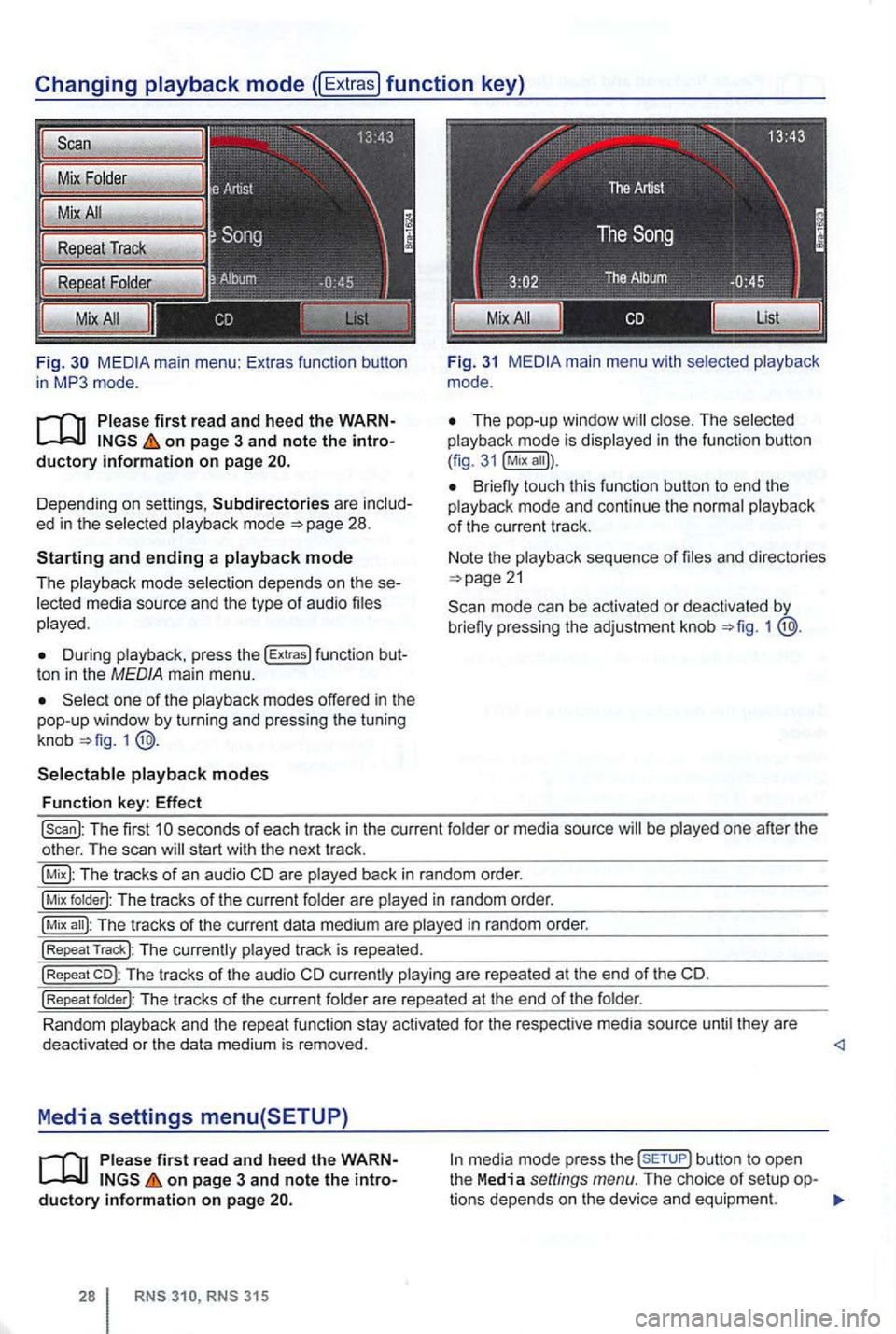
Fig. main m enu : Ex tras function butto n
i n mode.
on page 3 and note the
Depending on sett ings , Subdirectories are mode
During press the !Extras) func tion t on in the MED IA ma in menu.
one of the
1
main menu wit h
Th e pop-up windo w in the funct ion button
( fig .
Bri eny touch this function button to end the mode and continue the
sequence of
mode can be activated or deactivated by brieny pressing the adjustment knob 1
!scan): Th e first seconds of each tr ack in the curre nt or media source be one after the
o ther . The scan start with the next track .
The tracks of an aud io CD are back in random order.
!Mix T he tracks of the cur rent are in random order.
!Mix The tracks of the curr ent data medium are in random order.
!Repeat Track): The track is repea ted.
!Repeat co): The tracks of the audio CD are repea te d at t he end of the CD.
!Repeat The tracks of the curren t
Random they are
deact ivated or the data medium is removed. <1
Media settings menu(SETUP)
on page 3 and note the button to open
the Media settings menu. The choice of setup tions dep ends on the device and equipme nt.
Page 54 of 516
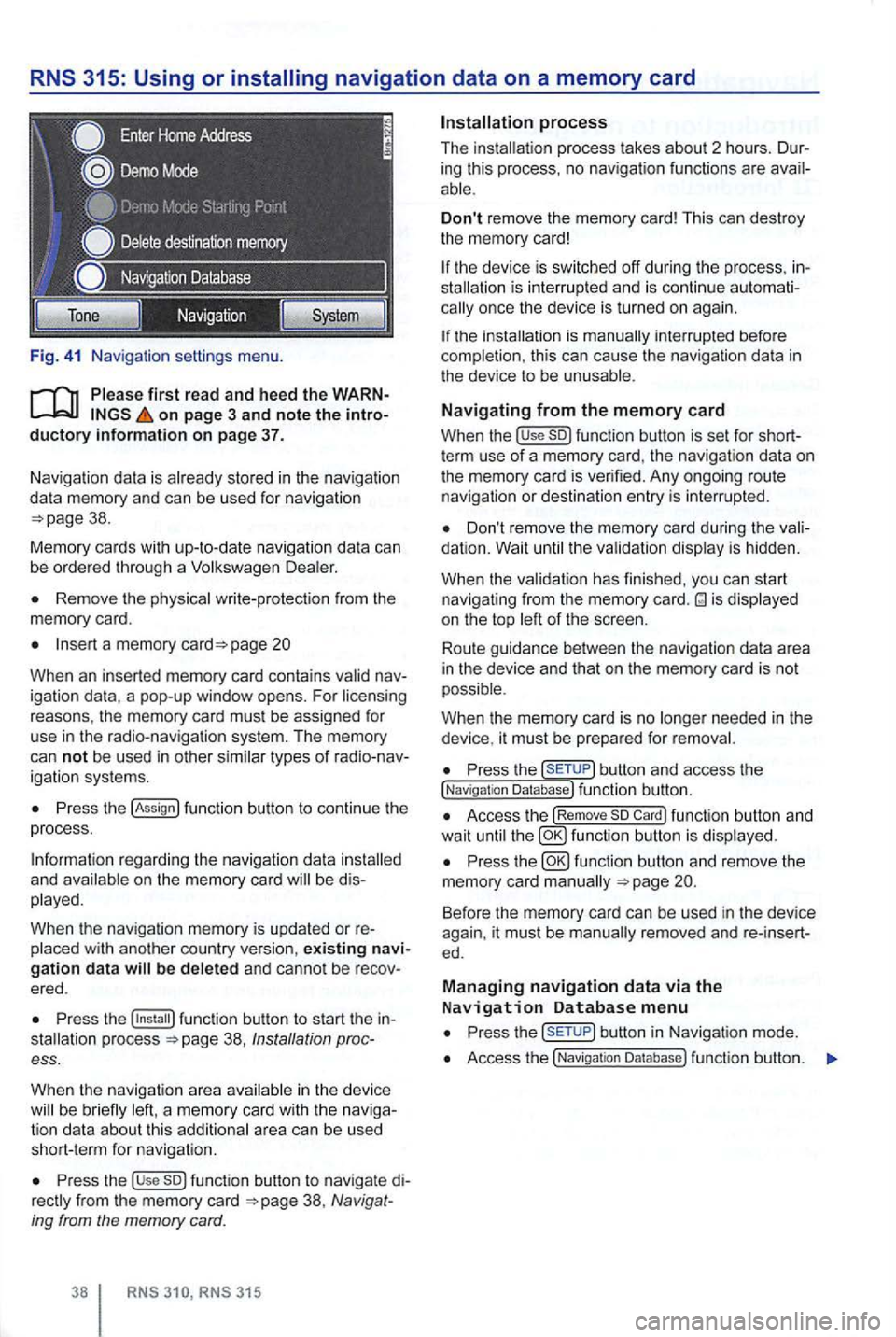
Fig. 41 Na vigatio n setti ngs menu.
on page 3 and note the introductory information on page 37.
Naviga tion data is already stored in the naviga tion
da ta memory and can be used for nav igation
Remove the physica l write-p rotection from the
memory card.
Insert a memory page 20
Whe n an inserted memory card conta ins
P ress the !Assign
a nd b e di s
played.
When
the navigation memory is updated or re
Press the 38, Ins tallation process.
When the navigat ion a
rea in the device be brie fly
Press the use so) func tion button to navigate di38 , Navig at
ing from the memory card.
RNS RNS 315
Don't remove the memory card! This can dest roy
the memory card!
the device is sw itched off during the process , inis inte rrupt ed and is conti nue automationce the device is turned on again.
the is manually interrupted before
completion , this can cau se the naviga tion data in the device to be unusable .
Navigating from the memory card
When the !use so) function button is set for shortterm use of a memory card, the navigat ion data on
the memory card is verified. Any ongoing route navigatio n or destination en try is interrupted .
Don't remove the memory card during the dation. Wait the va lidat ion disp lay is hidden.
When the validat ion has finished , you
can start
navigat ing from the memory card. is displayed
on the top of the screen .
Route guidance
betwee n the navigation data area
i n the device and that on the memory card is not
possible.
W hen
the memory card is no needed in the
device , it must be prepa red for removal.
Press the button and access the !Naviga tion Database) function button.
Access the !Remove so Card) function button and
wait until fu nc tio n butto n is displ ayed.
Press the
Press but ton in Navigat ion mode .
Access the !Navigatio n Da tabase ) function butt on.
Page 59 of 516
Press view of the destination 45.
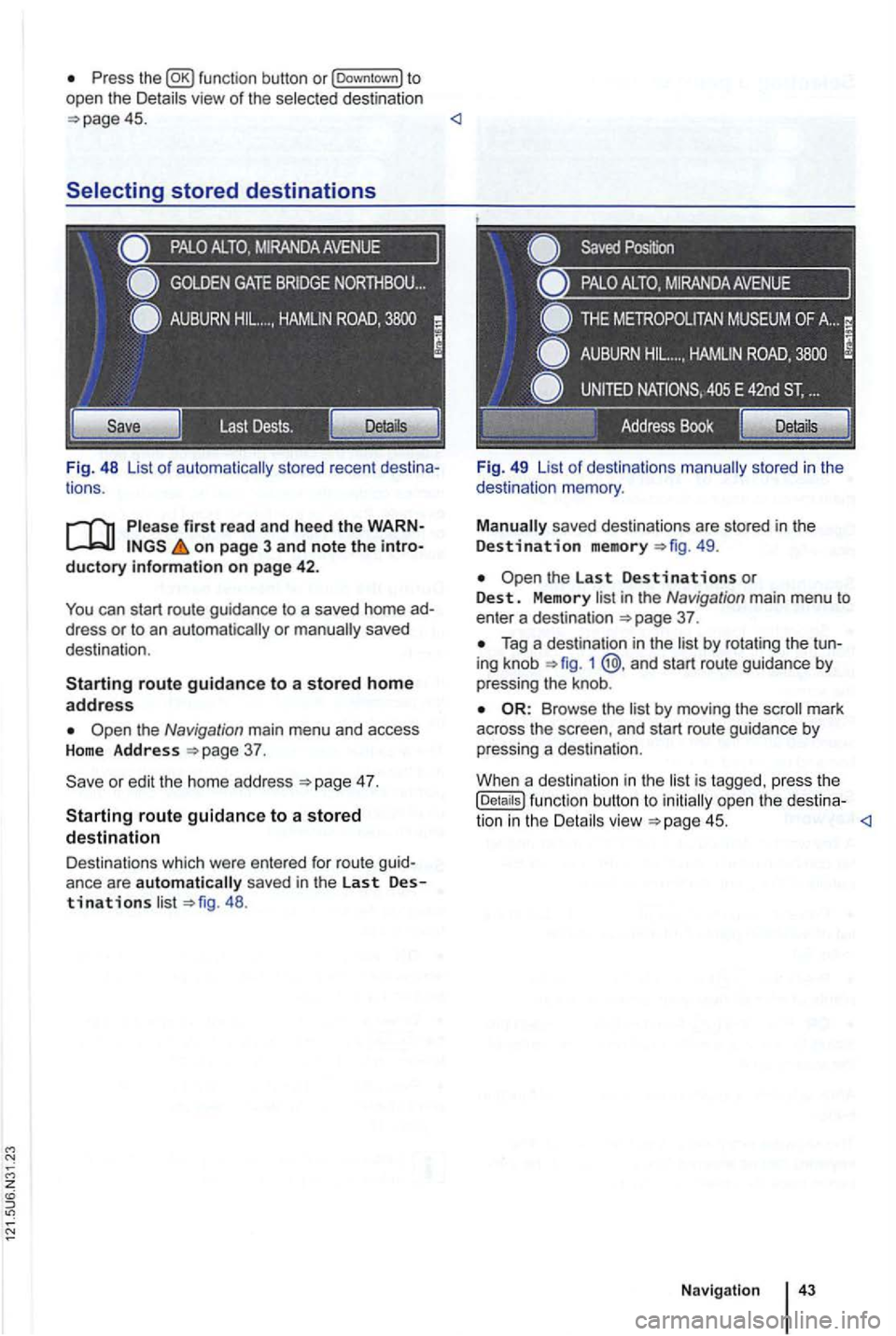
tions .
on page 3 and note the introductory information on page 42.
You can start route guidance to a saved home ad
dress or to an
the Navigation main menu and access Home Address
4 7.
Starting route guidance to a stored destination
Destinations which were ente red for route guid
ance are automatically saved in the last Destinations 48 . Fi
g. 49 List
of destinations
49.
in the Navigation main menu to enter a destination 37 .
Tag a destination in the 1 @ .and start route guidance by
pressing the knob .
by moving the mark
across the and start route guidance by
pressing a destination .
Whe n a destination in the
is tagged. press the (Details ) function button to open the destina-
tion in the