2012 VOLKSWAGEN GOLF start
[x] Cancel search: startPage 73 of 516
on page 3, note the ry and heed the on pag e 51.
An upcoming section of road can be blocked
while route guidance is in process.
Pre ss the nus (exce pt for
Press the (Route) function button in the Info dow .
Press the ahead ) function button in the
pop-up window.
the length of the section which is to be
blocked by turning the tuning knob 1 @.
The length of the section being blocked is played at the bottom of the screen . (Max) pears at the bottom , thi s signifies the max imum distance.
Route guidance in Demo mode
on page 3, note the introductory on page 51.
Demo mode is activated in the Navigation tings menu ,
Touch ing the (D emo ) function button starts route guidance " to the entered trip destinatio n.
ance are compa rable to route guidance .
route guidance is repeated after reaching
the fictional trip destinat ion, and always restarts
from
in t he Navigation settings menu, the n
virtual route guidance starts from this position.
A
entered starting point is overwr itten by
the current vehicle location when the is
moved and the current location of the vehicle can
be determined via
Press the tun ing knob or press the function
button to confirm the block.
Blocked sections are displayed on the map in gray.
The route is recalculated
as as the navigation
system can determi ne a reasonable route to avoid
the blocked section.
R e
moving a
Pre ss the button in any of the navigation
Pre ss the (Rout e) function button in the Info dow .
Press the Rem ove Ex.) function button in the pop-up window .
regarding manually blocking ditional upcoming route sections 56.
afte r virtua l route guidance in Demo mode, rea l
route guidance is started , then the device must be
re -orien ted . Depending on the number of being received at the time, this may take a wh ile. movement can reduce the re-o rientation
t ime
Ending D emo mode
The demo mode should be deactivated after being
used , as you are
tween a virtua l or a normal route guidance at the
beg inning of any naviga tion .
Demo mode is
automatically ended when
the route guidance is fini shed or a new final
also Demo mode.
You end Demo mode in the
N av ig a tion settings menu.
Press the button in any of the naviga
tion menus.
Deactivate the checkbox in Demo mode) functio n button .
Navigation
Page 74 of 516
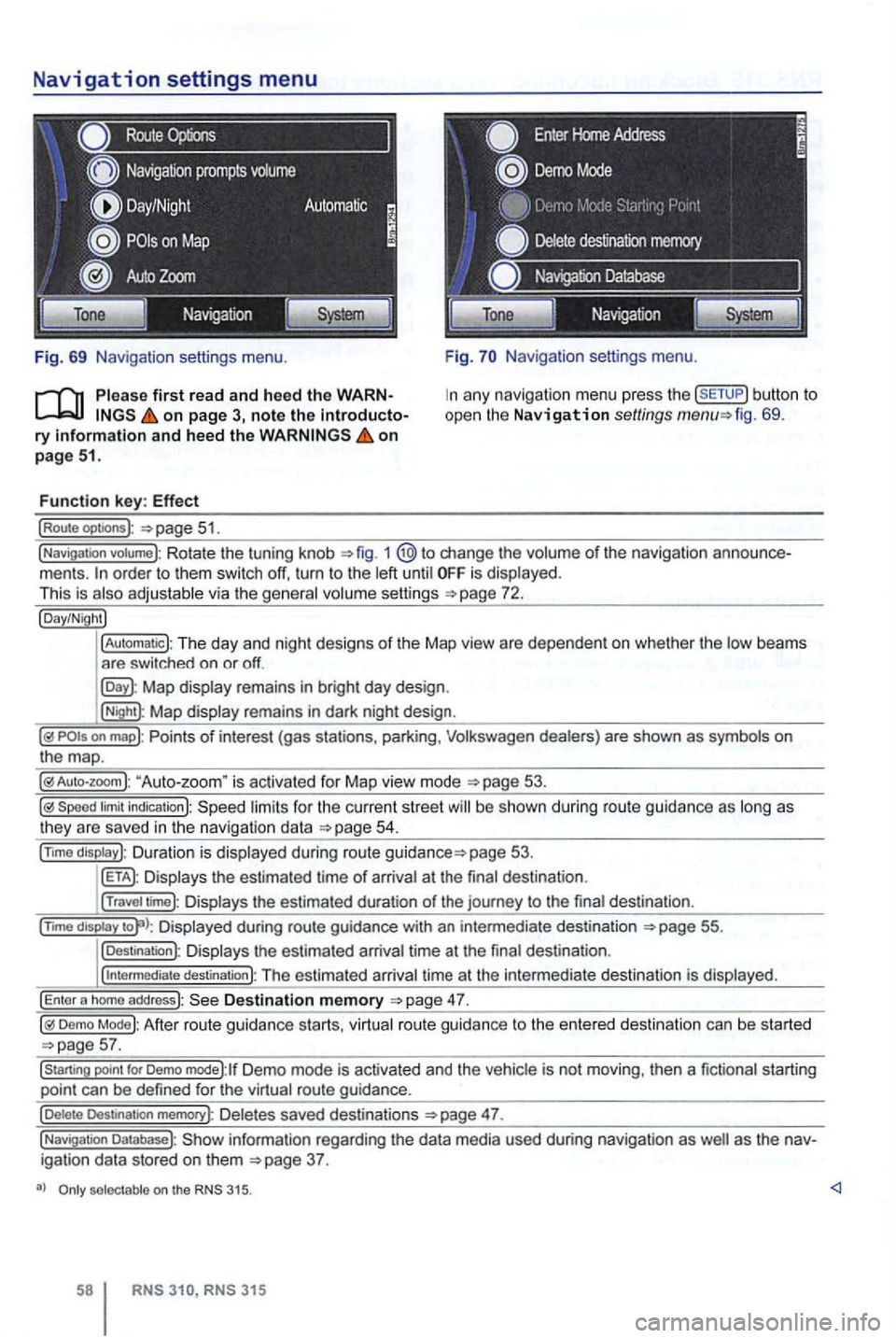
Navigation settings menu
Route
Fig. 69 Navigation settings menu.
on page 3, note the introductory information and heed the on page 51.
Function key: Effect
(Route optoons ):
Navigation settings menu.
any navigation menu press the (SETUP) button to
open the Navigation settings fig. 69.
(Navigation votume): Rotate the tuning knob 1 change the volume of the navigation order to them switch off, turn to the until is displayed.
This is
Map display remains in bright day design .
(Night): Map display remains in dark night design .
"Auto-zoom " is activated for Map vie w mode
Speed limit indication): limits for the current street be s hown duri ng route guidance as
page 53.
Displays the estimated time of arrival at the final des tination .
(Travel time): Displays the estimated duration of the journey to the final destina tion .
(nm o
display Displayed during route guidance with an intermedi ate destination 55.
(Destination): Displays the estimated arrival time at the final destination .
(
intermediate destination): The estimated arriva l time at the intermediate destination is displayed.
(Enter a homo address): Destination memory
Demo Mode): After route guidance starts, virtual route guidance to the entered destination can be started
Demo mode):lf Demo mode is activated and the vehicle is not moving , then a fictional starting
point can be defined for the virtual route guidance.
(Delete Destination memory): De letes saved destinations 47.
(Navigation Database): information regarding the data media used during navigation as igation data stored on them
selectable on the 315.
315
Page 78 of 516
Please first read and note the introductory information and hee d the WARN on page 59.
A
one-time pairi ng of both devices is necessary to
connect a
some countries , pairing driving is not possi
For 315, the radio navigation system can be
used to complete pairing.
63.
When connecting via the
315 radio navigation
system , the mobile ph one can be connected in one
of two ways :
Active connection
The Bluetooth® function must be activated
and v isible on both the
The should be disa
The phone's key and warning tones should be disabled .
You
phone be automatically transferred . T he
length of the transfer depends on the volume of data saved on the phone . After the transfer is com
p lete , the data is
active telephone pairing
An active mobile phone connection ends an exist
ing connection to anot her mobile phone.
Press the button.
Press the (SETUP ) button.
Press the [Biuetooth settings)l l func tion button .
Press the [search for devices) function button.
T he scan ning process can
15 to seconds .
When the process has bee n comple ted, the names
o f t he Bluetoot h devices f ound
72.
Access the telephone to be paired from the 72.
T he radio navigation system and the mobile phone
code displaye d on th e screen of th e rad io nav
i gation system.
When the pairing is successfully completed, the
63 .
passive telephone pairing
Press the button.
Press button.
Press th e [Biuetooth settings)1l funct ion button.
Press the (Make BT fu nc tion butto n .
15 to phone
of Bluetooth audio accesso ries and
start a connec tion.
T he radio naviga tio n system and the
some cases, additional entries are required on the phone to complete the connection of both devices.
Where the code displayed on the
radio navigation system's screen must be entered
and confirmed with
is entered inco rrectly. For safety reasons ,
t h e duration of the radio navigatio n system's toot h visibil ity is li m ited to precisely 5 min utes.
When the pairing is successfully completed, the
63 .
tho connection function butto ns are not the d evice has to be connected via the instrument p age 63.
Page 84 of 516
can be displayed and edited in an input screen
Tag the phone book entry and press the [Detaitsl function button 75.
Press the button to view the ged phone number in the input screen.
Not everywhere .
RNS RNS 31 5
screen
Tag an entry in a function button 77.
Editing phone numbers
Phone numbers can be changed in the input
screen. the ch anges have been made , a can be started by pressing the functio n button .
not be saved in
the phone book.
be under Dialed numbers .
DTMF Key Sequences1
)
The displayed ph one number can be played as a
DTMF key sequence during an ongoing
Page 102 of 516
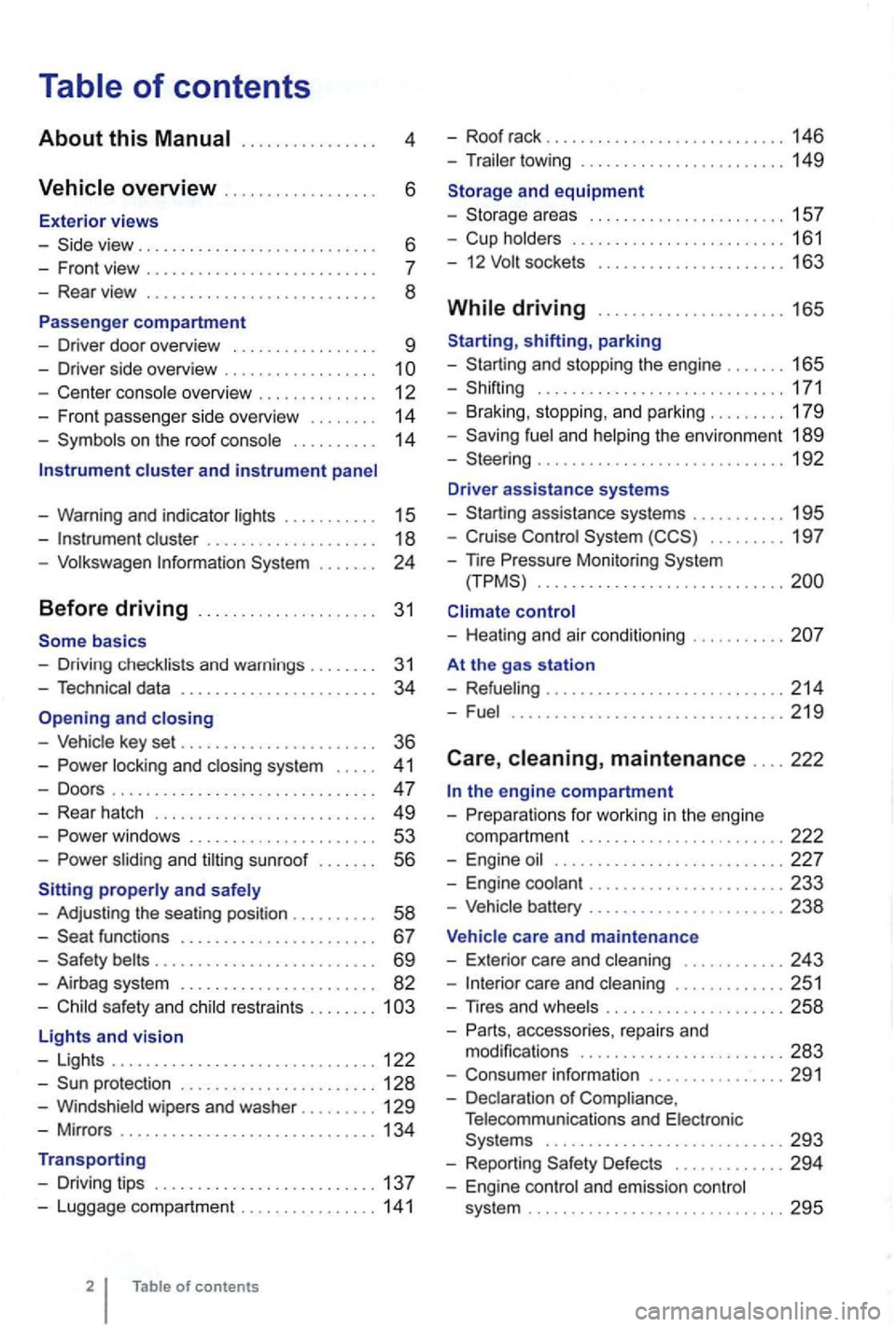
4
. . . . . . 6
- Front view . . . . . . . . . . . . . . . . . . . .
- Center console overview . . . . . . . . . . . . . . 12
- Fron t pa sse nger side overvi ew . . . . . . . .
14
- Symbo ls o n the roo f console . . . . . . . . . . 14
Instrument cluster and instrument panel
- Warning and indica tor
lights . . . . . . . . . . 15
-cluster . . . . . . . . . . . . . . . . . . . 18
-Volk swage n Information System . . .
basics
- Driv ing check lists and warnings .
....... 31
- Techn ical data . . . . . . . . . . . . . . . . . . . . . . . 34
and closing
- Vehic le key set . . . . . . . . . . . . . . . . . . . . . . . 36
-locking and closing system . . . . . 4 1
- Doo rs . . . . . . . . . . . . . . . . . . . . . . . . . . . . . . . 47
- Rear hatch . . . . . . . . . . . . . . . . . . . . . . . . . 49
-. . . 53
-s lidin g and sunroof . . . . . . . 56
properly and safely
- Adjusting the sea ting position . . . . . . .
. . 58
-functions . . . . . . . . . . . . . . . . . . . . . . 67
- Safety . . . . . . . . . . . . . . . . . . . . . . . . . . 69
- Airbag system . . . . . . . . . . . . . . . . . . . . . . . 82
-Child sa fety and child restraints ........ 1
Lights and vision
- Lights ............................... 122
-protectio n ....................... 128
-Windshield wipers and washer ......... 129
-Mir ro rs .............................. 134
Transporting
- Driving tips
.......................... 137
-Luggage compa rtment ................ 141
of contents
- Roof rack . . . . . . . . . . . . . . . . . . . . . . . . . 146
- Trailer towing ...... ............•. .... 149
1 5 7
- Cup holders
......................... 161
- 12
sockets . . . . . . . . . . . . . . . . . . . . . 163
shifting, park ing
- Sta rting and stoppin g
the engin e ....... 165
- Shifting ................... .......... 171
- Brak ing , stop ping , and park ing
......... 179
- Sav ing
fuel a nd helping the environm ent 189
-Steering ............................. 192
Driver assistance systems
- Starting assistance systems
........... 195
-Cruise Control System ......... 19 7
-
nre Mo nitori ng System .............................
control
- Healing and air cond itioning
At the gas station
- Refueling
........................ .... 214
-Fuel ...........................•.... 2 19
Care , maintenance .... 222
fo r work ing in the engin e
compartment
................... ..... 222
- Engine oil ........................... 227
- Engine coolant ....................... 233
-Vehicle battery ....................... 238
Vehicle care and maintenance
- Exteri or
care and cleaning ............ 243
-care and cleaning ............. 251
-
accesso ries, repa irs and
modi fications ........................ 283
- Consumer information ................ 291
- Declaration
of Complia nce,
T elecomm unicat ions and Electro nic
Systems
............................ 293
- Report ing Safe ty Defects ............. 294
- Engin e con trol and emission control
system .............................. 295
Page 110 of 516
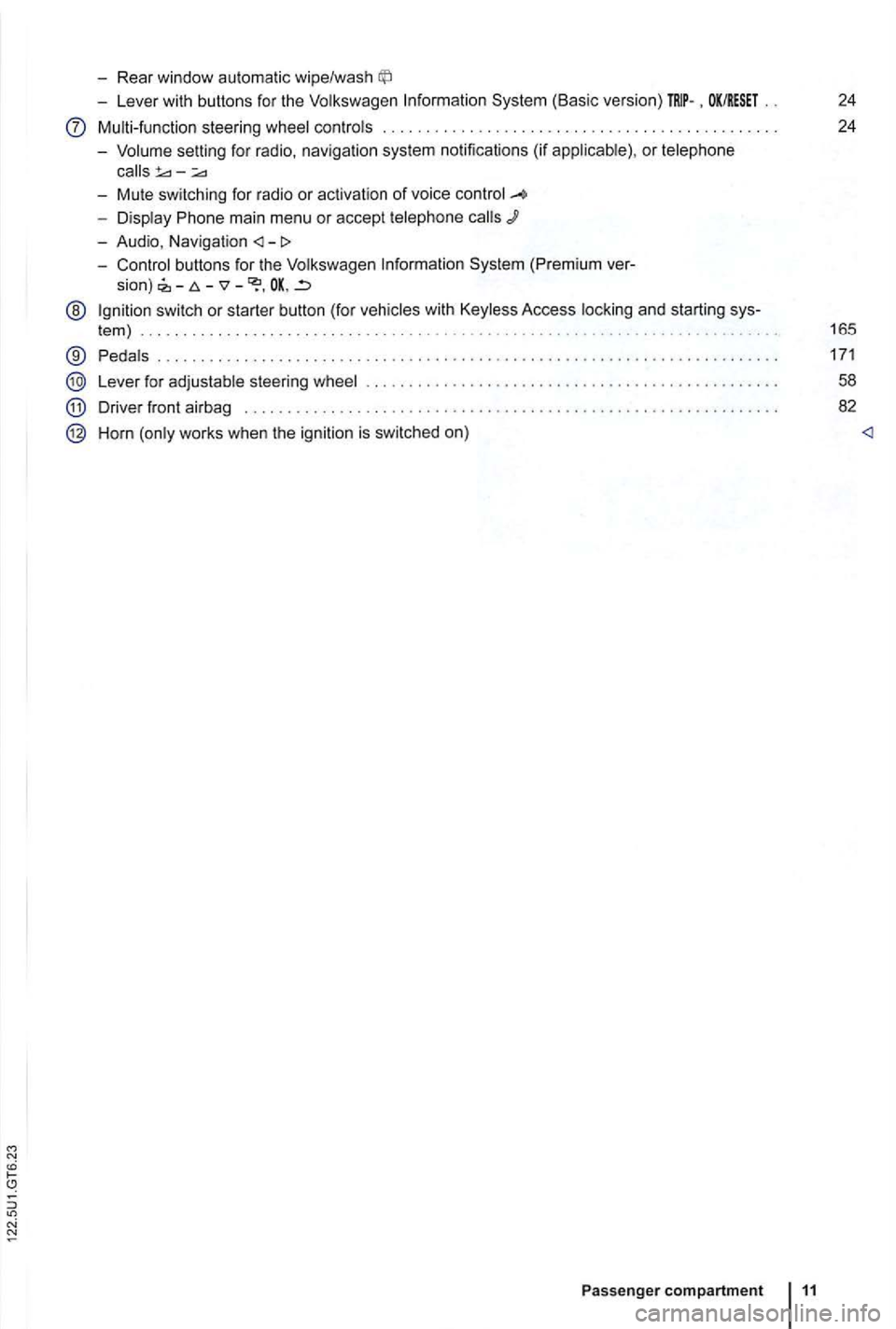
-Rear window automatic wipe/wash
-Lever with buttons for the Volkswagen Information System (Basic version) . OK/RESET 24
Multi-function steering wheel controls . . . . . . . . . . . . . . . . . . . . . . . . . 24
- Volume setting for radio , naviga
tion system notifications (if applicab le) , or telephone
- Display Phone main menu or accept telephone
- Audio, Navigation
sion) -
@ Ign ition switch or starter button (for vehicles with Keyless Access locking and starting sys-
tem ) . . . . . . . . . . . . . . . . . . . . . . . . . . . . . . . . . . . . . . . . . . . . . 165
® Pedals ............ .................................... ....................... .
Lever for adjustable steering wheel
Driver front airbag . . . . . . . . . .
.............................................. .
Horn (only works when the ignition is switched on)
Passenger compartment 11
171
58
82
Page 123 of 516
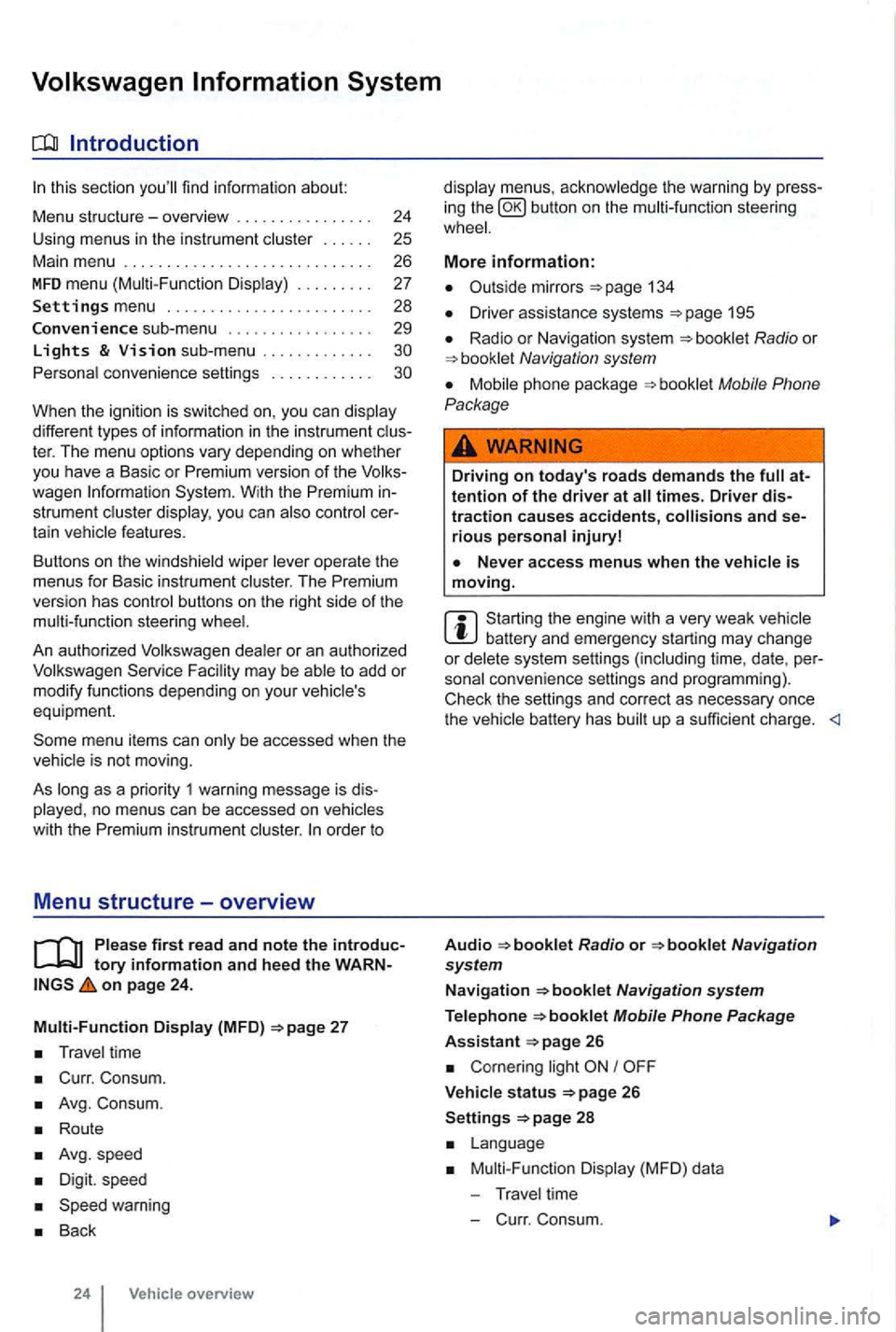
sectio n find informat ion about:
Menu structure-overv iew .......... .
U sing
menus in the instrument
..
Settings menu ................ .
Convenience sub-menu
Lights & Vision sub-menu ............ . convenience settings .. .
24
25 26
27
28
29
different types of information in the instrument ter. The menu options vary depending on whether you h ave a Basic or Premium version of th e
you can
operate the menus for Basic instrument The Premium version has con tro l buttons on the right side of the
An authorized to add or modify functio ns depending on you r vehicle's
equ ipment.
on page 24.
Multi-Function Display (MFD)
Travel time
Curr. Consum.
Avg. Consum.
Route
Avg.speed
Digit. speed
Back
24 Vehicle overview
menus, the warning by press
in g the button on the steeri ng
134
D river assistance systems 195
Radio or Navigation system
Mobile Phone
Package
Driving on today's roads demands the attention of the driver at times. Driver distraction causes accidents, and serious persona l injuryl
is moving.
Start ing the engine with a very weak battery and emergency starting may change or delete system settings (including time, date , per
sonal convenience settings and programming) .
Check the settings and correct as necessary once the
Radio or
26
Corn ering light I
V ehicle s tatus 26
Settings 2 8
Mult i-Functi on Displa y (MFD) da ta
T ravel time
- C urr. Consum.
Page 130 of 516
Before driving
this sectio n yo u'll find infor ma tion about
Gett ing ready and driving safely . . . . . . . . . . . 3 1
Driving in other countr ies . . . . . . . . . . . . . . . 32
Driving through
water on ro ads . . . . . . . . . . 33
More information:
S tarting , shift ing, pa rking 1 65
189
Consumer information
Driving under the influence of alcohol,
on
the following points be fore and during every drive for you r own safe ty, the safety of passengers
and other s
Check proper functio n of lights and turn signa ls .
Check tire pressu re
258) and fuel 214) .
Make su re that win dows are .
137 .
Always make sure tha t nothing keeps th e pedals from moving freely .
Make sure that children are properly sec
ured by a rest raint sys tem appropriate for their size and
weigh t .
Proper ly ad just front seats , head restraints and mirrors to the correct height
give your feet a good grip, and that give you a feel for the peda ls .
M ake sure that the floormat on the drive r side is properly fastened and canno t interfere with the
peda ls .
Assume a prope r sea ti
ng posi tion before the vehicle starts to move and keep this positio n whil e
driving. Make sure that passe ngers do the same 58 .
P roper ly fasten your safe ty bel t before
driving the vehic le and wear you r safety belt properly at times while driving. Make sure that passe ngers do the same
or
Som e basics 31