2012 VOLKSWAGEN GOLF start
[x] Cancel search: startPage 60 of 516
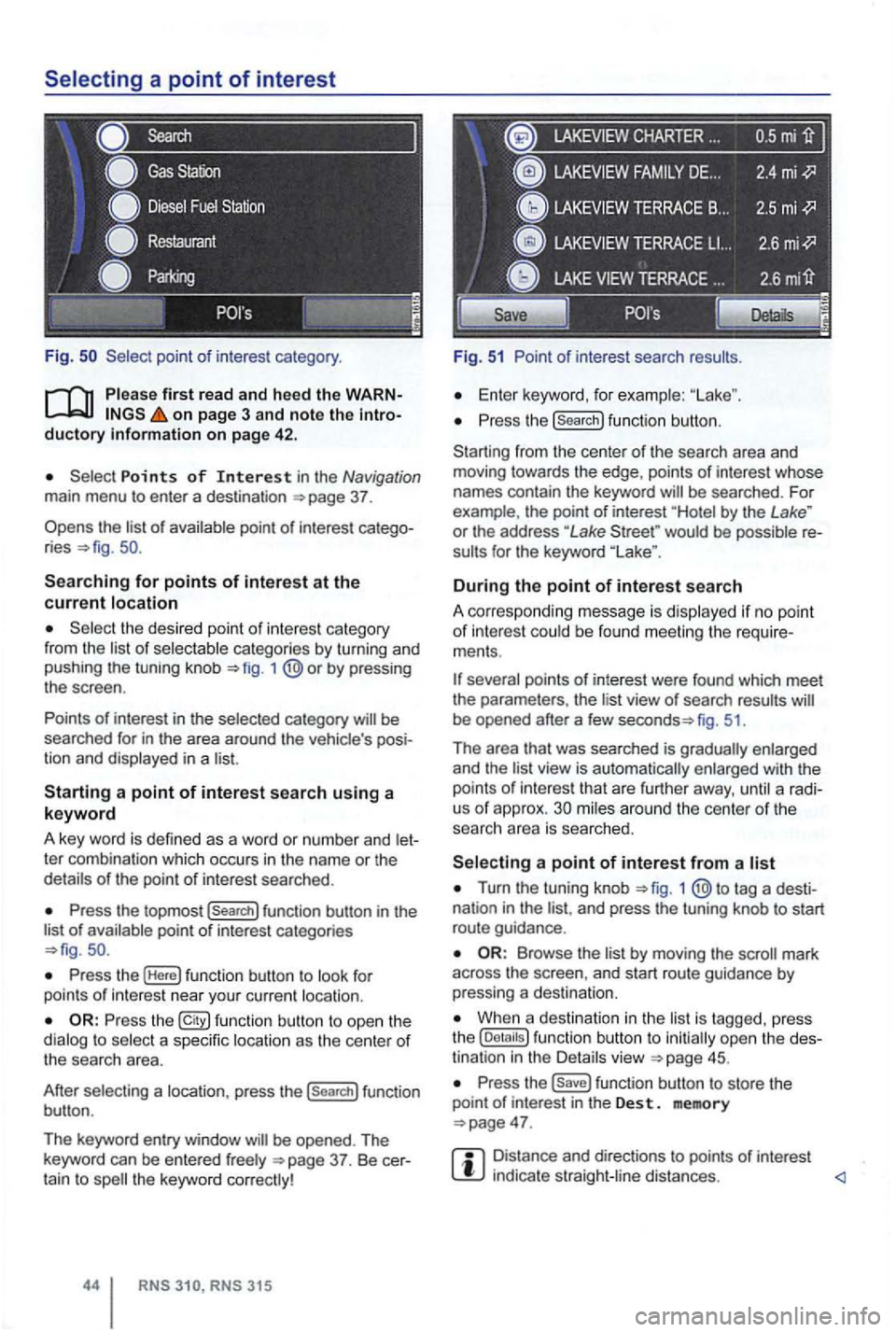
Fig .
on page 3 and note the introductory on pag e 42 .
Points of Interest in the Navigation main menu to enter a destination
Searching for points of interest at the current location
the desired point of interest category
from the list of selectable categories by turning and
pushing the tuning knob 1
Press the topmost (Search] function button in the
list of availab le point of interest categories
Press the (Here] function button to look for
points of int erest near your current location.
Press the function button to ope n the
dialog to select a specific location as the center of the searc h area.
After selecting a location, press the
(search] function
button .
The keyword entry window
CHARTER ...
Fig. 51 Point of interest search results.
Enter keyword, for examp le:
Press the (search] function button.
Starting from the center
of the search area and
moving towards the edge , points of interest whose
names contain the keyword
by the Lake " or the address "Lake would be possible re
sults for the keyword
During the point of interest search
A correspo nding message is disp layed if no point of interest could be found meeting the require
ments .
fig. 51.
Th e area that was searched is gradually enlarged
and the
view is automatically enlarged with the
points of int erest that are further away, until a radi
us of approx. mi les around the center of the
searc h area is searched.
Turn the tuning knob 1 tag a desti
nation in the and press the tuning knob to start
route guidance .
by moving the mark
across the screen , and start route guidance by pressing a destina tion.
When a destination in the is tagg ed , press
the
Press the function button to store the
point of in terest in the Des t. memory
Distance and directions to points of interest indica te straight -line distances.
Page 61 of 516
Detailed view of a destination
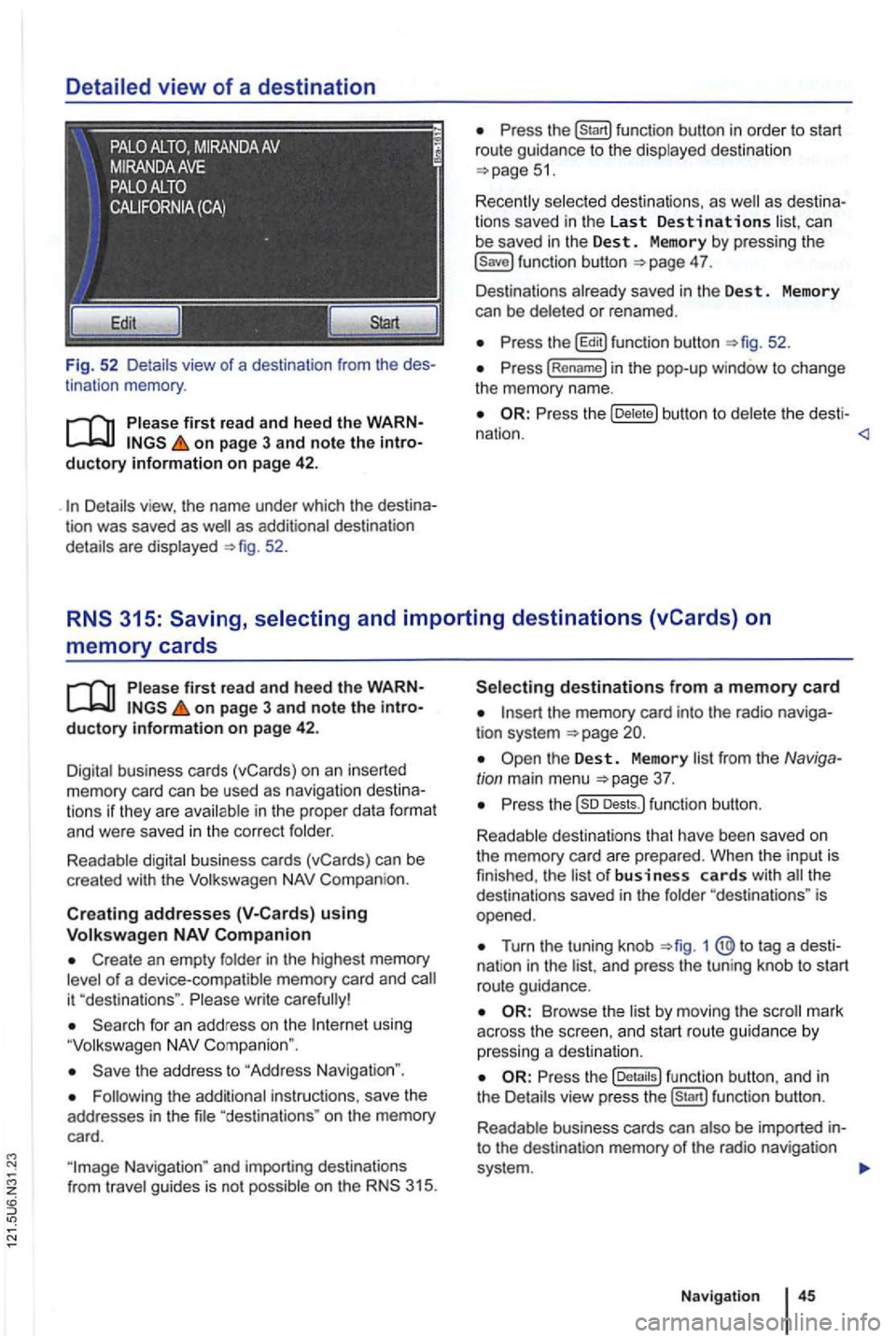
Fig. 52 Detail s view of a destination from the des
tinat ion memory .
first read and heed the WARNon page 3 and note the introductory information on page 42 .
as additional destination
details are displayed 52.
can
be saved in the Dest . Memory by pressing the 4 7.
Des tinations already saved in the Des t. Memory
can be deleted or renamed .
the b utton to del et e t he desti -
nation .
memory cards
on page 3 and note the introductory information on page 42.
Digital business cards (vCards) on an inserted memory card can be used as naviga tion des tin a
t ions if they are avai lable in th e proper data format and were saved in the cor rect folder.
Readable digital business cards (vCards) can be
crea ted with the
Compan ion.
Creat ing addresses using
Create an empty folder in the highest memory of a device-compatible memory card and
using
the address to "Address Navigation ".
"destina tions " on the memory
card.
the memory card into the radio naviga
tion system
Turn the tuning knob 1 @ to tag a dest i
nat ion in the and press the tun ing knob to start
route guidance.
Browse th e list by moving the
the fu nc tion button , a nd in
the Details view pre ss function button.
R eadab le business cards can also
be imported into the destination memory of the radio navigation
system .
Navigation
Page 63 of 516
Destination memory
tn this section
. . . . . . . . . . . . . . 48
Deleting or renamin g dest inations
in the
destination memory . . . . . . . . . 48
Disp laying the
The destination memory is used for saving destinations.
Function buttons to save a trip destination are only
active and accessible if the destination has been
sufficiently defined.
Device overview
Operation basics
Introduction to navigation
Destination input
Pl ease first read and heed the WARNon pag e 3 and note the introductory information on page 47.
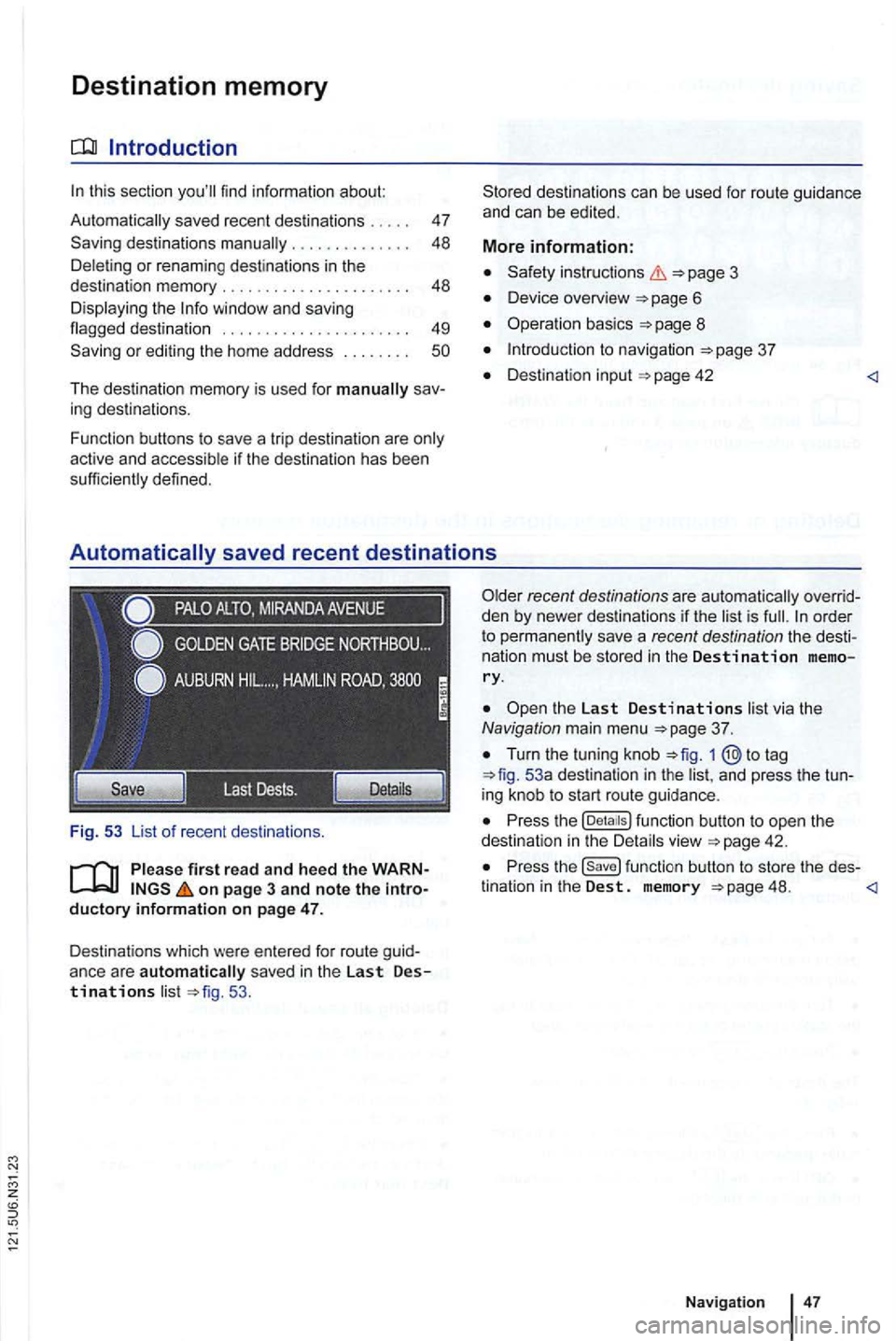
Destinations which were entered for route guid
anc e ar e
automatically sav ed in the Last Destinations list 53 .
the Last Destinations list via the Navigation main menu
Turn the tuning knob to tag 53a destination in the list, and press the tun
ing knob to start route guidance .
Press the function button to open the
dest ination in the Detai ls view
Press the function button to store the des-
tination in the Dest. memory 48.
Page 64 of 516
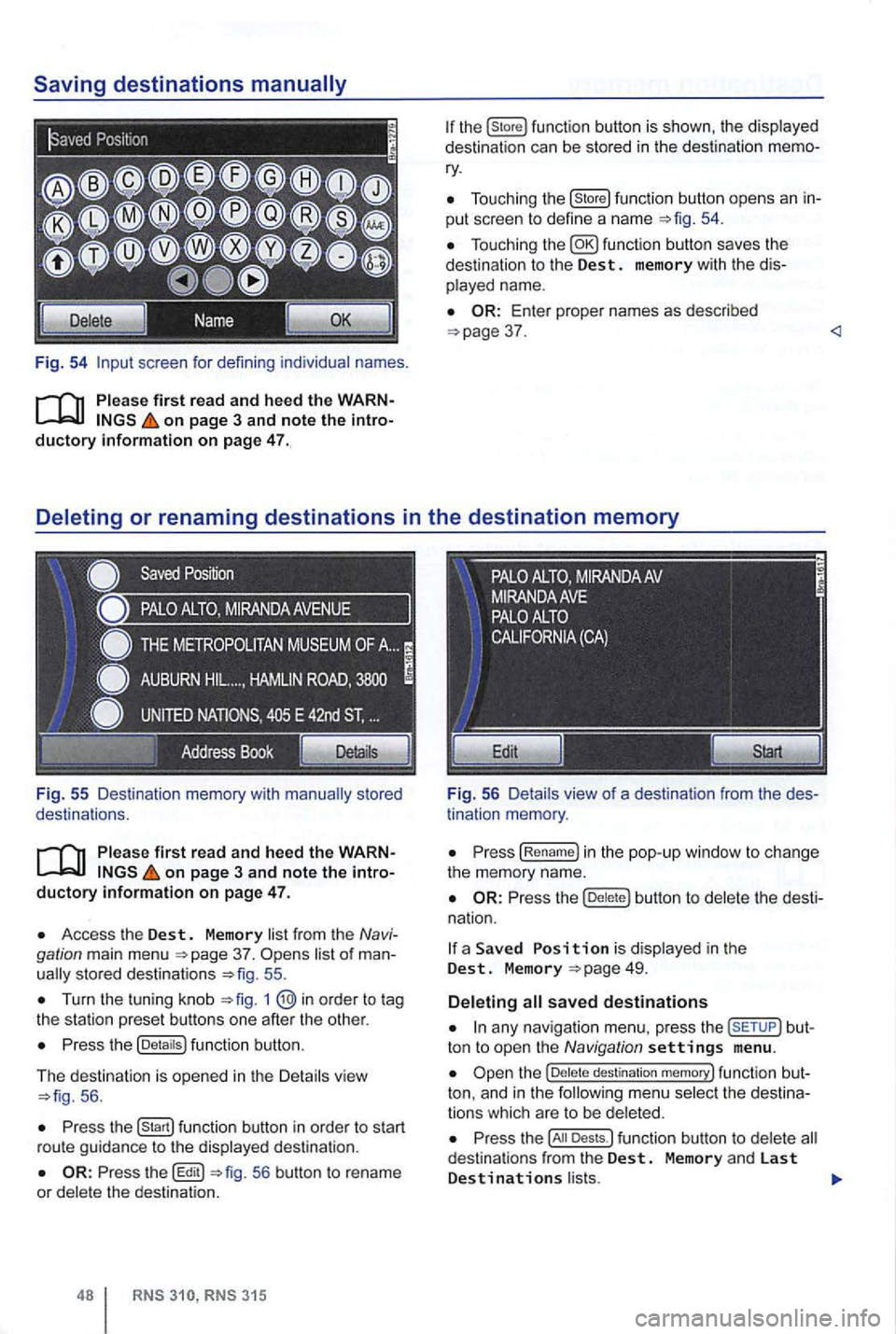
Fig. 54 screen for defini ng individual names.
on page 3 and note the introductory information on page 47.
Fig . 55 Des ti nation memory with
on page 3 and note the introductory informa tion on page 47.
Access the Dest. Memory list fr om the Navi
gation main menu 37. sto red destinat ions 55 .
Turn the tuning kn ob 1
Press the (Detaitsl function button.
The d
estination is opened in the Detail s vie w 56 .
Press function button in order to start
r ou te gu id a nce to the displayed destination .
56 button to rename
or dele te the destinat ion.
315
Tou ch ing the (store! functio n button opens an in
put scree n to define a name
37 .
tin ation memory .
Press (Re name! in the pop -up window to ch ange
the memory name.
Press the butt on to delete the dest i
na tion.
a Save d is display ed in the Dest. M emory
any nav iga tio n menu. press the but
ton to open the Navigation settings menu .
destination memory! func tion but
ton, and in t h e
Press the Dests.l funct ion button to dele te d estina tio n s from the Dest. Memory and las t Destinations l ists.
Page 67 of 516
Route guidance
Introduction
this sec tion
315: Displaying the ............................. .
blocking sections in the
R oute ...... ......... ..... ......... .
315: Blocking upcoming route sections
51
52
53
54
55
55
56
(congestion ahead) . . . . . . . . . . . . . . . . . . . . . 57
Rou te guidance
in Demo mode ........... .
Navigation settings menu ............. . . 57 58
After
starting route guidance , the rou te is
on page 3, note the introductory information and heed the on
page 51.
Sections of the route may be
More information:
Safety instructions
Dev ice overview
Operat ion basics page 8
Destinat ion input
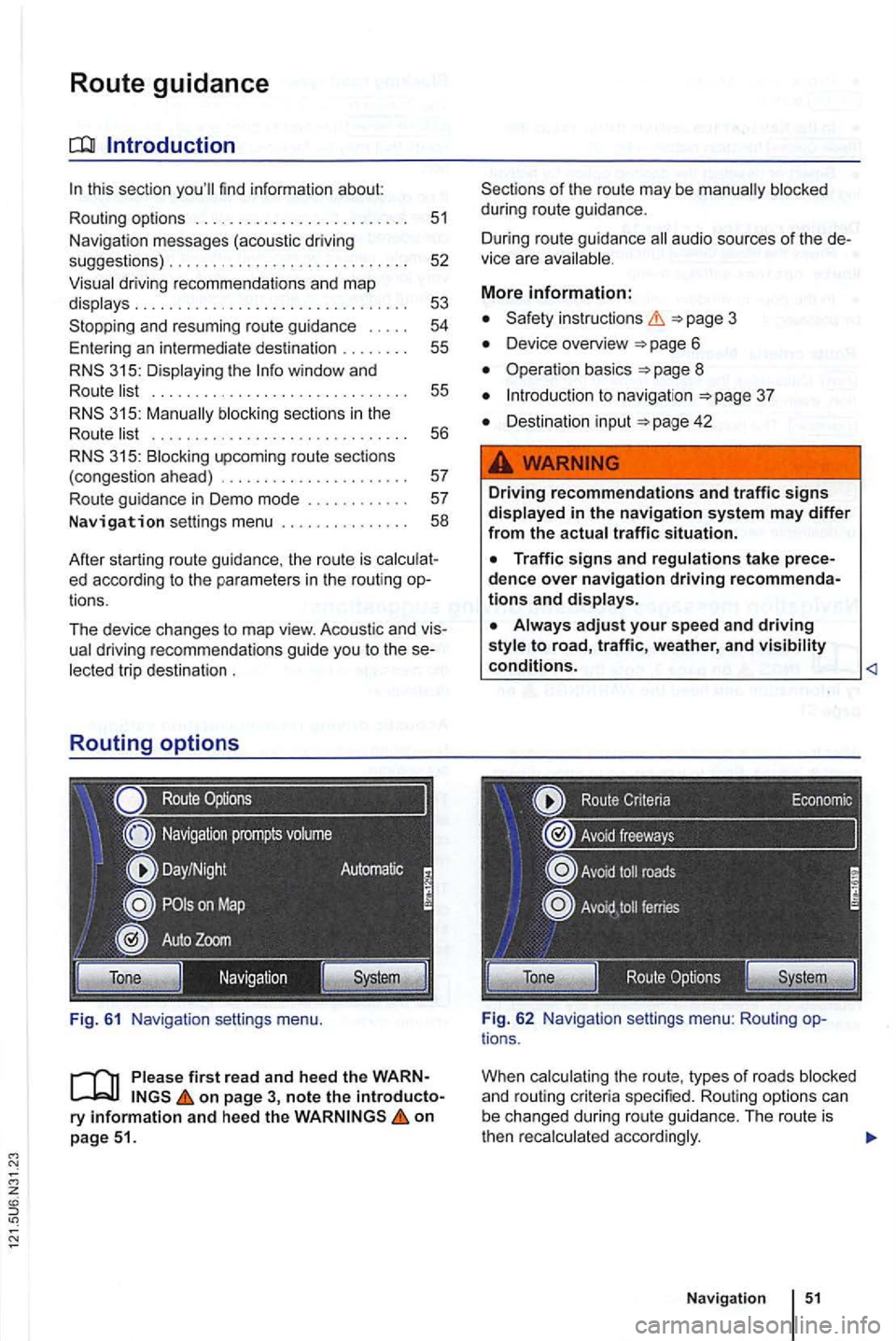
Fig . 62 Navig ation settings menu: Rou ting options .
When
Navigation
Page 69 of 516
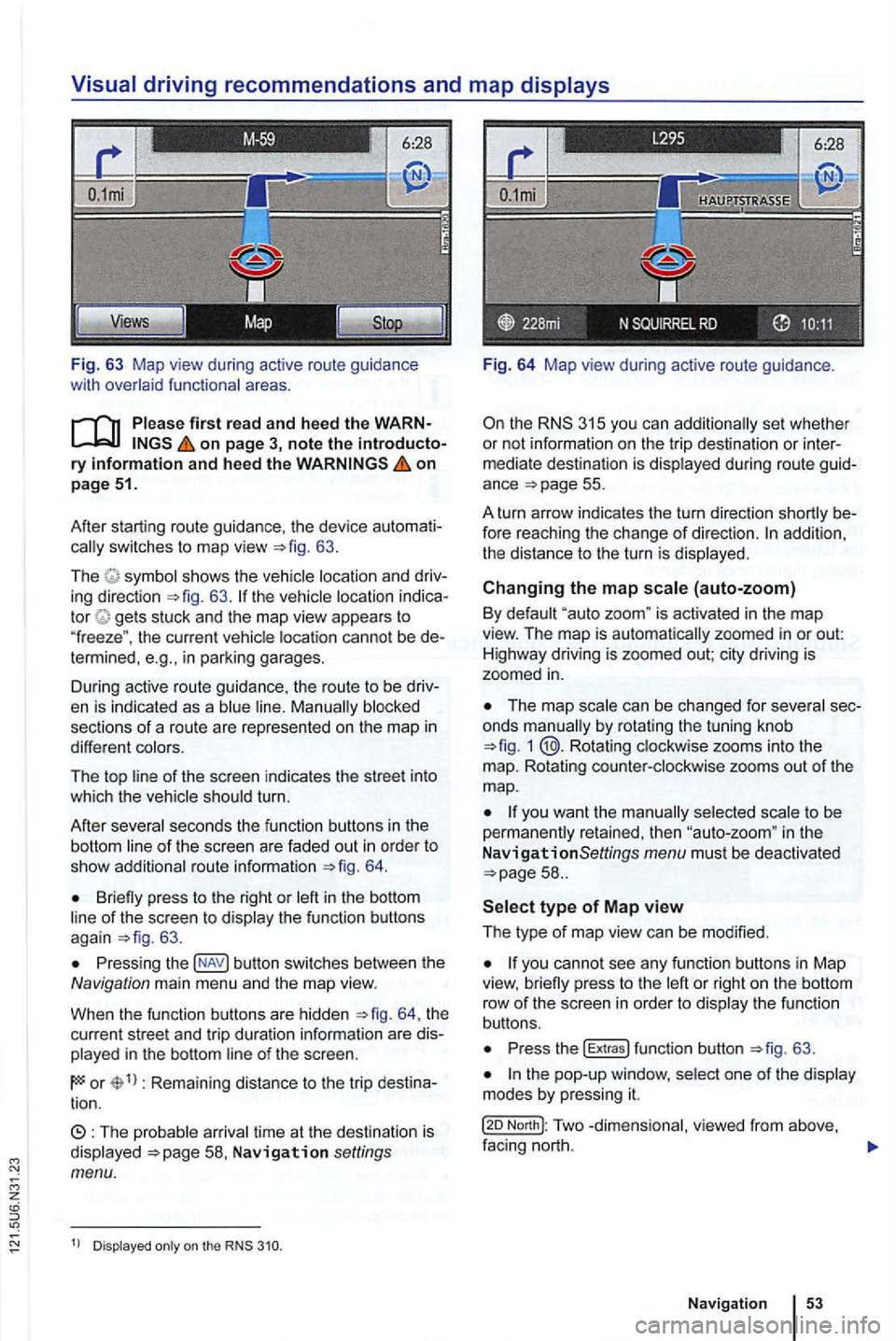
Fig. 63 Map view during active route guidance
with
on page 3, note the introductory information and heed the on page 51.
After starting route guidance. the device
switches to map view 63.
The sh ows the ing direction 63. tor gets stuck and the map view appears to
" freeze ". the current cannot be in parking garages.
During active route guidance , the route to
be
sections of a ro ute are represented on the map in
different
of the screen indicates the street into
which the turn.
After
seco nds the function buttons in th e
bottom
route informa tion 64.
Briefly press to the right or of the screen to 63 .
Press ing button switches between the Navigation main men u and the map view.
When the func tion buttons are hidden
th e
current street and trip duratio n info rmation are
in the bottom
or Rema ining distance to the trip tion.
time at th e destinat ion is Navigation settings menu.
Dis played on the
Fig. 64 Map view during active route guidance .
the RNS 315 you can additio nally set whethe r
or not inform ation on the trip dest ina tion or
ance =>page 55.
A turn arrow indicates the turn direction
fore reaching the change of direction. addition,
th e distance to the turn is
Changing the map (auto-zoom)
By "auto zoom " is activated in the map
view. The map is automatically zoomed in or out:
H ighwa y driving is zoomed out; city driving is
zoomed
in.
The map by rotat ing the tuning knob 1 @.Rotating zooms into the
m ap. Rotating
to be
perma nen tly retained, then in the
N avigationSettings menu must be deactivated
or right on the bottom
row of th e sc ree n in orde r to th e fu n ct io n
buttons.
Press the !Extras ! function button =>fig. 63 .
North!: Two facing nort h.
N avi gation
Page 71 of 516
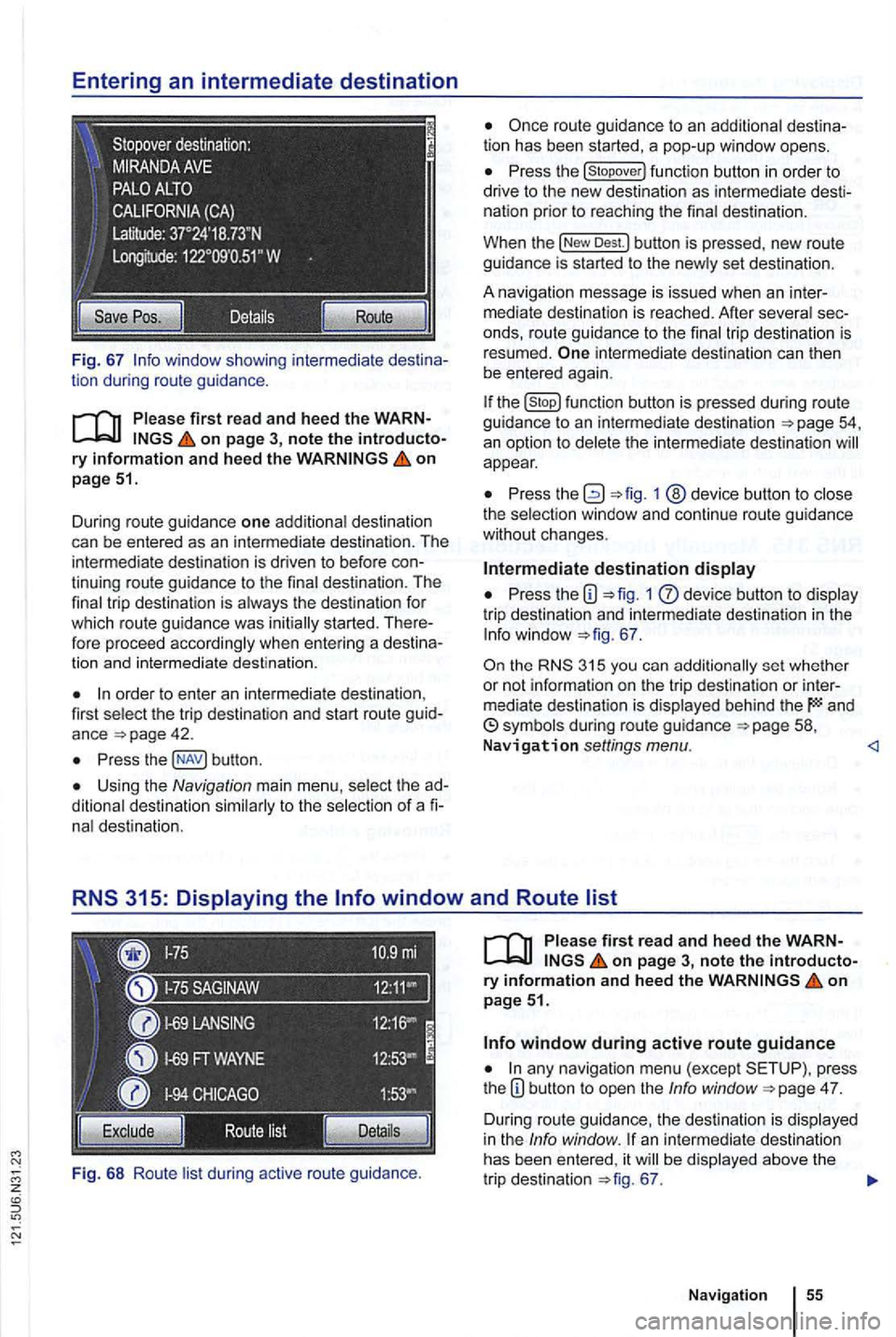
Fig. 67
on page 51.
Dur ing route guidance one additiona l destination
can be entered as an in termediate destination . The
intermed ia te destination is driven to befo re
order to enter an inte rmedia te destina tion ,
first select the trip destination and start route guid
ance
Press butt on .
Using the Navigation main menu , select the
nal destination.
Fi g.
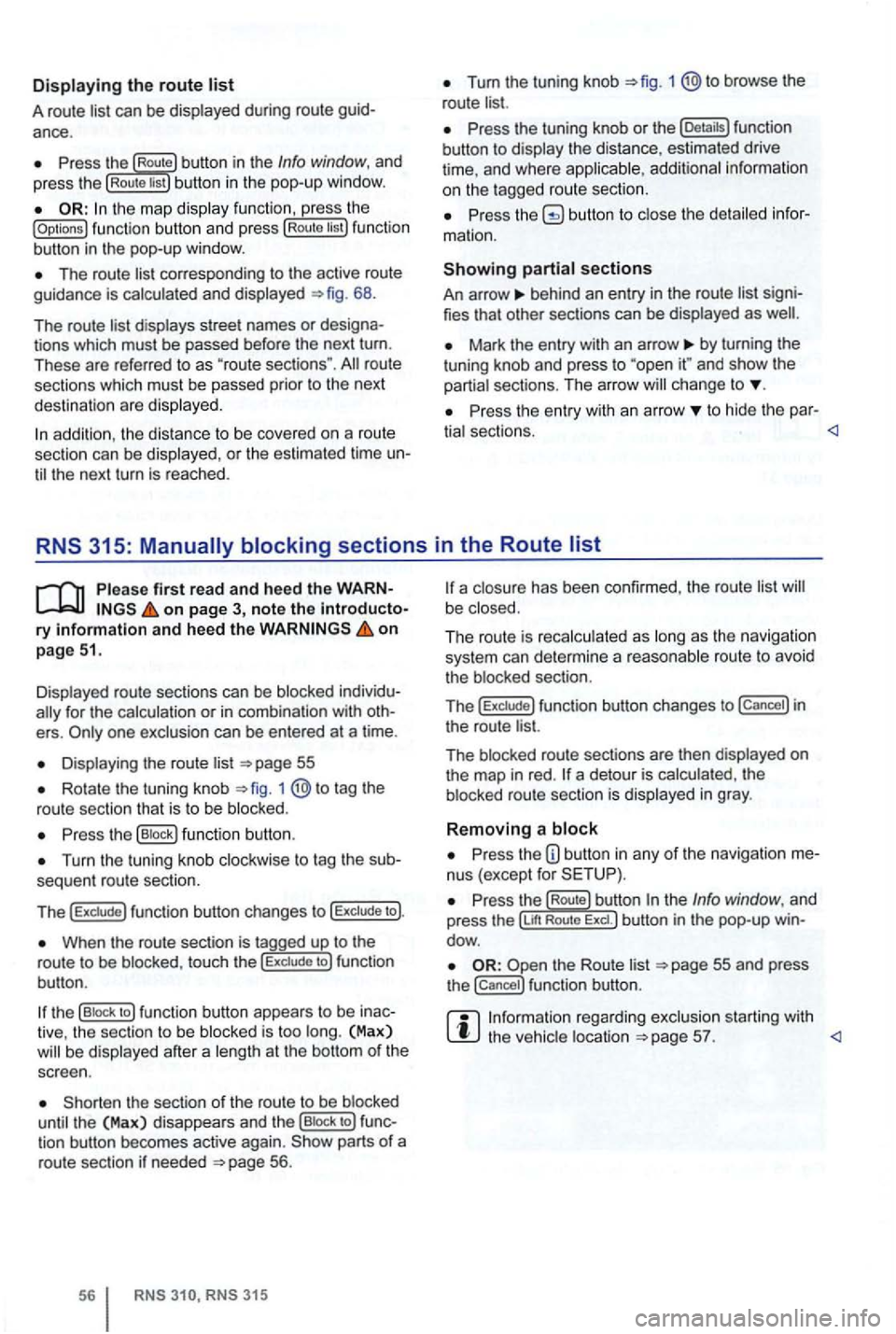
68 Ro ute lis t during active route gu idance .
Press the
Dest.l button is pressed , new route
guidance is started to the new ly set des tin ation .
A na vigation message
is issued when an inter
m ediate destination is reached. After several
intermediate destination can then
be entered again.
the function butto n is pressed during route guidance to an intermediate destination
appear.
Press 1 @device button to close
the select ion window and continue r oute guidance
without changes .
Intermediate destination display
Press the 1 dev ice button to display
tri p destination and intermedia te destination in the
67 .
the 315 you can additionally set whether
or not informa tio n on the t rip dest ination or inter
mediate destination is displayed behind the and
on page 3, note the introductory information and heed the on page 51.
any navigation menu (exc ept press
t he 4 7.
D uring route guidance, the des tination is displa yed
in the Info window . an intermediate destination
has been entered , it be displayed above the
tr ip destination 67.
Navigation
Page 72 of 516
Displaying the route list
A route list can be displayed during ro ut e
Press the Route button in the Info window, and
press the Rou te list bu tton in the pop-up window.
the map display function , ress the (Options ) function butt on and press Route tist function
button in th e pop-up window .
The route corresponding to the active route
guidance is calcula ted and displayed 68.
The route
d ispl ays street names or
route
sections which must be passed prior to the next
dest ination are displayed .
Tum the tuning knob 1 @to browse the
route list.
Press the tuning knob or th e (Deta ils) function
button to disp lay the distance, estimated drive
time , and where
Press butto n to close the
behind an entry in the route list
Mark the entry with an arrow by turning the
t uning knob and press to and sh ow the
partia l sect ions. The arro w ch ange to
Pr ess the entry wit h an arrow to hide the par-
tia l sectio ns.
Displayed route sections can be blocked
for the calculation or in com binat ion with
Displa ying the route list
Rotate the tuning knob 1 to tag the
route sectio n that is to be blo cked .
Press the (B lock ) function button .
Turn the tuning knob clockwise to tag the
When the route section is tagged up to the
r o ute to be blo cke d, touc h the to ) fun ction
bu tton .
the (B lock to ) function button appears to be
the sect ion of the route to be blocked
until the (Max) disappea rs and th e (Bloc k to ) tion button becomes active again. parts of a
route section if neede d 56.
315
a closu re has been confirmed , the route list be close d.
The ro ut e is reca lc ulated as long
as th e naviga tio n
system can determi ne a reasonabl e route to avoid
t he blocked section.
T
he f un ction button changes to in
the route list.
The blocked route sectio ns are then displayed
on the map in red . a detour is calcula ted , th e
b locked route section is displayed in gray .
Removing a block
Press the nus (except for
re ga rding exclusion starting with the vehic le location