Page 360 of 692
360
L/C200_EE (OM60G38E)
3-2. Using the audio system
Audio system types
With navigation system
Owners of models equipped with a navigation system should
refer to the “Navigation System Owner’s Manual”.
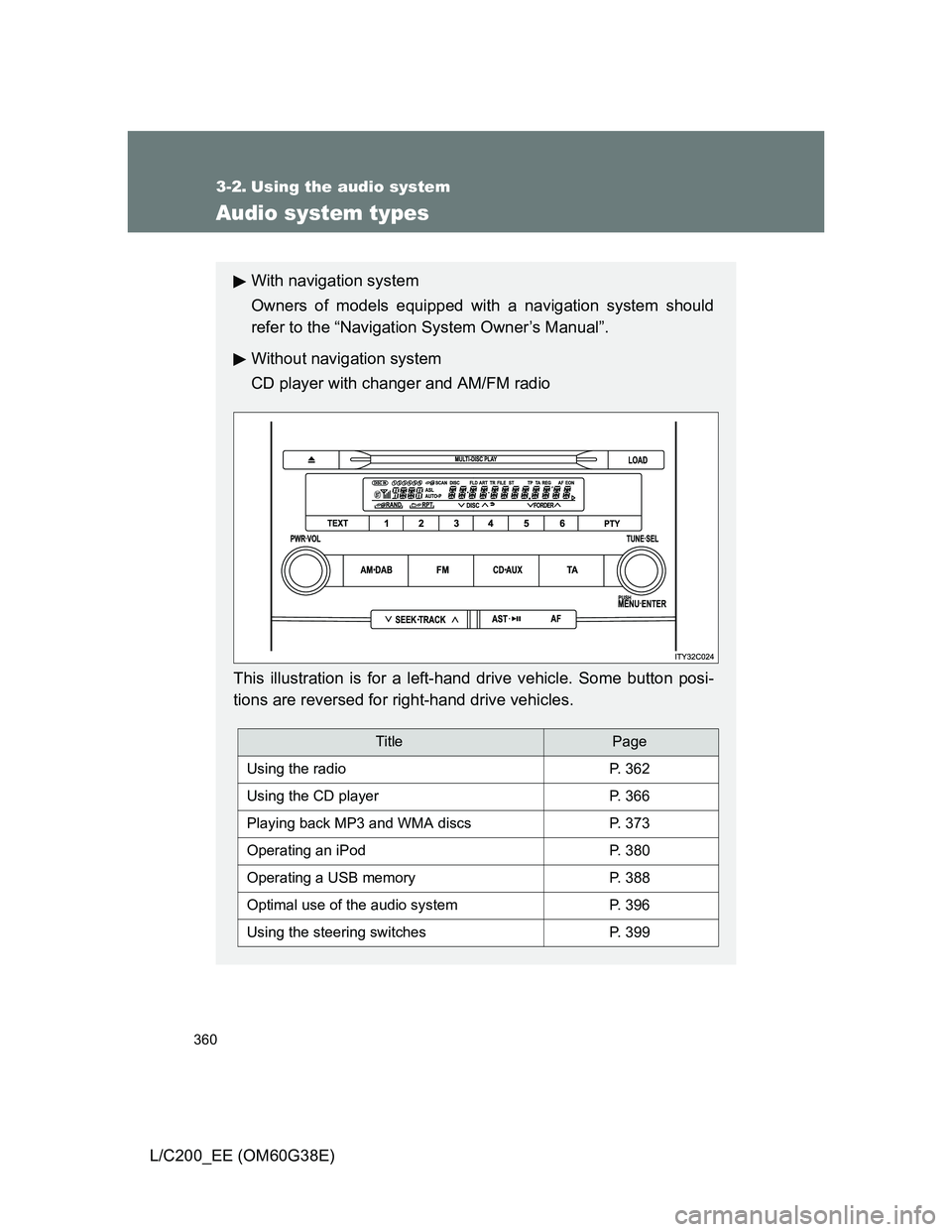
Without navigation system
CD player with changer and AM/FM radio
This illustration is for a left-hand drive vehicle. Some button posi-
tions are reversed for right-hand drive vehicles.
TitlePage
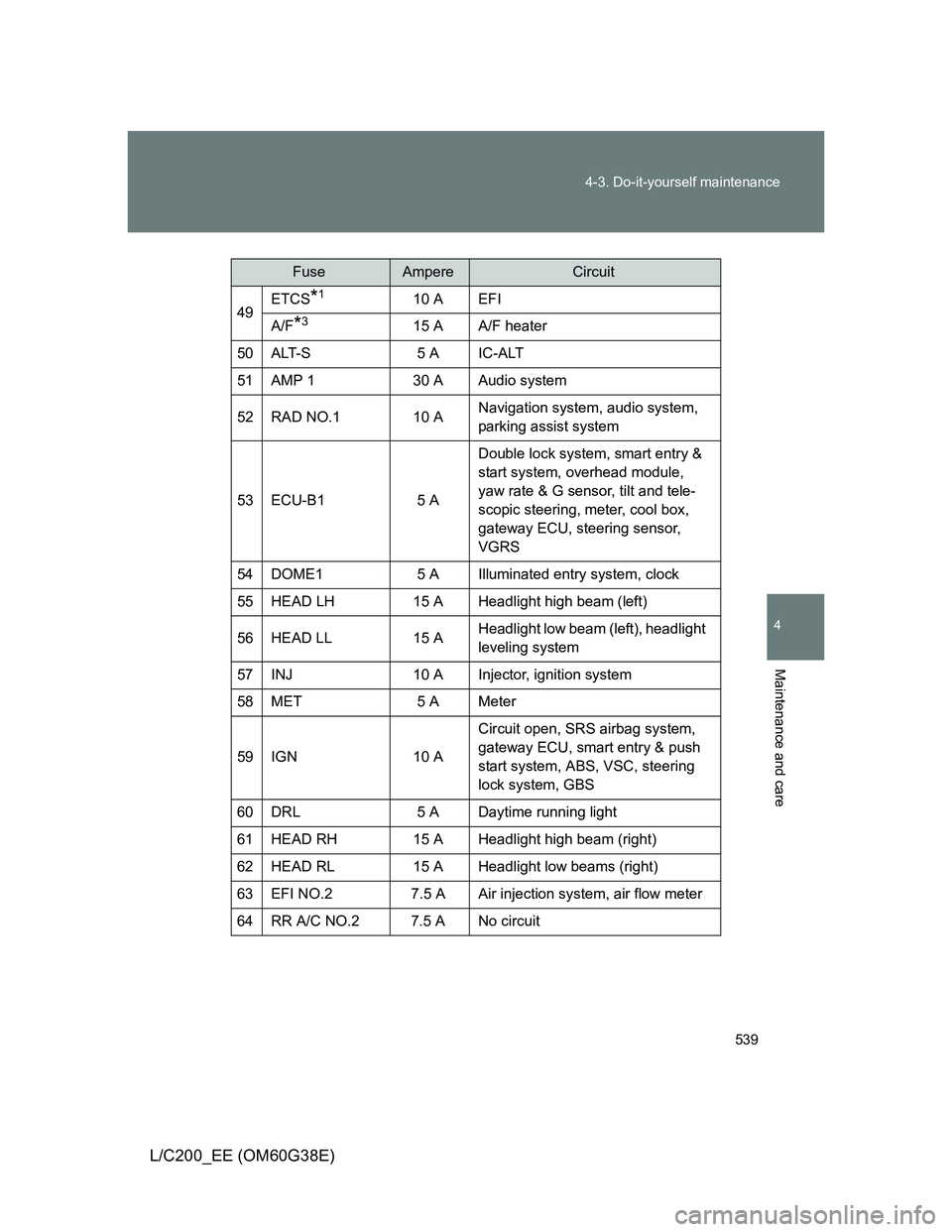
Using the radioP. 362
Using the CD playerP. 366
Playing back MP3 and WMA discsP. 373
Operating an iPodP. 380
Operating a USB memoryP. 388
Optimal use of the audio systemP. 396
Using the steering switchesP. 399
Page 402 of 692
402
L/C200_EE (OM60G38E)
3-3. Using the Bluetooth® audio system
Bluetooth® audio system
Conditions under which the system will not operate
If using a portable player that does not support Bluetooth
®
If the portable player is switched off
If the portable player is not connected
If the portable player’s battery is low
If the portable player is behind the seat or in the glove box or console box
If metal is covering or touching the player
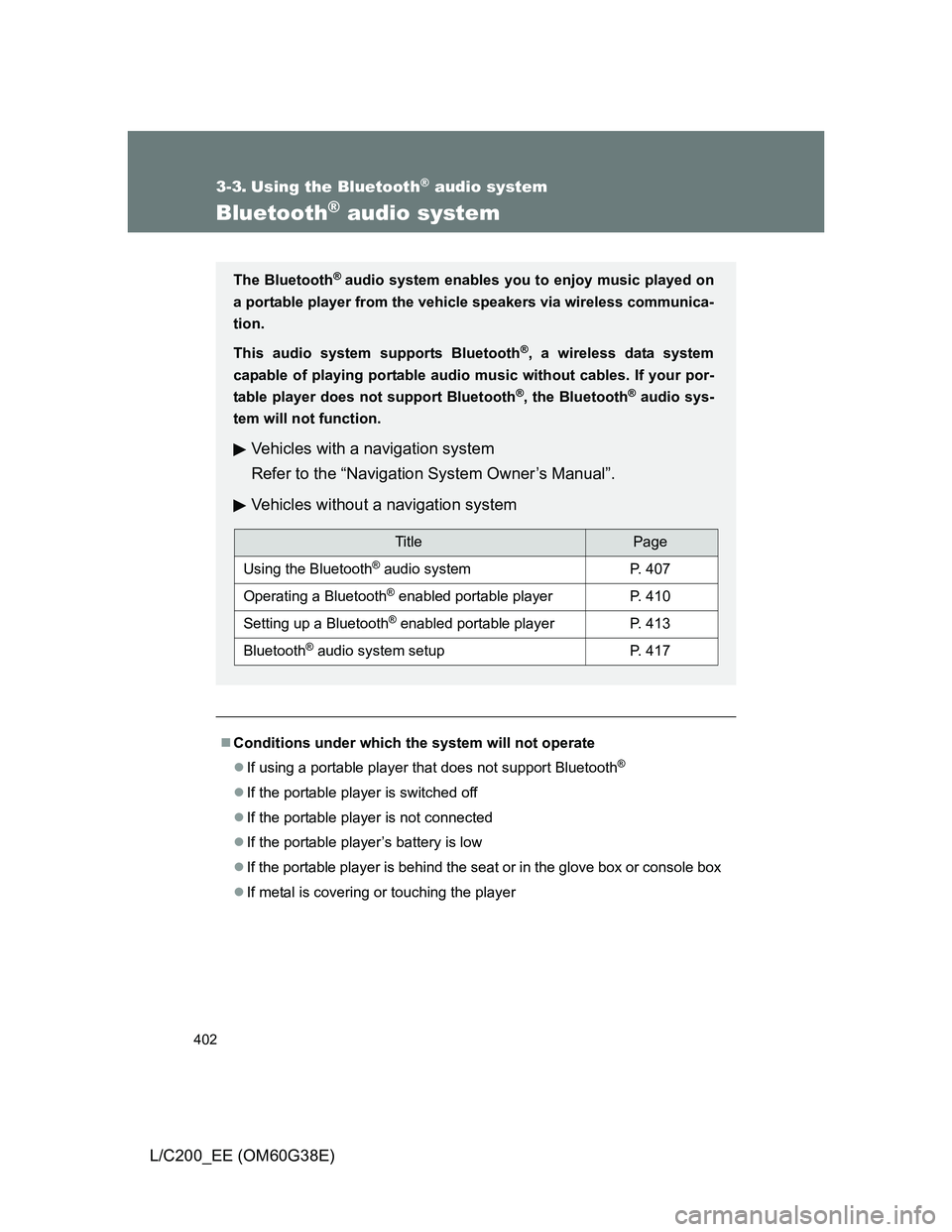
The Bluetooth® audio system enables you to enjoy music played on
a portable player from the vehicle speakers via wireless communica-
tion.
This audio system supports Bluetooth
®, a wireless data system
capable of playing portable audio music without cables. If your por-
table player does not support Bluetooth
®, the Bluetooth® audio sys-
tem will not function.
Vehicles with a navigation system
Refer to the “Navigation System Owner’s Manual”.
Vehicles without a navigation system
TitlePage
Using the Bluetooth® audio systemP. 407
Operating a Bluetooth® enabled portable playerP. 410
Setting up a Bluetooth® enabled portable playerP. 413
Bluetooth® audio system setupP. 417
Page 418 of 692
418
L/C200_EE (OM60G38E)
3-4. Using the hands-free system (for cellular phone)
Hands-free system (for cellular phone)
: If equipped
The hands-free system is a function that allows you to use your cel-
lular phone without touching it.
This system supports Bluetooth
® cellular phones. Bluetooth® is a
wireless data system that allows the cellular phone to wirelessly
connect to the hands-free system and make/receive calls.
Vehicles with a navigation system
Refer to the “Navigation System Owner’s Manual”.
Vehicles without a navigation system
Hands-free system quick guide
Setting a cellular phone. (P. 426)
Adding an entry to the phonebook. (Up to 20 names can be
stored) (P. 442)
Dialing by inputting a name. (P. 431)
STEP1
STEP2
STEP3
Page 465 of 692
465
3-7. Other interior features
3
Interior features
L/C200_EE (OM60G38E)
Clock
The clock is displayed when
The “ENGINE START STOP” switch is in ACCESSORY or IGNITION ON
mode.
When the battery is disconnected
The time display will automatically be set to 1:00.
With navigation system
Refer to “Navigation System Owner’s Manual”.
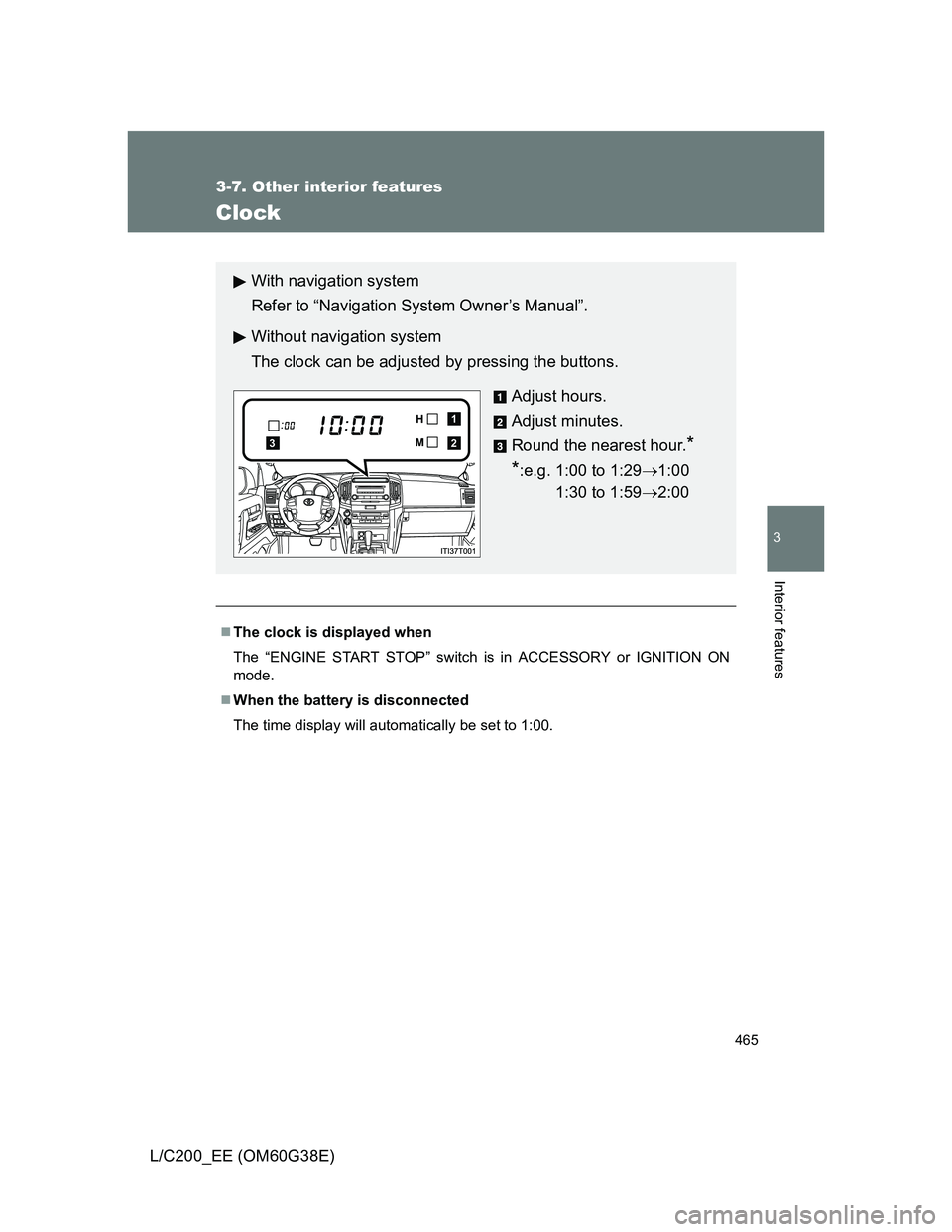
Without navigation system
The clock can be adjusted by pressing the buttons.
Adjust hours.
Adjust minutes.
Round the nearest hour.
*
*
:e.g. 1:00 to 1:291:00
1:30 to 1:592:00
2
1
3
Page 466 of 692
466
3-7. Other interior features
L/C200_EE (OM60G38E)
Outside temperature display
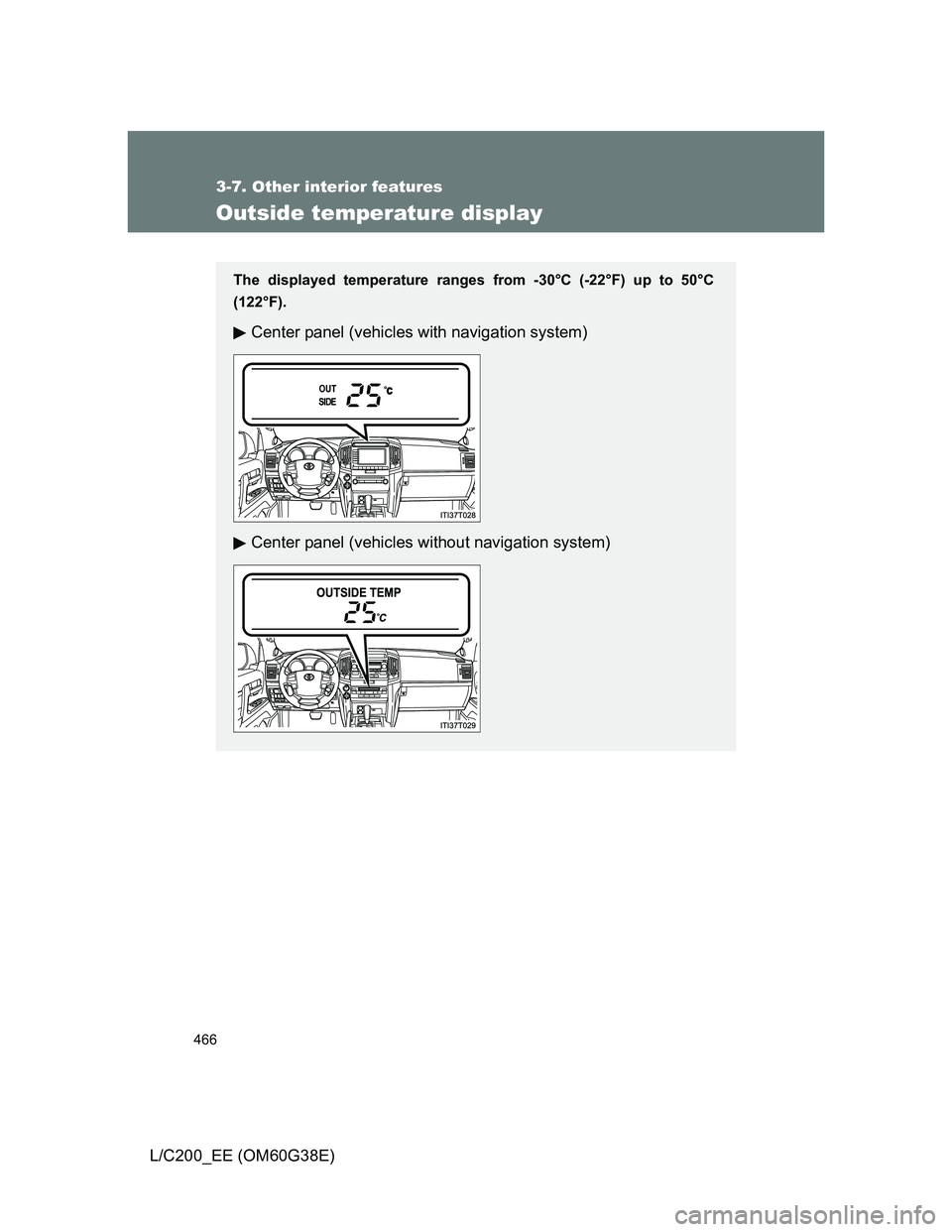
The displayed temperature ranges from -30°C (-22°F) up to 50°C
(122°F).
Center panel (vehicles with navigation system)
Center panel (vehicles without navigation system)
Page 539 of 692
539 4-3. Do-it-yourself maintenance
4
Maintenance and care
L/C200_EE (OM60G38E)
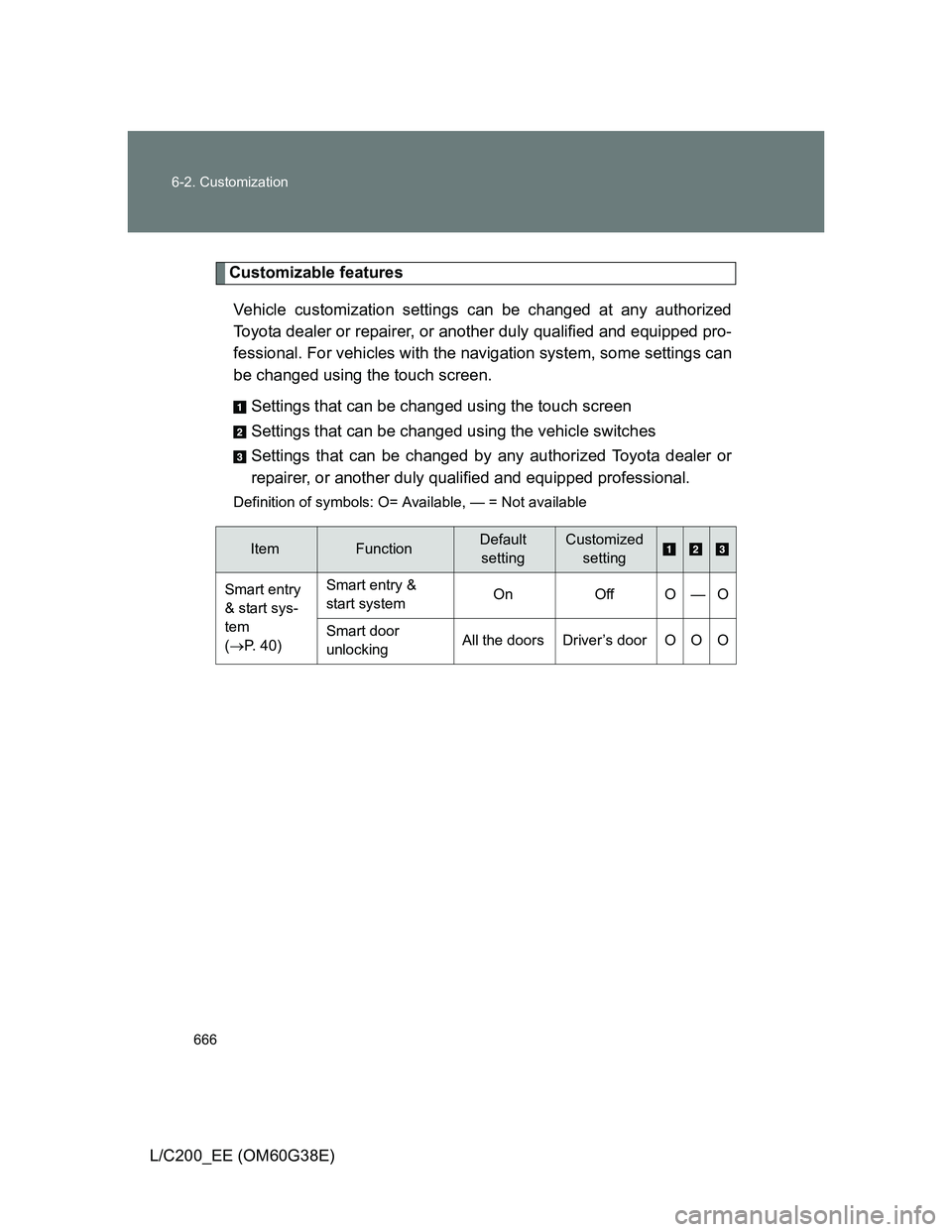
49ETCS*110 A EFI
A/F*315 A A/F heater
50ALT-S5 A IC-ALT
51AMP 130 A Audio system
52 RAD NO.1 10 ANavigation system, audio system,
parking assist system
53 ECU-B1 5 ADouble lock system, smart entry &
start system, overhead module,
yaw rate & G sensor, tilt and tele-
scopic steering, meter, cool box,
gateway ECU, steering sensor,
VGRS
54 DOME1 5 A Illuminated entry system, clock
55 HEAD LH 15 A Headlight high beam (left)
56 HEAD LL 15 AHeadlight low beam (left), headlight
leveling system
57 INJ 10 A Injector, ignition system
58 MET 5 A Meter
59 IGN 10 ACircuit open, SRS airbag system,
gateway ECU, smart entry & push
start system, ABS, VSC, steering
lock system, GBS
60 DRL 5 A Daytime running light
61 HEAD RH 15 A Headlight high beam (right)
62 HEAD RL 15 A Headlight low beams (right)
63 EFI NO.2 7.5 A Air injection system, air flow meter
64 RR A/C NO.2 7.5 A No circuit
FuseAmpereCircuit
Page 665 of 692
665
6
Vehicle specifications
L/C200_EE (OM60G38E)
6-2. Customization
Customizable features
Customizing vehicle features using the touch screen (vehicles
with navigation system)
Press “SETUP”.
Touch “Vehicle” on the “Setup” screen.
Touch “Vehicle customization”.
Touch the setting to be changed.
Change each setting and touch
“OK”.
If “OK” is not touched before
switching to another screen, any
changes will be lost.
A message indicating that the settings are being saved will
appear.
Do not perform any other operations while this message is
displayed.
Your vehicle includes a variety of electronic features that can be per-
sonalized to your preferences.
Programming of these preferences can be performed by any autho-
rized Toyota dealer or repairer, or another duly qualified and
equipped professional.
For vehicles with the navigation system, it is also possible to cus-
tomize certain vehicle features yourself using the touch screen.
Some function settings are changed simultaneously with other functions
being customized. Contact any authorized Toyota dealer or repairer, or
another duly qualified and equipped professional for further details.
STEP1
STEP2
STEP3
STEP4
STEP5
Page 666 of 692
666 6-2. Customization
L/C200_EE (OM60G38E)
Customizable features
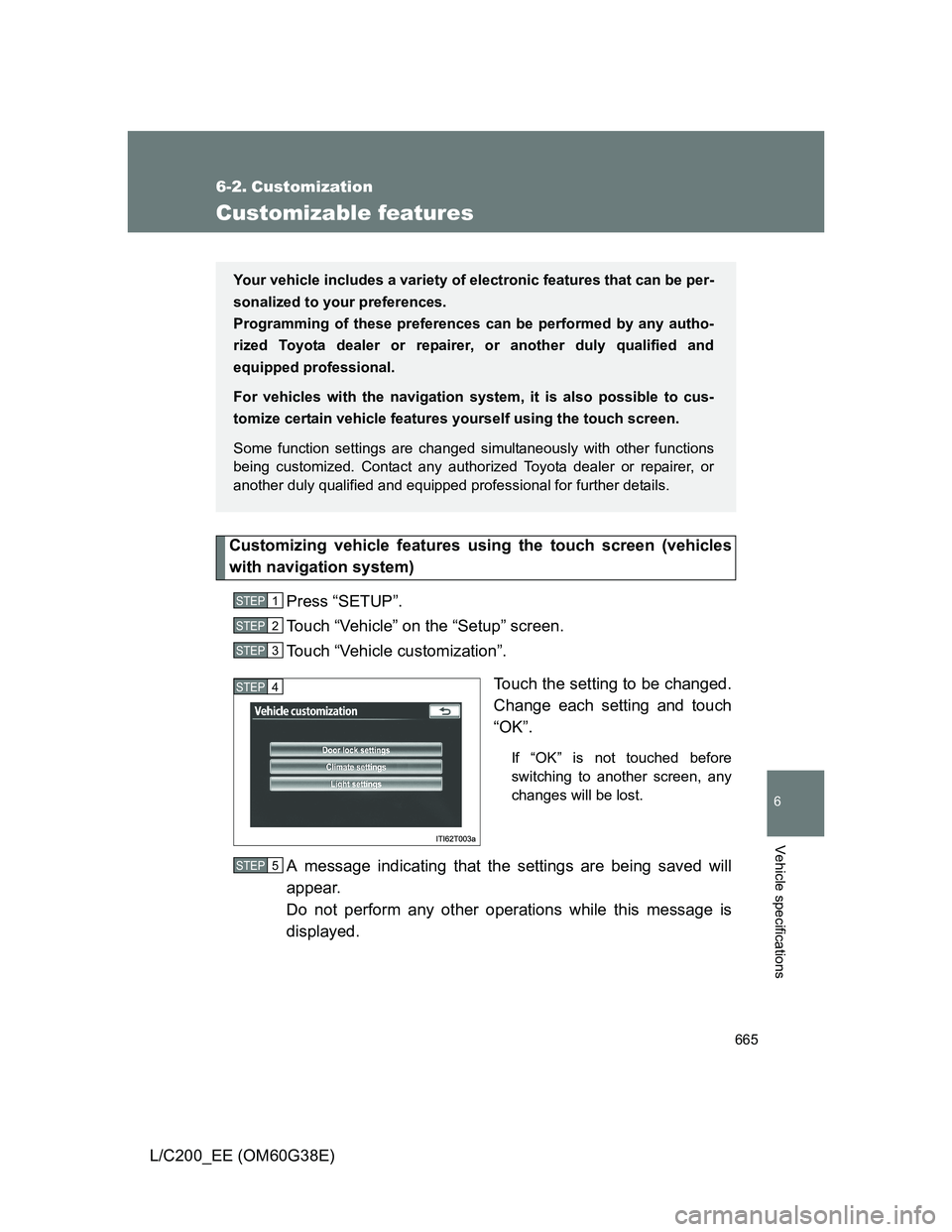
Vehicle customization settings can be changed at any authorized
Toyota dealer or repairer, or another duly qualified and equipped pro-
fessional. For vehicles with the navigation system, some settings can
be changed using the touch screen.
Settings that can be changed using the touch screen
Settings that can be changed using the vehicle switches
Settings that can be changed by any authorized Toyota dealer or
repairer, or another duly qualified and equipped professional.
Definition of symbols: O= Available, — = Not available
ItemFunctionDefault
settingCustomized
setting
Smart entry
& start sys-
tem
(P. 40)Smart entry &
start systemOn Off O — O
Smart door
unlockingAll the doors Driver’s door O O O