Page 330 of 692
330 2-5. Driving information
L/C200_EE (OM60G38E)
Guidance
Your vehicle will handle differently when towing a trailer. In order to
avoid accident, death or serious injury, keep the following in mind
when towing:
Checking connections between trailer and lights
Stop the vehicle and check the operation of the connection
between the trailer and lights after driving for a brief period as well
as before setting off.
Practicing driving with a coupled trailer
Get the feel for turning, stopping and reversing with the trailer
coupled by practicing in an area with no or light traffic.
When reversing with a coupled trailer, hold the section of the
steering wheel nearest to you and rotate clockwise to turn the
trailer left or counterclockwise to turn right. Always rotate gradu-
ally to prevent steering error. Have someone guide you when
reversing to lessen the risk of accident.
Increasing vehicle-to-vehicle distance
At a speed of 10 km/h (6 mph), the distance to the vehicle running
ahead of you should be equivalent to or greater than the combined
length of your vehicle and trailer. Avoid sudden braking that may
cause skidding. Otherwise, the vehicle may spin out of control.
This is especially true when driving on wet or slippery road sur-
faces.
Page 360 of 692
360
L/C200_EE (OM60G38E)
3-2. Using the audio system
Audio system types
With navigation system
Owners of models equipped with a navigation system should
refer to the “Navigation System Owner’s Manual”.
Without navigation system
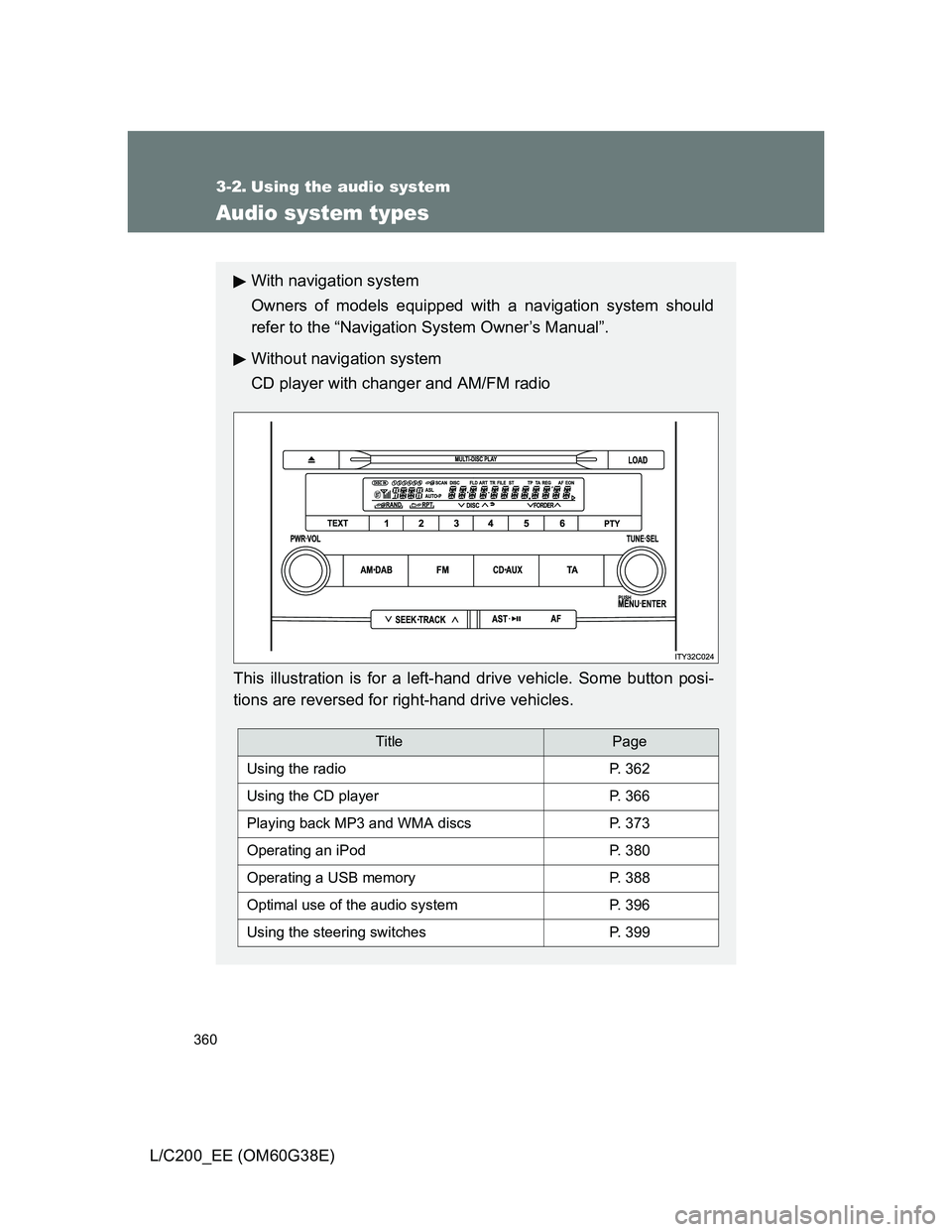
CD player with changer and AM/FM radio
This illustration is for a left-hand drive vehicle. Some button posi-
tions are reversed for right-hand drive vehicles.
TitlePage
Using the radioP. 362
Using the CD playerP. 366
Playing back MP3 and WMA discsP. 373
Operating an iPodP. 380
Operating a USB memoryP. 388
Optimal use of the audio systemP. 396
Using the steering switchesP. 399
Page 385 of 692
385 3-2. Using the audio system
3
Interior features
L/C200_EE (OM60G38E)
Switching the display
Press .
Each time the button is pressed, the display changes in the following
order:
Elapsed time Album title Track title Artist name
Adjusting sound quality and volume balance
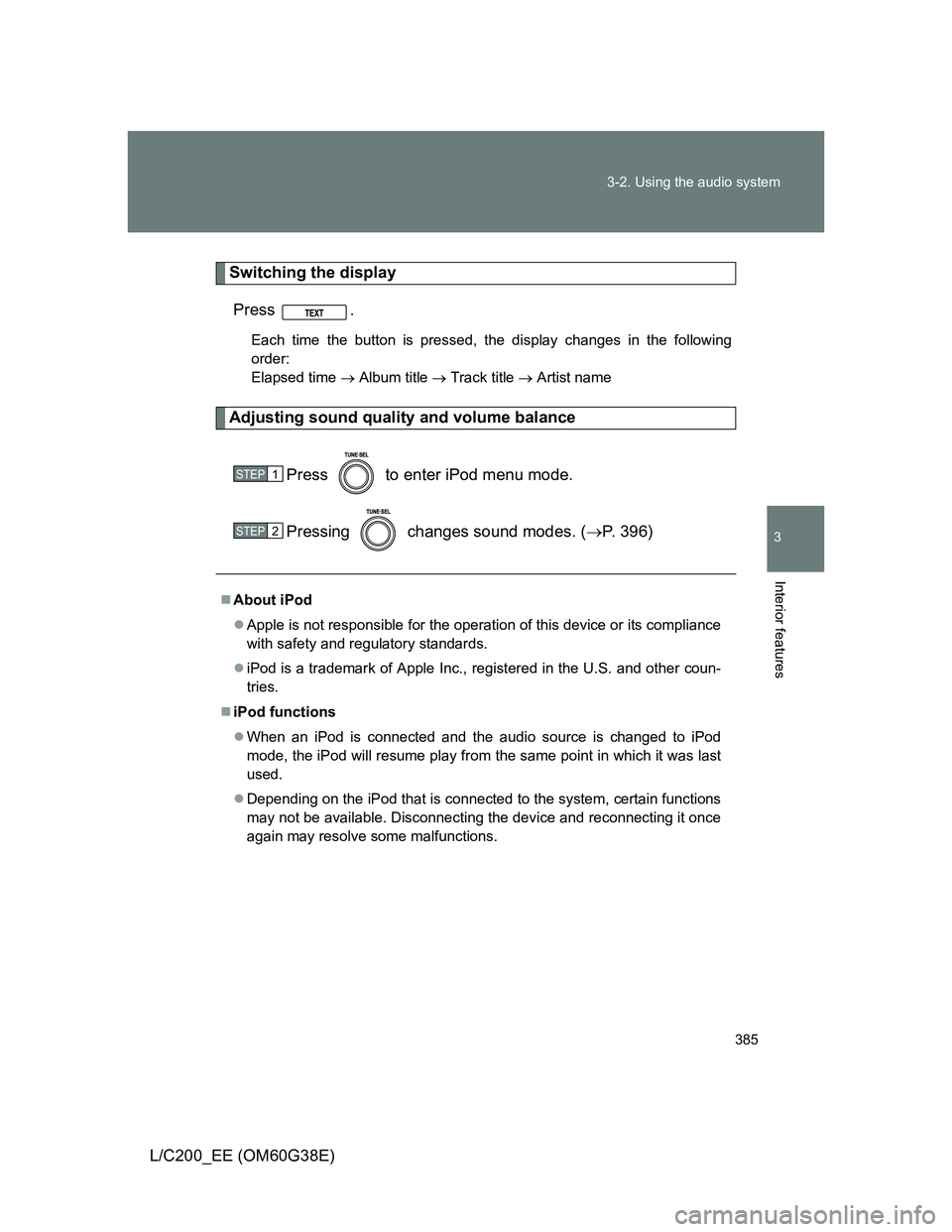
Press to enter iPod menu mode.
Pressing changes sound modes. (P. 396)
About iPod
Apple is not responsible for the operation of this device or its compliance
with safety and regulatory standards.
iPod is a trademark of Apple Inc., registered in the U.S. and other coun-
tries.
iPod functions
When an iPod is connected and the audio source is changed to iPod
mode, the iPod will resume play from the same point in which it was last
used.
Depending on the iPod that is connected to the system, certain functions
may not be available. Disconnecting the device and reconnecting it once
again may resolve some malfunctions.
STEP1
STEP2
Page 392 of 692
392 3-2. Using the audio system
L/C200_EE (OM60G38E)
When using the USB port
You may be unable to use the instrument panel power outlet if a device is
connected to the USB port at the same time.
USB memory functions
Depending on the USB memory that is connected to the system, certain
functions may not be available. Disconnecting the device and reconnecting it
once again may resolve some malfunctions.
Display
P. 369
Error messages
“ERROR”: This indicates a problem in the USB memory or its connection.
“NO MUSIC”: This indicates that no MP3/WMA files are included in the USB
memory.
USB memory
Compatible devices
USB memory that can be used for MP3 and WMA playback
Compatible device formats
The following device formats can be used:
• USB communication formats: USB2.0 FS (12mbps)
• File formats: FAT16/32 (Windows)
• Correspondence class: Mass storage class
MP3 and WMA files written in any format other than those listed above
may not play correctly, and their file names and folder names may not be
displayed correctly.
Items related to standards and limitations are as follows:
• Maximum directory hierarchy: 8 levels
• Maximum number of folders in a device: 999 (including the root)
• Maximum number of files in a device: 65025
• Maximum number of files per folder: 255
Page 403 of 692
403 3-3. Using the Bluetooth
® audio system
3
Interior features
L/C200_EE (OM60G38E)
When transferring ownership of the vehicle
Be sure to initialize the system to prevent personal data from being improp-
erly accessed. (P. 440)
About Bluetooth
®
Compatible models
Bluetooth
® specifications:
Ver. 1.2, or higher (Recommended: Ver. 2.0+EDR or higher)
Following Profiles:
• A2DP (Advanced Audio Distribution Profile) Ver. 1.0 or higher
• AVRCP (Audio/Video Remote Control Profile) Ver. 1.0 or higher
(Ver. 1.3 or higher recommended)
Portable players must correspond to the above specifications in order to be
connected to the Bluetooth
® audio system. However, please note that some
functions may be limited depending on the type of portable player.
Bluetooth is a registered trademark of
Bluetooth SIG. Inc.
Page 419 of 692
419 3-4. Using the hands-free system (for cellular phone)
3
Interior features
L/C200_EE (OM60G38E)
TitlePage
Using the hands-free system
Using the hands-free system for the first timeP. 4 2 3
Making a phone call
Making a phone call
• Dialing by inputting a name
• Speed dialing
• Redial
• Call back
Receiving a phone call
• Answering the phone
• Refusing the call
Transferring a call
Using a call history memory
• Dialing
• Storing data in the phone book
• Deleting
P. 4 3 0
Setting a cellular phone
Functions and operation proceduresP. 4 3 4
Security and system setup
Security setting items and operation
procedures
System setup items and operation
procedures
P. 4 3 8
Using the phone book
Adding a new phone number
Changing the registered name in the phone
book
Listing the registered data
Setting speed dials
Deleting registered name
Deleting speed dial
P. 4 4 2
Page 483 of 692
483 3-7. Other interior features
3
Interior features
L/C200_EE (OM60G38E)
CAUTION
Observe the following precautions.
Failure to do so may cause the driver’s floor mat to slip, possibly interfering
with the pedals while driving. An unexpectedly high speed may result or it may
become difficult to stop the vehicle, leading to a serious accident.
When installing the driver’s floor mat
Do not use floor mats designed for other models or different model year
vehicles, even if they are Toyota Genuine floor mats.
Only use floor mats designed for the driver’s seat.
Always install the floor mat securely using the retaining hooks (clips) pro-
vided.
Do not use two or more floor mats on top of each other.
Do not place the floor mat bottom-side up or upside-down.
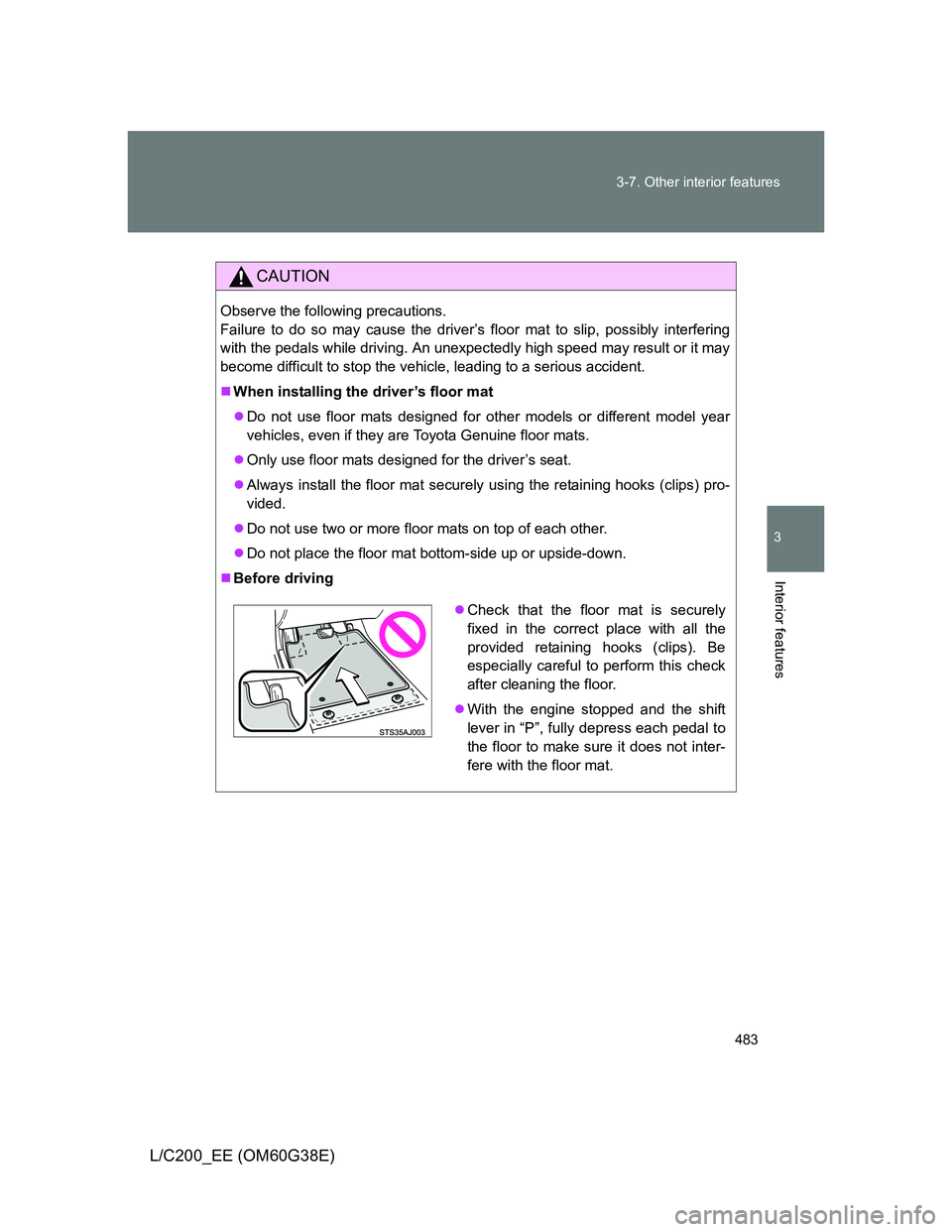
Before driving
Check that the floor mat is securely
fixed in the correct place with all the
provided retaining hooks (clips). Be
especially careful to perform this check
after cleaning the floor.
With the engine stopped and the shift
lever in “P”, fully depress each pedal to
the floor to make sure it does not inter-
fere with the floor mat.
Page 492 of 692
492 4-1. Maintenance and care
L/C200_EE (OM60G38E)
Caring for leather areas
Toyota recommends cleaning the interior of the vehicle at least twice a year
to maintain the quality of the vehicle’s interior.
Shampooing the carpets
There are several commercial foaming-type cleaners available. Use a
sponge or brush to apply the foam. Rub in overlapping circles. Do not apply
water. Excellent results are obtained by keeping the carpet as dry as possi-
ble.
Seat belts
Clean with mild soap and lukewarm water using a cloth or sponge. Also
check the belts periodically for excessive wear, fraying or cuts.
CAUTION
Water in the vehicle
Do not splash or spill liquid in the vehicle.
Doing so may cause electrical components etc. to malfunction or catch
fire.
Do not get any of the SRS components or wiring in the vehicle interior wet.
(P. 139)
Electrical malfunction may cause the airbags to deploy or not function
properly, resulting in death or serious injury.
Cleaning the interior (especially instrument panel)
Do not use polish wax or polish cleaner. The instrument panel may reflect off
the windshield, obstructing the driver’s view and leading to an accident,
resulting in death or serious injury.