2012 NISSAN QASHQAI Repeat
[x] Cancel search: RepeatPage 144 of 297

Downloaded from www.Manualslib.com manuals search engine USB MEMORY OPERATION
(where fitted)
Connecting USB memory
Open the console lid and connect a USB memory
stick as illustrated. The display will show a notifica-
tion message, for a few seconds, that it is reading
the data.
If the audio system has been turned off while the
USB memory was playing, pressing
will start
the USB memory operation.
To operate the USB memory use one of the follow-
ing methods:
Press the
press
Press
lighted, then press
Audio main operation
The following operations are identical to the audio
main operation of the Compact Disc (CD) opera-
tion. For details, see “Compact Disc (CD)
operation” earlier in this section.
List view
Quick search
,
MIX (Random play)
RPT (Repeat track)
Folder browsing
mbuttonj5
While a track with recorded music information tags
(ID3–tags) is being played, the title of the played
track is displayed. If the tags are not provided then
a notification message is displayed.
When the
j5 button is pressed repeatedly,
further information about the track can be displayed
along with the track title as follows:
Track time →Artist name →Album title →Folder
name →Track time
Track details:
A long press on the
j5 button will turn the dis-
play into a detailed overview and after a few sec-
onds it returns to the main display, or press
j5
briefly.
iPod® PLAYER OPERATION
(where fitted)
Connecting iPod®
Open the console lid and connect the iPod cable to
the USB connector. The battery of the iPod® will be
charged during the connection to the vehicle. The
display will show a notification message, for a few
seconds, that it is reading the data.
If the audio system has been turned off while the
iPod® was playing, pressing
will start the iPod®
operation. During the connection, the iPod® can
only be operated with the audio controls.
* iPod® and iPhone® are trademarks of Apple Inc., registered in the U.S. and other countries.
Compatibility:
The following compatible models are:
iPhone 3GS® (firmware version 3.1.2 or later)
NAA1213NAA1212
Display screen, heater and air conditioner, and audio system4-37
Page 145 of 297
Downloaded from www.Manualslib.com manuals search engine First generation:
iPod nano® (firmware version 1.3.1 or later)
iPod touch® (firmware version 2.2.1 or later)
iPhone® (firmware version 2.2.1 or later)
Second generation:
iPod touch® (firmware version 3.1.2 or later)
iPod nano® (firmware version 1.1.3 or later)
iPhone 3G® (firmware version 3.1.3 or later)
Third generation
iPod touch® (firmware version 3.1.3 or later)
iPod nano® (firmware version 1.1.3 PC or later)
Fourth generation: iPod Classic® (firmware ver-
sion 3.1.1 or later)
Fifth generation:
iPod Nano® (firmware version 1.0.2 PC or later)
iPod Video® (firmware version 1.3 or later)
Sixth generation:
iPod Classic® 80GB (firmware version 1.1.2PC
or later)
iPod Classic® 120GB (firmware version 1.1.2
or later)
iPod Classic® 160GB (firmware version 2.0.4
PC or later)
NOTE
At the time of publication, this audio system
was tested with the latest iPod® players/iP-
hone® available. Due to the frequent update
of consumer devices like MP3 players,
NISSAN cannot guarantee that all new iPod®
players/iPhone® launched will be compatible
with this audio system.
Some iPod® operations may not be available
with this system.
Make sure that the iPods®/iPhones® is up-
dated with the latest firmware.
iPod® Shuffle and iPod® mini cannot be used
with this system.
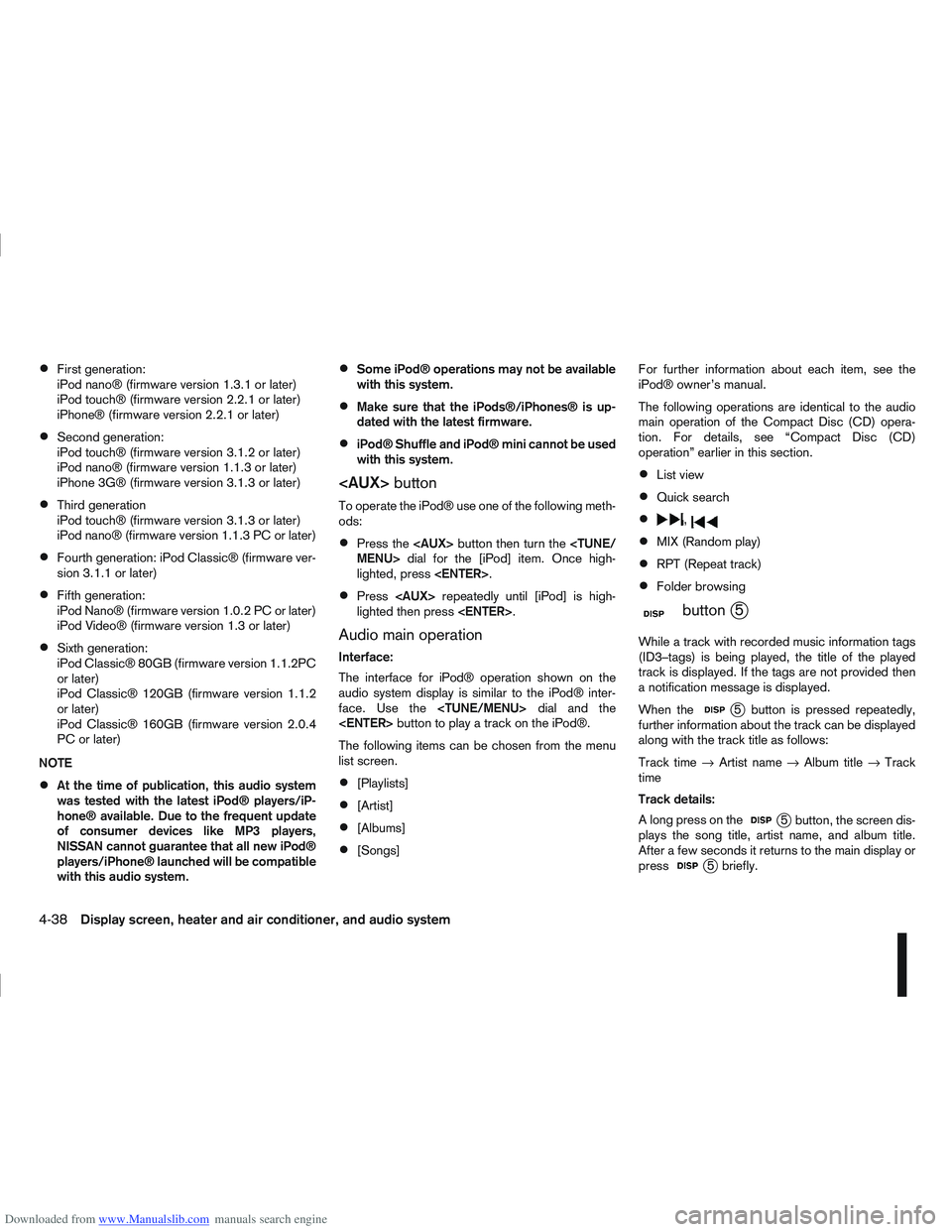
To operate the iPod® use one of the following meth-
ods:
Press the
lighted, press
Press
lighted then press
Audio main operation
Interface:
The interface for iPod® operation shown on the
audio system display is similar to the iPod® inter-
face. Use the
The following items can be chosen from the menu
list screen.
[Playlists]
[Artist]
[Albums]
[Songs] For further information about each item, see the
iPod® owner’s manual.
The following operations are identical to the audio
main operation of the Compact Disc (CD) opera-
tion. For details, see “Compact Disc (CD)
operation” earlier in this section.
List view
Quick search
,
MIX (Random play)
RPT (Repeat track)
Folder browsing
mbuttonj5
While a track with recorded music information tags
(ID3–tags) is being played, the title of the played
track is displayed. If the tags are not provided then
a notification message is displayed.
When the
j5 button is pressed repeatedly,
further information about the track can be displayed
along with the track title as follows:
Track time →Artist name →Album title →Track
time
Track details:
A long press on the
j5 button, the screen dis-
plays the song title, artist name, and album title.
After a few seconds it returns to the main display or
press
j5 briefly.
4-38Display screen, heater and air conditioner, and audio system
Page 148 of 297
Downloaded from www.Manualslib.com manuals search engine
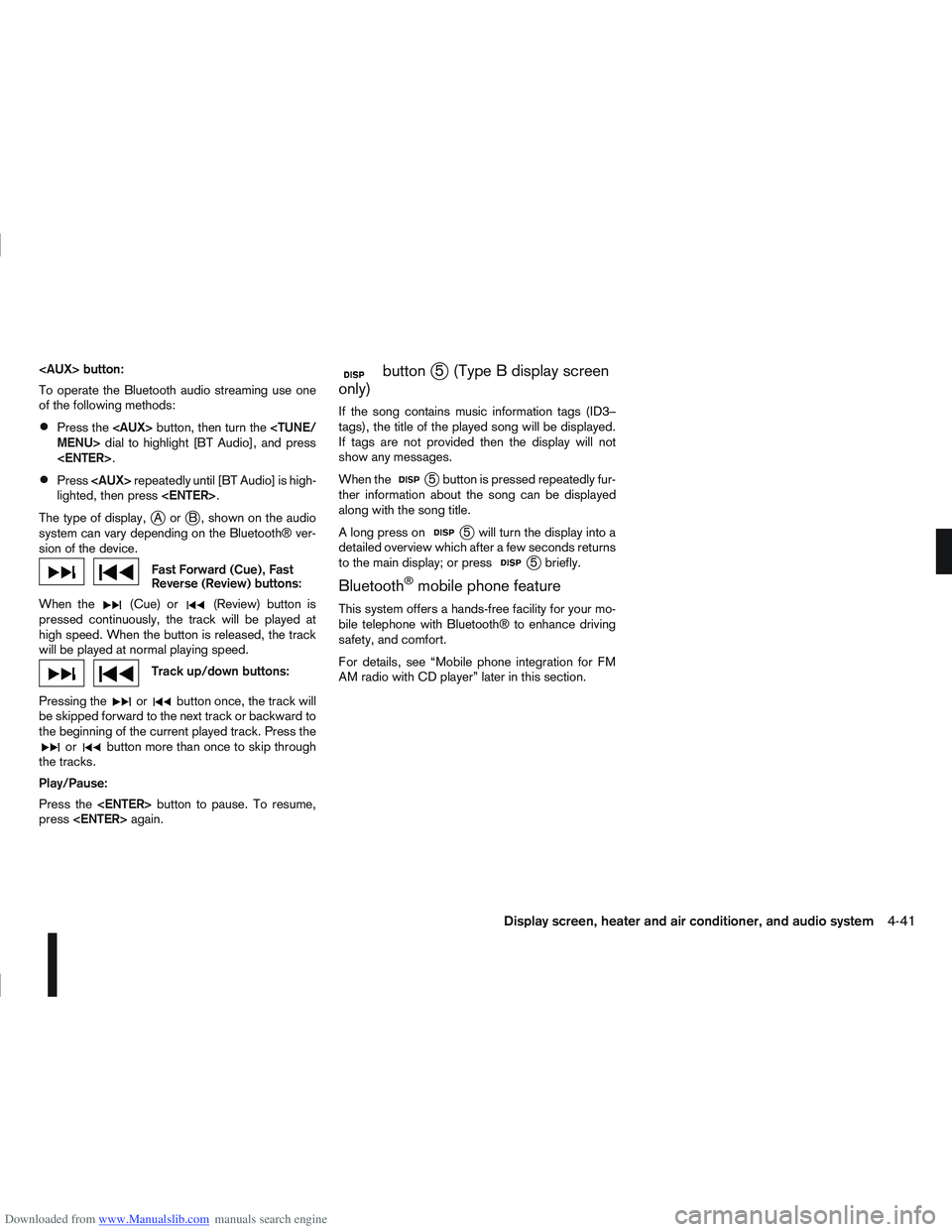
To operate the Bluetooth audio streaming use one
of the following methods:
Press the
Press
lighted, then press
The type of display,
jAorjB , shown on the audio
system can vary depending on the Bluetooth® ver-
sion of the device.
Fast Forward (Cue), Fast
Reverse (Review) buttons:
When the
(Cue) or(Review) button is
pressed continuously, the track will be played at
high speed. When the button is released, the track
will be played at normal playing speed.
Track up/down buttons:
Pressing the
orbutton once, the track will
be skipped forward to the next track or backward to
the beginning of the current played track. Press the
orbutton more than once to skip through
the tracks.
Play/Pause:
Press the
press
mbuttonj5 (Type B display screen
only)
If the song contains music information tags (ID3–
tags), the title of the played song will be displayed.
If tags are not provided then the display will not
show any messages.
When the
j5 button is pressed repeatedly fur-
ther information about the song can be displayed
along with the song title.
A long press on
j5 will turn the display into a
detailed overview which after a few seconds returns
to the main display; or press
j5 briefly.
Bluetooth®mobile phone feature
This system offers a hands-free facility for your mo-
bile telephone with Bluetooth® to enhance driving
safety, and comfort.
For details, see “Mobile phone integration for FM
AM radio with CD player” later in this section.
Display screen, heater and air conditioner, and audio system4-41
Page 151 of 297
Downloaded from www.Manualslib.com manuals search engine in this section or “Mobile phone integration for FM
AM radio with CD player” later in this section.
SOURCE button
Repeatedly press the SOURCE button to select a
source.
mVolume control buttons
Press the + or — button to adjust the volume.When installing large capacity wireless equipment
or a car phone in your NISSAN, be sure to observe
the following as it may adversely affect the Engine
control system and other electronic parts depend-
ing on its installation location.
CAUTION
Keep the antenna as far as possible away from
the Electric Control Module.
Also keep the antenna wire more than 20 cm
(8 inches) away from the Electro Injection har-
ness. Do not route the antenna wire next to
any harness.
Adjust the antenna standing-wave ratio as rec-
ommended by the manufacturer.
Connect the ground wire from the radio chas-
sis to the body.
NOTE
For further information, visit the NISSAN web site:
www.nissan-europe.com. Select your country
from the list and go to the “SERVICES” menu. If
not available on the web site, contact a NISSAN
dealer or qualified workshop.
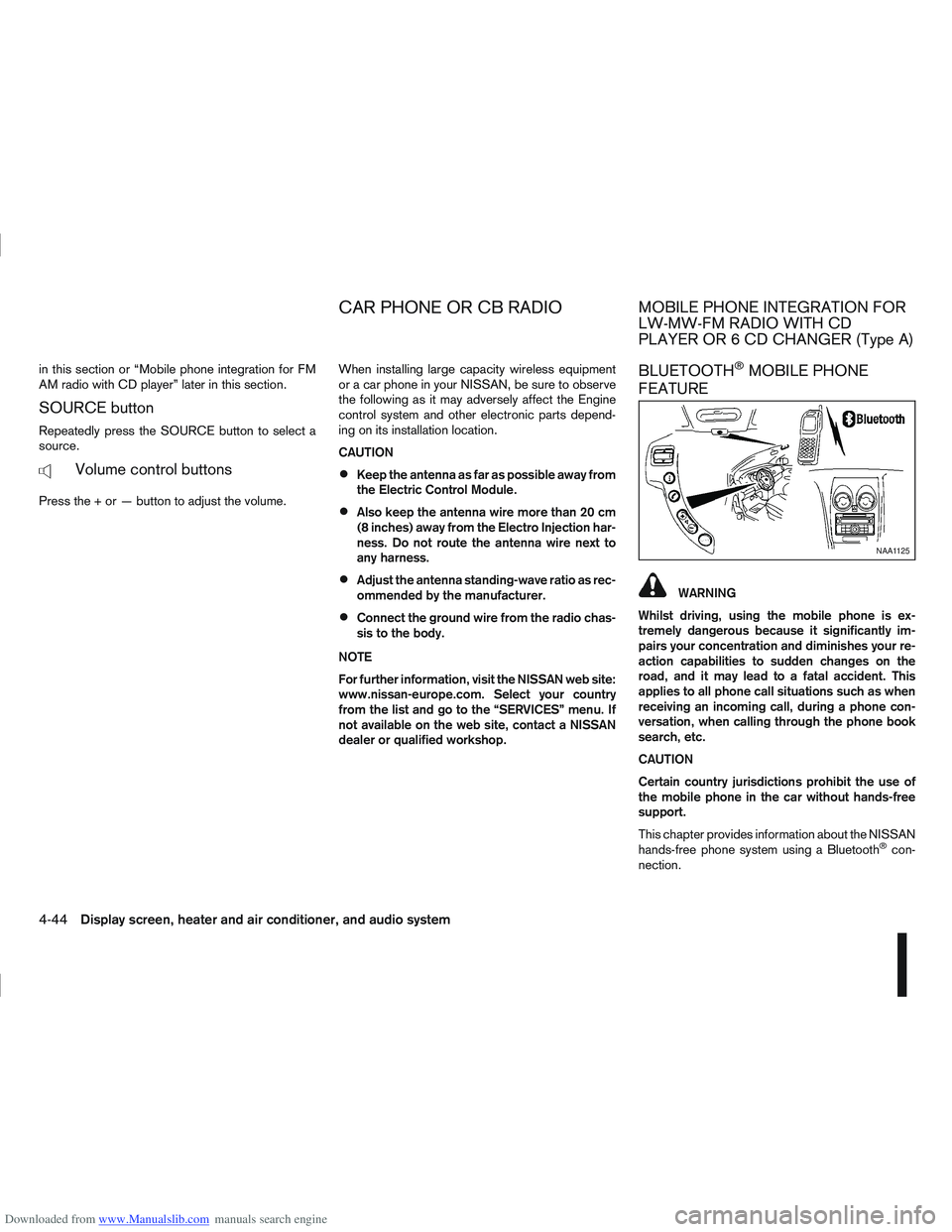
BLUETOOTH®MOBILE PHONE
FEATURE
WARNING
Whilst driving, using the mobile phone is ex-
tremely dangerous because it significantly im-
pairs your concentration and diminishes your re-
action capabilities to sudden changes on the
road, and it may lead to a fatal accident. This
applies to all phone call situations such as when
receiving an incoming call, during a phone con-
versation, when calling through the phone book
search, etc.
CAUTION
Certain country jurisdictions prohibit the use of
the mobile phone in the car without hands-free
support.
This chapter provides information about the NISSAN
hands-free phone system using a Bluetooth
®con-
nection.
NAA1125
CAR PHONE OR CB RADIOMOBILE PHONE INTEGRATION FOR
LW-MW-FM RADIO WITH CD
PLAYER OR 6 CD CHANGER (Type A)
4-44Display screen, heater and air conditioner, and audio system
Page 153 of 297
![NISSAN QASHQAI 2012 Owners Manual Downloaded from www.Manualslib.com manuals search engine your mobile phone then press the confirmation
button on your mobile phone.
ActionScreen display
Press briefly <MENU>
button
↓ [PHONE SETUP]
P](/manual-img/5/56764/w960_56764-152.png "NISSAN QASHQAI 2012 Owners Manual Downloaded from www.Manualslib.com manuals search engine your mobile phone then press the confirmation
button on your mobile phone.
ActionScreen display
Press briefly <MENU>
button
↓ [PHONE SETUP]
P")
Downloaded from www.Manualslib.com manuals search engine your mobile phone then press the confirmation
button on your mobile phone.
ActionScreen display
Press briefly
Page 154 of 297
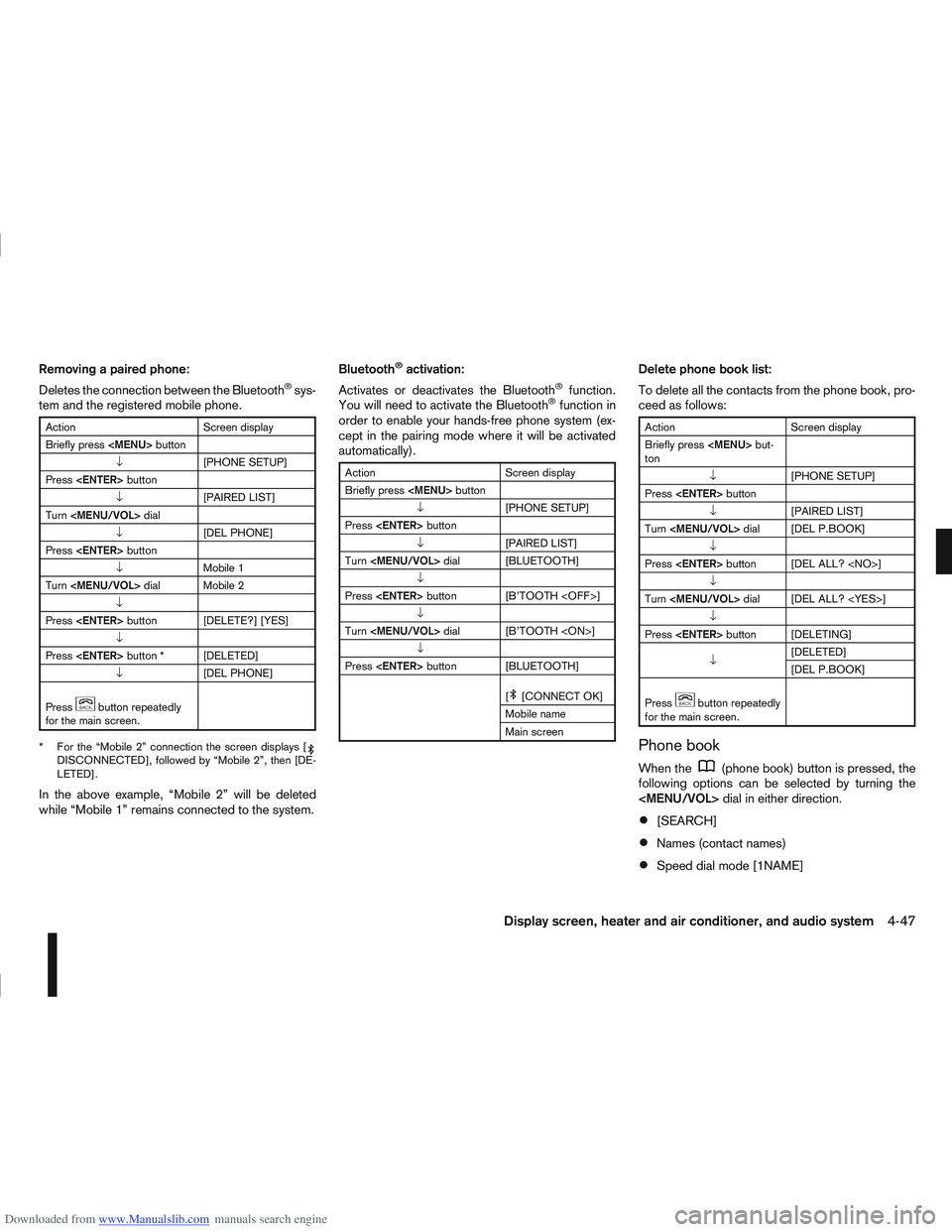
Downloaded from www.Manualslib.com manuals search engine Removing a paired phone:
Deletes the connection between the Bluetooth®sys-
tem and the registered mobile phone.
Action Screen display
Briefly press
Page 156 of 297
![NISSAN QASHQAI 2012 Owners Manual Downloaded from www.Manualslib.com manuals search engine ActionScreen display
Briefly press
mbutton
↓ [SEARCH]
Turn <MENU/VOL> dial
[
mADD NAME]
↓
Press <ENTER> button [SEND NAME]
↓ *1 *2 [JOE]](/manual-img/5/56764/w960_56764-155.png "NISSAN QASHQAI 2012 Owners Manual Downloaded from www.Manualslib.com manuals search engine ActionScreen display
Briefly press
mbutton
↓ [SEARCH]
Turn <MENU/VOL> dial
[
mADD NAME]
↓
Press <ENTER> button [SEND NAME]
↓ *1 *2 [JOE]")
Downloaded from www.Manualslib.com manuals search engine ActionScreen display
Briefly press
mbutton
↓ [SEARCH]
Turn
Page 161 of 297
![NISSAN QASHQAI 2012 Owners Manual Downloaded from www.Manualslib.com manuals search engine 2. Turn the<TUNE/MENU> dial and scroll down to
[Phone Book] then press <ENTER>.
3. Scroll down through the list, select the appropri- ate conta](/manual-img/5/56764/w960_56764-160.png "NISSAN QASHQAI 2012 Owners Manual Downloaded from www.Manualslib.com manuals search engine 2. Turn the<TUNE/MENU> dial and scroll down to
[Phone Book] then press <ENTER>.
3. Scroll down through the list, select the appropri- ate conta")
Downloaded from www.Manualslib.com manuals search engine 2. Turn the
[Phone Book] then press
3. Scroll down through the list, select the appropri- ate contact name (highlighted), and press
4. A following screen will show the number to be dialled. If correct, press
the number.
If the contact has more numbers assigned for
(home),(mobile), or(office), scroll,
and select the appropriate number to dial.
Alternatively, the quick search mode can be used as
follows:
1. Press
2. Turn the
betic or numerical letter of the contact name.
Once highlighted, press
letter.
3. The display will show the corresponding contact name(s). Where necessary, use the
priate contact name to call.
4. A following screen will show the number to be dialled. If correct, press
the number. Manually dialling a phone number:
WARNING
Park the vehicle in a safe location, and apply the
handbrake before making a call.
To dial a phone number manually use the audio sys-
tem display (virtual keyboard pad) as follows:
1. Press <
>, and turn the
highlight [Call Number].
2. Press
3. Turn the
select each number of the phone number. Once
highlighted, press
selection.
To delete the last number entered scroll to the
[←] (Backspace) symbol, and once highlighted
press
leted. Pressing
each subsequent number. 4. After entering the last number, scroll to the [
]
symbol, and press
dial the number.
Call Lists:
A number from the dialled, received, or missed call
lists can also be used to make a call.
Dialled call
Use the dialled call mode to make a call which is
based on the list of outgoing (dialled) calls.
Received call
Use the received call mode to make a call which
is based on the list of received calls.
Missed call
Use the missed call mode to make a call which
is based on the list of missed calls.
1. Press <
>, and select [Call Lists].
2. Turn the
and press
3. Scroll to the preferred phone number then press
>to dial the number.
NAA1198
4-54Display screen, heater and air conditioner, and audio system